Если вы сидите на диете, то прекрасно знаете, каких усилий порой стоит не «сорваться». У меня лично есть два проверенных рецепта: во-первых, не держать в доме вредностей, во-вторых, не лениться готовить и собирать с собой на работу лотки с здоровым и вкусным обедом и парой перекусов. Так соблазн купить и съесть какую-нибудь гадость стремится к нулю.
Посиделки с подружками и романтические ужины в ресторане я безболезненно временно отменяю и переношу на более подходящее время. Но вот «культурную программу» с семейством в виде вылазок на мероприятия и поездки по торговым центрам не отложить и на попозже не перенести. А там детишки и вредитель-муж непременно заходят пообедать в фаст-фуде мегаколорийными гамбургерами или жирным куском пиццы. Что делать бедной «голодающей», которая мужественно сражается с лишними калориями и килограммами и готова вот-вот поддаться на уговоры? Читать →
Ни для кого не секрет, что в суставах у человека могут накапливаться шлаки. Именно это и приводит к остеохондрозу, инфекционным полиартритам и подагрическим образованиям.
Основываясь на многолетней практике можно утверждать, что одной очистки недостаточно для эффективной борьбы со шлаками. Кроме нее следует выполнять ряд других процедур. Читать →
VPN (Virtual Private Network) is a technology that provides a secure tunnel across a public network. A private network user can send and receive data to any remote private network using VPN Tunnel as if his/her network device was directly connected to that private network.
MikroTik provides EoIP (Ethernet over IP) that is used to create a site to site VPN tunnel. EoIP tunneling is a MikroTik RouterOS protocol that creates an Ethernet tunnel between two MikroTik Routers on top of an IP connection. So, EoIP Tunnel can be used to communicate with remote LANs across public network using static routing configuration. EoIP Tunnel can also be used to bridge LANs over the Internet that means LAN IP can be assigned to a remote area network using EOIP Tunnel.
The goal of this article is to design an EoIP VPN tunnel that will be used to bridge LANs over the internet. So, in this article I will show how to create an EoIP VPN tunnel between two MikroTik Routers and how to use this VPN tunnel to bridge LANs for keeping in the same layer2 broadcast domain over the internet.
Network Diagram
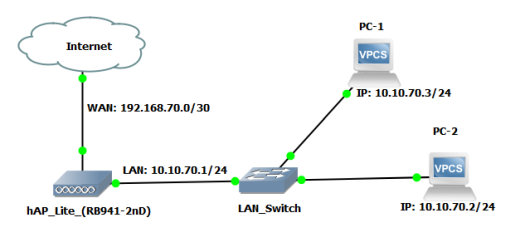
To configure a site to site EoIP VPN Tunnel that will bridge LANs over the internet, I am following a network diagram like below image.
EoIP VPN for LAN Bridging
In this network, Head Office Router is connected to internet through ether1 interface having IP address 192.168.70.2/30. In your real network this IP address will be replaced with public IP address provided by your ISP. Head Office Router’s ether2 interface is connected to local network. After EoIP tunnel configuration, an EoIP tunnel interface will be created in Head Office Router. We will create a bridge interface where we will enable a DHCP server whose network will be 10.10.11.0/24 and we will add ether2 interface and EoIP tunnel interface into this bridge network so that Head Office LAN and Branch Office LAN can keep at the same broadcast domain and DHCP server can be accessible from the both LANs.
Similarly, Branch Office Router is connected to internet through ether1 interface having IP address 192.168.80.2/30. In your real network this IP address will also be replaced with public IP address. Branch Office Router’s ether2 interface is connected to local network. After EoIP tunnel configuration, an EoIP tunnel interface will also be created in Branch Office Router. We will create a bridge interface and add ether2 interface and EoIP tunnel interface into this bridge network so that Head Office LAN and Branch Office LAN can keep at the same broadcast domain and DHCP server can be accessible from Branch Office LAN.
EoIP Tunnel Configuration for Bridging LANs over the Internet
We will now start our EoIP Tunnel configuration that will bridge our Head Office LAN and Branch Office LAN. Complete EoIP Tunnel configuration according to above network diagram can be divided into two parts.
Head Office Router configuration for EoIP Tunnel
Branch Office Router configuration for EoIP Tunnel
Part 1: Head Office Router Configuration for EoIP Tunnel
Head Office Router is our core router where DHCP Server will be enabled and Branch Office Router will access this DHCP Server across EoIP Tunnel. Head Office Router configuration for EoIP tunnel can be completed within the following four steps.
RouterOS basic configuration
EoIP Tunnel configuration
Bridge Configuration
DHCP server configuration
Step 1: Head Office RouterOS Basic Configuration
Basic RouterOS configuration includes assigning WAN IP, DNS IP and Route, NAT configuration. The following steps will guide you how to perform basic configuration in Head Office RouterOS.
Login to Head Office RouterOS using winbox and go to IP > Addresses. In Address List window, click on PLUS SIGN (+). In New Address window, put WAN IP address (192.168.70.2/30) in Address input field and choose WAN interface (ether1) from Interface dropdown menu and click on Apply and OK button.
Go to IP > DNS and put DNS servers IP (8.8.8.8 or 8.8.4.4) in Servers input field and click on Apply and OK button.
Go to IP > Firewall and click on NAT tab and then click on PLUS SIGN (+). Under General tab, choose srcnat from Chain dropdown menu and click on Action tab and then choose masquerade from Action dropdown menu. Click on Apply and OK button.
Go to IP > Routes and click on PLUS SIGN (+). In New Route window, click on Gateway input field and put WAN Gateway address (192.168.70.1) in Gateway input field and click on Apply and OK button.
Basic RouterOS configuration has been completed in Head Office Router. Now we will configure EoIP Tunnel in Head Office Router.
Step 2: EoIP Tunnel Configuration in Head Office Router
The following steps will show how to configure EoIP tunnel in your Head Office Router.
Click on Interfaces menu item from Winbox and click on EoIP Tunnel tab and then click on PLUS SIGN (+). New Interface window will appear.
Put a meaningful EoIP tunnel interface name (eoip-tunnel-r1) in Name input field.
Put Head Office Router’s WAN IP address (192.168.70.2) in Local Address input field.
Put Branch Office Router’s WAN IP address (192.168.80.2) in Remote Address input field.
Put a unique ID (for example: 10) in Tunnel ID input field. This ID must be same in both routers.
Click Apply and OK button.
You will find a new EoIP tunnel interface followed by your given name (eoip-tunnel-r1) has been created in Interface List window.
EoIP tunnel configuration in Head Office Router has been completed. Now we will configure bridge in Head Office Router.
Step 3: Bridge Configuration in Head Office Router
By default every interface of MikroTik Router keeps separate broadcast domain that means every port is layer3 port. But we want to keep EoIP tunnel interface and LAN interface at the same broadcast domain. So, we have to turn layer3 port to layer2 port. MikroTik Bridging feature helps to turn layer3 port as layer2 port logically. The following steps will guide you how to configure MikroTik Bridge to keep EoIP tunnel interface and LAN interface at the same broadcast domain.
Click on Bridge menu item from left menu bar. Bridge window will appear now.
Click on Bridge tab and then click on PLUS SIGN (+). New Interface window will appear.
Put your bridge interface name (example: LAN-bridge) as you wish in the Name input field.
Click Apply and OK button.
Now click on Ports tab and then click on PLUS SIGN (+). New Bridge Port window will appear.
Choose EoIP tunnel interface (eoip-tunnel-r1) from Interface dropdown menu.
Choose your Bridge interface (LAN-bridge) that you created before from Bridge dropdown menu.
Click Apply and OK button.
Similarly, click on PLUS SIGN (+) again and choose LAN interface (ether2) from Interface dropdown menu.
Choose your Bridge interface (LAN-bridge) from Bridge dropdown menu.
Click Apply and OK button.
Bridge configuration has been completed. As EoIP Tunnel interface and ether2 interface are layer2 port now, we cannot assign IP in these ports. But Bridge interface is now layer3 port. So, we will assign our LAN IP on this bridge interface.
Go to IP > Addresses. In Address List window, click on PLUS SIGN (+). In New Address window, put LAN IP address (10.10.11.1/24) in Address input field and choose Bridge interface (LAN-bridge) from Interface dropdown menu and click on Apply and OK button.
Bridge configuration in Head Office Router has been completed. Now we will configure DHCP Server so that LAN workstations get IP address dynamically.
Step 4: DHCP Server Configuration in Head Office Router
In Head Office Router, we will configure DHCP Server so that Head Office LAN workstations as well as Branch Office LAN workstations get IP address dynamically from this DHCP Server. The following steps will show you how to configure DHCP Server in MikroTik RouterOS.
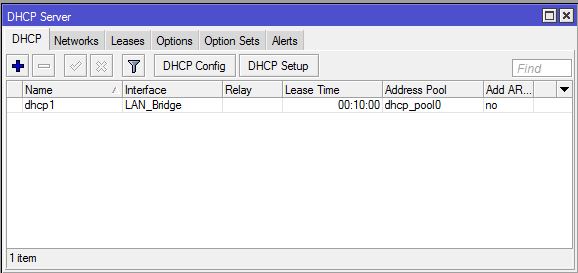
Go to IP > DHCP Servermenu from Winbox. DHCP Server window will appear.
InDHCP Server window, click on DHCP Setup button and choose the interface (in this article: LAN-bridge) on which you want to setup DHCP server from DHCP Server Interface drop-down menu and then click on Next
Now put your LAN network block (10.10.11.0/24) in DHCP Address Space input box and click Next DHCP client/LAN user will get IP from this network.
Choose gateway address (10.10.11.1) for the given network in Gateway for DHCP Networkinput box and then click Next
Provide IP range from which your DHCP client/LAN user will get IP in Address to Give Outinput box and click Next
Provide preferred DNS server IP and click Next
Now provide IP lease time and click Next Default lease time is 3 days.
DHCP setup will be completed now and a successful message will be shown.
Now connect any IP device (Desktop, Laptop, Smartphone etc.) to your network. Automatically an IP will be allocated for that device from your MikroTik DHCP server. Click Leases tab and observe IP lease status of that DHCP client.
DHCP Server configuration in Head Office Router has been completed. We will now configure Branch Office Router so that Branch Office LAN workstation can get IP from this DHCP Server.
Part 2: Branch Office Router configuration for EoIP Tunnel
Branch Office Router will be used to create just EoIP Tunnel. There is no extra configuration without EoIP Tunnel related configuration. Complete EoIP Tunnel configuration in Branch Office Router can be divided into three steps.
Basic RouterOS Configuration
EoIP Tunnel Configuration
Bridge Configuration
Step 1: Branch Office Router Basic Configuration
Basic RouterOS configuration includes assigning WAN IP, LAN, DNS IP and Route, NAT configuration. But in Branch Office Router we will only assign WAN IP and Gateway IP. The following steps will show how to assign WAN IP and Gateway IP in Branch Office Router.
Login to Branch Office RouterOS using winbox and go to IP > Addresses. In Address List window, click on PLUS SIGN (+). In New Address window, put WAN IP address (192.168.80.2/30) in Address input field and choose WAN interface (ether1) from Interface dropdown menu and click on Apply and OK button.
Go to IP > Routes and click on PLUS SIGN (+). In New Route window, click on Gateway input field and put WAN Gateway address (192.168.80.1) in Gateway input field and click on Apply and OK button.
Basic RouterOS configuration in Branch Office Router has been completed. Now we configure EoIP Tunnel in Branch Office Router.
Step 2: EoIP Tunnel Configuration in Branch Office Router
The following steps will show how to configure EoIP tunnel in your Branch Office Router.
Click on Interfaces menu item from Winbox and click on EoIP Tunnel tab and then click on PLUS SIGN (+). New Interface window will appear.
Put a meaningful EoIP tunnel interface name (eoip-tunnel-r2) in Name input field.
Put Branch Office Router’s WAN IP address (192.168.80.2) in Local Address input field.
Put Head Office Router’s WAN IP address (192.168.70.2) in Remote Address input field.
Put same unique ID (in this article: 10) that you provide in Head Office Router in Tunnel ID input field.
Click Apply and OK button. You will find a new EoIP tunnel interface followed by your given name (eoip-tunnel-r2) has been created in Interface List window.
EoIP tunnel configuration in Branch Office Router has been completed. Now we will configure bridge in Branch Office Router so that LAN Interface and EoIP Tunnel Interface keep at the same broadcast domain.
Step 3: Bridge Configuration in Branch Office Router
The following steps will guide you how to configure MikroTik Bridge to keep EoIP tunnel interface and LAN interface at the same broadcast domain.
Click on Bridge menu item from left menu bar. Bridge window will appear now.
Click on Bridge tab and then click on PLUS SIGN (+). New Interface window will appear.
Put your bridge interface name (example: LAN-bridge) as you wish in the Name input field.
Click Apply and OK button.
Now click on Ports tab and then click on PLUS SIGN (+). New Bridge Port window will appear.
Choose EoIP tunnel interface (eoip-tunnel-r2) from Interface dropdown menu.
Choose your Bridge interface (LAN-bridge) that you created before from Bridge dropdown menu.
Click Apply and OK button.
Similarly, click on PLUS SIGN (+) again and choose LAN interface (ether2) from Interface dropdown menu.
Choose your Bridge interface (LAN-bridge) from Bridge dropdown menu.
Click Apply and OK button.
Bridge configuration in Branch Office Router has been completed. Now Branch Office Network and Head Office Network are in the same broadcast domain over the internet and both Office network will be capable to get IP address from Head Office DHCP Server.
Connect any workstation from Branch Office Router and if everything is OK, the workstation will get an IP address dynamically from DHCP Server and will be capable to access any workstation or server of Head Office Network.
MikroTik EoIP Tunnel Configuration for Bridging LANs over the Internet has been explained step by step in this article. I hope will now be able to configure EoIP Tunnel for bridging LAN over the Internet. However, if you face any problem to configure EoIP Tunnel, feel free to discuss in comment or contact with me from Contact page. I will try my best stay with you.
Kerio Control обладает интересной функцией удаленного контроля ЛВС через привязку к сайту Kerio. Зарегистрировавшись на сайте my.kerio.com можно подключаться к фаерволу из любого места, где есть интернет и с различных устройств. Рассмотрим как выполнить привязку.
Заходим через поисковик браузера на сайт my.kerio.com.
Заходить при регистрации нужно с ПК, который находится в локальной сети под контролем Kerio.
На странице авторизации выбираем зарегистрироваться – Register.
Заполняем учетные данные. Вводим e-mail, имя пользователя и пароль два раза. Пароль должен содержать буквы разного регистра и цифры. Нажимаем Register.
Попав в панель управления, видим сообщение, что нужно подтвердить e-mail, указанный при регистрации – подтверждаем на своей почте.
Далее нажимаем на кнопку – ADD NEW APPLIANCE – добавить новую систему.
Откроется вкладка, на которой сказано, что для добавления нашего Керио нужно зайти в его панель управления и настроить подключение.
Не закрываем эту вкладку, а в соседней вводим IP адрес, по которому расположен Kerio Control в локальной сети.
Вводим https://192.168.1.1:4081/admin
Браузер предупредит о небезопасном подключении. Выбираем – Перейти на сайт 192.168.1.1 (небезопасно).
Вводим логин и пароль от администраторской учетной записи.
Выбираем вкладку меню «Удаленные службы». Отмечаем галочку «Включить связь с MyKerio» и немного ниже нажимаем на ссылку «добавить Kerio Control».
После нажатия на ссылку откроется новая вкладка, в которой нужно указать понятное самому себе названия для сервера Керио, чтоб в случае если их несколько можно было разобраться.
Нажимаем ADD и видим, что Керио появился в списке систем.
Выбираем нашу систему, нажав на её название и видим, что открывается почти точно такая же панель управления, как и при доступе через локальную сеть.
В веб версии нет последнего пункта главного мену – статистика.
Удаление из MyKerio происходит по нажатии соответствующей кнопки.
Оповещение не электронную почту.
Рассмотрим еще несколько полезных функций. Для оперативного оповещения о происходящих событиях можно настроить отправку уведомлений на e-mail. Для этого на вкладке «Учет и контроль» добавляем в разделе «Параметры оповещения» свою электронную почту.
Так же добавляем условие из списка, при котором будет отправляться сообщение.
Причиной оповещения можно выбрать различные события, например обнаружен вирус или кто-то из пользователей ЛВС пытается зайти в социальную сеть, запрещенную правилом, или кто-то пытается скачать торрент и тп.
Оповещение – это очень удобная функция, позволяющая администраторам быстро реагировать на возникающие проблемы.
Хочу с вами поделиться классическим рецептом оладий с творогом от моей бабушки. Для меня в детстве это был лучший завтрак. Признаюсь, я и сейчас люблю иногда вспоминать детство и готовить их для себя.
Описание приготовления:
Этот простой рецепт оладий с творогом — один из моих любимцев. Такие оладьи получаются пышными и нежными. Кроме того, они держат форму и не разваливаются на сковороде в процессе жарки. Читать →
Цена на криптовалюта имеет склонность меняться в зависимости от множества факторов. Как анализировать движение цены и как по истории изменении цены определить будущие отметки стоимости?
Это вообще верный путь в прогнозировании стоимости крипты?