MikroTik CAPsMAN is an excellent application for managing multiple CAPs (Controlled Access Point) in a Wireless Network. But multiple APs create frequency overlapping issue if channels are not configured properly. Channel overlapping is required for smooth connection while roaming but there should not be frequency overlapping because frequency overlapping makes wireless performance so poor. In my previous article, I discussed MikroTik CAPsMAN basic configuration with default channel configuration. In this article, I will discuss how to configure CAPsMAN channel to avoid frequency overlapping.
Архив метки: Mikrotik
MikroTik CAPsMAN and CAP Basic Configuration using Winbox
MikroTik CAPsMAN (Controlled Access Point system Manager) is a centralized Access Point management application provided by MikroTik. MikroTik introduces CAPsMAN from RouterOS v6.11 with CAPsMAN v1 and from RouterOS v6.22rc7 CAPsMAN v2 is running. If you have multiple MikroTik CAPs (Controlled Access Point) in your organization, CAPsMAN provides an easy way to maintain client data as well as CAPs configuration centrally. In my previous article, I discussed how to configure MikroTik Wireless Router as an Access Point. In this article, I will discuss how to do configure MikroTik CAPsMAN basic configuration with a Controlled Access Point (CAP). Читать
MikroTik WiFi Frequency Band and Channel Width Explanation
MikroTik WiFi frequency, band and channel width tuning is an important task in any wireless network. If we fail to setup WiFi frequency and channel width parameter properly, we will notice a poor performance of wireless network. WiFi is aimed at use within unlicensed spectrum and the unlicensed spectrum that is usually used for WiFi is 2.4 GHz and 5 GHz band. 2.4 GHz and 5 GHz bands have multiple channels and these channels must be setup properly to get high wireless performance. In my previous article I discussed how to setup MikroTik Wireless Router as a WiFi AP and in this article I will discuss how to setup frequency, band and channel width to get high wireless performance.
IEEE 802.11 Standards and Frequency Band
IEEE 802.11 specifies protocols for implementing Wireless Local Area Network (WLAN) WiFi computer communication in various frequencies including 2.4 GHz and 5 GHz band. IEEE 802.11 has several different variants those use different frequency band. The following table is a summarization of bands used by 802.11 systems.
| IEEE 802.11 VARIANT | FREQUENCY BANDS USED |
| 802.11a | 5GHz |
| 802.11b | 2.4GHz |
| 802.11g | 2.4GHz |
| 802.11n | 2.4 & 5 GHz |
| 802.11ac | Below 6GHz |
| 802.11ad | Up to 60 GHz |
| 802.11af | TV white space (below 1 GHz) |
| 802.11ah | 700 MHz, 860MHz, 902 MHz, etc. |
2.4 GHz Frequency Band
The lower and upper frequency of 2.4 GHz band is 2400 MHz and the upper frequency is 2500 MHz. There are fourteen channels in this frequency spectrum. The 802.11 Wi-Fi standards specify a bandwidth of 22 MHz for each channel but often nominal figures of 20 MHz is given for the Wi-Fi channels and channels are on a 5 MHz incremental. The 20 / 22 MHz bandwidth and channel separation of 5 MHz means that adjacent channels overlap and signals on adjacent channels will interfere with each other.
The following table is summarizing the channel number of 2.4 GHz band and the lower, middle and upper frequency of each channel number.
| CHANNEL NUMBER | LOWER FREQUENCY MHZ | CENTER FREQUENCY MHZ | UPPER FREQUENCY MHZ |
| 1 | 2401 | 2412 | 2423 |
| 2 | 2406 | 2417 | 2428 |
| 3 | 2411 | 2422 | 2433 |
| 4 | 2416 | 2427 | 2438 |
| 5 | 2421 | 2432 | 2443 |
| 6 | 2426 | 2437 | 2448 |
| 7 | 2431 | 2442 | 2453 |
| 8 | 2436 | 2447 | 2458 |
| 9 | 2441 | 2452 | 2463 |
| 10 | 2446 | 2457 | 2468 |
| 11 | 2451 | 2462 | 2473 |
| 12 | 2456 | 2467 | 2478 |
| 13 | 2461 | 2472 | 2483 |
| 14 | 2473 | 2484 | 2495 |
Although fourteen channels are available of 2.4 GHz band, all channels are not usable all countries. The following table provides a broad indication of the availability of the different WiFi channels in different parts of the world.
| CHANNEL NUMBER | EUROPE (ETSI) | NORTH AMERICA (FCC) | JAPAN |
| 1 | ✔ | ✔ | ✔ |
| 2 | ✔ | ✔ | ✔ |
| 3 | ✔ | ✔ | ✔ |
| 4 | ✔ | ✔ | ✔ |
| 5 | ✔ | ✔ | ✔ |
| 6 | ✔ | ✔ | ✔ |
| 7 | ✔ | ✔ | ✔ |
| 8 | ✔ | ✔ | ✔ |
| 9 | ✔ | ✔ | ✔ |
| 10 | ✔ | ✔ | ✔ |
| 11 | ✔ | ✔ | ✔ |
| 12 | ✔ | No | ✔ |
| 13 | ✔ | No | ✔ |
| 14 | No | No | 802.11b only |
This chart is only provides a general view, and there may be variations between different countries. So, it is always better to check the available channels in your country before implementing 2.4 GHz frequency band.
Non Overlapping Channels in 2.4 GHz Band
Channel overlapping between two adjacent WiFi AP devices cause frequency interference. So, performance of wireless network will be so poor in overlapping channel. As one WiFi client device can communicate to a WiFi AP at a time using a channel width, the overlapped WiFi AP must wait until the channel being clear. As a result the WiFi performance gets slow.
The channels used for 2.4 GHz band are separated by 5 MHz but each channel has 22 MHz bandwidth. So, channels are usually overlapped. If we look in the above frequency chart, it can be seen that maximum three non-overlapping channel can be found in 2.4 GHz band. There can be five non overlapping channel combinations those are shown in the following diagram.
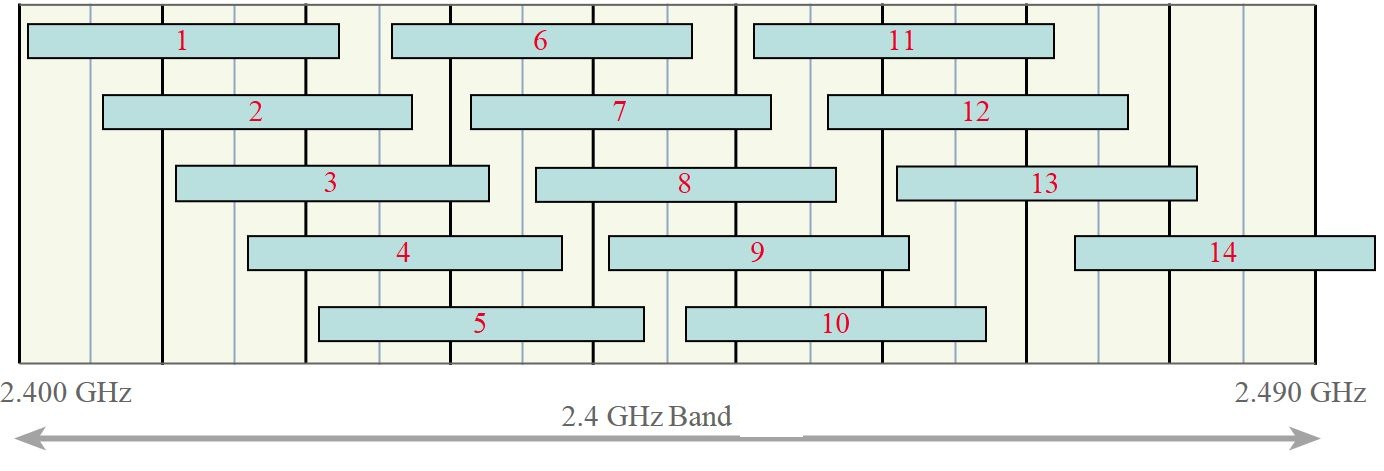
From the diagram, it can be seen that Wi-Fi channels 1, 6, 11, or 2, 7, 12, or 3, 8, 13 or 4, 9, 14 (if allowed) or 5, 10 (and possibly 14 if allowed) can be used together as sets. Often WiFi routers are set to channel 6 as the default, and therefore the set of channels 1, 6 and 11 is possibly the most widely used.
The 802.11n standard has the possibility of using signal bandwidth either 20 MHz or 40 MHz. When 40 MHz bandwidth is used to gain the higher data throughput, this obviously reduces the number of channels that can be used.
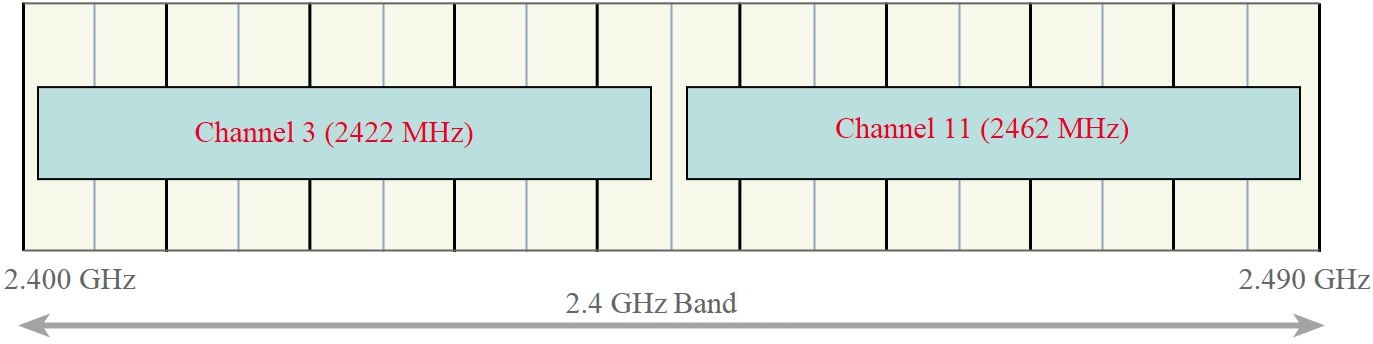
The above diagram shows the 802.11n 40 MHz signals. These signals are designated with their equivalent center channel numbers.
In a multi WiFi AP network, the coverage of WiFi AP must be overlap for smooth connection but channel overlapping must be avoided. So, we have to plan properly for designing a multi WiFi AP network. A possible multi WiFi AP network where there will be no channel overlapping can be as the following image.

If you use a home wireless router, there may be channel overlapping with your neighbor home wireless router. So, it will be better to discuss with your neighbor for choosing channel according to the above planning.
2.4 GHz WiFi Range
WiFi range absolutely depends on the type of network. A home network serves only a few family members. On the other hand a business network can serve large office buildings or even in a city. The cost to build and maintain business networks increases significantly as the range increases, of course.
A general rule of thumb in home networking says that Wi-Fi routers operating on the 2.4 GHz band can reach up to 150 feet indoors and 300 feet outdoors. Older 802.11a routers that ran on 5 GHz bands reached approximately one-third of these distances. Newer 802.11n and 802.11ac routers that operate on both 2.4 GHz and 5 GHz bands reach greater distances.
Controlling transmit power, the WiFi range can be increased or decreased. For example, if you want to limit the WiFi range only in a room, decrease transmitting power to get less WiFi coverage.
The factors that can influence WiFi range are the access point or router itself, the structure or building (brick walls and metal frames can reduce the WiFi range by 25% or more) you are in and the wireless standard (The 802.11g protocol has an indoor range of 125 feet, while 802.11n has a range of 235 feet) that you are using.
5GHz Frequency Band
The 2.4 GHz band is now becoming more crowded. So, many users are now choosing 5 GHz band because it has more throughput and less interference.
5GHz band was first introduced in 802.11a but the radios were expensive and the band didn’t gain popularity. 802.11n was defined for both 2.4GHz and 5GHz bands, which finally launched 5GHz use. The latest 802.11ac is only defined for 5GHz but all devices still support 802.11n and most also on 2.4GHz.
5GHz band has 23 non-overlapping channels but all channels are not usable for all countries because there are some forbidden channels and some channels have special restrictions. The following table is a summarization of 5GHz channels with 20MHz channel width and region availability.
| Channel Number | Frequency MHz | Europe (ETSI) | North America (FCC) | Japan |
| 36 | 5180 | Indoors | ✔ | ✔ |
| 40 | 5200 | Indoors | ✔ | ✔ |
| 44 | 5220 | Indoors | ✔ | ✔ |
| 48 | 5240 | Indoors | ✔ | ✔ |
| 52 | 5260 | Indoors / DFS / TPC | DFS | DFS / TPC |
| 56 | 5280 | Indoors / DFS / TPC | DFS | DFS / TPC |
| 60 | 5300 | Indoors / DFS / TPC | DFS | DFS / TPC |
| 64 | 5320 | Indoors / DFS / TPC | DFS | DFS / TPC |
| 100 | 5500 | DFS / TPC | DFS | DFS / TPC |
| 104 | 5520 | DFS / TPC | DFS | DFS / TPC |
| 108 | 5540 | DFS / TPC | DFS | DFS / TPC |
| 112 | 5560 | DFS / TPC | DFS | DFS / TPC |
| 116 | 5580 | DFS / TPC | DFS | DFS / TPC |
| 120 | 5600 | DFS / TPC | No Access | DFS / TPC |
| 124 | 5620 | DFS / TPC | No Access | DFS / TPC |
| 128 | 5640 | DFS / TPC | No Access | DFS / TPC |
| 132 | 5660 | DFS / TPC | DFS | DFS / TPC |
| 136 | 5680 | DFS / TPC | DFS | DFS / TPC |
| 140 | 5700 | DFS / TPC | DFS | DFS / TPC |
| 149 | 5745 | SRD | ✔ | No Access |
| 153 | 5765 | SRD | ✔ | No Access |
| 157 | 5785 | SRD | ✔ | No Access |
| 161 | 5805 | SRD | ✔ | No Access |
| 165 | 5825 | SRD | ✔ | No Access |
Note: DFS = Dynamic Frequency Selection; TPC = Transmit Power Control; SRD = Short Range Devices 25 mW max power.
The 802.11n gave us the ability to use 40MHz channels. From there, 802.11ac now allows for 80MHz and even 160MHz wide channels! These wide channels are created by bonding 20MHz channels together. For example, channels 36 and 40 (each 20MHz) are bound together to make 40MHz channel 38. The following diagram is summarization of 5GHz channel allocation with various channel width and center frequency.
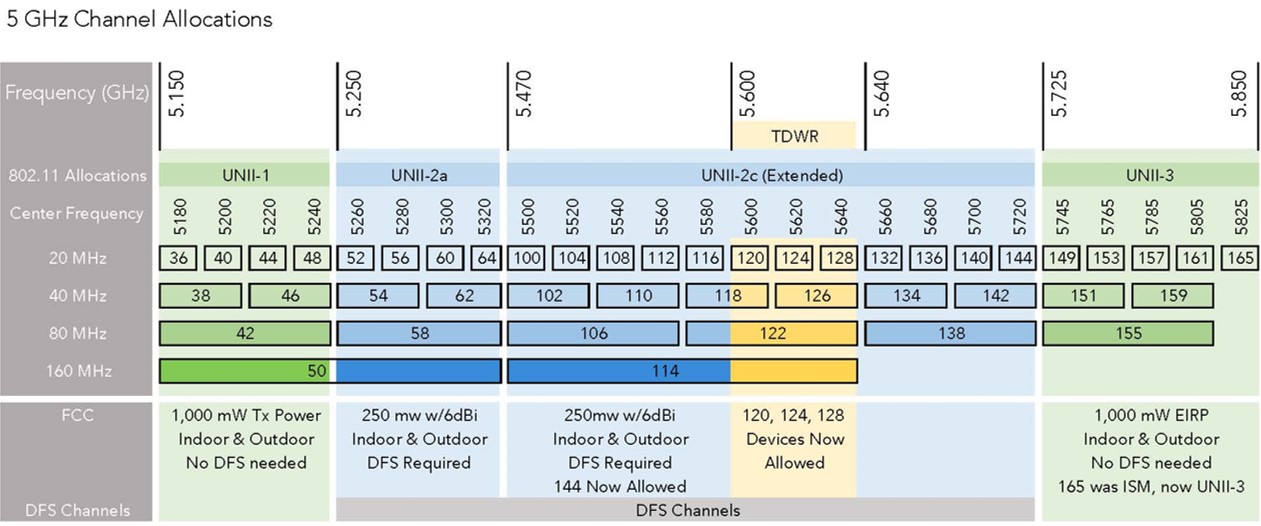
The above diagram shows that 5 GHz channels are divided into three units: UNII-1, UNII-2 and UNII-3. UNII-1 channels are almost usable all countries but other channels have limitation in different country.
Assigning Band, Frequency and Channel Width in MikroTik Wireless Router
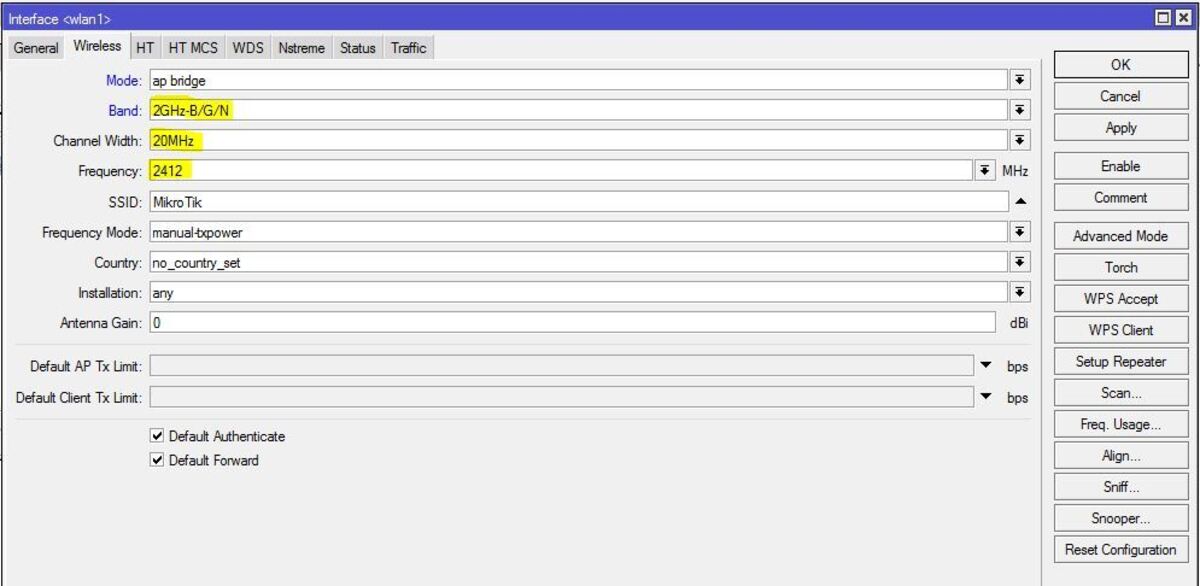
Band, frequency and channel width can be tuned at the time of wireless AP configuration or CAPsMAN configuration. The following steps will show how to tune band, frequency and channel width in MikroTik Wireless Router that is working as a WiFi AP.
- From Winbox, click on Wireless button. Wireless Tables window will appear.
- Double click on WLAN interface where you want to tune wireless frequency and channel parameters. Interface property window will appear.
- Click on Wireless tab and choose desired frequency band and wireless standard from Band dropdown menu.
- Choose desired channel width from Channel Width dropdown menu.
- Choose middle frequency of the channel width from Frequency dropdown menu.
- Click Apply and OK button.
How to plan for WiFi band, frequency and channel width and how to apply in MikroTik Wireless Router have been discussed in this article. I hope you will now be able to plan and tune your wireless network properly. However, if you face any confusion, feel free to discuss in comment or contact me from Contact page. I will try my best to stay with you.
2020-01-10T09:53:15
MikroTik Router Tutorials & Guides
MikroTik WiFi MAC Authentication with UserMan RADIUS Server
MikroTik Wireless Router is popularly used as WiFi AP. MikroTik WiFi AP has a lot of features to tune WiFi network as your requirements. MAC authentication is one the amazing and useful features in MikroTik WiFi. MAC authentication enables filtering MAC address that means no MAC can be able to connect to WiFi AP without authentication. MAC authentication can be done either local database or RADIUS Server. MAC authentication with RADIUS Server provides facility to manage multiple APs from centralized database. User Manager is a RADIUS Application developed by MikroTik team and can be used to manage PPPoE, Hotspot, DHCP and Wireless user easily. How to install User Manager RADIUS Server with basic configuration was discussed in my previous article. I also discussed how to configure MikroTik Wireless Router as WiFi AP in another article. In this article I will discuss how to manage WiFi user with User Manager RADIUS Server.
Network Diagram
The following network diagram is being followed for this article configuration.
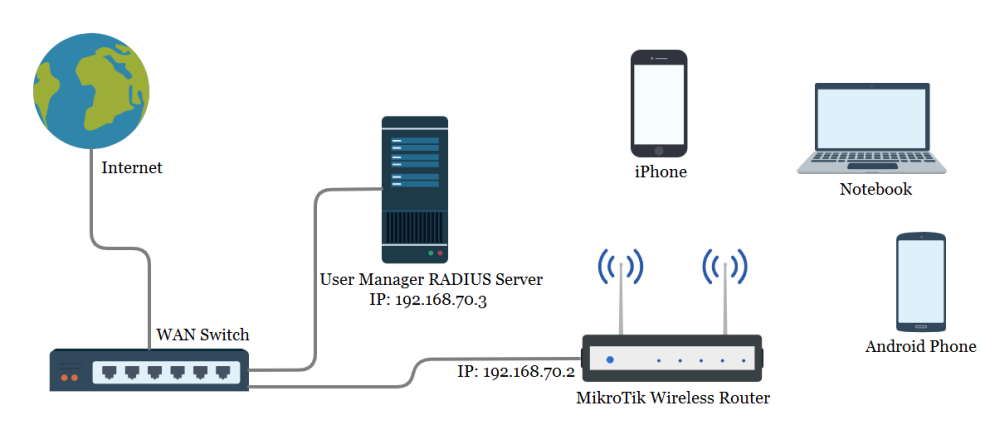
In this network diagram a MikroTik Wireless Router (RB941-2nD) is being used as WiFi AP (IP: 192.168.70.2) which is connected to a WAN Switch where a User Manager RADIUS Server (IP: 192.168.70.3) is also connected. The WiFi AP will be configured as MAC authenticated AP so that no Wireless device (Laptop, Smart Phone, Notebook and so on) will be connected without providing MAC Address and the MAC Address will be authenticated from RADIUS Server.
MAC Authenticated WiFi AP Configuration with RADIUS Server
The complete MAC authentication WiFi AP configuration with User Manager RADIUS Server can be divided into the following two parts.
- Enabling MAC authentication from RADIUS Server in WiFi AP
- User Manager RADIUS Server configuration for authenticating WiFi devices
Part 1: Enabling MAC Authentication from RADIUS Server in MikroTik WiFi AP
MikroTik Wireless Router configuration as WiFi AP was discussed in another article. The default authentication scheme in MikroTik WiFi AP is anyone can connect just knowing SSID and Password. This scheme is obviously not prefer for secure network. So, MAC authentication is the best choice for any wireless network. As MAC authentication is not enabled by default, we have to enable MAC authentication manually to apply this scheme. The following steps will show how to enable RADIUS MAC authentication in MikroTik WiFi AP.
- From Winbox, click on Wireless menu item. Wireless Tables window will appear.
- Click on Security Profiles tab and then double click on created WiFi Profile that is being used by WiFi AP. Security Profile window will appear.
- Click on RADIUS tab and then click on MAC Authentication check box.
- If you want to MAC accounting, click on MAC Accounting check box and set Interim Update (example: 00:00:59 for one minute interval) time (The time interval for sending accounting status to RADIUS Server).
- Optionally you can choose MAC address format that you prefer from MAC Format dropdown menu.
- You can also set whether the MAC will be send as only username or both username and password to RADIUS Server for authentication. The default MAC mode is username only and I am keeping the default setting.
- Click Apply and OK button.
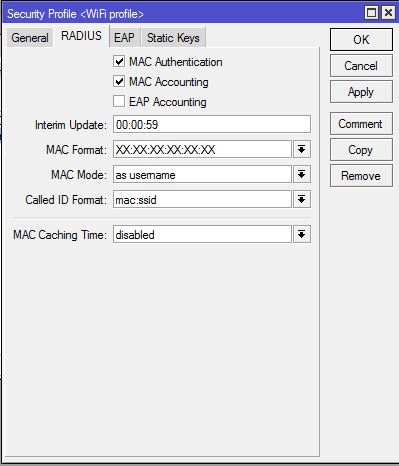
MikroTik WiFi AP is now MAC authenticated WiFi AP and the MAC authentication will be checked from RADIUS Server. So, if RADIUS Server allows any MAC address, the device will be allowed to connect to WiFi AP otherwise the device will be rejected.
Now we have to configure RADIUS client in MikroTik RouterOS so that RouterOS can communicate to RADIUS Server to send and receive authentication, authorization and accounting data. The following steps will show how to configure RADIUS client in MikroTik RouterOS.
- From Winbox, click on RADIUS menu item. Radius window will appear.
- Click on PLUS SIGN (+) to add a RADIUS Server. New Radius Server window will appear now.
- Click on wireless checkbox from Service panel.
- Put RADIUS Server IP address (in this article: 192.168.70.3) in Address input field.
- Put Shared secret (in this article: 123) in Secret input field and remember it because you have to provide this secret in RADIUS Server Routers configuration.
- Click Apply and OK button.
- From RADIUS window, click on Incoming button. RADIUS Incoming window will appear.
- Click on Accept checkbox and the default port will be 3799. So, nothing to do. Click Apply and OK button.
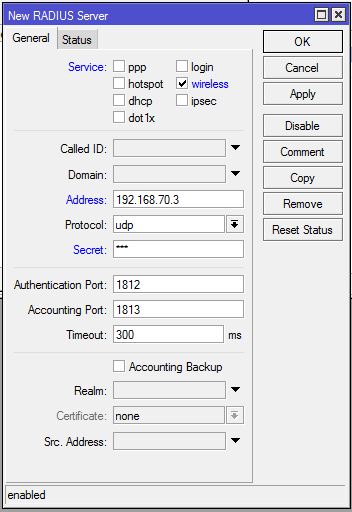
RADIUS Client configuration in MikroTik RouterOS has been completed. Now MikroTik RouterOS will be able to communicate with the assigned RADIUS Server.
We will now configure User Manager RADIUS Server so that wireless device can be authenticated from RADIUS Server and get proper authorization.
Part 2: User Manager RADIUS Server Configuration for Authenticating WiFi Devices
User Manager is a RADIUS application and RADIUS Server is used to do AAA (Authentication, Authorization and Accounting) solution. So, using User Manger RADIUS Server we can do authentication, authorization and accounting of WiFi devices in a Wireless Network. How to install User Manager RADIUS Server with basic configuration was discussed in another article. So, here I will only show how to configure User Manger for authenticating WiFi devices.
At first we will add our Wireless Router as a NAS device of User Manager so that User Manager can reply any RADIUS query of our Wireless Router. The following steps will show how to add MikroTik Wireless Router as a NAS device in User Manager RADIUS Server.
- Login User Manager Web Interface.
- Click on Routers menu item. Router page will appear.
- From top menu bar click on Add menu and then choose New option. Router Details window will appear now.
- In Main panel, put a meaningful name (example: MikroTik Router) for that client router in Name input field.
- Put the IP address of the client router (example: 192.168.70.2 that will use User Manager as its RADIUS client) in IP address input field.
- Put the password that you provide in RouterOS RADIUS Client configuration in Shared secret input field. This password must match otherwise the Wireless Router cannot communicate with this RADIUS Server.
- In Radius incoming panel, check the CoA (Change of Authorization) check box and put CoA port 3799. This port will be used to send acknowledgment to NAS device for a user’s authorization. For example, if a user exceeds his time limit, RADIUS Server will tell the NAS device to disconnect the user immediately.
- Click Add button to add this NAS device.
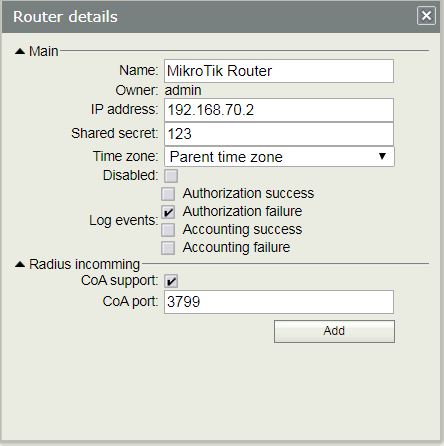
Wireless Router and User Manager RADIUS Server are now ready to communicate with each other. In the next step we will configure RADIUS user that will be authenticated in WiFi AP.
In User Manager RADIUS Server, every user must have a profile otherwise the user cannot be valid. So, before creating user we have to configure profile for the users. In this article we will create three profiles according to the following information.
| SN | Profile Name | Limitation |
| 1 | 1 Mb Package | 1 Mbps download speed |
| 2 | 2 Mb Package | 2 Mbps download speed |
| 3 | 5 Mb Package | 5 Mbps download speed |
The following steps will show how to create these three profiles with the described limitation.
- Click on Profiles menu item. Profile page will appear.
- From Profiles tab click on PLUS SIGN (+). Create profile pop up window will appear.
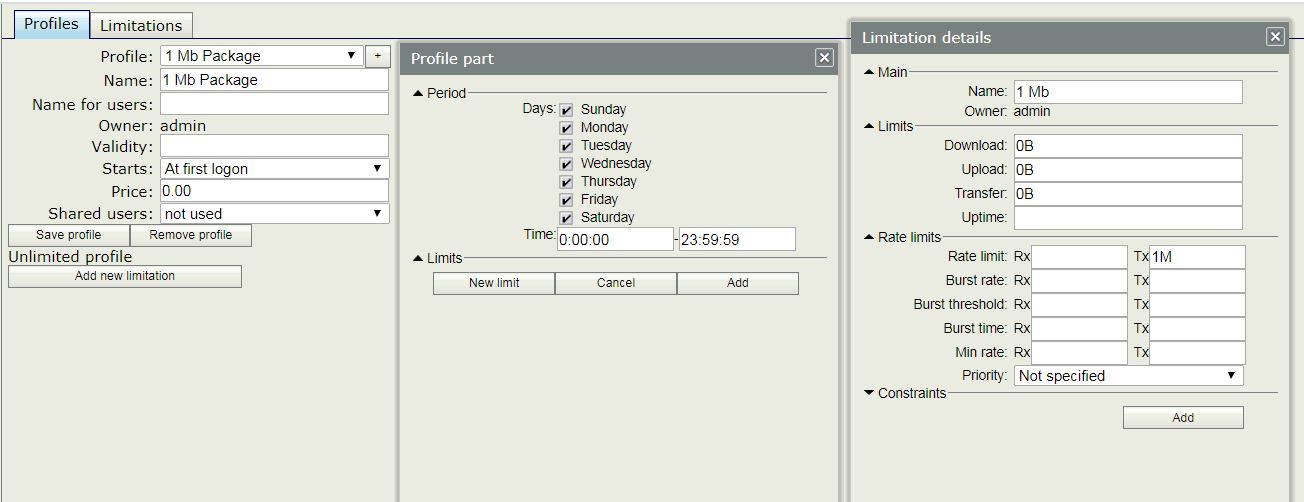
- Put the first Profile name (1 Mb Package) in Name input box and click Create button. Profile and Profile property list will appear that can be changed as required.
- The created profile has no limitation. To add limitation click on Add new limitation button. Profile part pop up window will appear.
- In Period panel, you can set Days and Time when this profile will be active. By default it will keep 24/7.
- From Limits Panel click on New limit button. Limitation details popup window will appear.
- In Main panel, put a limit name (example: 1Mb) in Name input field.
- In Rate limits panel, put 1M in Rate limit Tx input field and click Add button. Optionally you can set Burst Tx limit, Burst threshold and Burst time. In MikroTik Wireless Router, the Tx limit (transfer limit from AP to wireless device) is applied and Rx cannot be applied. Rx limit only applicable for RouterOS client. So, don’t need to put Rx limit.
- Created limit will be available and remain selected in Limits panel. Click Add button to add this limit to user profile.
- First profile with proper limitation will be created.
Similarly create 2 Mb and 5 Mb Packages. After creating profiles we will now create user and assign created profile to the user.
The following steps will show how to create user in User Manager RADIUS Server.
- Click on Users menu item. User page will appear.
- From top menu bar click on Add and then click on One option. User details popup window will appear.
- In Main panel, put the device MAC address that you want to allow in Username input filed. As we have chosen MAC Mode only username in WiFi RADIUS configuration, keep the Password field blank.
- From Constraints panel, you can set IP address for this user from IP address input filed and from Wireless panel, you can set private password (SSID password) for this user from Preshared key input field.
- You can also put user private information in Private information panel.
- From Assign profile dropdown menu choose any created profile (example: 1 Mb Package) that you want to assign for this user.
- Click Add button to create this user.
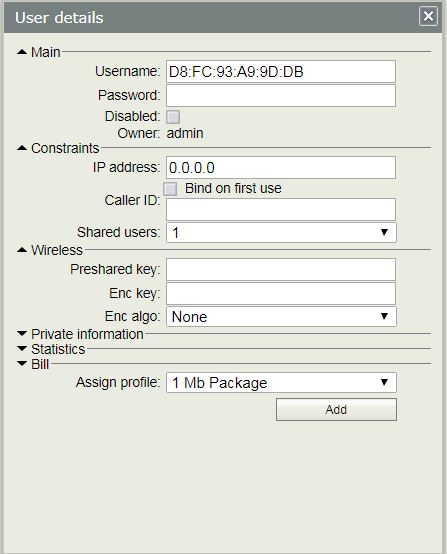
You can create as many users as you want for your wireless network following the above steps.
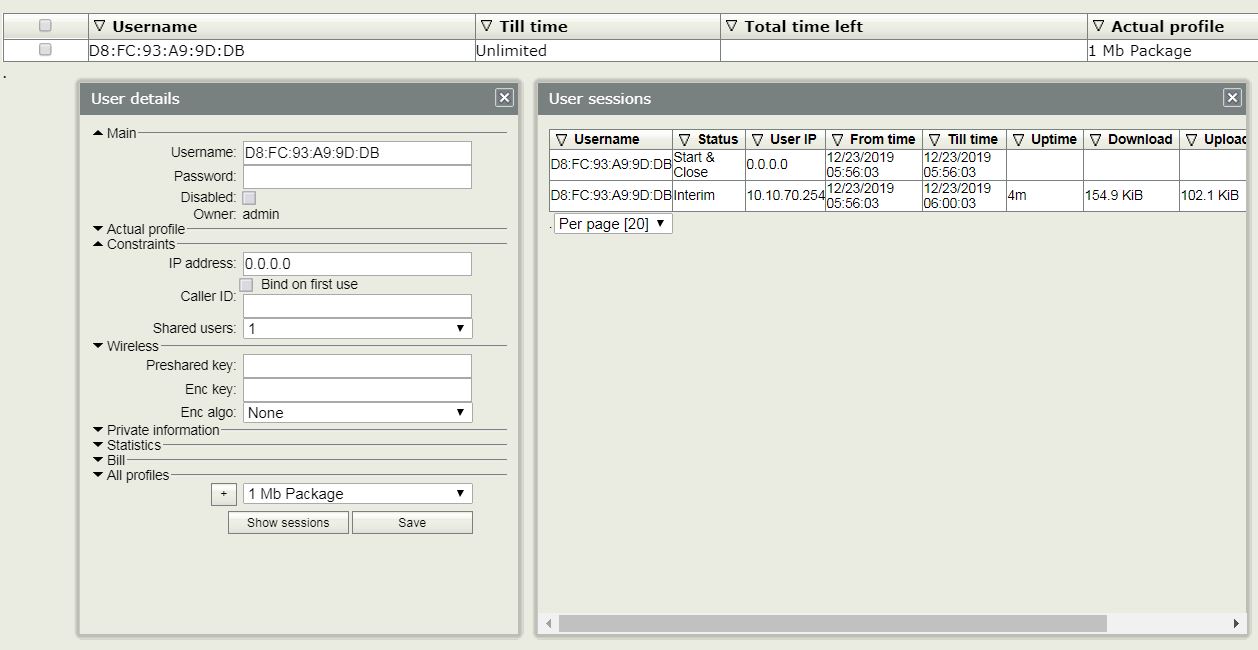
After creating user, now connect the desired wireless device to the WiFi AP. If everything is OK, your desired device will be able to connect to your wireless network and you will find the user’s active session in User Manager RADIUS Server.
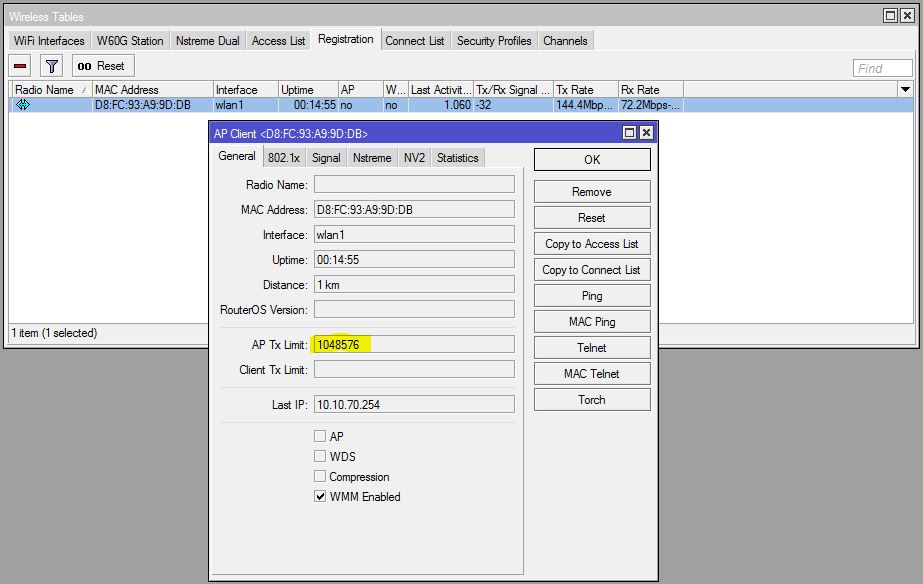
You can also find the connected users status in Registration tab in Wireless Tables window. Here you will find the user’s data transfer speed in AP Tx Limit status.
If anyone tries to connect to your WiFi AP who is not allowed, he will be rejected.
A common query is if anyone knows allowed MAC Address and changes his MAC address, he will be able to connect in this hacking process. MikroTik has an easy solution for this situation. Put private password in Preshared key while creating user in User Manager RADIUS Server. To be connected to WiFi AP, a user must match MAC address and Preshared key otherwise he will not be able to connect. So, MAC address hacking will be useless.
If you face any confusion to follow the above steps properly, watch the following video about WiFi MAC Authentication with RADIUS Server. I hope it will reduce your any confusion.
How to Configure RADIUS MAC Authentication in MikroTik Wireless Router has been discussed in this article. I hope you will now be able to configure MAC Authentication WiFi AP with User Manager RADIUS Server. However, if you face any confusion, feel free to discuss in comment or contact me from Contact page. I will try my best to stay with you.
2019-12-23T16:35:08
MikroTik Router Tutorials & Guides
MikroTik User Manager Installation and Basic Configuration
MikroTik User Manager is a RADIUS application developed by MikroTik team and can be used without charge. User Manager is used for authentication, authorization and accounting of MikroTik RouterOS, PPPoE, Hotspot, DHCP and Wireless users. Although User Manager Package is developed by MikroTik it will not be found in RouterOS by default. So, we have to install User Manager Package manually if we wish to use this RADIUS application. User Manager can be installed on MikroTik RouterBOARD, MikroTik CHR or MikroTik RouterOS installed on a PC. As MikroTik RouterBOARD usually has limited resources, it is always better to use MikroTik CHR or a PC RouterOS. In my previous article I discussed how to installed MikroTik CHR and how to install MikroTik RouterOS on a PC. In this article I will discuss how to install MikroTik User Manager RADIUS Server Package and how to do basic configuration.
User Manager Package Installation on MikroTik RouterOS
User Manager is not included in MikroTik RouterOS by default. So, we have to first download User Manager Package from MikroTik download achieve. But before going to download we have to know our RouterOS version and device architecture name. To know your RouterOS version and device architecture, go to System > Resources menu item from Winbox. You will find Architecture Name and RouterOS Version from appeared Resources window.
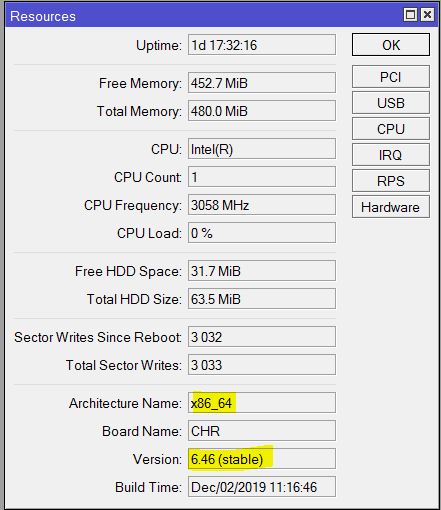
From the above image you can see that I am using MikroTik CHR. So, my architecture name is x86_64 and RouterOS Version is 6.46 (stable). Similarly, find your architecture name and RouterOS Version and then go to MikroTik Download Archive and choose your RouterOS version and then find all packages zip file that match with your architecture name and download that zip.
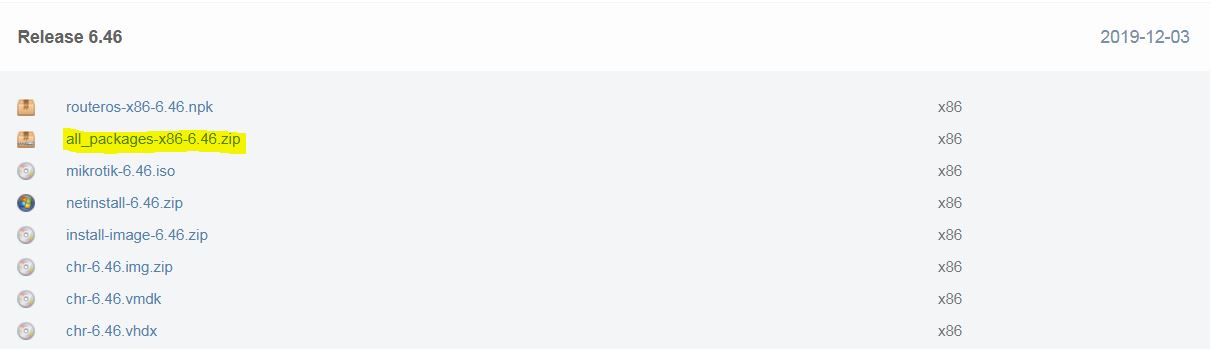
After downloading all packages zip file, extract that zip file and find user-manager NPK file and then upload that user-manager NPK file to MikroTik Winbox Files window.
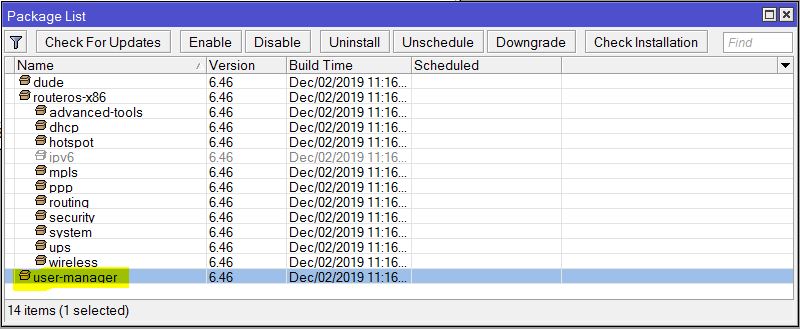
After uploading user manager package in Files window, restart Router and after restarting you will find that user manager package has been installed and can be found in System > Packages window.
User Manager RADIUS Server Basic Configuration
After installing User Manager Package, we need to configure User Manager RADIUS Server. User Manager basic configuration includes configuring Customers, Routers and Users. Now we will configure these items in User Manager RADIUS Server.
Customers Configuration in User Manager RADIUS Server
In MikroTik User Manager RADIUS Server, Customers are treated as service provider. Customers are only eligible to login RADIUS Server’s web interface to manage RADIUS users, credits and routers. Each customer can have zero or more sub-customers and exactly one parent customer that means customers are hierarchically ordered in a tree structure. Permission level of the customers is different. The customer who has owner permissions is called subscriber and the subscriber’s parent is himself. The subscriber can do everything in MikroTik User Manager RADIUS Server.
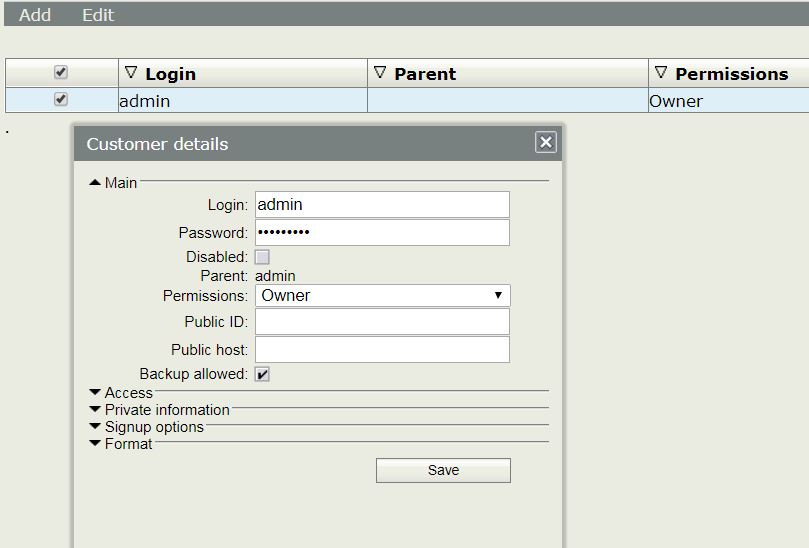
By default an owner customer named admin is created while installing User Manager Radius Server but the admin customer has no password. So, at first we have to provide a strong password for admin customer. The following steps will show how to login to User Manager RADIUS Server and change admin password.
- Open any browser and type http://user_manager_router_ip/userman (example: http://192.168.70.4/userman). User Manager Customer login page will appear.
- Put admin in Login input box and hit Log in button. User Manager Web Interface will appear.
- Click on Customers menu item and you will find that admin customer is available here.
- Click on admin customer. Customer details window will appear.
- Now put a strong password in Password input box and click Save button.
Users Configuration in User Manager RADIUS Server
In MikroTik User Manager RADIUS Server, Users are people who use internet services using MikroTik PPP Server, Hotspot, DHCP Server, Wireless service and so on provided by any customer. These users may be limited by time, traffic and speed. Users don’t belong to customer but to a specific subscriber because customers are only responsible to add, edit and remove one part of users and whole users including customers belong to a specific subscriber.
By default no user is created in MikroTik User Manager RADIUS Server. Subscribers or Customers are responsible to create users in RADIUS server. In this article, we will create a user who will be able to login to a Client MikroTik RouterOS (NAS device).
Every user must have a profile. So, before creating a user we have to create a profile. The following steps will show how to create user profile in User Manager RADIUS Server.
- Click on Profiles menu item. Profile page will appear.
- From Profiles tab click on PLUS SIGN (+). Create profile pop up window will appear.
- Put a Profile name (example: Full Permission Users) in Name input box and click Create button. Profile and Profile property list will appear that can be changed as required.
- The created profile has no limitation. To add limitation click on Add new limitation button. Profile part pop up window will appear.
- In Period panel, you can set Days and Time when this profile will be active. By default it will keep 24/7.
- From Limits Panel click on New limit button. Limitation details popup window will appear.
- In Main panel, put a limit name (example: Full Permission) Name input field.
- In Constraints panel, put full (so that user can get full permission in RouterOS because RouterOS users can have full, read and write permission only) in Group name input field and click Add button.
- Created limit will be available and selected in Limits panel. Click Add button to add this limit to user profile.
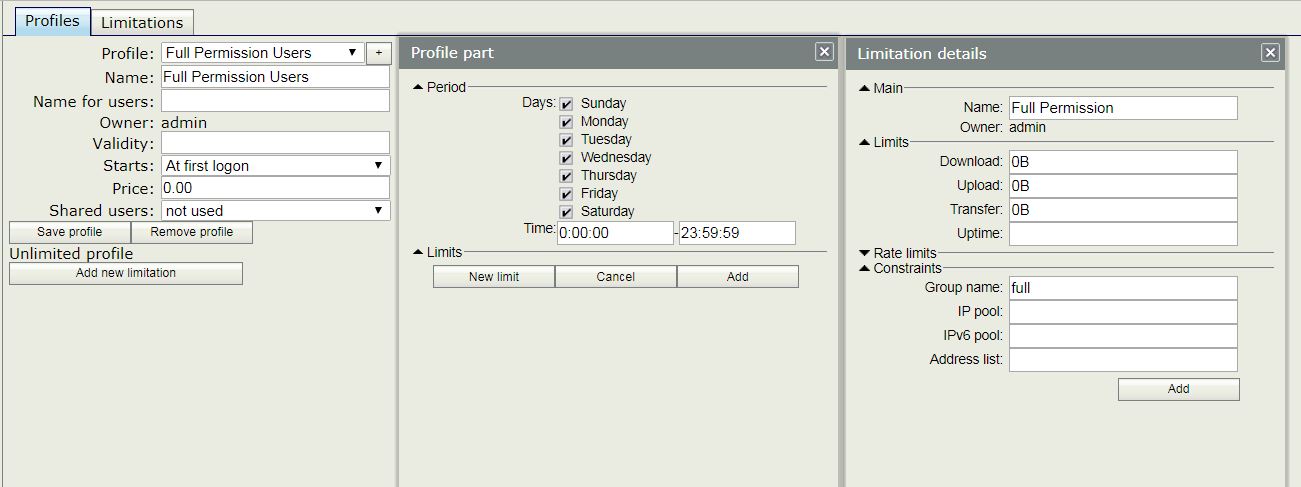
User profile with limitation is now complete. If you wish you can create more profile with limitation following the above steps.
We will now create a user and assign this created profile to the user. The following steps will show how to create RADIUS user and assign any profile to the user.
- Click on Users menu item. User page will appear.
- From top menu bar click on Add and then click on One option. User details popup window will appear.
- In Main panel, put user name in Username input filed and put the user password in Password input field. Optionally you can provide user more information in Private information panel.
- From Assign profile dropdown menu choose any created profile that you want to assign for this user.
- Click Add button to create this user.
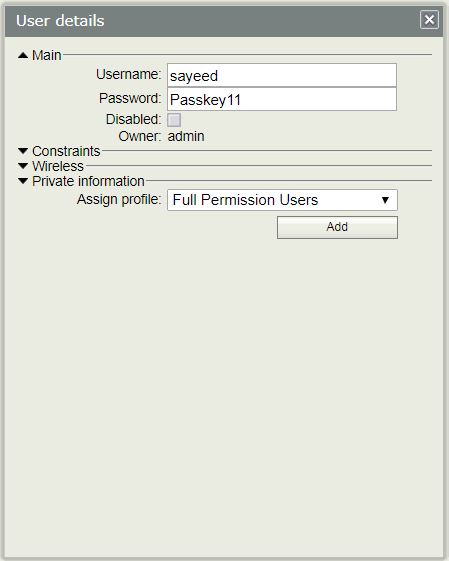
We have created a user in User Manager RADIUS Server. Similarly we can create as many users as we need.
Now it is time to add NAS device that will use this created user. NAS devices are added as Routers in User Manager RADIUS Server. In the next part we will see how to add NAS device in User Manager RADIUS Server.
Routers Configuration in User Manager RADIUS Server
In MikroTik User Manager RADIUS Server, Routers are Client MikroTik Router that will inquire for user authentication. MikroTik User Manager is like a judge that means it receives question from Client Routers and must give answer. For example, a Hotspot Server asks: “Is user ‘bob’ is allowed to use Hotspot?”. Now User Manager replies: “Yes, but only 2 hours and give him IP 192.168.110.200”. If any unknown router ask any question, MikroTik User Manager RADIUS Server silently ignore that request. Router table of User Manager RADIUS Server keeps known router lists that are allowed to ask question to RADIUS Server.
Both Subscriber and Customers are eligible to add routers in User Manager RADIUS Server. The following steps will show how to add client routers (NAS) that will make query to authenticate users in RADIUS Server.
- Click on Routers menu item. Router page will appear.
- From top menu bar click on Add menu and then choose New option. Router Details window will appear now.
- In Main panel, put a meaningful name (example: MikroTik Router) for that client router in Name input field.
- Put the IP address of the client router (example: 192.168.70.2 that will use User Manager as its RADIUS client) in IP address input field.
- Put a password in Shared secret input field. This shared secret is important and has to provide while configuring RADIUS client. Otherwise, the RADIUS client cannot communicate with this RADIUS Server.
- In Radius incoming panel, check the CoA (Change of Authorization) check box and put CoA port 3799. This port will be used to send acknowledgment to NAS device for a user’s authorization. For example, if a user exceeds his data limit, RADIUS Server will tell the NAS device to disconnect the user immediately.
- Click Add button to add this NAS device.
Following the above steps, you can add as many NAS as you want in User Manager RADIUS Server. Similarly, you can enable, disable, change or remove any NAS whenever you want using Edit menu.
RADIUS Client Configuration in MikroTik RouterOS
After adding NAS device, we need to configure RADIUS Client in NAS. The following steps will show how to configure RADIUS Client in MikroTik RouterOS.
- Login to MikroTik Router using Winbox and full permission user.
- Click on RADIUS menu item from left menu bar. Radius window will appear.
- Click on PLUS SIGN (+) to add a RADIUS Server. New Radius Server window will appear now.
- Click on login checkbox (because we want only login user verification from RADISU Server at this moment) from Service panel.
- Put RADIUS Server IP address (in this article: 192.168.70.4) in Address input field.
- Put Shared secret (in this article: 123) that you have entered in RADIUS Server Routers configuration in Secret input field.
- Click Apply and OK button.
- From RADIUS window, click on Incoming button. RADIUS Incoming window will appear.
- Click on Accept checkbox and the default port will be 3799. So, nothing to do. Click Apply and OK button.
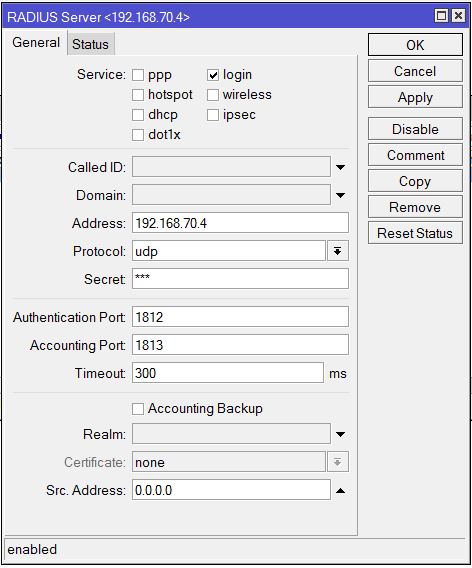
RADIUS Client configuration in MikroTik RouterOS has been completed. Now MikroTik RouterOS will be able to communicate with the User Manager RADIUS Server.
To authenticate RouterOS user via RADIUS Server, we have to enable RADIUS authentication. The following steps will show how to enable RADIUS authentication in MikroTik RouterOS.
- Go to System > Users menu item from Winbox. User List window will appear.
- Click on AAA button. Login Authentication and Accounting window will appear.
- Click on Use RADIUS and Accounting checkbox.
- Click Apply and OK button.
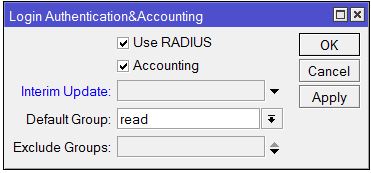
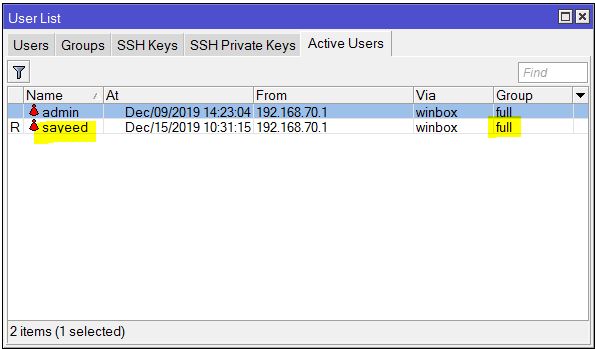
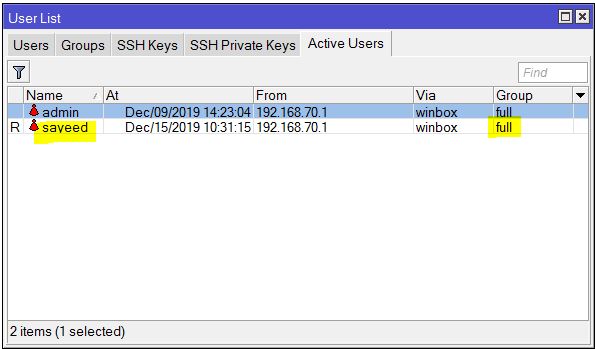
Client RouterOS (NAS device) is now ready to authenticate user via RADIUS Server. Open Winbox software and login to Client MikroTik Router using RADIUS Server user credentials. If everything is OK, you are now able to login to your Client MikroTik Router via RADIUS Server user. User status can be found in Active Users tab in User List window.
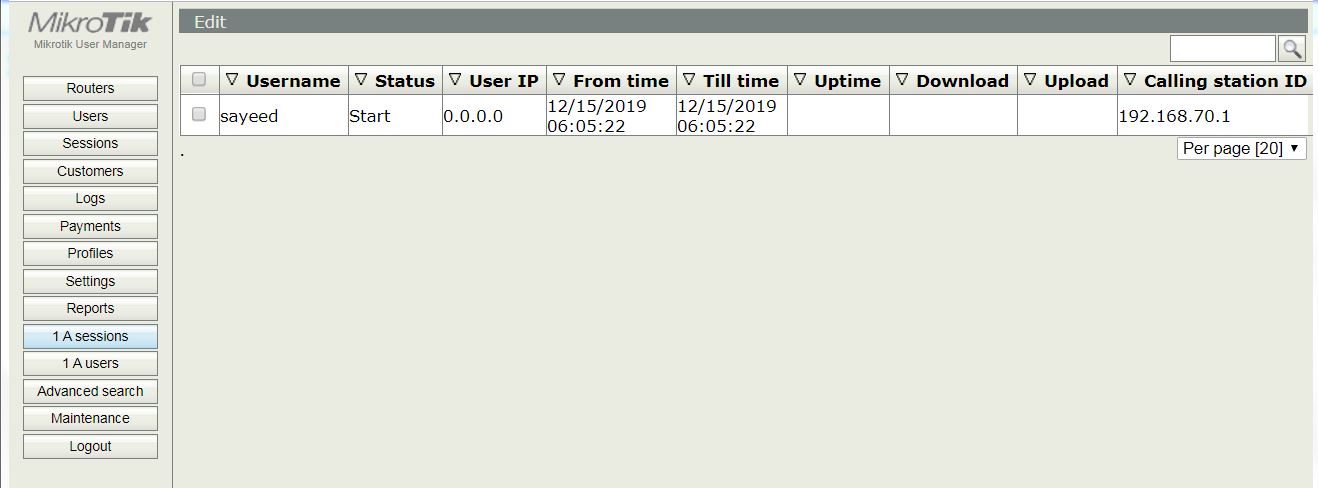
User login status can also be found in User Manager RADIUS Server. To find user session status, login to User Manager RADIUS Server and click Sessions menu item. Now you will find the user login sessions here.
If you face any confusion to follow the above steps, watch the following video on Mikrotik User Manager Installation with Basic Configuration. I hope it will reduce your any confusion.
How to Install and Configure MikroTik User Manager RADIUS Server step by step has been discussed in this article. I hope you will now be able to install and configure User Manager RADIUS Server successfully. However, if you face any confusion, feel free to discuss in comment or contact me from Contact page. I will try my best to stay with you.
2019-12-15T12:47:08
MikroTik Router Tutorials & Guides
WiFi Station Setup in MikroTik Wireless Router
MikroTik Wireless Router is capable of working as a WiFi Client. So, if any ISP provides WiFi connection for their clients, MikroTik Wireless Router can be used to connect to that ISP SSID by configuring wireless station mode. MikroTik WiFi station mode finds available SSID and connects with permitted SSID. This wireless connection can be used as wireless WAN connection and configuring LAN, multiple devices can get internet over this wireless WAN connection. In my previous article, I discussed how to configure MikroTik Wireless Route as a WiFi AP. In this article, I will discuss how to configure MikroTik Wireless Router as a Wireless Station so that it can be connected to a remote Wireless AP and can get internet over wireless WAN connection.
Network Diagram
The following network diagram is being followed for this article configuration.
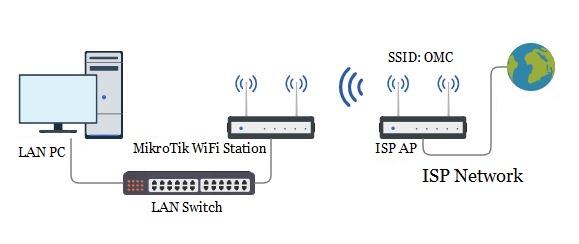
In this network diagram, an ISP network is providing WiFi connection for their clients. ISP SSID is OMC and it is password protected.
A MikroTik Wireless Router will be configured as a WiFi Client so that it can be connected to ISP SSID and can get internet access. This wireless connection will be used as WAN connection for this MikroTik Wireless Router.
A LAN network will also be configured in MikroTik Wireless Router and LAN devices will be able to access internet over the wireless WAN connection.
Wireless Station Mode Configuration in MikroTik Wireless Router
MikroTik WiFi Client can be configured in MikroTik Wireless Router by enabling wireless station mode. Complete station mode configuration with LAN network can be divided into the following four steps.
- DHCP Client configuration on wireless interface
- Wireless Security Profile configuration
- WiFi station configuration on wireless interface
- LAN configuration in MikroTik Wireless Router
Steps 1: DHCP Client Configuration on Wireless Interface
Most of the WiFi APs use DHCP to assign IP address and other network parameters automatically. So, we have to enable DHCP Client on wireless interface so that IP address and other network parameters can be assigned automatically on wireless interface. The following steps will show how to enable DHCP Client on wireless interface.
- From Winbox, go to IP > DHCP Client menu item. DHCP Client window will appear.
- Click on PLUS SIGN (+). New DHCP Client window will appear.
- From DHCP tab, choose wireless interface (wlan1) from Interface dropdown menu.
- Make sure Use Peer DNS and Use Peer NTP checkbox is checked if you want to use ISP DNS and NTP IP addresses.
- Choose yes from Add Default Route drop down menu.
- Click Apply and OK button.
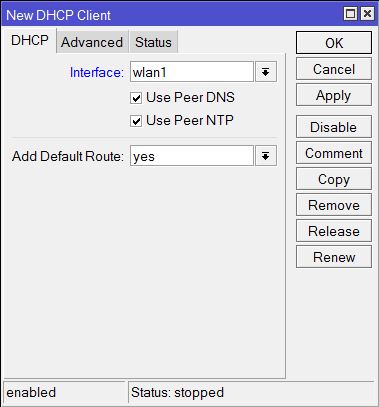
DHCP Client is now enabled on wireless interface. We will now configure Wireless Security Profile where we will assign ISP provided password.
Step 2: Wireless Security Profile Configuration
ISP WiFi AP must be password protected and the password will be provided by ISP. This password has to store in security profile otherwise MikroTik WiFi Client cannot be connected to the ISP SSID. The following steps will show how to store ISP AP password in Wireless Security Profile.
- From Winbox, click on Wireless menu item. Wireless Tables window will appear.
- Click on Security Profiles tab and then click on PLUS SIGN (+). New Security Profile window will appear.
- Put a meaningful profile name (WiFi Profile) in Name input field.
- Choose dynamic keys from Mode drop down menu.
- Check WPA PSK and WPA2 PSK checkbox from Authentication Types panel.
- Now put ISP provided password in WPA Pre-Shared Key and WPA2 Pre-Shared Key password box.
- Click Apply and OK button.
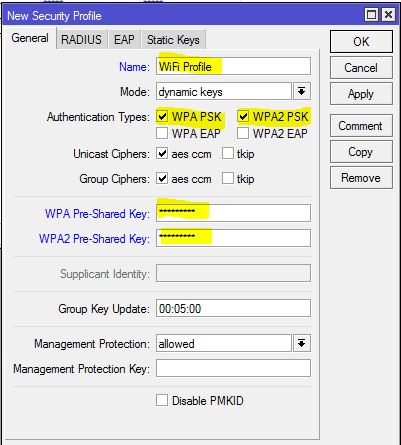
ISP provided password has been stored in Wireless Security Profile. We will now be connect to ISP SSID configuring wireless station mode in MikroTik Wireless Router.
Step 3: WiFi Station Configuration on Wireless Interface
After creating Security Profile, we will now configure wireless station and connect to ISP SSID (Service Set Identifier). The following steps will show how to configure wireless station in MikroTik Wireless Router and connect to ISP SSID.
- Click on WiFi Interfaces tab and you will find WLAN interface (by default: wlan1) here. It may be disabled at first time. So, if you find disabled, click mouse right button on it and then click on Enable option to enable WiFi interface.
- Double click on available and enabled WiFi Interface. Interface window will appear.
- Click on Wireless tab and choose station from Mode dropdown menu.
- Now click on Advanced Mode button from right button panel and choose your created security profile (WiFi Profile) from Security Profile drop down menu.
- From right button panel, click on Scan button. Scanner window will appear. Choose wireless interface from Interface dropdown menu and then click on Start button. Available APs will be listed. Click on desired ISP SSID (for this article: OMC) and then click on Connect button. Selected SSID will be shown in SSID input box.
- Make sure Default Authenticate checkbox is checked.
- Click Apply and OK button.
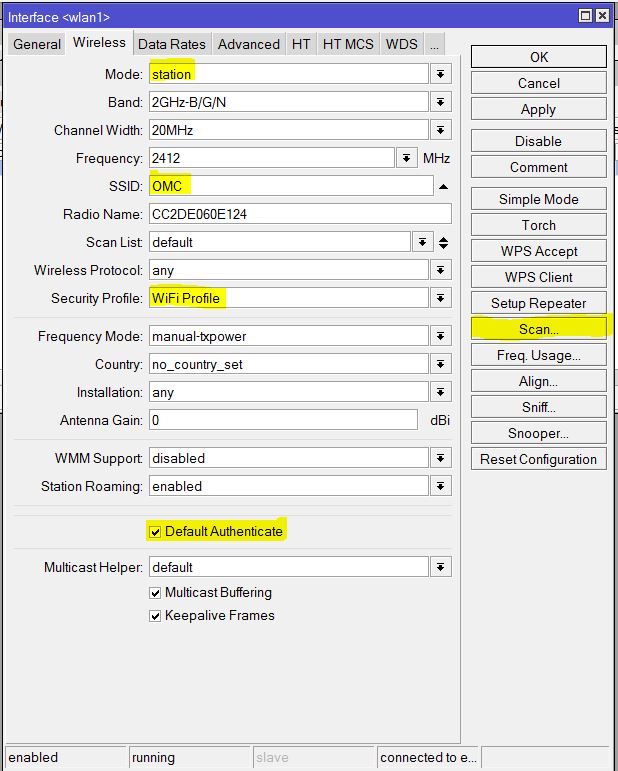
If the given password is correct, MikroTik WiFi Client will be connected to the selected SSID. At the same time the default gateway and DNS IP address will be assigned automatically. MikroTik Wireless Router will now be able to get internet over wireless WAN connection.
Step 4: LAN Configuration in MikroTik Wireless Router
After configuring wireless WAN connection, we will now configure LAN in MikroTik Wireless Router so that multiple LAN devices can be able to get internet through this wireless router. In LAN configuration, we will assign LAN gateway and enable NAT. The following steps will show how to assign LAN gateway and enable NAT in MikroTik Wireless Router.
- From Winbox, go to IP > Addresses menu item. Address List window will appear. You will find a dynamic IP address has already been assigned by ISP.
- Click on PLUS SIGN (+). New Address window will appear. Put LAN gateway IP (172.25.25.1/24) in Address input box and choose LAN interface from Interface dropdown menu. Click Apply and OK button.
- Now go to IP > Firewall menu item. Firewall window will appear. Click on NAT tab and then click on PLUS SIGN (+). New NAT Rule window will appear.
- Choose srcnat from Chain dropdown menu and put LAN IP Block (172.25.25.0/24) in Src. Address input box. Click on Action tab and choose masquerade from Action drop down menu. Click Apply and OK button.
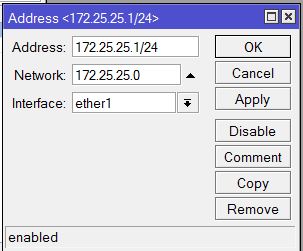
Now assign LAN IP to any LAN PC. If everything is OK, hope LAN devices will be able to get internet over Wireless WAN connection.
For simplicity, I have configured static IP addresses on LAN interface. But you may configure DHCP Server, Hotspot or PPPoE Server on LAN interface. It is also possible to configure WiFi AP on wireless interface at the same time which I will discuss in my next article.
If you face any confusion to follow the above steps, watch the following video on WiFi Station Setup with MikroTik Wireless Router. I hope it will reduce your any confusion.
How to Configure WiFi Station in MikroTik Wireless Router has been discussed in this article. I hope you will now be able to configure wireless station mode in MikroTik Wireless Router. However, if you face any confusion to configure Wireless WAN Connection in MikroTik Wireless Router, feel free discuss in comment or contact me from Contact page. I will try my best to stay with you.
2019-11-27T15:41:03
MikroTik Router Tutorials & Guides