Это вторая часть из цикла статей по очередям на MikroTik. Здесь мы рассмотрим алгоритмы, которые были придуманы для обслуживания очередей.
Архив метки: Mikrotik
MikroTik. Очереди в компьютерных сетях
Это первая часть из цикла статей по очередям на MikroTik. Мы рассмотрим основные моменты и узнаем для чего и как используют очереди в сетях.
MikroTik – Беспроводной мост внутри здания (быстрая настройка).
Беспроводной мост был организован для объединения двух частей локальной сети на разных этажах. Сделать проводное соединение нет возможности. Выполнена очень быстрая настройка через quick set. До использования MikroTik для беспроводных мостов в нашей организации использовались точки Wi-Fi TPLink CPE510 уличного типа для связи между отдаленными корпусами. Настройка микротика представлялась сложной инженерной задачей, для которой требуется обучение и много времени. Однако после исследования этой темы оказалось, что использование quick set микротика гораздо удобнее и быстрее, чем мастер настройки в точках TPLink.
Освоить MikroTik Вы можете с помощью онлайн-куса
«Настройка оборудования MikroTik». Курс содержит все темы, которые изучаются на официальном курсе MTCNA. Автор курса – официальный тренер MikroTik. Подходит и тем, кто уже давно работает с микротиками, и тем, кто еще их не держал в руках. В курс входит 162 видеоурока, 45 лабораторных работ, вопросы для самопроверки и конспект.
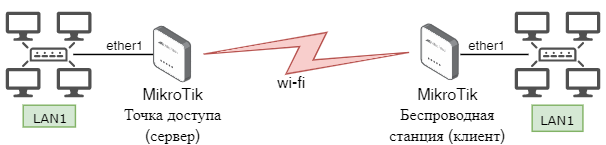
В схеме использованы два роутера RB951Ui2HnD с прошивкой 6.49. Расстояние между роутерами 20м, этажное перекрытие и стена.
Сервер лежит на распределительном шкафу СКС в коридоре.
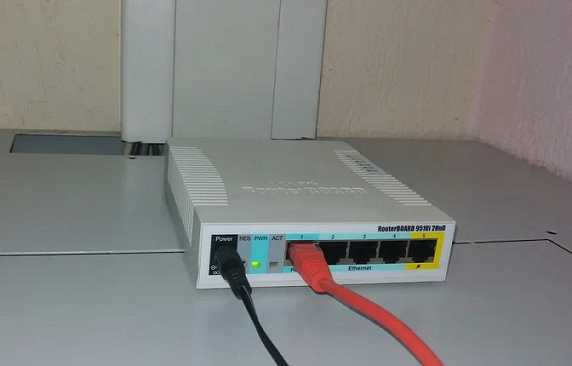
Клиент расположился в кабинете на шкафу.

Настройки сброшены в пустую (blank) конфигурацию.
1.Настройка сервера (точка доступа).
Подключаемся к роутеру из локальной сети через WinBox по MAC-адресу.
Переходим в меню Quick Set. Выполним 6 минимально необходимых действий для настройки.
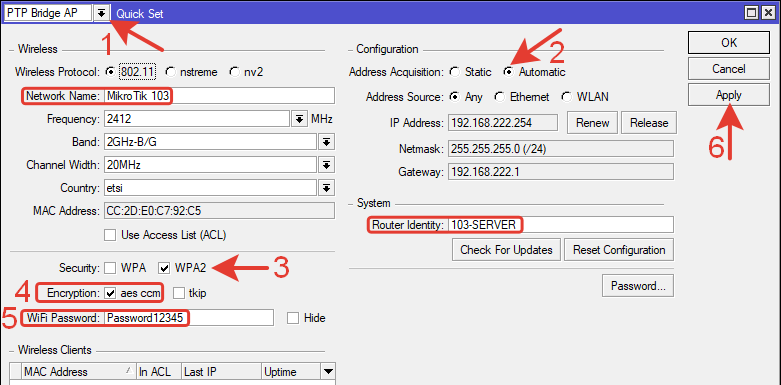
1.PTP Bridge AP – режим работы точки wi-fi (bridge).
2.Address Acquisition: Automatic – автоматическое получение IP-адреса от выше стоящего роутера.
3.Security: WPA2 – режим безопасности wi-fi (отмечаем галочкой).
4.Encryptyon: aes ccm – стандарт шифрования (отмечаем галочкой).
5.WiFi Password: Password12345 – пароль для wi-fi
6.Нажимаем кнопку Apply для сохранения настроек.
Сервер настроен.
Дополнительно можно указать идентификатор для удобства обслуживания и сетевое имя, чтоб быстрей найти свой сервер в радиоэфире из множества других.
Конфигурация в текстовом виде, которая получается в результате этих настроек.
Другие настройки, такие как частота, диапазон, страна, ACL и прочие рассмотрены в подробной настройке беспроводного моста.
2.Настройка клиента (беспроводная станция).
Подключаемся к роутеру-клиенту из локальной сети через WinBox по MAC-адресу.
Переходим в меню Quick Set. Выполняем 6 минимально необходимых действий для настройки.
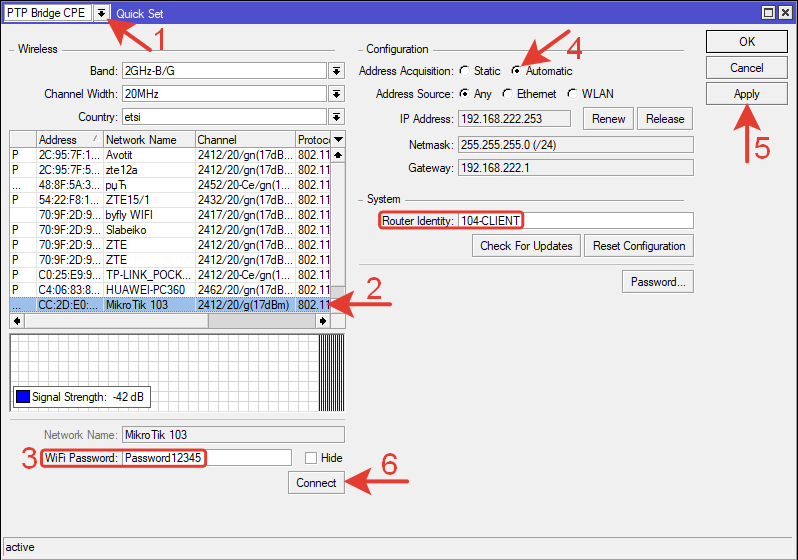
1.PTP Bridge CPE – режим работы точки wi-fi (station bridge).
2.Выбираем беспроводную точку доступа (сервер) из списка.
3.WiFi Password: Password12345 – пароль, такой же как в настройках сервера.
4.Address Acquisition: Automatic – автоматическое получение IP-адреса от выше стоящего роутера.
5.Нажимаем кнопку «Apply» для сохранения настроек.
6.Нажимаем кнопку «Connect» для подключения к серверу.
Клиент настроен.
Дополнительно можно указать идентификатор устройства.
Конфигурация в текстовом виде, которая получается в результате этих настроек.

Клиент получит IP-адрес только после установки соединения.
Компьютеры и прочие сетевые устройства, подключенные к беспроводному клиенту «видят» всю локальную сеть (L3 и L2) и выходят в интернет через основной шлюз. Если IP-адрес на компьютерах не обновился, то нужно выполнить команду в cmd (для Windows) «ipconfig -renew» или передернуть сетевой провод, чтоб инициировать получение нового IP-адреса. Адреса для всех устройств раздает вышестоящий роутер по DHCP через беспроводной мост.
Кроме выше представленных настроек рекомендуется:
-сменить пароль админа — в прошивках выше 6.49 это предлагается при входе в роутер;
-определить доступы к обоим микротикам — сервисы и IP с которых разрешен вход.
Реальная картина по уровню сигнала.

Bandwidth Test между сервером и клиентом. 
Скорость больше 5 Мбит/с увидеть не получилось, мешают стены. Для работы с документами, общими папками и просмотра интернет страниц для 10 ПК этого достаточно.
Освоить MikroTik Вы можете с помощью онлайн-куса
«Настройка оборудования MikroTik». Курс содержит все темы, которые изучаются на официальном курсе MTCNA. Автор курса – официальный тренер MikroTik. Подходит и тем, кто уже давно работает с микротиками, и тем, кто еще их не держал в руках. В курс входит 162 видеоурока, 45 лабораторных работ, вопросы для самопроверки и конспект.
2021-11-29T14:34:14
Настройка ПО
Настройка DNS Server на MikroTik
Сегодня поговорим о DNS в рамках использования на MikroTik, настроим Server да и в общем затронем немного истории этой технологии. И так начнём.
DNS – как много в этом слове. Domain Name System – система доменных имён или та штука, которая преобразует имя в IP. Представитель мамонтов в нашем мире. RFC 1034/1035 были выпущены в ноябре 1987 года. На сегодняшний день сервисов, его не использующих практически нет или что-то совсем специфическое. Он как инфраструктурный сервис — без него никуда. Он может не только преобразовать имя в IP, но и наоборот, такая запись называется PTR (в режиме кэширования). Читать
MikroTik. Основы написания скриптов
Это основы написания скриптов для роутеров MikroTik. Функционал их достаточно велик, но его можно расширить с помощью написания скриптов.
MikroTik – L2TP/IPsec VPN (site to site) – объединение двух офисов.
Постановка задачи: к ЛВС и серверу в главном здании учреждения необходимо подключить ЛВС филиала, расположенного в другом городе.
Схема подключения на рисунке ниже.
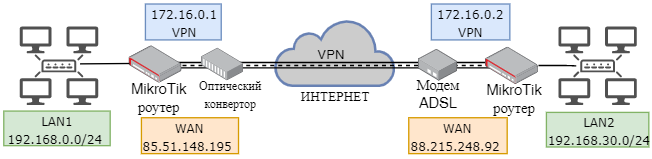
В результате настроек между двумя роутерами MikroTik создается L2TP туннель, через который передается информация с IPsec шифрованием.
Освоить MikroTik Вы можете с помощью онлайн-куса
«Настройка оборудования MikroTik». Курс содержит все темы, которые изучаются на официальном курсе MTCNA. Автор курса – официальный тренер MikroTik. Подходит и тем, кто уже давно работает с микротиками, и тем, кто еще их не держал в руках. В курс входит 162 видеоурока, 45 лабораторных работ, вопросы для самопроверки и конспект.
В схеме использованы 2 роутера MikroTik RB750Gr3 с прошивкой 6.49. Чтоб их различать, заданы номера: сервер-101, клиент-102.
Конфигурация роутеров сброшена на пустую (blank).
Все настройки выполняются из локальных сетей 1 и 2 через WinBox или командную строку.
При написании имен интерфейсов следует учитывать, что командная строка чувствительна к регистру.
В MikroTik RB750Gr3 отсутствует аппаратная поддержка IPsec и вся нагрузка по шифрованию ложится на процессор. Это нужно учитывать, выбирая роутер и исходя из объемов предполагаемого VPN трафика.
Описана реальная ситуация из практики объединения офисов по VPN. Внешние IP-адреса изменены.
Порядок действий.
Настройка сервера VPN.
1.Идентификация роутера-сервера.
4.Создание пользователя пользователя.
6.Статический маршрут в направлении LAN2.
8.Подключение к Интернету (WAN).
9.Настройка локальной сети LAN1.
Настройка клиента VPN.
1.Идентификация роутера-клиента.
4.Настройка внешнего IP-адреса (WAN).
5.Статический маршрут в направлении LAN1.
6.Настройка локальной сети LAN2.
8.Firewall в ОС Windows или антивирусе.
Настройка сервера VPN.
Роутер-сервер расположен в РШ серверной главного здания. В первый порт подключен патч-корд к оптическому конвертору. В любой из оставшихся портов можно подключить патч-корд к ЛВС1.

Подключаемся к роутеру-серверу из локальной сети через WinBox по MAC-адресу т.к. IP-адрес 0.0.0.0.
System >> Identity >> 101-SERVER-MINSK (название латиницей, любое понятное)

Через командную строку терминала:
|
1
| /system identity set name=101—SERVER—MINSK |
Профиль нужно создать до активации сервера L2TP, потому что его нужно указывать в настройках этого самого сервера.
Можно использовать дефолтный профиль.
Переходим в меню PPP >> Profiles >>Нажимаем синий крест (плюс).
В открывшемся окне на вкладке Generals вводим настройки.
Name: L2TP-SITE-TO-SITE – любое понятное имя латиницей.
Local Address: не указываем – адрес роутера-сервера в VPN.
Remote Address: не указываем – адрес роутера-клиента в VPN.
Change TCP MSS: yes

Локальный и удаленный адрес в данном случае не указаны.
Локальный (Local) адрес будет указан в учетной записи клиента VPN.
Удаленные (Remote) адреса разные у разных клиентов, и они так же указаны в настройке клиентов.
В качестве удаленного адреса можно указать пул IP-адресов для VPN. Его нужно предварительно создать.
Переходим на вкладку Protocols и выполняем настройки как на картинке ниже.

MPLS: yes — передача пакетов по меткам. wiki
Compression: no – сжатие данных, используется при медленных каналах.
Encryption: yes – шифрование данных, по согласованию с клиентом.
На вкладке Limits можно настроить лимит сессии, время отключения при бездействии, ограничение скорости подключения, одно подключение (Only one).
Настройки вкладок Queue и Scripts не изменялись.
Через командную строку терминала:
|
1
| /ppp profile add name=L2TP—SITE—TO—SITE change—tcp—mss=yes use—compression=no use—encryption=yes use—mpls=yes comment=«L2TP-SITE-TO-SITE TUNNEL» |
Профиль можно вообще не трогать. В описании приведено его создание чтоб обозначить возможность. Бывают ситуации с большим количеством VPN-клиентов, в которых без профиля сложно.
Переходим по меню в L2TP сервер: PPP >> Interface >> L2TP Server
В открывшемся окне ставим галочку напротив Enable.
Выбираем созданный ранее профиль Default Profile: L2TP-SITE-TO-SITE (или оставляем дефолтный).
Authentication: mschap2, остальные варианты отключаем.

Use IPsec: yes – использование шифрования IPsec.
Причем если выбрать «yes», то это не обязывает использование IPsec. Если выбрать «required», то без IPsec соединение не будет работать.

При первоначальной настройке можно выбрать «yes», чтоб избавится от дополнительной вероятной ошибки подключения. После того, как VPN заработает можно поставить «required» и усложнить пароль.
IPsec Secret: 12345Password – пароль IPsec.
Нажимаем кнопку «ОК».
Через командную строку терминала:
|
1
| /interface l2tp—server server set enabled=yes default—profile=L2TP—SITE—TO—SITE authentication=mschap2 use—ipsec=required ipsec—secret=12345Password |
PPP >> Secrets >> Нажимаем синий плюс, в открывшемся окне вводим:
Name: BREST-SITE-TO-SITE – имя пользователя VPN (для роутера филиала).
Password: Password12345678 – сложный пароль из латинских букв, цифр и спец.символов разного регистра.
Service: l2tp – тип туннеля (сервиса).
Profile: L2TP-SITE-TO-SITE – созданный ранее профиль, выбираем из выпадающего списка.
Local Address: 172.16.0.1 – локальный адрес роутера в VPN сети.
Remote Address: 172.16.0.2 – IP-адрес роутера филиала в VPN сети.
Нажимаем кнопку «ОК».

Через командную строку терминала:
|
1
| /ppp secret add name=BREST—SITE—TO—SITE password=Password12345678 service=l2tp profile=L2TP—SITE—TO—SITE local—address=172.16.0.1 remote—address=172.16.0.2 comment=102—Brest—site—to—site—secret |
*в имени профиля удобно использовать название города, в котором расположен филиал
PPP >> Interface.
Из выпадающего меню возле синего крестика выбираем: L2TP Server Binding.

На вкладке General указываем:
Name: 102-BREST-L2TP-SERVER — любое понятное имя латиницей;
User: BREST-SITE-TO-SITE — имя пользователя созданное в Secrets.

Через командную строку терминала:
|
1
| /interface l2tp—server add name=102—BREST—L2TP—SERVER user=BREST—SITE—TO—SITE comment=«Brest site-to-site server interface MikroTik101 <<—>> MikroTik102» |
Практика показывает, что в названии интерфейса удобно использовать направление данного интерфейса. Если сервер находится, например в Минске, а филиал в Бресте, то в названии присутствует город назначения, тип туннеля и обозначение того, что этот интерфейс на роутере-сервере. Это все можно указать в комментариях, но в некоторых выпадающих списках меню при выборе интерфейса комментарий не отображается.
6.Статический маршрут в направлении LAN2.
Создадим статический маршрут, направляющий трафик от пользователей LAN1 к пользователям в LAN2.
IP-адреса в LAN1: 192.168.0.0/24
IP-адреса в LAN2: 192.168.30.0/24
В боковом меню переходим в IP >> Routes.
Нажимаем синий плюс, на вкладке General указываем:
Dst. Address: 192.168.30.0/24 – адрес сети назначения.
Gateway: 172.16.0.2 – шлюз в нужную сеть – указываем IP-адрес противоположного роутера в сети VPN или созданный ранее интерфейс (IP надежнее).
Нажимаем ОК для сохранения настроек.

Через командную строку терминала:
|
1
| /ip route add dst—address=192.168.30.0/24 gateway=172.16.0.2 distance=1 comment=«Route to LAN2 via VPN» |
Создадим правила брандмауэра для разрешения IPsec, L2TP и их портов.
Правило разрешения протокола IPsec.
Переходим по меню: IP >> Firewall >> Filter Rules.
Нажимаем синий плюс, в открывшемся окне на вкладке General вводим настройки:
Chain: input – входящий в роутер трафик.
Protocol: ipsec-esp – протокол.

Переходим на вкладку Action.
Action: accept – разрешающее действие.
Нажимаем ОК для сохранения.

Через командную строку терминала:
|
1
| /ip firewall filter add chain=input protocol=ipsec—esp action=accept comment=«1 VPN Rule — Accept IPsec» |
Остальные правила создаются аналогично. Введем их через командную строку. (для экономии места на странице)
Правило, разрешающее порты IPsec.
|
1
| /ip firewall filter add chain=input action=accept port=500,4500 protocol=udp comment=«2 VPN Rule — Accept IPsec ports» |
Правило, разрешающее порт L2TP.
|
1
| /ip firewall filter add action=accept chain=input dst—port=1701 protocol=udp comment=«3 VPN Rule — Accept L2TP» |
Правила для портов написаны раздельно в перспективе на будущие изменения. Допустим понадобится отключить L2TP и оставить IPsec или наоборот.
Расположить правила желательно ближе к верху списка.

8.Назначим роутеру внешний (WAN) статический IP адрес.
Наш провайдер предоставляет услугу PPPoE с логином и паролем согласно приложению к договору. В разных ситуациях провайдер может предоставлять доступ в Интернет разными способами и сервисами.
Создаем интерфейс PPPoE клиента: PPP >> PPPoE Client.

В открывшемся окне:
Переходим на вкладку General.
Name: pppoe-out1 – имя нового интерфейса (можно указать любое латиницей)
Interfaces: ether1 – интерфейс к которому подключен провод от оптического терминала провайдера.

Переходим на вкладку Dial Out.
Service: byfly – понятное название латинскими буквами.
User: 123456789101212@beltel.by – имя пользователя из приложения к договору об оказании услуг от провайдера.
Password: 1234567890 – пароль из приложения к договору об оказании услуг.
Use Peer DNS и Add Default Route отмечены галочками.
Протоколы аутентификации отмечены галочками все 4 (не трогаем их при byfly).
ОК для сохранения настроек.

Через командную строку терминала:
|
1
| /interface pppoe—client add name=pppoe—out1 interface=ether1 service—name=byfly user=123456789101212@beltel.by password=1234567890 add—default—route=yes use—peer—dns=yes disabled=no |
Через некоторое время 0,5-1-2 мин роутер автоматически получит заказанный у провайдера внешний IP-адрес, который будет для него постоянным.

Так же автоматически появятся несколько адресов внешних DNS серверов.
На созданном интерфейсе pppoe-out1 появится статус R (running).
9.Дале следует выполнить настройки локальной сети LAN1 — Bridge, LAN IP, DHCP, DNS, NAT и др.
Для VPN действие не обязательное.
Можно воспользоваться базовой настройкой MikroTik
Кратко в файле конфигурации.

Настройка клиента VPN.
Клиентский филиал подключается в Интернет через ADSL-модем на скорости 10/5Мбит/с. Для филиала заказан внешний статический IP-адрес у провайдера. Хотя это действие на обязательное. Достаточно чтоб был «белый» внешний статический IP-адрес у сервера.
В локальной сети LAN2 7 компьютеров. Им всем необходимо иметь прямой доступ к серверу в LAN1 и общим сетевым папкам.
Сетевое оборудование смонтировано в металлическом ящике на стене.

На распределительный шкаф формата СКС у организации средств конечно же не нашлось. Но зато на складе было много ящиков для пассивного оборудования электрики или связи, с плохой вентиляцией, которые сказали брать и использовать. Главный недостаток такого ящика в паре с активным оборудованием – нагрев, хотя он не критичный. По спецификации RB750Gr3 может работать при температуре до +60С.
Для сравнения:
Датчик температуры в Микротике в ящике всегда показывает +40С.
Датчик температуры в Микротике висящем на стене в помещении +35С +36С.
В серверной с кондиционером температура по датчику в Микротике +29С +30С.
В последующих филиалах уже была сделана доработка конструкции — в верхней и нижней поверхностях ящика насверлены отверстия. Температура +36С +37С, почти как у оборудования, висящего на стене.

Подключаемся через порты 2-5 в роутер. Входим в меню через WinBox по MAC-адресу т.к. роутер сброшен в пустую конфигурацию.
1.Обозначение названия роутера.
System >> Identity >> 102-CLIENT-BREST

Через командную строку терминала:
|
1
| /system identity set name=102—CLIENT—BREST |
*в названии роутера очень удобно использовать название того населенного пункта, в котором он находится
Переходим в меню PPP, выбираем L2TP Client.

Выполним настройки интерфейса клиента.
На вкладке General, указываем имя. Можно оставить l2tp-out1 либо написать что-то свое для понятности.

Переходим на вкладку Dial Out.
Connect To: 85.51.148.195 – внешний (WAN) IP-адрес роутера-сервера.
User: BREST-SITE-TO-SITE – имя пользователя, созданное для клиента на сервере.
Password: Password12345678 – пароль, созданный в профиле клиента на сервере.
Активируем галочкой Use IPsec.
IPsec Secret: PasswordIPsec54321 – пароль назначенный для IPsec в сервере.
Allow: mschap2.
Нажимаем ОК для сохранения настроек.

Через командную строку терминала:
|
1
| /interface l2tp—client add name=102—BREST—L2TP—CLIENT connect—to=85.51.148.195 user=BREST—SITE—TO—SITE password=Password12345678 use—ipsec=yes ipsec—secret=12345Password disabled=no allow=mschap2 comment=«Brest site-to-site client MikroTik102 <<—>> MikroTik101» |
Для продолжения настроек VPN туннеля, необходимо перевести модем в режим работы Bridge.
Все модемы разные, но принцип общий. Подключаемся патч-кордом во 2 порт модема. Заходим в интерфейс через браузер по IP-адресу (обычно это 192.168.1.1). Вводим логин-пароль.
Выставляем настройку Bridge Connection.

4.Настройка внешнего IP (WAN).
Соединение VPN не произойдет пока роутеру-клиенту не назначен WAN IP адрес. Сделаем это.
Ситуация аналогична настройке внешнего IP в роутере-сервере. Провайдер предоставляет Интернет через PPPoE.
Создаем интерфейс PPPoE-клиент: PPP >> PPPoE Client.

Переходим на вкладку Dial Out.
Service: byfly – понятное название латинскими буквами.
User: 0987654321111@beltel.by – имя пользователя из приложения к договору об оказании услуг от провайдера.
Password: 1234567890 – пароль из приложения к договору об оказании услуг.
Use Peer DNS и Add Default Route отмечены галочками.
ОК для сохранения настроек.

Через командную строку терминала:
|
1
| /interface pppoe—client add name=pppoe—out1 interface=ether1 service—name=byfly user=0987654321111@beltel.by password=1234567890 add—default—route=yes use—peer—dns=yes disabled=no |
Через некоторое время роутер автоматически получит заказанный у провайдера внешний IP-адрес, который будет для него постоянным.
После настройки внешнего интерфейса роутеры должны «увидеть» друг друга. При успешном подключении статус интерфейса станет R (running).

Дополнительно можно проверить вид шифрования (Encoding). Если у него вид как на картинке выше, то работает IPsec. Если что-то другое, то нужно перезагрузить роутеры и проверить еще раз.
Так же нужно убедиться в соответствии назначенных ранее Local и Remote Address.
Маршрут направляет трафик из LAN2 в LAN1.
IP-адреса в LAN1: 192.168.0.0/24
IP-адреса в LAN2: 192.168.30.0/24
Переходим в меню маршрутов: IP >> Routes >> Нажимаем синий плюс.
На вкладке General указываем:
Dst. Address: 192.168.0.0/24 – адрес сети назначения.
Gateway: 172.16.0.1 – VPN IP-адрес роутера-сервера.
Нажимаем ОК для сохранения настроек.

Через командную строку терминала:
|
1
| /ip route add distance=1 dst—address=192.168.0.0/24 gateway=172.16.0.1 comment=«Route to LAN1 via VPN» |
Вводить правила Firewall для разрешения VPN на роутере-клиенте не нужно.
6.Настройка локальной сети LAN2 — Bridge, LAN IP, DHCP, DNS, NAT и др.
Для VPN действие не обязательное.
Можно воспользоваться базовой настройкой MikroTik
Кратко в файле конфигурации.

Проверяем ping из LAN2 в LAN1 и наоборот. Ping должен проходить в обе стороны.

Можно проверить ping из роутера-клиента в LAN1 и наоборот.

Оборудование в LAN1 и LAN2 общается друг с другом как в одной общей сети.
8.Firewall в Windows или антивирусе.
Часто возникает ситуация, когда общие папки или спец. ПО расположены на ПК с Windows Server. У этих систем нужно открывать порты для организации доступа и прохождения пинга.
Если дополнительно установлен антивирус, то он, как правило, управляет брандмауэром операционных систем и доступы нужно задавать в его настройках.
Например, у нас на сервере антивирус KES11. Для того, что проходил ping из сетей за VPN нужно отключить правило блокировки входящего ICMP трафика из внешних сетей, которое установлено по умолчанию.
Сделать это можно в настройках сетевого экрана в меню «Пакетные правила».

Для того, чтоб был доступ к общим сетевым папкам, нужно открыть 445 порт для адресов сетей за VPN, в нашем случае указать LAN2 (и другие сети если они есть). Это так же делается в пакетных правилах антивируса KES11. Создаем новое правило с понятным названием, например «Доступ из сетей за VPN». Настройки как на картинке ниже.

Правило нужно располагать выше, чем стандартные правила, блокирующие TCP, UDP из внешних сетей.

Таким же способом можно открыть доступ RDP на данный сервер с указанных IP-адресов или другие сервисы, которые нужны для работы. Антивирусы и брандмауэры у всех разные, но принцип действий примерно одинаковый – разрешить определенный трафик из указанной сети за VPN-ом. Как открыть порты в брандмауэрах так же написано тут.
После того, как VPN настроен и ping проходит, нужно убедиться, что трафик идет через туннель сайт-сайт, а не через внешний IP-адрес. Для этого запускаем трассировку на компьютере в LAN1 и указываем IP-адрес любого доступного ПК в LAN2. Смотрим, по какому пути идет трафик.

Трассировка идет через VPN IP-адрес, настройка выполнена верно. Если трафик пойдет через WAN IP-адрес, то настройка сделана не правильно. Нужно смотреть, где IP-адреса расставлены не на своих местах. То же самое нужно сделать из LAN2 в LAN1. Можно выполнить трассировку из роутера (Tools >> Traceroute).
Для удаленного обслуживания роутеров-клиентов из главного офиса можно использовать подключение через WinBox или SSH. Для этого нужно указать список доверенных IP-адресов, с которых разрешено подключение. Затем создать правило разрешающее подключение всем кто в списке.
|
1 2 3
| /ip firewall address—list add address=192.168.30.0/24 list=TRUST—LIST—MANAGEMET /ip firewall address—list add address=85.51.148.195 list=TRUST—LIST—MANAGEMET /ip firewall filter add action=accept chain=input comment=«Accept remote management» port=22,8291 protocol=tcp src—address—list=TRUST—LIST—MANAGEMET |
Или по аналогичному принципу создать правило для подключения в роутер через VPN интерфейс.
С этими правилами следует работать аккуратно, чтоб не заблокировать себе доступ в роутер.
Для подключения по SSH нужно предварительно загрузить в роутер сертификат (инструкция).
Освоить MikroTik Вы можете с помощью онлайн-куса
«Настройка оборудования MikroTik». Курс содержит все темы, которые изучаются на официальном курсе MTCNA. Автор курса – официальный тренер MikroTik. Подходит и тем, кто уже давно работает с микротиками, и тем, кто еще их не держал в руках. В курс входит 162 видеоурока, 45 лабораторных работ, вопросы для самопроверки и конспект.
2021-11-16T16:12:23
Настройка ПО