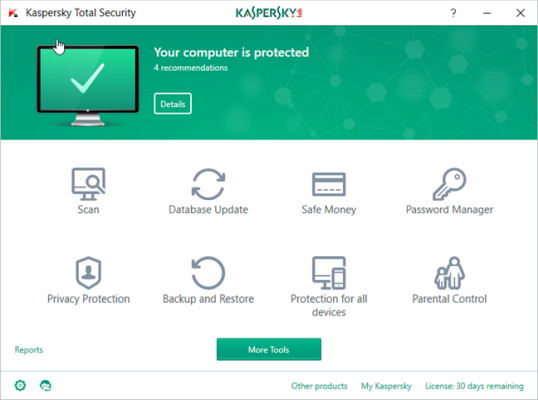
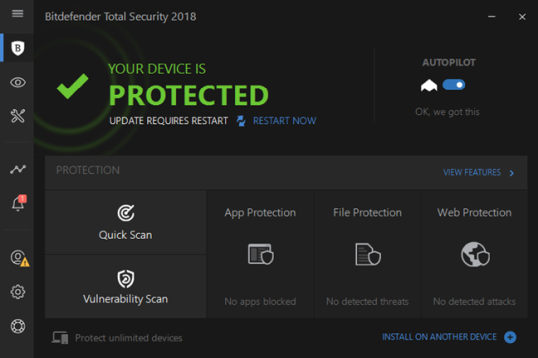
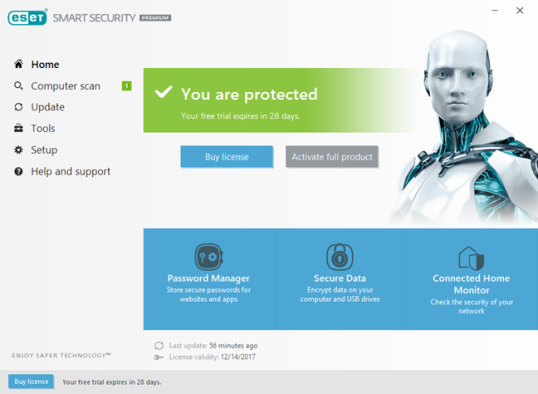
Вы ищете лучший антивирус или лучшее решение для безопасности для вашего компьютера или устройства Windows? На рынке существует так много вариантов, что вы, возможно, не знаете, что выбрать. Вы знаете, что вам нужен антивирус, но вы не знаете, какие критерии он должен выполнить. Все охранные компании продают свою продукцию как лучшую, имея самый большой антивирус или брандмауэр, являясь полной продукцией и т.д. Однако кому вы должны доверять? Как выбрать антивирус? В этом руководстве мы разделяем критерии, которые вы должны использовать для выбора лучшего продукта безопасности для вас:
1. Ищите всеобъемлющую защиту
В девяностые годы наличие хорошего продукта безопасности для вашего компьютера означало, что достаточно иметь хороший антивирус. В настоящее время хороший продукт безопасности — это не просто антивирусная защита. Это также касается защиты брандмауэра, защиты от киберпреступности при просмотре интернета, защиты от выкупа, защиты VPN от стороннего мониторинга и цензуры и т.д.

Хороший продукт безопасности должен включать несколько уровней безопасности, которые защищают вас от современных кибер-угроз. Хороший антивирус хорош против традиционных типов вредоносных программ, но это не означает, что ваш компьютер не может заразиться с помощью вымогательства, что может быть еще более разрушительным, чем обычный вирус. Именно поэтому мы считаем, что, когда вы ищете следующее решение для обеспечения безопасности, вы должны проверить, обладает ли он всеобъемлющей защитой . Это означает защиту от следующих типов угроз:
- Вирусы — программы со злонамеренными намерениями, которые характеризуются тем, что они могут размножаться и таким образом заражать другие компьютеры или устройства. Вирусы обычно привязаны к исполняемому файлу, который, когда вы неосознанно выполняете его, также действует как триггер для вируса.
- Trojans (Horses) — это вредоносное программное обеспечение, которое может маскироваться как обычное программное обеспечение и из-за этого может обмануть вас при загрузке и запуске на вашем компьютере. Когда вы это делаете, трояны обычно открывают ворота на другие виды вредоносных программ на вашем компьютере.
- Черви — это вредоносные программы, которые используют уязвимости безопасности и уязвимости в вашей операционной системе или другом программном обеспечении (например, ваш веб-браузер) и используют их для заражения вашего компьютера. В отличие от обычных вирусов, черви могут размножаться и распространяться самостоятельно, без необходимости запуска зараженного файла.
- Spyware — программы, предназначенные для разведки и сбора информации о вас. Spyware пытается скрыться от вас, от операционной системы и вашего решения безопасности, а после сбора информации о вас пытается отправить ее на серверы, контролируемые хакерами.
- Rootkits — особый тип вредоносного ПО, предназначенный для предоставления хакерам удаленного доступа и управления устройством, без обнаружения жертвами или программного обеспечения безопасности, установленного на зараженных устройствах. Когда хакер получает доступ к зараженному руткитом устройству, он или она может использовать его для удаленного доступа, копирования и выполнения файлов на нем, изменения настроек операционной системы, установки дополнительного программного обеспечения (обычно других типов вредоносного ПО) и т. Д. По определению руткиты являются скрытым видом вредоносного ПО, поэтому их сложнее обнаружить и удалить с зараженной машины.
- Ransomware — вредоносные программы, которые, как только они заражают ваш компьютер, берут на себя управление и шифрование ваших файлов, таких как ваши фотографии, рабочие документы и видео. Как только это произойдет, программы ransomware пытаются заставить вас платить значительную сумму денег своим создателям, чтобы вы могли вернуть свои файлы.
- Adware — программные программы, отображающие рекламные объявления на вашем экране, в веб-браузерах или других местах на вашем компьютере. По определению это может быть не вредоносное ПО, но рекламное ПО почти всегда вредит производительности вашего компьютера и вашего пользователя, а также может заразить ваш компьютер вредоносным ПО.
- Сетевые атаки — когда хакеры пытаются удаленно управлять вашими устройствами, они могут сделать это с помощью подхода «перерыв». То есть, когда вам нужен брандмауэр, чтобы остановить сетевые атаки. Хороший межсетевой экран должен иметь возможность отклонять атаки извне, а также сообщать вам о подозрительном трафике, который инициируется с вашего компьютера во внешний мир.
- Веб-угрозы — ваш веб-браузер должен быть первым в линии защиты от вредоносного ПО. Вот почему хорошее решение безопасности должно включать модуль защиты веб-сайтов, который может помешать вам посещать веб-сайты с вредоносным контентом. Лучше иметь дело с вредоносными программами в вашем браузере, чем делать это, когда он достигнет вашего компьютера.

2. Выберите надежную защиту
Одним из важнейших критериев выбора лучшего антивирусного решения является его надежность. Надежный продукт безопасности должен иметь возможность:
- Защитите, не вызывая конфликтов с другими программами, установленными на вашем компьютере. Например, когда вы устанавливаете его на свой компьютер, хороший комплект безопасности должен проверить, уже ли аналогичные программы безопасности уже найдены в вашей системе. Если это так, пакет безопасности должен сначала попросить вас удалить конфликтующее программное обеспечение, прежде чем устанавливать его.
- Защитите свои процессы от нежелательного завершения. Мощное вредоносное ПО предназначено для использования слабых мест антивируса. Некоторые вредоносные программы могут попытаться уничтожить антивирусное решение, которое работает в вашей системе и взять под свой контроль систему. Надежное решение безопасности всегда должно защищать свои процессы от нежелательного прекращения.
- Обеспечьте актуальную защиту. Антивирусное решение, использующее старые и устаревшие определения вредоносных программ, является слабым продуктом. Угрозы постоянно развиваются; они никогда не останавливаются, поэтому антивирусы тоже должны это делать. Хороший антивирус — это продукт, который регулярно обновляется, несколько раз в день.
- Автоматизация сканирования безопасности. Мы считаем, что надежное решение безопасности должно предлагать средства для автоматизации сканирования вредоносных программ. Под этим мы подразумеваем, что пакет безопасности должен позволять вам планировать антивирусные проверки. Еще лучше, если продукт безопасности выходит из коробки, и регулярные запланированные проверки уже активированы. Еще лучше, если он запускает антивирусное сканирование, когда ваш компьютер простаивает и ничего не делает.

3. Следите за воздействием производительности
Продукты безопасности — это, по своей сути, программы, требующие довольно много вычислительных ресурсов для выполнения своей работы. Например, они используют больше вычислительной мощности, чем ваш средний аудиоплеер. Тем не менее, все поставщики безопасности работают, чтобы минимизировать влияние своих продуктов на производительность вашего компьютера. Если ваш компьютер не является самым мощным на рынке, вы должны учитывать аспект производительности . Как правило, хороший продукт безопасности должен:
- Небольшое влияние на время загрузки вашего компьютера. Ваша Windows должна начинаться почти так же быстро, как и до установки вашего продукта безопасности.
- Небольшое влияние на производительность вашего компьютера . Эффективное решение для обеспечения безопасности не подходит, если оно запугивает ваш компьютер. Он должен знать, как использовать ресурсы вашего компьютера таким образом, чтобы это не отрицательно влияло на ваш компьютерный опыт в отношении производительности и быстродействия.
- Быстро сканируйте компьютер на наличие вредоносного ПО . Хорошие антивирусы, как правило, быстрее других, когда дело доходит до сканирования вашего компьютера на наличие вредоносных угроз.
4. Предпочитайте удобство использования
Хороший продукт безопасности должен быть простым в использовании как хорошо осведомленными пользователями, так и случайными пользователями, которые практически не знают о безопасности. Это означает, что он должен:
- Легко ориентироваться. Он должен предоставить вам интуитивно понятный способ навигации по его различным окнам, вкладкам, меню и настройкам.
- Прост в использовании на устройствах с сенсорными экранами. Эра обычного старого монитора мертва. В наши дни количество ПК с сенсорным экраном растет с высокой скоростью. Таким образом, все больше и больше людей используют сенсорный интерфейс для управления работой программного обеспечения. Хороший продукт безопасности должен иметь большие кнопки, плитки, переключатели всех видов, галочки и т. Д.>Другими словами, у него должны быть элементы управления, которые легко касаются пальцами, а не только курсором мыши.
- Понятным. Независимо от того, насколько легко перемещаться по пользовательскому интерфейсу, нехорошо, если вы не понимаете, что означает каждый элемент и настройка. Предлагаемые параметры конфигурации должны быть понятны всем пользователям.
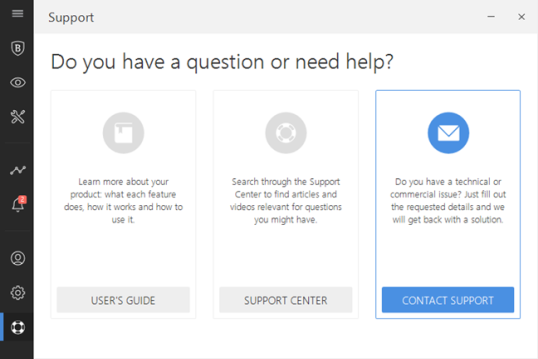
- Предоставить вам легкую для поиска документацию. Как и любой хороший продукт, хорошие продукты безопасности должны обеспечить легкий доступ к их документации. Если доступна справочная документация, но вы не можете ее найти, в чем смысл?
- Дать вам полный контроль над тем, как это работает. Многие люди ищут продукты безопасности, которые не требуют какой-либо конкретной конфигурации. Тем не менее, есть также люди, которые хотят установить каждую деталь того, как работает продукт безопасности. Если это так, то хороший продукт безопасности должен предоставить вам полный контроль.
Это все относительные критерии, потому что некоторые пользователи более продвинутые и имеют более технический фон, а другие нет. Независимо от вашего уровня технических знаний, важно, чтобы продукт безопасности был прост в использовании для вас.
Если вы новичок и у вас нет технических наклонностей, найдите продукт безопасности «установить и забыть». Если вы более профессиональный пользователь, вы можете захотеть найти продукт безопасности, который можно настроить в деталях, который предлагает множество дополнительных настроек.
5. Будьте готовы обратиться за поддержкой
Ничто в этом мире не является совершенным, поэтому иметь возможность обратиться за помощью, когда что-то не работает должным образом, важно. Вот почему варианты поддержки, которые вы получаете, являются фактором, который следует учитывать, прежде чем принимать решение о покупке продукта безопасности.

Компания ИТ-безопасности, которая создает отличные программы безопасности, обычно предлагает широкий спектр опций поддержки, и если у вас есть проблемы с их продуктом, вы должны иметь возможностей:
- Напишите им письмо, в котором вы описываете свои проблемы с помощью своего антивирусного продукта
- Проведите сеанс чата с одним из инженеров-технологов
- Позвоните в службу поддержки
Ни один из вариантов поддержки не должен стоить вам дополнительных денег, кроме того, что вы уже заплатили, когда купили свой продукт.
6. Хорошо использовать комплексные инструменты
Многие «комплексные» продукты безопасности объединяют дополнительные инструменты, помимо основных модулей безопасности. Они могут включать в себя пароли кошельков, безопасно зашифрованное пространство для хранения в облаке, инструменты для родительского контроля и так далее. Эти дополнительные инструменты не должны занимать первое место в вашем сознании, когда вы начинаете искать свое следующее превосходное решение для обеспечения безопасности, но это может быть так мало, что вам нужно сделать правильный выбор между двумя аналогичными продуктами безопасности. Например, если вы путешествуете, и вы обычно берете с собой компьютер или устройство Windows, вы должны получить продукт безопасности, который включает план обслуживания VPN, или подписаться на услугу VPN отдельно. Это единственный способ, которым вы можете быть в безопасности, когда подключаетесь к ненадежным общественным беспроводным сетям, например, в аэропортах, кафе, конференц-центрах и т.д.

Если вы являетесь родителем, и вам нужно выбирать между двумя аналогичными наборами безопасности, но только один из них предлагает модуль родительского контроля, вы, вероятно, должны выбрать тот, у которого есть родительский контроль.
При выборе покупки продукта безопасности вы должны проверить, есть ли дополнительные инструменты, которые он связывает:
- Ориентирован на безопасность . Если продукт безопасности дает вам бесплатные дополнительные инструменты, не ориентированные на безопасность, мы считаем, что их не стоит покупать. Эти инструменты — всего лишь средство для маркетинга.
- Полезно. Дополнительные инструменты, которые вы получаете при покупке продукта безопасности, должны быть полезны для вас. Они должны быть не только клонами инструментов, которые уже найдены в Windows.
- Не навредите своей безопасности или конфиденциальности. Некоторые поставщики предпочитают связывать дополнительные инструменты, которые не помогают повысить вашу безопасность или конфиденциальность.
- Напротив, они наносят ей вред. Если решение безопасности включает в себя теневые панели инструментов, веб-браузеры, надстройки браузера или любые другие инструменты, которые снижают вашу безопасность или конфиденциальность , вы должны держаться подальше от этого продукта.
- Не требуйте дополнительных затрат . Если вам нужно заплатить больше денег в дополнение к тому, что вы уже заплатили за пакет безопасности, они не стоят того.
7. Рассматривайте репутацию
Это может показаться немного консервативным, как, например, команда старых редакторов, которые хотят поддержать крупные имена рынка ИТ-безопасности. Это неправда, и мы заверяем вас, что наши намерения честны: репутация важна! Покупка и использование продукта безопасности у компании с хорошей репутацией — это, как правило, более безопасная ставка, чем переход с помощью продукта безопасности от неизвестной фирмы. Хорошие решения безопасности, как правило, остаются хорошими с течением времени. В то же время многие вредоносные программы маскируются как так называемые решения безопасности. Например, при выборе неизвестного антивируса вы можете установить вирус на свой компьютер, из которого вы хотите защитить себя.
8. Будьте в курсе затрат
Хорошо, вы, наверное, думаете, что все критерии, о которых мы говорили, прекрасны и денди, но ни один из них не так важен, как стоимость этого решения безопасности. Большинство людей склонны выбирать менее дорогие продукты, и хотя это правильный общий подход, это не всегда лучше. В случае продуктов безопасности это означает, что вы должны искать самый дешевый продукт, который соответствует вашим потребностям и предлагает необходимую защиту. Этот продукт может быть не самым дешевым на рынке. С другой стороны, представьте, сколько это может стоить вам, если вы купите продукт безопасности, который не может защитить ваши файлы от выкупа?
2018-10-24T12:45:28
Вопросы читателей