Редактор локальной групповой политики — это инструмент Windows, используемый ИТ-администраторами. Это не всегда известно случайным пользователям компьютера. Редактор локальной групповой политики позволяет управлять процессами входа в систему и завершения работы, настройками и приложениями, которые пользователи могут изменять или использовать в Windows. Это может быть полезно, если вы хотите управлять правилами для других пользователей вашего компьютера. Читайте дальше, чтобы узнать, что такое локальная групповая политика и как вы можете работать с редактором локальной групповой политики.
Что такое локальная групповая политика?
По определению, групповая политика — это функция Windows, которая предлагает вам централизованный способ управления и настройки операционной системы Windows, программ и пользовательских настроек с компьютеров, подключенных к одному домену. Групповые политики наиболее полезны, если вы являетесь сетевым администратором и вам необходимо применять определенные правила или параметры на компьютерах или пользователях, находящихся в сети, которой вы управляете.
Локальная групповая политика — это вариант групповой политики, который также позволяет управлять отдельными компьютерами, в отличие от всех компьютеров, зарегистрированных в домене. Хорошим примером является ваш домашний компьютер с Windows 10, Windows 8.1 или Windows . Это означает, что этот инструмент может быть полезен как для домашних пользователей, так и для сетевых администраторов. Проще говоря, вы должны думать о локальной групповой политике как о наборе правил, управляющих работой Windows на вашем компьютере или устройстве.
Могу ли я использовать редактор локальной групповой политики?
Поскольку редактор локальной групповой политики является довольно продвинутым инструментом, вы должны знать, что он недоступен в выпусках Windows для дома или для начинающих . Вы можете получить к нему доступ и использовать его только в:
- Windows 10 Pro и Windows 10 Enterprise
- Windows 7 Профессиональная, Windows 7 Максимальная и Windows 7 Корпоративная
- Windows 8.1 Профессиональная и Windows 8.1 Корпоративная
Несколько примеров того, что вы можете сделать с помощью редактора локальной групповой политики
Давайте перечислим несколько примеров того, что вы можете сделать с помощью редактора локальной групповой политики. Вы можете настроить параметры Windows и применить их так, чтобы пользователи на вашем компьютере не могли изменить их впоследствии. Вот несколько примеров:
- Разрешить пользователям доступ только к некоторым приложениям, найденным на вашем компьютере.
- Запретить пользователям использование на компьютере съемных устройств (например, USB-накопителей).
- Заблокируйте доступ пользователей к Панели управления и приложению Настройки.
- Скрыть определенные элементы из панели управления.
- Укажите обои, используемые на рабочем столе, и запретите пользователям изменять их.
- Запретить пользователям включение/отключение подключений к локальной сети или запретить им изменять свойства подключений компьютера (локальной сети).
- Запретить пользователям читать и/или записывать данные с CD, DVD, съемных дисков и т. д.
- Отключите все сочетания клавиш, которые начинаются с клавиши Windows. Например, Windows + R (который открывает окна «Выполнить») и Windows + X (который открывает меню опытного пользователя) перестают работать.
Это всего лишь несколько примеров. Редактор локальной групповой политики из Windows позволяет настраивать многие другие параметры.
Как открыть редактор локальной групповой политики в Windows
В Windows простой способ открыть редактор локальной групповой политики — использовать поиск. Введите «gpedit.msc» в качестве текста для поиска, а затем щелкните результат поиска «gpedit».
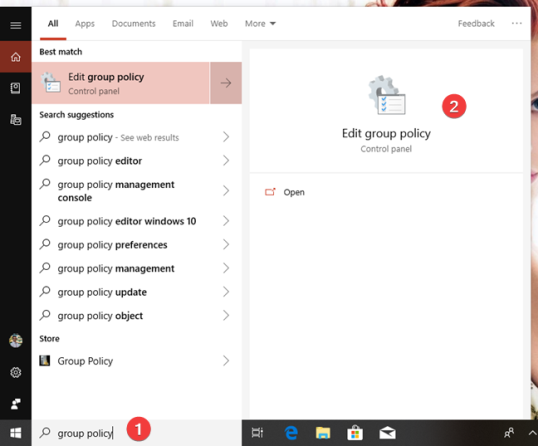
ПРИМЕЧАНИЕ. Редактор локальной групповой политики выглядит и предлагает одинаковые параметры, настройки и функции независимо от того, используете ли вы Windows 7, Windows 8.1 или Windows 10. Поэтому для простоты отныне мы используем только снимки экрана, сделанные в Windows 10.
Как работать с редактором локальной групповой политики
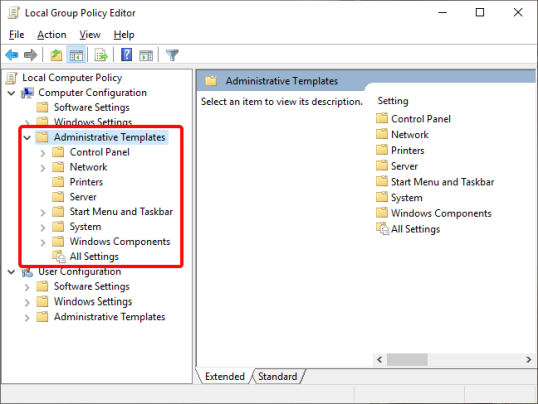
Редактор локальной групповой политики разделен на две панели: левая панель содержит параметры локальной групповой политики , отображаемые в категориях, а правая панель — содержимое активной категории. Политики локальных групп подразделяются на два больших раздела:
- Конфигурация компьютера — содержит параметры локальной групповой политики , которые управляют политиками, которые применяются ко всему компьютеру, независимо от того, вошли ли пользователи или пользователи.
- Конфигурация пользователя — содержит параметры локальной групповой политики , которые контролируют пользовательские политики. Эти политики применяются к пользователям, а не ко всему компьютеру. Хотя это выходит за рамки данного руководства, вы должны знать, что пользовательские политики применяются для пользователей независимо от того, с какого компьютера из вашей сети они входят в систему.
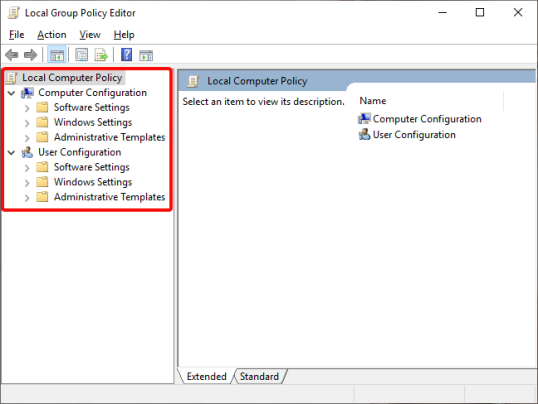
Категории «Конфигурация компьютера» и «Конфигурация пользователя» разделены на три раздела:
- Настройки программного обеспечения — содержит политики программного обеспечения и, по умолчанию, оно должно быть пустым.
- Настройки Windows — содержит настройки безопасности Windows. Это также место, где вы можете найти или добавить сценарии, которые должны запускаться при запуске или завершении работы Windows.
- Административные шаблоны — имеет множество настроек, которые управляют многими аспектами работы вашего компьютера. Это место, где вы можете видеть, изменять и даже применять всевозможные настройки и правила. Чтобы дать вам несколько примеров, вы можете управлять работой панели управления, сети, меню «Пуск» и панели задач, а также тем, что пользователи могут изменять при их использовании.
Как редактировать политики Windows с помощью редактора локальной групповой политики
Чтобы вы могли легко понять процесс, связанный с редактированием политик, мы будем использовать пример. Допустим, вы хотите установить конкретные обои по умолчанию для вашего рабочего стола, которые будут установлены для всех существующих или новых пользователей на вашем компьютере с Windows.
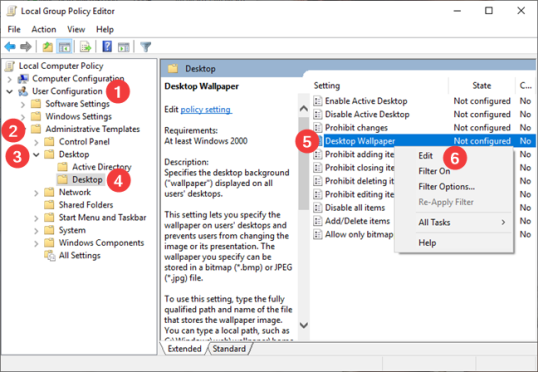
Чтобы перейти к настройкам рабочего стола, вам нужно будет просмотреть категорию «Конфигурация пользователя» на левой панели. Затем перейдите к административным шаблонам, разверните Рабочий стол и выберите параметры внутреннего рабочего стола. На правой панели вы увидите все параметры, которые вы можете настроить для выбранного в настоящий момент административного шаблона. Обратите внимание, что для каждого доступного параметра у вас есть два столбца с правой стороны:
- В столбце «Состояние» указано, какие параметры не настроены, а какие включены или отключены.
- В столбце «Комментарии» отображаются комментарии, сделанные вами или другим администратором для этого параметра.
В левой части этой панели также отображается подробная информация о том, что делает конкретный параметр и как он влияет на Windows. Эта информация отображается в левой части панели всякий раз, когда вы выбираете определенную настройку. Например, если вы выберете Обои для рабочего стола, слева вы увидите, что их можно применять к версиям Windows, начиная с Windows 2000, и вы можете прочитать их Описание , которое говорит вам, что вы можете указать «фон рабочего стола отображается на всех рабочих столах пользователей» . Если вы хотите отредактировать настройку, в нашем случае обои рабочего стола, дважды щелкните/нажмите на эту настройку или щелкните правой кнопкой мыши/нажмите и удерживайте ее, а затем выберите «Изменить» в контекстном меню.
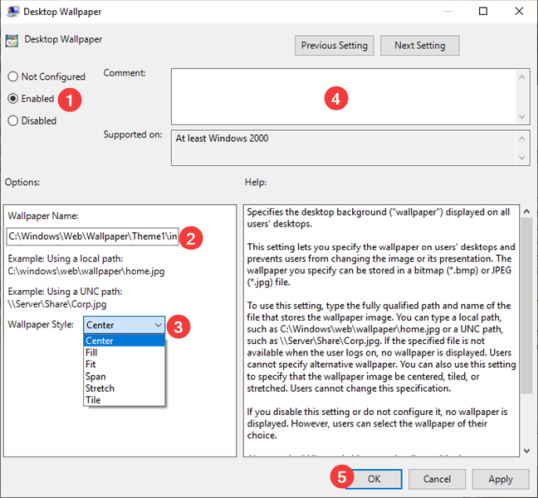
Откроется новое окно с названием выбранного вами параметра. В этом окне вы можете включить или отключить настройку или оставить «Не настроено». Если вы хотите включить настройку, сначала выберите ее как Включено. Затем прочитайте раздел справки и, если есть раздел «Опции», убедитесь, что вы заполняете запрашиваемую информацию. Обратите внимание, что это окно может включать в себя различные параметры, в зависимости от настройки, которую вы выбираете для редактирования. Например, в нашем примере об указании обоев для рабочего стола мы должны указать путь к файлу изображения, который мы хотим установить в качестве обоев, и мы должны выбрать, как мы хотим, чтобы он располагался. Затем мы можем добавить комментарий (если мы хотим — это совершенно необязательно) и, наконец, мы должны нажать кнопку Применить или кнопку ОК , чтобы активировать нашу настройку.
Отключение параметра или изменение его статуса на «Не настроен» предполагает простой выбор одного из этих параметров. Как мы упоминали ранее, разные настройки имеют разные параметры. Например, сценарии, которые вы можете настроить для запуска Windows при запуске или выключении, могут выглядеть совершенно иначе.
Нажмите или коснитесь «Конфигурация компьютера», затем «Параметры и сценарии Windows» («Запуск / выключение»). Выберите «Запуск» или «Выключение» на правой панели и нажмите на ссылку «Свойства» на правой панели. Или дважды щелкните Запуск или Завершение работы.
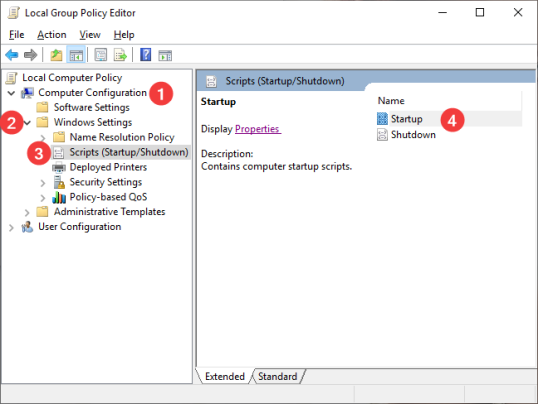
Нажмите «Добавить…», чтобы добавить новые сценарии в выбранный процесс.
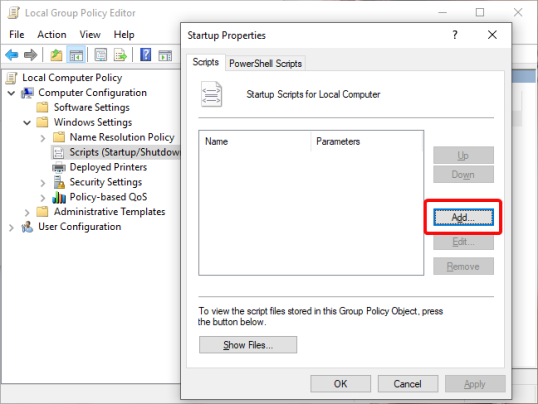
В этом случае вам не нужно ничего включать или отключать. Вместо этого вы можете добавлять или удалять различные сценарии, запускаемые при запуске или завершении работы Windows.
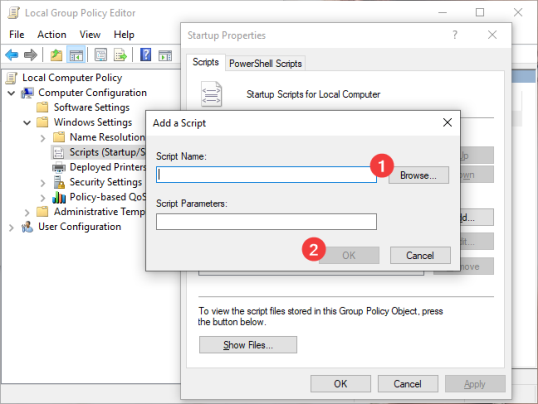
Когда вы закончите, нажмите или нажмите OK .
Перейдите к редактору локальной групповой политики и проверьте, какие настройки он предлагает, потому что их много. Считайте это своей игровой площадкой на время, так как есть много вещей, которые вы можете проверить.