MikroTikis a popular and mostly used router because of having a lot of networking functionalities and cheap price. MikroTik router can be found both Router Board and MikroTik OS. If you buy a MikroTik Routerboard (like MikroTik Routerboard 450G, MikroTik Routerboard 1100 AH), you will find a machine where MikroTik OS is prebuilt but the machine contains limited processing resources such as limited RAM and limited processor core. So, your network could be slow if you use a MikroTik Routerboard for maintaining a large network (Note: Sometimes it is better to use Routerboard like CCR1016-12G because it is specially designed for working at layer 3 and processing many millions of packets per second). On the other hand, if you install MikroTik OS on a PC or on a Server, you will get a faster processor with sufficient RAM. So, it will be easy and faster for maintaining a large network with this MikroTik PC router (Note: PC or Server processors are specially designed for working at layer 7 and working with application. So, it will be better avoiding low configuration PC or Server). As MikroTik PC router is a better solution for a larger network, this article is designed to show you the necessary steps to install MikroTik OS on a PC or a Server.
MikroTikRouterOS CLI
Requirements
It should have at least two network cards to turn a PC or Server into a MikroTik Router. One card will be used as LAN connection and another card will be used as WAN connection. It is also better to use more than one core and sufficient memory for processing millions of network packets. You must remember that IDE HDD is required for installing RouterOS.
MikroTik PC Router Installation
MikroTik OS can be installed on a virtual machine or on a physical machine. If you interested to install MikroTik OS on a virtual machine, download VMware Workstation to create a virtual machine and then follow my video tutorial about Setup MikroTik OS on VMware Virtual Machine. If you interested to install MikroTik OS on a physical machine, download MikroTik OS ISO and burn the ISO in a blank CD or DVD or in a USB flash drive and then follow my below steps to install MikroTik OS ISP on your physical machine.
Boot your PC or Server from your bootable media such as CD or DVD ROM. If everything is OK, MikroTik OS will be started to install and format the disk. If you use a large disk, it will take more time to format. So, be patient to wait. After formatting the disk, it will ask you for selecting packages those will be installed.
To install all packages, press ‘a‘ or press ‘M’ for minimal installation and then press ‘i‘ for starting installation.
It will now ask you whether it will keep old configuration or not. Press ‘n‘, because it will be better to delete old configuration in your disk. It will now show a warning message. Press ‘y‘ for continue installation. All selected packages will be installed and then it will ask you to hit ‘Enter‘ key to reboot the system. Hit ‘Enter‘ key now.
After rebooting, it will ask you to provide login credential. MikroTik default username is ‘admin‘ and password is blank. So, type ‘admin‘ for MikroTik login and password left blank and then hit ‘Enter‘ key.
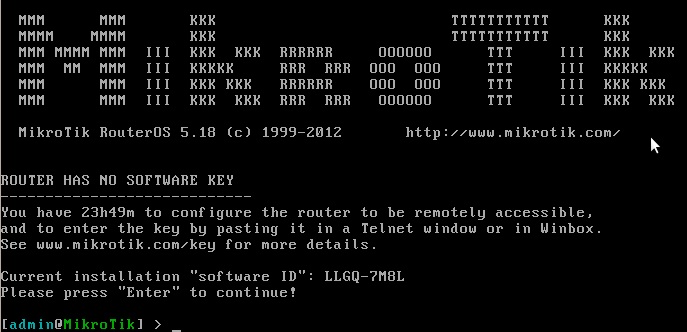
MikroTik CLI will appear now. It will also show a Software ID in the login screen. Write down this Software ID because it will be required when you want to purchase a license from MikroTik site.
How to install MikroTik OS in a Physical Machine to make a MikroTik PC Router has been discussed in this article. A video is also uploaded to reduce your any confusion. However, if you face any problem to install MikroTik OS ISO on your physical machine, feel free to discuss in comment or contact with me form Contact page. I will try my best to stay with you.
DHCP server helps to assign IP address and other related IP information (Subnet mask, Gateway and DNS) automatically in a network. But automatic DHCP server has some disadvantages too. If any IP device is connected to any automatic DHCP enabled network, the device will get an IP address and related IP information automatically by the DHCP server and the device will start to use resources of this network. So, the network administrator cannot know who is being connected to the network and using network resources such internet bandwidth, network printer and server. This unauthorized access is obviously a security issue of any network. But network administrator can prevent this unauthorized access to his network by applying static DHCP server strategy in MikroTik Router.
Static DHCP Server Strategy
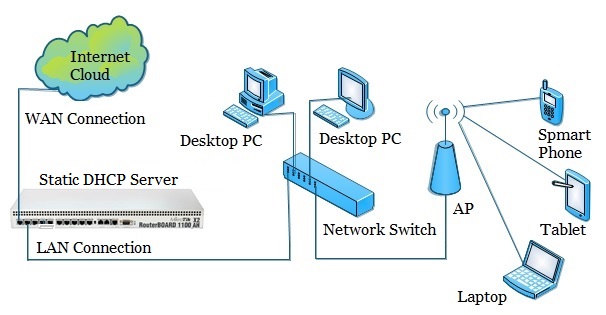
A network administrator can prevent unauthorized DHCP client access to his network by applying static DHCP server strategy in MikroTik router. Static DHCP server strategy is also known as MAC address binding in DHCP server. In a static DHCP enabled network, the user of any IP device must provide MAC address to the network administrator to get IP address and related IP information such as Subnet mask, Gateway and DNS. Any IP device will not get IP address and other related information without providing MAC address. For example, Say you have a office network like below network diagram where users are coming with their IP devices.
Static DHCP Enabled Network
As you have a DHCP enabled network, they can manage your AP SSID and Password and can be connected with your network through DHCP server. Obviously, this is a security issue in your network. So, should implement a strategy that no man can be connected with your network although you have a DHCP enabled network and public SSID and Password. You can easily build such a network where no user can be connected without your permission by applying static DHCP strategy which also known as DHCP MAC address binding.
Static DHCP Server Configuration
Obviously, static DHCP server is a beneficial feature in your network. Now I will show you how to configure a static DHCP server in your network with MikroTik router. Complete static DHCP server configuration can be divided into 3 steps.
MikroTik router basic configuration
DHCP Configuration in MikroTik router and
DHCP server to static DHCP server conversion.
MikroTik router basic configuration was explained in my first article. If you are a new MikroTik user, follow my article about MikroTik router basic configuration using winbox and complete your basic MikroTik configuration.
After completing MikroTik basic configuration, you have to configure DHCP server in your MikroTik router. How to configure a DHCP server configuration in MikroTik router was explained in my previous article. Follow all the steps from 1 to 8 described in that article and then follow below steps to turn your DHCP server into a static DHCP server.
Go to IP > Pool to open IP Pool window.
From IP Pool window, remove your dhcp server pool. So, no IP will be provided automatically by your DHCP server.
Now go to IP > DHCP Server and double click on active DHCP server and then check Address Pool of DHCP server and make it static-only.
Now click on Lease tab and click plus sign (+) button. New DHCP Lease will appear now. Provide IP address,MAC address of your user device and choose DHCP server from Server drop-down menu and then click Apply and OK button.
Now connect this IP device in your network. A static DHCP IP address and related IP information will be provided to this device. If the device gets IP information successfully, you will see DHCP lease status bound in DHCP lease window.
To turn your DHCP server into static DHCP server, you should follow the above steps carefully otherwise your will not get desired result. If you face any difficulty to do above steps, please watch carefully my below video about MikroTik Router Static DHCP Server Configuration. I hope, it will show you proper guide to configure a static DHCP server in your MikroTik router.
Static DHCP server configuration in MikroTik Router has been explained in this article. A video tutorial has also been uploaded so that you can configure static DHCP server in your MikroTik router without any confusion. However, if you face any problem to configure static DHCP server in your network with MikroTik router, feel free to contact with me from Contact page. I will try my best to stay with you.
Dynamic Host Configuration Protocol (DHCP) is a client/server protocol where a DHCP server automatically provides an Internet Protocol (IP) address and other related information such as subnet mask, default gateway and DNS to DHCP clients. DHCP server and client use UDP port 67 and 68 for communication. In a network, a DHCP client (IP devices such as Desktop, Laptop, Smartphone etc.) requests for an IP lease to DHCP servers and a DHCP server responses allocating IP address and other related IP information for a certain period. So, a DHCP server reduces huge network administration tasks of a system administrator. Every MikroTik Router has a built-in DHCP service. So, system admin can easily turn MikroTik Router into a DHCP server and can easily reduce his network administration task.
MikroTik DHCP Server configuration
Generally, every MikroTik router has a built-in DHCP service. So, if you have a MikroTik router and you want to enable a DHCP server in your network with MikroTik router to reduce your administrator task, keep reading the rest of this article where I will show you how to configure a DHCP server in your MikroTik router.
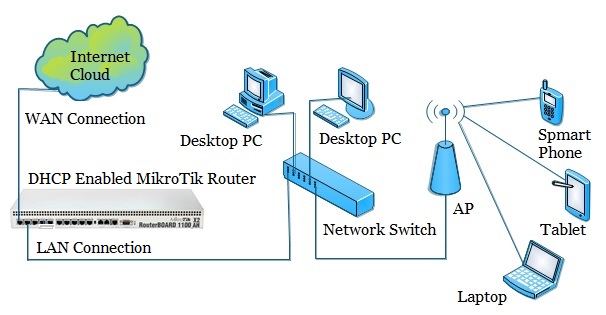
Before going to start configuring a DHCP server in MikroTik router, I will show you a basic network diagram where a MikroTik router is working as a DHCP server as well as it is working as a network gateway. I hope, your network is almost same like the below network diagram and you want to enable a DHCP server in your MikroTik router.
DHCP Enabled Network Diagram with MikroTik Router
In the above network diagram, the first interface (ether1 port) of MikroTik router is connected to an ISP for accessing internet and this interface is known as WAN port. All the LAN users are connected to second interface (ether2 port) of MikroTik router through a network switch. We will now enable DHCP server in this second interface so that all the LAN users will get network information (IP, Subnet mask, Gateway and DNS) dynamically from this DHCP server to access internet. But before enabling DHCP server in MikroTik router, you have to complete MikroTik router basic configuration. Basic configuration includes WAN and LAN IP assigning, Gateway IP assigning, DNS configuration and NAT rule creation. If you are a new MikroTik user, please spend some time to study my previous article about MikroTik Router Basic Configuration using Winbox and complete the basic configuration of your MikroTik router and then follow my below steps to enable DHCP server in your MikroTik router.
Go to IP > DHCP Server menu from your winbox. DHCP Server window will appear.
In DHCP Server window, click on DHCP Setup button and choose the interface (in this article: ether2) in which you want to setup DHCP server from DHCP Server Interface drop-down menu and then click on Next button.
Now put your LAN network block in DHCP Address Space input box and click Next button. DHCP client/LAN user will get IP from this network.
Choose gateway address for the given network in Gateway for DHCP Network input box and then click Next button.
Provide IP range from which your DHCP client/LAN user will get IP in Address to Give Out input box and click Next button.
Provide preferred DNS server IP and click Next button.
Now provide IP lease time and click Next button. Default lease time is 3 days.
DHCP setup is complete now and a successful message will be shown.
Now connect any IP device (Desktop, Laptop, Smartphone etc.) to your network. Automatically an IP will be allocated for that device from your MikroTik DHCP server. Click Leases tab and observe IP lease status of that DHCP client.
If you follow the above steps carefully, your MikroTik router will turn into a DHCP server and your LAN users will now be able to obtain IP information from your MikroTik DHCP server. However, if you face any problem to enable DHCP server in your MikroTik router, watch my below video about DHCP Server configuration in MikroTik Router. I hope, it will help you to configure your MikroTik DHCP server successfully.
DHCP server configuration in MikroTik Router has been explained step by step in this article. A video tutorial has also been uploaded so that you can configure DHCP server in MikroTik router without any confusion. However, if you face any problem to configure a DHCP server in your MikroTik router, feel free to discuss in comment or contact with me from Contact page. I will try my best stay with you.
MikroTik Router has a lot of features which help to customize your network as your requirement. Sometimes, it may be your requirement that you need to allow per IP internet access. Normally, when you apply masquerade NAT rule in your MikroTik router, you accept all private IP will be masqueraded or a network block will be masqueraded. But if you do so and enable a DHCP server in your network, you may face a lot of unauthorized accesses in your network. Because when a user will be connected in our network, he/she will get internet information (IP, Subnet mask, Gateway and DNS) by DHCP server and can access internet through your MikroTik router. So, an unauthorized user can consume your bandwidth. But you don’t want that any user can access internet through your MikroTik router without your permission. If you want to prevent unauthorized access in your network, you have to apply a strategy named Single IP NAT strategy. Single IP NAT strategy will help you to control unauthorized access to your network. If you apply single IP NAT strategy, no IP device can get internet access through your router until you allow that IP.
Single IP NAT Strategy
Single IP NAT Strategy is not a MikroTik service but a logical tricks which will prevent unauthorized internet access in your network. Say, you are going to build a DHCP enabled network with MikroTik router in your office like below network diagram where users will come with their IP devices and he/she will be connected with your network by wire or wireless device.
DHCP Enabled Network
But you don’t want that any user can access internet through your DHCP server without your permission. For this, you should apply single IP NAT strategy in your MikroTik router. If you wish to apply single IP NAT strategy in your MikroTik router, keep reading this article where I will show you how to apply single IP NAT strategy in your MikroTik router.
Single IP NAT Configuration in MikroTik Router
Before going to apply single IP NAT strategy in your MikroTik, you have to complete MikroTik router basic configuration without NAT configuration. If you are a new MikroTik user, spend some time to study my previous article about MikroTik Router Basic Configuration using winbox and complete basic configuration of your MikroTik router without NAT configuration. Because single IP NAT strategy will be applied in NAT configuration. If you have completed your MikroTik router basic configuration according to my article, follow below steps to apply single IP NAT strategy in your MikroTik router.
Go to IP > Firewall menu and click on NAT tab and then click on add new button (PLUS Sign) to create a new NAT rule. In New NAT Rule window click on General tab and then select srcnat from Chain drop-down box.
Now click on Advanced tab and type ipblock1 or your own string as you like in Src. Address List input box.
Click on Action tab and choose masquerade from Action drop-down list and then click Apply and OK button.
Now click on Address List tab in Firewall window and click on add new button (PLUS Sign) to create a new list. Choose ipblock1 or your provided string from Name drop-down list and type the IP address on which you want to allow internet in Address input box and then click Apply and OK button.
Do step 4 every time you want to allow an IP to access internet through your router.
After this configuration, you can see that IP addresses which are listed in Address List panel can access internet trough your MikroTik router. But other IP addresses of your network block cannot access internet through your router although these IP address are obtained by IP devices from your MikroTik DHCP server.
You have to follow the above steps carefully otherwise you cannot apply single IP NAT strategy in your MikroTik router. If you face any difficulty to do above steps properly, watch my below video carefully about Single IP NAT Strategy in MikroTik Router.
The logical tricks named Single IP NAT Strategy to prevent unauthorized internet access in your network has been explained step by step in this article. A video tutorial has also been uploaded to remove your any confusion to apply single IP NAT strategy in MikroTik router. However, if you face any problem to apply single IP NAT strategy in your MikroTik router, feel free to discuss in comment or contact with me from Contact page. I will try my best to stay with you.
MikroTik is one of the most popular routers in computer networking. It is said that no office or ISP company cannot go a single day without MikroTik router. MikroTik router is also a popular router to any network administrator because MikroTik router is easily maintainable with graphical user interface software named winbox than other routers. A lot of services are available in MikroTik router to run a network smoothly. Among these services, Bandwidth Management Service is the most popular service in MikroTik Router. It is said that MikroTik Router is mostly used because of its Bandwidth Management service. As most of the offices or ISP companies are now using MikroTik router for their user bandwidth management, it will be so beneficial for you to know the proper bandwidth management system with MikroTik router. So, this article is designed to show you the proper and simple way to manage internet bandwidth of any office or ISP company with MikroTik router.
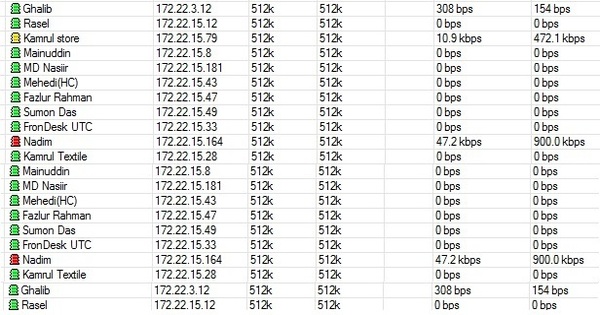
The module or service which is used to manage bandwidth in MikroTik Router is Queues. Maximum bandwidth can be controlled with Queues but it is not always possible to provide fixed bandwidth to the users because bandwidth is always shared. For example, you have assigned 1 Mbps bandwidth to a user. It means, the user will get maximum 1 Mbps upload and download speed if bandwidth is available otherwise he/she will get less than 1 Mbps speed. But he/she will never get grater than 1 Mbps upload or download speed although bandwidth is available more than 1 Mbps. A simple screenshot of a simple queues of a MikroTik router is given below.
MikroTik Router Simple Queues
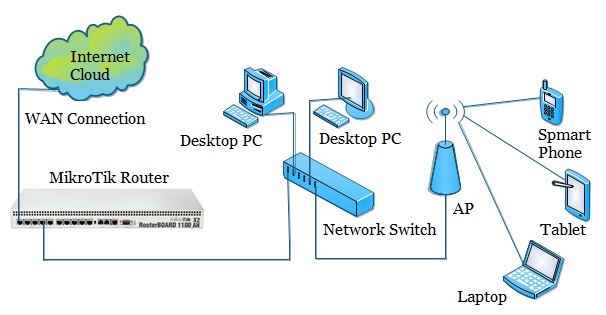
MikroTik router basic configuration was shown in my previous article. In that article, I have configured a simple office network with MikroTik router. The office network diagram which was shown in my previous article is given below again because I will configure MikroTik simple queues for managing users bandwidth according to the basic configuration of my previous article.
Simple Office Network Diagram
In this network diagram, there are there users who are connected to MikroTik router for accessing internet through a network switch. MikroTik router is working as a NATing devices in this network that means it is translating private IP address to public address for accessing internet. Basic configuration for this MikroTik router for working as a NATing devices was explained in my previous article. If you are a new MikroTik user, visit to my previous article about MikroTik router basic configuration using winbox and the keep reading the rest of this article to know how to manage user bandwidth with MikroTik router simple queues.
Bandwidth Management with MikroTik Simple Queue
There are various queue services in MikroTik router for managing user bandwidth. Among these, simple queue service is mostly used for managing an office internet bandwidth and PCQ service is used for managing ISP client bandwidth. As I have configured a simple office network in my previous article, today I will show you how to manage an office bandwidth with MikroTik simple queue service. If you have already configured the basic steps (WAN and LAN IP assign and NAT configuration) of your MikroTik router according to my last article (about MikroTik router basic configuration), follow my below steps to manage your user bandwidth with MikroTik simple queue service.
Login to your MikroTik router using winbox and then click on Queues menu from left menu panel. Queue List window will appear but there will be no list because we have not added any list yet. So, click on add new button (PLUS Sign) to add a new list. New Simple Queue window will appear now. If you face any confusion to find the add new button, please watch my below video carefully which will show you proper guide to open New Simple Queue window successfully.
In general tab of New Simple Queue window, type user name in Name input field and user IP address in Target Address input field. Now choose Target Upload and Target Download from Max limit drop-down list or type your desired upload and download speed. This is the maximum upload and download speed for your desired user.
Now from Advanced tab, choose Limit At value for Target Upload and Target Download speed. If you set this value, MikroTik will try to provide at least this upload and download speed to the user when bandwidth will be congested. You can also choose Priority for any user. Normally, MikroTik bandwidth is assigned sequentially if they are in same priority. That means, the user who is top position of Queue list will get first priority to assign bandwidth and then the second positioned user and then the next positioned user. Priority can be selected 1 to 8. 1 is high priority and 8 is less priority. High priority user will get bandwidth first and then less priority user. Choose your desired priority for this user and click Apply and then OK to save this configuration.
You have now assigned bandwidth on a user IP successfully. Do the above steps repeatedly for all your network users for assigning their bandwidth. Now check your assigned bandwidth to any user with free internet speed test tool. I hope, you will get your desired result from bandwidth test.
Proper steps to assign bandwidth to any user IP with MikroTik simple queue service has been show above. I hope, you are able to assign your user bandwidth by following above steps. However, if you face any problem to assign user bandwidth with above steps, please watch my below video tutorial about MikroTik Router Bandwidth Management with Simple Queues. I hope, it will guide your properly to assign a user bandwidth MikroTik router simple queue.
MikroTik Router Bandwidth Management with simple queue has been explained step by step in this article. A video tutorial has also been uploaded so that you can do the above steps successfully. However, if you face any difficulty, feel free to discuss in comment or contact with me from Contact page. I will try my best to stay with you.
MikroTik is one of the most popular routers. MikroTik Router has a lot of networking services that help to build a stable and smooth network so easily. It is said that any ISP Company or any Enterprise Office cannot go a single day without MikroTik Router. So, system administrators who are not using MikroTik Router yet, they will soon start using MikroTik Router, I think. As a system administrator, I am also using MikroTik Router about 5 years in my network and really I have got a very stable and smooth network. MikroTik Router is mainly famous for bandwidth control service and packet filtering functionalities as well as cheap price. MikroTik Router is also favorite to any system administrator because of having graphical user interface (GUI) software named Winbox which helps to manage MikroTik Router so easily. As the usage of MikroTik Router is growing rapidly, this article is designed to show the basic configuration of a MikroTik Router from very beginning using Winbox software so that a new MikroTik Router user can easily configure his/her router from very starting and can operate his network smoothly.
Prerequisites to Configure a MikroTik Router
Before going to start basic configuration of a MikroTik Router you should have below the information.
PC with windows operating system installed and RJ45 cables.
If you have the above requirements properly, you are now ready to start MikroTik router basic configuration. The rest of this article will show the step by step guide to configure a MikroTik Router from very beginning.
4 Easy Steps to Configure a MikroTik Router
MikroTik Router basic configuration includes assigning IP addresses, configuring default gateway and enabling NAT for accessing internet. MikroTik Router basic configuration can be divided into 4 steps.
Assigning WAN and LAN IP addresses
Gateway configuration
NAT configuration and
DNS configuration
Among the above 4 steps, first three steps are mandatory for accessing internet trough your MikroTik router and step 4 is optional but it must be done for proper MikroTik Router configuration.
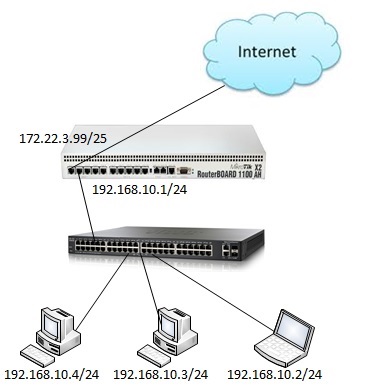
To configure a MikroTik Router properly according to the above 4 steps, I am using the following information and a simple office network diagram where three users are connected to MikroTik Router through a network switch and the first interface of the router is connected to internet for accessing internet information.
MikroTik RouterBoard 1100 AHX2
WAN IP: 172.22.3.99/25 (ISP provided)
Gateway: 172.22.3.1 (ISP provided)
Public DNS: 8.8.8.8 and 8.8.4.4
LAN IP Network: 192.168.10.0/24 (Private IP block chosen by me)
Simple Office Network
According to our simple office network diagram, first interface (ether1 port) is connected to ISP internet and this interface is our WAN port. We will set our WAN IP (provided by ISP) in this interface. Second interface (ether2 port) is our LAN interface and we will set our LAN Gateway in this interface. The users of this network will be connected to MikroTik Router trough a switch for accessing internet. In practical, your network will not be so simple like this network diagram. You may have to maintain a large network where there may have hundred or thousand of users. But the basic configuration is same for all networks. However, we will now start our MikroTik Router basic configuration according to the above 4 steps and following our simple office network diagram.
Step 1: Assigning WAN and LAN IP Addresses
The first step to configure a MikroTik Router is to assign WAN and LAN IP addresses in WAN and LAN interface accordingly. The following steps will show how to assign WAN and LAN IP addresses in a new MikroTik Router.
Connect your PC with MikroTik Router by a RJ45 cable.
Open winbox software in your operating system and click on Neighbors tab. Connected Ethernet’s MAC will appear in this tab. If you don’t find MAC Address, click on Refresh button. MAC address will appear soon. Click on the appeared MAC address and selected MAC address will be appeared in Connect To input box.
MikroTik Router default username is admin and password is blank. So, type admin in the login input box and password field left blank and then click on Connect button. MikroTik graphical user interface (GUI) will appear now.
Now click on Remove Configuration button if prompted or from Winbox go to System > Reset Configuration and click No Default Configuration and then click on Reset Configuration button to reset RouterOS. Router will be rebooted and login again and then you will find a zero configuration RouterOS.
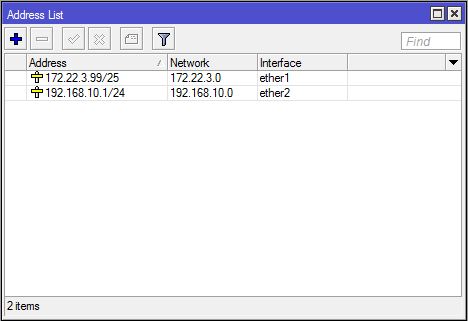
Go to IP > Addresses menu item. Address List window will appear now. Click on PLUS SIGN (+). New Address window will appear. Put your WAN IP address (In this article: 172.22.3.99/25) which is provided by your ISP in Address input box and then select WAN interface (in this article: ether1) from the Interface drop-down menu and click Apply and then OK button.
Click PLUS SIGN (+) again and put LAN Gateway IP address (in this article: 192.168.10.1/24) in Address input box and choose LAN interface (in this article: ether2) from Interface drop-down menu and click Apply and OK button.
Assigning WAN and LAN IP Addresses
Assigning WAN and LAN IP addresses has been completed. We will assign MikroTik gateway which is provided by ISP so that MikroTik Router can communicate to internet through this gateway.
Step 2: Gateway Configuration
After completing WAN and LAN IP setup, we will now assign MikroTik default gateway which is provided by ISP. The following steps will show how to assign default gateway in MikroTik Router.
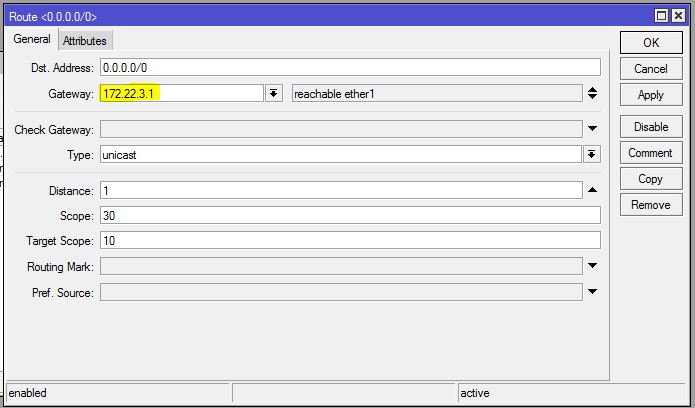
From Winbox, go to IP > Routes menu item. Route List window will appear now. You can see two dynamic routes are already added in this Route List. Click on PLUS SIGN (+). New Route window will appear. Now put gateway address (in this article: 172.22.3.1) which is provided by your ISP in Gateway input field.
Now click Apply and OK button.
Assigning Default Gateway IP
MikroTik default gateway configuration has been completed. Now we will create NAT rule so that MikroTik Router can masquerade our LAN user IP to access internet.
Step 3: NAT Configuration
After completing gateway configuration, you have to create a NAT firewall rule to masquerade LAN IPs. Otherwise, LAN user cannot access internet through MikroTik Router. The following steps will show how to create masquerade firewall rule in MikroTik Router.
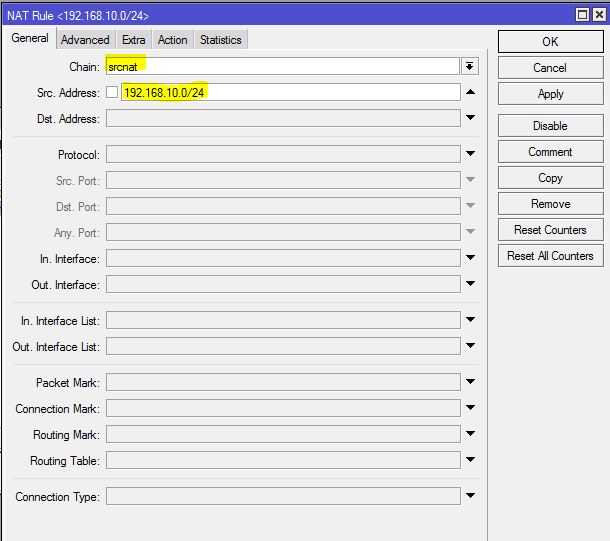
Go to IP > Firewall menu item and click on NAT tab and then click on PLUS SIGN (+) button. New NAT Rule window will appear.
From General tab, choose srcnat from Chain drop down menu and put LAN IP Block (in this article: 192.168.10.0/24) in Src. Address input box.
From Action tab, choose masquerade from Action drop down menu and then click Apply and OK button.
NAT Configuration in MikroTik RouterOS
NAT configuration in MikroTik Router has been completed. if you do not create this NAT rule, your LAN user cannot access internet through MikroTik Router.
Three mandatory steps for configuring a new MikroTik RouterOS to access internet has been completed. LAN users are now able to access internet through Mikrotik Router if they use custom DNS server IP. But we will now configure DNS in MikroTik Router so that it can resolve DNS request as well as it can work as a DNS server.
Step 4: MikroTik DNS Configuration
After completing three mandatory configuration, we need to configure DNS in MikroTik Router so that it can resolve DNS request from the LAN user as well as itself. The following steps will show how to configure DNS in MikroTik RouterOS.
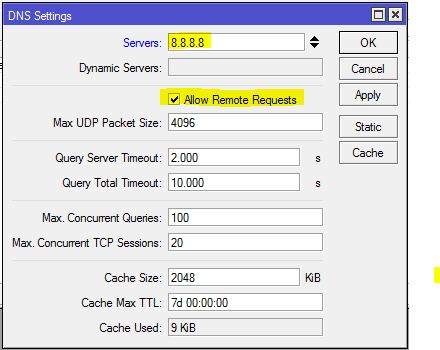
Go to IP > DNS menu item. DNS Settings window will appear. In this window, put DNS server address that you have got from ISP company or you can put Google public DNS IP (8.8.8.8) in Servers input box. You can put secondary DNS server IP by clicking add new value button (drop down button) located after the Servers input box. Optionally, you can turn MikroTik router as a DNS server. Turning MikroTik router as a DNS server is a better idea, I think. Because if you use public DNS server in your network, every DNS request of your user will consume your paid bandwidth. But if you turn MikroTik router as a DNS sever, your user will get DNS solution from MikroTik Router without consuming paid bandwidth. So, if you want to turn MikroTik into a DNS server, click the Allow Remote Requests check box and click Apply and OK button.
If you turn MikroTik Router into a DNS server, all MikroTik IP addresses can be used as a DNS server IP including WAN IP which is a public IP and problem will arise here. If anyone outside of your LAN use WAN IP as a DNS IP, your MikroTik will be happy by serving him/her DNS solution consuming your paid bandwidth. So, you must stop DNS request from outside of your LAN. For stopping DNS request from outside of your LAN, you should apply firewall rules which will drop all DNS requests coming from your WAN interface (in this article: ether1). For this, go to IP > Firewall menu item and click on Filter Rules tab and then click on PLUS SIGN (+). New Firewall Rule window will appear. From General tab, choose input from Chain drop down menu, choose udp from Protocol drop down menu, Put Dst. Port 53 and choose ether1 from In. Interface drop down menu. Now click on Action tab and choose drop from Action drop menu and then click Apply and OK button. You must create another similar rule for TCP connection. For this, click on PLUS SIGN (+) again and choose tcp from Protocol drop down menu, Put Dst. Port 53 and choose ether1 from In. Interface drop down menu and then click on Action tab and choose drop from Action drop menu and click Apply and OK button. Now your MikroTik DNS server is safe from outside of your LAN.
DNS Configuration in MikroTik Router
DNS configuration in your MikroTik Router has been completed. Now your MikroTik Router is able to resolve DNS request for the LAN user as well as itself.
MikroTik Router is now completely ready if you follow the above 4 steps properly. Connect a switch to MikroTik LAN interface with RJ45 cable and connect all PCs to this switch. Also connect ISP cable to WAN interface. Now assign IP to all your LAN PC according to your LAN IP network series. If you face any problem to set IP address in windows PC, follow my another article about how to assign static IP address in windows operating system which will guide you the proper way to assign IP address in any windows PC. Now browse any website or ping google.com from your LAN PC. If your ISP is OK, you will now be able to browse any website successfully.
You should follow the above 4 steps so carefully to configure your new MikroTik Router successfully. If you miss any step, your configuration will be wrong and your LAN users will not be able to access internet through MikroTik Router. If you face any confusion to do the above 4 steps, watch the following video tutorial on MikroTik Router Basic Configuration using Winbox. I hope, it will help you enough to configure new MikroTik Router.
MikroTik Router basic configuration is not so enough to maintain a real network. If you need to maintain an office network, it will be better to use MikroTik DHCP Server. Managing DHCP Server with Radius Server will provide you more faster and smart solution.
MikroTik Router Basic Configuration has been explained step by step in this article. I hope, you will now be able to configure a new MikroTik Router successfully from very beginning. However, if you face any confusion to configure your MikroTik Router, feel free to discuss in comment or contact with me from Contact page. I will try my best to stay with you.