Свободным программным обеспечением является программное обеспечение способствующие проекту GNU и Free Software Foundation. Он используется для программных продуктов с открытым исходным кодом, которые позволяет пользователям свободно смотреть на источник программного продукта, изменять его, распространять его, и использовать его без каких-либо ограничений. Программный продукт, доступный без какой-либо оплаты не обязательно бесплатное программное обеспечение. Согласно определению, как оно было представлено Free Software Foundation, слово Free означает идею свободы, а не имеющие стоимость. Если программный продукт доступен для загрузки без оплаты, но пользователь не может изменить исходный код, то это не Free Software Foundation. Важно отметить различие здесь. Freeware — это программа, за которую вам не придется платить.
Свободное программное обеспечение это программный продукт, который вы можете изменять и использовать для своих собственных целей.
Freeware не обязательно должен быть свободным программным продуктом, как исходный код по-прежнему может быть защищен.
Свободное программное обеспечение может быть выпущено под разными лицензиями на примере GPL, Apache, BSD и т.д., и WordPress является одно из программных продуктов с открытым исходным кодом, выпущен под GPL или General Public License. Это позволяет дизайнерам и разработчикам создавать темы и плагины, которые расширяют функциональные возможности CMS WordPress и делают её универсальной системой, как она есть. В соответствии с лицензией GPL единственным ограничением является то, что все изменения WordPress должны иметь ту же самую лицензию.
Нашел абсолютно проверенный и 100%-рабочий способ переезда сайтов под Вордпресс на другой домен или хостинг. Все можно сделать быстро, а главное — правильно! Читать →
На этом уроке мы покажем вам, как защитить свой сайт или блог WordPress от спама.
Есть несколько решений, которые могут быть сделаны:
Убедитесь, что ваше ядро WordPress использует последнюю стабильную версию. Подробные указания относительно обновления WordPress можно найти на соответствующей странице учебника.
Установить плагин Капчи на сайт. Хороший выбор это плагин WordPress ReCaptcha. Всесторонняя инструкция о том, как установить плагин на WordPress можно найти здесь. После активации, плагин будет запрашивать публичный и закрытый ключ API. Ссылка приведет вас к соответствующему веб — сайту Google, где вы можете получить ключи API бесплатно. Вставить их в соответствующие поля и активировать плагин ReCaptcha для комментариев и регистрации пользователей.
WordPress поставляется с предустановленным решением защиты от спама — Akismet. С подробное статьей об активации Akismet, можно ознакомится здесь.
Кроме того, вы можете предотвратить комментарии, размещенные посетителями, которые приходят от подозрительных и вредоносных IP — адресов. Это может быть сделано с помощью плагина Project Honey Pot в WordPress.
WordPress является наиболее популярной блог-системой CMS в Интернете, что делает его любимой мишенью для хакеров. Иметь сайт на WordPress означает, что вы должны принять некоторые дополнительные усилия для того, чтобы защитить ваши и ваших посетителей данные. Вот краткое изложение передового опыта для защиты WordPress, который поможет вам сделать сайт безопасней. Важно заметить, что меры приведенные ниже не гарантируют 100% защиту от попыток взлома, это потому, что нет на 100% защищенных веб-сайтов, но они будут защищать вас от большинства атак.
Узнайте, как улучшить безопасность вашего блога на WordPress
Держите WordPress и плагины обновленными
Это действительно важно, следить, чтобы все ваши файлы сайта а также все плагины WordPress были обновлены до последних версий. Большинство новых версий WordPress и их плагинов содержит исправления для системы безопасности. Даже если эти уязвимости не могут быть легко использованы в большинстве случаев, важно, чтобы они были фиксированы.
Важно ограничить доступ к вашей админки WordPress только для пользователей, которым необходим доступ к нему. Если ваш сайт не поддерживает создание регистрации, тогда вашим посетителям необходимо запретить доступ к папке / wp-admin/ или файлу wp-login.php. Лучшее решение, это узнать свой IP — адрес (вы можете использовать сайт как whatismyip.com для этого) и добавьте эти строки в файл .htaccess в папке WordPress, замена xx.xxx.xxx.xxx с свой IP адрес.
<Files wp-login.php>

order deny,allow

Deny from all

Allow from xx.xxx.xxx.xxx

</Files>
В случае , если вам необходимо разрешить доступ к нескольким точкам сети (например, ваш офис, домашний компьютер, ноутбук и т.д.), просто добавьте еще один
Allow from xx.xxx.xxx.xxx
добавив на новой строке.
Если вы хотите иметь возможность получить доступ к админке с любого IP — адреса (например, если вы часто полагаются на свободных сетях Wi-Fi) ограничивают вашу область администратора к одному IP — адрес или несколько IP — адресов может быть неудобно. В таких случаях мы рекомендуем ограничить число неудачных попыток входа в систему на ваш сайт. Таким образом, вы обезопасите свой сайт на WordPress от грубой силы нападения и людей, пытающихся угадать пароль. Для этих целей можно использовать плагин называется Limit login attempts.
Не используйте «admin» в логине пользователя
Большинство нападавших могут предположить, что ваш логин WordPress является «admin». Вы можете легко заблокировать много грубой силы и других атак , просто назвав свой логин администратора по- разному. Если вы устанавливаете новый сайт WordPress, вам будет предложено имя пользователя во время процесса установки WordPress. Если у вас уже есть сайт на WordPress, вы можете следовать инструкциям, приведенным в руководстве потом, как изменить имя пользователя WordPress.
Используйте надежные, сложные пароли
Вы будете очень удивлены, когда узнаете, что существуют тысячи людей, которые используют фразы типа «пароль» или «123456» для деталей входа администратора в систему. Подобные пароли можно легко взломать, и они находятся на вершине списка любой атаки по словарю. В хорошем пароле должны использоваться несколько предложений, которое имеет смысл для вас, и вы можете легко запомнить. Такие пароли гораздо, гораздо лучше, чем одна фраза из них.
Рассмотрите двухфакторную аутентификацию
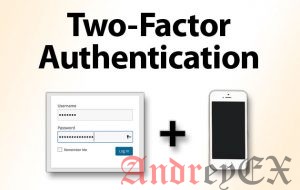
Включение двухфакторной проверки подлинности для вашего сайта WordPress позволит значительно повысить безопасность вашего сайта на WordPress. Один из самых простых способов сделать это является использование cleef для проверки подлинности с помощью мобильного телефона. Проверьте наш учебник про Cleef.
Убедитесь, что ваш сайт находится на защищенном хостинге WordPress
Ваш сайт на WordPress, помещен в качестве вашей учетной записи хостинга. Если кто-то может использовать уязвимость в старой версии PHP, например, или другой службы на вашем хостинг платформе, это не имеет значения, если у вас есть последняя версия WordPress. Вот почему важно быть организовано с компанией, которая имеет проблемы с безопасностью в качестве приоритета. Некоторые из функций, которые вы должны искать являются:
Поддержка новейших PHP и MySQL версий
изоляция аккаунта
Брандмауэр веб-приложений
Система обнаружения вторжений
Убедитесь, что ваш компьютер свободен от вирусов и вредоносных программ
Если ваш компьютер заражен вирусом или вредоносным программным обеспечением, потенциальный злоумышленник может получить доступ к вашим регистрационным данным и сделать правильный логин на вашем сайте, не взирая на все меры, которые вы предприняли раньше. Вот почему очень важно иметь у антивирусных программ последнюю дату и сохранить общую безопасность всех компьютеров, которые вы используете, чтобы защитить доступ к сайту на WordPress на высоком уровне.
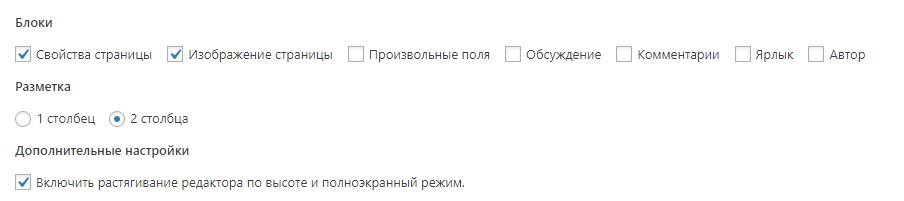
Параметры экрана является экран открывающийся с сверху вниз кнопка меню находится в правом верхнем углу некоторых страниц области администратора в WordPress. При щелчке по меню параметры экрана отображаются опции для настройки вида этой конкретной страницы в вашем районе администратора. Обычно он содержит флажки , чтобы показывать и скрывать различные секции на экране администратора. Он может также содержать возможность выбора количества элементов для отображения на экране администратора (например, вы можете увидеть более 20 комментариев, когда их модерируете).
Параметры в окне меню параметры экрана изменяются от одного экрана к другому администратором. Причина такой возможности экрана, это дать пользователю, так много контроля, насколько это возможно. Опция экрана позволяет отображать, скрывать и настраивать разделы на экране администратора. Например, в WordPress на экране редактирования поста, пользователь может выбрать скрытия мета поля для дискуссий, выбора категорий или пользовательские поля на экране редактирования постов, если они не используют его часто.