Samba — это приложение сетевого протокола SMB, используемого для подключения принтеров, службы директорий в доменных сетях и создания мультиплатформенных общих ресурсов. В данном руководстве мы рассмотрим установку и настройку Samba-сервера, который позволит создавать различные сетевые хранилища и общие ресурсы.
Установка Samba
Samba легко устанавливается из менеджера пакетов, но перед установкой нового пакета нужно выполнить обновление. Воспользуйтесь следующими командами (здесь и далее приводятся примеры для Ubuntu 16.04):
$sudo apt-get update (обновление)

$sudo apt-get install samba (запуск и установка сервера Samba)
Служба NetBios для Samba (nmbd) в наших примерах не требуется, поэтому в целях безопасности вы легко можете отключить ее командами:
$sudo systemctl stop nmbd.service

$sudo systemctl disable nmbd.service
Установка глобальных опций Samba
Параметры конфигурации Samba хранятся в файле /etc/samba/smb.conf. В нем есть два раздела, global и shares. В разделе global прописаны параметры самого сервера (имя сервера, его тип, интерфейсы и другие сетевые настройки), а в разделе shares — параметры ресурсов. Вместо редактирования файла создадим новый. Предварительно сохранив оригинал:
$sudo mv /etc/samba/smb.conf /etc/samba/smb.conf.orig

$sudo vi /etc/samba/smb.conf
Внесем в наш новый файл /etc/samba/smb.conf следующий код
[global]

       server string = samba_server

       server role = standalone server

       interfaces = lo ваш_сетевой_интерфейс

       bind interfaces only = yes

       disable netbios = yes

       smb ports = 445

       log file = /var/log/samba/smb.log

       max log size = 10000
Рассмотрим значение этих параметров.
server string: информация, передаваемая во время подключения. Можно использовать любое имя для идентификации сервера. Далее будут рассмотрены названия для ресурсов Samba.
server role: тип создаваемого Samba-сервера. В данном примере используется выделенный сервер (standalone). Другие типы — член домена и контроллер домена.
interfaces: сетевые интерфейсы, к которым привязан сервер. Здесь указан “lo”, loopback-интерфейс. Кроме него нужно указать внешний интерфейс, обычно это eth0.
bind onterface only: гарантирует, что сервер Samba будет привязан только к тем интерфейсам, которые указаны в строке interfaces, и будет игнорировать пакеты с других интерфейсов.
disable netbios: отключает на сервере все функции NetBios, чтобы немного облегчить процесс разрешения имени сервера и разгрузить трафик.
smb ports: номер порта, на котором будет работать сервер. По умолчанию Samba использует порт 445.
log file: имя и месторасположение файла лога Samba.
max log size: максимальный размер файла лога. Рекомендуется указывать его настолько большим, насколько позволяют ресурсы стстемы. Если размер будет превышен, будет создан новый файл, а предыдущий файл будет перемещен в дубликат с расширением .old. При повторном превышении первый файл с расширением .old будет удалён. Данный параметр помогает предотвратить заполнение диска.
Если нужны более подробные логи, можно воспользоваться командой:
log level = 3 passdb:5 auth:5
Уровень лога 3 означает, что сохраняется более детальная информация, чем при стандартном ведении лога. Стандартный уровень — 1, максимальный — 5. Здесь он установлен для параметров passdb и auth, чтобы получать более подробную информацию об аутентификации пользователей. После определения параметров ведения лога сохраните и закройте файл. При необходимости файл smb.conf нужно протестировать на синтаксические ошибки при помощи утилиты Samba testparm:
$testparm
Будет выведен следующий результат:

После нажатия на клавишу Enter будут выведены глобальные параметры:
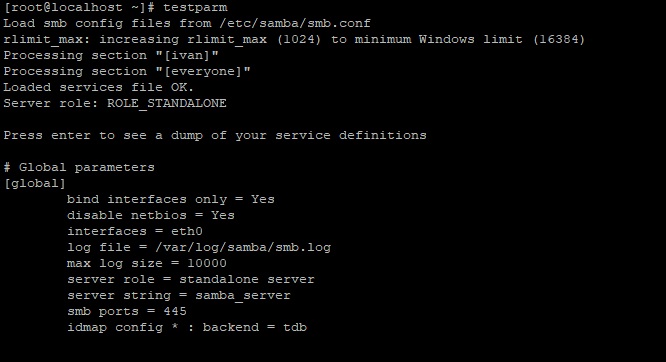
Если в результате выводится “Load services files OK”, значит, в файле нет ошибок и сервер можно запускать.
Теперь нужно настроить конфигурацию ресурсов. Ресурс состоит из двух элементов, пользователя и директории, которые необходимо создать для обеспечения возможности подключения и тестирования.
Создание пользователей Samba
В данном разделе мы создадим профили пользователей, которые смогут осуществлять доступ к серверу. Им потребуется доступ как пользователям Samba и как пользователям системы, чтобы при входе в систему они проходили аутентификацию на сервере Samba и могли осуществлять чтение и запись в файловой системе.
Помимо обычных пользователей нужно создать администратора, у которого будет возможность доступа к персональным ресурсам и их администрирования. Также администратор будет владеть общими ресурсами, доступ к которым разрешен всем.
Для каждого пользователя нужно создать домашнюю директорию. Вместо использования стандартной директории /home/user лучше создать пероснальную директорию в /samba/ для разделения данных и более удобного резервного копирования. Сначала создадим группу sambashare, директорию для хранения данных samba и назначим ее владельцем группу sambashare
$ groupadd sambashare

$sudo mkdir /samba/

$sudo chown :sambashare /samba/
Затем нужно создать директорию пользователя (в примере мы рассмотрим создание пользователя ivan, для нескольких пользователей создание будет аналогичным): Добавим системного пользователя:
$sudo adduser --home /samba/ivan --no-create-home --shell /usr/sbin/nologin --ingroup sambashare ivan
В команде используются параметры:
—home: месторасположение домашней директории пользователя.
—no-create-home: указывает команде adduser не создавать домашнюю директорию, чтобы не заполнять ее ненужными файлами конфигурации.
—shell: определяет, какая оболочка будет использоваться при входе через SSH. В данном примере SSH не используется, поэтому значение /usr/sbin/nologin отключает вход через SSH.
—ingroup sambashare: внесение пользователя в группу sambashare, чтобы обеспечить ему возможность чтения и записи для своего ресурса и общих ресурсов.
Более подробно про создание пользователей и групп можно прочитать в этой статье
После запуска команды потребуется создать пароль.
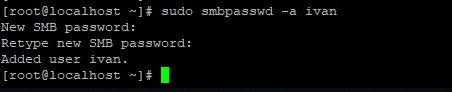
Теперь нужно установить владельца и права доступа к директории:
$sudo chown ivan:sambashare /samba/ivan/

$sudo chmod 2770 /samba/ivan/
Права доступа 2770 означают, что новые файлы или директории, созданные в /samba/david/, будут наследовать группу владельцев от родительской директории, а не от группы пользователей, которая их создала. Например, если администратор создаст новую директорию в ресурсе пользователя ivan, то ivan будет иметь к ней доступ на чтение и запись.
Далее командой smbpasswd необходимо добавить пользователя на сервере Samba (флаг -a) и активировать его (флаг -e):
$sudo smbpasswd -a ivan
Вам потребуется ввести пароль для доступа к ресурсу samba, он может отличаться от системного пароля.
Активируем пользователя
$sudo smbpasswd -e ivan
Другие пользователи создаются аналогичным образом. Для создания пользователя admin нужно выполнить следующие команды, его домашней директорией будет everyone:
$sudo mkdir /samba/everyone

$sudo adduser --home /samba/everyone --no-create-home --shell /usr/sbin/nologin --ingroup sambashare admin

$sudo chown admin:sambashare /samba/everyone/

$sudo chmod 2770 /samba/everyone/

$sudo smbpasswd -a admin

$sudo smbpasswd -e admin
Для удобства можно также создать группу администраторов, это позволит не прописывать права доступа ко всем ресурсам при изменении администратора, а один раз прописать их для группы и в дальнейшем добавлять и удалять администраторов одной командой:
$sudo groupadd admins

$sudo usermod -G admins admin
Настройка системы завершена, теперь нужно настроить ресурсы.
Настройка общих ресурсов Samba
У каждого ресурса есть свой раздел в файле конфигурации /etc/samba/smb.conf. Разделы ресурсов расположены после глобальных параметров и имеют следующий вид
[имя_ресурса]

        path =

        browseable =

        read only =

        force create mode =

        force directory mode =

        valid users =
share_name — имя ресурса, используемое при доступе.
path — полный путь к ресурсу в файловой системе.
browsable — опоеделяет видимость ресурса для других пользователей, но не дает им прав доступа.
read only — определяет возможность доступа на запись для пользователей, указанных в параметре valid users.
force create mode — задает указанные права доступа к любому файлу, создаваемому в ресурсе.
force directory mode — задает указанные права доступа к любой директории, создаваемой в ресурсе
valid users — список пользователей, имеющих доступ к ресурсу. Здесь можно указывать имена или группы, перед группами нужно указывать символ @, например, @admins.
Для настройки конфигурации ресурса нужно в любом текстовом редакторе добавить в файл конфигурации блоки следующего вида для каждого пользователя:
[ivan]

        path = /samba/ivan

        browseable = no

        read only = no

        force create mode = 0660

        force directory mode = 2770

        valid users = ivan @admins
Для ресурса everyone блок будет выглядеть следующим образом:
[everyone]

        path = /samba/everyone

        browseable = yes

        read only = no

        force create mode = 0660

        force directory mode = 2770

        valid users = @sambashare @admins
Все пользователи будут иметь доступ на чтение и запись, так как были добавлены в группу sambashare при создании. Теперь нужно протестировать параметры
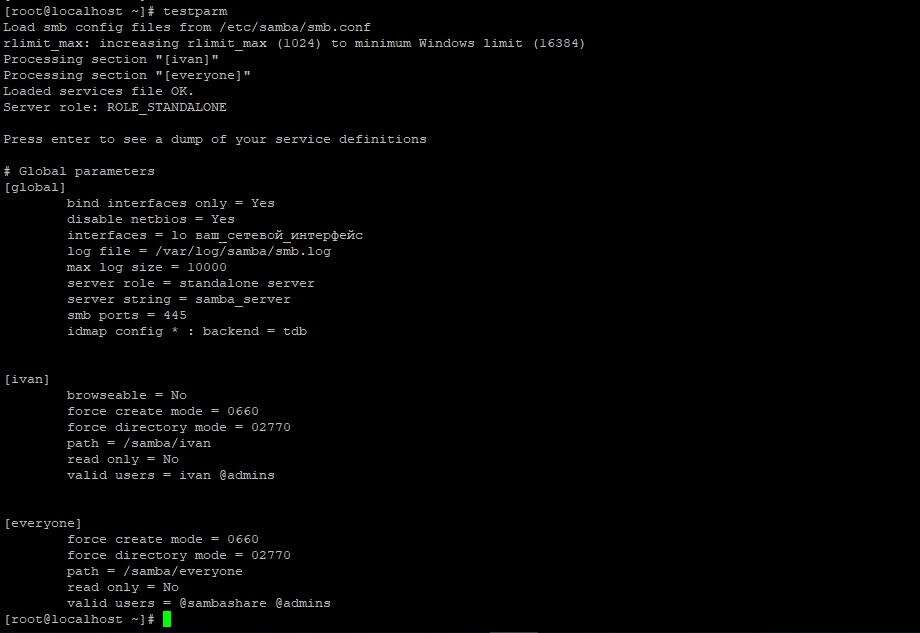
$testparm
Если все настроено корректно, результат будет следующим:
После проверки конфигурации запустим сервер и добавим его в автозагрузку командой systemctl:
$sudo systemctl start smbd.service

$sudo systemctl enable smbd.service
Сервер работает и готов принимать пользователей.
Настройка клиентов Samba
Для доступа к ресурсам из командной строки в Linux используется утилита smbclient. В большинстве дистрибутивов она не установлена по умолчанию, если нет то нужно воспользоваться менеджером пакетов:
$sudo apt-get install smbclient
В некоторых дистрибутивах может потребоваться создать файл /etc/samba/smb.conf, так как при его отсутствии будет выводиться сообщение об ошибке. Для доступа к ресурсу нужно выполнить следующую команду:
$smbclient //имя_или_адрес_сервера/ресурс -U пользователь
Например, для доступа к ресурсу ivan на сервере samba.example.com нужно ввести:
$smbclient //samba.example.com/ivan -U ivan
Далее потребуется ввести пароль, после чего появится интерфейс командной строки, похожий на интерфейс FTP:

Например, можно создать директорию:
smb: > mkdir test

smb: > ls
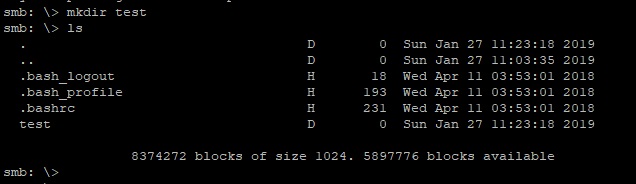
Доступ из командной строки используется в основном для тестирования, на практике доступ чаще всего осуществляется из графических оболочек, например, KDE. Возможен также доступ из других платформ (Windows, MacOS).
Например для доступа с windows наберите в строке поиска samba.example.comivan. И введите логин пароль
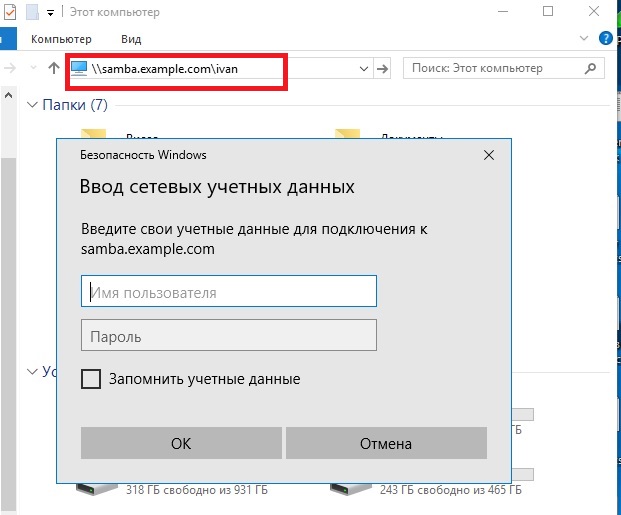
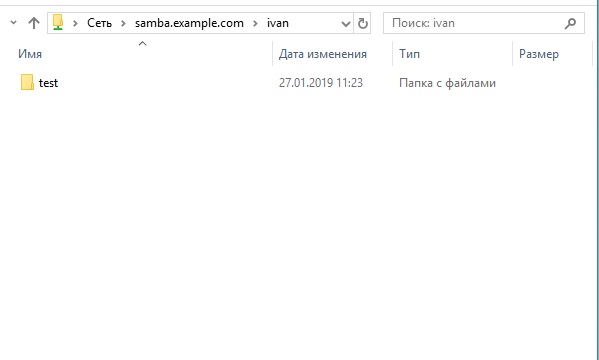
После чего вы сможете получить доступ к сетевым ресурсам.
Заключение
При помощи Samba мы создали мультиплатформенные сетевые ресурсы и протестировали доступ к ним. Ресурсы Samba очень распространены и могут использоваться различными приложениями. Например, VLC Player может проигрывать музыку и видео из ваших ресурсов Samba, а утилита резервного копирования BackupPC — записывать туда резервные копии.
Если вы нашли ошибку, пожалуйста, выделите фрагмент текста и нажмите Ctrl+Enter.