Несмотря на большое количество программ, Kali Linux не очень прожорлив. Вот минимальные требования к аппаратному обеспечению для установки системы:
Место на диске: 10 Гб;
Оперативная память: 512 Мб;
Кроме того, вам понадобится USB-флешка или CD-диск для записи образа и подключение к интернету. Читайте так же: “Лучшие дистрибутивы Linux”
Подготовка к установке Kali Linux
Несмотря на то что система распространяется в виде полноценной среды LiveCD, в которой вы можете использовать все необходимые вам инструменты, вы можете установить Kali Linux на жёсткий диск. Это можно сделать аж тремя способами: в псевдографическом интерфейсе, в графике или даже с помощью голосового управления.
Но перед тем как перейти к процессу установки, давайте рассмотрим, как скачать установочный образ и подготовить всё к инсталляции.
Шаг 1. Загрузка образа
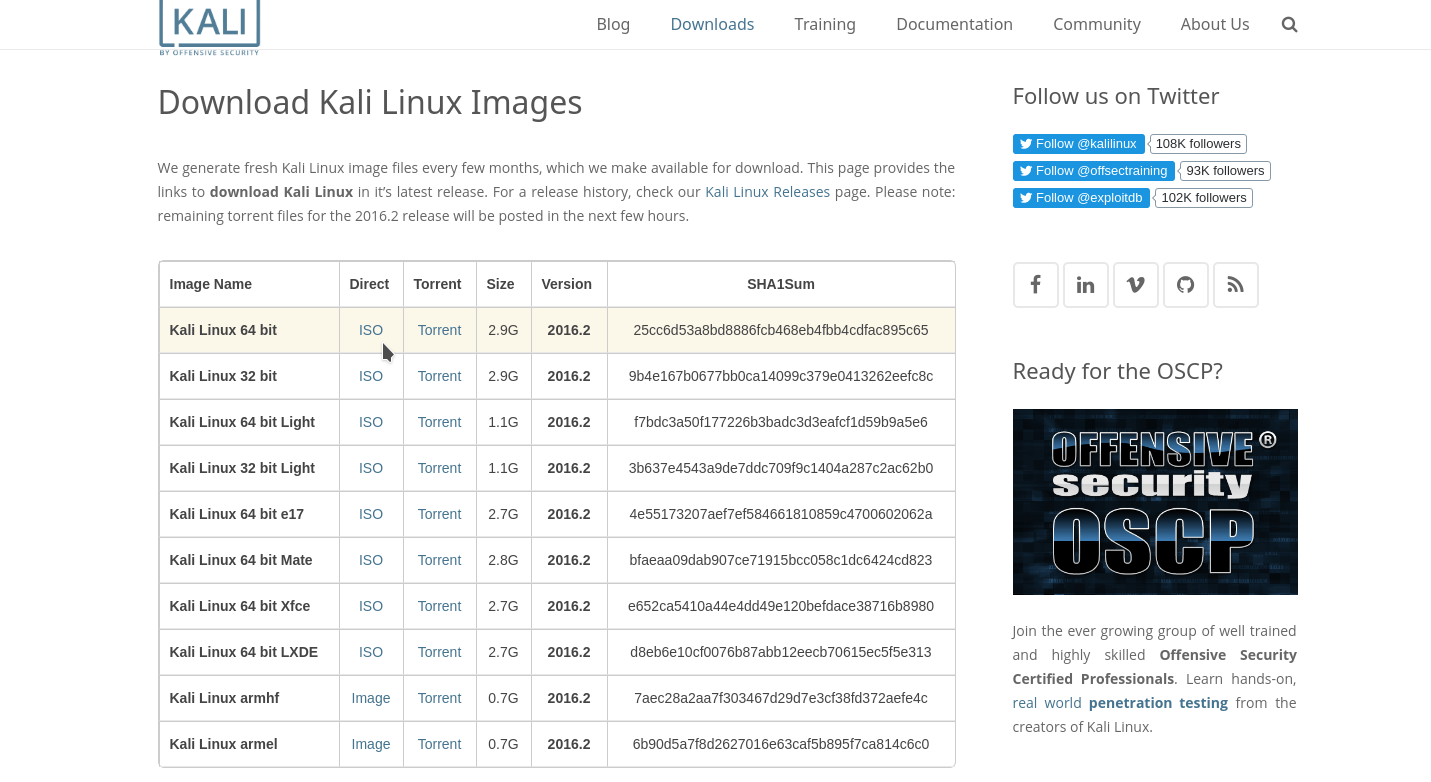
Вы можете скачать нужный вам образ на официальном сайте. Тут доступны не только нужные архитектуры и полные/облегчённые версии, но и готовые образы для виртуальных машин VirtualBox и VMWare. Но нас будет интересовать обычный установочный образ:
Скачайте его прямо с сайта или через торрент.
Шаг 2. Запись образа на носитель
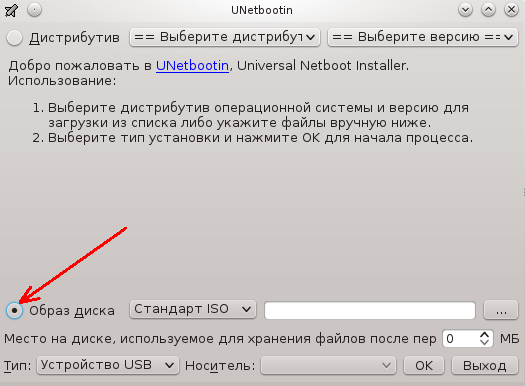
Для записи установщика на флешку в Linux можно использовать уже привычную нам утилиту Unetbootin:
Или с помощью уже привычной нам dd:
dd if=~/образ.iso of=/dev/sdb1 bs=5M
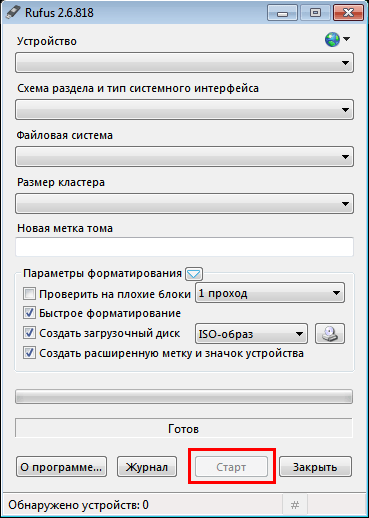
Здесь /dev/sdb1 – это ваша флешка. Если же нужно записать на диск, то можно использовать Brasero или k3b. В Windows для записи на флешку можно использовать Rufus:
Шаг 3. Настройка BIOS
Дальше нам нужно запустить компьютер с нашего носителя, для этого сначала перезагрузите компьютер и во время заставки BIOS нажмите F2, Del, F8 или Shift+F2 для входа в настройки. В открывшемся меню перейдите на вкладку Boot и в разделе Boot Device Priority или 1st Boot Device выберите ваш носитель:
Тут нужно выбрать либо флешку, либо привод оптических дисков. Дальше установка Kali Linux с флешки ничем не отличается от установки с диска, только будет немного быстрее. Когда завершите, перейдите на вкладку Exit и нажмите Exit & Save Changes.
Установка Kali Linux
В этой инструкции мы будем рассматривать псеводграфический установщик, хотя в графическом все шаги будут очень похожи. Вообще, процесс очень напоминает установку Debian.
Шаг 1. Запуск установщика Kali Linux
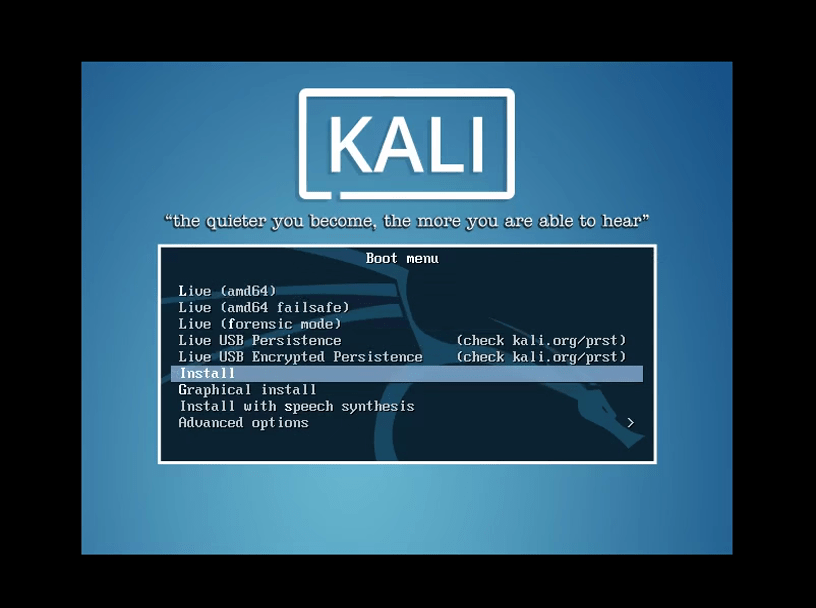
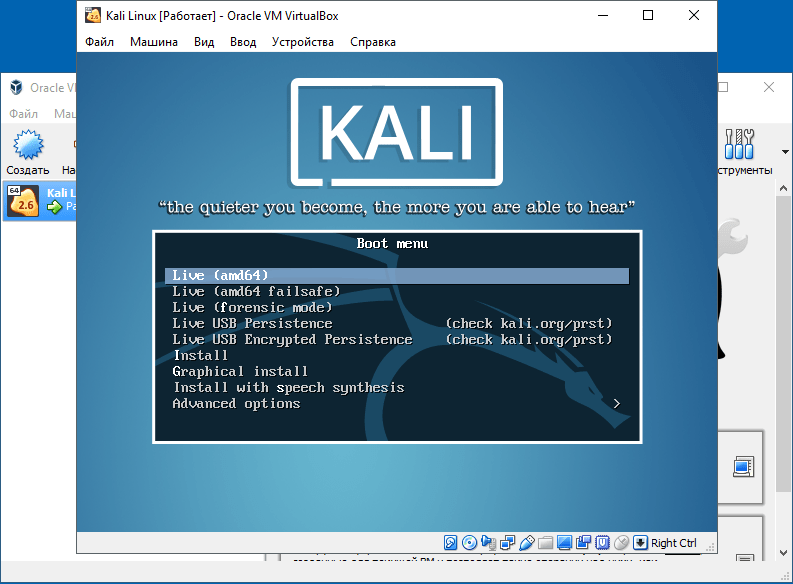
Сразу же после перезагрузки появится вот такое меню, здесь нам не нужен запуск LiveCD – пролистайте вниз и выберите Install:
Несколько замечаний по управлению установщиком. Для перемещения по пунктах используйте клавиши со стрелками, для выбора Enter, для переключения кнопок – Tab, а чтобы отметить галочку – пробел.
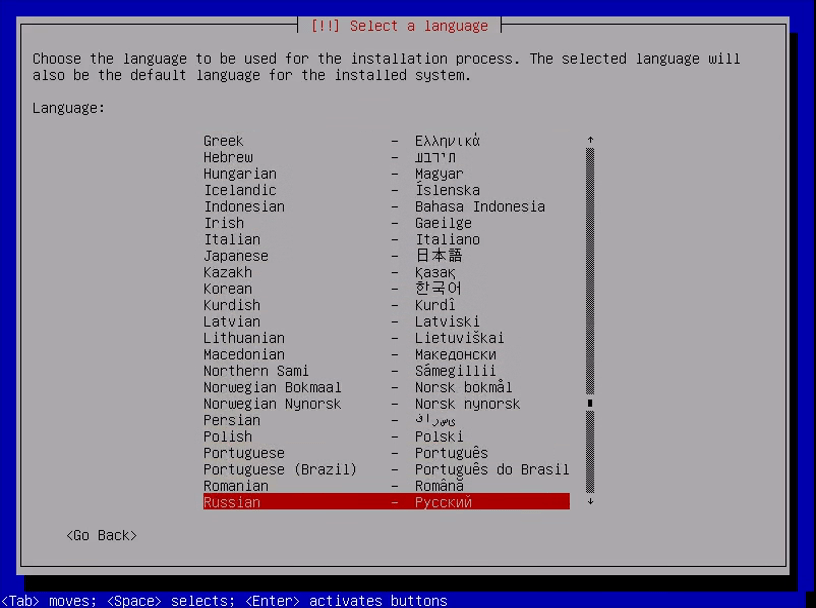
Шаг 2. Выберите язык Kali Linux
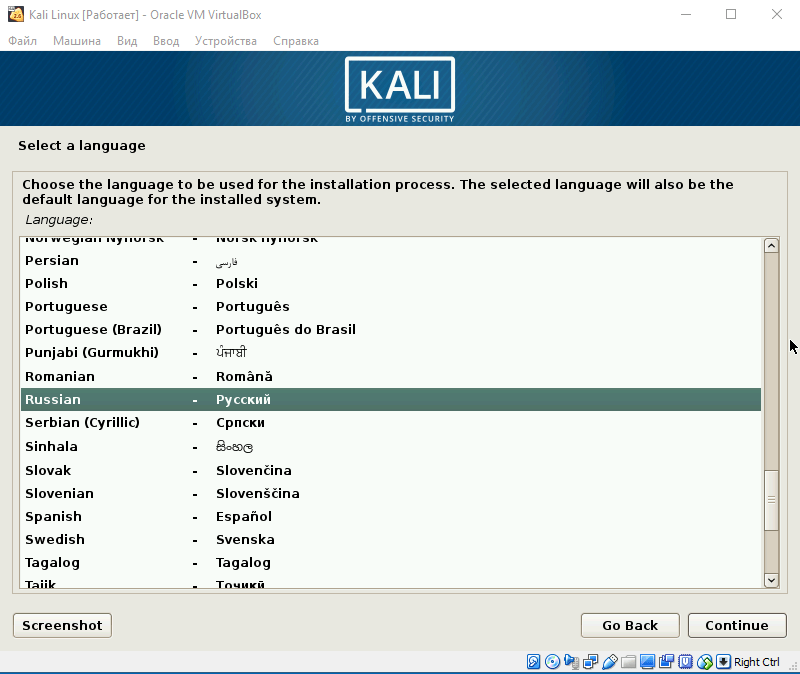
Укажите язык, на котором будет работать установщик и сама система:
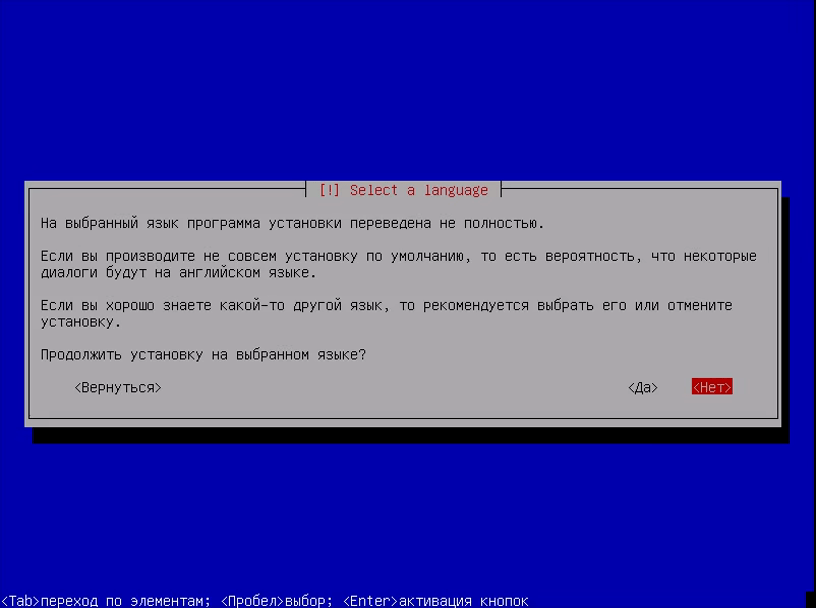
При выборе русского система скажет, что установщик переведён не полностью, выберите всё равно его:
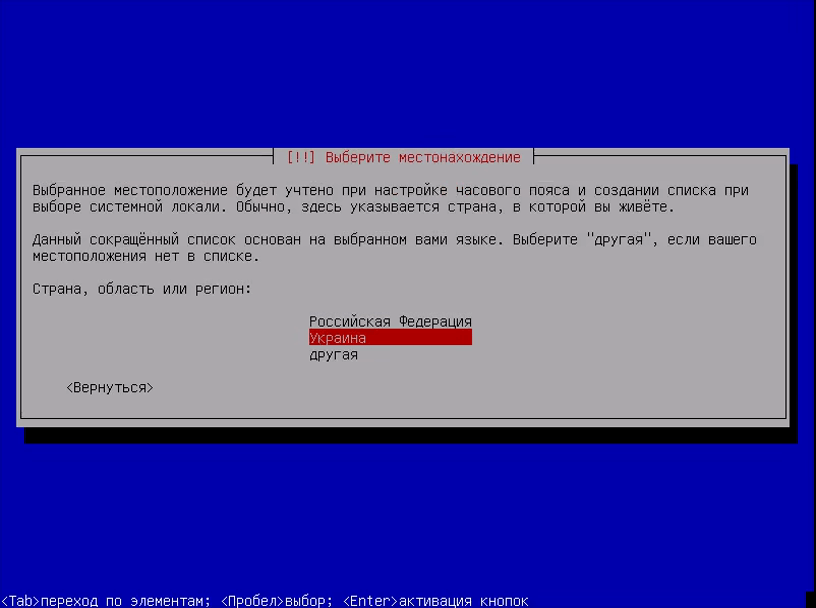
Шаг 3. Выберите страну Kali Linux
Выберите вашу страну для правильной настройки часового пояса:
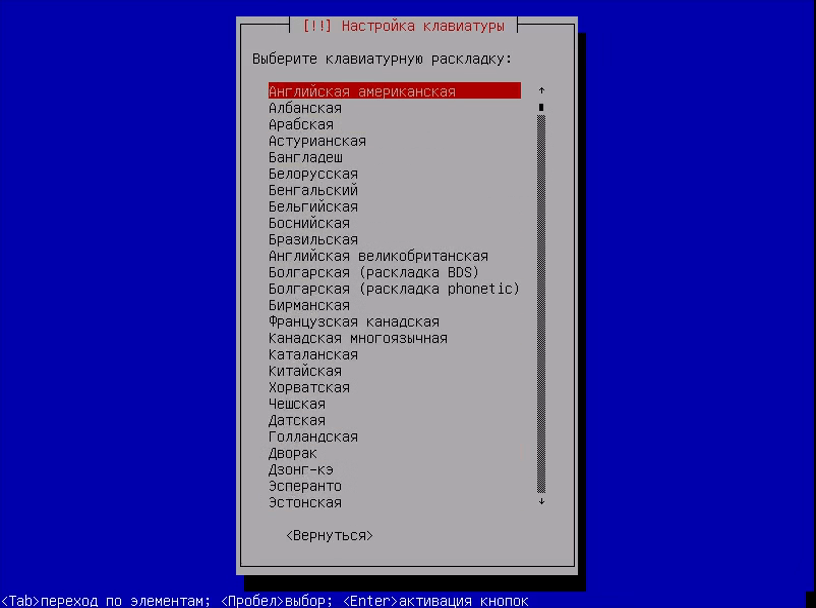
Шаг 4. Раскладка клавиатуры Kali Linux
Выберите раскладку клавиатуры, советую брать английскую, чтобы потом без проблем ввести имя пользователя:
Шаг 5. Настройка установщика Kali Linux
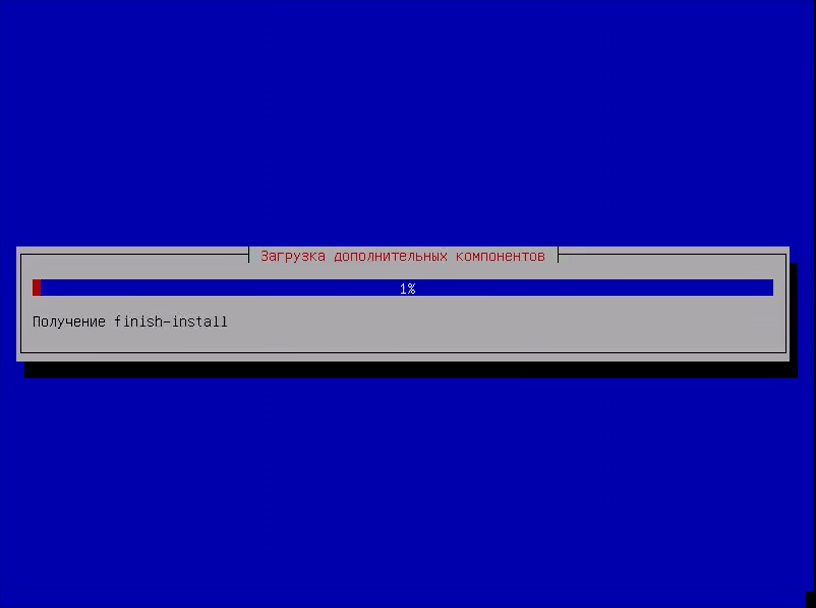
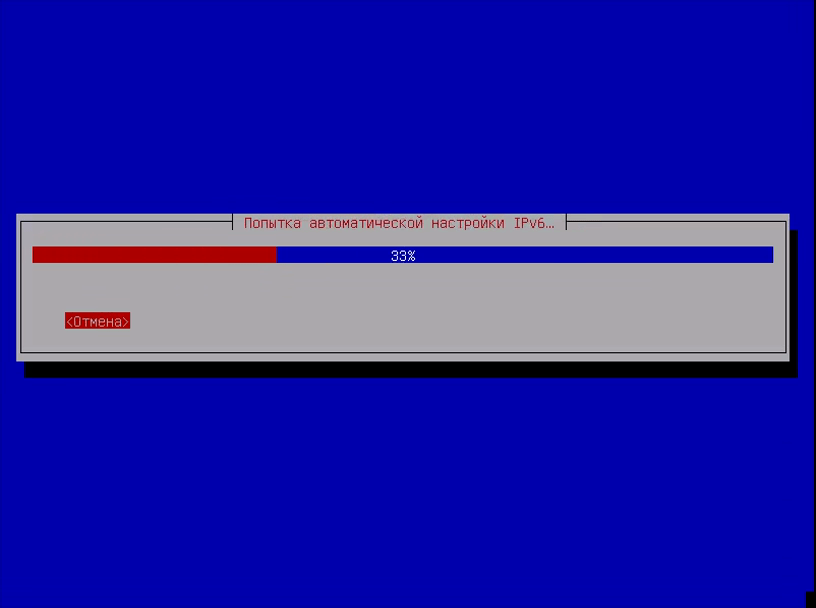
Подождите, пока установщик загрузит нужные пакеты и подключится к интернету:
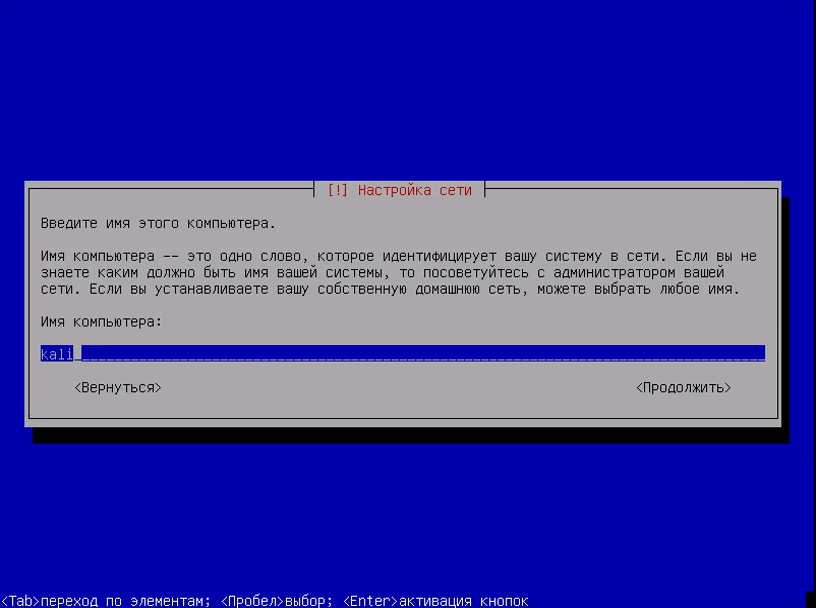
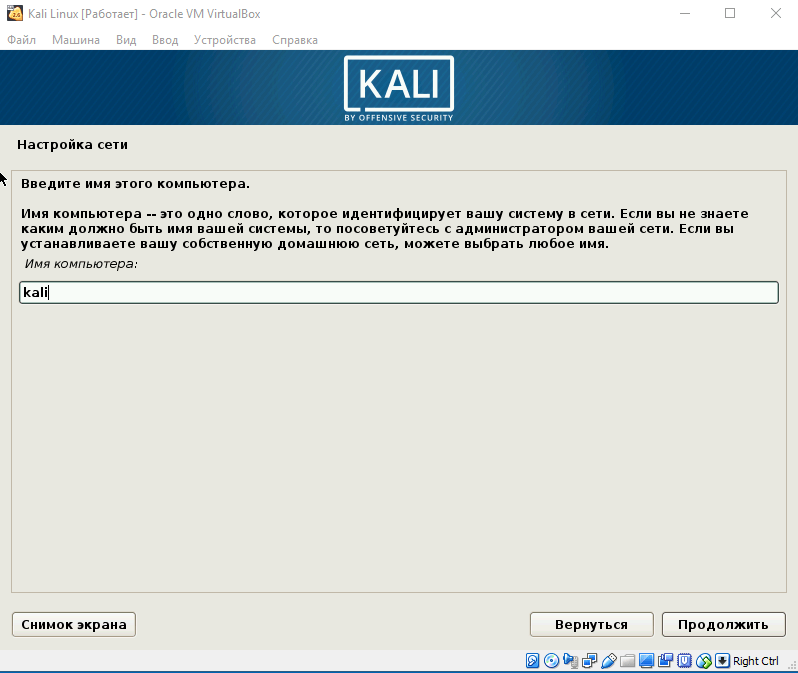
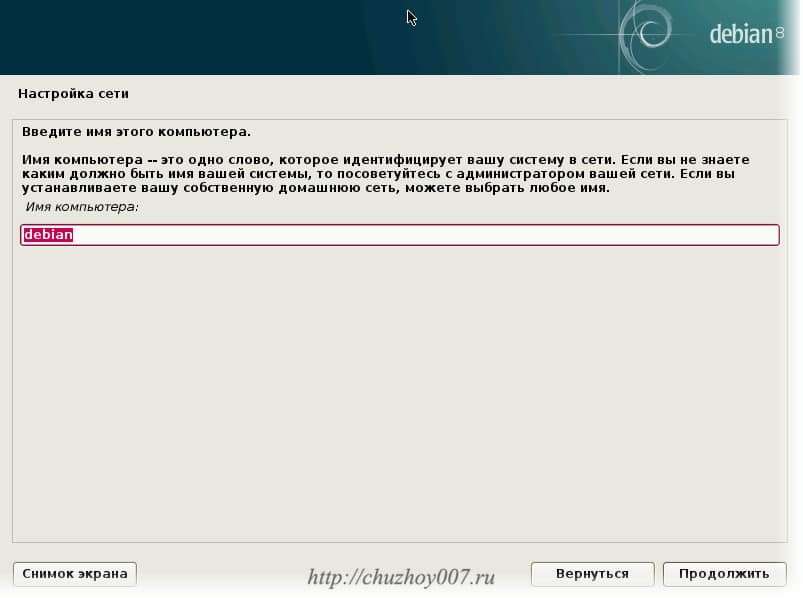
Шаг 6. Имя компьютера
Выберите имя компьютера:
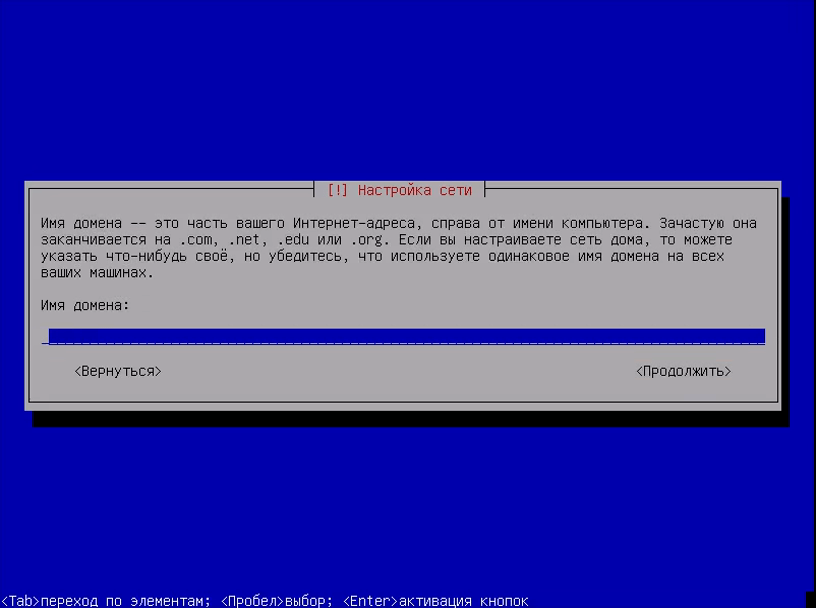
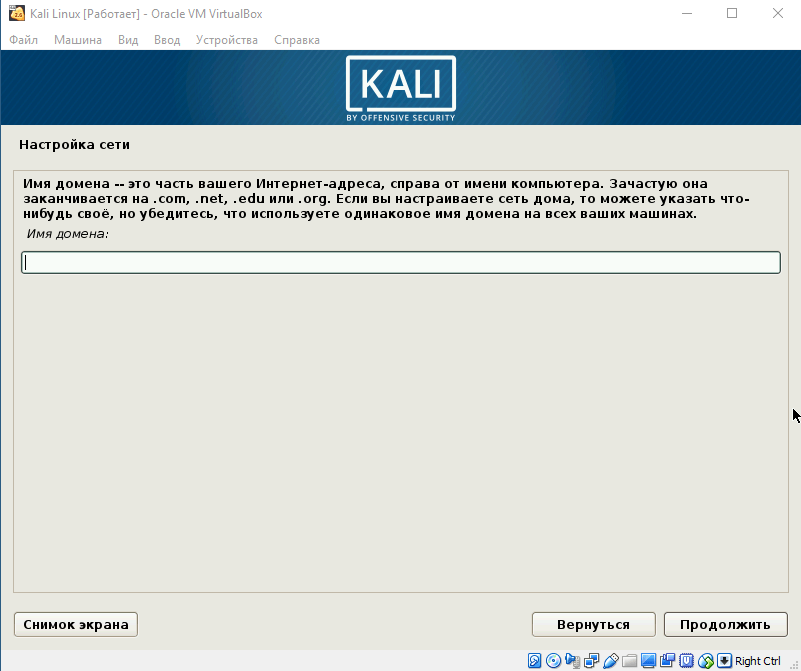
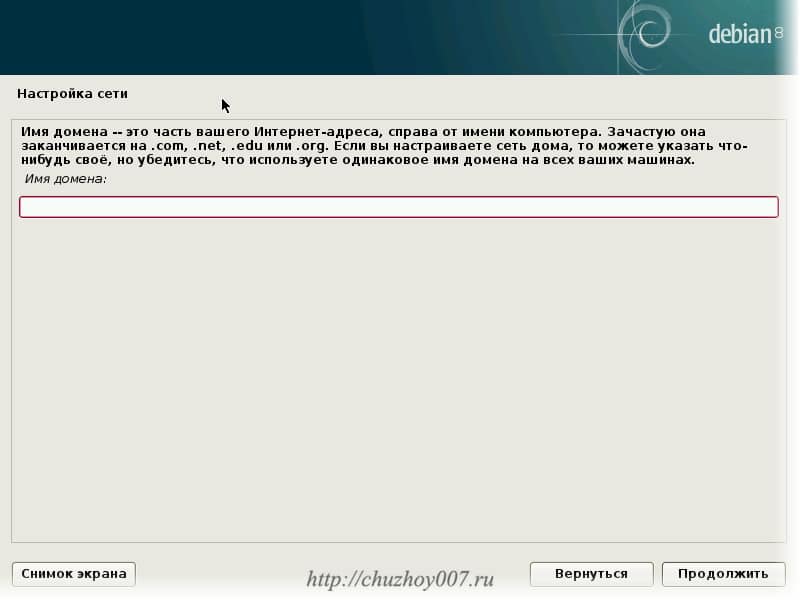
Шаг 7. Имя домена
Укажите имя домена, если это нужно. Если нужна установка Kali Linux 2 на домашний компьютер, то можно просто поставить local:
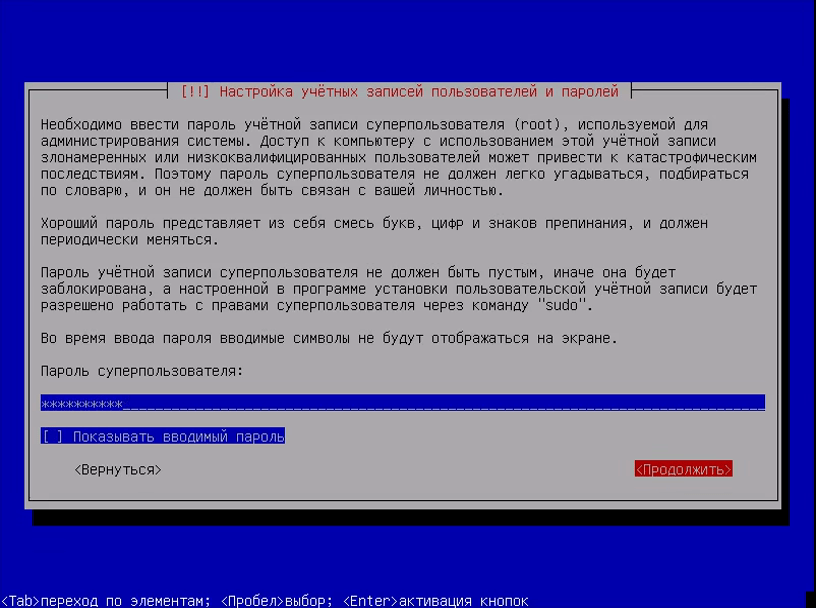
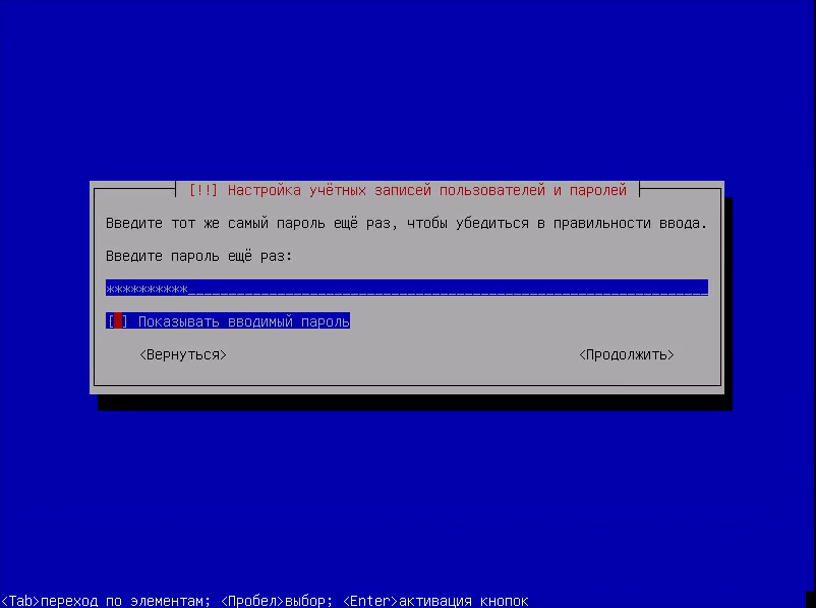
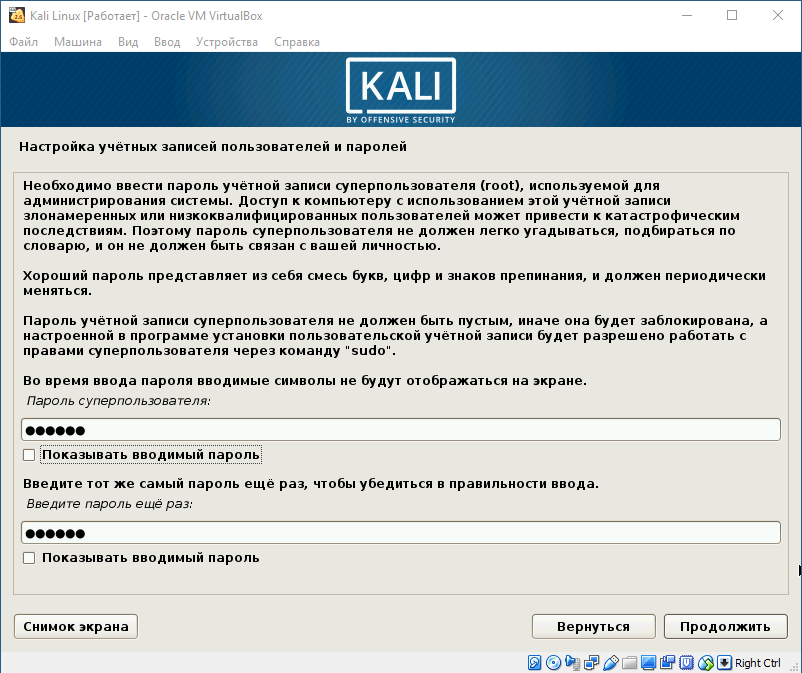
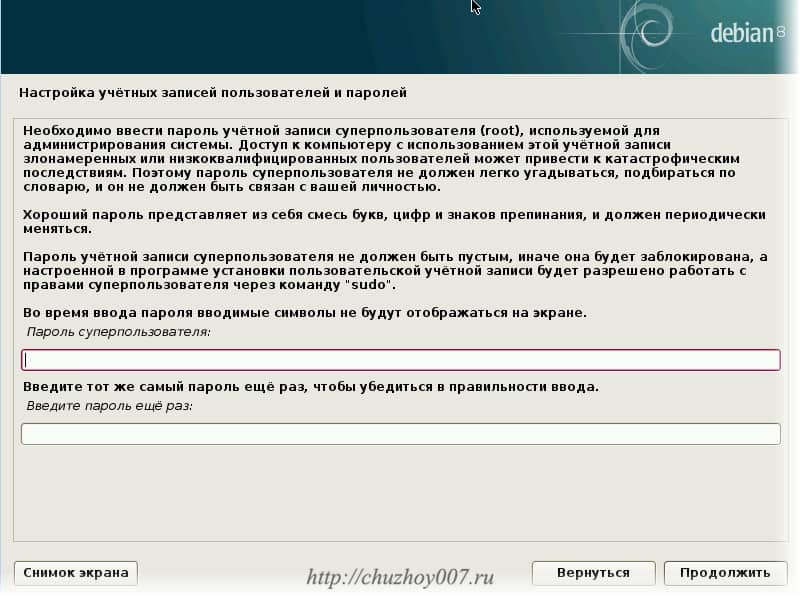
Шаг 8. Пароль суперпользователя
Введите пароль пользователя root:
Затем введите его ещё раз:
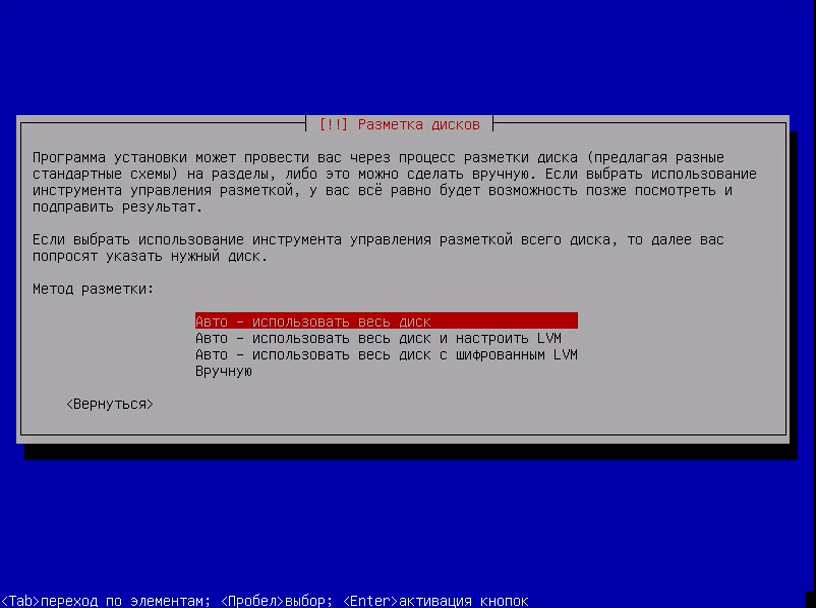
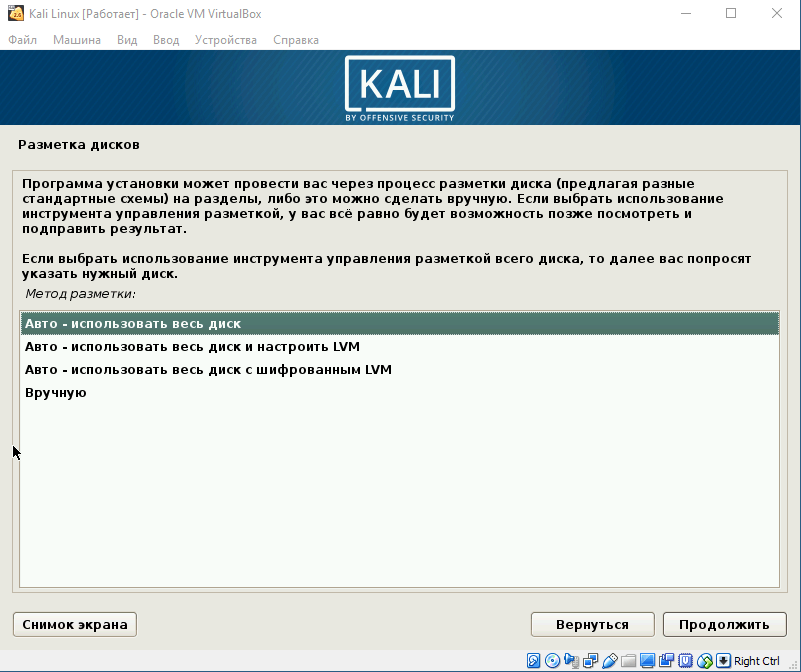
Шаг 9. Разметка диска Kali Linux
Вы можете использовать весь диск, просто применив автоматическую разметку, но мы рассмотрим ручной вариант, поэтому в этом меню выберите вручную:
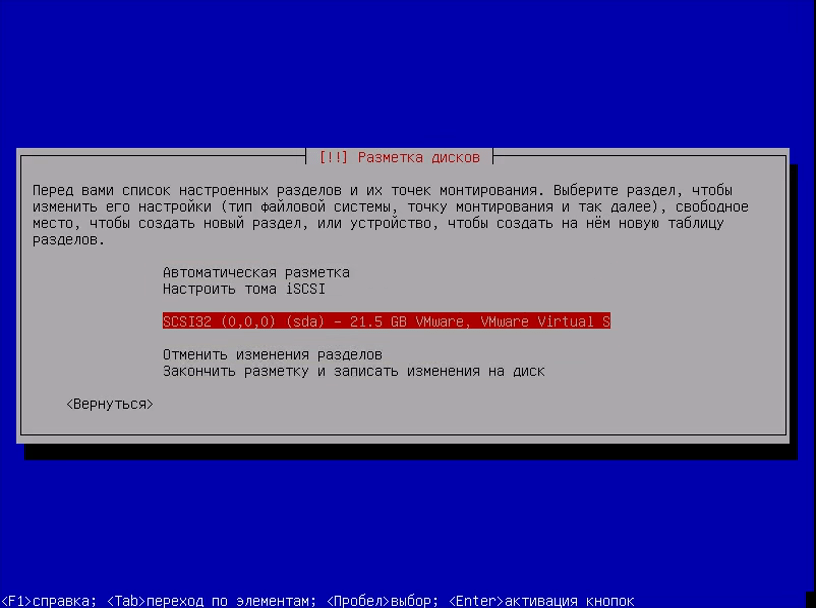
Затем выберите ваш жёсткий диск, например sda:
Шаг 10. Таблица разделов
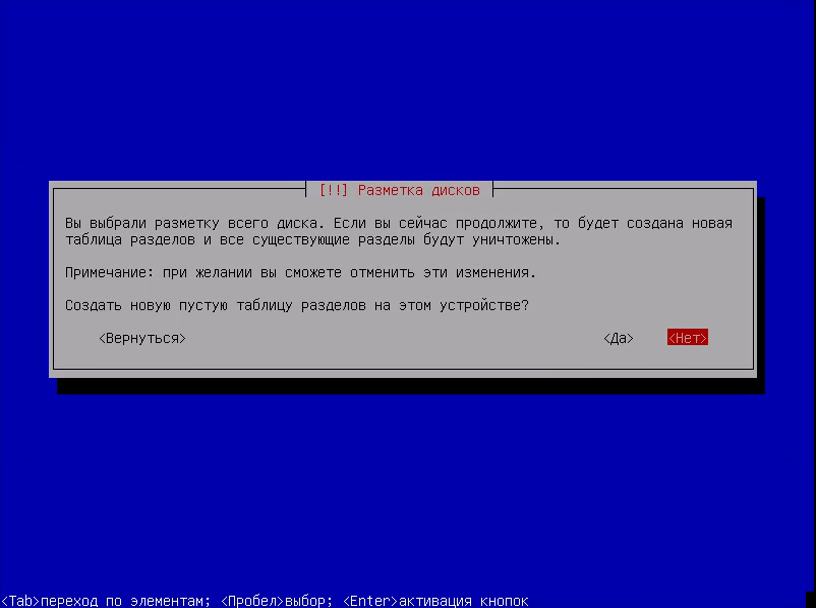
Если вы устанавливаете Kali Linux на чистый диск, то нужно создать новую таблицу разделов, поэтому выберите пункт Да с помощью Tab:
Шаг 11. Корневой раздел Kali Linux
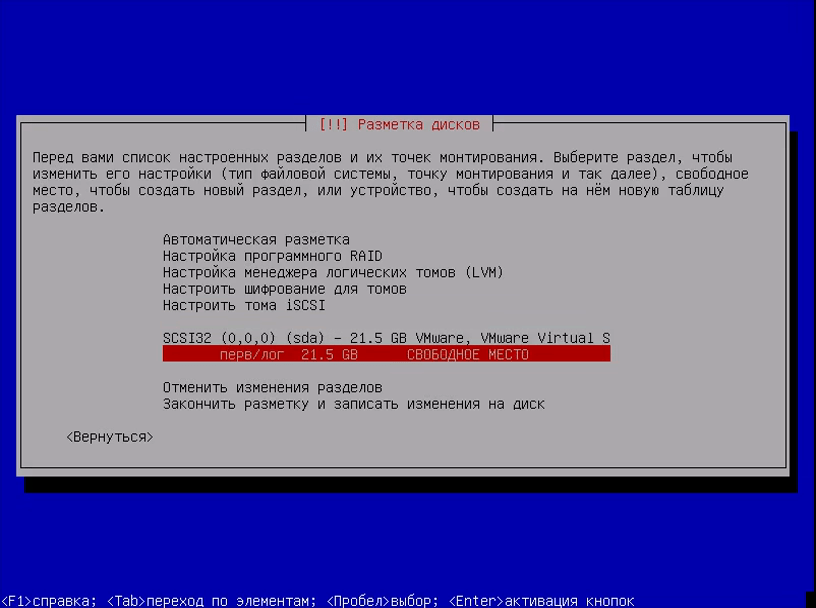
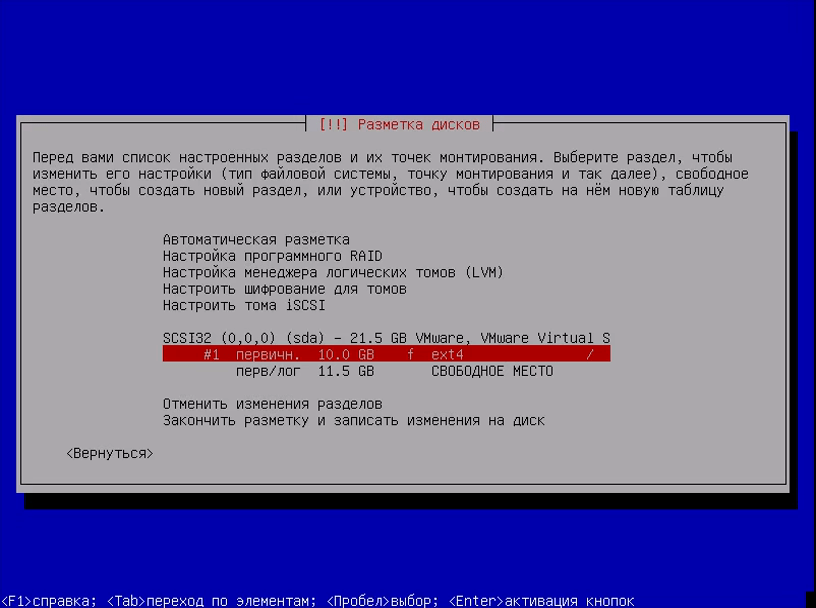
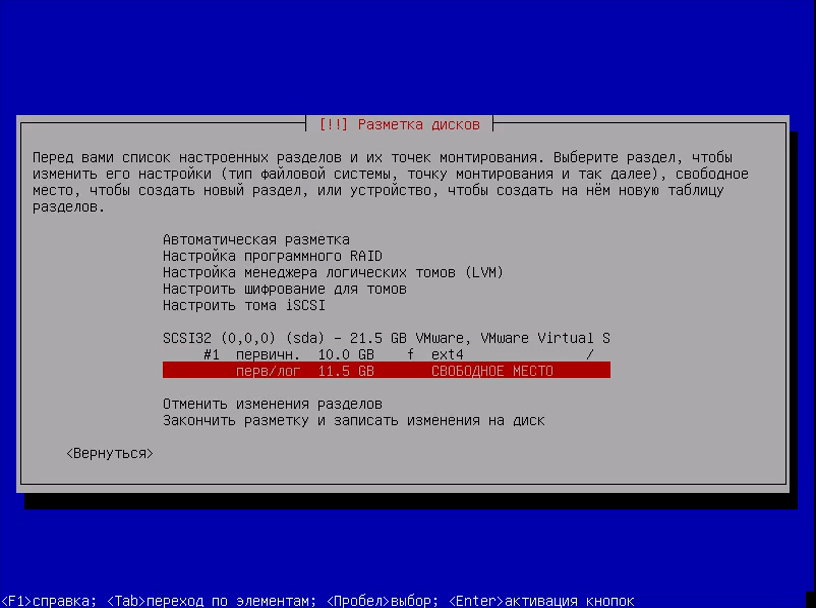
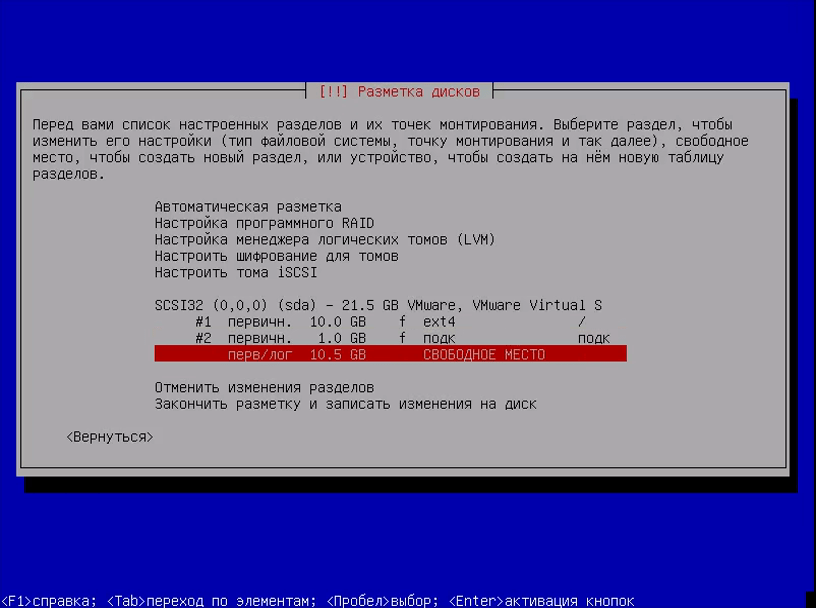
Выберите свободное место и нажмите Enter:
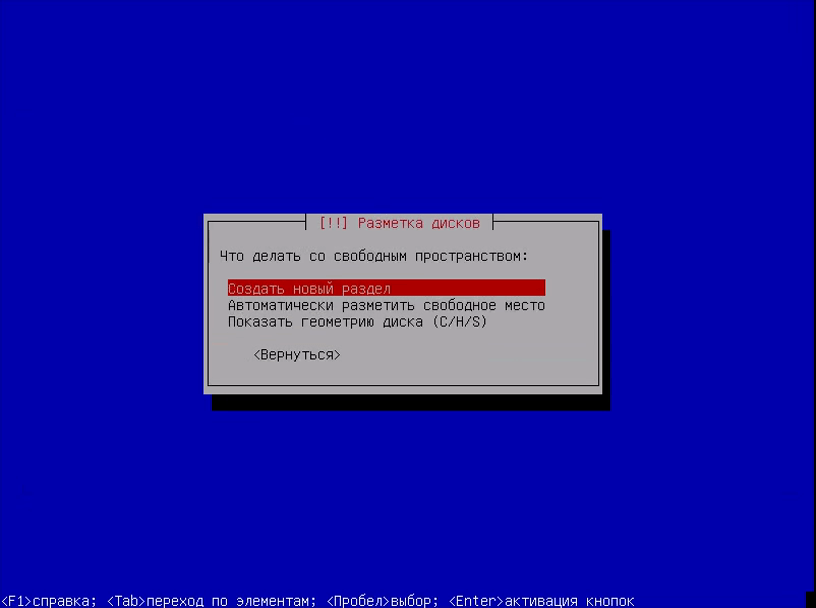
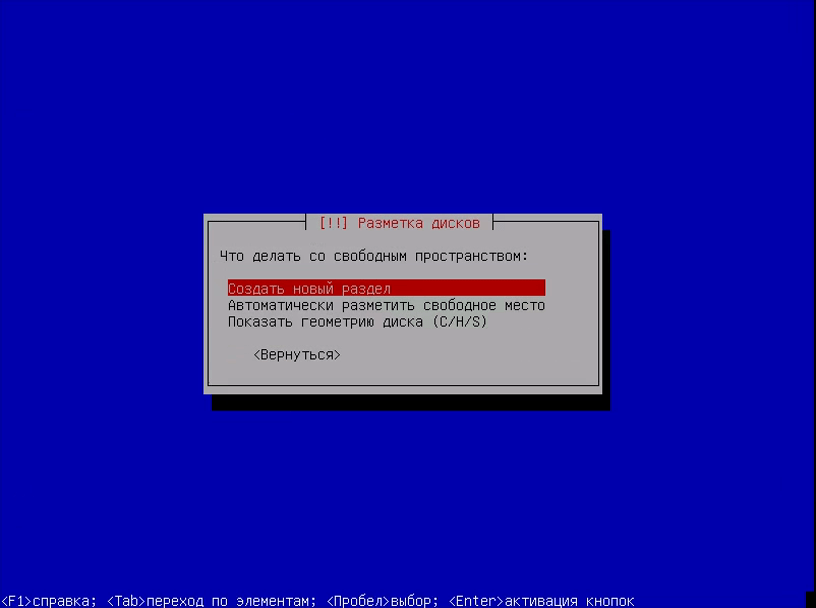
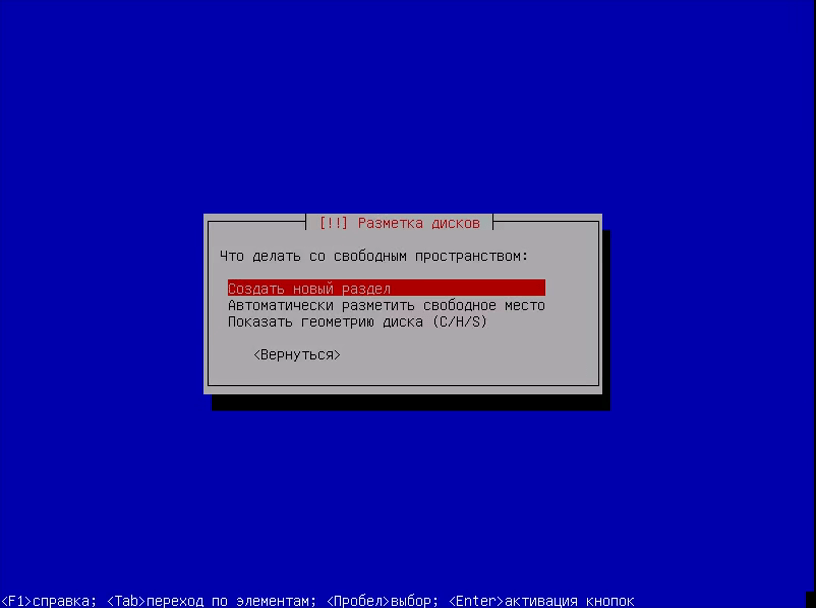
Затем создать новый раздел:
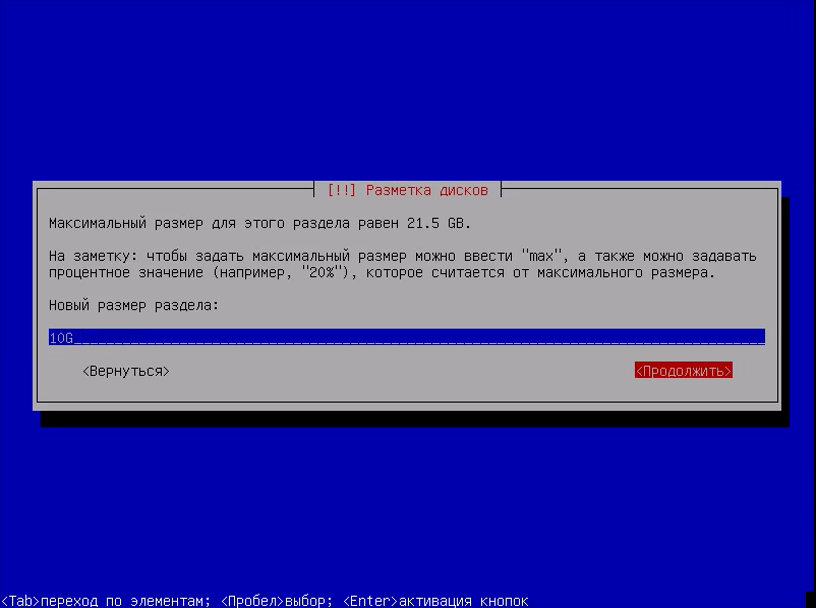
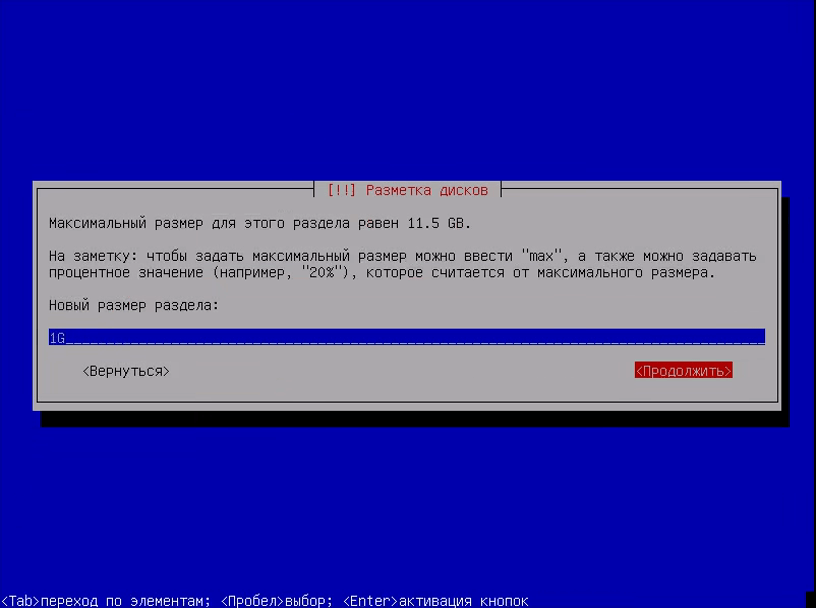
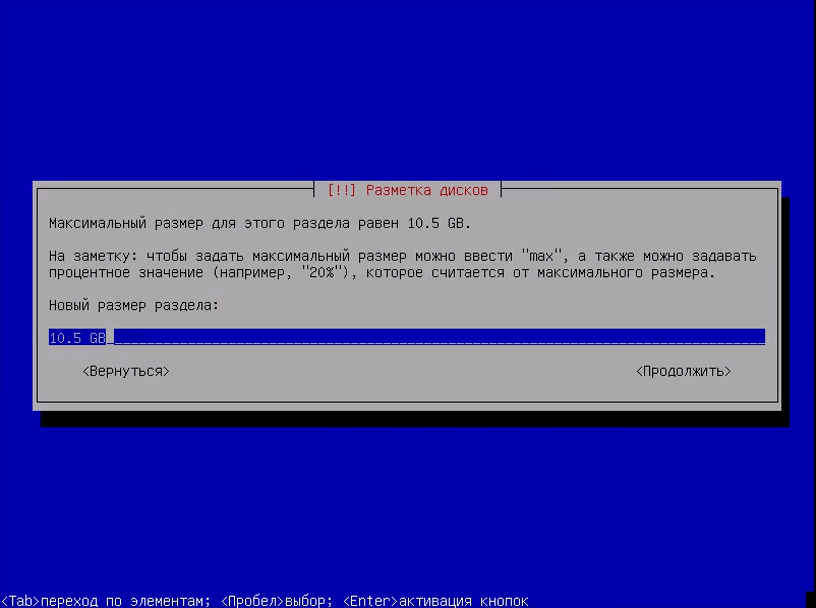
Введите размер раздела, для корня минимальный размер – 10 Гб, но если вы хотите ещё и устанавливать много программ, то желательно выделить больше:
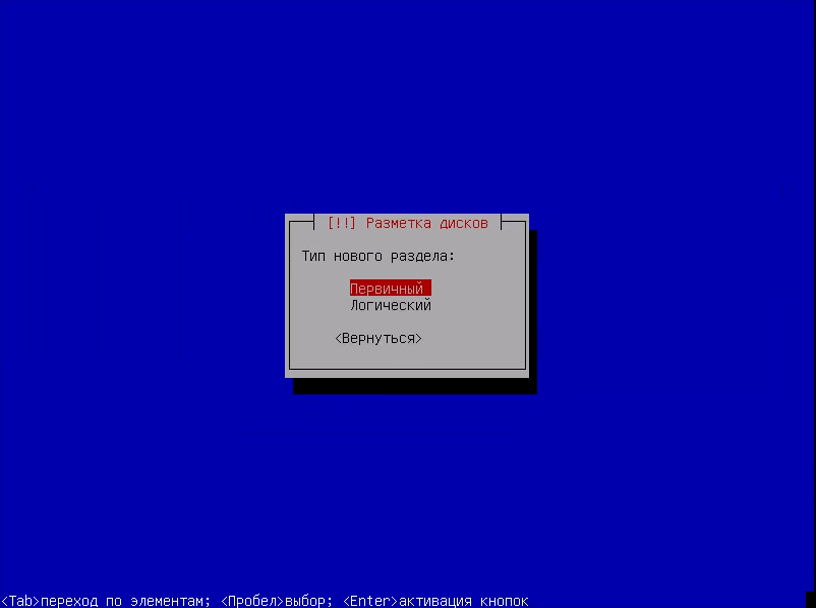
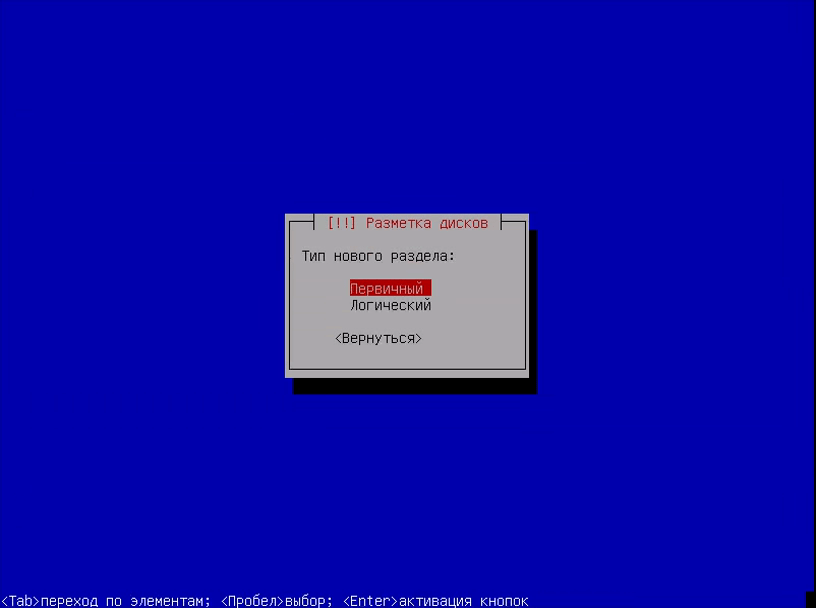
Тип раздела – первичный, расположение – в начале:
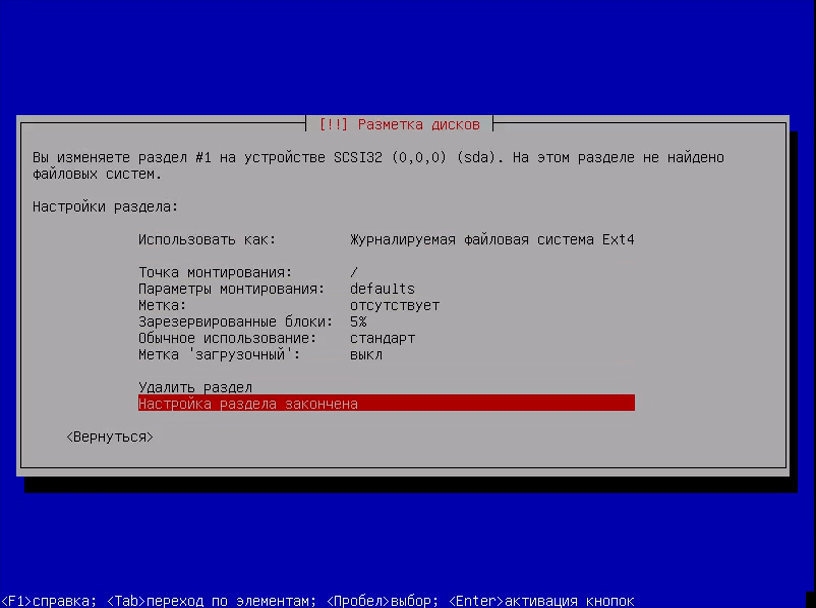
В последнем окне мастера ничего ни настраивать, ни менять не нужно. Но тут вы можете выбрать файловую систему, количество места, зарезервированного под root, и метку раздела. Нажмите Настройка раздела закончена:
Шаг 12. Раздел подкачки
Точно так же создайте раздел подкачки:
Размер должен равняться размеру вашей оперативной памяти:
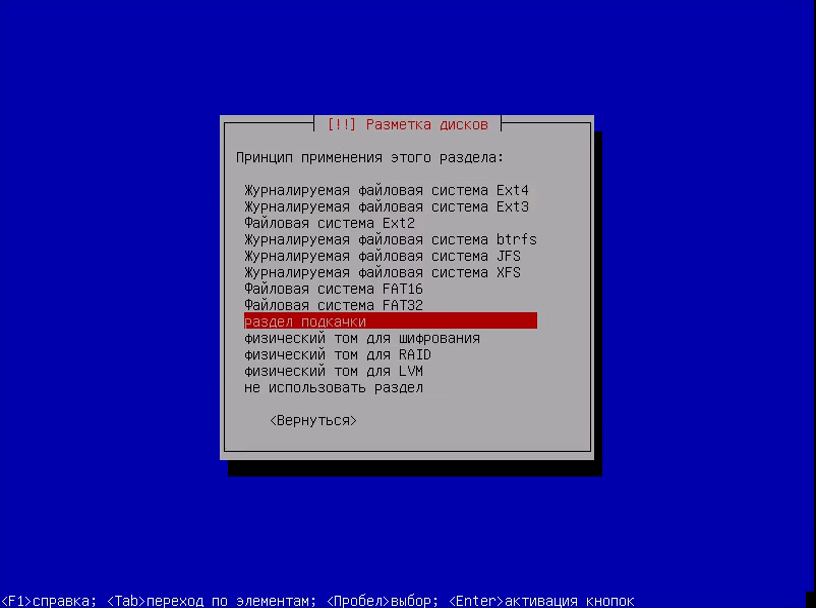
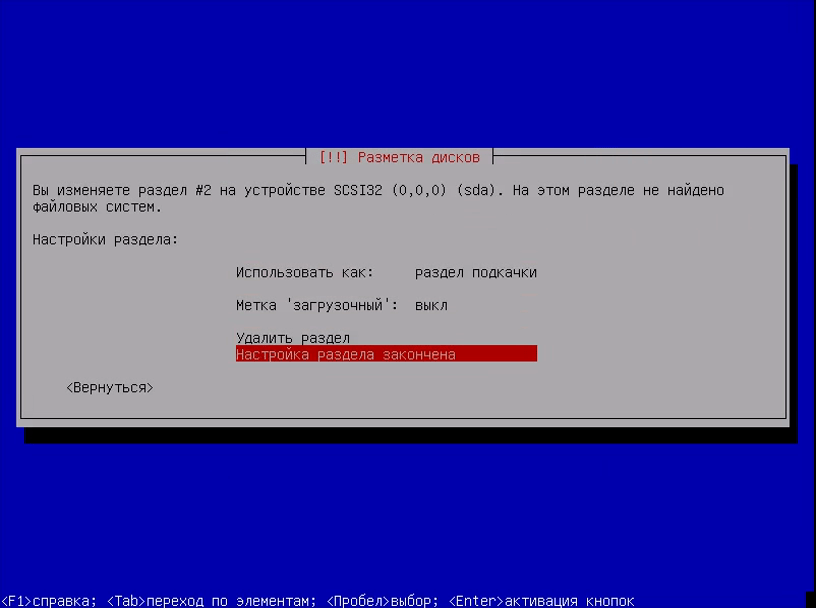
На последнем шаге мастера выберите Использовать как – раздел подкачки, затем снова настройка закончена:
Шаг 13. Домашний раздел
По такому же алгоритму создаётся домашний раздел:
Размер – всё доступное пространство:
В конце выберите Закончитьразметку изаписать изменения на диск.
Шаг 14. Завершение разметки
Проверьте, всё ли правильно, и нажмите Да:
Шаг 15. Установка
Подождите, пока система скопирует часть файлов:
Шаг 16. Настройка менеджера пакетов
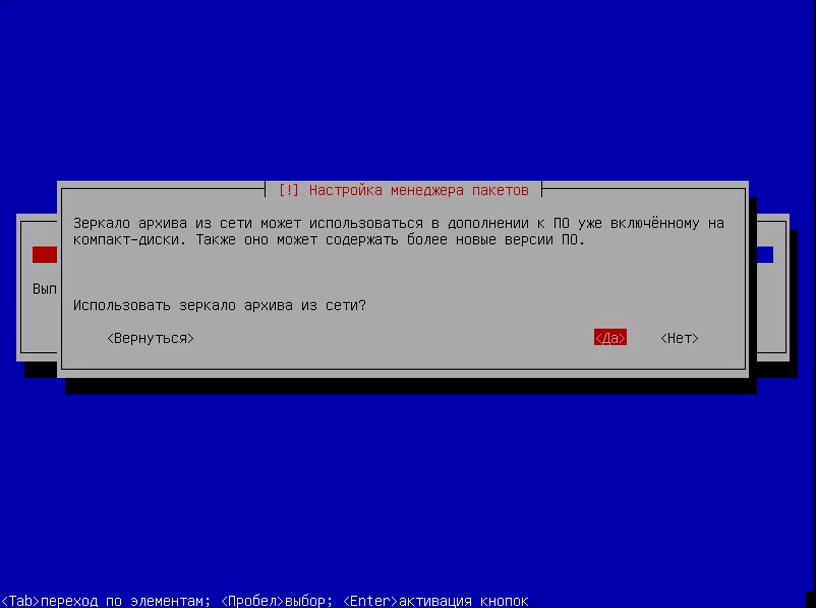
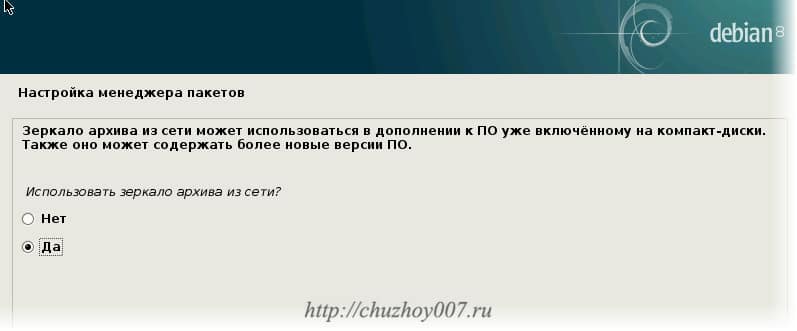
Программе установки нужно скачать некоторые пакеты из Сети для более правильной работы, поэтому на вопрос “Использовать зеркало из сети” ответьте Да:
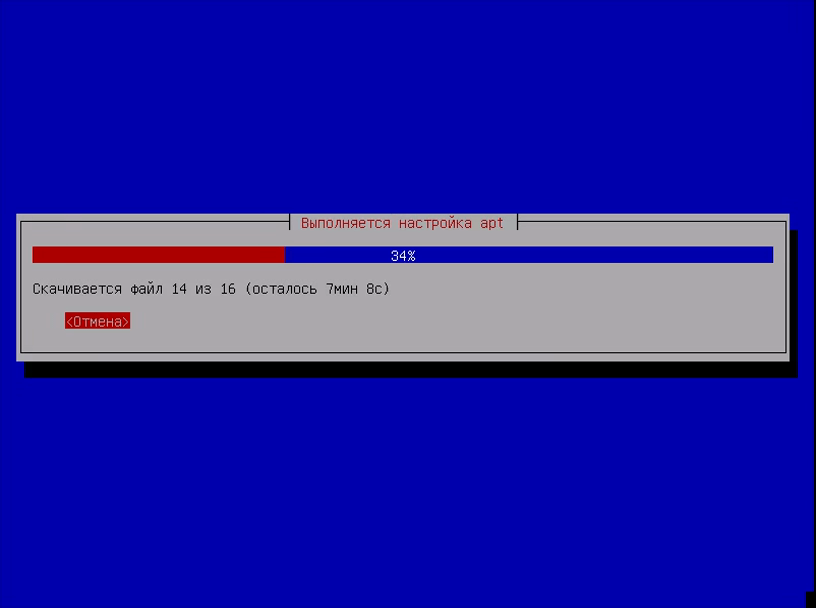
Подождите, пока загрузятся списки пакетов:
Шаг 17. Установка загрузчика
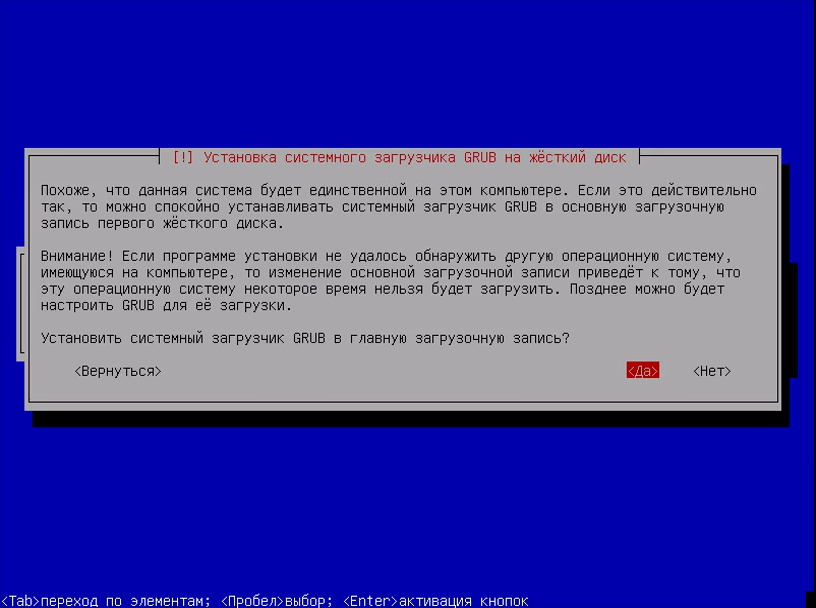
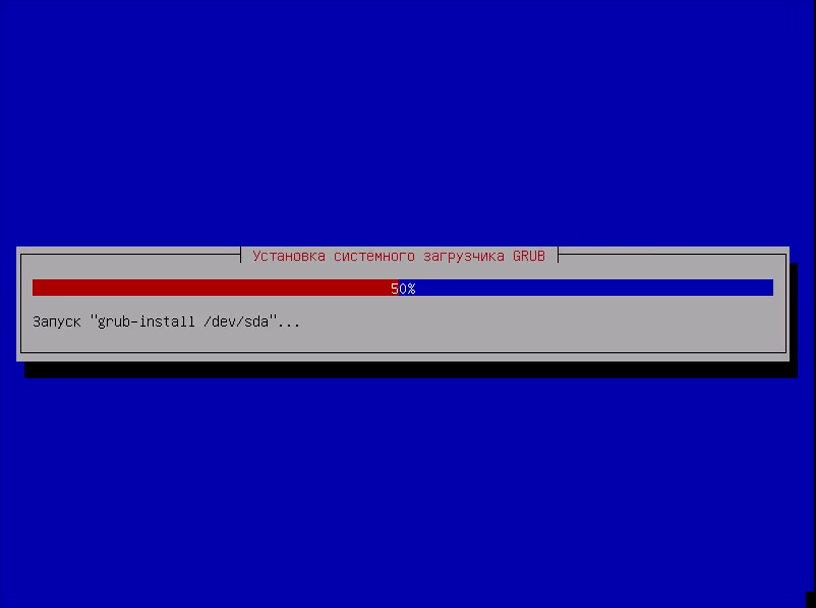
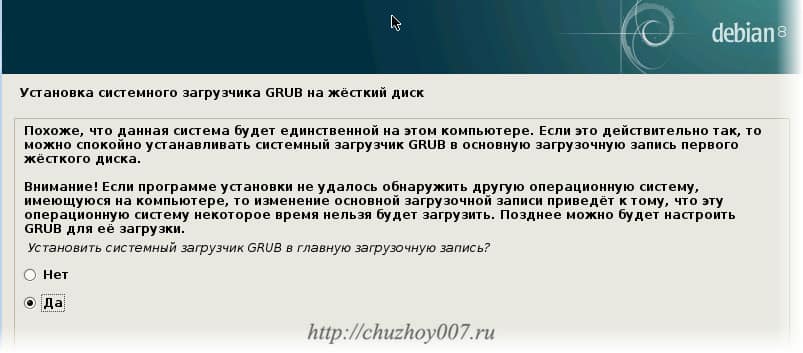
Нажмите Да, чтобы установить загрузчик Grub на жёсткий диск, вы можете не устанавливать загрузчик, но тогда у вас должна быть установлена другая система, загрузчик которой вы можете использовать:
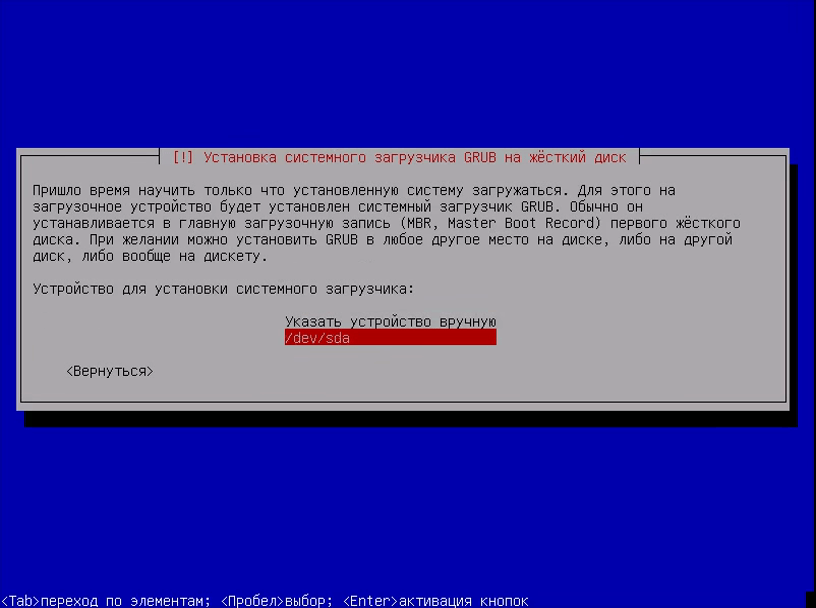
Выберите диск для установки загрузчика:
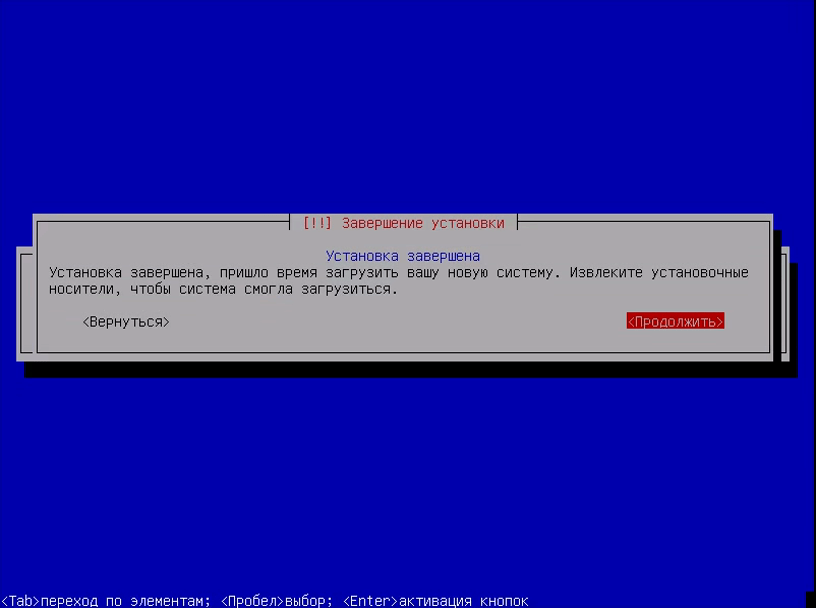
Шаг 18. Завершение установки
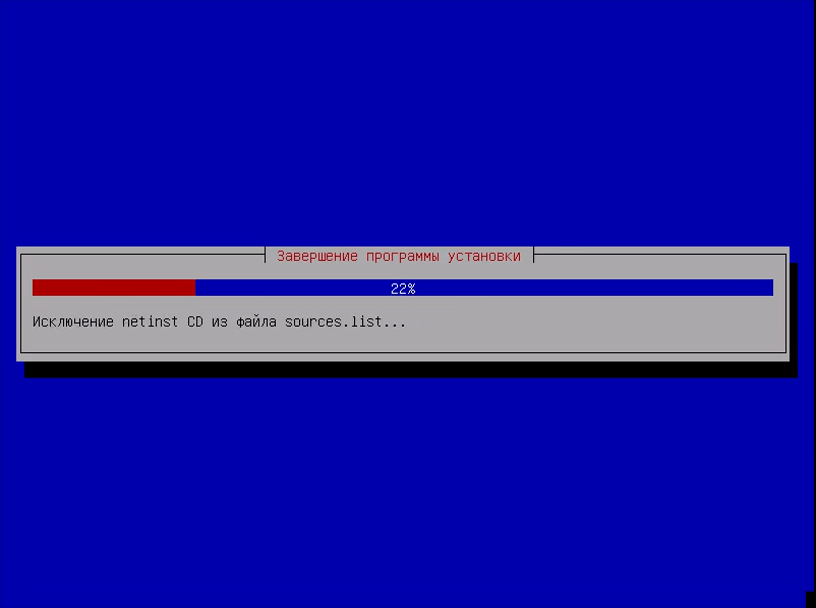
Дождитесь завершения установки:
Шаг 19. Перезагрузка
Перезагрузите компьютер:
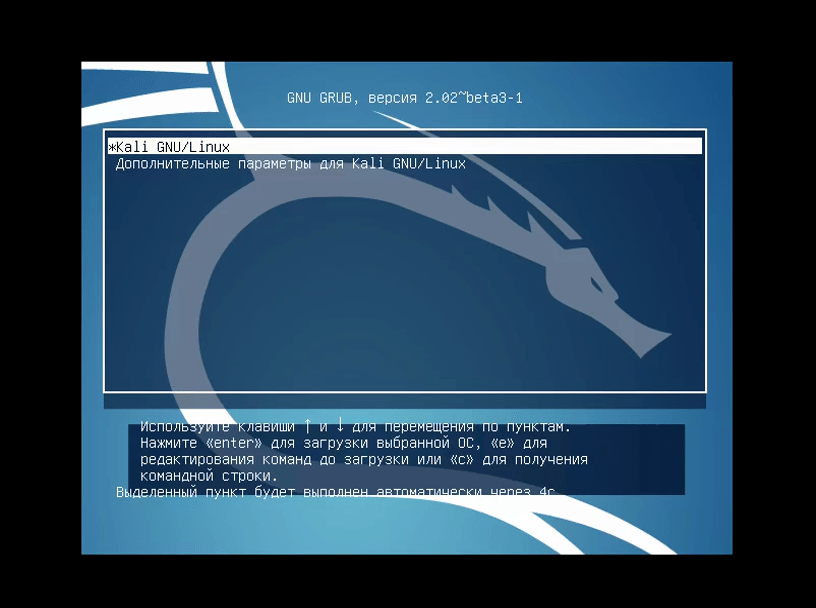
Шаг 20. Загрузчик Grub
Выберите первый пункт в меню загрузчика и дождитесь завершения установки
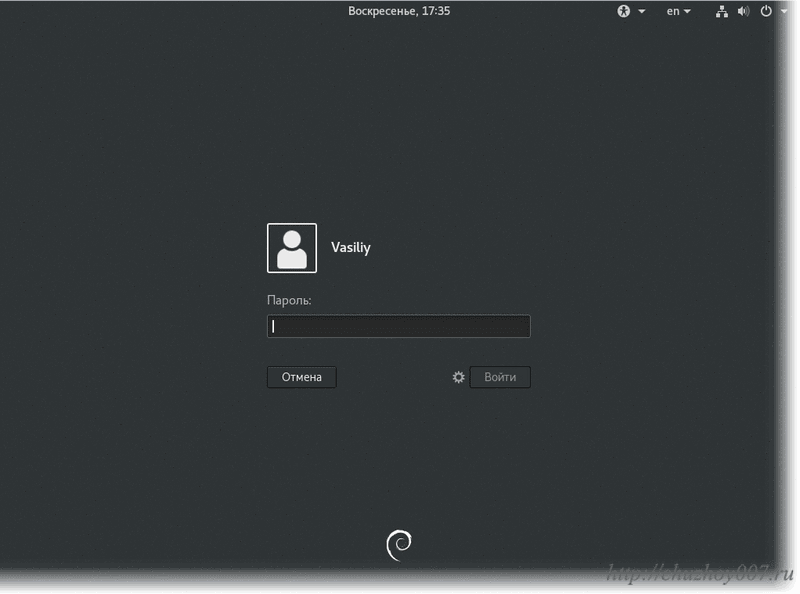
Шаг 21 Вход в систему
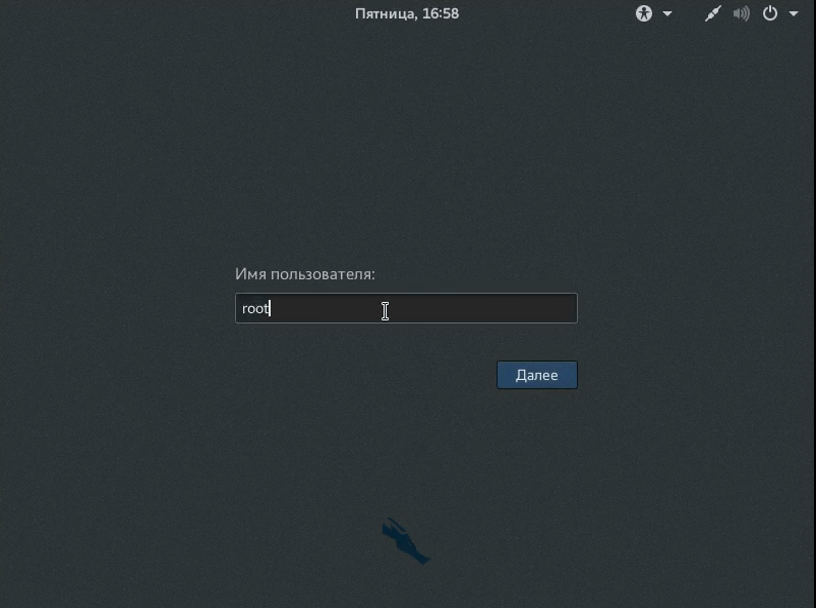
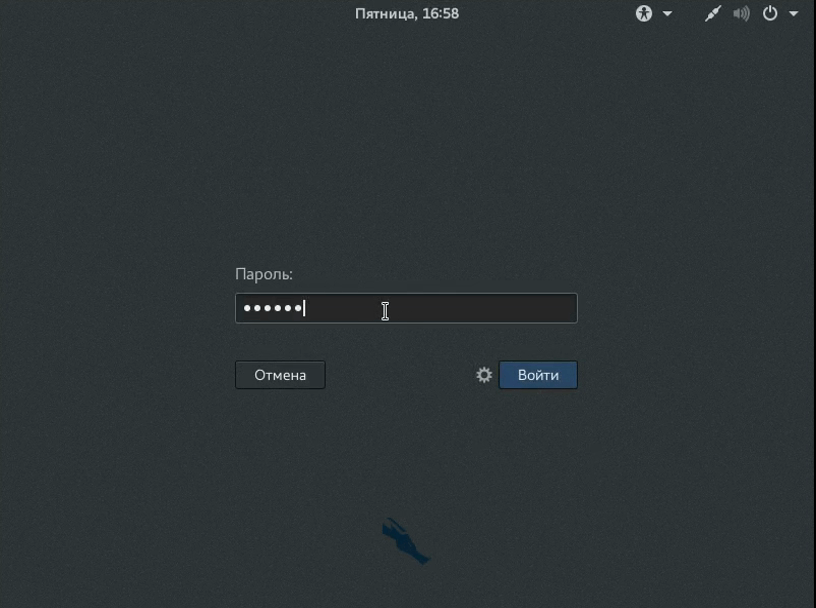
Введите логин root и пароль, который указали во время установки:
Шаг 22. Готово
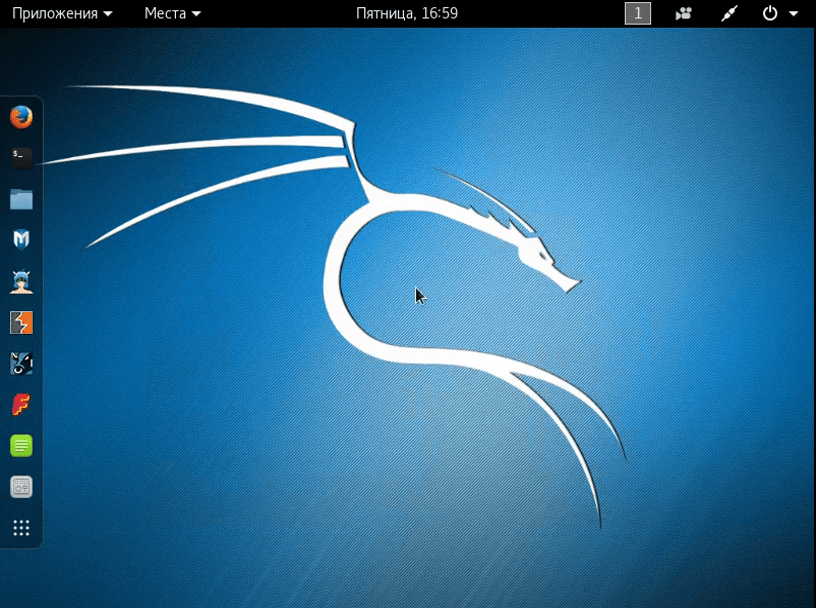
Вот и всё, установка Kali Linux на жёсткий диск вашего компьютера полностью завершена, и теперь вы готовы выполнять тестирование безопасности различных систем.
Настройка Kali Linux после установки
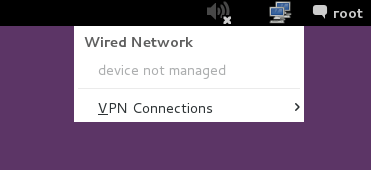
Настройка NetworkManager Kali Linux
По умолчанию NetworkManager отключен, поскольку он мешает работать некоторым утилитам тестирования безопасности.
Но если вы все же хотите использовать NetworkManager, его не так сложно включить для этого откройте файл /etc/NetworkManager/NetworkManager.conf и замените строчку managed=false на managed=true:
Теперь перезапустите NetworkManager и вы сможете управлять своим сетевыми интерфейсами, в том числе и беспроводными.
service network-manager restart
Настройка репозиториев Kali Linux
Чтобы иметь возможность устанавливать все нужные программы нам необходимо добавить в систему репозитории. По умолчанию подключены далеко не все доступные варианты. Поэтому откройте файл /etc/apt/sources.list и приведите его к такому виду:
gedit /etc/apt/sources.list
Regular repositories
deb http://http.kali.org/kali sana main non-free contrib
deb http://security.kali.org/kali-security sana/updates main contrib non-free
# Source repositories
deb-src http://http.kali.org/kali sana main non-free contrib
deb-src http://security.kali.org/kali-security sana/updates main contrib non-free
Обновление системы Kali Linux
Важно держать любую операционную систему в самом свежем состоянии, настройка Kali Linux 2.0 после установки тоже должна включать обновление. Для обновления выполните:
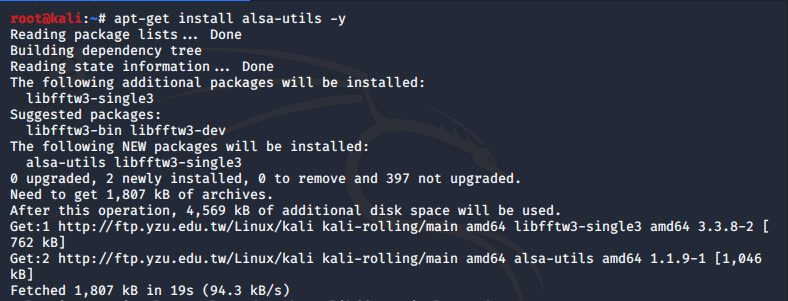
Чтобы поддержка звука автоматически включалась при загрузке системы сначала необходимо установить пакет:
sudo apt-get install alsa-utils -y
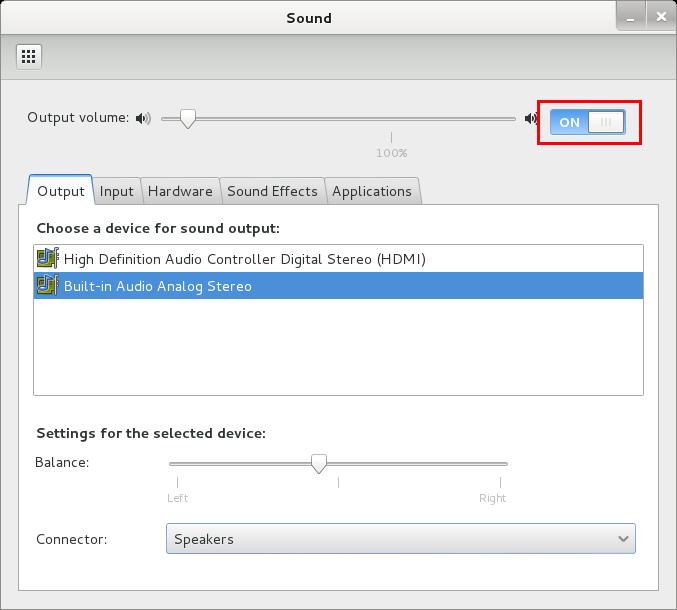
Нажмите правой кнопкой по иконке со значком динамика и выберите “Настройки звука”. Переключите выключатель Output Volume в положение ON.
Установка Java Kali Linux
Java машина нужна для выполнения многих программ поэтому нужно ее установить. Сначала перейдите на официальный сайт и загрузите установщик. Затем распакуйте архив и переместите полученную папку в /opt/:
tar -xzvf /root/jdk-8u121-linux-x64.tar.gz
# mv jdk1.8.0_121 /opt
# cd /opt/jdk1.8.0_121
Дальше выполните такие команды, чтобы обновить альтернативы системы и использовать именно эту версию:
В инструкции использовалась установка версии 8u121, но к моменту прочтения статьи может выйти более новая версия.
Установка Flash Kali Linux
Контент Flash теряет свою популярность, но все еще очень часто используется. Поэтому можно установить эту программу в системе:
apt-get install flashplugin-nonfree
Затем установите программу:
update-flashplugin-nonfree –install
После установки вам нужно будет перезапустить браузеры.
Установка архиваторов Kali Linux
В системах Linux по умолчанию используется формат tar. Но часто приходится работать и с другими форматами, такими как zip или rar. Для установки всех необходимых утилит выполните такую команду:
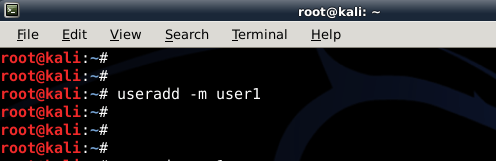
По умолчанию в Kali Linux используется пользователь root. Но не всегда безопасно использовать root. Поэтому нужно создать обычного пользователя. Используйте команду useradd с опцией -m:
useradd -m user1
Затем нужно установить пароль:
passwd user1
И добавьте пользователя в группу sudo:
usermod -a -G sudo user1
Использование apt-add-repository Kali Linux
В Debian можно подключать PPA репозитории с помощью add-apt-repository. Но в Kali Linux утилита не поставляется по умолчанию. Но вы можете установить ее, для этого выполните такие команды:
apt-get install python-software-properties
Установите и обновите apt-file:
apt-get install apt-file
# apt-file update
Теперь нужно найти файл скрипта apt-add-repository и немного его модифицировать:
apt-file search add-apt-repository
Дальше отредактируйте файл, так чтобы использовать репозитории последней версии Ubuntu:
!/bin/bash
if [ $# -eq 1 ]
NM=`uname -a && date`
NAME=`echo $NM | md5sum | cut -f1 -d” “`
then
ppa_name=`echo “$1″ | cut -d”:” -f2 -s`
if [ -z “$ppa_name” ]
then
echo “PPA name not found”
echo “Utility to add PPA repositories in your debian machine”
echo “$0 ppa:user/ppa-name”
else
echo “$ppa_name”
echo “deb http://ppa.launchpad.net/$ppa_name/ubuntu xenial main ” >> /etc/apt/sources.list
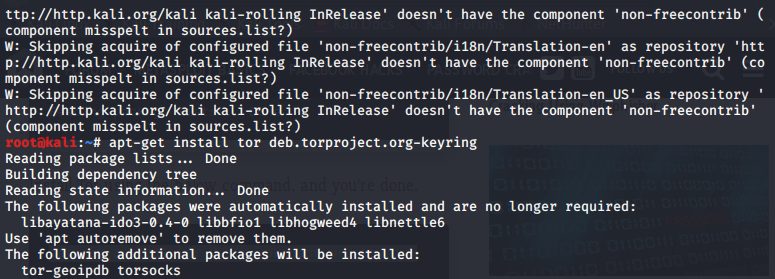
Kali Linux – это система для тестирования безопасности. Возможно, вам понадобиться Tor, для выполнения различных действий анонимно. Эта программа позволяет перенаправлять весь ваш трафик через ряд узлов с шифрованием.
apt-get install tor
# service tor start
Теперь вы можете перенаправить трафик нужной программы на узлы tor, например, iceweasel:
proxychains iceweasel
Установка FileZilla Kali Linux
Иногда приходится использовать FTP, для установки клиента выполните:
apt-get install filezilla filezilla-common -y
Инструменты мониторинга Kali Linux
Утилита htop позволяет посмотреть использование памяти и процессора, а также информацию о каждом из процессов. Утилита NetHogs позволяет следить за исходящим и входящим трафиком. Для установки утилит выполните:
apt-get install htop nethogs -y
Установка драйверов Kali Linux
Если вы собрались играть в игры, или делать еще что-то, где используется видеокарта, вам необходимо установить драйвера видеокарты. Если у вас видеокарта от NVIDIA, выполните такие команды:
apt-get update
# apt-get dist-upgrade
# apt-get install -y linux-хедерs-$(uname -r)
# apt-get install nvidia-kernel-dkms
Установка RecordMyDesktop
Иногда нужно записывать свои действия на видео. Для этого можно использовать программу RecordMyDesktop:
Утилита dpkg – это отличный инструмент для установки программ из deb пакетов. На эта программа не может разрешать зависимости во время установки пакетов. Вместо нее вы можете использовать gdebi:
apt-get install gdebi -y
Разрешите автовход
По умолчанию система запрашивает пароль для входа. Но вы можете включить автоматический вход добавив строчку AutomaticLoginEnable = true в файл:
vi /etc/gdm3/daemon.conf
AutomaticLoginEnable = true
AutomaticLogin = root
Теперь вам не нужно вводить пароль для входа.
Установка Skype
Перейдите на официальный сайт и загрузите версию Skype для Debain. Затем используйте dpkg для установки:
dpkg -i skype.deb
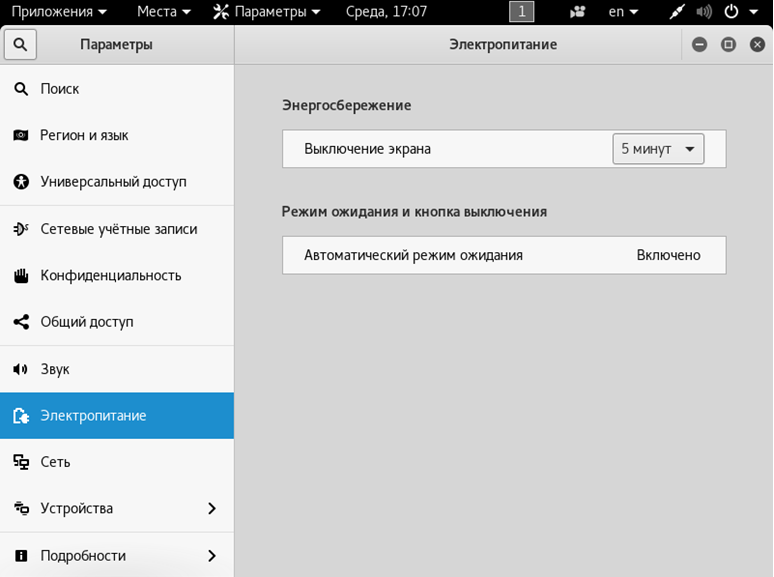
Электропитание
Чтобы Kali Linux не гасил экран или не переходил в режим ожидания, надо настроить электропитание.
Настройка Wi-Fi
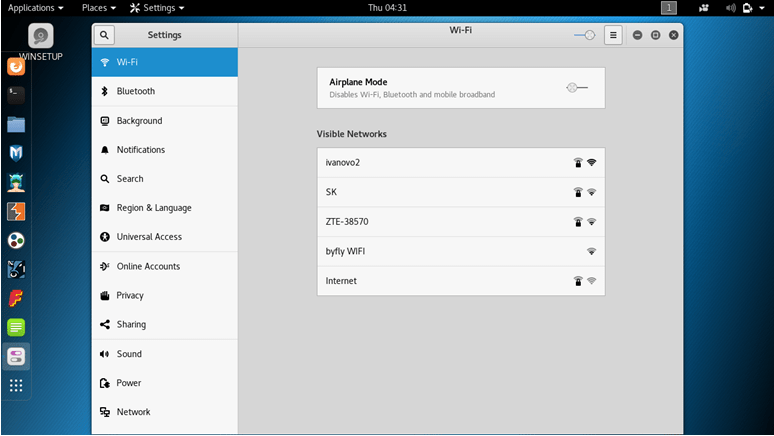
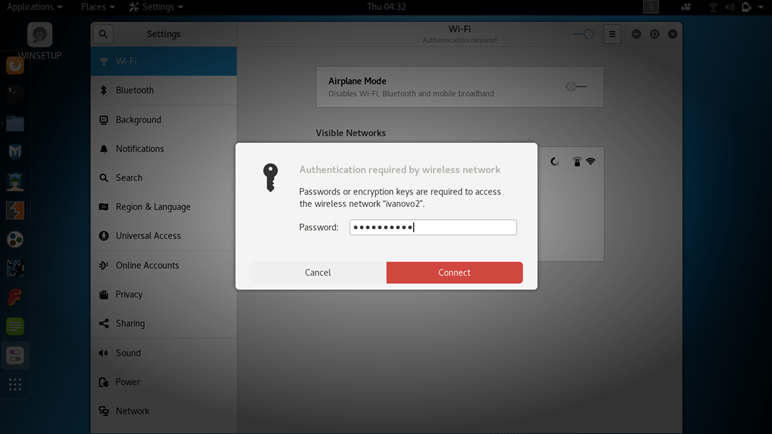
В подавляющем большинстве случаев, настройка интернета сводится к тривиальному подключению к беспроводной точке доступа после установки Kali.
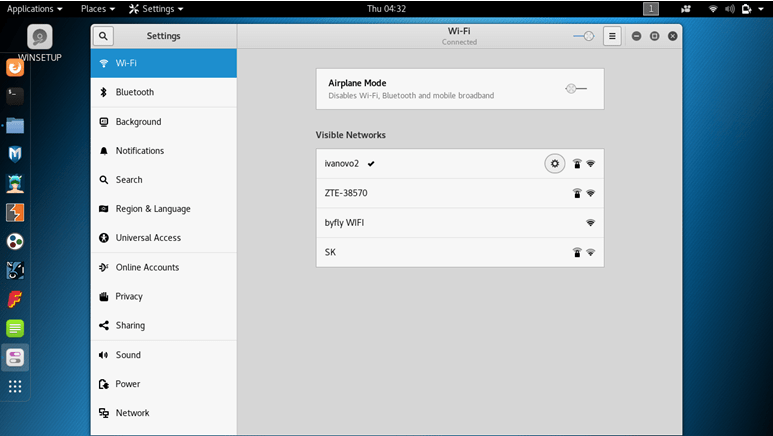
Для этого нужно кликнуть по нужной сети и ввести пароль.
Подключенная сеть будет отмечена галочкой.
Настройка сети LAN Kali Linux
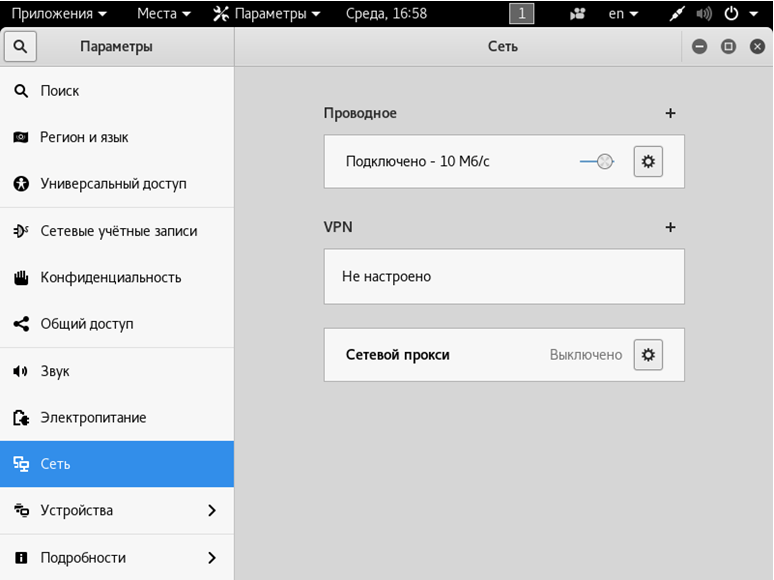
Проводное подключение определяется автоматически, если есть DHCP сервер (например, роутер раздает адреса). В противном случае может потребоваться вручную указать параметры после установки системы Linux. Для этого в разделе «Сеть» нужно нажать на шестеренку у проводного соединения.
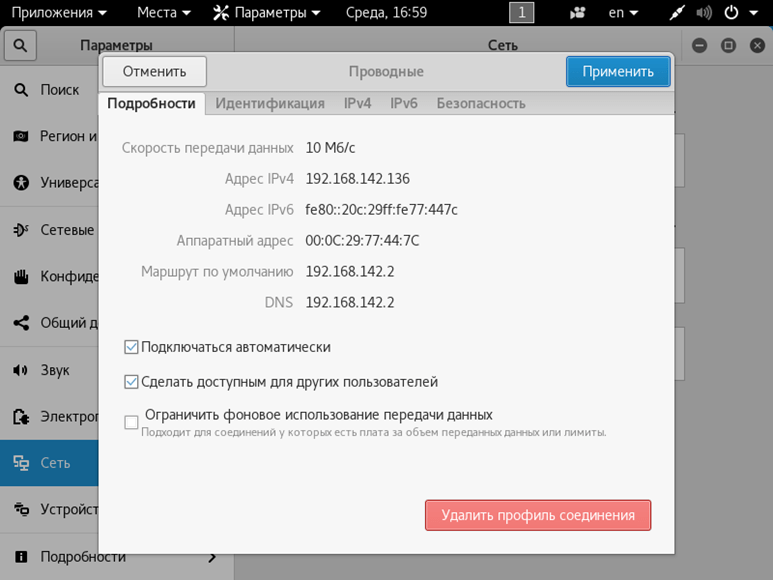
Откроется окно со сводной информацией. На вкладке «Подробности» можно настроить автоматизацию, доступ для других пользователей и передачу данных в фоне (хотя для Kali Linux лучше использовать безлимит).
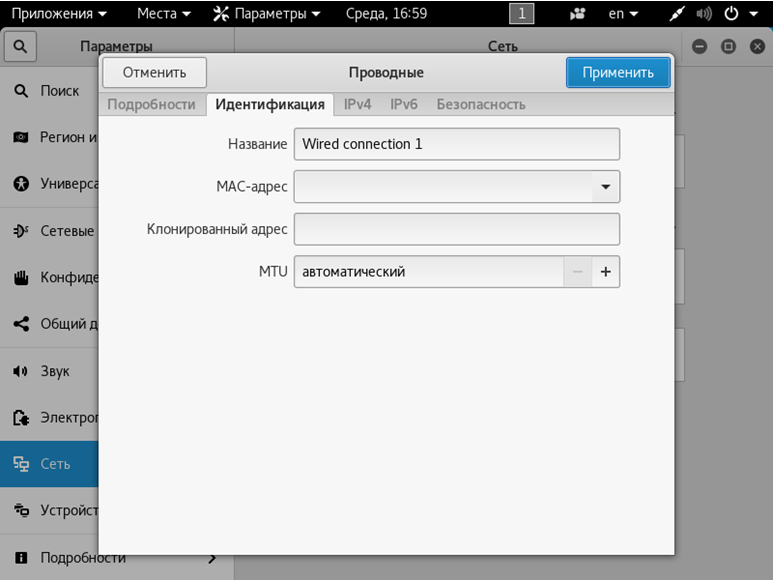
Вкладка «Идентификация» позволяет скорректировать название подключения, выбрать MAC-адрес, настроить MTU.
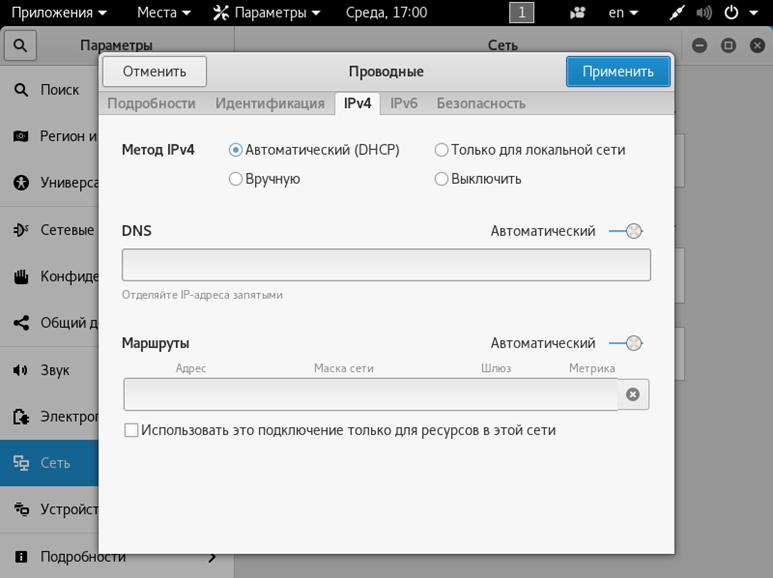
Самая важная вкладка здесь – IPv4. По умолчанию, после установки Linux, активируется автоматический режим.
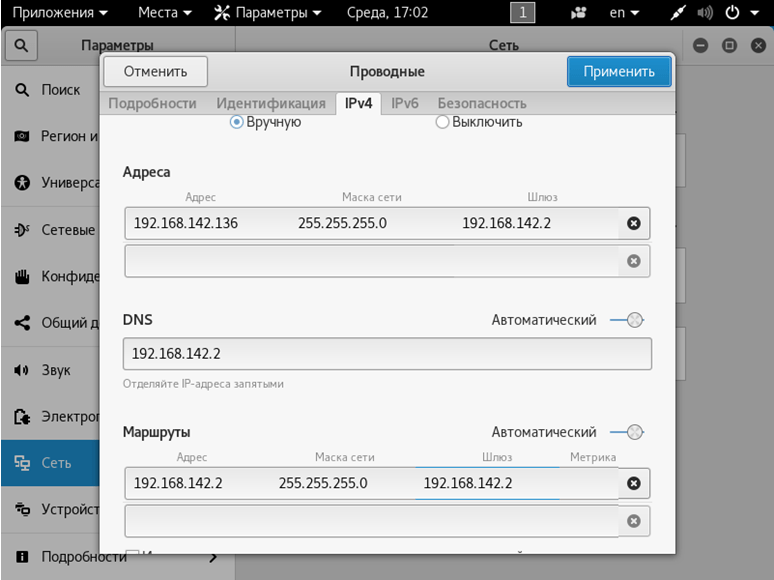
Если переключиться на ручной ввод, станут доступны параметры компьютера с Kali Linux (адрес, маска подсети, шлюз), DNS-сервера и маршрутизации. Вводить нужно значения, соответствующие используемому подключению.
После установки правильных значений нужно нажать «Применить».
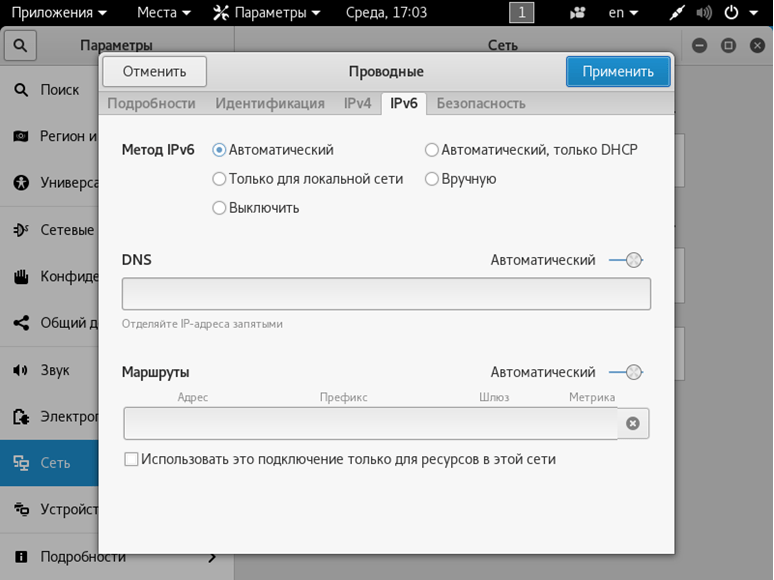
Протокол IPv6 также доступен для настройки.
Настройка VPN
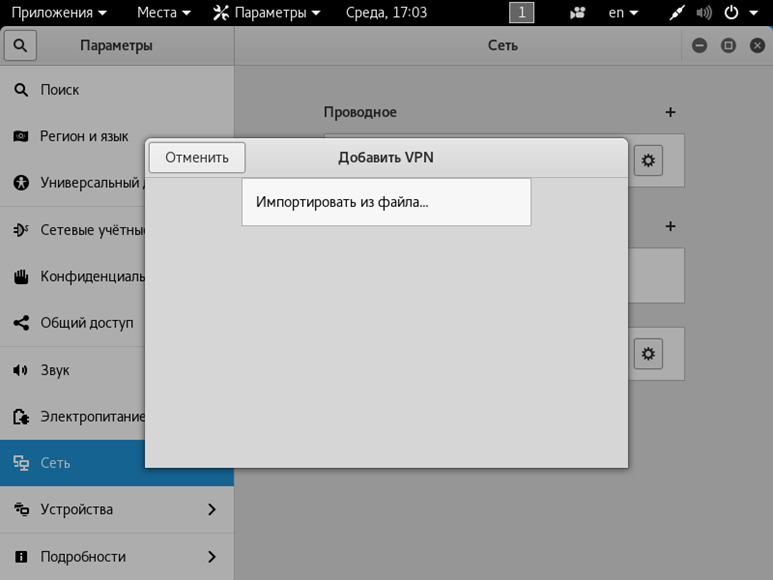
Для настройки частной сети, нужно в разделе Сеть нажать на плюсик в соответствующем подразделе. Откроется окошко добавления настроек.
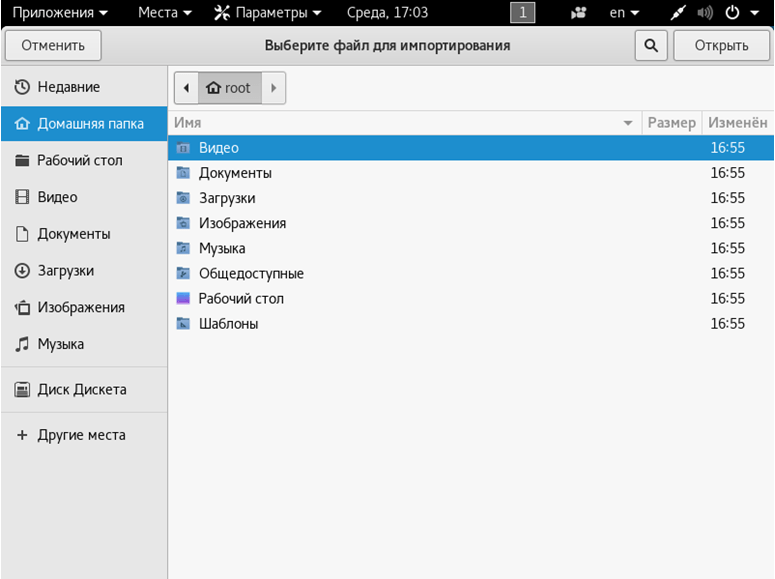
Система Kali предлагает импортировать их из файла. Сделать его можно при помощи OpenVPN или иного софта.
Proxy-сервер
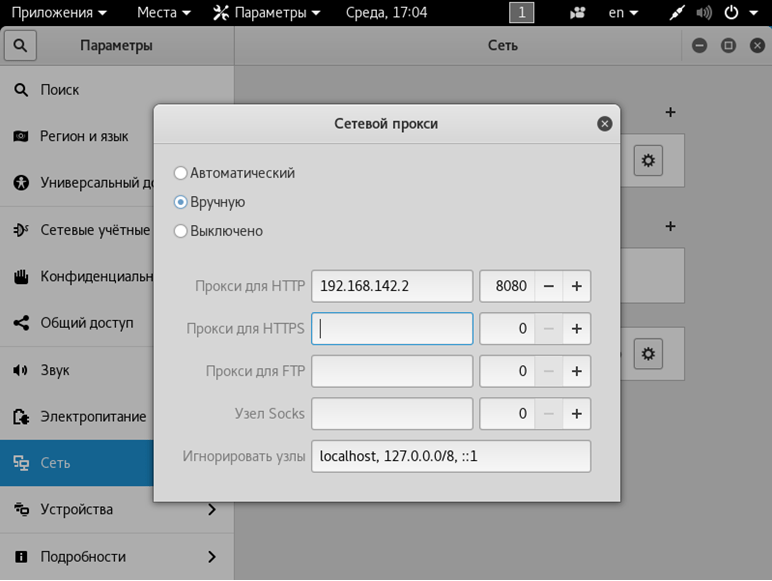
Прямое подключение Kali Linux может быть рискованным, так что лучше настроить проксирующий сервер. Для этого в разделе «Сеть» нужно нажать на шестеренку в пункте «Сетевой прокси». Откроется стандартное окно настроек, где следует указать промежуточный адрес для различных протоколов.
Обратите внимание: Если указать некорректные настройки для HTTP, то браузер по умолчанию попытается их использовать и просмотр веб-страниц будет недоступен.
Настройка обновлений
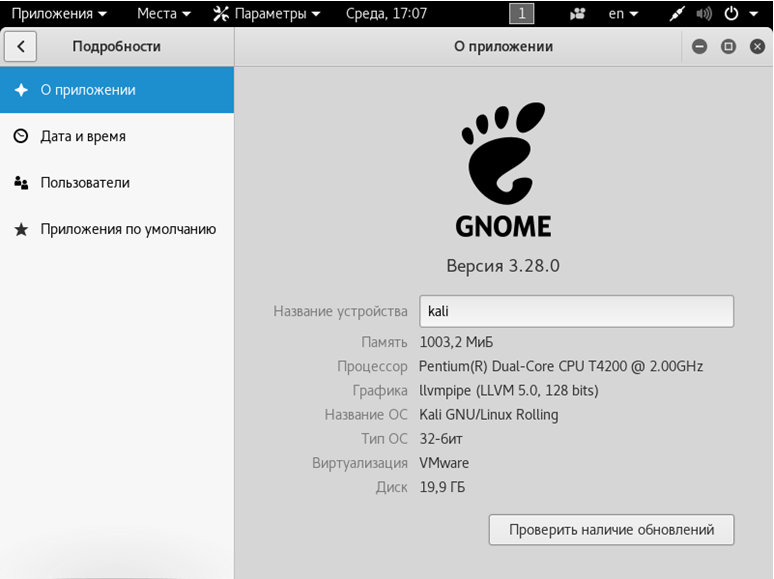
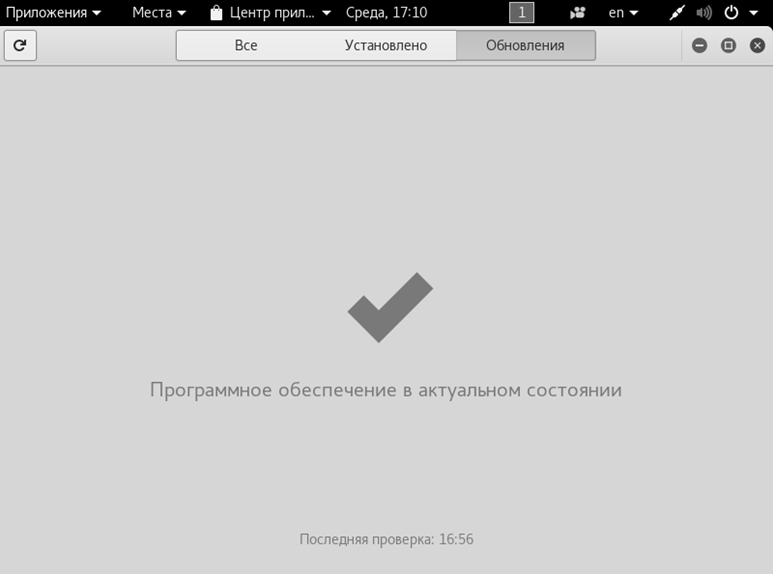
При корректном указании репозитория Kali Linux, можно использовать графическую оболочку для проверки обновлений. Для этого нужно перейти в раздел «Подробности».
Далее следует нажать кнопку проверки, после чего система Linux установит необходимые апдейты или сообщит об отсутствии более свежих версий.
18. Окружение рабочего стола
Вам необязательно использовать окружение рабочего стола Gnome, которое поставляется по умолчанию. Вы можете установить XFCE, KDE, Cinnamon, LXDE и другие. Первая команда для установки, вторая – для удаления.
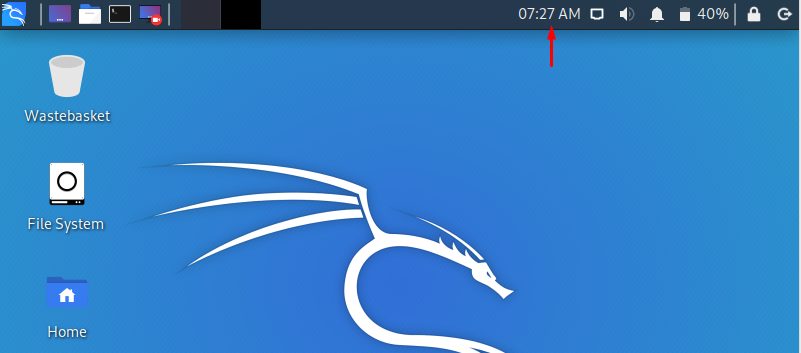
После того, как вы войдете в систему с правами root, первое, что вы заметите, это то, что время может быть неправильно установлено, и это вызовет проблемы при доступе к веб-сайтам. Вы можете легко изменить его, используя графический интерфейс:
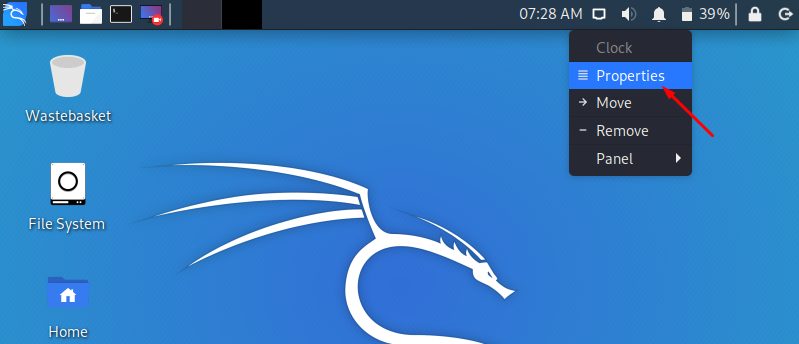
Щелкните правой кнопкой мыши на часах сверху
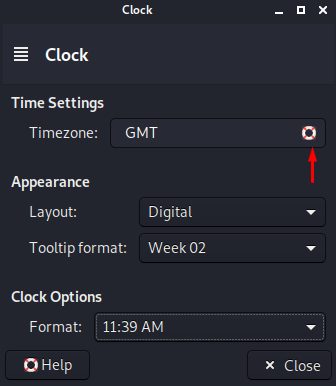
Выберите Свойства
Установите местное время. Вы также можете найти множество атрибутов для изменения по умолчанию
Включить звук загрузки
Одной из проблем, с которыми сталкиваются пользователи Kali, является отсутствие звука при установке. Чтобы включить его, введите команду в терминале
# apt-get install alsa-utils-y
Update и Upgrade
Рекомендуется Update и Upgrade все устаревшие репозитории, чтобы повысить производительность
# apt-get update && apt upgrade
Apt-update обновит доступные пакеты и версии
Apt upgrade установит новую версию имеющихся у вас пакетов
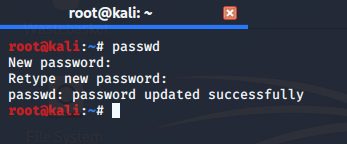
Установить новый пароль для root
При установке ОС вы указали пароль, но что если вы захотите изменить пароль через некоторое время? Вот команда для легкого изменения пароля root:
# passwd
Таким образом, вы можете легко изменить свой пароль, набрав только одну команду.
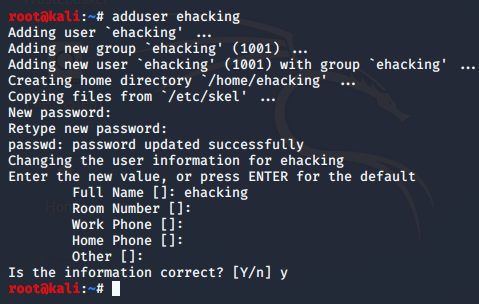
Добавить учетную запись с низким уровнем привилегий
Вы получили приглашение к учетной записи root, но при запуске от имени учетной записи root существует вероятность того, что небольшая ошибка в приложении может стереть некоторые системные файлы, поэтому в любой операционной системе рекомендуется запускать как пользователь без полномочий root с низким уровнем доступа. Чтобы создать нового пользователя с низкими привилегиями:
# adduser [USERNAME]
Добавьте этого пользователя в группу Sudoers для запуска корневых команд:
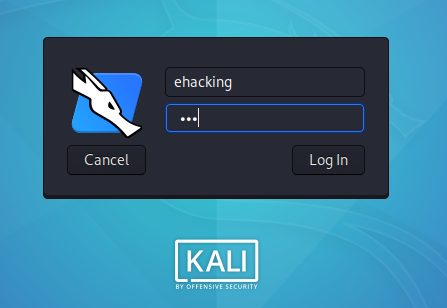
# usermode –aG sudo ehacking
После этого напишите команду для настройки нового пользователя для BASH:
$ chsh –s /bin/bash ehacking
Установка оболочки входа пользователя ehacking в /bin/bash
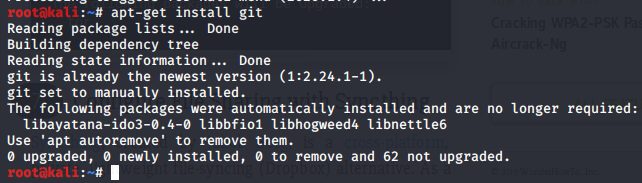
Установить Git
Git – обязательный инструмент для этических хакеров, стремящихся увеличить свой набор инструментов по сравнению с тем, что уже установлено в стандартных репозиториях Kali. Чтобы установить Git, просто наберите:
# apt-get install git
Установите ваши любимые инструменты взлома
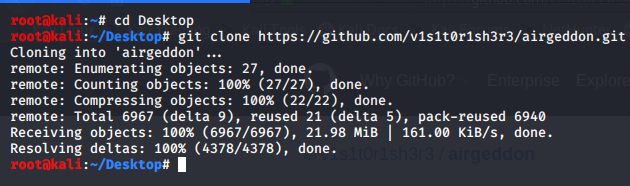
В Kali Linux уже есть много инструментов для взлома и тестирования, например (Wireshark , Aircrack-ng , BeEF , Burp Suite , Hydra , Nikto , Maltego , Nmap), но что если вы захотите установить свой любимый инструмент, который вам нужен? Я собираюсь использовать для конкретной задачи, например, мне нужно атаковать сеть Wi-Fi с помощью Airgeddon, потому что он автоматизирует с помощью различных инструментов, поэтому вам не нужно вводить команды. Я могу установить Airgeddon в Kali Linux, набрав команду на терминале:
Дайте разрешения, чтобы сделать его исполняемым, набрав:
# chmod + x airgeddon.sh
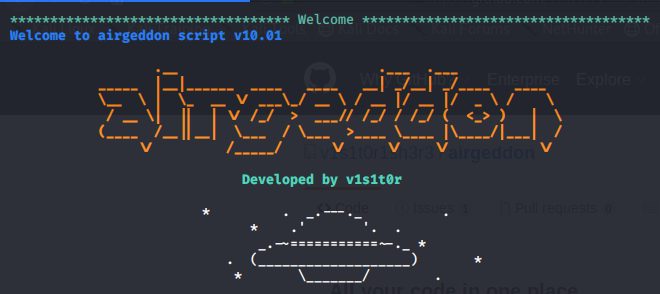
Запустите файл:
#./airgeddon.sh
Установите браузер TOR
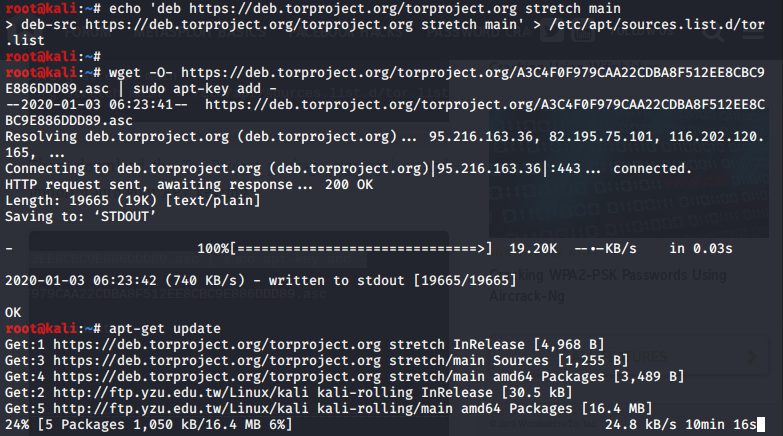
Onion Router (TOR) – это бесплатное программное обеспечение с открытым исходным кодом для анонимного общения. Он предназначен для того, чтобы люди не могли отслеживать ваши привычки, в том числе правительственные учреждения и корпорации. Вы можете установить браузер TOR, добавив репозиторий TOR в свой репозиторий APT:
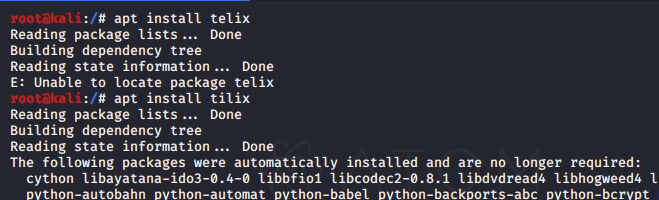
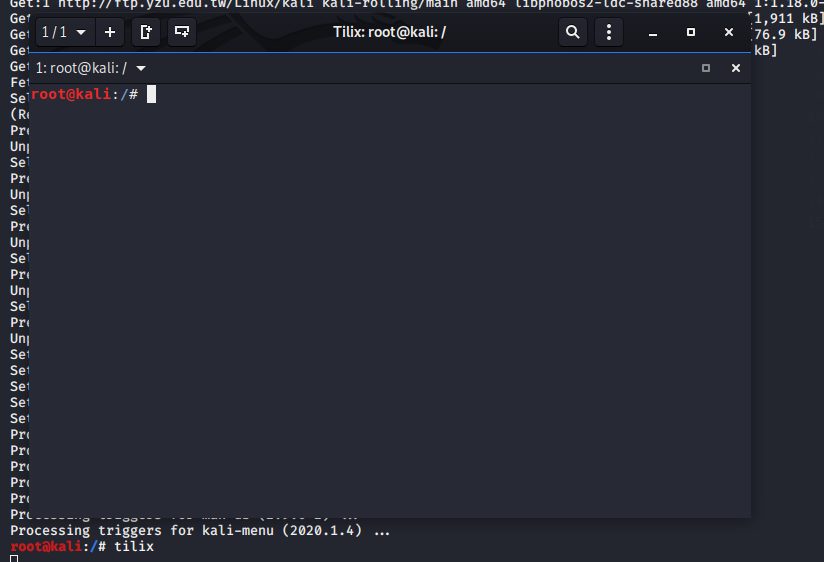
Tilix – это эмулятор терминала с открытым исходным кодом, который использует виджет VTE GTK + 3, обладающий некоторыми удивительными функциями, такими как макеты терминалов любым способом, разделяя их по горизонтали или вертикали, и ввод можно синхронизировать между терминалами, чтобы команды, набранные в одном терминале, реплицировались в другие
Введите tilix
Установить редактор кода
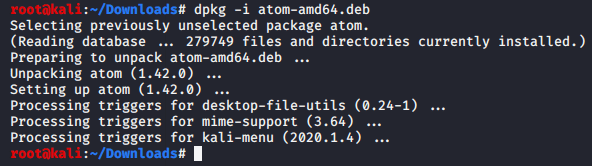
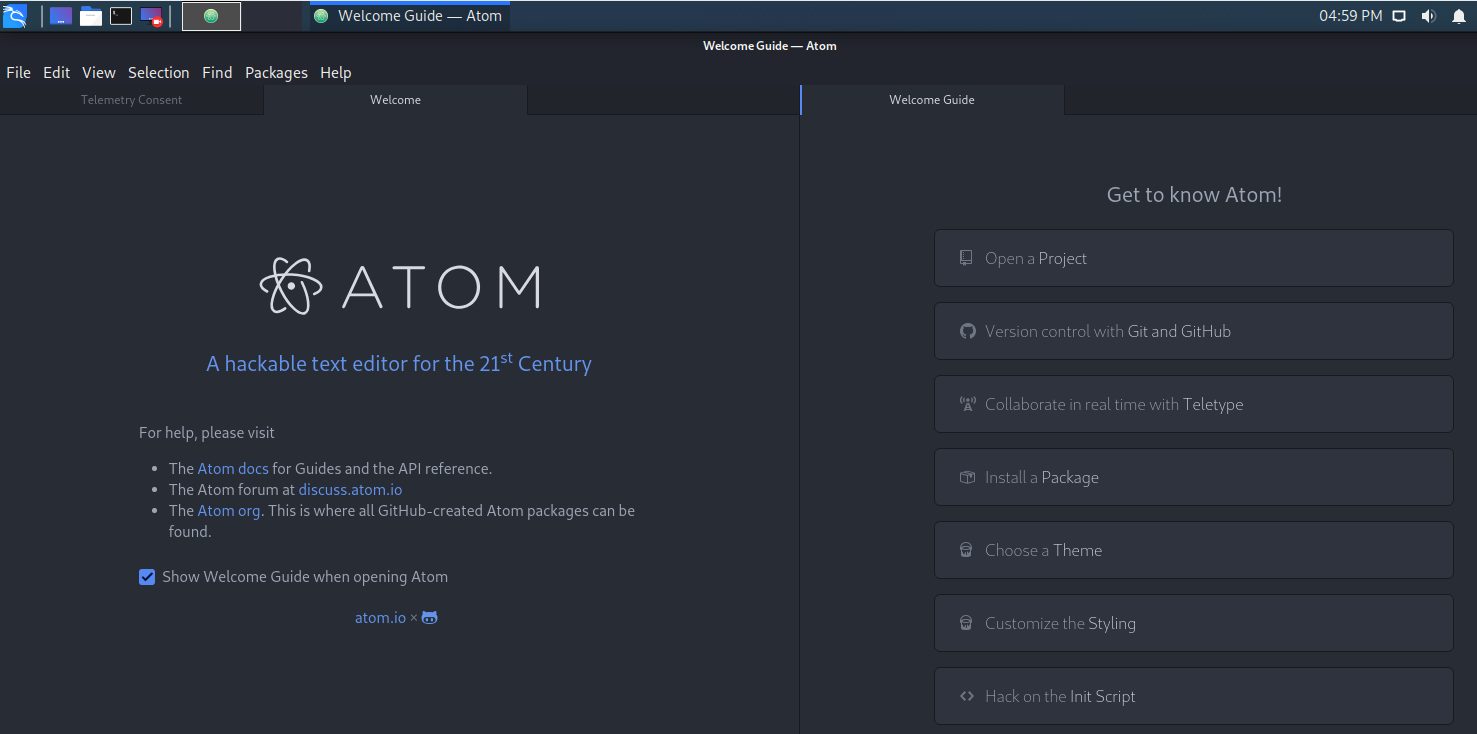
Atom editor – очень хороший текстовый редактор в Kali Linux. Чтобы установить Atom введите:
1. Качаем Kali Linux в версии Kali 32 bit Light с официального сайта , в таблице «вручную» находим Kali 32 bit Light и жмем ISO рядом.
2. Если файл вы сначала скачали на комп, то теперь подключаем к этому компу наш Android-девайс через USB-кабель и копируем на него («весит» архив 1.1GB).
3. в Play Маркете находим и скачиваем приложение Limbo PC Emulator
4. после завершения установки эмулятора, открываем его и создаем новую учетную запись (имя — любое).
5. в строке Architecture указываем x86, в строке CPU Model — 4 cores (4 ядра), и в строке RAM — не менее 256 MB (если у вашего смартфона или планшета оперативки больше, чем 1GB, то можно указать и больше, тогда система работать будет шустрее).
6. создаем Hard Disk («жеский диск»), указав емкость не менее 4GB
7. Во вкладке CDROM открываем меню и находим через него iso-файл Kali Linux.
8. В разделе Network указываем User.
9. После этого возвращаемся наверх и запускаем процедуру загрузки Kali Linux (кнопка Start).
10. Можно установить систему, а можно просто запустить образ. Но в любом случае загрузка моментально не происходит и займет некоторое время, потому надо будет немножко подождать.
Источник инструкции: форум codeby.net
Подготовка к установке Kali Linux
Для начала необходимо скачать образ системы Kali Linux. Сделать это можно на официальном сайте дистрибутива – kali.org. Выбираете нужный вам дистрибутив с соответствующей архитектурой и скачиваете. После того, как вы скачаете образ, необходимо проверить его на целостность посредством сравнение контрольных сумм SHA256.
После этого скачиваем программу VirtualBox с официального сайта (virtualbox.org). На этом подготовка заканчивается, время переходить к установке.
Настройка виртуальной машины
Шаг 1. Создание виртуальной машины
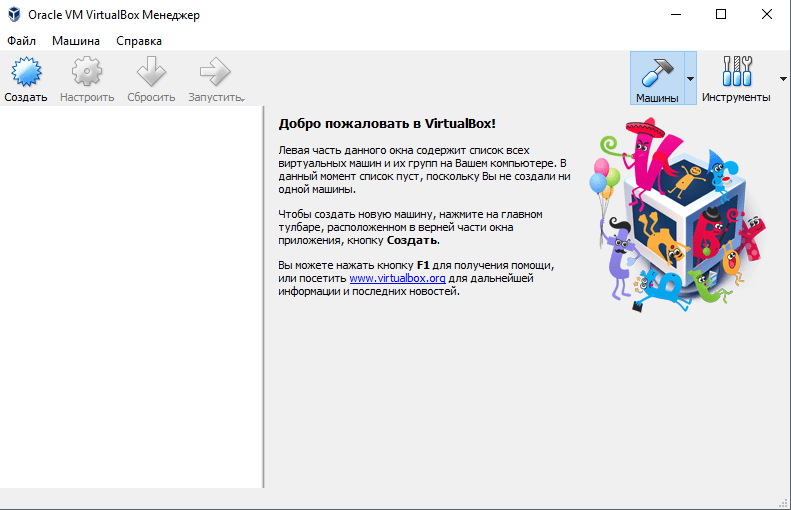
Откройте VirtualBox и нажмите на кнопку «Создать» в контекстном меню.
Шаг 2. Настройка основных параметров машины
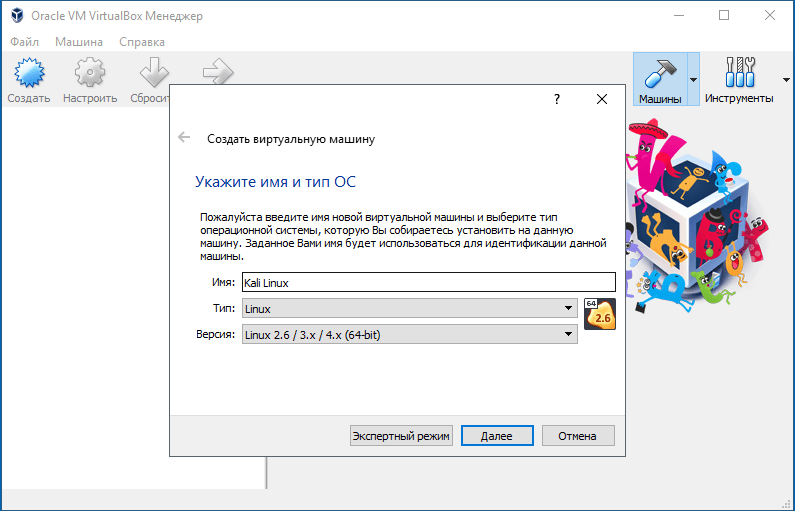
Откроется диалоговое окно, где необходимо выполнит три пункта: выбрать имя для образа виртуальной машины, выбрать тип операционной системы, выбрать ее версию.
Примечание: для того, чтобы успешно установить Kali Linux на VirtualBox необходимо выбрать совместимую с дистрибутивом версию «2.6/3.х/4.х», архитектура которой соответствует вашим характеристикам.
Шаг 3. Объем оперативной памяти
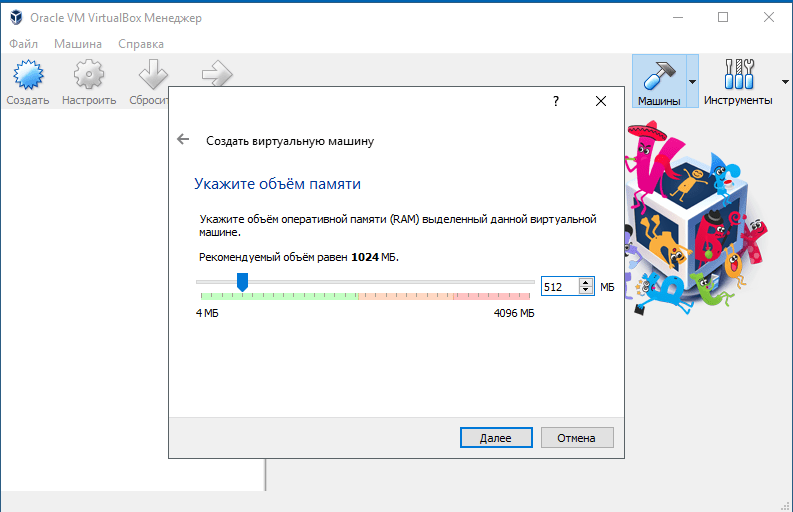
Теперь необходимо указать оптимальны объем оперативной памяти, которую будет использовать виртуальная машина в активном режиме.
Примечание: если указать объем, превышающий в два раза количество установленной ОЗУ, может повлиять на производительность.
Шаг 4. Создание виртуального диска
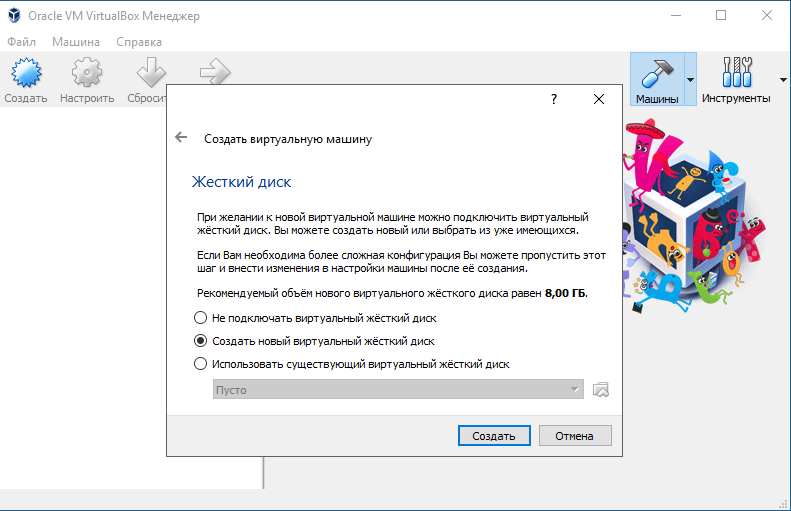
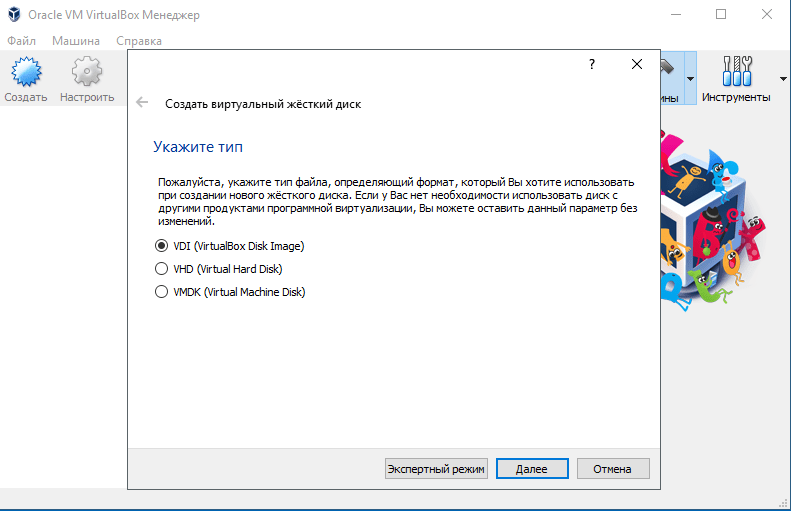
Создаем виртуальный диск, либо же выбираем из уже имеющихся. При создании виртуального диска указываем его тип. Вкратце о каждом из них:
VDI – собственный формат диска VirtualBox используется при создании новой виртуальной машины;
VHD – формат диска, разработанный Microsoft;
VMDK – универсальный формат, который также использует VMware.
Если вы не знаете какой выбрать, то выбирайте VDI.
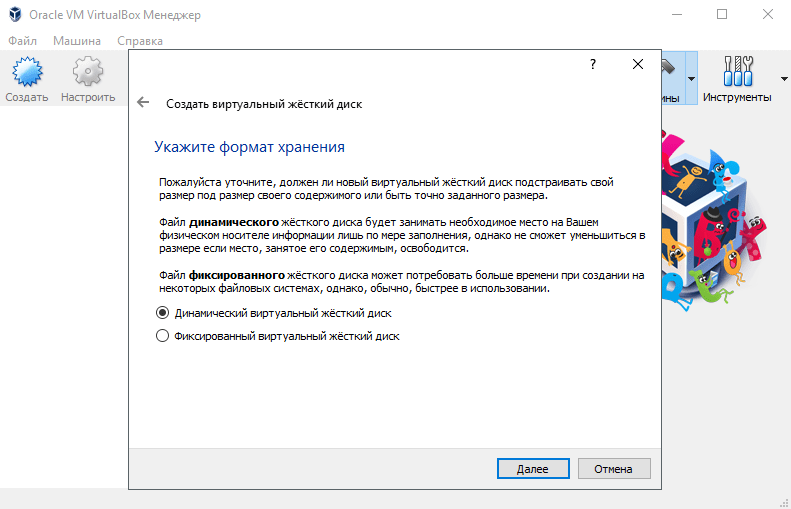
Шаг 5. Выбор формата хранения
Указываем формат хранения. Динамический или фиксированный – решать вам, отталкиваясь от целей. Подробное описание каждого формата приведено в диалоговом окне.
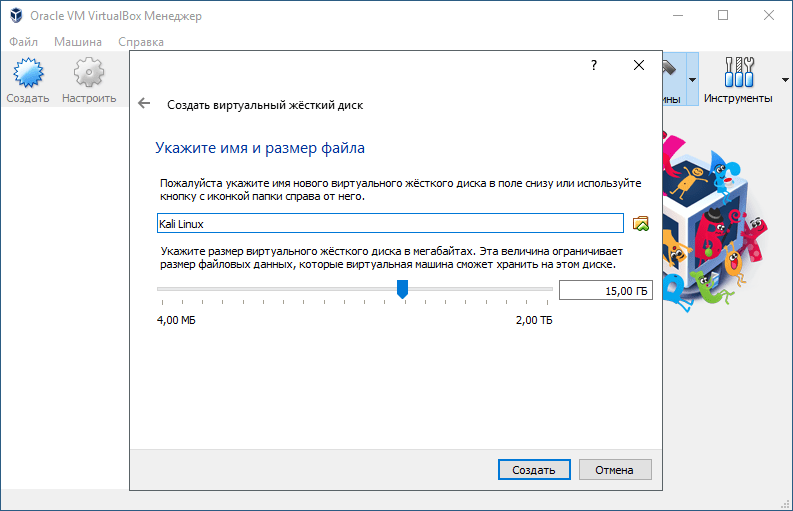
Шаг 6. Выбор объема диска
Указывать объем диска, который будет использовать Linux-система, необходимо в зависимости от ваших задач. Оптимальное количество это 100Гб.
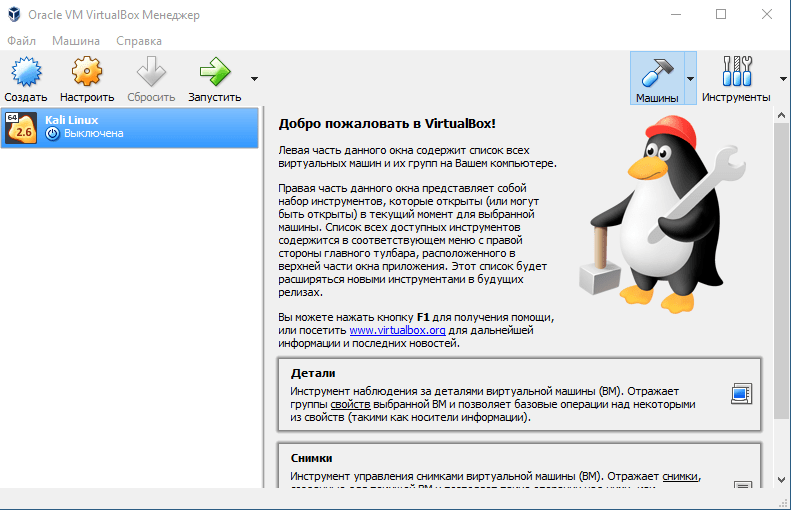
Вы создали виртуальную машину. Теперь необходимо поставить на нее систему. Выбираем нужную нам виртуальную машину из списка и запускаем ее.
Установка Kali Linux на VirtualBox
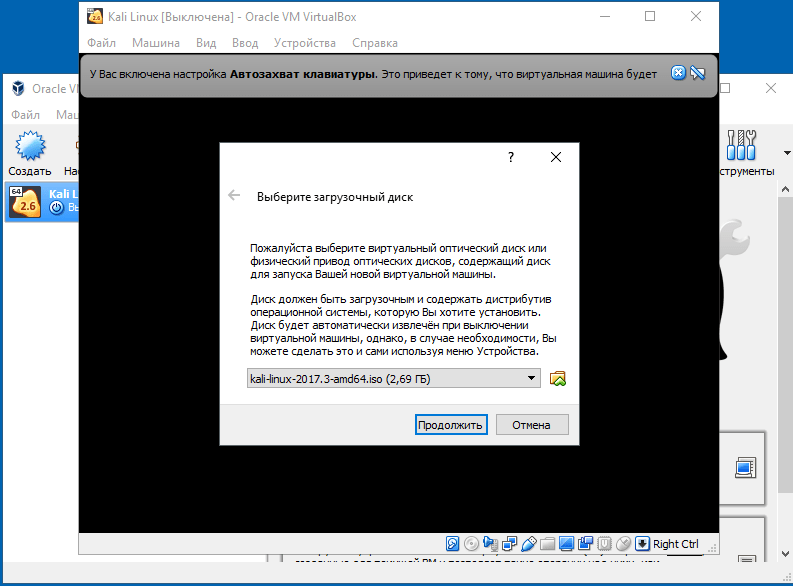
Шаг 1. Выбор загрузочного образа
В открывшемся окне предлагается выбор загрузочного диска. Выбираем скачанный ранее образ системы.
После выбора образа жмем «Продолжить».
Шаг 2. Выбор типа установки системы
Видим, что происходит загрузка системы, после чего открывается меню установки Kali Linux. Здесь необходимо выбрать «Graphics Install». Примечание: при выборе «LiveCD» все данные, сохраненные на системе, удалятся после ее выключения.
Шаг 3. Выбор языка установки
Теперь необходимо выбрать язык, который будет сопровождать на вас на протяжении всей установки.
Шаг 4. Базовая информация о системе
Теперь выбираем местоположение, язык клавиатуры, комбинацию клавиш для переключения языка.
Шаг 5. Название компьютера
Вводим имя компьютера.
Шаг 6. Настройка домена сети
Отталкиваясь от необходимости либо настраиваем домен-сети, либо пропускаем данный шаг.
Шаг 7. Пароль учетной записи
Настраиваем пароль учетной записи. Примечание: следует запомнить, что при вводе пароля в @root консоли, символы отображаться не будут.
Выбираем время, после чего происходит загрузка.
Шаг 8. Разметка дисков
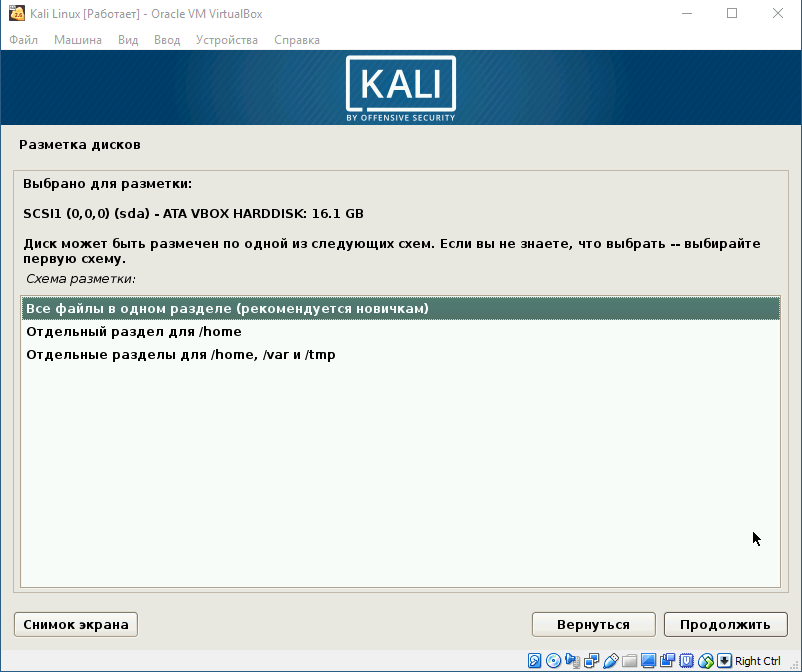
Теперь предстоит выполнить разметку дисков. Так как установка Kali Linux происходит на VirtualBox, то мы используем весь диск.
Разметка диска определяет местонахождение файлов в системе. Так как Linux отличается своей файловой системой от других систем, то на выбор предложено три вариант, содержащие /home /var и /tmp. Теперь подробнее о них:
/home – здесь находятся все домашние каталоги пользователей;
/var – здесь система хранит log, cech-файлы, почту и иногда web;
/tmp – раздел под временные файлы.
Данная функция создана для опытных пользователей, если у вас нет необходимости сортировать файлы, то помещайте все на один раздел.
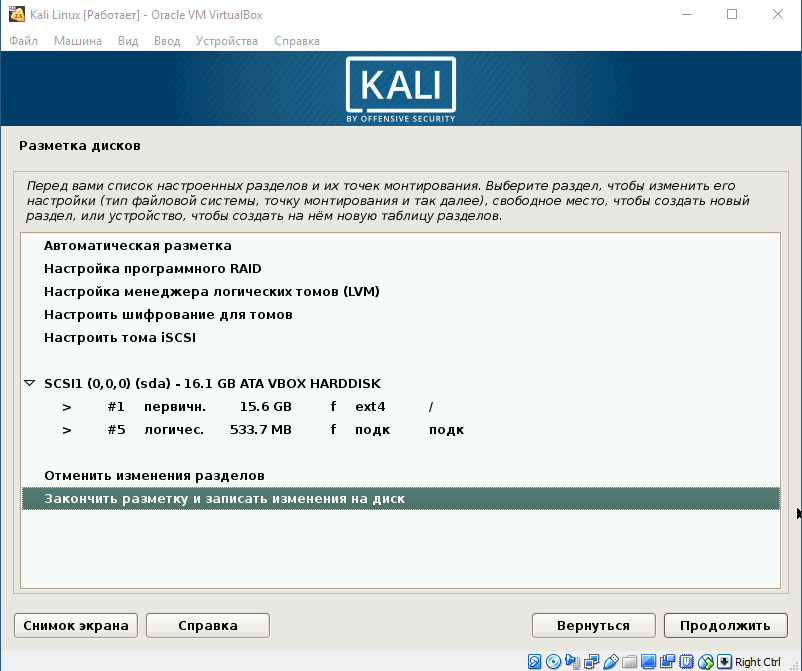
Далее отображается контекстное меню со списком поделенных томов. В данный момент у нас есть основной раздел и ext4 – журналируемая файловая система.
Подтверждаем все изменения и нажимаем «Продолжить».
Шаг 9. Выбор зеркал
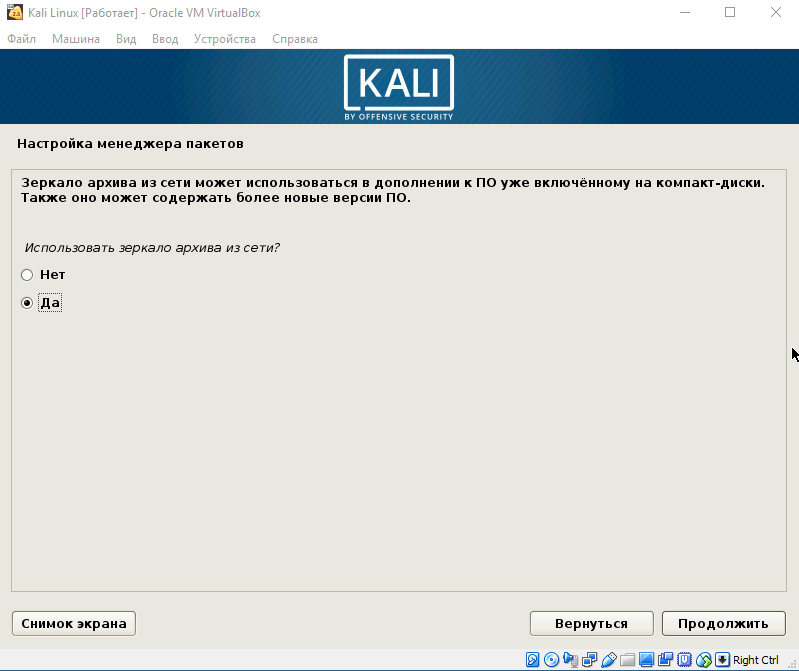
Теперь предстоит выбрать зеркало для установки дополнительного ПО. Данная функция доступна только в том случае, если при установке у вас есть активное Интернет-соединение. Если оно отсутствует, то вы всегда можете установить дополнительной ПО в самой системе.
Шаг 10. Установка GRUB
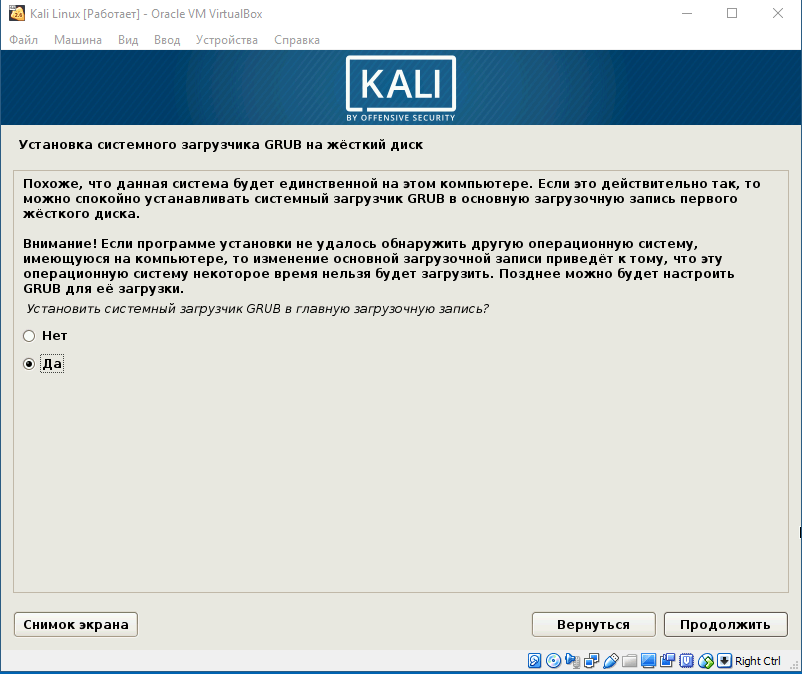
Далее идет установка системного загрузчика GRUB. Оставляем “Да” и продолжаем установку.
Шаг 11. Завершение установки
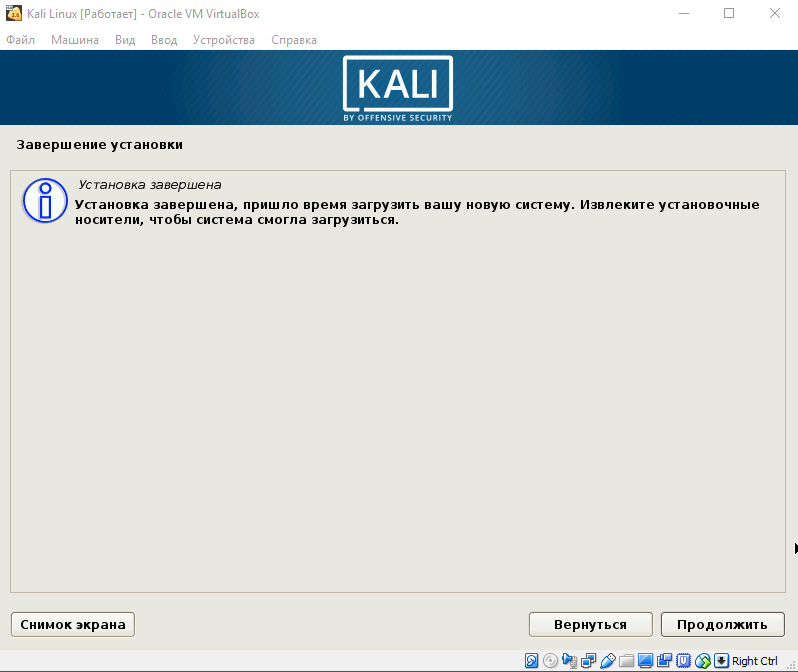
После того, как вы установите GRUB, система попросит изъять установочные носители и перезагрузить ее. Изымать ничего не надо, нажимаем «Продолжить».
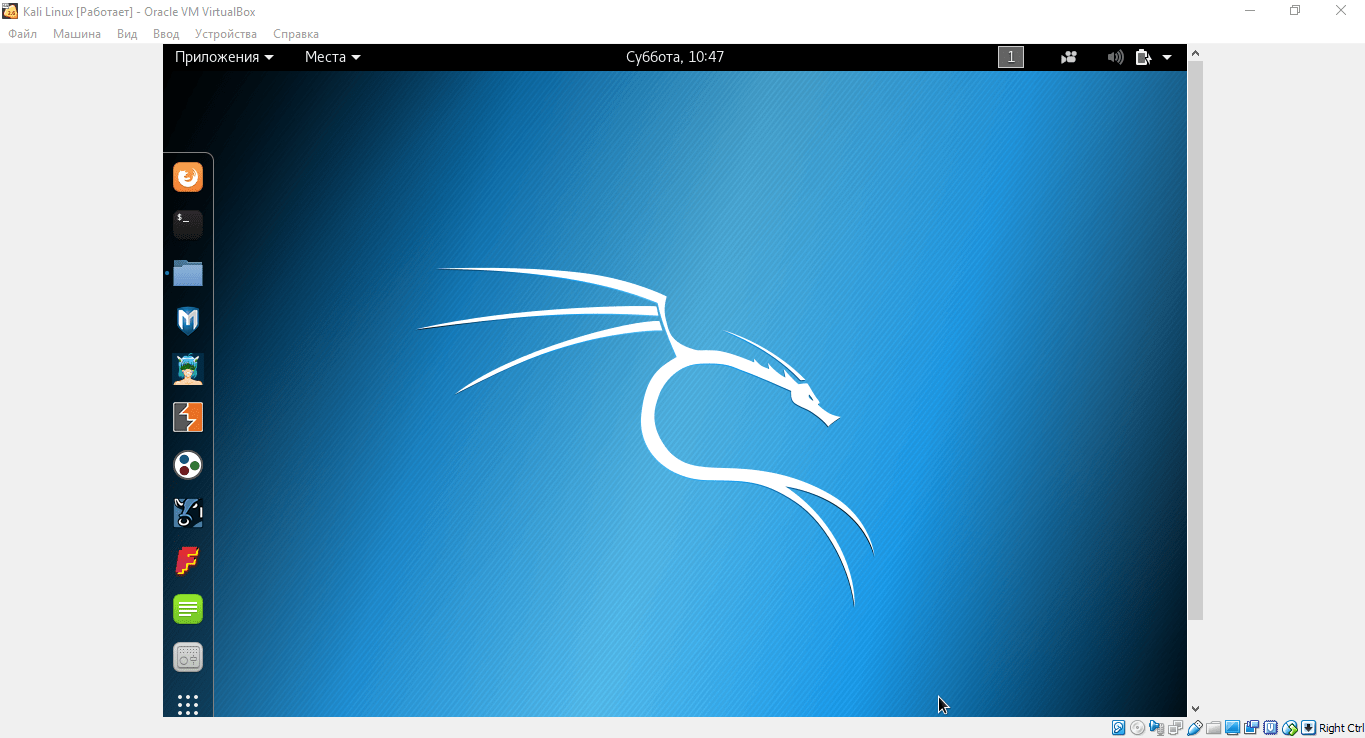
Вы завершили установку системы. Она готова к использованию, теперь осталось вписать имя пользователя и пароль, которые вы ввели при установке.
Установка Virtual Box Guest Additions
Шаг 1. Добавление образа на CD носитель
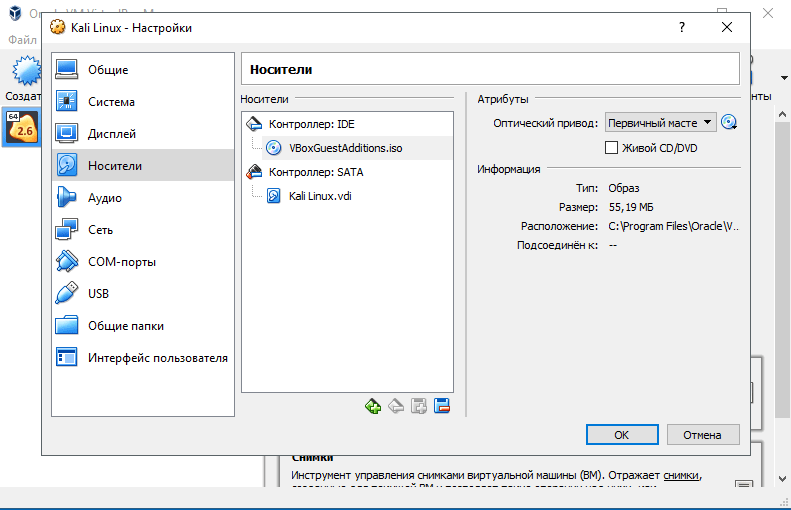
Выбираем из списка нужную виртуальную машину и нажимаем «Настроить». В окне настроек выбираем пункт «Носители» и добавляем в IDE контроллер образ, находящийся в корневой папке программы (C:/ProgramFiles/Oracle/VBoxLinuxAdditions.iso):
Шаг 2. Установка дополнений в Kali Linux
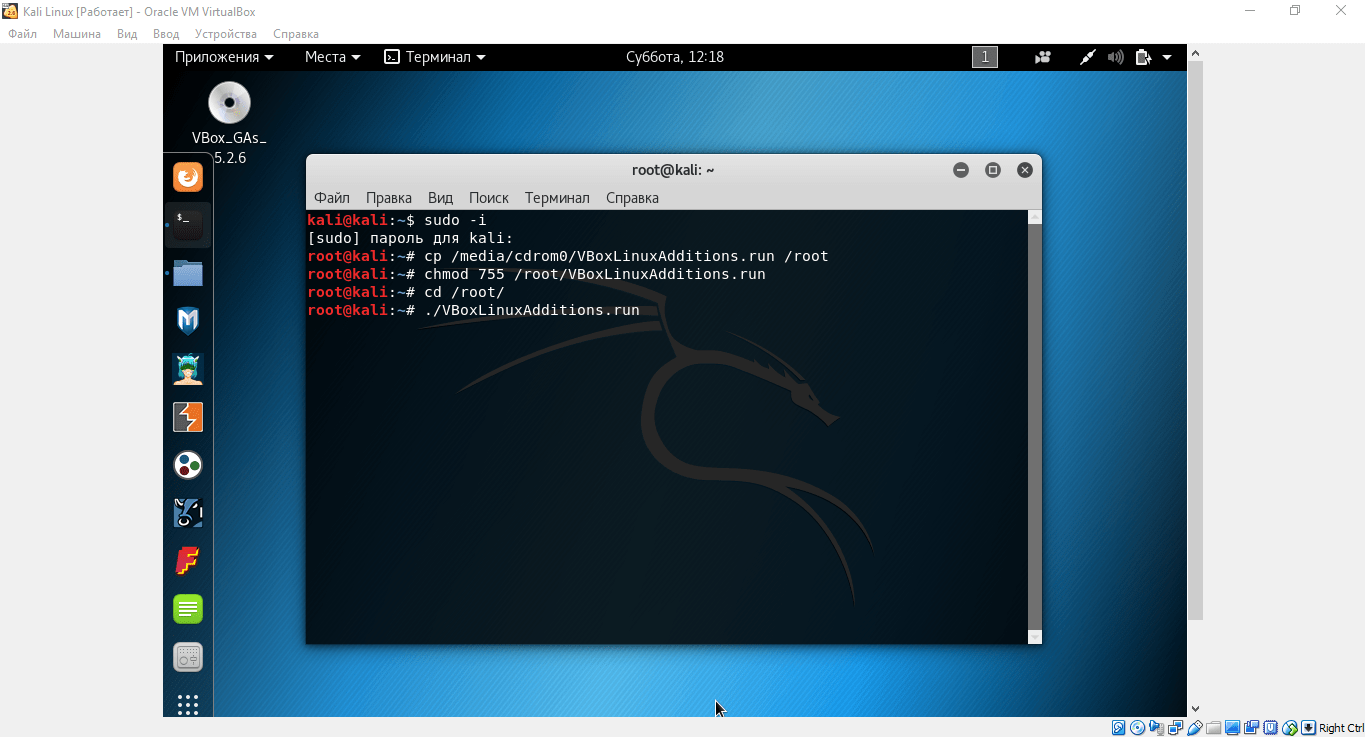
Запускаем виртуальную машину и открываем терминал. Перед установкой необходимо» зайти в терминал из-под рута, для этого прописываем в нем команду:
sudo -i
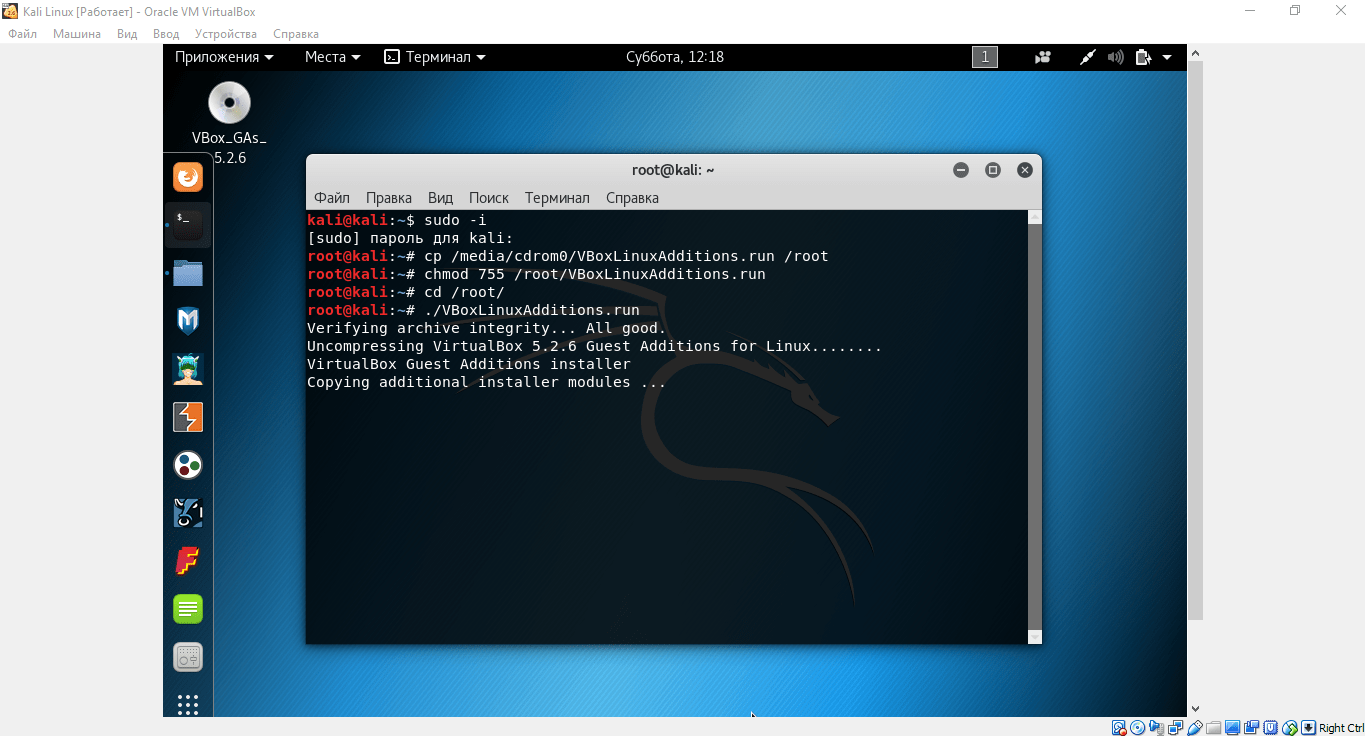
Далее необходимо загрузить установочный образ с помощью команд, указанных на скриншоте:
Узнав о существующих на сегодня механизмах защиты беспроводных сетей в первой части самое время использовать эти знания на практике и попытаться что-нибудь взломать (естественно, принадлежащее нам самим). Если получится — наша защита никуда не годится.
Все манипуляции будем проводить с использованием Kali Linux — kali.org. Это сборка на основе Debian, которая до этого была известна под именем Backtrack . Если вы впервые знакомитесь с этой системой, то советую начать сразу с Kali, так как там есть всё то, что было в Backtrack, но в более свежем виде.
(Читатели подсказывают, что есть и другие подобные сборки — например, wifiway.org. Однако я с ними не работал.)
Под Windows тоже можно делать многое из описанного, но основная проблема в отсутствии/плохой поддержке режима монитора беспроводных адаптеров, из-за чего ловить пакеты проблематично. Кому интересно — обратите внимание на CommView и утилиты Elcomsoft. Все они требуют специальных драйверов.
Kali очень удобно использовать с флешки — у неё по наследству от Debian Wheezy (у меня одного закладывает нос от такого названия?) есть persistence mode, который позволяет загружаться в трёх режимах: работы без сохранения данных (read only), работы с их сохранением на отдельный раздел на флешке, так называемом persistence, или работы без сохранения в live/vanilla mode (то есть read only и без использования данных в persistence — изначальная чистая версия дистрибутива).
Но, естественно, кто хочет установить её на жёсткий диск может легко сделать это и из загрузчика, и из уже запущенной оболочки. ОС (LVM) поддерживает шифрованные разделы. Кроме этого, можно сделать собственную сборку Kali — добавить пакеты, настроить загрузчик и прочее. Всё это подробно описано в документации и проблем не вызывает, хотя сборка требует пары часов времени.
Итак, допустим вы скачали ISO и записали его на флешку (для *nix — dd, для Windows — Win32DiskImager). Что дальше?
Use the tools, Luke
Собрание окончено, расходимся, расходимся.
Ну, вот и добрались до терминала. Посмотрим, кто вокруг нас светит ультраволнами.
Скрытые сети… такие скрытые
Часто в быту можно услышать, что скрытые сети очень сложно обнаружить/подключиться/взломать/унести (нужное подчеркнуть). Однако как уже было показано, «скрытая» сеть — не что иное, как сеть, не передающая маячки о своём существовании 10 раз в секунду, либо передающие их, но с пустым ESSID и другими полями. На этом разница заканчивается.
Как только к такой сети подключается клиент, он передаёт её ESSID и пароль, и если такая сеть существует в радиусе действия — точка доступа отвечает на запрос и проводит все обычные процедуры по авторизации и передаче данных. А если клиент уже был подключен ранее — его можно увидеть в списке активных адаптеров… и отключить.
Каждый подключенный клиент общается с базовой станцией по её BSSID — и это именно то, что мы видим в обеих таблицах airodump-ng. Мы можем «отключить» клиента от сети, после чего он должен будет подключиться вновь — и в этот момент airodump-ng перехватит рукопожатие со всеми идентификаторами и ключами. Либо мы можем просто оставить ноутбук включенным на пару часов с airodump-ng на нужном канале и подождать. Кстати, при успешном «вскрытии» в правом верхнем углу появится сообщение вида [ Decloak: 00:00:11:11:22:22 ] с BSSID точки доступа, конспирацию которой мы раскрыли.
Отключение клиентов предусмотрено во всех беспроводных стандартах и делается с помощью aireplay-ng (все три уже знакомые нам утилиты — часть проекта Aircrack-ng, который содержит в своём наборе всевозможные инструменты для работы с тонкими материями):
aireplay-ng wlan0 –deauth 5 -a AP_BSSID -c CLIENT_BSSID
Внимание: эта команда — исключение и принимает идентификатор реального беспроводного адаптера, а не mon0, созданного с помощью airmon-ng.
Если при запуске появилась ошибка о незафиксированном канале и/или airodump-ng показывает в правом верхнем углу [ fixed channel -1 ] — значит, какая-то программа или сервис заставляет адаптер перескакивать с канала на канал (это может быть тот же airodump-ng) и их нужно закрыть с помощью airmon-ng check kill, как было описано в начале.
Команда выше имитирует ситуацию, когда точка доступа сообщает клиенту, что старый ключ недействительный (и что его следует обновить, повторив handshake, то есть передав пароль и имя сети заново). На адрес клиента отправляются сообщения якобы от точки доступа о том, что следует отключиться от сети и обновить данные сессии. Так как этот тип пакетов не защищён шифрованием (то есть команда может быть выполнена ещё до аутентификации), то противодействовать ему невозможно по той простой причине, что невозможно установить «личность» того, кто это рассылает — MAC-адреса в пакетах поддельные и установлены в те значения, которые мы передали после -a и -c. Можно только отслеживать слишком частые отключения и принимать какие-то меры.
После –deauth идёт число пакетов деавторизации, которые будут посланы в оба конца. Обычно хватает 3-5, можно указывать и 30 и больше. Для краткости –deauth можно заменить на -0 (ноль).
Итак, допустим во второй таблице airodump-ng мы видим следующую строчку:
BSSID STATION PWR Rate Lost Frames Probe 4F:B1:A4:05:5C:21 5B:23:15:00:C8:57 -54 0 – 1 0 1266 homenet, XCom
Первый столбец — значение для -a (MAC базовой станции), второй — для -c (MAC клиента). Перезапустим airodump-ng и зафиксируем его на канале 5 (это канал нашей атакуемой станции), после чего выполним отключение клиента в соседнем окне терминала:
Если сигнал достаточно сильный, число пакетов велико и клиент/точка доступа нас услышали — они отключатся друг от друга, затем передадут информацию о сети вновь при подключении и airodump-ng покажет их и строчку [ Decloak ].
Как видим, данный трюк со скрытием маячков можно использовать для домашних сетей, к которой кто-то подключается пару раз в день, да и то не всегда — но для корпоративных сетей он точно не подходит, так как раскрывается буквально одной командой и защиты от неё нет. На мой взгляд даже для частных сетей это скорее неудобство, чем польза — вводить-то имя надо вручную, да и не понятно, активна ли вообще базовая станция или нет.
Также, -c (клиентский MAC) можно не указывать — тогда от имени точки доступа будут разосланы широковещательные (broadcast) пакеты об отключении всех клиентов. Однако сегодня это редко работает — драйвера игнорируют такие пакеты, так как правомерно считают, что дело нечисто — точка доступа всегда знает, кто к ней подключен, и рассылает направленные пакеты для конкретного клиента.
Фильтрация по MAC — ведь это так просто
Очень часто я слышу рекомендации, что первым делом после создания сети нужно ограничить список её клиентов определённым набором MAC-адресов, и тогда-де пароль вообще ни к чему. Однако это ограничение обходится так же легко, как и обнаруживаются скрытые сети.
В самом деле, каждый клиент — подключенный к сети или нет — раскрывает свой MAC-адрес при передаче любого пакета. В таблице airodump-ng эти адреса видны в столбце STATION. Соответственно, как только мы увидели сеть, куда нам почему-то не попасть (Linux обычно рапортует об Unspecified failure на этапе подключения, а Windows долго думает, после чего сообщает о неизвестной ошибке), и тут же в списке видим связанного с этой сетью клиента — мы можем взять его MAC-адрес и поменять свой на него. Последствия могут быть разными и может даже стукнуть. Если сделаем это при активном клиенте — в сети появится клон и клиента может «заглючить», так как он будет получать ответы на пакеты, которые он не отправлял. В итоге может отключиться, а может продолжать работать, предупредив о проблеме пользователя — или нет. Но вариант лучше — записать его MAC и подключится, когда он уйдёт.
В Linux изменить MAC своего адаптера можно следующим образом (работает как для проводных сетей, так и для беспроводных):
ifconfig wlan0 down ifconfig wlan0 hw ether 00:11:22:AA:AA:AA ifconfig wlan0 up
Предварительно нужно отключить любые mon-интерфейсы. Проверить, заработала ли подмена, можно вызвав ifconfig wlan0 — в строке Hwaddr должен быть указанный выше MAC.
Кроме того, в *nix есть macchanger — с его помощью можно выставить себе случайный MAC. Если поставить его в init.d, то неприятель будет совершенно сбит с толку, так как при каждой загрузке наш MAC будет другим (работает для любых проводных и беспроводных адаптеров, как и ifconfig).
В Windows нужно провести кое-какие манипуляции с реестром, но по этой теме лучше проконсультироваться с Google. (Читатели в лице alexeywolf подсказывают инструмент TMAC, который делает это в автоматическом режиме.)
WhooPS
Мы сделали всё правильно и наша точка доступа использует непробиваемые WPA2-PSK-CCMP с 63-значным паролем из /dev/urandom. Достаточно ли этого? Нет, если у нас — роутер с WPS, особенно если он старый.
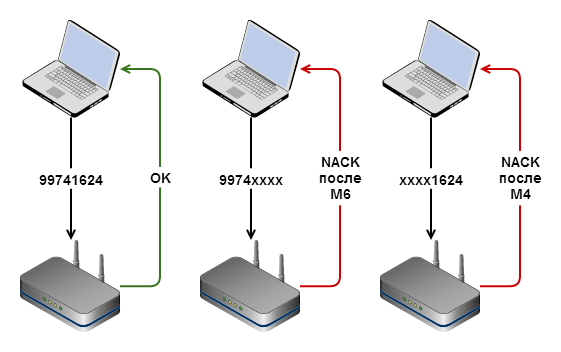
Диаграмма выше описывает процесс подключения клиента к точке доступа с помощью PIN-кода. PIN — 8 цифр, которые обычно наклеены на самом роутере. Клиенты, поддерживающие WPS, могут подключиться к сети либо по обычному паролю WEP/WPA, либо с помощью PIN, причём введя последний клиент получает пароль сети в чистом виде.
По стандарту, последняя цифра в PIN — это контрольная сумма, то есть её можно вычислить исходя из остальных цифр. Таким образом, если бы мы хотели перебрать все возможные комбинации, то это потребовало бы 107 попыток (в основании — число возможных символов (0-9 — десять), в степени — длина строки) — 10 миллионов, что есть около 116 дней, если мы пробуем один код в секунду. Обычно скорость в несколько раз ниже, поэтому на подбор бы ушло больше года.
Однако в стандарте допущена ошибка. Процесс авторизации проходит в несколько этапов. Если переданный нами PIN — верный, то точка доступа сообщает об успехе. Если первые четыре цифры PIN — верные, а цифры 4-7 — нет, то точка доступа сообщит об этом после передачи нами пакета M6. В случае же ошибки в первых четырёх цифрах мы узнаем об этом раньше — после пакета M4. Эта проблема была найдена в конце 2011 и описана здесь. По горячим следам авторами исследования был создан reaver-wps, опубликованный затем на Google Code. Там же можно найти документ оригинального описания уязвимости.
Итак, допустим наш PIN — 99741624. Мы пытаемся подключиться, используя PIN 99740000 — получаем отказ в авторизации после передачи пакета M6 (так как первая половина кода верна). Если же мы подключимся с 00001624 — отказ будет после M4.
Как видим, основная проблема в том, что мы можем узнать о правильности одной части кода даже при том, что во второй содержится ошибка. Что это даёт? Теперь вместо 10 миллионов комбинаций нам нужно попробовать всего лишь 104 + 103 = 11 000. Это более чем реально сделать не то что за неделю — за 15 часов, а обычно быстрее.
Обратите внимание: цифр для подбора именно 7, а не 8, так как последняя — контрольная сумма и мы её рассчитываем сами, поэтому её подбирать не нужно. В примерах ниже это #.
Посмотрим ещё раз. Мы начинаем перебор с 0000000#. Отказ после M4 (ошибка в первых 4 цифрах). Меняем на 0001000#. Отказ после M4. 0002000#. M4. Доходим до 9974000#. О! Отказ после М6. Первые 4 цифры угаданы.
Дальше — точно так же. Имея половину кода постепенно увеличиваем вторую. 9974001#. Отказ. 9974002#. Отказ. 99741624. Принято.
Вот в этом и суть Wi-Fi Unprotected Setup «Защищённой настройки Wi-Fi».
Debian — стабильный, надежный, популярный, полностью некоммерческий дистрибутив Linux. В основном используется на персональных компьютерах или на серверах.
Debian имеет крупнейший репозиторий пакетов, использует DEB пакеты и менеджер пакетов Advanced Packaging Tool (APT), поддерживающий отслеживание зависимостей и обновления пакетов. В Debian включены стабильные версии пакетов. Это накладывает некоторые ограничения, в частности, многие пакеты устаревшие, но проверенные временем.
Debian поддерживает множество аппаратных архитектур. Дистрибутив можно использовать для встраиваемых систем.
На основе дистрибутива Debian создаются такие дистрибутивы, как Ubuntu, MX Linux, Knoppix, MEPIS, Damn Small Linux, Dreamlinux и другие.
Чем отличается Ubuntu от Debian
Отличия в процессе установки
Ваш выбор может зависеть от используемого оборудования. Debian поддерживает около 13-ти аппаратных архитектур начиная от самой распространенной 32 и 64 битной для процессоров AMD и Intel до ARM и PowerPC. Ubuntu же поддерживает 32 и 64 битные версии, как отдельные редакции дистрибутива, а также работает на ARM версией для планшетов и смартфонов.
Другой аспект, это установщики. Установщик Ubuntu по умолчанию требует минимум действий от пользователя во время установки. Это сделано для максимального упрощения и ускорения. Если у вас возникнут проблемы, вы можете попробовать установку в режиме эксперта, который немного напоминает установщик Debian.
У программы установки Debian совсем другие приоритеты. Ее графическая версия отличается от текстовой только реализацией инструментов, и имеет те же самые возможности плюс больше комфорта для тех кто не любит текстовый режим.
Debian можно установить следуя инструкциям и выбирая варианты настроек по умолчанию, но также вы можете очень сильно индивидуализировать систему во время установки. Вместо ориентации на неопытных пользователей, установщик Debian предназначен для всех уровней пользователей одновременно. Вы вряд ли найдете более гибкую программу установки.
Отличия в администрировании и управлении пакетами
Не удивительно, что Debian и Ubuntu используют учетную запись суперпользователя для администрирования и обычную учетную запись для повседневного использования системы. Но выбранные модели безопасности это заметное отличие debian от ubuntu.
В Debian все действия по администрированию выполняются, как правило, непосредственно под учетной записью суперпользователя. Это хоть и увеличивает скорость работы, но уменьшает уровень безопасности и требует от пользователя особого внимания. В Ubuntu же вход под суперпользователем отключен, а для получения полномочий используется утилита sudo.
Есть три основных репозитория пакетов в Debian: тестовый (Testing), стабильный (Stable) и нестабильный (Unstable). Все новые пакеты поначалу находятся в тестовом репозитории, а уже после проверки и тестирования переводятся в стабильный. С каждым официальным релизом пакеты из репозитория Testing переносятся в репозиторий Stable.
За последние несколько лет было добавлено еще несколько официальных и неофициальных репозиториев: Backports, Experimental, Security, Old Stable, и Update. Тем не менее использовать в большинстве случаев лучше только три основных.
Одной из интересных особенностей Debian является то что вам нужно выбрать одну из двух крайностей: незыблемую стабильность с более старыми версиями программ или новое но не очень надежное программное обеспечение, которое может привести к серьезным сбоям при обновлениях.
Ubuntu же берет свои пакеты из тестового или нестабильного репозитория Debian. В отличие от Debian репозитории Ubuntu организованы немного по другому принципу. В Главном (Main) репозитории находятся пакеты, поддерживаемые Canonical, в репозитории Universe – программное обеспечение, поддерживаемое сообществом, Restricted – содержит проприетарные драйвера, а Multiverse программное обеспечение с несвободными лицензиями.
Другое отличие в том, что Debian более ориентирован в сторону свободного программного обеспечения. По умолчанию устанавливается только свободное программное обеспечение. Даже ядро поставляется свободное от сторонних прошивок производителей. Если вам нужны несвободные программы, нужно добавить разделы Nonfree и Contrib для каждого репозитория.
В Ubuntu различие между свободными и проприетарными программами очерчено не так ясно. Debian призывает использовать свободное программное обеспечение, но представляет пользователю выбор. Ubuntu призывает устанавливать программное обеспечение от производителей оборудования, чтобы иметь ту же производительность, что и в коммерческих системах. Вы можете получить ту же производительность в Debian, при чем здесь выбор между свободным и несвободным ПО будет более четким.
Различия в окружении рабочего стола
Ubuntu и Debian по умолчанию используют различные окружения рабочего стола. Ubuntu использует по умолчанию Unity, оболочку рабочего стола от Canonical – корпоративного спонсора Ubuntu, который поддерживает ее развитие на протяжении многих лет. Если у Canonical получится завоевать рынок мобильных устройств, возможно, в будущем вы сможете использовать Unity также на смартфонах и на планшетах.
Тем не менее и Ubuntu и Debian, поддерживают несколько окружений рабочего стола. Ubuntu распространяется в нескольких редакциях: Xubuntu, с рабочим столом Xfce, Kubuntu – с KDE также есть Ubuntu GNOME и Ubuntu для планшетов.
В Debian можно выбрать те же самые окружения, но развиваются они не настолько отдаленно от стандартного Debian.
За исключением Unity, все программы, написанные для Ubuntu, доступны и для Debian. Правильно и обратное – все программы, написанные для Debian – работают в Ubuntu, поскольку ее пакеты берутся из репозиториев Debian. В Debian, цикл разработки намного медленнее, поэтому в Ubuntu, всегда свежее программное обеспечение, но зато Debian лучше протестирован и более стабилен.
Замечание. Не думайте, что общее происхождение пакетов делает их кросс-совместимыми для Ubuntu и Debian. Около 20% всех пакетов Ubuntu несовместимы с Debian из-за различного расположения файлов.
Различия сообществ
Для пользователей, которые только начинают осваивать Ubuntu или Debian сообщество тоже может стать одним из факторов выбора. Debian известен обсуждением всех глобальных вопросов. Все важные изменения в системе могут быть решены на голосовании.
В последние годы политика Debian смягчилась. Но обсуждение – это все же большая свобода. В прошлом Debian славился враждебной средой для женщин. Последние споры о замене старой системы инициализации на Systemd были настолько интенсивными, что несколько разработчиков ветеранов ушли в отставку.
Debian все еще соблюдает демократическую позицию. Хотя у проекта есть лидер, должностные лица Debian больше прибегают к предложениям и дипломатии, чем к прямым указам.
Ubuntu сильно контрастирует с Debian в этом вопросе. У нее есть кодекс взаимодействия с сообществом. Менеджер по связям с сообществом – Джон Бэкон буквально написал книгу об искусстве сообщества, прилагает все усилия для решения конфликтов. Кроме того, Технический совет Ubuntu и Общественный совет, переизбираются ежегодно.
Но демократическая на первый взгляд, ubuntu совсем не такая как кажется. Руководитель проекта – Марк Шаттлворт, и его голос решающий для реализации тех или иных изменений. Марк и другие разработчики из Canonical имеют право вето на решение сообщества, и это раньше вызывало много возмущений.
Так что же выбрать?
Эксперт или новичок? Свободное ПО или проприетарное? Простота использования или полный контроль? Поддержка платформ? Шаткая грань или стабильность? Unity или GNOME? Контролируемое но вежливое сообщество или резкое, но демократическое?
Как видите, выбор Debian или Ubuntu, будет зависеть оттого что более важно для вас. Перед тем как выбрать одну из них, определитесь, какой из аспектов для вас важнее. Разница между Debian и Ubuntu была рассмотрена в этой статье и теперь вы знаете на что ориентироваться.
Независимо от того, какой дистрибутив вы выберите, помните Ubuntu и Debian не просто так стали самыми популярными дистрибутивами.
Устанавливаем систему Debian
После того как образ скачан и записан на флешку (или другой носитель) но лучше использовать флешку с неё система установиться быстрее. Как записать образ на флешку я рассказывал в этой статье., повторяться не буду. Итак образ записали. Теперь загрузитесь с неё.
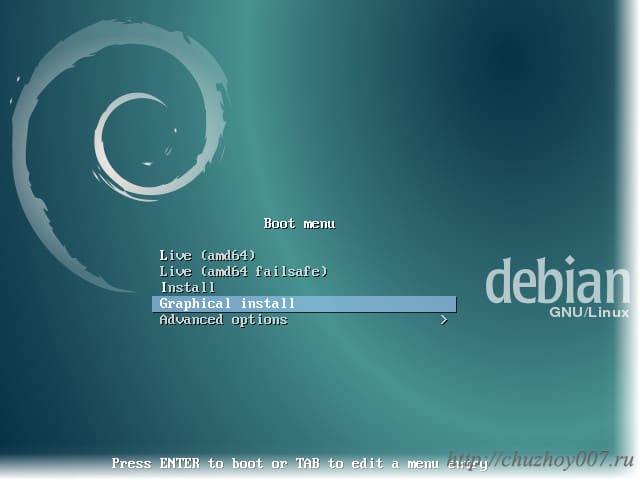
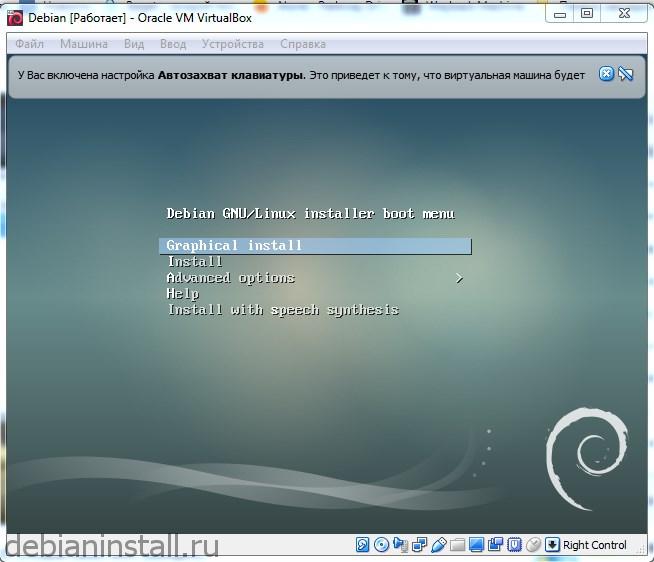
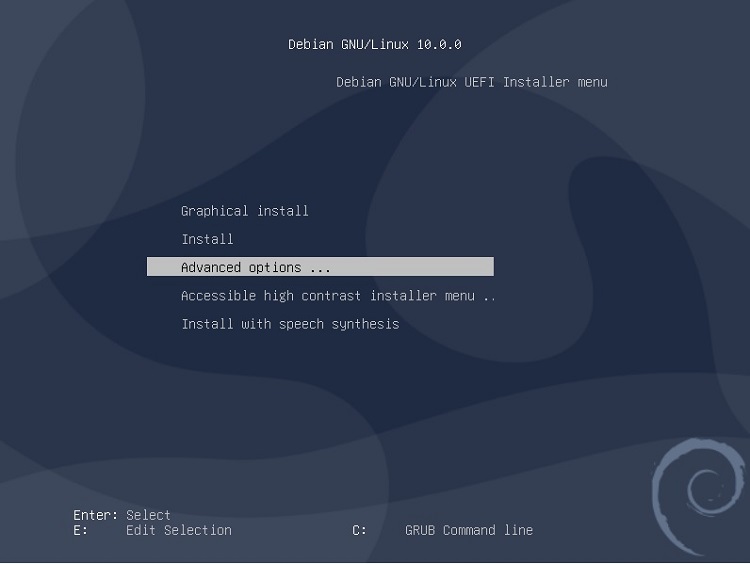
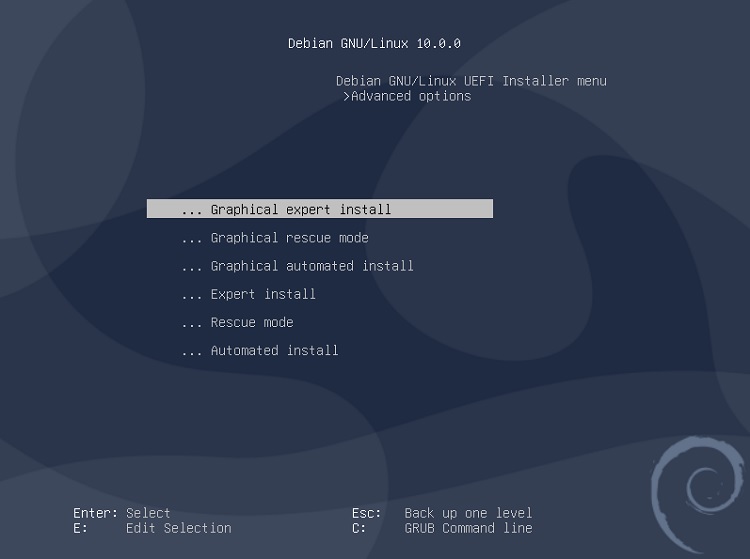
Установка дебиан. Выберите “Graphical install” курсорными клавишами и нажмите “Enter” для запуска установщика.
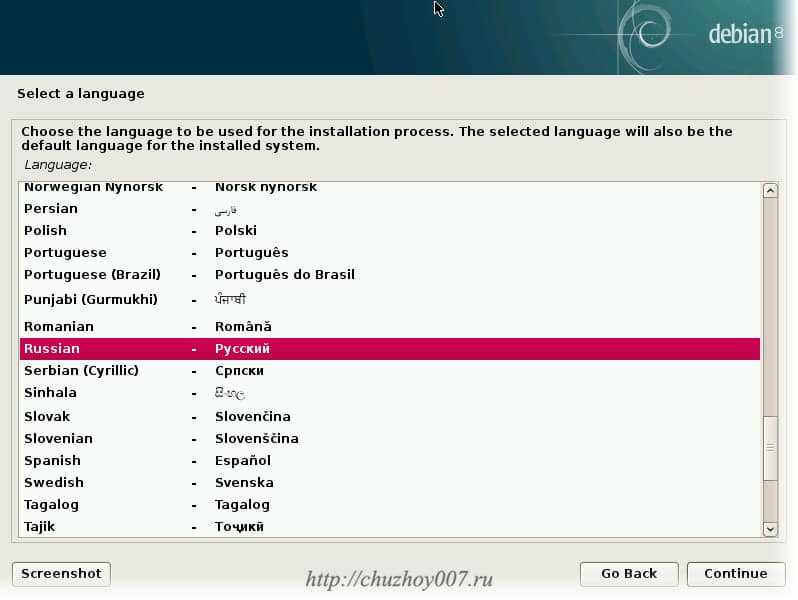
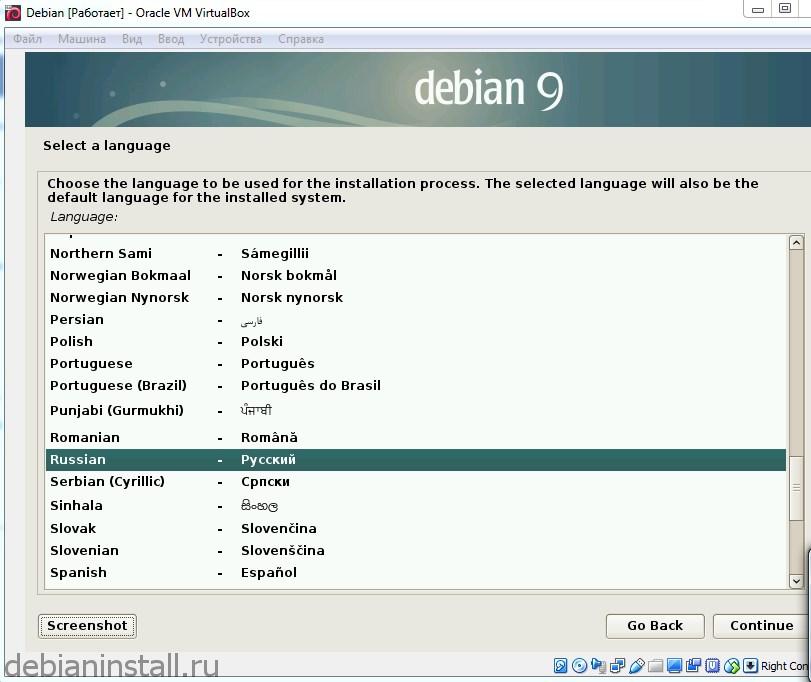
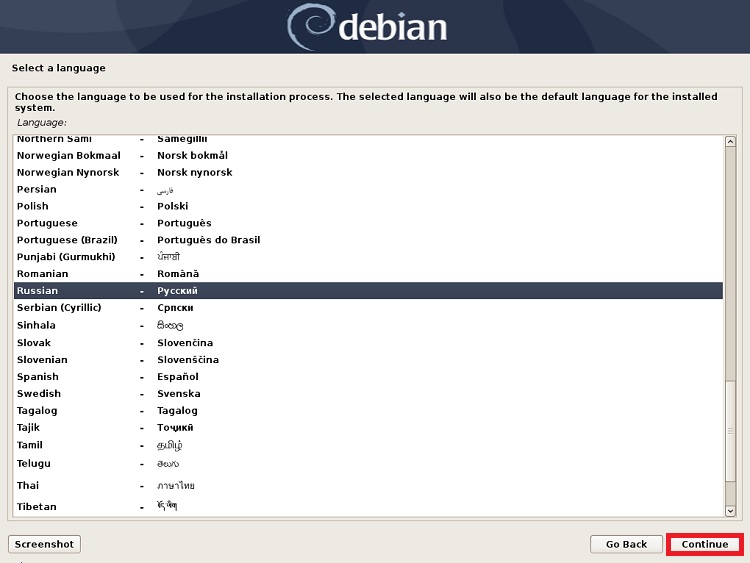
На первой странице выберите язык удобный вам и нажмите кнопку “Continue”.
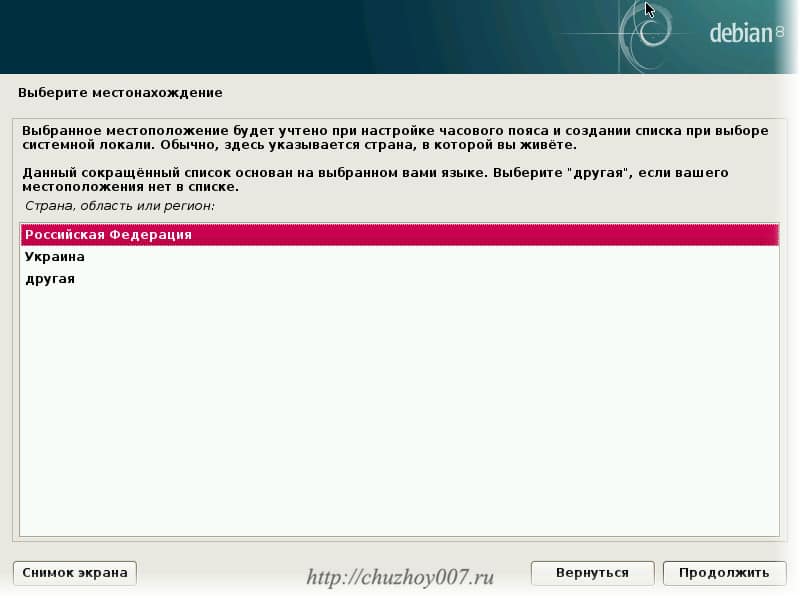
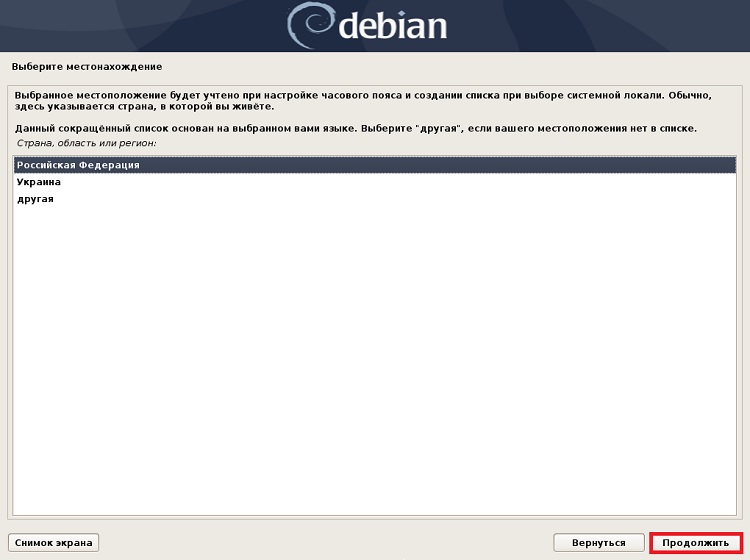
Далее выберите местонахождение. Страну в которой вы находитесь.
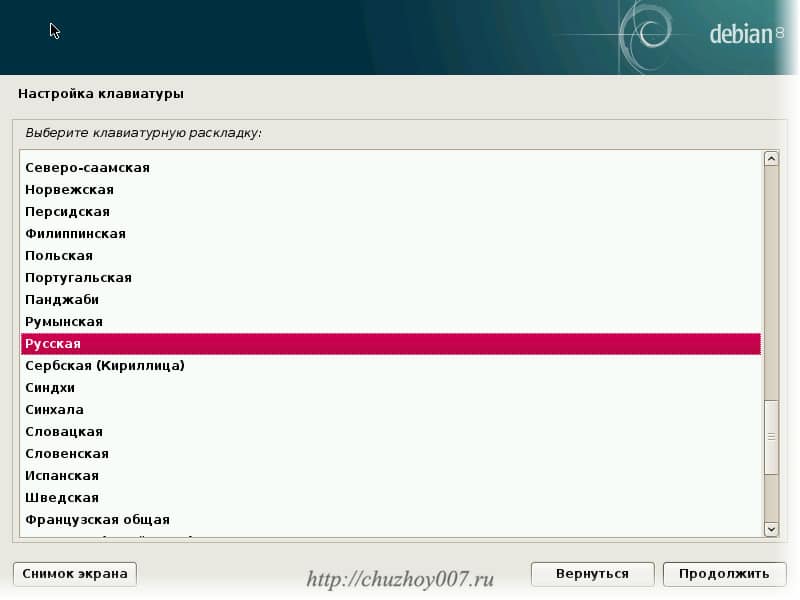
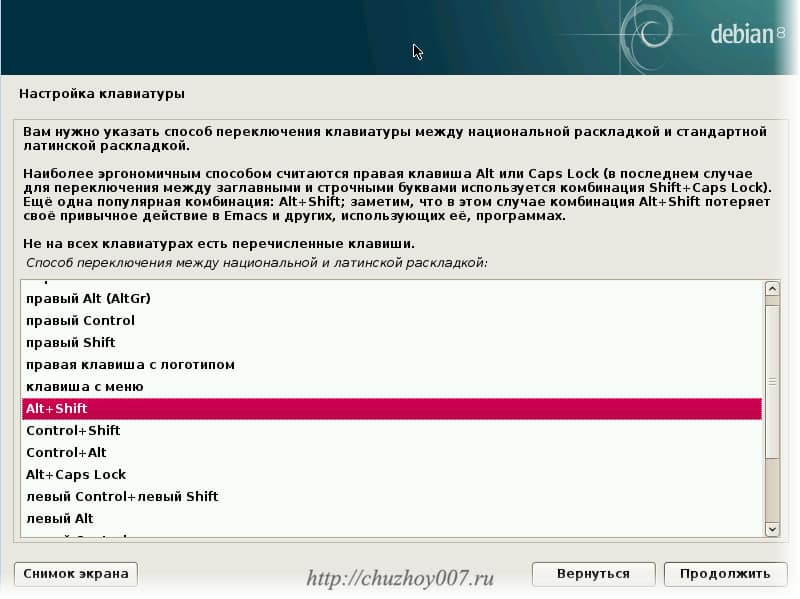
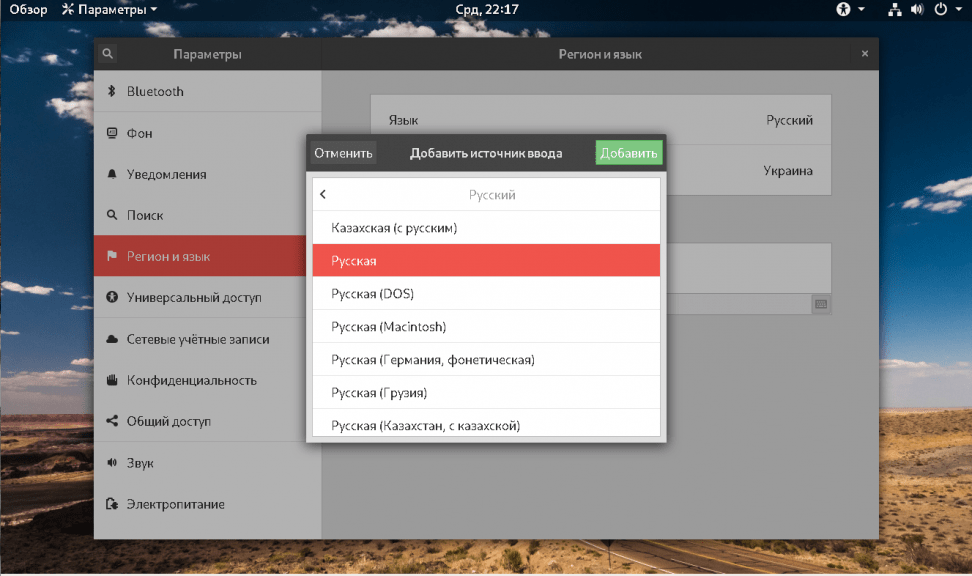
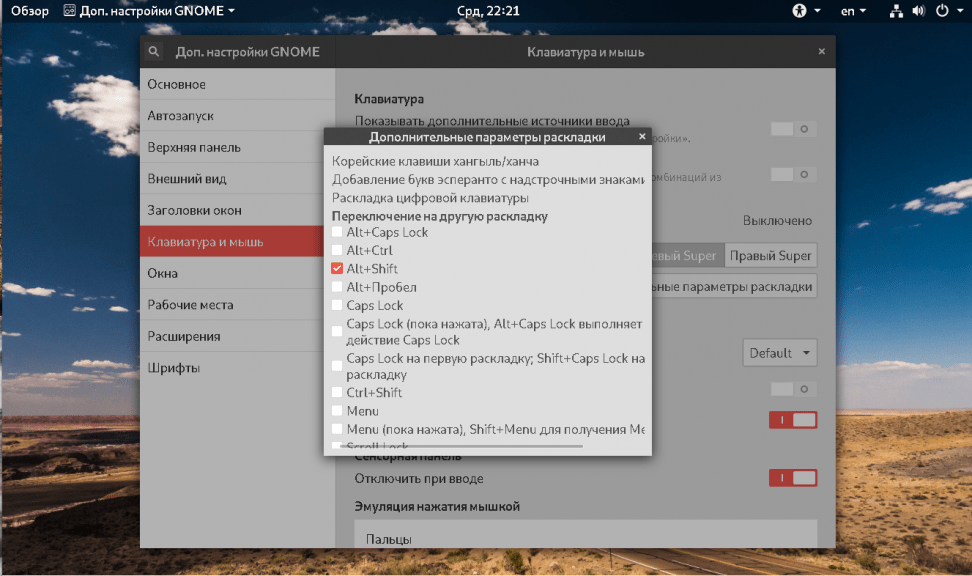
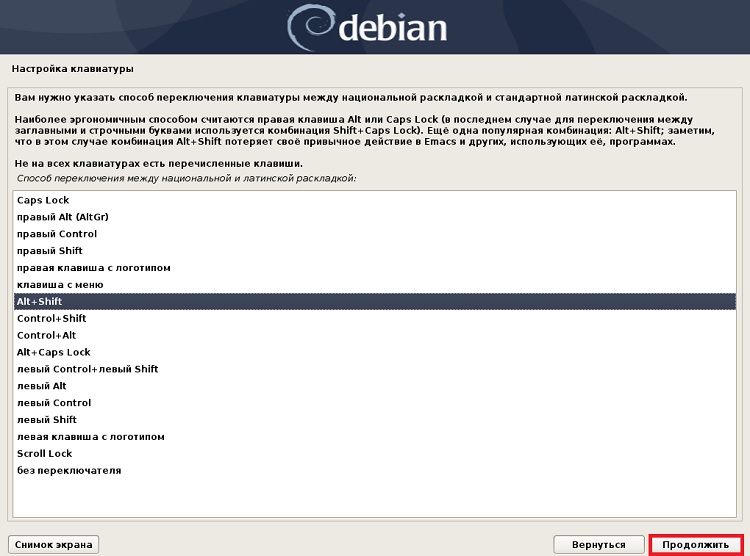
Теперь выберите клавиатурную раскладку. А на следующей страницу метод переключения раскладки.
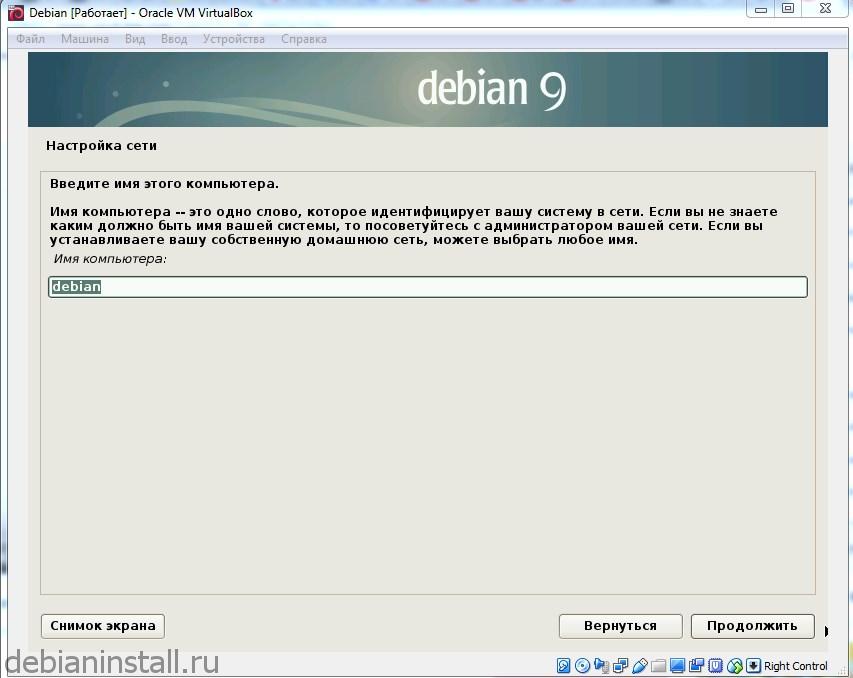
Я оставлю по умолчанию. Меня устраивает Alt+shift. Затем укажите имя компьютера. Его можно задать любым по вашему усмотрению.
В следующем окне нужно указать адрес домена если компьютер входит в домен. Если у вас сеть без домена или вообще нет локальной сети можно ничего не указывать либо вписать localhost.
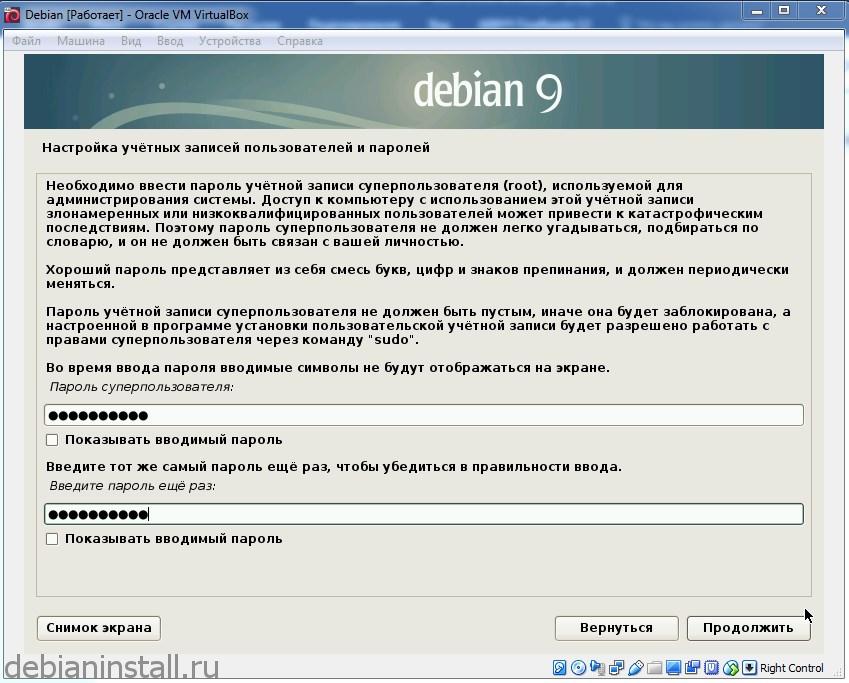
Жмем продолжить. Далее нужно задать пароль суперпользователя. Суперпользователь или root, это главная учетная запись в linux. Поэтому пароль должен быть надежным.
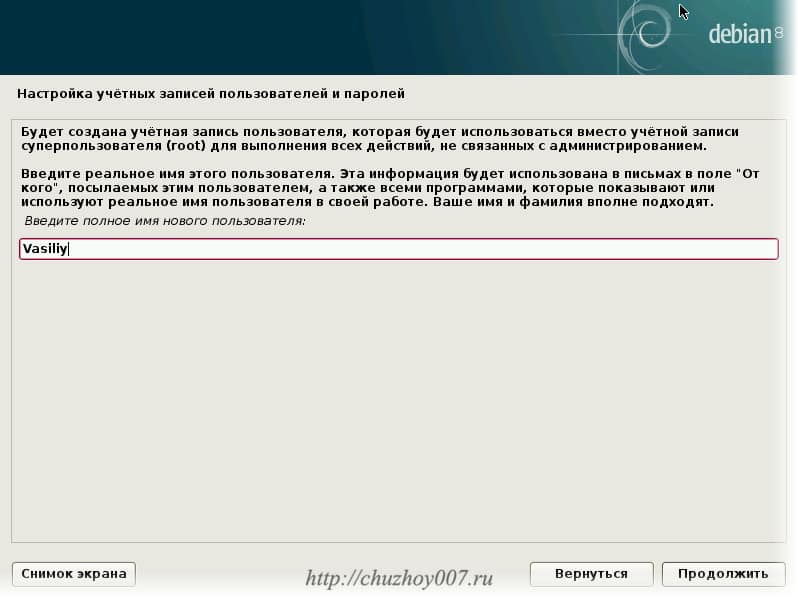
Нажимаем продолжить и переходим к созданию обычного пользователя. Под этой учетной записью вы и будете работать в системе.
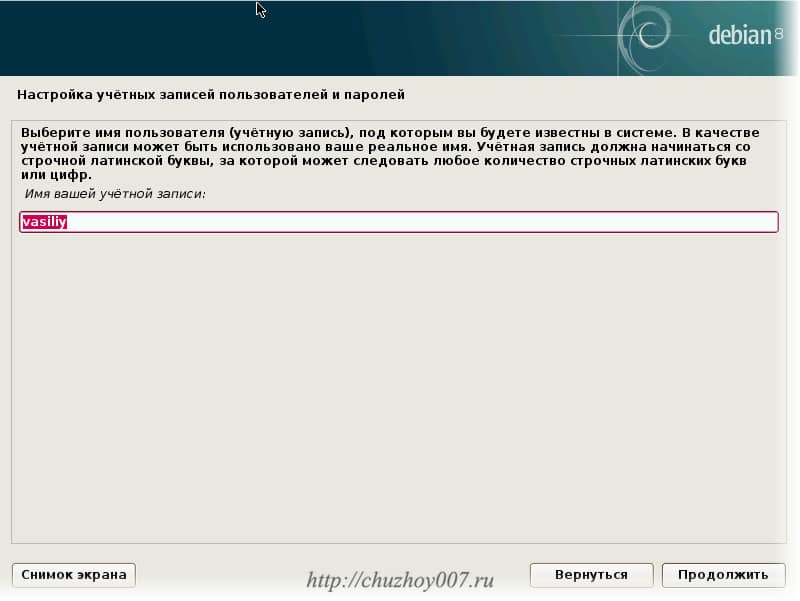
Укажите ваше имя и нажмите продолжить. Будет показан логин учетной записи (обычно совпадает с именем заданным на предыдущем этапе). Его можно изменить.
Продолжить.
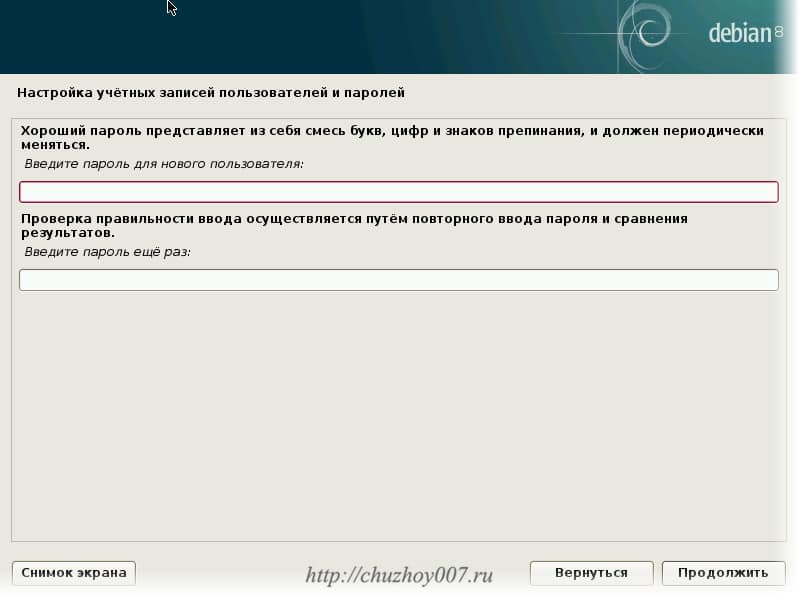
Теперь задаем пароль для обычного пользователя и продолжаем.
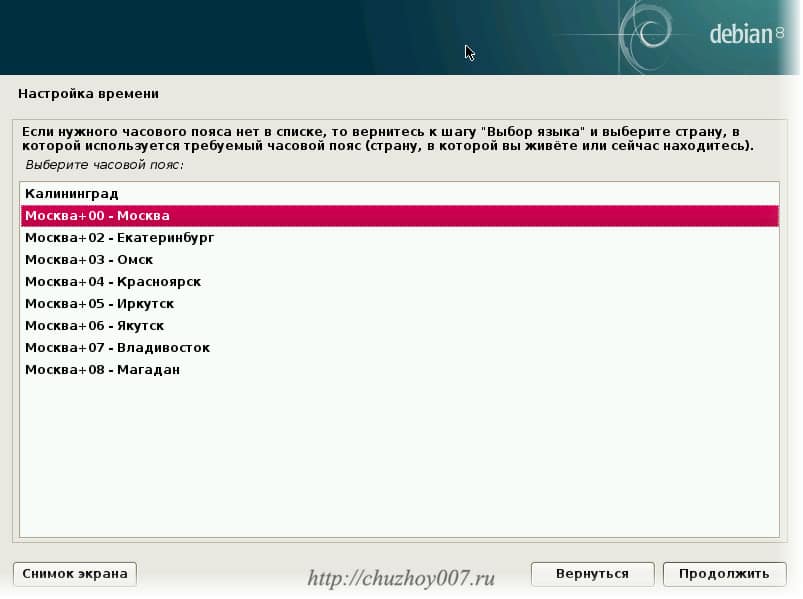
Укажите город и часовой пояс и продолжаем.
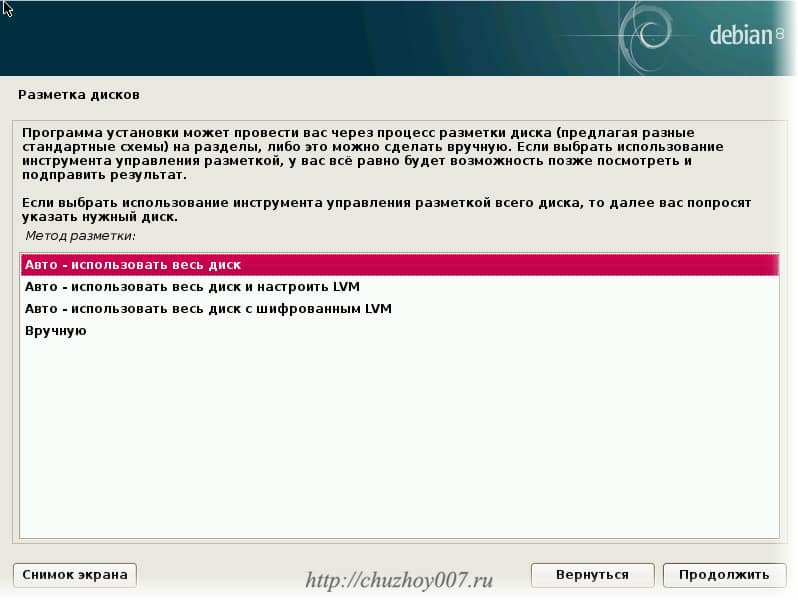
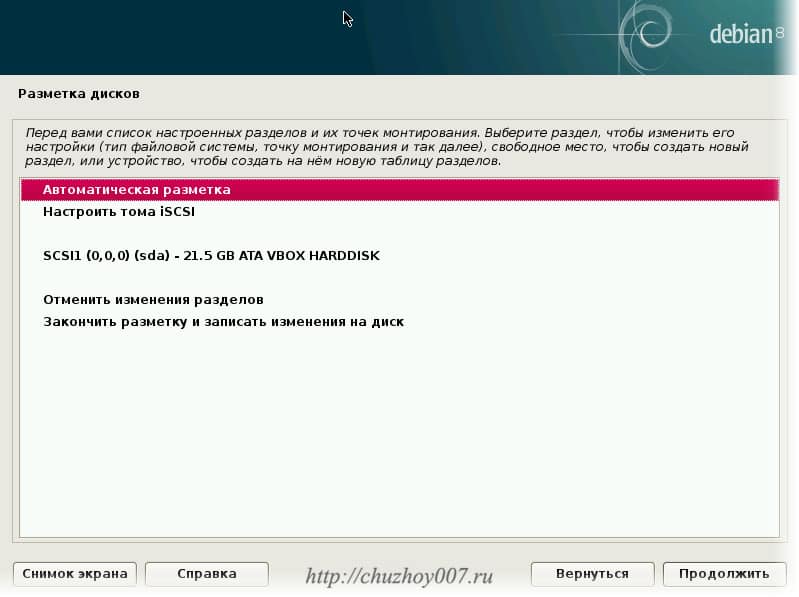
Переходим к разметке диска. Можно выбрать автоматический режим. Но я предпочитаю размечать диск вручную. Поэтому выберем этот режим.
Отобразятся все диски в системе. Выберите тот на который хотите установить debian. В моем случае диск один поэтому я выберу его.
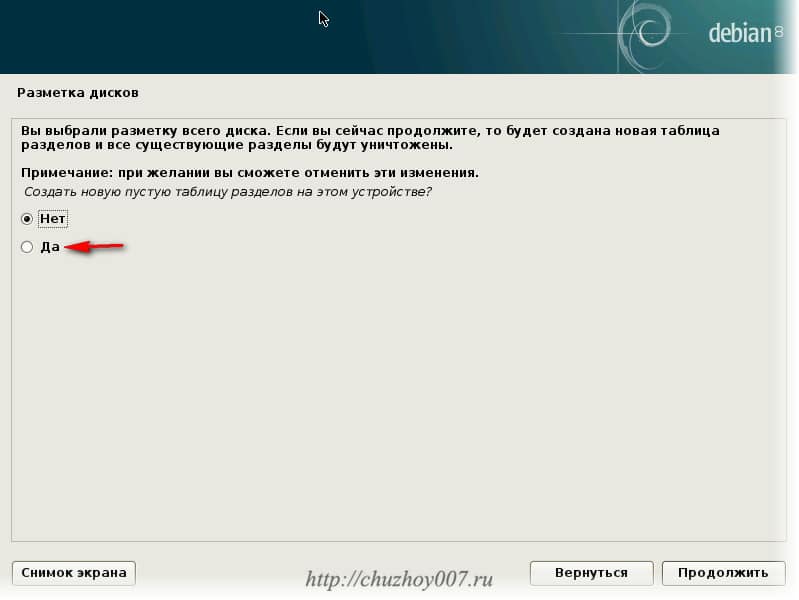
Диск не размечен. Поэтому нужно создать таблицу разделов. Нажимаем “Да” и продолжить.
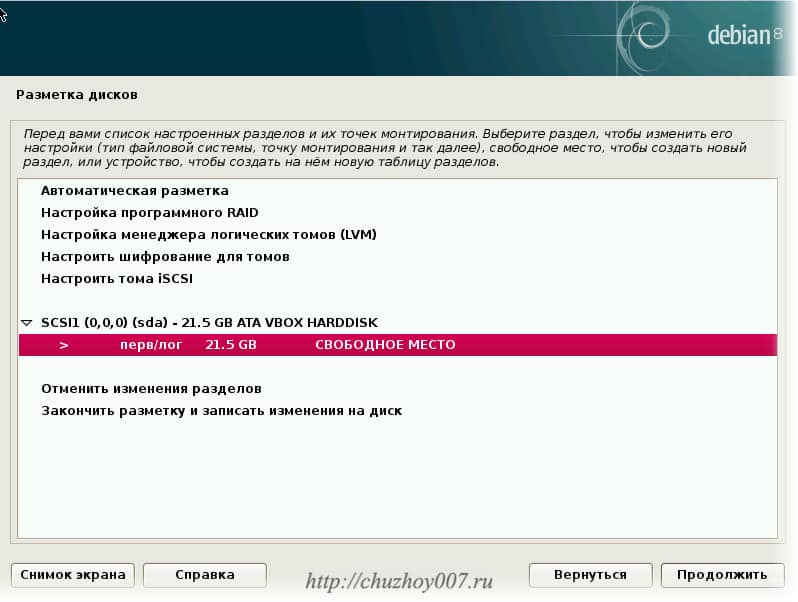
Появился диск на котором есть свободное место. Теперь создадим три раздела. Нажмите продолжить или дважды кликните мышкой по выделенной строке.
Читайте также: VirtualBox: Как сделать общий буфер обмена
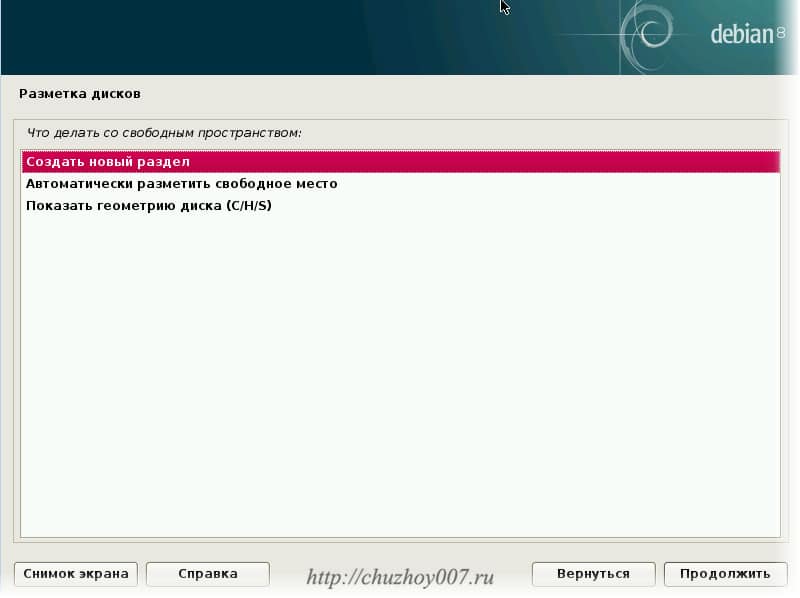
Выбираем. Создать новый раздел. Продолжить.
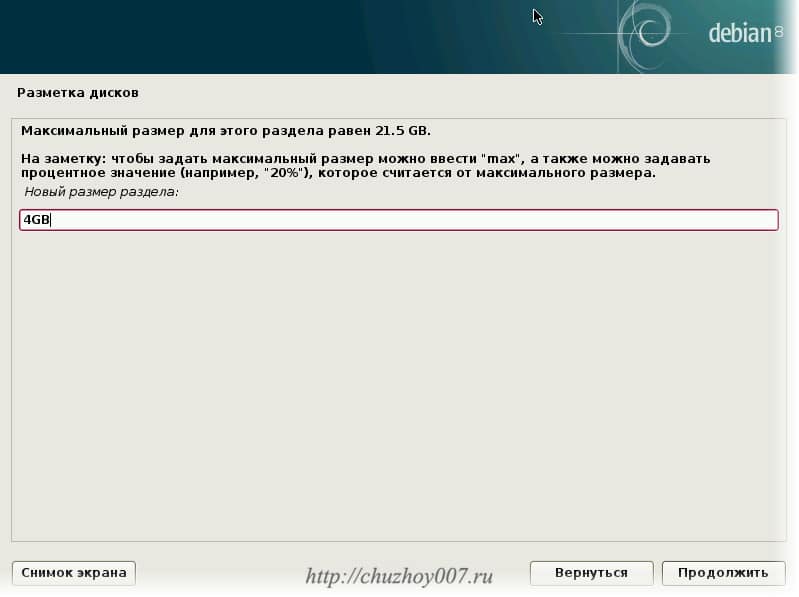
Первым создаем раздел подкачки. Я сделаю его размером 4 гигабайта.
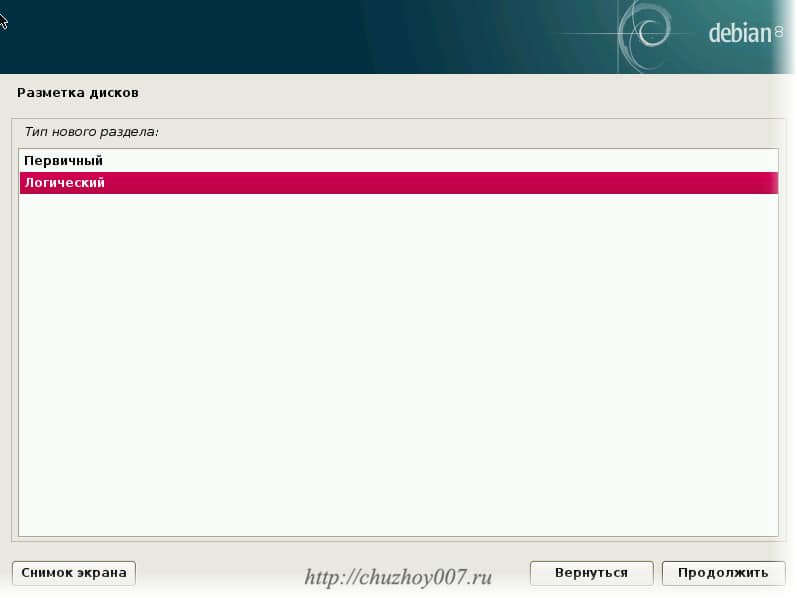
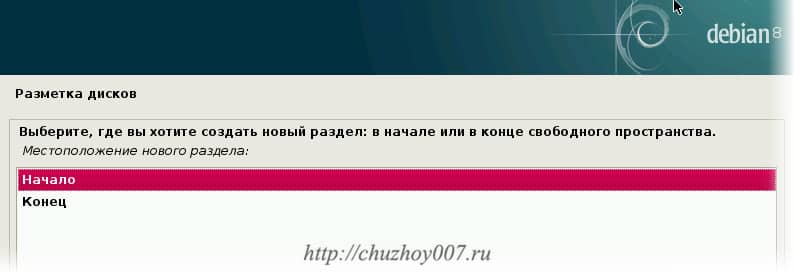
Тип раздела выбираем “Логический”. Местоположение оставим “Начало”.
Здесь в пункте “Использовать как:” кликаем два раза или нажимаем кнопку продолжить.
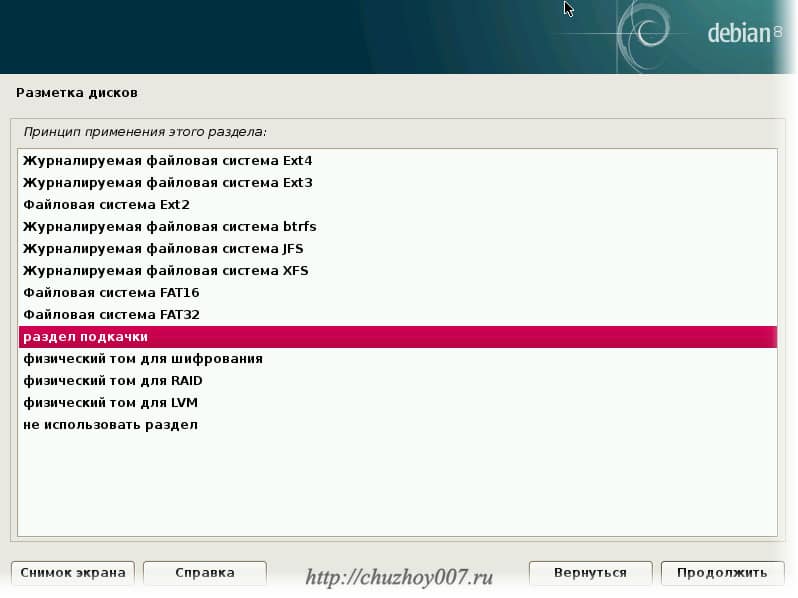
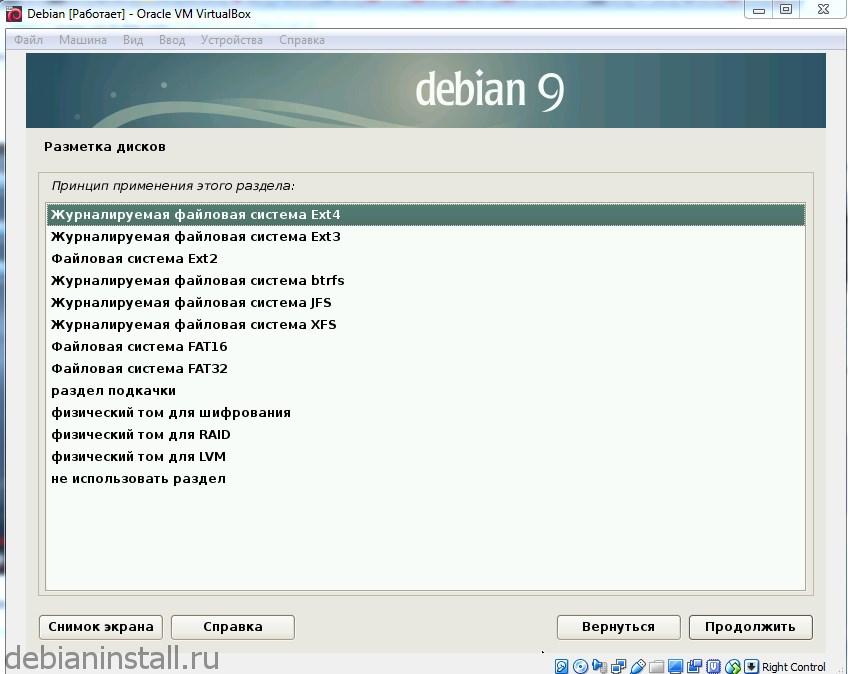
Отобразится окно с возможностью выбора доступных файловых систем.
Выбираем “Раздел подкачки” и жмем продолжить.
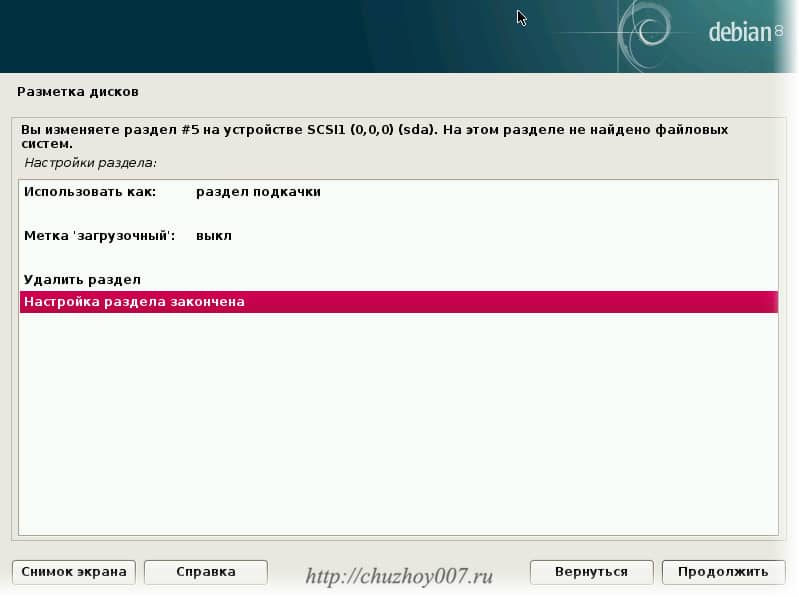
Выбираем пункт “Настройка раздела закончена” и продолжаем.
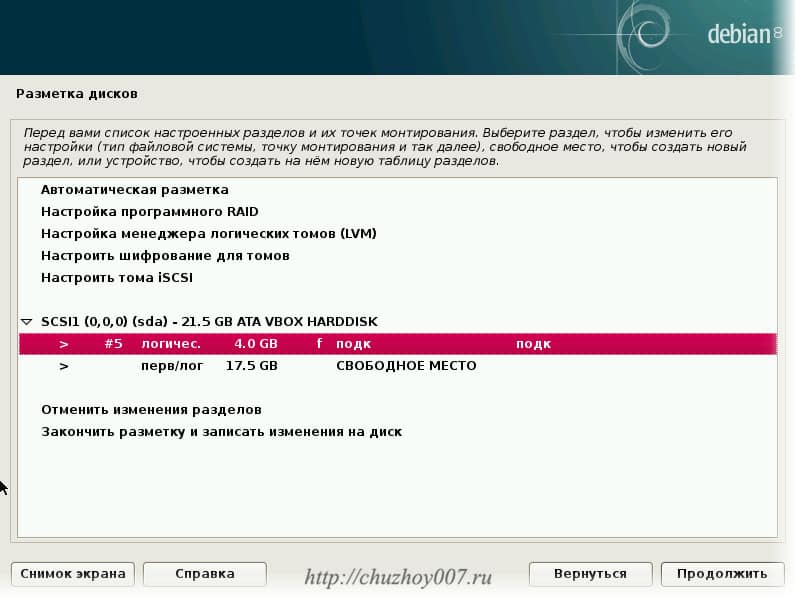
Как видно на скриншоте раздел подкачки создан. Далее создадим корневой раздел. Выбираем свободное место и кликаем продолжить.
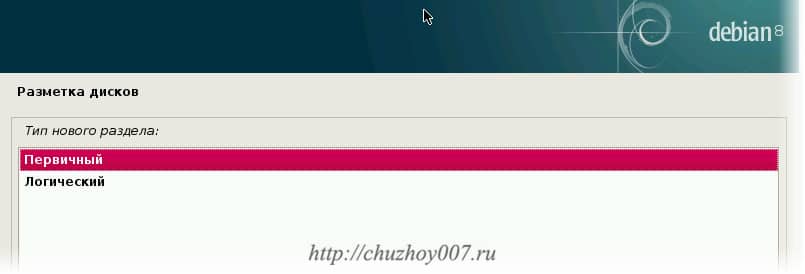
На этот раз тип раздела выбираем “Первичный” и местоположение “Начало”.
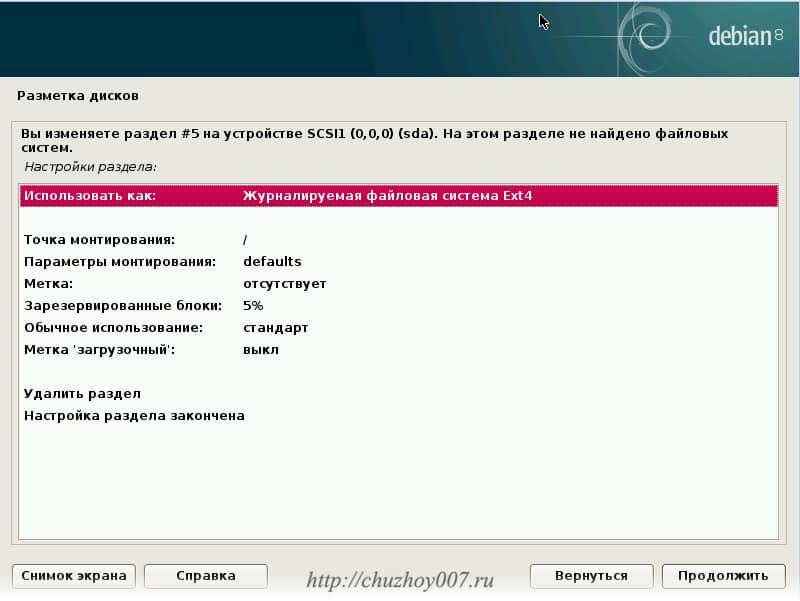
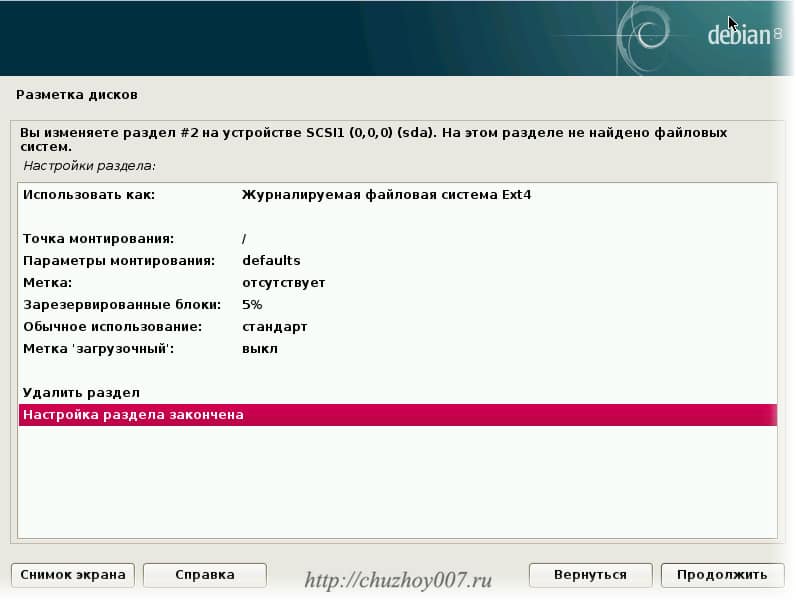
Инсталлятор дебиан предлагает нам сразу нужные тип файловой системы (ext4) и точку монтирования “/” корень. Меня устраивают эти настройки. Но их можно поменять дважды кликнув мышкой либо выбрав нужный пункт курсорными клавишами нажать кнопку “Продолжить”.
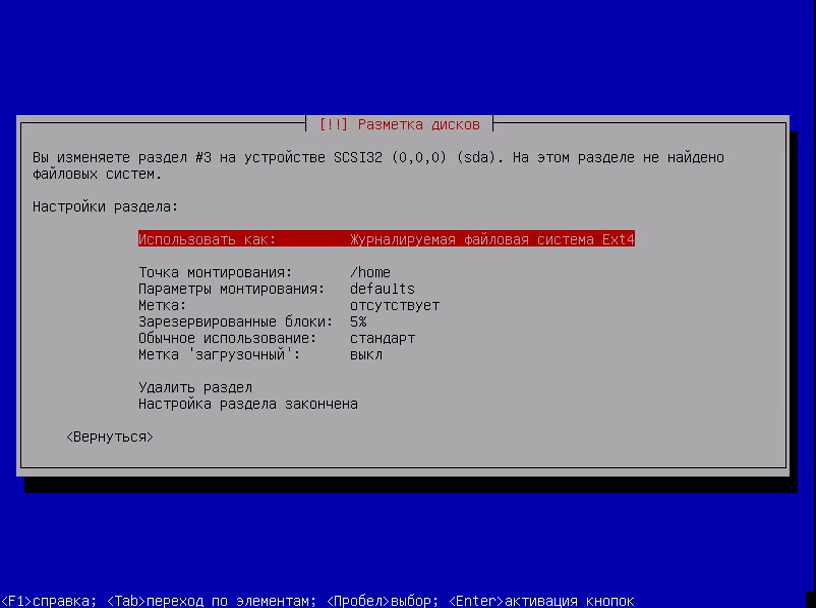
Можно оставить только корневой раздел система будет работать. Но я рекомендую сделать ещё один раздел для пользователей. Называется он “/home”. Создается он так же как и корневой только в качестве точки монтирования выберите /home.
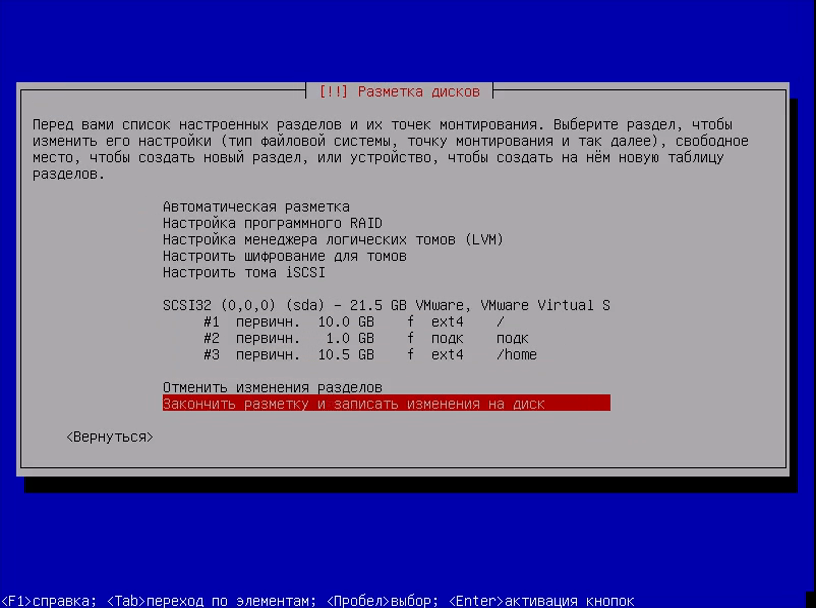
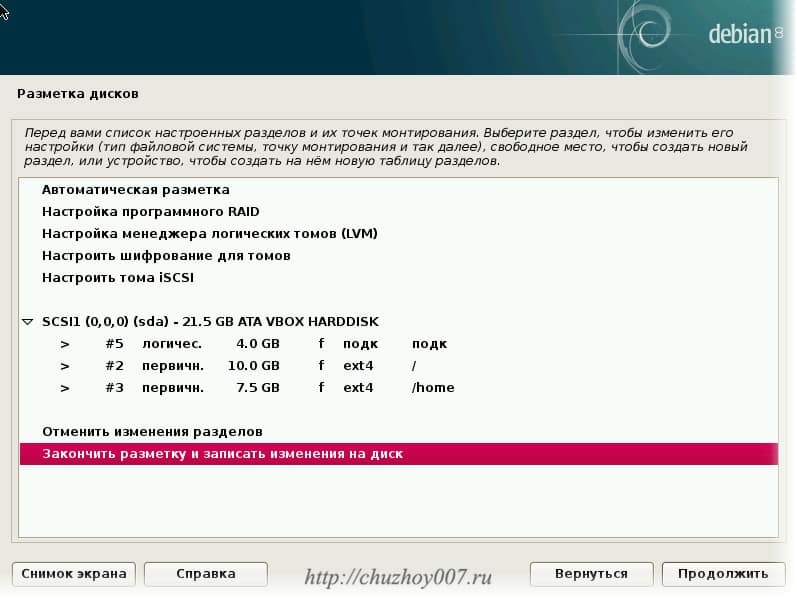
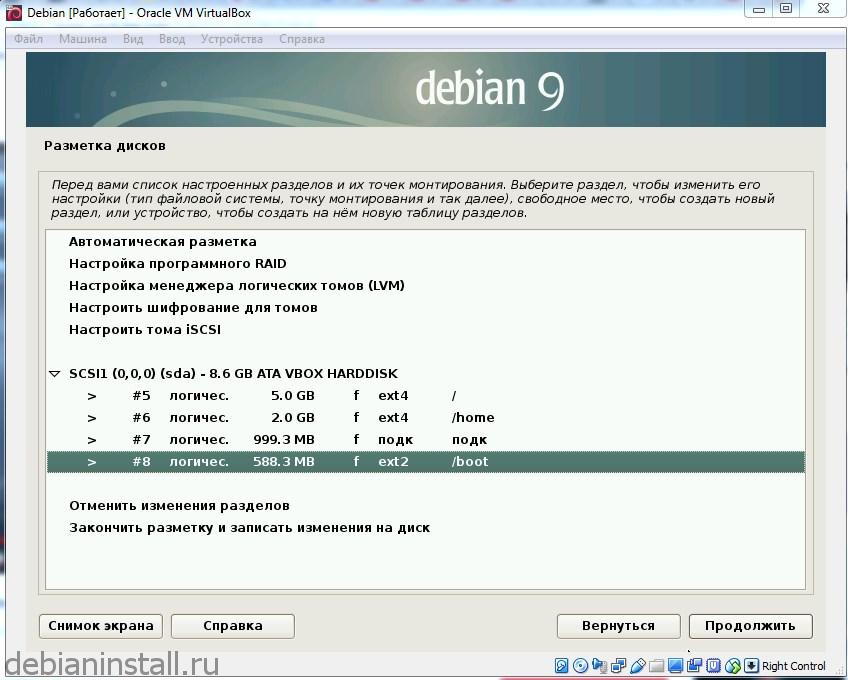
В результате должно получиться три раздела как показано на рисунке.
Раздел подкачки (подк)
Корневой (/)
Каталоги пользователей (/home)
Настройка дисков закончена. Выберите пункт “Закончить разметку и записать на диск” нажмите “Продолжить”
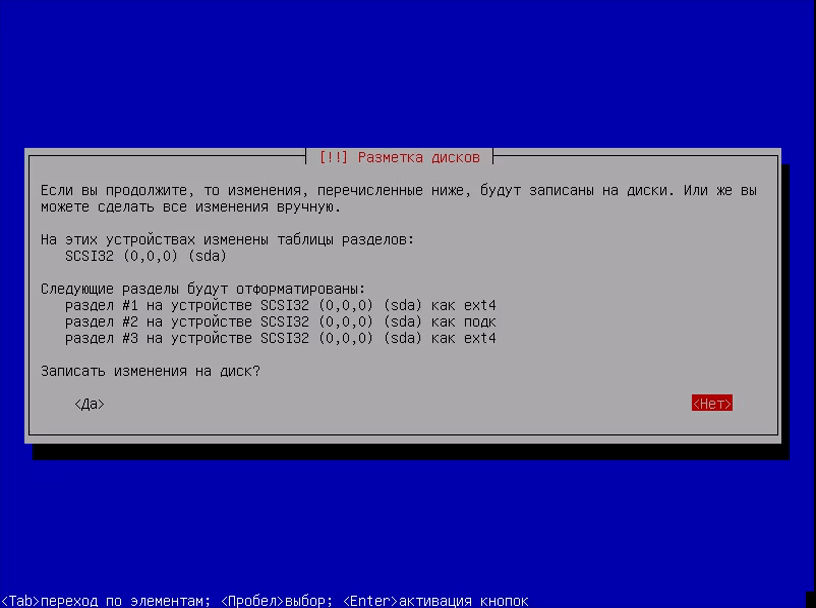
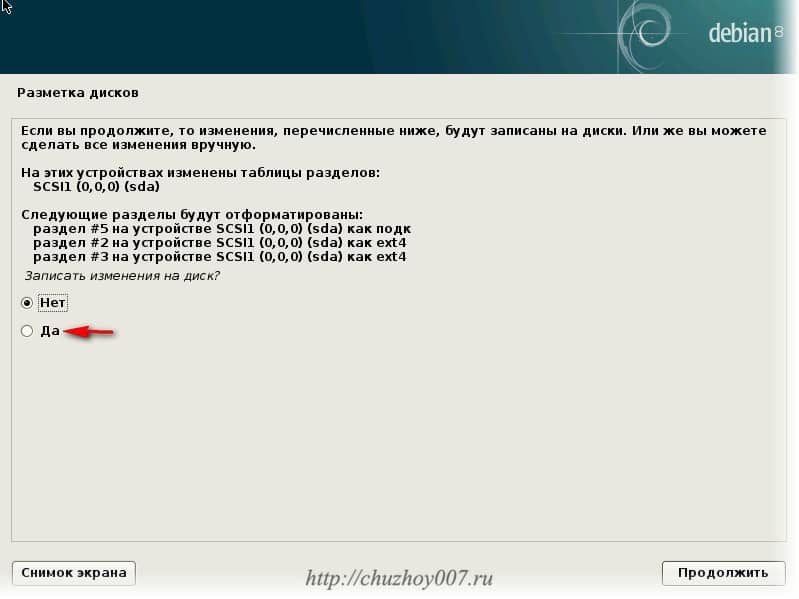
Внимательно проверьте все параметры! Правильно ли выбрали диск, файловая система, размеры. После применения настроек вся информация будет потеряна!
После того как убедились в правильности настроек. Выберите пункт “Да” и нажмите продолжить.
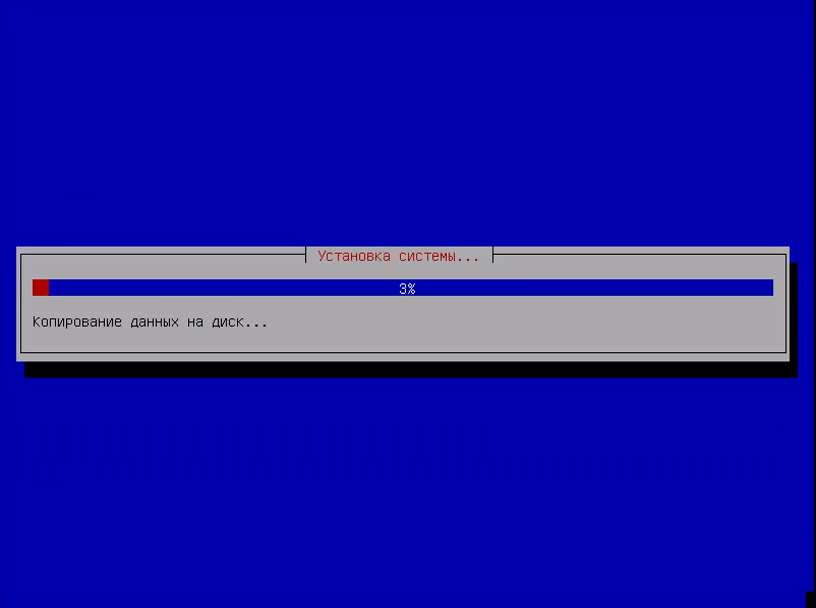
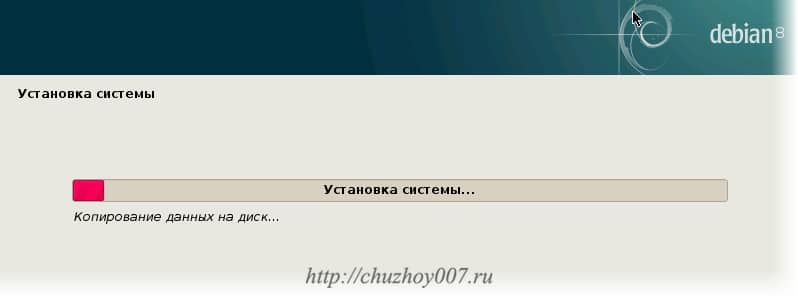
Диск будет размечен и начнется установка системы.
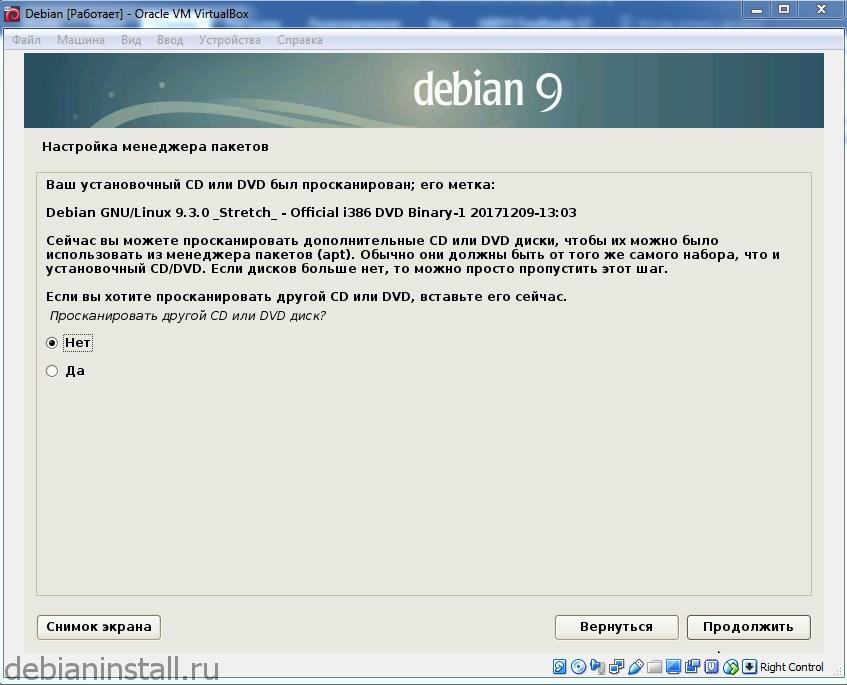
После копирования файлов последует предложение настроить менеджер пакетов. Если у вас интернет безлимитный и стабильный рекомендую включить зеркала архивов из сети. Выберите “Да” и нажмите продолжить.
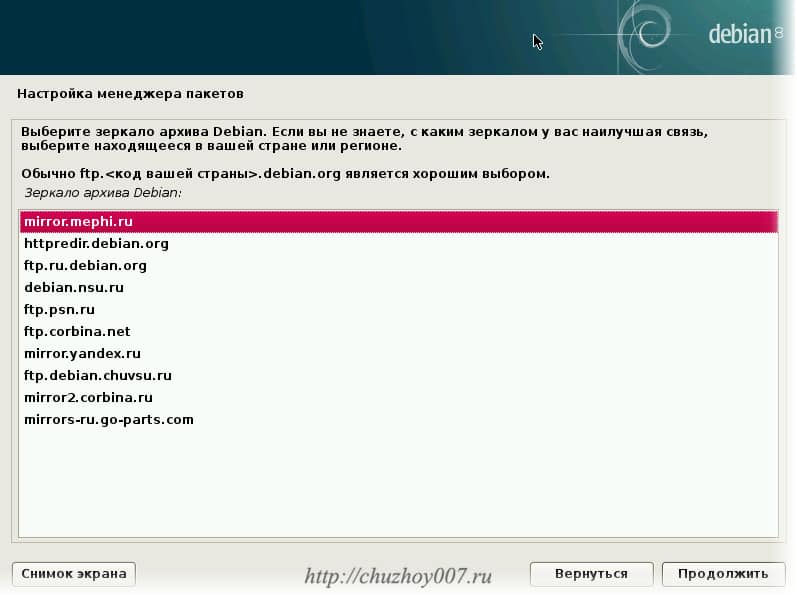
Выберите страну. Что бы скорость загрузки была выше. Выберите страну территориально находящуюся ближе к вам. Но это не обязательно. Выбирайте любую из списка.
Так же выберите сервер. Продолжим.
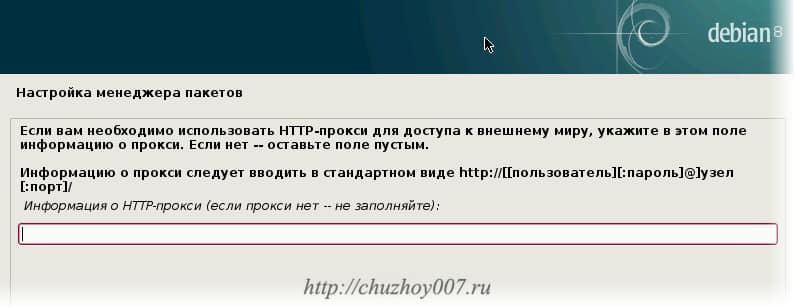
Если выходите в интернет через прокси-сервер. Укажите его параметры. Если нет. Просто жмите продолжить.
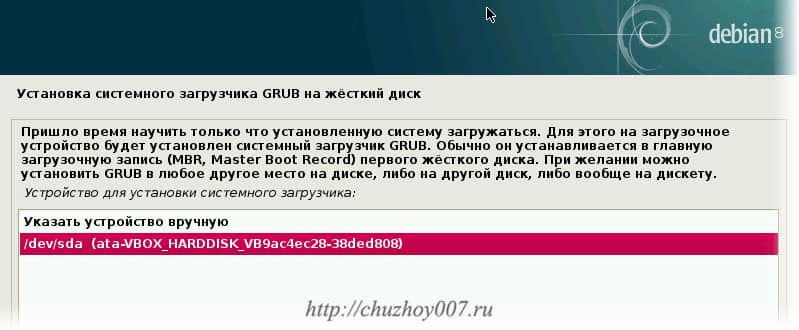
Установка загрузкика GRUB. Выберите пункт “Да” и продолжите.
В отображенном списке дисков (в моем случае он один). Выберите диск на который хотите установить grub. С этого диска будет загружаться система. Нажмите продолжить и дождитесь завершения установки.
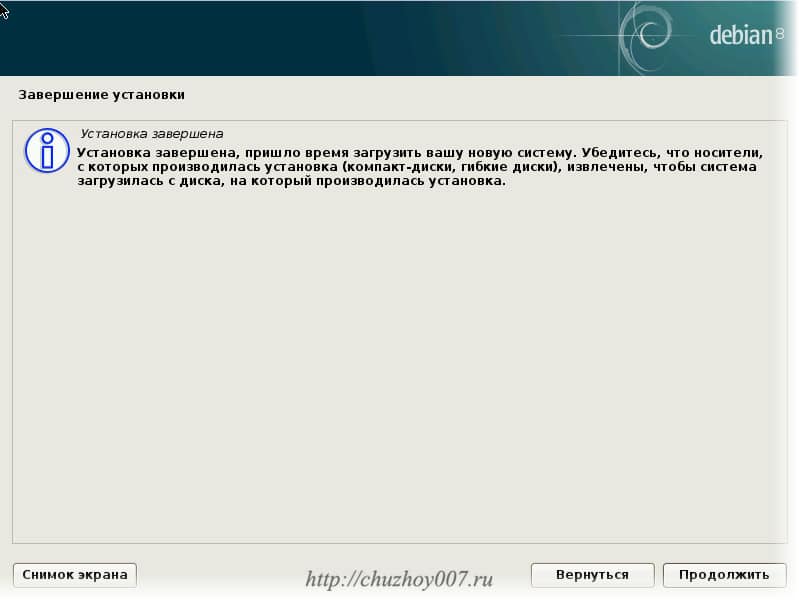
После того как установка операционной системы debian на ваш компьютер будет завершена. Удалите все загрузочные носители: флешки, диски. И нажмите продолжить. Компьютер перезагрузится. Авторизуйстесь в системе и начинайте пользоваться.
Читайте также: Установка программ в Debian с помощью терминала и графического интерфейса
Видео: Как установить debian на компьютер:
Установка с помощью debian netinstall
Так называемый сетевой установщик “network install”. Скачать iso образ можно зайдя на сайт debian.org в верхнем правом углу шапки есть ссылка.
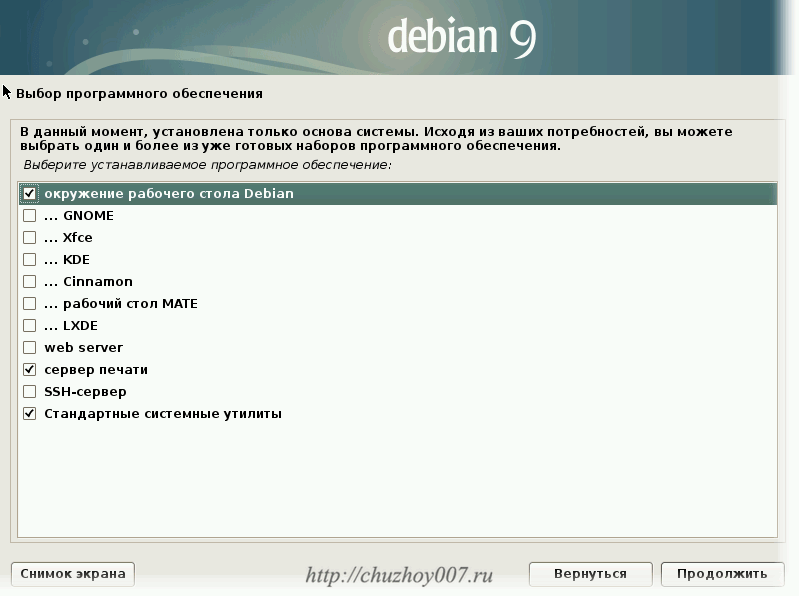
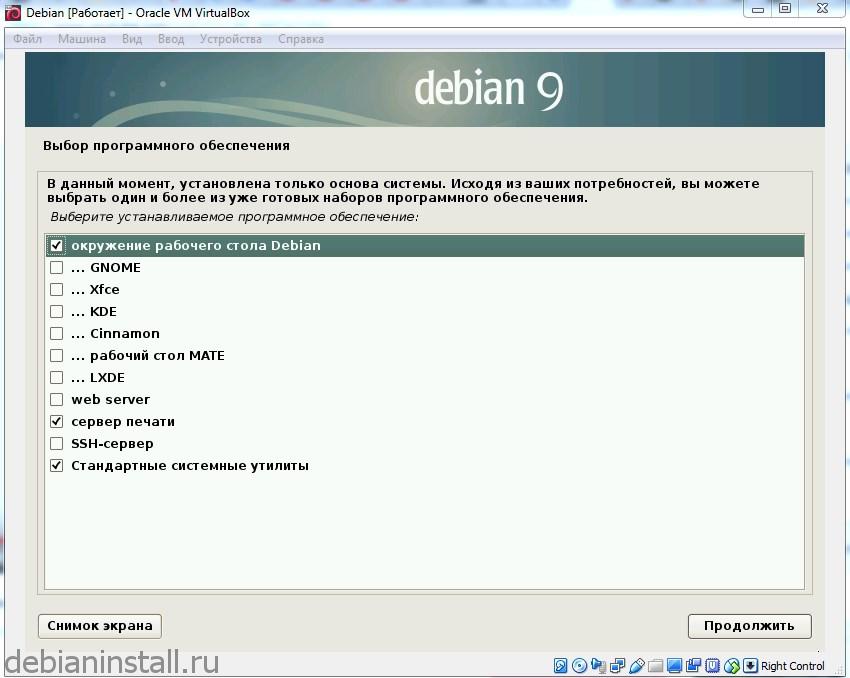
Такой вариант не сильно отличается от обычной кроме того, что можно выбрать необходимые пакеты после установки базовой системы. То есть будет предложен выбор программного обеспечения:
Окружение рабочего стола (в него входят: Gnome, XFCE, Cinnamon, KDE, MATE, LXDE)
Web-server
Сервер печати
SSH-сервер
Стандартные системные утилиты
Этот метод подойдет прежде всего тем кто точно знает, что хочет установить. Ещё из плюсов можно отметить, что все пакеты будут самыми свежими.
Важно понимать. Для такой установки необходимо иметь стабильный, быстрый и безлимитный (или очень дешевый) интернет. Все пакеты загружаются по сети. Поэтому и установка системы будет дольше по времени.
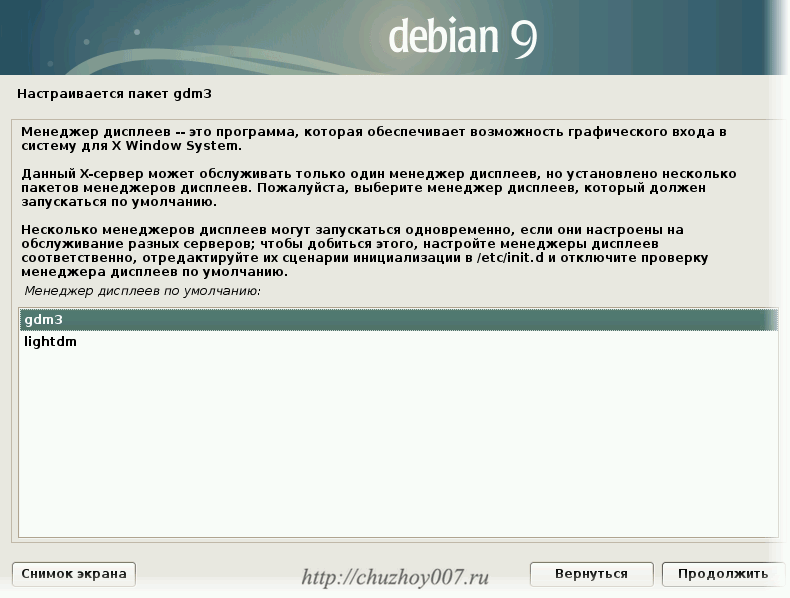
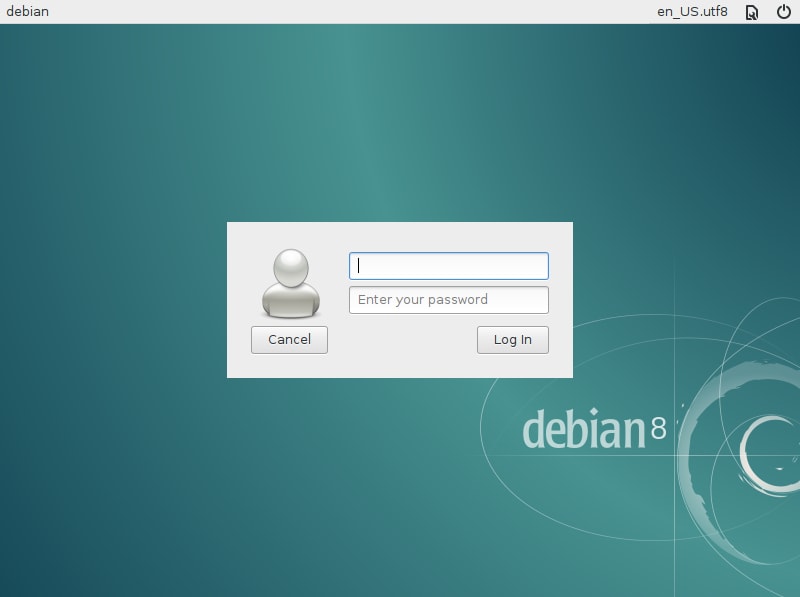
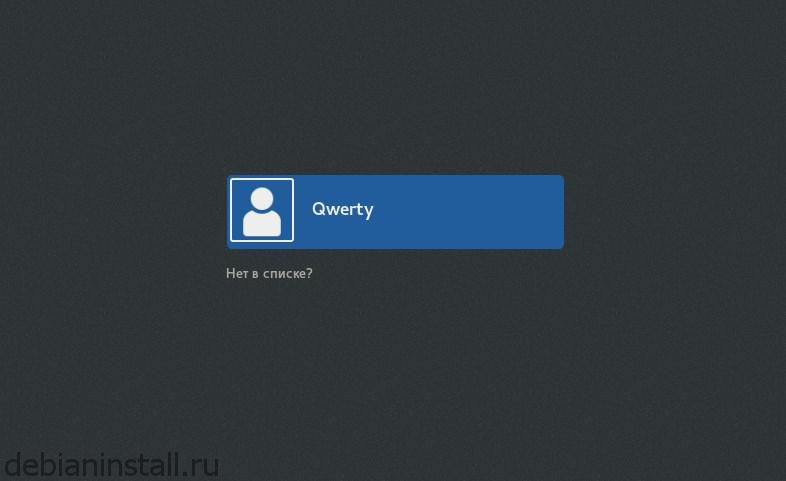
Если выбрали установку двух окружений то по ходу установки нужно будет выбрать дисплейный менеджер. Если кратко. Это меню вы будете видеть пред запуском системы. Здесь нужно будет выбрать пользователя и указать пароль. Так же здесь выбирается язык и окружение рабочего стола. Например устанавливаете Gnome и XFCE. Выбор между lightdm и gdm3.
Вот так выглядит gdm3:
А так lightdm:
ВИДЕО: Установка Debian с помощью netinstall (network install)
С выходом Debian 10 в режиме live-cd появилась возможность установки системы с помощью инсталлятора Calamares.
ВИДЕО: Debian 10 установка с помощью Calamares с Live-cd:
Настройка Debian
Из-за множества вариантов установки Debian (сетевая, базовая, с DVD-носителей) универсальное руководство составить не получится, поэтому некоторые этапы инструкции будут относиться к определенным версиям операционной системы.
Шаг 1: Обновление системы Debian
Первое, что необходимо сделать после установки системы, это обновить ее. Но это более актуально для пользователей, которые устанавливали Debian с DVD-носителей. Если вы использовали сетевой метод, то все свежие обновления уже будут установлены в ОС.
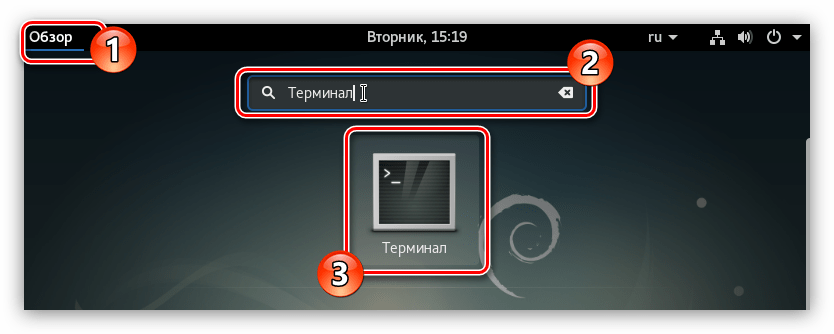
Откройте «Терминал», прописав его название в меню системы и нажав по соответствующему значку.
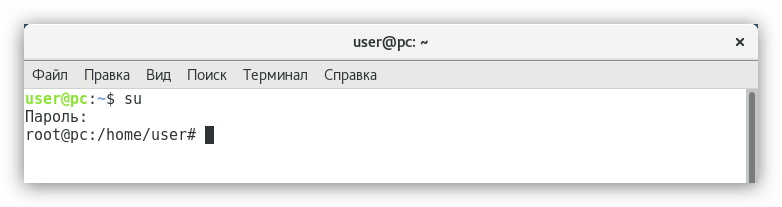
Получите права суперпользователя, выполнив команду:su
и введя пароль, указанный при установке системы.
Примечание: при вводе пароля он никак не отображается.
Поочередно выполните две команды:apt-get update
apt-get upgrade
Перезагрузите компьютер, чтобы закончить обновление системы. Для этого можно в «Терминале» выполнить следующую команду:reboot
После того как компьютер снова запустится, система будет уже обновлена, поэтому можно переходить к следующему этапу настройки.
Читайте также: Обновляем Debian 8 до 9 версии
Шаг 2: Установка SUDO
sudo — утилита, созданная с целью наделения отдельных пользователей правами администратора. Как можно было заметить, при обновлении системы необходимо было входить в профиль root, что требует лишних временных затрат. Если использовать sudo, это действие можно пропустить.
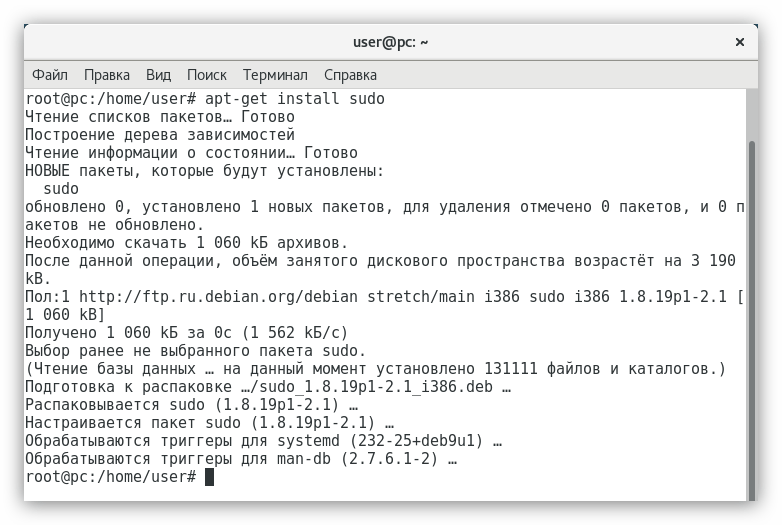
Для того чтобы инсталлировать в систему утилиту sudo, необходимо, находясь в профиле root, выполнить команду:
apt-get install sudo
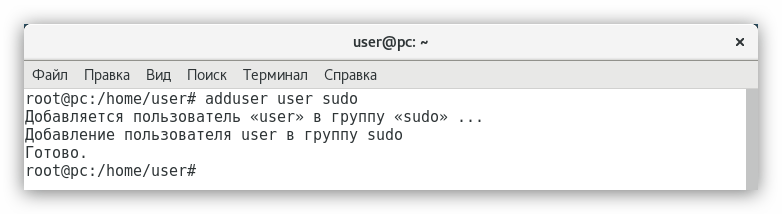
Утилита sudo установлена, но для ее использования нужно получить права. Проще это сделать, выполнив следующее:
adduser UserName sudo
Где вместо «UserName» надо ввести имя пользователя, которому присваиваются права.
В завершение перезагрузите систему, чтобы изменения вступили в силу.
Читайте также: Часто используемые команды в «Терминале» Linux
Шаг: 3: Настройка репозиториев Debian
После установки Debian репозитории настроены только для получения программного обеспечения с открытым кодом, но этого недостаточно, чтобы установить в систему программы и драйвера последней версии.
Настроить репозитории для получения проприетарного ПО можно двумя способами: используя программу с графическим интерфейсом и выполняя команды в «Терминале».
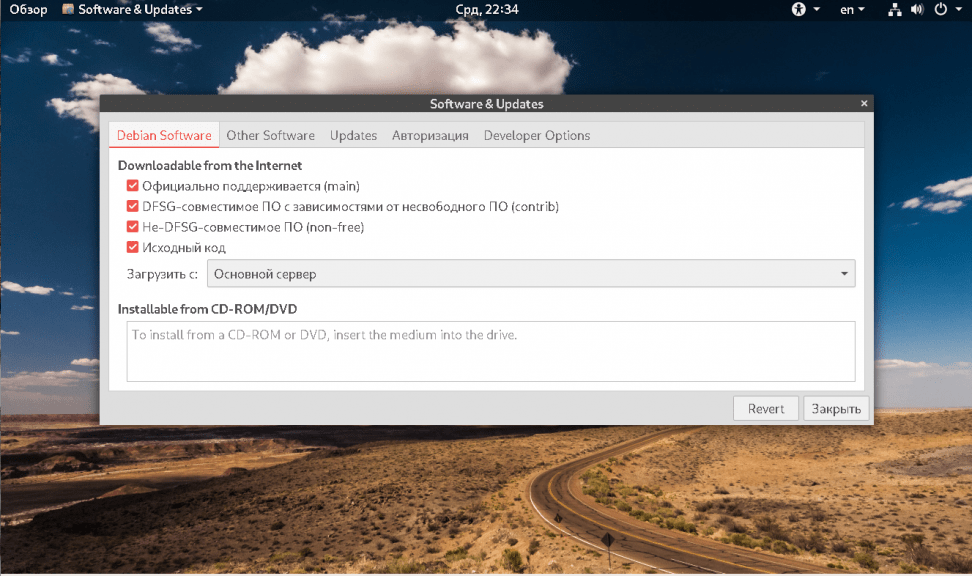
Software & Updates
Чтобы провести настройку репозиториев с помощью программы с графическим интерфейсом, сделайте следующее:
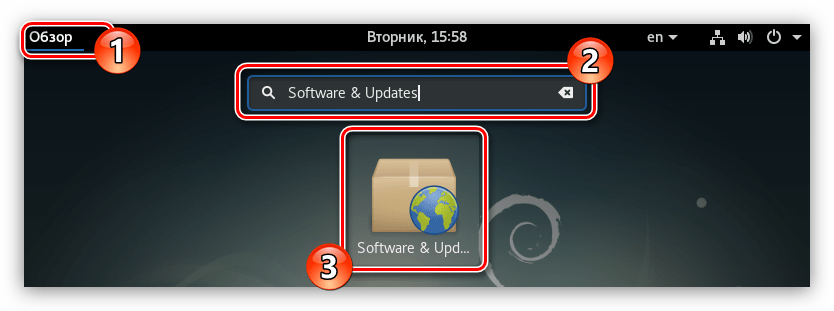
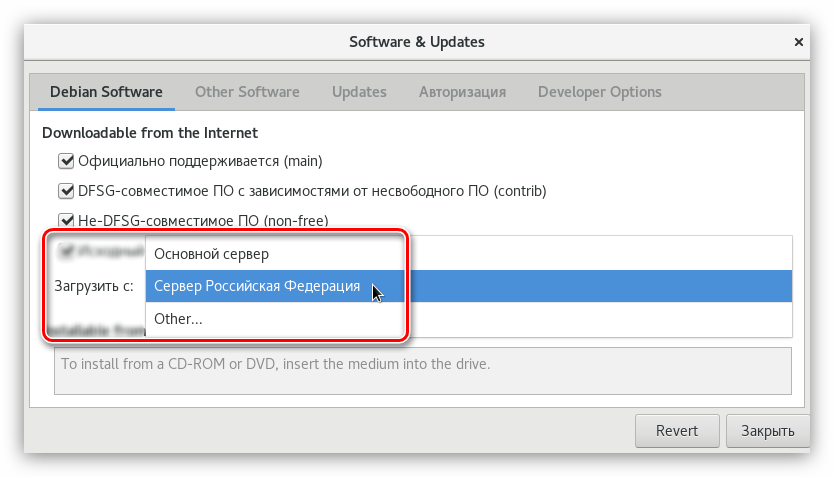
Запустите Software & Updates из меню системы.
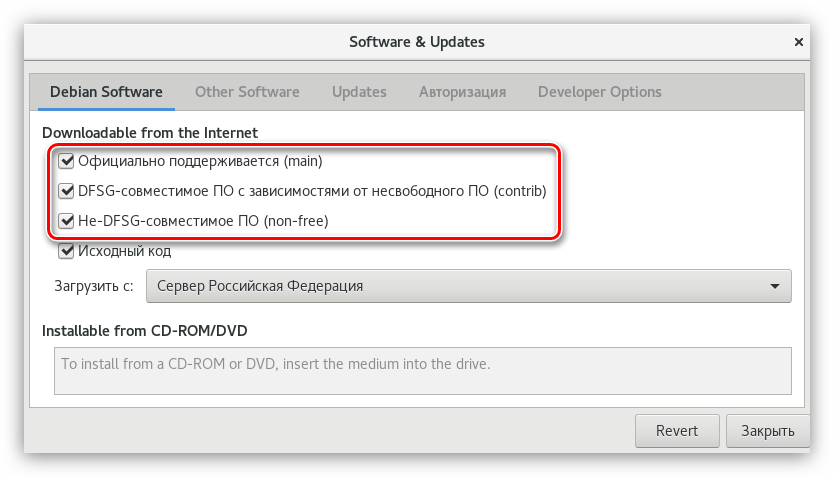
На вкладке «Debian Software» поставьте галочки рядом с теми пунктами, где в скобках указано «main», «contrib» и «non-free».
Из выпадающего списка «Загрузить с» выберите сервер, который расположен ближе всего.
Нажмите кнопку «Закрыть».
После этого программа предложит вам обновить всю имеющуюся информацию о репозиториях — нажмите кнопку «Обновить», после чего дождитесь окончания процесса и приступайте к выполнению следующего шага.
Терминал
Если по какой-то причине вы не смогли осуществить настройку с помощью программы Software & Updates, то эту же задачу можно выполнить в «Терминале». Вот что нужно делать:
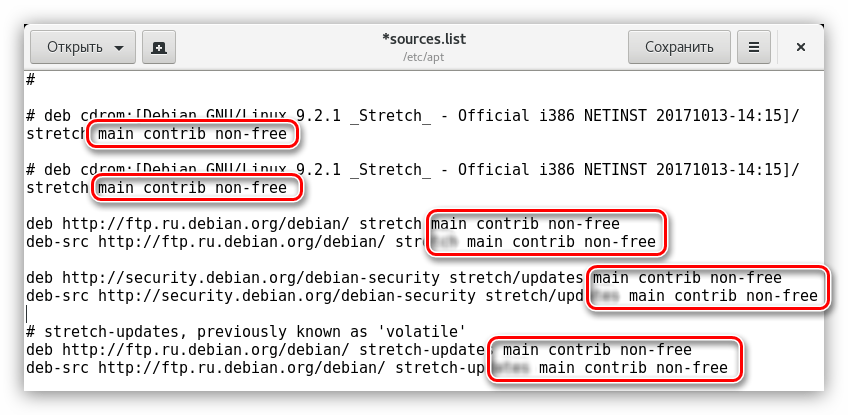
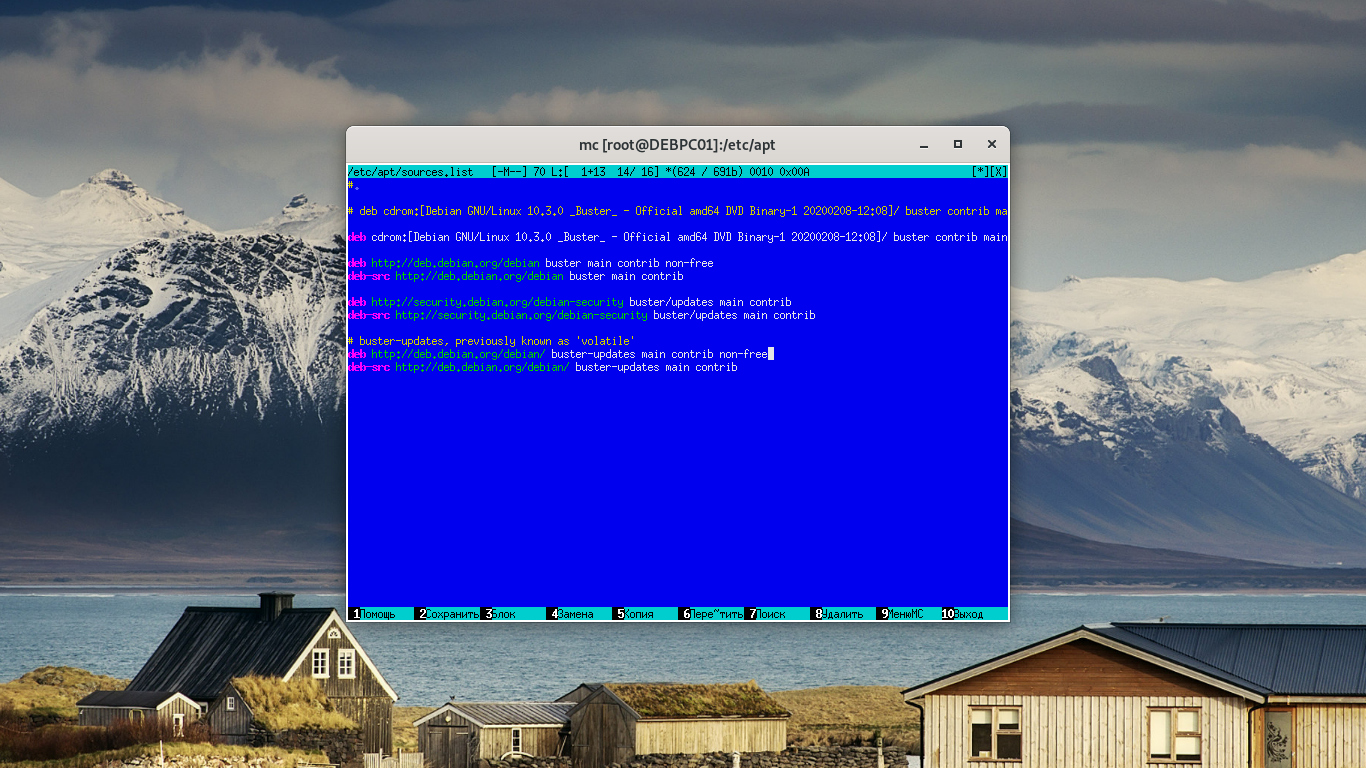
Откройте файл, в котором находится список всех репозиториев. Для этого в статье будет использоваться текстовый редактор GEdit, вы же можете ввести в соответствующем месте команды другой.sudo gedit /etc/apt/sources.list
В открывшемся редакторе добавьте ко всем строкам переменные «main», «contrib» и «non-free».
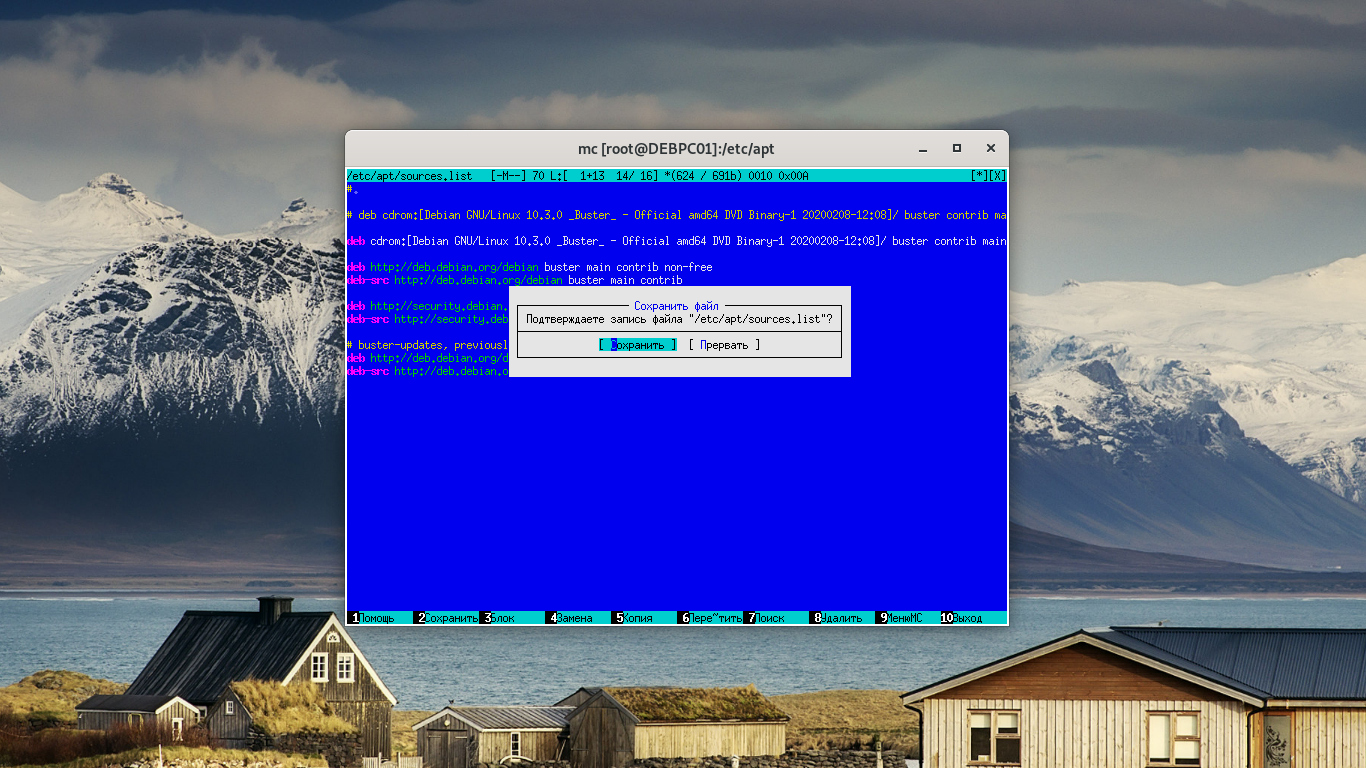
Нажмите кнопку «Сохранить».
Закройте редактор.
Читайте также: Популярные текстовые редакторы для Linux
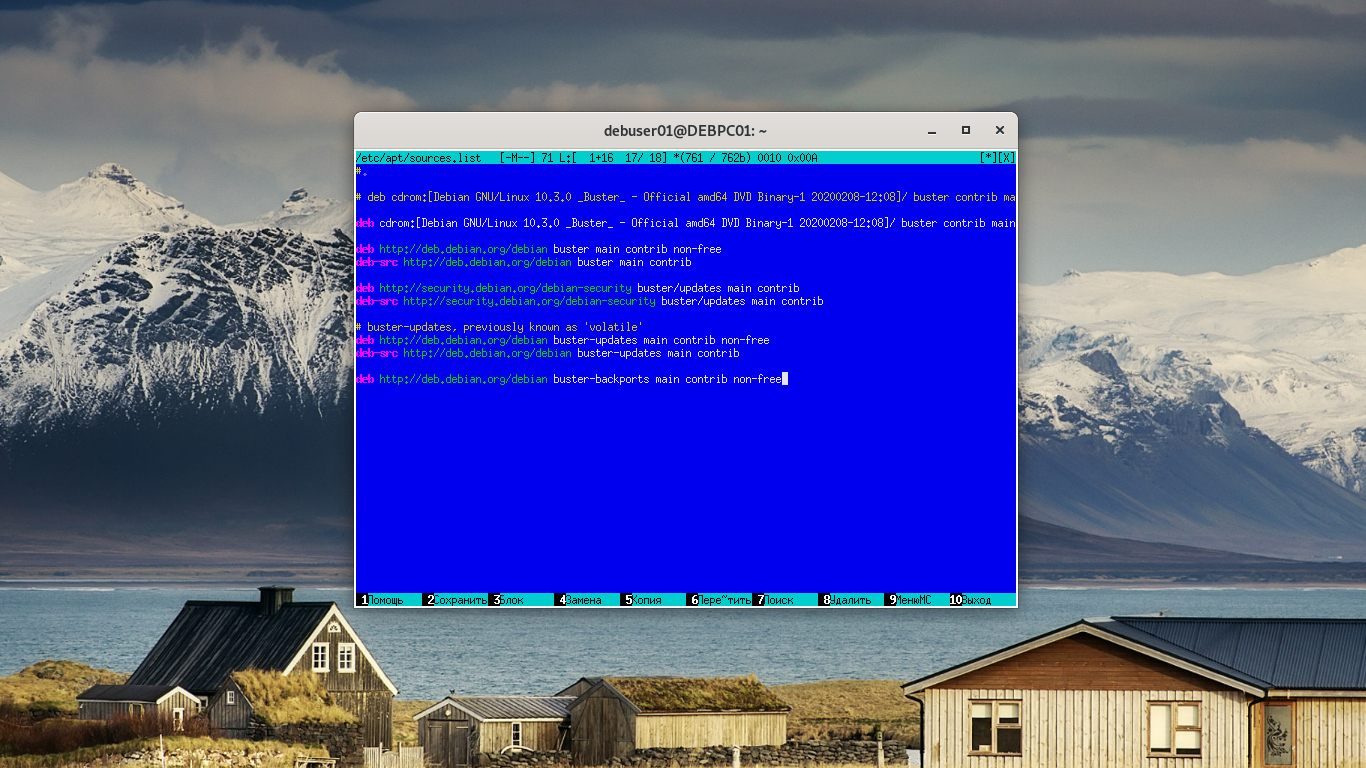
По итогу ваш файл должен выглядеть примерно так:
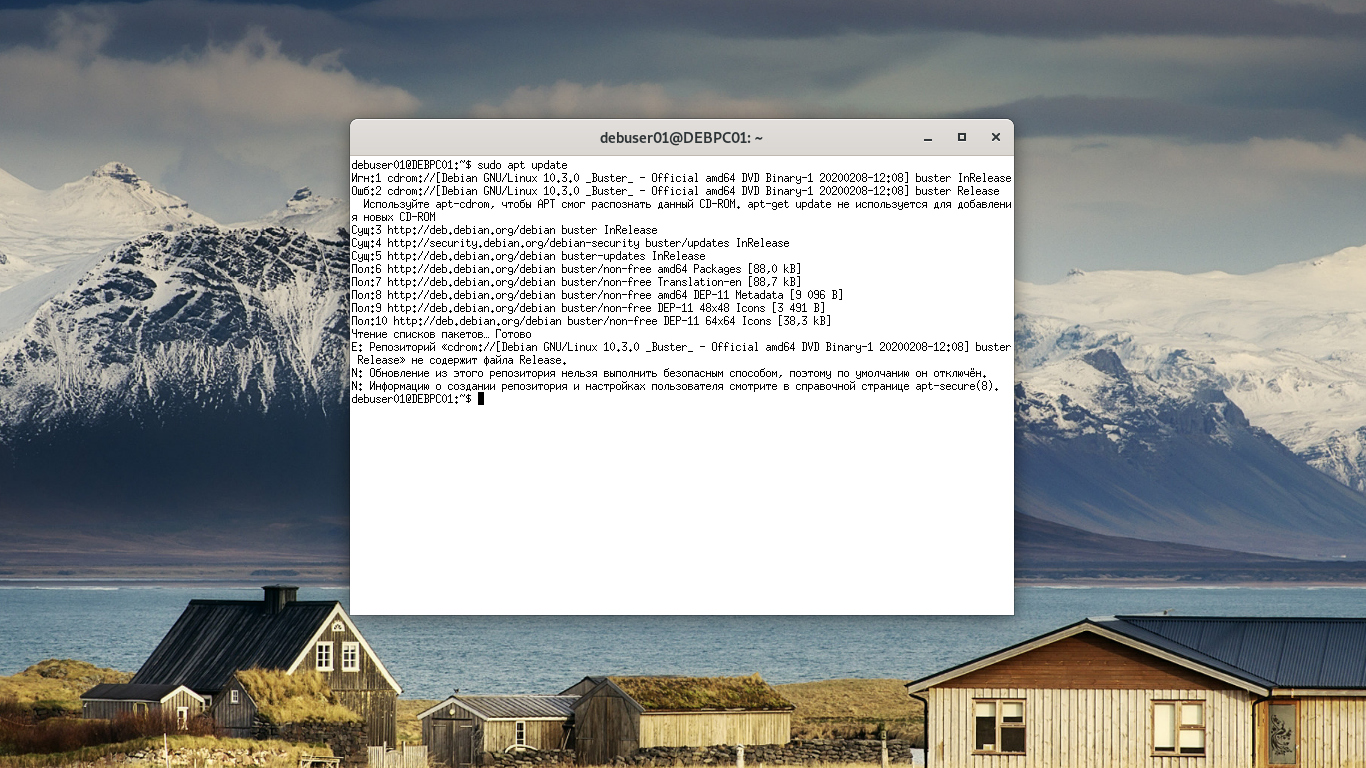
Теперь, чтобы изменения вступили в силу, обновите список пакетов командой:
sudo apt-get update
Шаг 4: Добавление Backports
Продолжая тему репозиториев, рекомендуется добавить в список Backports. В нем содержатся самые свежие версии программного обеспечения. Этот пакет считается тестовым, но все ПО, которое в нем находится, стабильное. Не попало оно в официальные репозитории только по той причине, что было создано после релиза. Поэтому, если вы хотите обновить драйвера, ядро и другое ПО до последней версии, вам необходимо подключить репозиторий Backports.
Сделать это можно как с помощью Software & Updates, так и «Терминала». Рассмотрим оба способа подробнее.
Software & Updates
Для добавления репозитория Backports с помощью Software & Updates вам необходимо:
Запустить программу.
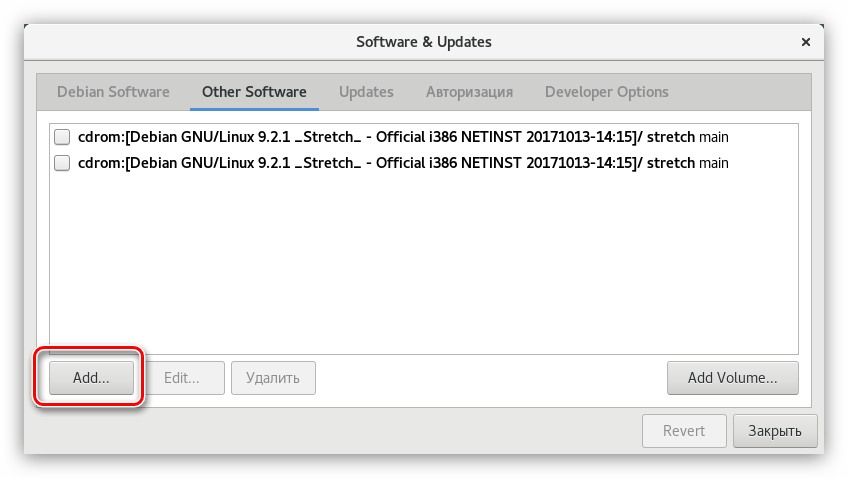
Перейти во вкладку «Other Software».
Нажать кнопку «Add…».
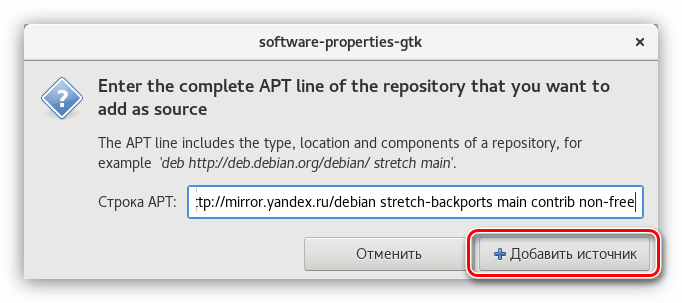
В строку APT ввести:deb http://mirror.yandex.ru/debian stretch-backports main contrib non-free (для Debian 9)
или
deb http://mirror.yandex.ru/debian jessie-backports main contrib non-free (для Debian 8)
Нажать кнопку «Добавить источник».
После проделанных действий закройте окно программы, дав разрешение на обновление данных.
Терминал
В «Терминале» для добавления репозитория Backports необходимо внести данные в файл «sources.list». Для этого:
В нем установите курсор в конце последней строки и, нажав дважды клавишу Enter, сделайте отступ, после чего впишите следующие строки:deb http://mirror.yandex.ru/debian stretch-backports main contrib non-free
deb-src http://mirror.yandex.ru/debian stretch-backports main contrib non-free (для Debian 9)
или
deb http://mirror.yandex.ru/debian jessie-backports main contrib non-free
deb-src http://mirror.yandex.ru/debian jessie-backports main contrib non-free (для Debian 8)
Нажмите кнопку «Сохранить».
Закройте текстовый редактор.
Чтобы применить все внесенные параметры, обновите список пакетов:
sudo apt-get update
Теперь, для инсталляции в систему программного обеспечения из этого репозитория, используйте следующую команду:
sudo apt-get install -t stretch-backports [package name] (для Debian 9)
или
sudo apt-get install -t jessie-backports [package name] (для Debian 8)
Где вместо «[package name]» впишите наименование пакета, который хотите установить.
Шаг 5: Установка шрифтов
Немаловажным элементом системы являются и шрифты. В Debian их предустановлено очень мало, поэтому пользователям, которые часто работают в текстовых редакторах или с изображениями в программе GIMP, обязательно нужно пополнить список уже имеющихся шрифтов. Помимо прочего, программа Wine не сможет корректно работать без них.
Для установки шрифтов, использующихся в Windows, вам нужно выполнить следующую команду:
Вы можете устанавливать и другие шрифты, просто ища их в интернете и перемещая в папку «.fonts», что находится в корне системы. Если этой папки у вас нет, то создайте ее самостоятельно.
Шаг 6: Настройка сглаживания шрифтов
Установив Debian, пользователь может наблюдать плохое сглаживание системных шрифтов. Эта проблема решается довольно просто — нужно создать специальный конфигурационный файл. Вот как это делается:
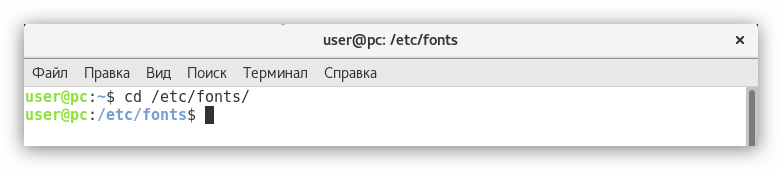
В «Терминале» перейдите в директорию «/etc/fonts/». Для этого выполните:cd /etc/fonts/
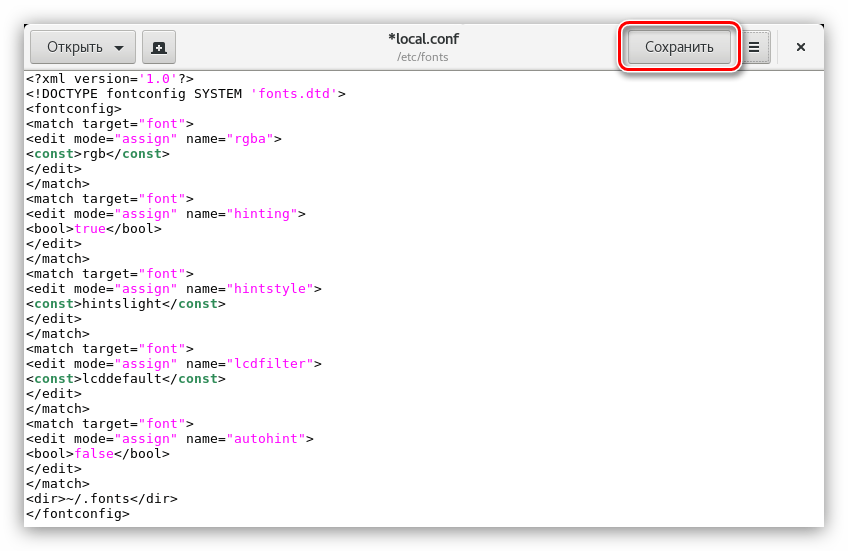
Создайте новый файл с именем «local.conf»:sudo gedit local.conf
В открывшийся редактор введите следующий текст:
rgb
true
hintslight
lcddefault
false
~/.fonts
Нажмите кнопку «Сохранить» и закройте редактор.
После этого во всей системе шрифты будут иметь нормальное сглаживание.
Шаг 7: Отключение звука системного динамика
Эту настройку необходимо проводить не всем пользователям, а только тем, кто слышит характерный звук из своего системного блока. Дело в том, что в некоторых сборках этот параметр не отключен. Чтобы исправить этот недочет, вам необходимо:
В самом конце прописать следующую строку:blacklist pcspkr
Сохранить изменения и закрыть редактор.
Только что мы занесли модуль «pcspkr», который отвечает за звук системного динамика, в черный список, соответственно, проблема устранена.
Шаг 8: Установка кодеков
В только установленной системе Debian отсутствуют мультимедийные кодеки, это связано с их проприетарностью. Из-за этого пользователь не сможет взаимодействовать со многими форматами аудио и видео. Чтобы исправить ситуацию, необходимо их установить. Для этого:
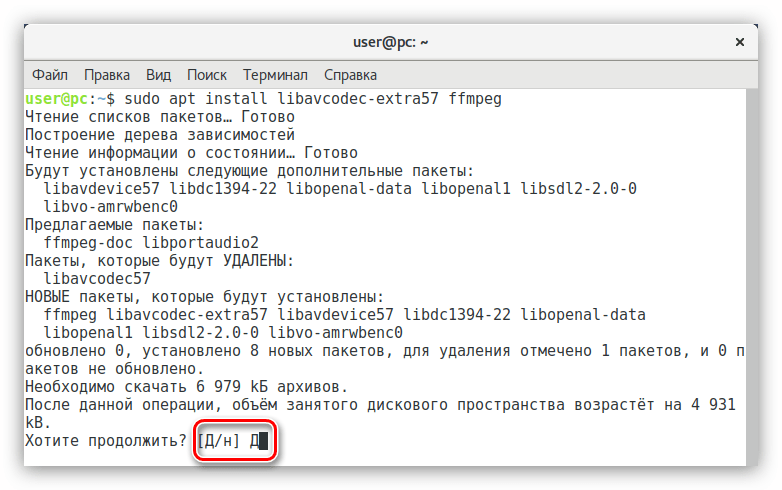
В процессе установки вам необходимо будет подтвердить действие, набрав на клавиатуре символ «Д» и нажав Enter.
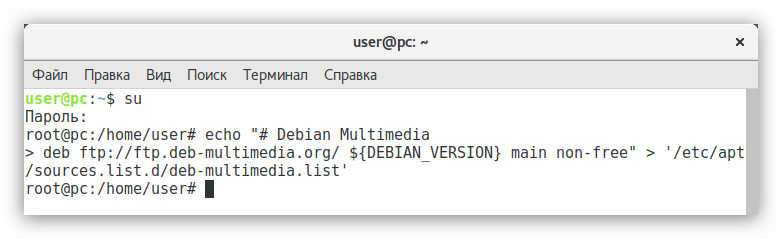
Теперь нужно установить дополнительные кодеки, но они находятся в другом репозитории, поэтому его нужно предварительно добавить в систему. Для этого выполните поочередно три команды:su
echo “# Debian Multimedia
deb ftp://ftp.deb-multimedia.org stretch main non-free” > ‘/etc/apt/sources.list.d/deb-multimedia.list’ (для Debian 9)
или
su
echo “# Debian Multimedia
deb ftp://ftp.deb-multimedia.org jessie main non-free” > ‘/etc/apt/sources.list.d/deb-multimedia.list’ (для Debian 8)
Обновите репозитории:apt update
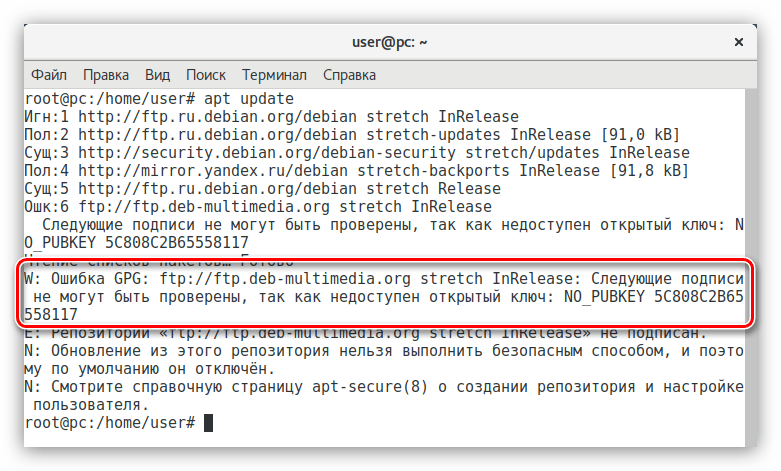
В выдаче можно заметить, что произошла ошибка — система не может получит доступ к GPG-ключу репозитория.
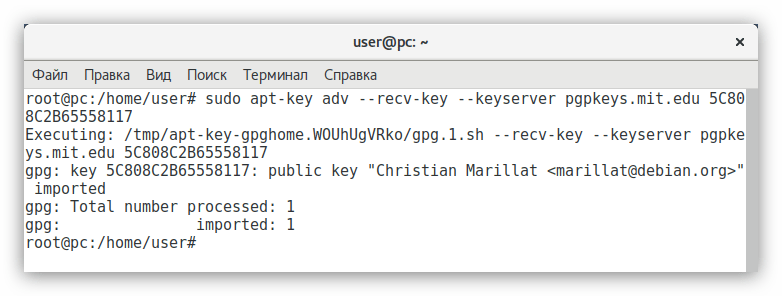
Примечание: в некоторых сборках Debian утилита «dirmngr» отсутствует, из-за этого команда не выполняется. Ее необходимо установить, выполнив команду «sudo apt-get install dirmngr».
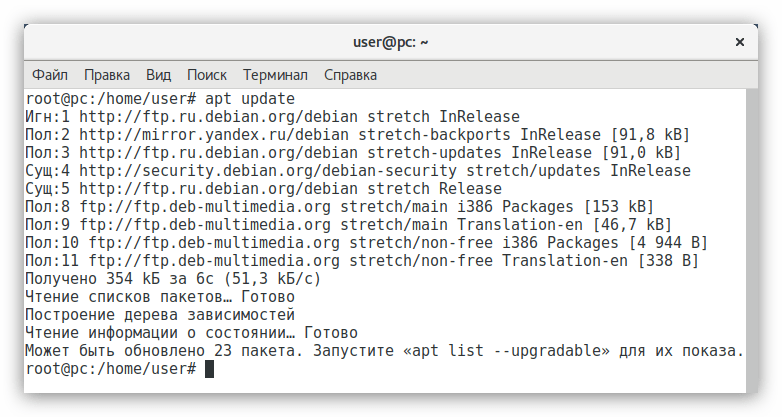
Проверьте, была ли устранена ошибка:apt update
Видим, что ошибки нет, значит репозиторий добавлен успешно.
Установите необходимые кодеки, выполнив команду:apt install libfaad2 libmp4v2-2 libfaac0 alsamixergui twolame libmp3lame0 libdvdnav4 libdvdread4 libdvdcss2 w64codecs (для 64-разрядной системы)
После выполнения всех пунктов вы установите все необходимые кодеки себе в систему. Но это еще не конец настройки Debian.
Шаг 9: Установка Flash Player
Те, кто знакомы с Linux, знают, что разработчики Flash Player уже давно не обновляют свой продукт на этой платформе. Поэтому, а также потому, что это приложение проприетарное, его нет во многих дистрибутивах. Но есть простой способ установить его в Debian.
Для установки Adobe Flash Player нужно выполнить:
sudo apt-get install flashplugin-nonfree
После этого он будет установлен. Но если вы собираетесь пользоваться браузером Chromium, то выполните еще одну команду:
sudo apt-get install pepperflashplugin-nonfree
Для Mozilla Firefox команда другая:
sudo apt-get install flashplayer-mozilla
Теперь все элементы сайтов, которые разработаны с использованием Flash, будут вам доступны.
Шаг 10: Установка Java
Если вы хотите, чтобы ваша система корректно отображала элементы, сделанные на языке программирования Java, необходимо инсталлировать этот пакет себе в ОС. Для этого нужно выполнить всего одну команду:
sudo apt-get install default-jre
После выполнения вы получите версию Java Runtime Environment. Но к сожалению, она не подходит для создания программ на Java. Если эта опция вам нужна, то выполните установку Java Development Kit:
sudo apt-get install default-jdk
Шаг 11: Установка приложений
Отнюдь не обязательно в десктопной версии операционной системы пользоваться только «Терминалом», когда есть возможность использовать ПО с графическим интерфейсом. Мы предлагаем вашему вниманию набор программного обеспечения, рекомендованного к установке в систему.
evince – работает с файлами PDF;
vlc – популярный видеоплеер;
file-roller – архиватор;
bleachbit – чистит систему;
gimp – графический редактор (аналог Photoshop);
clementine – музыкальный проигрыватель;
qalculate – калькулятор;
shotwell – программа для просмотра фото;
gparted – редактор дисковых разделов;
diodon – менеджер буфера обмена;
libreoffice-writer – текстовый процессор;
libreoffice-calc – табличный процессор.
Некоторые программы из этого списка уже могут быть установлены в вашей операционной системы, все зависит от сборки.
Чтобы выполнить установку какого-то одного приложения из списка, используйте команду:
sudo apt-get install ProgramName
Где вместо «ProgramName» подставьте название программы.
Чтобы установить сразу все приложения, просто перечислите их названия через пробел:
После выполнения команды начнется довольно продолжительная загрузка, после окончания которой, все указанное программное обеспечение будет установлено.
Шаг 12: Установка драйверов на видеокарту
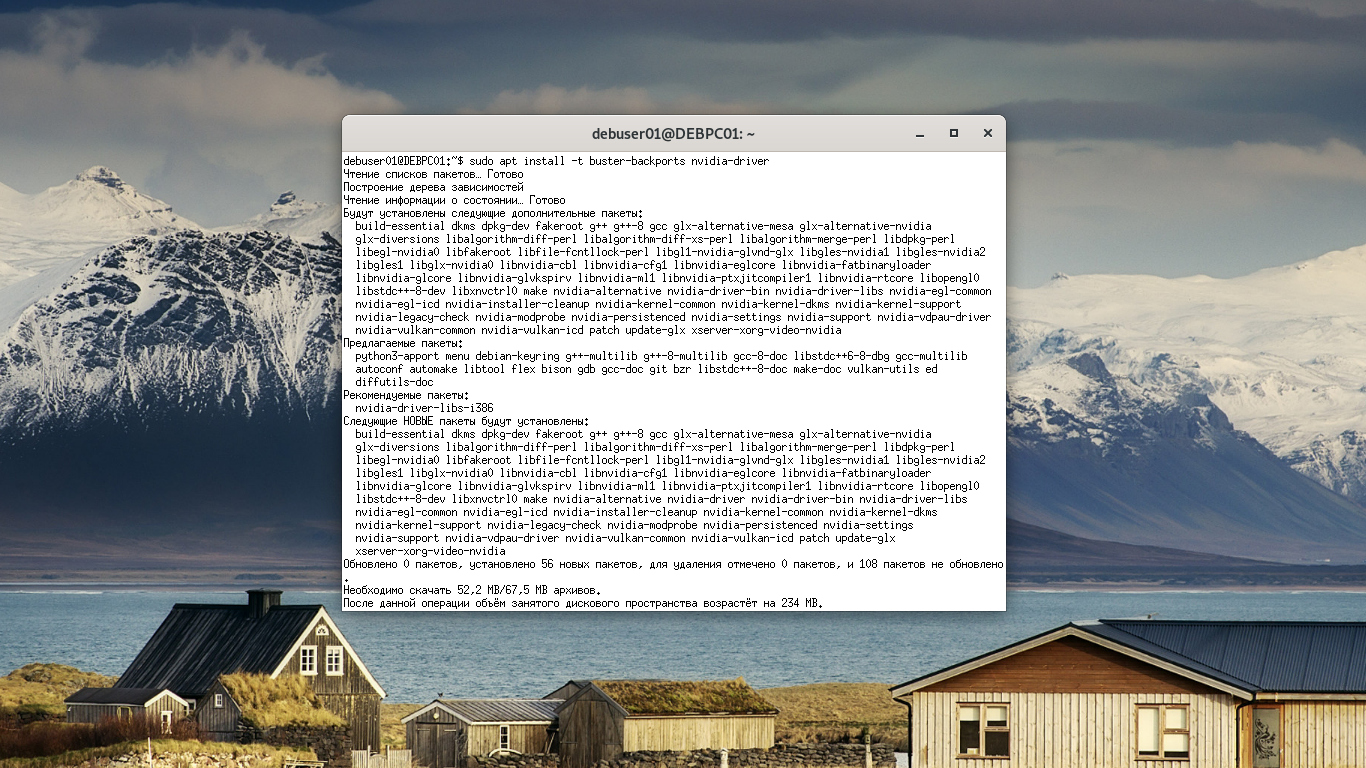
Установка проприетарного драйвера видеокарты в Debian – это процесс, успешность которого, зависит от множества факторов, особенно если у вас AMD. К счастью, вместо подробного разбора всех тонкостей и выполнения множества команд в «Терминале», можно использовать специальный скрипт, который самостоятельно все скачивает и устанавливает. Именно о нем сейчас и пойдет речь.
Важно: при установке драйверов скрипт закрывает все процессы оконных менеджеров, поэтому перед выполнением инструкции сохраните все необходимые компоненты.
Откройте «Терминал» и перейдите в директорию «bin», что находится в корневом разделе:cd /usr/local/bin
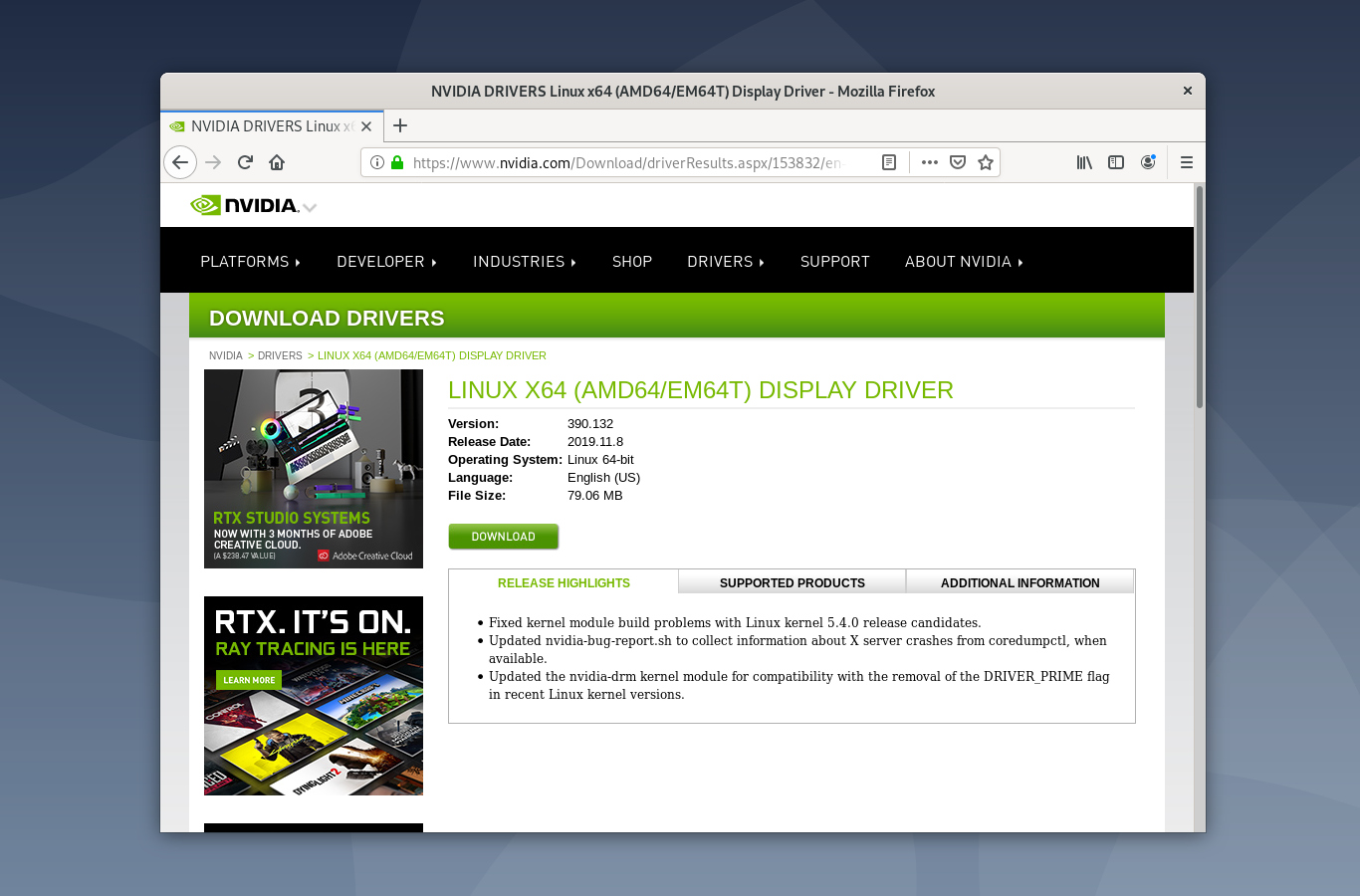
Загрузите с официального сайта скрипт sgfxi:sudo wget -Nc smxi.org/sgfxi
Дайте ему права на выполнение:sudo chmod +x sgfxi
Теперь нужно перейти в виртуальную консоль. Для этого нажмите сочетание клавиш Ctrl+Alt+F3.
Введите свой логин и пароль.
Получите права суперпользователя:su
Запустите скрипт, выполнив команду:sgfxi
На этом этапе скрипт просканирует ваше оборудование и предложит установить на него драйвер последней версии. Вы же можете отказаться и выбрать версию самостоятельно, использовав команду:sgfxi -o [версия драйвера]
Примечание: все доступные версии для установки вы можете узнать с помощью команды «sgfxi -h».
После всех проделанных действия скрипт начнет загрузку и установку выбранного драйвера. Вам остается лишь дождаться окончания процесса.
Если по какой-то причине вы решите удалить установленный драйвер, то сделать это вы можете с помощью команды:
sgfxi -n
Возможные проблемы
Как и любое другое программное обеспечение, скрипт sgfxi имеет недостатки. При его выполнении могут случаться некоторые ошибки. Сейчас мы разберем самые популярные из них и дадим инструкцию по устранению.
Не удалось удалить модуль Nouveau. Решить проблему довольно легко — вам необходимо перезагрузить компьютер и снова начать работу скрипта.
Виртуальные консоли переключатся автоматически. Если в процессе установки на экране вы увидите новую виртуальную консоль, то для возобновления процесса просто вернитесь на прежнюю, нажатием клавиш Ctrl+Alt+F3.
Скрип в самом начале работы выдает ошибку. В большинстве случаев это происходит из-за отсутствующего в системе пакета «build-essential». Скрипт при установке скачивает его автоматически, но бывают и оплошности. Для решения проблемы установите пакет самостоятельно, введя команду:apt-get install build-essential
Это были наиболее частые проблемы при работе скрипта, если среди них вы не нашли свою, то можете ознакомиться с полной версией руководства, что находится на официальном сайте разработчика.
Все основные компоненты системы уже настроены, но напоследок стоит рассказать, как настроить автоматическое включение цифровой панели NumLock. Дело в том, что в дистрибутиве Debian по умолчанию этот параметр не настроен, и панель нужно включать каждый раз самостоятельно при запуске системы.
Итак, чтобы произвести настройку, вам необходимо:
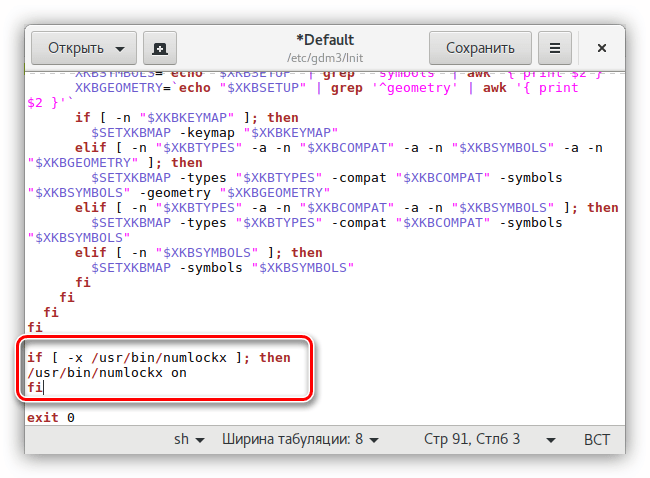
Загрузить пакет «numlockx». Для этого введите в «Терминал» эту команду:sudo apt-get install numlockx
Открыть конфигурационный файл «Default». Этот файл отвечает за автоматическое выполнение команд при запуске компьютера.sudo gedit /etc/gdm3/Init/Default
Вставить нижеуказанный текст в строку перед параметром «exit 0»:if [ -x /usr/bin/numlockx ]; then
/usr/bin/numlockx on
fi
Сохранить изменения и закрыть текстовый редактор.
Теперь при запуске компьютера цифровая панель будет включаться автоматически.
Установка Debian 9.3 — пошаговая инструкция
Первый шаг — загружаем debian
Ну что же давайте мы с вами посмотрим, как нам скачать debian. Для этого нам нужно перейти на официальный сайт — www.debian.org. Как видите здесь все английском, здесь очень много различной информации, вы можете ее почитать если хотите вы можете перевести данную страницу на один из языков, который предоставляет нам сайт debian.
Итак, для того чтобы скачать debian переходим во вкладку «где взять debian». Здесь имеется загрузка установочного образа либо можно попробовать debian live до установки — это как раз-таки LIVE CD, нажимаем и переходим. здесь нам предлагают скачать через bittorrent либо напрямую через браузер.
Доступны здесь две версии amd64 и i386. Первая версия — это 64-битная версия, а вторая — 32-битная. Качайте ту версию, которая подходит для вас.
Далее попадаем на страницу загрузки ISO образа, на которой представлены версии образа, с архитектурой 64 бита и различными версиями графического оформления (cinnamon, gmome, гном, kde, lxde, standart и mate). Скачивайте любую версию, которая вас интересует.
Запускаем VirtualBox
В данном случае мы будем устанавливать систему на виртуальную машину, но шаги установки в принципе не отличаются особо от того алгоритма, который используется при установке на реальную машину.
После этого запускайте VirtualBox или если вы хотите, можете записать с помощью загрузочных утилит на USB Flash Drive и можете его установить debian в качестве основной системы либо на виртуальную машину.
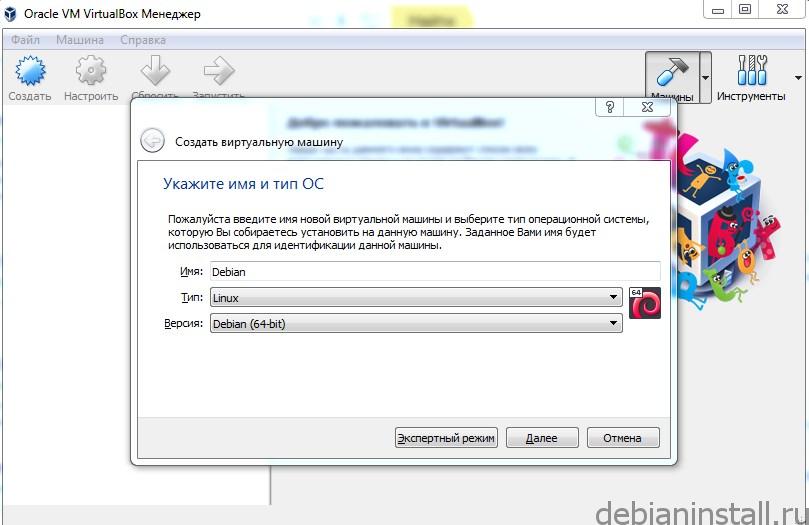
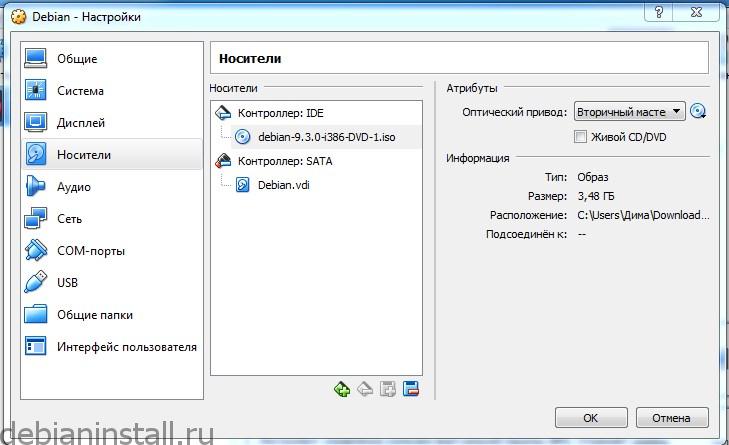
Для примера установим debian на виртуальную машину. Нажимаем кнопочку создать, пишем имя виртуальной машины, выбираем тип linux, версии 64 бита. Объем памяти желательно устанавливать более двух гигабайт, и выставить максимально возможное доступное количество видеопамяти и в носителях добавляем виртуальный образ debian-9.3.0 (iso).
В случае с реальной машиной вместо этого шага необходимо будет вставить флешку, на которую записан образ системы и затем при загрузке удерживать определенную клавишу (как правил, F12) для того, чтобы загрузиться с флешки либо войти в настройки bios и там изменить очередь загрузки — поставить на первое место USB Flash Drive (когда речь идет про bios имеется также ввиду EFI).
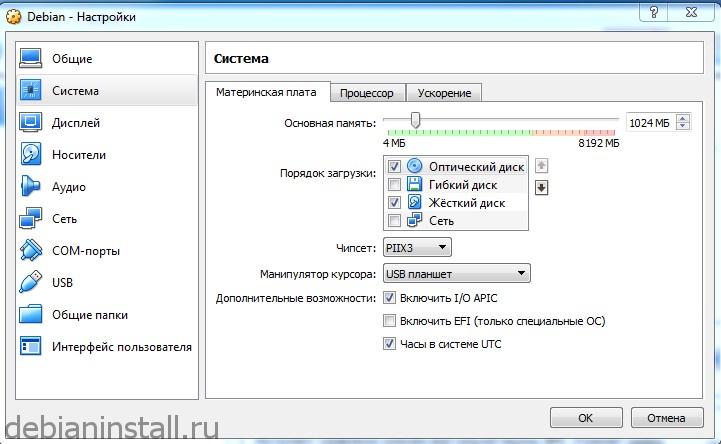
Нажимаем создать новый виртуальный жесткий диск. Оставляем тип носителя VDI. Переходим в настройки VirtualBox, в настройках системы выставляем оптический диск первым, а жесткий диск — вторым.
Далее нам предлагают выбрать жесткий диск какой мы хотим использовать — динамический либо фиксированный. Их отличия вы можете прочитать в описании.
Размер жесткого диска (12 гигабайт вполне достаточно), нажимаем создать и теперь переходим в настройки, вкладка система, выключаем флоппи-диск, он нам вообще не нужен. На дисплее выставляем 64 мегабайта видеопамяти, носитель выбираем live CD.
Запускаем live CD
Появляется интерфейс меню выбора установщика. Предлагается загрузиться в режиме live либо установить install и graphical install.
Graphical install
Давайте рассмотрим вариант загрузки в режиме live. Итак, на наша цель установить дебиан и немного настроить его под себя.
Далее происходит загрузка live версии debian. Вначале установщик попросит вас выбрать язык, который будет использован в процессе установки.
Затем выбираем местонахождение, настройку клавиатуры, способ переключения между национальной раскладкой и стандартной латинской.
Ждем загрузки дополнительных компонентов. На данном этапе после загрузки и монтирования установочного система будет проверять возможность подключения к сети. Подключение определяется автоматически. Если вы используете wi-fi карту, для которой необходима поддержка проприетарных драйверов Linux на данном этапе вам может выскочить ошибка. На этапе определения сетевой карты если ваша сетевая карта будет не определена в таком случае вам будет предложено установить микропрограммы, после чего вручную произвести настройки сети. В современных условиях чаще всего эти настройки все происходит автоматически с помощью DHCP сервера на роутере.
Оформления у дебиан симпатичное, удобное, все полностью на русском, все понятно, просто, ничего сложного здесь нет.
Предлагается ввести имя компьютера (по умолчанию Debian), оно позволяет идентифицировать вашу систему в сети, затем ввести имя домена (для обычного пользователя можно оставить поле пустым).
Далее необходимо указать пароль суперпользователя и повторить пароль. Придумайте достаточно сложный пароль, но при этом убедитесь, что вы сможете его воспроизвести.
Действия от имени суперпользователя придется придется выполнять достаточно часто, например, даже обновления операционной системы, которые происходят с помощью двух команд в терминале будет требовать ввода пароля.
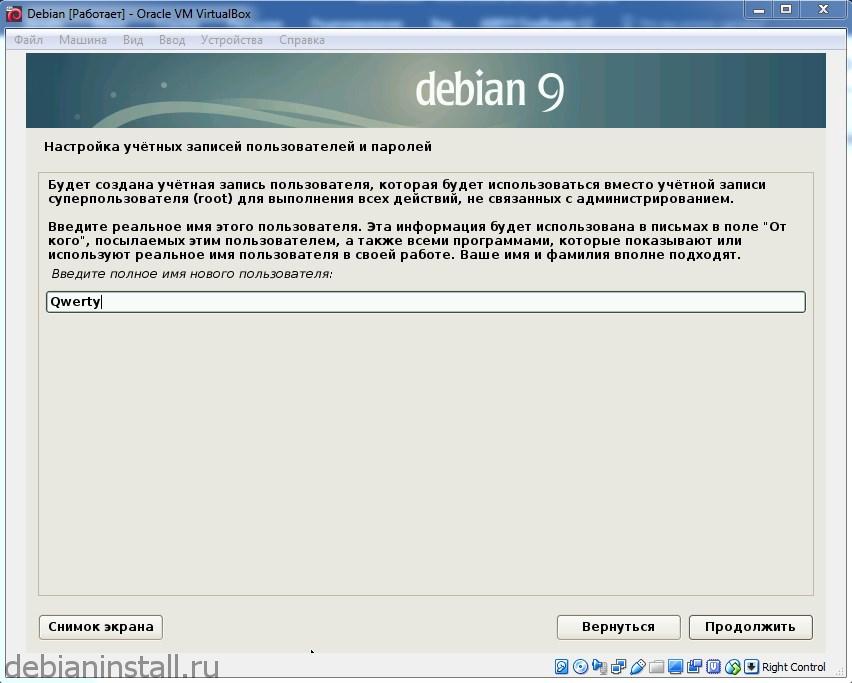
Теперь на следующем окне ввести полное имя нового пользователя. Затем ввести пароль для учетной записи только что созданного пользователя.
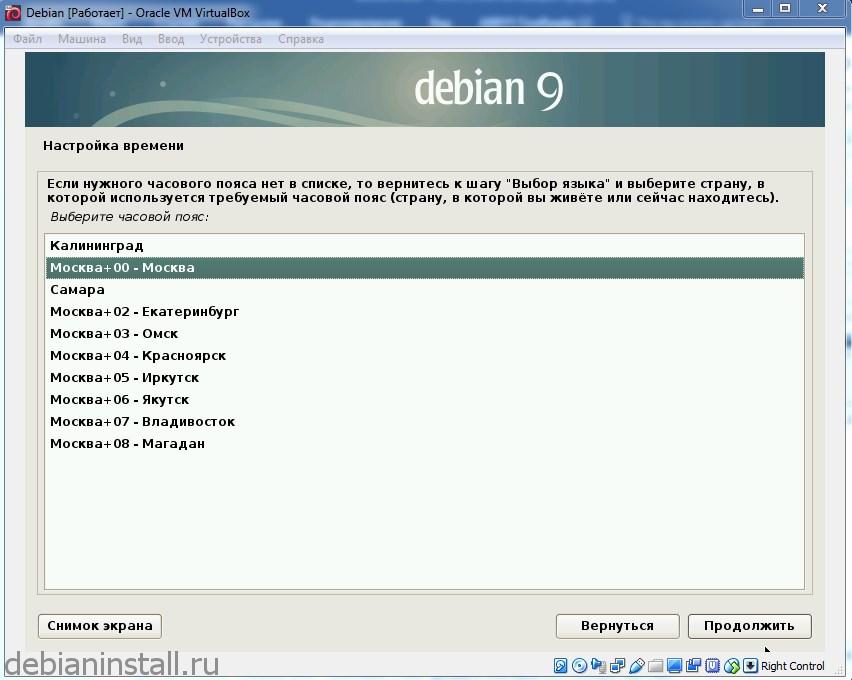
Переходим к выбору часового пояса для своей страны. Вы можете выбрать один из девяти часовых поясов.
Разметка жесткого диска
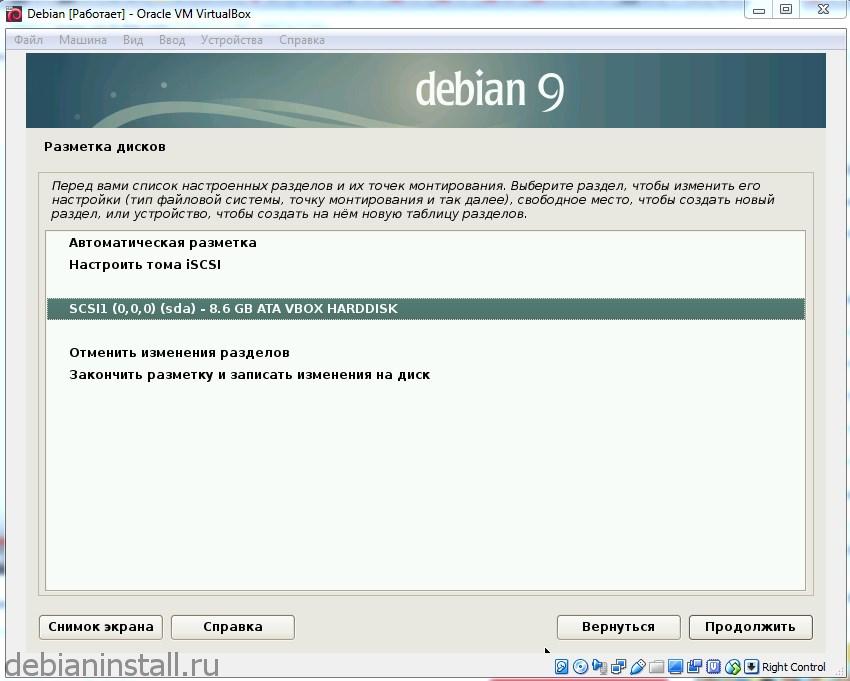
Далее предлагается разметить жесткий диск, что можно сделать как в автоматическом режиме, так и вручную. Автоматический это самый простой способ, но рекомендуется выбрать пункт вручную, потому что лучше всего настроить разметку диска таким образом, чтобы у нас был не один раздел для всей системы linux, несколько разделов. Поэтому мы рассмотрим чуть более сложный вариант, но это важный этап установки.
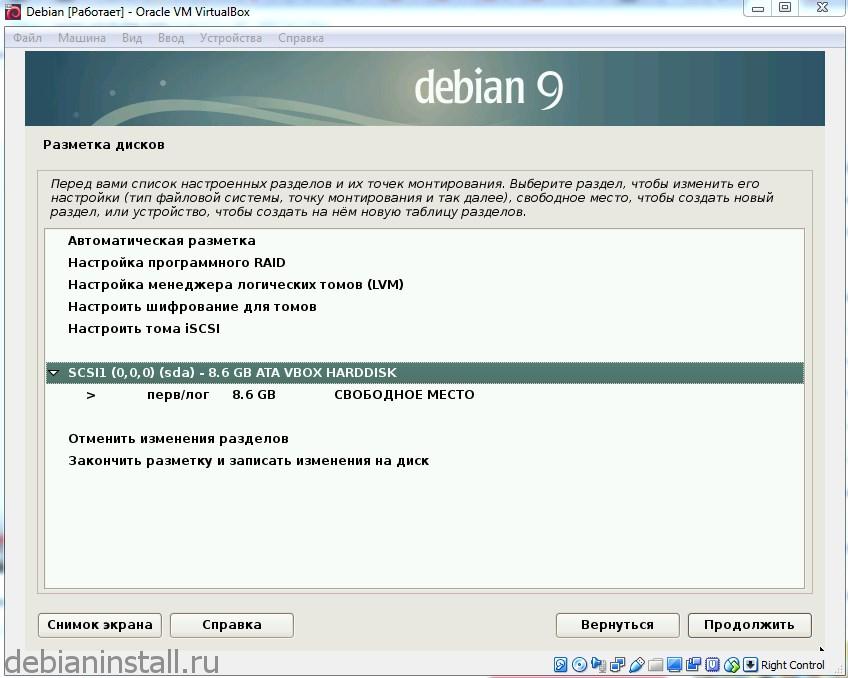
Выбираете ваш жесткий диск, создаете новую таблицу разделов и соглашаетесь. Создалось таблица разделов.
Выбираем свободное место и здесь создать новый раздел. Для начала нужно создать основной корневой раздел и задать его размер.
Нажимаем продолжить и выбираем что это будет логический жесткий диск. Далее выбираем местоположение нового диска. Затем нужно выбрать файловую систему — Ext4, Ext3, Ext2, JFS, btrfs, FAT и т.д. Рекомендуется выбирать файловую систему Ext4.
Точка монтирования — здесь можно выбрать, что нас интересует. В данном случае точка монтирования выбралась автоматически — корневая файловая система. Параметры монтирования рекомендуется – relatime, это ускорит работу системы. Настройка раздела закончена.
Далее создаем еще новый раздел – домашнюю папку. Выбираем логический диск, оставляем файловую систему Ext4. Точка монтирования /home.
Как видите debian довольно таки умная операционная система и она знает, что нам нужно создать 4 раздела, и основные два это конечно же корневой и домашний.
Следующий создаваемый раздел — это раздел подкачки. Выбираем свободное место > создать новый разделю. В данном разделе вместо файловой системы Ext4 выбираем раздел подкачки.
Оставшееся место используем для четвертого – загрузочного раздела . Раздел boot – логический, файловую систему меняем на Ext2, точку монтирования устанавливаем /boot.
Если используется EFI система, то необходимо будет создать EFI раздел. Под него документация debian рекомендует выделить 1 Gb (в некоторых инструкциях по установке говорится о минимуме 512 Mb под EFI раздел).
Настройка разделов закончена. У нас имеется 4 раздела: корневой, домашний, раздел подкачки и загрузочный раздел. Порядок разделов может быть любым, т.е. не обязательно первым идти корневой раздел.
Подтверждаем изменения и записываем их на диск. После чего происходит форматирование разделов жесткого диска в соответствии с нашей разметкой.
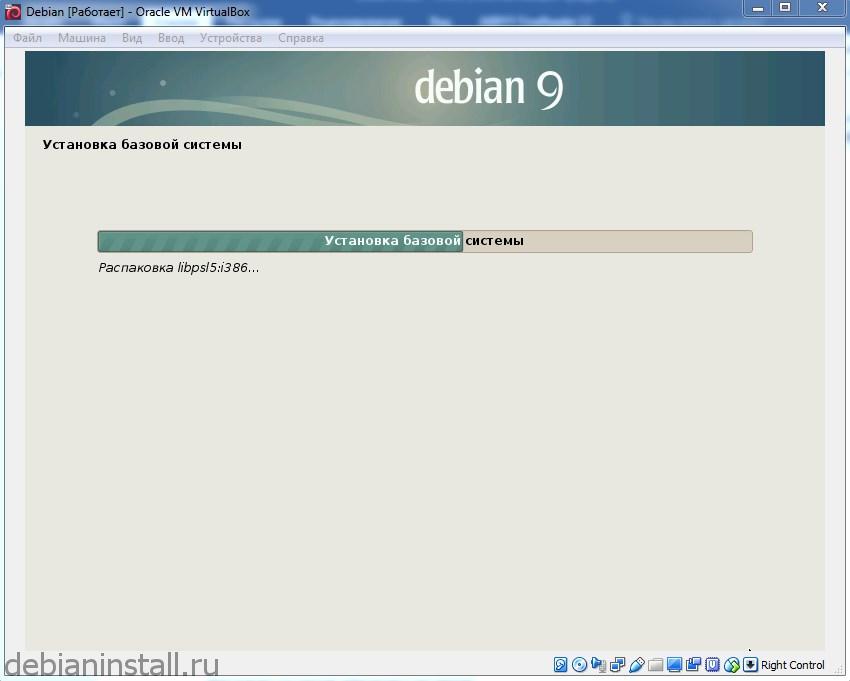
После чего сразу же начинается установка системы и идет копирование данных на диск. Данная процедура занимает определенное время.
Настройка менеджера пакетов
Продолжаем настройку системы, переходим к настройке менеджера пакетов. Можно дополнительно к ПО, включенному на компакт-диск видите использовать зеркало архива из сети. Также оно может содержать более новые версии ПО. Здесь рекомендуется поставить «да».
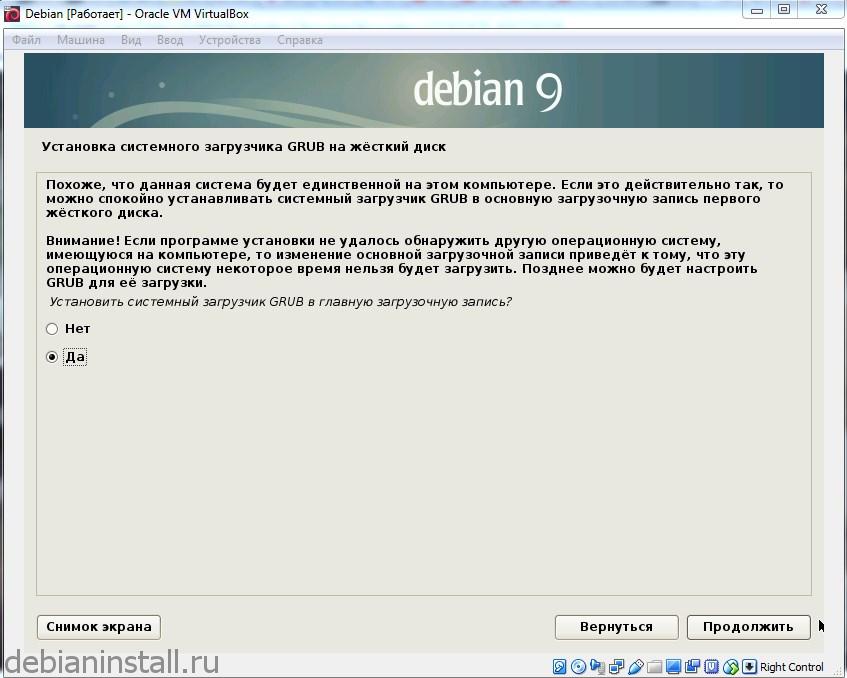
Далее происходит установка системного загрузчика grub и предлагается установить системный загрузчик в главную загрузочную запись.
На следующем этапе установщик предлагает выбрать из уже готовых наборов системного обеспечения. Можно выбрать несколько наборов, поставив галочку напротив интересующего (Gnome, xfce, KDE, Cinnamone, Mate, LXDE).
Завершение установки
В конце установки должно появиться сообщение о том, что установка прошла успешно. Нажимаем кнопку «продолжить».
Вот и все, live cd версию можно смело закрывать, для этого рекомендуется выбрать файл > закрыть и выбрать выключить машину, нажать ok.
Далее опять идем в настройки VirtualBox, далее в настройках системы выставьте жесткий диск первым, а оптический диск вторым. Образ ISO диска выгрузите из дисковода.
Запуск debian
Итак, debian полностью готова к работе. Выберите debian, нажмите запустить, появится загрузчик Grub (в данном случае версии 2.0.2), выбираем самую верхнюю строчку Debian GNU/Linux и нажимаем на enter. Это уже не live версия, а уже полноценно установленная версия на жестком диске.
После проверки наших разделов будет выполнена загрузка системы. Вводим данные учетной записи, вводим пароль и нажимаем войти.
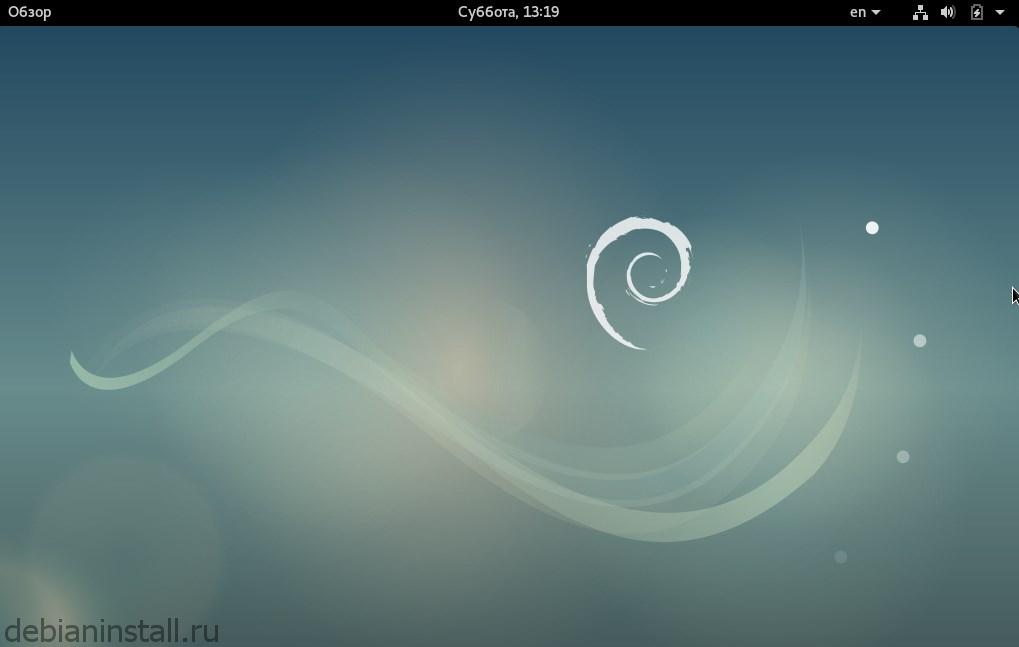
Отлично! Появляется оформление рабочего стола, и вы можете полноценно работать с данной операционной системой. Желаем удачи!
Настройка Debian 9 после установки
Начнеём, как обычно, с обновления системы, поскольку первое, что нужно сделать – это привести систему к самому актуальному состоянию.
Шаг 1. Обновление системы
Debian 9, также как и Ubuntu, использует пакетный менеджер apt, поэтому для обновления достаточно набрать несколько команд. Но выполнять их нужно от имени суперпользователя.
su –
$ apt update
$ apt full-upgrade
Шаг 2. Установка sudo
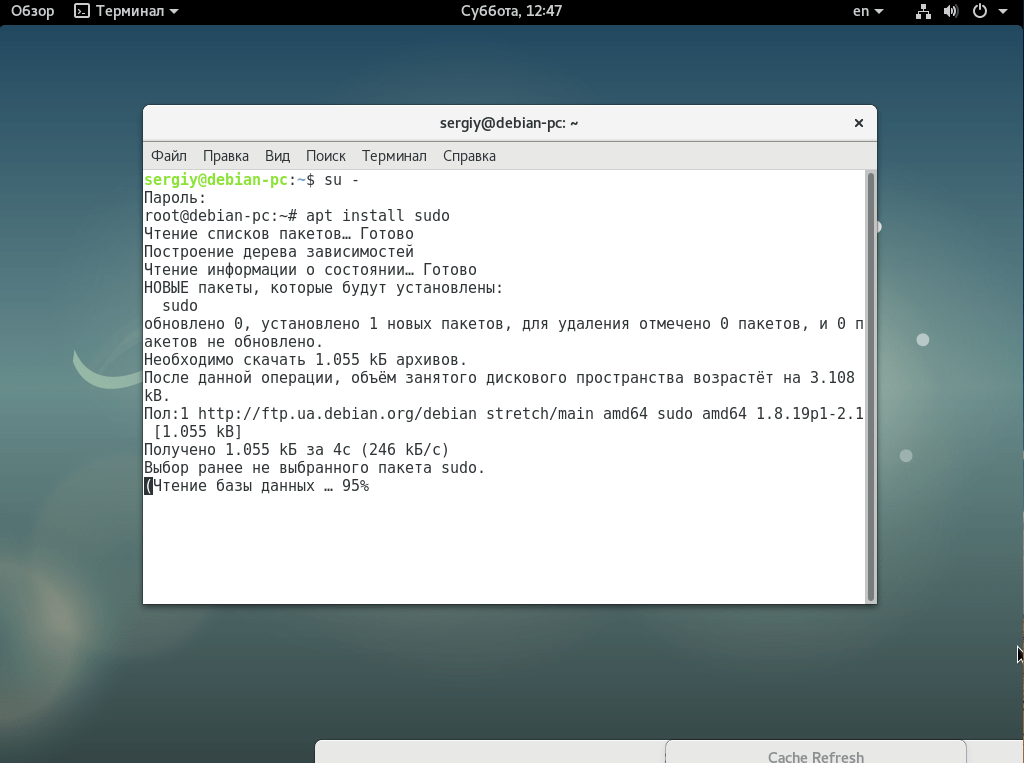
Работая в других дистрибутивах, мы привыкли использовать sudo для запуска программ от имени суперпользователя. Но в Debian она не установлена по умолчанию. Поэтому, перед тем как что-то настраивать, давайте ее инсталлируем:
apt install sudo
Затем добавьте вашего пользователя в группу wheel:
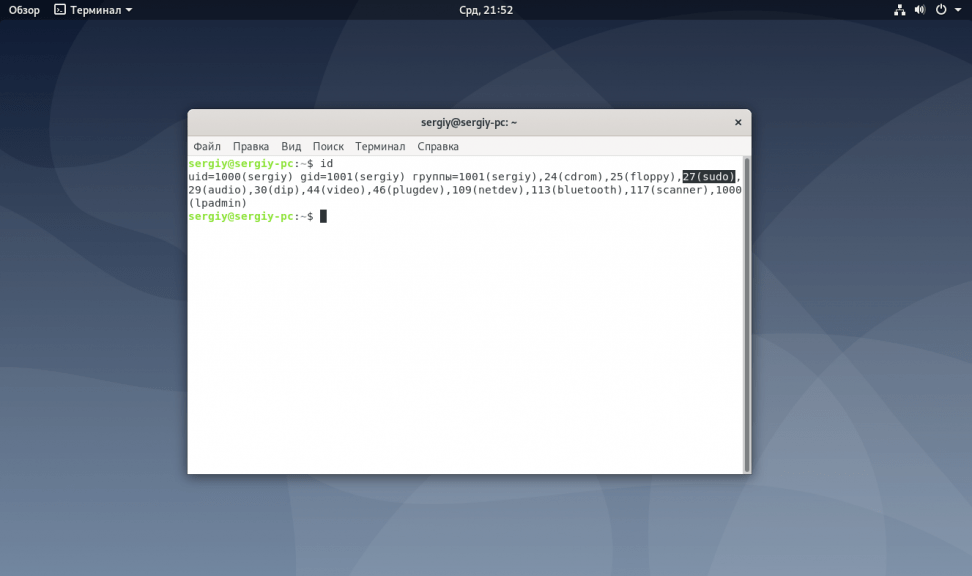
usermod -a -G sudo sergiy
Теперь утилита должна работать.
Шаг 3. Настройка репозиториев
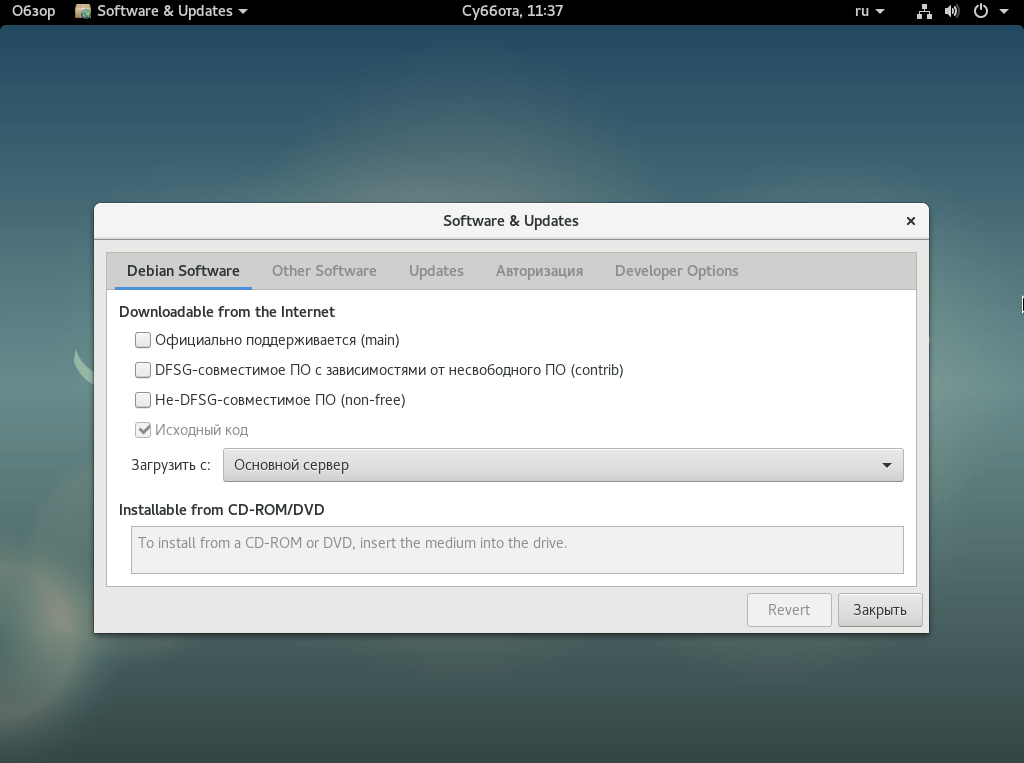
По умолчанию Debian поставляется только с репозиториями, в которых содержится свободное ПО. Если вы хотите получать несвободные программы, нужно подключить специальные репозитории. Запустите программу “Software & Updates” из главного меню:
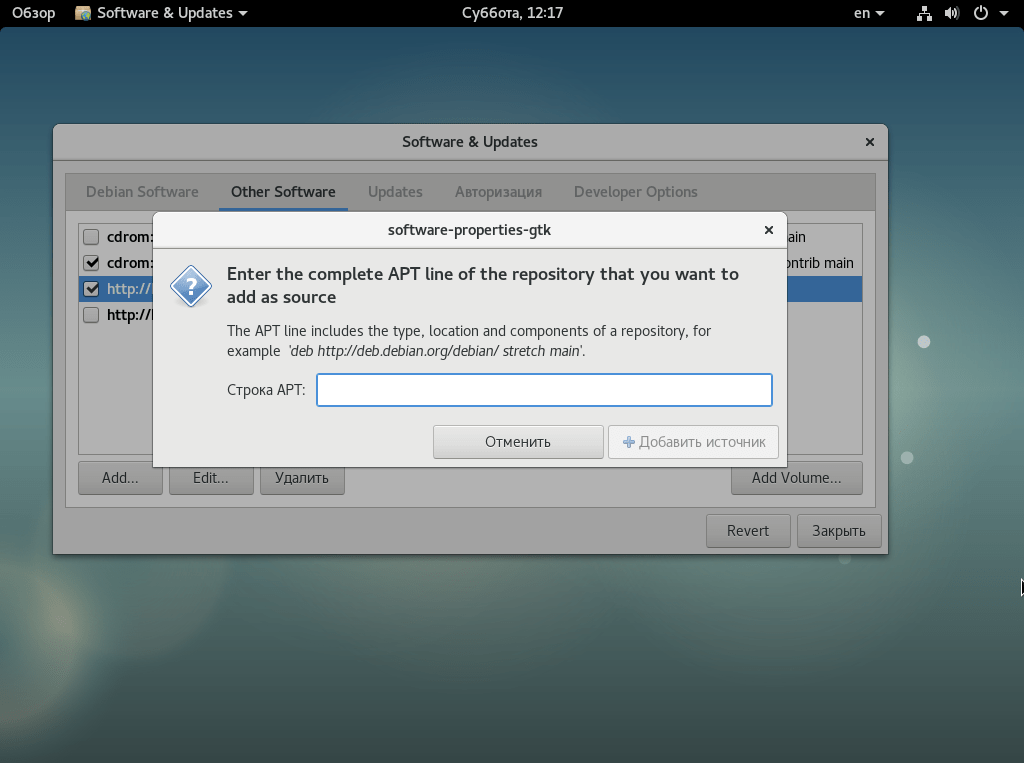
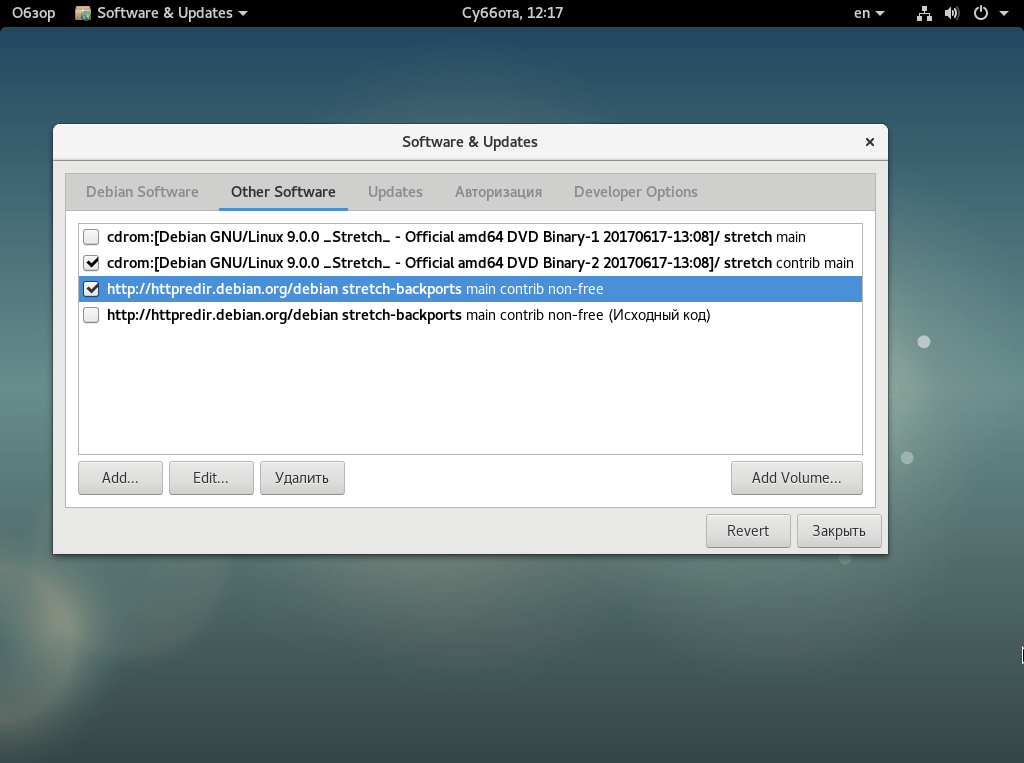
Здесь отметьте галочками такие пункты, как main, contrib и non-free. Также вы можете добавить и другие сторонние репозитории, например, репозиторий Backports, в котором содержатся тестовые версии пакетов. Для добавления репозитория перейдите на вкладку “Другие источники”, нажмите кнопку “Add” и вставьте туда такую строку:
deb http://httpredir.debian.org/debian stretch-backports main contrib non-free
Далее, нажмите “Ok”, и система автоматически обновит списки пакетов. Таким образом, вы можете добавить любой репозиторий к системе.
Также чуть ниже выберите ближайший к вам сервер пакетов Debian.
Шаг 4. Установка кодеков
Если вы собрались слушать музыку или смотреть фильмы с DVD в своей системе, то вам обязательно будут нужны кодеки, которые не поставляются по умолчанию из-за своей закрытой лицензии. Для их установки выполните:
apt install libavcodec-extra57 ffmpeg
Также вы можете установить дополнительные кодеки для DVD из стороннего репозитория deb-multimedia.org. Для его добавления выполните:
echo “# Debian Multimedia
deb ftp://ftp.deb-multimedia.org/ ${DEBIAN_VERSION} main non-free” > ‘/etc/apt/sources.list.d/deb-multimedia.list’
Технология Flash уходит в прошлое, но всё же она достаточно часто используется на различных сайтах. Поэтому желательно иметь эту программу в своей системе:
sudo apt install flashplugin-nonfree
Если вы используете браузер Chromium, то нам понадобиться ещё один пакет:
sudo apt install pepperflashplugin-nonfree
Шаг 6. Установка Java
Многие программы используют для своей работы Java-машину. Для установки версии Java Runtime Environment из официальных репозиториев выполните:
sudo apt install default-jre
Для сборки Java-программ версии JRE недостаточно, вам понадобиться Java Development Kit. Чтобы ее установить используйте:
sudo apt install default-jdk
Шаг 7. Настройка шрифтов
В программах Wine, различных текстовых редакторах и офисных пакетах вам могут понадобиться шрифты, которые используются в Windows. Для их установки выполните:
Чтобы улучшить внешний вид Qt и GTK+ приложений в системе, можно использовать утилиту Qt4config:
sudo apt install qt4-qtconfig
Шаг 8. Установка программ
Несмотря на то, что вместе с системой поставляется множество различного программного обеспечения, часто его недостаточно. Вот основные программы, которые пользователи чаще всего скачивают после установки Debian и других дистрибутивов:
Безопасность – это один из самых важных моментов в использовании операционной системы. Поэтому важно правильно настроить фаервол, чтобы злоумышленники не смогли ничего сделать, даже если в системе будут какие-либо уязвимости. В Debian можно использовать Gufw для настройки:
sudo apt install gufw
Сразу запустите программу и включите ее, новые входящие подключения нужно заблокировать. Переключатель статуса нужно установить в положение “Включен”. Настройка Gufw описана более детально в отдельной статье.
Шаг 10. Графические драйверы
Если вы играете в игры, где необходимо аппаратное ускорение, то вам не обойтись без проприетарного драйвера. Для видеокарт Nvidia драйвер можно установить такой командой:
sudo apt install nvidia-driver
Для видеокарт от AMD пакет драйвера будет немного отличаться:
sudo apt install fglrx-driver
Настройка Debian 10 Buster после установки
Шаг 1. Установка sudo
Если вы использовали новый установщик для установки операционной системы, то утилита sudo у вас уже установлена и настроена. Этот шаг можно пропустить. Но при использовании старого установщика система будет без sudo и для комфортной работы эту утилиту надо установить:
Перейдите в консоль суперпользователя командой:
su –
Затем установите утилиту:
apt install sudo
Далее надо добавить вашего текущего пользователя в группу sudo:
usermod -aG sudo
id
Чтобы изменения вступили в силу вам нужно перелогиниться, далее можно пользоваться sudo.
Шаг 2. Обновление системы
Утилита sudo есть, следующий шаг, который следует сделать – это обновить систему чтобы получить все исправления багов и проблем с безопасностью. Для этого обновите список пакетов и скачайте обновления:
sudo apt update
sudo apt upgrade
После обновления перезагрузите компьютер.
Шаг 3. Установка vim
Во всех инструкциях я рекомендую использовать редактор vim. Он удобный и позволяет редактировать файлы очень быстро когда вы к нему привыкните. По умолчанию Debian поставляется с vi, нужно установить vim:
sudo apt install vim
Шаг 4. Gnome tweak tool
Чтобы иметь возможность более тонко настраивать окружение Gnome необходимо установить утилиту Gnome Tweak Tool:
sudo apt install gnome-tweak-tool
Шаг 5. Фон рабочего стола
Изменить фон рабочего стола вы можете кликнув правой кнопкой мышки по произвольной области рабочего стола и выбрав Изменить фон:
В открывшемся окне выберите Фон, а потом найдите понравившуюся картинку из стандартных или загрузите свою на вкладку Изображения.
Шаг 6. Тема оформления
Далее можем изменить тему оформления. Сначала надо установить саму тему, например Numix:
sudo apt install numix-gtk-theme
И если хотите, набор иконок от Numix:
sudo apt install numix-icon-theme-circle
Затем откройте Gnome Tweak Tool из главного меню и перейдите на вкладку Внешний вид и выберите в разделе Темы -> Приложения нужную тему, например, только что установленную:
Чтобы изменить не только тему приложений, но и тему оболочки нужно сначала открыть пункт Расширения и активировать расширение User themes:
После перезапуска программы вы сможете выбрать тему оболочки, но её тоже надо установить.
Шаг 7. Размер шрифта
Размер шрифта в Debian можно настроить тоже через Gnome Tweak Tool. Для этого перейдите на вкладку Шрифты:
Затем выберите нужный коэффициент масштабирования, например 1,2. Изменения сразу применяться, вы можете поэксприментировать с коэффициентом чтобы подобрать удобный размер. Здесь же можно изменить семейство шрифтов для системы.
Шаг 8. Раскладка клавиатуры
Если во время установки вы выбрали английскую раскладку, то сейчас в системе у вас будет только она. Чтобы добавить русскую откройте Параметры и перейдите на вкладку Регион и язык:
Здесь в разделе Источники ввода нажмите кнопку + и выберите Русская:
Дальше надо настроить клавишу для смены раскладки. По умолчанию используется Win+пробел, но многие привыкли к Alt+Shift. Откройте Gnome Tweak Tool, перейдите на вкладку Клавиатура и мышь, нажмите на кнопку Дополнительные параметры раскладки и раскройте меню Переключение на другую раскладку:
Здесь выберите нужную клавишу переключения.
Шаг 9. Дополнительные репозитории
Репозитории Debian делятся на две части – это свободные – free и проприетарные – nonfree. По умолчанию вторые репозитории отключены, хотя добавлены в систему. Там находится много полезного программного обеспечения, в том числе и драйвера. Чтобы включить этот репозиторий откройте Software & updates из главного меню и на первой же вкладке отметьте галочками DFSG совместимое ПО и Не DFSG совместимое ПО.
Далее система запросит пароль чтобы сохранить изменения.
Новинки в Debian Booster 10
Рассмотрим все явные и скрытые изменения в основной версии этого релиза Debian.
Новая тема и обои
Новая тема Debian для Booster называется FuturePrototype и представлена на рисунке ниже:
Debian Buster FuturePrototype
1. Gnome Desktop 3.30
Рабочий стол GNOME, который был версии 1.3.22 в Debian Stretch, обновлен до версии 1.3.30 в Buster. Несколько новых пакетов, включенных в этот релиз рабочего стола GNOME – это gnome-todo, tracker вместо tracker-gui, зависимость от gstreamer1.0-packagekit, так что имеется автоматическая установка кодеков для воспроизведения фильмов и т. д. Большим шагом стало перемещение всех пакетов из libgtk2 + в libgtk3 +.
2. Linux Kernel 4.19.0-4
Debian использует версии LTS Kernel, так что мы получаем улучшенную hardware поддержку и долгий 5-летний цикл обслуживания и поддержки от Debian. Вы можете проверить версию ядра Linux тут :
$ uname -r 4.19.0-4-amd64
3. OpenJDK 11.0
На долгое время Debian застрял на OpenJDK 8.0. Но сейчас Debian Buster перешел на OpenJDK 11.0 и имеет команду, которая позаботится о новых версиях.
4. AppArmor включен по умолчанию
В Debian Buster AppArmor будет включен по умолчанию. Это отлично, но здесь системные администраторы должны позаботиться о правильной политике. Это только первый шаг, и, возможно, в будущем потребуется исправить множество скриптов, чтобы они были настолько полезными для пользователя, насколько это задумано.
5. Nodejs 10.15.2
Долгое время в репозитории Debian был Nodejs 4.8. В этом релизе Debian перешел на Nodejs 10.15.2. Debian Buster имеет много библиотек javascript, таких как yarnpkg (альтернатива npm) и многие другие.
Конечно вы можете установить последние версии Nodejs в Debian из репозитория проекта, но приятнее видеть более новую версию в репозитории Debian.
6. NFtables заменяет iptables
Debian buster предоставляет nftables в качестве полной замены iptables, это значит, что вас ждет улучшенный более простой синтаксис, усовершенствованная поддержка брандмауэров dual-stack ipv4-v6 и многое другое.
7. Поддержка многих плат ARM 64 и ARMHF SBC.
Debian поддерживает поток постоянно реализующихся плат SBC, последние среди них – pine64_plus, pinebook для ARM64, Firefly-RK3288, u-boot-rockchip для ARMHF 64, а также Odroid HC1/HC2, SolidRun Cubox -i Dual/Quad (1.5som) и SolidRun Cubox-i Dual/Quad (1.5som+emmc), Cubietruckplus. Поддерживаются Rock 64, Banana Pi M2 Berry, Pine A64 LTS Board, Olimex A64 Teres-1, Raspberry Pi 1, Zero и Pi 3. Также планируется поддержка систем RISC-V.
8. Python 2 мертв, да здравствует Python 3!
Python 2 будет объявлен устаревшим 1 января 2020 года (ист. python.org). Хотя в Debian и существует Python 2.7, предпринимаются попытки удалить его после перемещения всех пакетов в Python 3, для того чтобы удалить его из репозитория. Это может произойти либо в выпуске Buster, либо в будущем выпуске, но это неизбежно. Поэтому разработчикам Python рекомендуется перенести свою кодовую базу, чтобы она была совместима с Python 3. На момент написания статьи, python2 и python3 поддерживаются в Debian Buster.
9. Mailman3
Mailman3 наконец-то доступен в Debian! Mailman был дополнительно подразделен на компоненты. Чтобы установить весь стек, установите mailman3-full.
Шаг 10. Установка программ
На последнем шаге инструкции по настройке Debian 10 после установки давайте рассмотрим список программ, которые стоит установить. Большинство из них очень популярны и используются многими пользователями в повседневной жизни. Некоторые из программ есть в официальных репозиториях, а другие можно найти в сторонних:
vlc – лучший медиаплеер;
gimp – лучший графический редактор для Linux;
openshot-qt – видео редактор;
avidemux-qt – видео конвертер;
synaptic – мощный пакетный менеджер с графическим интерфейсом;
chromium – свободная версия популярного браузера Google Chrome;
filezilla – FTP клиент;
timeshift – программа для резервного копирования системы;
keepassxc – менеджер паролей;
remmina – клиент удаленного рабочего стола;
htop – диспетчер задач в терминале;
stacer – утилита для очистки системы;
shutter – утилита для создания снимков экрана;
wine – прослойка для запуска программ Windows.
Если вам все ещё нужен Flash Player Debian, вы можете установить его выполнив такие команды:
echo “deb http://ftp.de.debian.org/debian buster main contrib” | sudo tee -a /etc/apt/sources.list
deb http://ftp.de.debian.org/debian buster main contrib
sudo apt update
sudo apt install pepperflashplugin-nonfree
Пошаговая установка Debian 10 рядом с Windows 10 в экспертном режиме
Сейчас мы рассмотрим все шаги, которые необходимо выполнить, для того чтобы установить Linux Debian 10 на компьютер рядом с Windows 10, учитывая, что на компьютере используется прошивка UEFI.
Сразу скажу, что процесс установки Debian 10 в экспертном режиме мало чем отличается от обычной установки, у него такой же графический установщик, просто у него есть несколько дополнительных шагов, которые необходимы для более тонкой настройки операционной системы.
На заметку!Linux для обычных пользователей – книга про основы операционной системы Linux для начинающих
Шаг 1 – Скачивание установочного образа Debian 10
Для того чтобы установить дистрибутив Linux Debian 10, нужен установочный ISO образ, поэтому сначала необходимо скачать этот установочный ISO файл. Это можно сделать со страницы загрузки официального сайта Debian — https://www.debian.org/distrib
После перехода на страницу необходимо выбрать подходящий ISO образ и способ загрузки. Я обычно загружаю полный установочный образ, который содержит большое количество пакетов, что упрощает процесс установки на машины без соединения с Интернет. Однако размер такого образа около 4 гигабайт.
Образ можно скачать как с помощью браузера, так и с помощью торрента.
Вот прямая ссылка на скачивание торрент файла полного ISO образа – Скачать Debian 10 (64 bit, DVD).
Шаг 2 – Создание установочного носителя
После того как Вы загрузили установочный ISO образ Debian 10, его необходимо записать на DVD диск или USB флешку, для того чтобы создать загрузочный установочный носитель, с которого и будет производиться установка.
Для этого существует много различных программ, например, в нашем случае отлично подойдет программа Rufus. Пример того, как можно записать ISO образ на флешку с помощью этой программы, можете посмотреть в статье – Создание загрузочной USB флешки в Windows с помощью Rufus.
Шаг 3 – Создание резервной копии данных и подготовка места для Debian
Для установки Debian 10 необходимо свободное место на жестком диске, самый лучший вариант – это создать отдельный раздел для Debian.
Если у Вас такая конфигурация, которую я описал выше, т.е. у Вас два диска: C и D, то Вам необходимо на диске D выделить свободное место достаточного размера. Если Вы не планируете использовать Debian в качестве основной системы и хранить там много данных, то достаточно будет и 50 гигабайт.
Однако все данные (важные!), которые есть на диске D, лучше предварительно сохранить, например, на флешке или на внешнем жестком диске. Так как для создания отдельного раздела для Debian необходимо от диска D «отсоединить», иногда эту процедуру называют «отрезать», свободное незанятое место, так скажем, нужно физически уменьшить диск D и создать неразмеченное пространство, а именно эта процедура и может привести к потере данных.
После того как Вы сделаете резервную копию всех важных данных, Вы можете переходить к процедуре сжатия диска D. Это можно сделать как стандартной программой Windows «Управление дисками», так и сторонними приложениями для работы с жесткими дисками, которые имеют такой функционал (Acronis и т.д.). Если у Вас есть опыт сжатия дисков такими программами, то Вы можете сразу уменьшить диск D, и создать неразмеченное пространство.
Однако в этой статье я покажу способ, который подразумевает сжатие диска D стандартными средствами самой программы установки Debian, иными словами, никакие сторонние программы мы использовать не будем.
Таким образом, на текущий момент у меня есть копия важных данных и свободное место на диске D, больше ничего дополнительного я пока не делаю.
Единственное, обязательно нужно запомнить размер диска D, так как хоть в системе вроде как и два раздела, но скрытых разделов, которые в системе не отображаются, на самом деле больше, поэтому чтобы ничего не перепутать, запоминаем общий размер диска D, чтобы четко идентифицировать его в процессе создания разделов для Debian.
Шаг 4 – Загрузка с установочного носителя и запуск экспертного режима
После того как установочный носитель мы подготовили, сделали резервную копию всех важных данных, высвободили необходимое место на диске D, можно переходить к самому процессу установки Debian.
Сначала загружаемся с установочного носителя и попадаем в меню. Для того чтобы запустить установку в экспертном режиме, выбираем пункт «Advanced options».
Затем нажимаем на пункт «Graphical expert install».
Шаг 5 – Выбор языка
В результате установщик запустится в экспертном режиме, сначала нам нужно выбрать язык, для этого мы выбираем «Choose language», нажимаем «Continue».
После этого ищем нужный язык и снова нажимаем «Continue».
Шаг 6 – Выбор местоположения
Далее нам нужно выбрать страну, в которой мы находимся, это будет влиять на некоторые дальнейшие параметры установки.
Нажимаем «Продолжить».
Шаг 7 – Установка региональных настроек
На этом шаге мы можем настроить несколько региональных параметров, в частности выбрать локаль. Я оставлю по умолчанию.
Нажимаем «Продолжить».
В следующем окне в случае необходимости Вы можете отметить дополнительные локали.
Нажимаем «Продолжить».
Шаг 8 – Настройка клавиатуры
После этого мы вернемся в основное меню программы установки. Теперь можем переходить к настройке клавиатуры. Для этого выбираем соответствующий пункт и нажимаем «Продолжить».
Сначала выбираем раскладку.
Затем способ переключения, т.е. каким сочетанием клавиш мы будем переключать раскладку клавиатуры.
Сторонние репозитории для Debian Stable
Debian Multimedia
И так, вернемся к репозиториям, первый из них это “Debian Multimedia”. В этом репозитории находятся кодеки, проигрователи и многое другое. Что бы его подключить, переходим в терминал и сначала скачиваем GPG ключ:
Затем подключаем сам репозиторий выполнив команду в терминале:
sudo nano /etc/apt/sources.list
В открывшемся окне спускаемся вниз списка и вставляем адрес репозитория:
deb [arch=amd64,i386] https://www.deb-multimedia.org buster main non-free
После чего сохраняем отредактированный файл и закрываем его. Затем обновляем списки пакетов командой:
apt update
Google Chrome
Переходим к браузерам, и пожалуй один из самых популярных браузеров это Google Chrome. Для него так же предусмотрен репозиторий для Debian. Но, сначала нужно скачать GPG ключ, переходим в терминал и скачиваем:
Далее редактируем файл “sources.list”, в него нужно вписать репозиторий. Для этого открываем терминал и вводим команду:
nano /etc/apt sources.list
Затем спускаемся вконец списка и вставляем адрес репозитория:
deb [arch=amd64] http://dl.google.com/linux/chrome/deb/ stable main
После чего сохраняем и закрываем отредактированный файл. Ну и останется только обновить списки пакетов:
apt update
И можно устанавливать свежую сборку Google Chrome.
Браузер Opera
Для тех кто пользуется браузером Opera так же есть официальны репозиторий от разработчиков для Debian. Для начала давайте скачаем GPG ключ, а затем перейдем к подключению данного репозитория. И так, переходим в терминал и скачиваем GPG ключ:
Теперь нужно вписать репозиторий в sources.list. Для этого вводим команду:
nano /etc/apt/sources.list
И в конце списка вставляем адрес репозитория:
deb [arch=amd64,i386] https://deb.opera.com/opera-stable/ stable non-free
После чего нам останется обновить списки пакетов:
apt update
И можно устанавливать браузер Opera.
Vivaldi Browser
Разработчики браузера Vivaldi так же создали для Debian репозиторий. Для того что бы подключить его, переходим в терминал и сначала давайте скачаем GPG ключ, а затем подключим репозиторий. И так, скачиваем GPG ключ командой:
Затем, нужно в файле “sources.list” прописать репозиторий, для этого открываем данный файл Nano редактором:
nano /etc/apt/sources.list
После чего вписываем адрес репозитория:
deb [arch=i386,amd64] http://repo.vivaldi.com/stable/deb/ stable main
Сохраняем и закрываем файл sources.list. Далее останется обновить списки пакетов:
apt update
И устанавливать браузер vivaldi.
Редактор Atom
Я уже писал о том, как установить редактор Atom, ознакомится со статьей вы можете тут. Но, все же напишу об этом репозитории на всякий пожарный как говорится. Прежде чем приступать к скачиванию GPG ключа, нужно установить некоторые зависимости. Давайте это и сделаем, переходим в терминал и вводим команду:
apt install curl wget apt-transport-https dirmngr
Затем скачиваем GPG ключ, для этого открываем терминал и вводим команду:
После чего открываем sources.list и вставляем в него адрес репозитория:
deb [arch=amd64] https://packagecloud.io/AtomEditor/atom/any/ any main
Сохраняем sources.list и закрываем, далее останется обновить списки пактов:
apt update
И можно устанавливать редактор Atom.
Docker
Для тех кто работает с Docker CE, так же существует репозиторий от разработчиков. Для того что бы подключить его, нужно сначала скачать GPG ключ. Но, перед этим давайте установим зависимости, переходим в терминал и вводим соответствующую команду:
apt install curl wget apt-transport-https dirmngr
Теперь можно приступать к скачиванию GPG ключа, вставляем команду в терминале:
После чего нужно в файле “sources.list” прописать репозиторий Docker. Для этого открываем файл “sources.list” редактором Nano:
nano /etc/apt/sources.list
И вписываем адрес репозитория:
deb [arch=amd64] https://download.docker.com/linux/debian buster stable
Далее останется только сохранить отредактированный файл и закрыть его. Затем обновляем списки пакетов:
apt update
И можно приступать к установке Docker CE.
Dovecot
Это IMAP- и POP3-сервер, разрабатываемый с упором на безопасность. Другими словами, это сервер для предоставления доступа к почтовым ящикам. Является свободным и гибким к настройке. Что бы подключить репозиторий Dovecot, открываем терминал и для начала установим необходимые зависимости:
После чего нам нужно вписать в файл “sources.list” репозиторий. Для этого открываем “sources.list” редактором Nano:
nano /etc/apt/sources.list
И вписываем репозиторий:
deb https://repo.dovecot.org/ce-2.3-latest/debian/buster buster main
Далее сохраняем отредактированный файл и закрываем редактор Nano. После чего необходимо обновить списки пакетов:
apt update
И можно приступать к установке Dovecot.
Dropbox
Те кто пользуется Dropbox, наверняка захотят установить более свежую версию из официальных репозиториев самих разработчиков. Для того что бы подключить репозиторий для Dropbox открываем терминал и первым делом нам нужно скачать GPG ключ:
Затем необходимо вписать репозиторий в файл “sources.list”. Для этого открываем его в терминале при помощи редактора Nano:
nano /etc/apt/sources.list
В открывшемся окне вписываем репозиторий:
deb http://linux.dropbox.com/debian buster main
После чего сохраняем и закрываем редактор Nano. Далее обновляем списки пакетов:
apt update
И устанавливаем Dropbox.
Enpass Password Manager
Это менеджер паролей, я уже писал о менеджерах паролей, правда там шла речь об KeePassXC. Но для тех, кто предпочитает Enpass, имеется официальный репозиторий от разработчиков. Сначала давайте скачаем GPG ключ, после чего подключим репозиторий. И так, скачиваем ключ, открываем терминал и вводим команду:
Далее открываем файл “sources.list”, после чего вписываем в него репозиторий:
nano /etc/apt/sources.list
Репозиторий:
deb http://repo.sinew.in/ stable main
Обновляем списки пактов и можно устанавливать Enpass.
apt update
Froxlor
Froxlor это панель управления сервером, при помощи Froxlor вы можете управлять FTP аккаунтами, доменными именами, и многим другим. Для того что бы подключить репозиторий от разработчиков данной панели, нужно сначала скачать GPG ключ. Открываем терминал и вводим команду на скачивания gpg ключа:
Далее вписываем репозиторий в файл “sources.list” открыва его в терминале редактором Nano:
nano /etc/apt/sources.list
Вписываем в открывшемся окне репозиторий:
deb http://debian.froxlor.org stable main
После чего сохраняем файл “sources.list” и закрываем редактор Nano. Далее обновляем списки репозиториев:
apt update
И можно приступать к установке панели Froxlor.
Google Earth
Многим известный проект Google Earth от не менее известной компании. Для установки Google Earth из репозитория Google переходим в терминал и скачиваем GPG ключ:
Далее нужно отредактировать файл “sources.list”, для этого открываем его в терминале редактором Nano:
nano /etc/apt/sources.list
Вписываем в него адрес репозитория:
deb [arch=amd64] http://dl.google.com/linux/earth/deb/ stable main
Сохраняем отредактированный файл и закрываем редактор Nano. Затем обновляем списки пакетов командой:
apt update
После чего устанавливаем Google Earth из репозиториев Google.
Lynis
Для тех кто занимается аудитом безопасности знакома утилита под названием Lynis. Для нее так же предусмотрен репозиторий от разработчиков. Перед тем как добавлять репозиторий, давайте сначала скачаем GPG ключ, открываем терминал и вставляем команду:
Теперь когда мы скачали ключ, нужно подключить репозиторий, для этого открываем “sources.list” в терминале командой:
nano /etc/apt/sources.list
Затем нужно в него вписать репозиторий:
deb https://packages.cisofy.com/community/lynis/deb/ buster main
После чего сохраняем файл “sources.list” и закрываем редактор Nano. Теперь осталось обновить списки пактов командой:
apt update
А затем можно приступать к установке Lynis из репозитория разработчиков.
MariaDB
MariaDB это база данных, по праву заслужившая свою популярность. От разработчиков MariaDB, для Debian имеется репозиторий, в котором хранится свежая версия данной базы данных. Для того что бы подключить репозиторий, сначала нужно скачать GPG ключ. Давайте это мы и проделаем, открываем терминал и вводим команду:
Теперь можно переходить к подключению самого репозтория в файл “sources.list” Открываем его в терминале командой:
nano /etc/apt/sources.list
И вписываем в него репозиторий:
deb http://mega.nz/linux/MEGAsync/Debian_10.0/ ./
После чего можно обновлять списки пакетов и устанавливать MEGA Sync Client.
MuCommander
Это некий аналог Total Commander если можно так выразится. Написанный на языке программирования Java. Для того что бы установить его из репозиториев разработчиков отправляемся в терминал и скачиваем ключи:
Затем нужно вписать репозиторий в файл “sources.list” предварительно открыв его редактором Nano:
nano /etc/apt/sources.list
Сам репозиторий, который нужно вписать в этот файл:
deb http://apt.mucommander.com stable main non-free contrib
Далее обновляем списки пакетов и устанавливаем MuCommander.
Nextcloud Client
Про установку Nextcloud Client я уже писал, вы можете прочесть данную статью пройдя по этой ссылке. Что бы подключить репозиторий от разработчиков Nextcloud Client сначала нужно скачать ключ для репозитория. Переходим в терминал и скачиваем ключи введя команду:
Далее вписываем репозиторий в “sources.list” открыв его редактором nano:
nano /etc/apt/sources.list
В открывшемся окне вписываем адрес репозитория:
deb [arch=amd64,i386] http://download.opensuse.org/repositories/home:/ivaradi/Debian_10.0/ /
Далее можно обновлять списки репозиториев и приступать к установке Nextcloud Client.
Nginx
Многим известный nginx, разработанный в России веб-сервер и почтовый прокси-сервер. Для того что бы установить его из репозиториев разработчиков, отправляемся в терминал и сначала скачиваем GPG ключ для репозитория:
После чего сохраняем файл и выходим из редактора. Далее обновляем списки пактов и можно приступать к установке веб-сервер.
NodeJs
Разработчики NodeJs позаботились о том, что бы пользователи Debian могли установить свежую версию их продукта. Для подключения репозитория от разработчиков NodeJs, отправляемся в терминал и первым делом скачиваем необходимые зависимости:
apt install curl wget apt-transport-https dirmngr
Затем нужно скачать ключи для репозитория, для этого вводим команду в терминале:
Открываем текстовым редактором “sources.list” и вписываем репозиторий:
nano /etc/apt/sources.list
Репозитории
deb https://deb.nodesource.com/node_12.x buster main
deb-src https://deb.nodesource.com/node_12.x buster main
Далее останется обновит списки пакетов и приступить к установке NodeJs.
ownCloud Client
Еще одно облако, которое вы можете поднять на своем сервере. Для того что бы подключить репозитории ownCloud Client, отправляемся в терминал и превым делом скачиваем GPG ключи:
Затем открываем файл “sources.list” текстовым редактором в терминале:
nano /etc/apt/sources.list
И в него вписываем репозиторий:
deb http://download.opensuse.org/repositories/isv:/ownCloud:/desktop/Debian_10.0/ /
Далее сохраняем и выходим из текстового редактора. После чего можно приступить к установке.
Pantheon Desktop
Графическая оболочка разработанная создателями дистрибутива Elementary. Для того что бы ее установить в Debian из репозиториев разработчиков, первым делом отправляемся в терминал и скачиваем ключ от репозитория:
репозиторий с leechcraft, vacuum, deadbeef, psi-plus и т.п.
# wheezy sid jessie (собраны не все пакеты)debhttp://notesalexp.org/debian/wheezy/wheezymain# deb http://notesalexp.org/debian/jessie/ jessie main# deb http://notesalexp.org/debian/sid/ sid main
# squeeze wheezy sid jessie, большая часть пакетов только для wheezydebhttp://www.tataranovich.com/debian squeeze main backports deb-srchttp://www.tataranovich.com/debian squeeze main backports
Многопротокольный IM-клиент и SIP-телефон под LGPL-лицензией. Ранее назывался SIP-Communicator. Есть в стандартных репозиториях, начиная с jessey, но версии могут немного отставать.
debhttp://download.jitsi.org/debunstable/
При первоначальной установке пакета jitsi в файл /etc/apt/sources.list.d/jitsi.list автоматически прописываются репозитории, а также устанавливаются GPG-ключи.
ag-projects.list
http://projects.ag-projects.com/
Софт/библиотеки для работы с SIP.
# stable/unstabledebhttp://ag-projects.com/debianstablemain# deb-src http://ag-projects.com/debian stable main
“Debian kernel built on top of the zen kernel sources. The configuration is optimized for a practical desktop experience and features not currently maintained in Linus’s mainline kernel are included.”
#внимание, репозиторий только для siddebhttp://liquorix.net/debiansidmain
Многие из команд в этом руководстве требуют привилегий суперпользователя. Если при использовании команды sudo появляется следующая ошибка:
bash: sudo: command not found
Вам необходимо активировать режим суперпользователя, установить команду sudo и добавить своего пользователя в группу sudo:
su –
apt-get install sudo -y
usermod -aG sudo yourusername
Как добавить нового пользователя?
В Ubuntu и Debian есть два инструмента командной строки, которые вы можете использовать для создания новой учетной записи пользователя: useradd и adduser.
useradd — это низкоуровневая утилита для добавления новых пользователей, а adduser — дружественный интерактивный интерфейс для useradd, написанный на Perl.
Для создания новой учетной записи пользователя операционной системы с именем username с помощью команды adduser, выполните следующую команду:
sudo adduser username
В результате появится диалог, в котором необходимо ввести пароль и дополнительную информацию:
Adding user `username’ …
Adding new group `username’ (1000) …
Adding new user `username’ (1000) with group `username’ …
Creating home directory `/home/username’ …
Copying files from `/etc/skel’ …
Enter new UNIX password:
Retype new UNIX password:
passwd: password updated successfully
Changing the user information for username
Enter the new value, or press ENTER for the default
Full Name []: Name
Room Number []: 100
Work Phone []: 123-45-45
Home Phone []:
Other []:
Is the information correct? [Y/n] Y
Команда создает домашний каталог для нового пользователя и скопирует туда файлы из каталога /etc/skel.
По умолчанию членам группы sudo предоставляется доступ sudo.
Если необходимо, чтобы у вновь созданного пользователя были права администратора, добавьте его в группу sudo:
sudo usermod -aG sudo username
Как удалить пользователя?
Существует два инструмента командной строки, которые можно использовать для удаления учетной записи пользователя: userdel и deluser. Рекомендуем использовать команду deluser, так как она более дружественная, чем низкоуровневая userdel.
Чтобы удалить пользователя, не удаляя пользовательские файлы и каталоги, выполните:
sudo deluser username
Если необходимо удалить домашний каталог пользователя и его содержимое, используйте флаг —remove-home:
sudo deluser –remove-home username
В результате появится следующее сообщение:
Looking for files to backup/remove …
Removing files …
Removing user `username’ …
Warning: group `username’ has no more members.
Done.
Как изменить пароль пользователя?
Для изменения собственного пароля используйте команду passwd без дополнительных аргументов:
passwd
В системном диалоге необходимо будет ввести старый пароль и указать новый:
Changing password for username.
(current) UNIX password:
Enter new UNIX password:
Retype new UNIX password:
passwd: password updated successfully
Для изменения пароля для другого пользователя необходимы права администратора и имя пользователя:
sudo password username
Права суперпользователя Linux
Права суперпользователя в Linux
Очень долго перечислять чего не может обычный пользователь Linux, проще сказать на что у него есть право, а именно при стандартной настройке полномочий для файлов в Linux, обычный пользователь может:
Читать, писать и изменять атрибуты файлов в своем каталоге
Читать, писать, изменять атрибуты файлов в каталоге /tmp
Выполнять программы там, где это не запрещено с помощью флага noexec
Читать файлы, для которых установлен флаг чтения для всех пользователей.
Если же нужно сделать что-то большее нам понадобятся права root пользователя linux. У root есть право делать все в вашей файловой системе независимо от того какие права установлены на файл.
Вход под суперпользователем
Чтобы войти под пользователем root можно переключиться в одну из виртуальных консолей, например, с помощью сочетания клавиш Ctrl+Alt+F1 и затем ввести логин root и пароль root пользователя.
Вы получите полноценное окружение root с возможностью выполнять все действия, но такой способ очень непрактичный, так как вы теряете все преимущества использования графического интерфейса.
Можно поступить полностью противоположным путем, ввести логин root и его пароль в графическом менеджере входа, чтобы окружение рабочего стола работало от имени root, и мы получаем все права root linux, но такой вариант крайне не рекомендованный, и очень опасный, вы можете случайно повредить всю систему. Поэтому этот способ был отключен во многих менеджерах входа.
Переключение на суперпользователя в терминале
Теперь мы подошли к более интересному и практичному. С помощью специальных утилит вы можете переключить текущий эмулятор терминала в окружения суперпользователя и выполнять все следующие команды не от своего имени, а от его, таким образом, дав программе права root linux. Для этого существует утилита su. Вообще говоря, эта утилита позволяет не только переключаться на пользователя root но и на любого другого пользователя, но по умолчанию используется именно root. Рассмотрим ее подробнее. Команда su linux имеет следующий синтаксис:
$ suопциипользователь
Вот ее основные опции:
-c, –command – выполнить команду
-g, –group – установить основную группу пользователя (только для root)
-G –supp-group – дополнительные группы пользователя (только для root)
-, -l, –login – режим входа, будут очищены и инициализированы с учетом нового пользователя все переменные окружения, а также изменен домашний каталог
-p, –preserve-environment – сохранить переменные окружения
-s, –shell – задать оболочку для входа
–version – отобразить версию программы.
Теперь немного поэкспериментируем, чтобы понять как работает команда su linux.
Сначала выполним su без параметров, но для начала создадим переменную окружения, чтобы проверить как с ними обходится эта команда:
export VAR=1
Теперь выполняем:
su
Теперь смотрим что получилось:
whoami
$ pwd
$ echo $VAR
$ echo $PATH
$ exit
Из этих команд мы видим, что теперь мы пользователь root, но домашней директорией считается директория нашего предыдущего пользователя и наша переменная не сохранилась также изменилась переменная PATH, теперь там добавлен путь /sbin.
Теперь используем вход в режиме логина:
su –
И повторим ту же комбинацию:
whoami
$ pwd
$ echo $VAR
$ echo $PATH
$ exit
Та же ситуация, только на этот раз изменена ко всему еще и домашняя директория на директорию root. Но мы можем сохранить наши переменные окружения, если это нужно, для этого есть опция -p:
su -p
Как видите, наша переменная осталась. Вы также можете переключится на любого другого пользователя. Например:
su – test
Получение прав суперпользователя таким способом используется во многих дистрибутивах, например, Debian, OpenSUSE, ArchLInux, Gentoo и т д. Но в Ubuntu, как дистрибутиве для начинающих вход под пользователем root отключен. Это сделано потому, что это тоже не очень безопасно, вы можете забыть что выполняете команду от root и что-то натворить в системе. Поэтому переходим к следующей программе.
Получение прав root без переключения
Чтобы реализовать максимально безопасный интерфейс для работы с правами суперпользователя в Linux была разработана команда sudo. Давайте рассмотрим что такое sudo. Эта команда пишется перед каждой командой, которую нужно выполнить от имени суперпользователя, и для ее выполнения нужно ввести пароль уже не root, а всего лишь вашего пользователя. Так же, как и в предыдущей, в этой утилиты есть свои опции. Сначала рассмотрим синтаксис:
$ sudoопциикоманда
Опции программы:
-b – выполнять запускаемую утилиту в фоне
-E – сохранить переменные окружения
-g – запустить команду от группы
-H – использовать домашний каталог
-l – показать список полномочий в sudo для текущего пользователя
-r – использовать для команды роль SELinux
-s – использовать оболочку
-u – запустить команду от имени пользователя, если не задано используется root
-i – не выполнять команду, а войти в оболочку, эквивалентно su –
Вы можете выполнить те же эксперименты, только для этой команды, чтобы понять как использовать команду sudo. Например:
sudo ls
Или:
sudo -u test ls
Использование sudo – это рекомендованный способ выполнять команды от имени суперпользователя в Linux. Так вы не забудете с чем имеете дело и меньше всего рискуете повредить систему. Но остался еще один нерешенный вопрос – как быть с графическими утилитами? Ведь команда sudo их не запускает, а запускать графическую оболочку от имени root небезопасно. Это мы и рассмотрим далее.
Установка драйвера Nvidia в Debian
1. Как узнать какая версия драйвера нужна
Для того, чтобы просмотреть установлен ли у вас поприетарный драйвер выполните:
lspci -k | grep -EA2 “VGA|3D|Display”
Утилита nvidia-detect позволяет посмотреть информацию о видеокарте компании Nvidia и определить рекомендуемую версию драйвера для этой модели. Устанавливается утилита с помощью следующей команды:
sudo apt -y install nvidia-detect
Узнать рекомендуемую для видеокарты версию драйвера можно с помощью команды:
sudo nvidia-detect
Если вы не хотите устанавливать эту утилиту, вы можете посмотреть официальный сайт Nvidia или воспользоваться следующими рекомендациями:
драйвер версии 340.107 — для видеокарт GeForce, начиная с 8-й серии и вплоть до 300-й серии;
драйвер версии 390.116 — для видеокарт GeForce 400-й и 500-й серий;
драйвер версии 418.74 или более новый — для видеокарт GeForce 600-й и выше серий.
2. Подготовка к установке видеодрайвера
Прежде чем будет выполнена установка драйвера Nvidia в Debian 10, устанавливаем заголовочные файлы ядра:
Открываем файл с репозиториями sources.list в mcedit и добавляем туда ветки contrib и non-free:
sudo mcedit /etc/apt/sources.list
deb http://deb.debian.org/debian/ buster main contrib non-free
deb-src http://deb.debian.org/debian/ buster main contrib non-free
Сохраняем изменения в sources.list с помощью нажатия клавиши F2. Выходим из текстового редактора, нажав клавишу F10.
Обновляем список пакетов системы:
sudo apt update
Для установки последней стабильной версии драйвера из репозиториев выполните:
sudo apt install nvidia-driver
Для видеокарт серии 400-500 надо установить драйвер не выше версии 390:
sudo apt install nvidia-legacy-390xx-driver
Для установки драйвера Nvidia Debian 10 версии 340 для очень старых видеокарт выполните команду:
sudo apt install nvidia-legacy-340xx-driver
Если вы устанавливали драйвер версии 340, то, возможно, к нему понадобиться отдельно установить nvidia-xconfig:
sudo apt install nvidia-xconfig
Запускаем пакет nvidia-xconfig для автоматического создания конфигурационного файла:
sudo nvidia-xconfig
Перезагружаем систему:
sudo reboot
4. Установка драйвера из testing репозитория
В данный момент последней версией драйвера является 430.64. Данный пакет можно использовать для видеокарт GeForce 600-й и выше серий. Драйвер ещё не включён в основную ветку репозиториев.
При установке используется репозиторий buster-backports — официальный репозиторий пакетов из веток testing и unstable, предназначенных для работы в стабильной версии ОС, например, патчей безопасности. Этот репозиторий предоставляет наиболее свежие версии пакетов. Сначала добавляем репозиторий buster-backports в /etc/apt/sources.list:
sudo mcedit /etc/apt/sources.list
deb http://deb.debian.org/debian buster-backports main contrib non-free
Сохраняем изменения в sources.list с помощью нажатия клавиши F2. Выходим из текстового редактора, нажав клавишу F10. Затем обновляем пакеты системы:
sudo echo blacklist nouveau > /etc/modprobe.d/blacklist-nvidia-nouveau.conf
sudo echo options nouveau modeset=0 >> /etc/modprobe.d/blacklist-nvidia-nouveau.conf
Устанавливаем требуемые для сборки пакеты gcc и make:
sudo apt install gcc make
Деактивируем GUI для ОС после перезагрузки:
sudo systemctl set-default multi-user.target
Перезагружаем систему:
sudo reboot
Авторизуемся в терминале как root. Переходим в папку /home/user/Загрузки:
cd /home/имя_пользователя/Загрузки
Выполняем команду:
sudo bash NVIDIA-Linux-x86_64-390.116.run
В процессе установки нужно будет ответить на некоторые вопросы и выполнить соответствующие вопросам действия. При этом, в зависимости от параметров вашей системы, некоторые из вопросов могут отсутствовать. Показываемая на экране информация:
The CC version check failed:
The kernel was built with gcc version 8.2.0 (Debian 8.2.0-14), but the current compiler version is cc (Debian 8.3.0-2) 8.3.0.
Ignore CC version check
Abort installation
Install NVIDIA’s 32-bit compatibility libraries?
Yes
No
An incomplete installation of libglvnd was found. Do you want to install a full copy of libglvnd? This will overwrite any existing libglvnd libraries.
Don’t install libglvnd files
Install and overwrite existing filesort installation.
Abort installation
Would you like to run the nvidia-xconfig utility to automatically update your X configuration file so that the NVIDIA X driver will be used when you restart X? Any pre-existing X configuration file will be backed up.
Yes
No
Возвращаем на место загрузку системы в графическом режиме и перезагружаемся:
sudo systemctl set-default graphical.target
sudo systemctl reboot
6. Проверка завершения установки
Проверить наличие установленного драйвера можно с помощью команды:
Для запуска графических приложений от имени суперпользователя существуют специальные утилиты. Они сохраняют все необходимые переменные окружения и полномочия. В KDE это команда kdesu, а в Gnome команда gksu.
Просто наберите gksu или kdesu, а затем нужную команду:
kdesu dolphin
Эта команда запустит файловый менеджер KDE с правами суперпользователя. В Gnome это будет выглядеть вот так:
gksu nautilus
Программа запросит пароль, уже в графическом окне, а потом откроется файловый менеджер.
Хотите узнать рецепт неувядающей красоты и отличного самочувствия? Веточка кудрявой петрушки, горстка ароматного укропа, несколько перышек зеленого лука… Каждый день приправляйте зеленью свою трапезу — и готовьтесь слушать комплименты! Ведь это не просто красивые листики для украшения стола, но и стратегический продукт в арсенале женщины!
Если бы женщины знали, как полезны укроп, сельдерей, салат, лук и петрушка — они засеяли бы целебной зеленью всю планету! Так любят говорить фитотерапевты. Косметологи добавляют: незачем изобретать эликсир молодости, он давно уже существует. Зеленные культуры — источник витамина Е, известного своими «молодильными» свойствами. Полезные вещества, содержащиеся в зелени, усиливают кислородный обмен в крови, повышают эластичность кожи, делают ее упругой и красивой. В зеленных братьях много кальция, который помогает сохранить зубы белоснежными, железа — для улучшения цвета лица, магния — для здоровых волос и ногтей, йода и фосфора — для правильного обмена веществ. Читать →
Вы техподдержка для своих друзей и семьи? TeamViewer делает кроссплатформенную удаленную поддержку быстрой и бесплатной для частного использования. Вот как установить и использовать его в Linux.
Кроссплатформенная семейная техническая поддержка
Вы технарь для друзей и семьи, когда они сталкиваются с компьютерными трудностями? Всегда приятно помочь, но все, что делает работу быстрее и проще, приветствуется. Попытка поговорить с кем-то, кто не разбирается в технологиях с помощью простой процедуры, может разочаровать вас обоих. Хуже того, это может помешать этому человеку в будущем освоить новые технологии.
Увидеть проблему лично всегда полезно, но иногда это невозможно. Вот где появляется программное обеспечение для удаленного доступа. Оно позволяет вам управлять удаленным компьютером и использовать его более или менее так же, как если бы вы сидели перед ним.
Очевидно, что вы не можете выполнять физические действия, такие как вставка или извлечение USB-накопителей, но у вас есть помощник, который может сделать это за вас, если это необходимо.
TeamViewer — это широко известное приложение для удаленного доступа и общего доступа к рабочему столу. Это коммерческий продукт с закрытым исходным кодом, но его также можно бесплатно использовать в некоммерческих условиях. Вы можете использовать его в Linux , Windows, MacOS и других операционных системах.
Установка TeamViewer в Linux
Мы протестировали установку TeamViewer на Ubuntu 20.04, Fedora 32 и Manjaro 20.0.1. TeamViewer предоставляет упакованные двоичные файлы для Ubuntu и Fedora. Если вы используете Manjaro, вы можете установить TeamViewer из Arch User Repository (AUR).
Чтобы установить TeamViewer в Ubuntu и Fedora, запустите браузер и перейдите на страницу загрузки TeamViewer Linux.
Есть ссылки для загрузки файлов Ubuntu DEB и файлов Fedora RPM.
Загрузите соответствующий файл пакета. После завершения загрузки найдите файл пакета на вашем компьютере (он, вероятно, будет находиться в папке «Загрузки»).
Это пакет Ubuntu, поэтому имя файла в вашей системе может отличаться. Дважды щелкните файл пакета и, когда приложение запустится, нажмите «Установить».
На Fedora ваш пакет будет выглядеть как на картинке ниже.
Опять же, поскольку имя файла отражает версию приложения TeamViewer, ваше имя может отличаться. Дважды щелкните файл RPM, чтобы установить его, и при запуске приложения нажмите «Установить».
В Manjaro нам нужно проделать еще немного работы, потому что мы должны установить следующие зависимости:
После того, как вы установите вышеизложенное, запустите менеджер программного обеспечения Pamac. Если вы еще не включили поддержку AUR, откройте меню приложения, перейдите в «Свойства» > «Установки» и перейдите на вкладку «AUR». Включите ползунок AUR.
Закройте окно настроек, щелкните значок «Поиск» в главном окне и введите «teamviewer». Выберите версию, которую вы хотите установить, из списка результатов.
Мы загрузили и установили версию вверху (15.5.3) в Ubuntu и Fedora, потому что лучше всего установить последнюю версию.
Установка клиента
Люди, которым вы помогаете, могут использовать компьютеры с Windows, Mac или Chromebook. Во всех случаях самое простое — попросить их загрузить программное обеспечение TeamViewer. Они могут перейти на веб-сайт TeamViewer, щелкнуть соответствующую операционную систему вверху экрана, а затем загрузить утилиту TeamViewer QuickSupport.
На Mac и Windows им даже не нужно устанавливать это — они просто запустят загруженный файл. На Chromebook он должен быть установлен.
После запуска клиента это выглядит как на картинке ниже. В центре экрана, под «Your ID», находится номер.
Попросите вашего друга или члена семьи дать вам этот номер. Последовательность символов ниже — это пароль, который вам также понадобится.
Использование TeamViewer
Чтобы подключиться к удаленному компьютеру, запустите TeamViewer на своем компьютере. В GNOME нажмите клавишу Super (обычно находится между Ctrl и Alt слева). Начните вводить «teamviewer», появится значок TeamViewer.
Нажмите на значок, чтобы запустить TeamViewer. Нажмите «Принять лицензионное соглашение».
Появится главное окно TeamViewer. Введите идентификационный номер лица, которому вы помогаете, в поле «Идентификатор партнера», а затем нажмите «Подключиться».
Введите пароль человека, которому вы помогаете, и нажмите «Войти».
Рабочий стол другого человека появляется в окне, и теперь у вас есть полный доступ к этому компьютеру. Когда вы наводите указатель мыши на окно, указатель мыши на удаленном компьютере делает то же самое.
На изображении ниже мы подключены к компьютеру с Windows.
Чтобы уменьшить сетевой трафик и ускорить соединение, вы не увидите обои рабочего стола — они будут черными.
Вы можете получить доступ к меню, запускать приложения и использовать клавиатуру так же, как если бы вы сидели перед этим компьютером.
Есть пара настроек, которые стоит отметить. Если вы нажмете «Просмотр» в верхней части окна, появится меню. Вы можете выбрать вид, который лучше всего подходит для комбинации двух разрешений рабочего стола и размера окна, которое вы хотите использовать. Опция «Масштаб» является хорошей отправной точкой, и она лучше всего работает в большинстве ситуаций.
Нажмите «Действия», чтобы открыть это меню. Если вы включите «Отправить комбинацию клавиш», ваши комбинации клавиш будут отправляться на удаленный компьютер, а не на ваш собственный. Например, если вы нажмете Super + E, чтобы открыть окно браузера файлов, это будет действовать на удаленном компьютере, но не на вашем.
Однако когда указатель мыши находится за пределами окна TeamViewer, ваши комбинации клавиш будут применяться к вашему компьютеру.
Меньше стресса, быстрые исправления
Удаленная техническая поддержка может быть сложной. Тем не менее, пакет удаленного доступа позволяет найти и устранить проблему в кратчайшие сроки. Надеюсь, вы сможете восстановить свой день и, возможно, здравомыслие.
Помните, что TeamViewer бесплатен только для некоммерческого использования; если вы хотите использовать его для своего бизнеса, вы должны приобрести лицензию.
Ваше меню Пуск кажется слишком большим или слишком маленьким? Если это так, вы можете легко изменить размер меню «Пуск» в Windows 10 до тех пор, пока оно не станет правильным, что даст вам больше места для закрепления ваших любимых элементов — или откроет больше рабочего стола. Вот как это сделать.
Сначала запустите меню «Пуск», нажав кнопку «Пуск» на панели задач или нажав клавишу Windows.
Когда меню «Пуск» открыто, поместите курсор мыши на его край. Ваш курсор мыши изменится на курсор изменения размера, который выглядит как короткая линия со стрелкой на каждом конце.
Чтобы изменить высоту меню «Пуск», поместите курсор на верхний край меню «Пуск», затем, удерживая левую кнопку мыши, перетащите указатель мыши вверх или вниз.
Меню «Пуск» изменит размер при перетаскивании мыши. Когда вы найдете нужную высоту, отпустите кнопку мыши, и меню «Пуск» останется таким же.
Вы также можете изменить ширину меню «Пуск» таким же образом: захватите его правый край курсором изменения размера и перетащите мышью, чтобы увеличить или уменьшить его. При изменении размера по горизонтали меню «Пуск» будет привязано к кратному размеру вашего плитки.
Или вы можете одновременно отрегулировать высоту и ширину, щелкнув в правом верхнем углу меню «Пуск» и перетащив мышку внутрь или наружу по диагонали.
Если вы увеличите меню «Пуск», у вас будет достаточно места для живых плиток и ярлыков ваших любимых приложений, веб-сайтов и документов . Вы можете даже сделать меню покрывающим большую часть экрана, если хотите.
Или, если вы чувствуете, что ваше меню «Пуск» занимает слишком много места, вы можете сделать его крошечным. Таким образом, он не покрывает так много вашего рабочего стола, когда появляется.
Выбор размера полностью за вами. Это всего лишь еще один способ персонализировать вашу систему и получить наиболее удобный опыт работы с Windows 10.
И, кстати, меню «Пуск» — не единственное, что вы можете изменить в Windows 10. Вы также можете легко изменить высоту панели задач. Удачи изменения размера!