Несмотря на большое количество программ, Kali Linux не очень прожорлив. Вот минимальные требования к аппаратному обеспечению для установки системы:
- Место на диске: 10 Гб;
- Оперативная память: 512 Мб;
Кроме того, вам понадобится USB-флешка или CD-диск для записи образа и подключение к интернету. Читайте так же: “Лучшие дистрибутивы Linux”
Подготовка к установке Kali Linux
Несмотря на то что система распространяется в виде полноценной среды LiveCD, в которой вы можете использовать все необходимые вам инструменты, вы можете установить Kali Linux на жёсткий диск. Это можно сделать аж тремя способами: в псевдографическом интерфейсе, в графике или даже с помощью голосового управления.
Но перед тем как перейти к процессу установки, давайте рассмотрим, как скачать установочный образ и подготовить всё к инсталляции.
Шаг 1. Загрузка образа
Вы можете скачать нужный вам образ на официальном сайте. Тут доступны не только нужные архитектуры и полные/облегчённые версии, но и готовые образы для виртуальных машин VirtualBox и VMWare. Но нас будет интересовать обычный установочный образ:
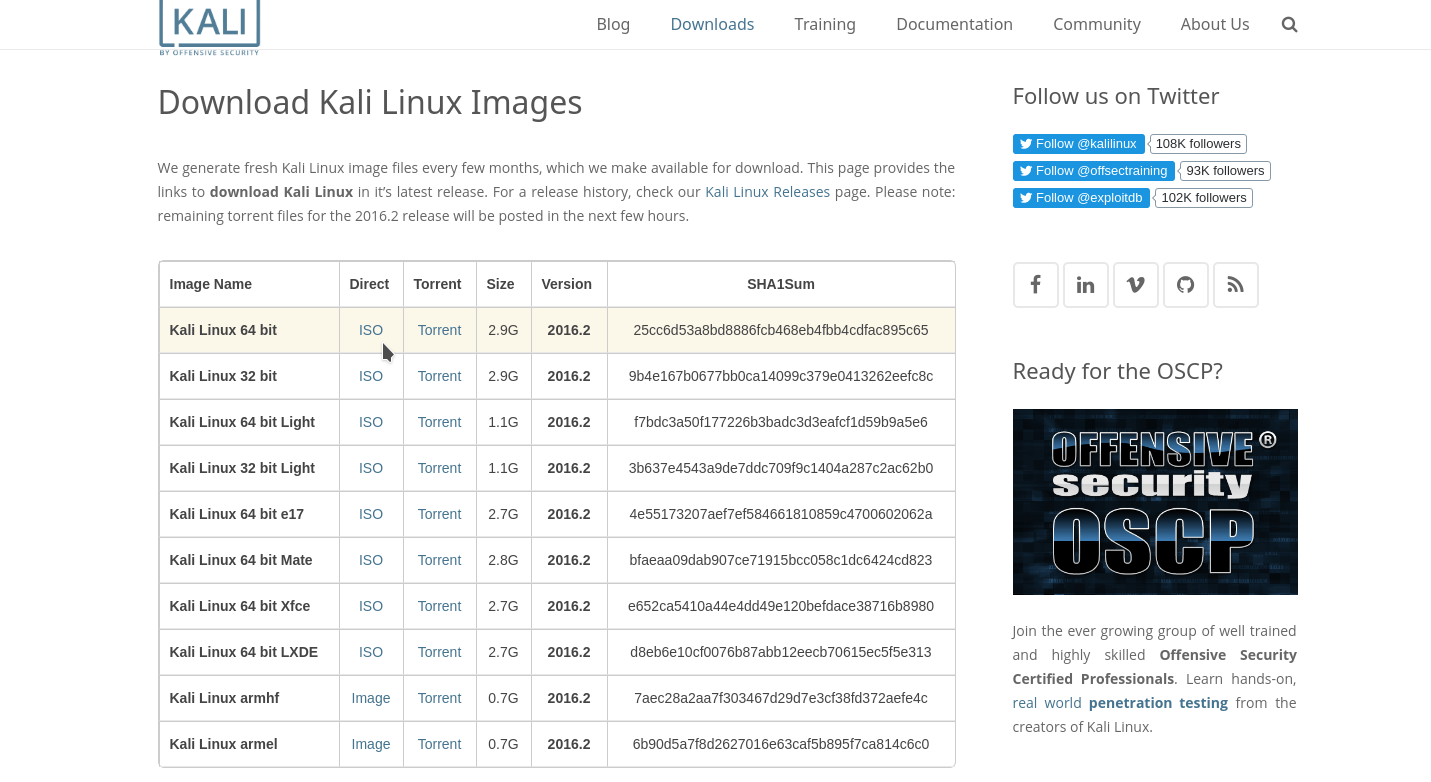
Скачайте его прямо с сайта или через торрент.
Шаг 2. Запись образа на носитель
Для записи установщика на флешку в Linux можно использовать уже привычную нам утилиту Unetbootin:
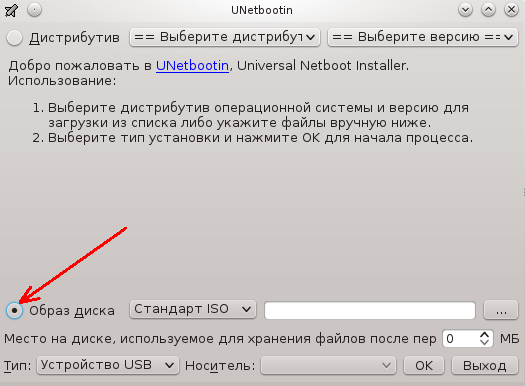
Или с помощью уже привычной нам dd:
dd if=~/образ.iso of=/dev/sdb1 bs=5M
Здесь /dev/sdb1 – это ваша флешка. Если же нужно записать на диск, то можно использовать Brasero или k3b. В Windows для записи на флешку можно использовать Rufus:
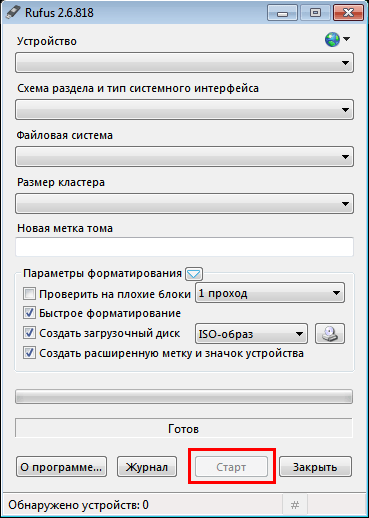
Шаг 3. Настройка BIOS
Дальше нам нужно запустить компьютер с нашего носителя, для этого сначала перезагрузите компьютер и во время заставки BIOS нажмите F2, Del, F8 или Shift+F2 для входа в настройки. В открывшемся меню перейдите на вкладку Boot и в разделе Boot Device Priority или 1st Boot Device выберите ваш носитель:
Тут нужно выбрать либо флешку, либо привод оптических дисков. Дальше установка Kali Linux с флешки ничем не отличается от установки с диска, только будет немного быстрее. Когда завершите, перейдите на вкладку Exit и нажмите Exit & Save Changes.
Установка Kali Linux
В этой инструкции мы будем рассматривать псеводграфический установщик, хотя в графическом все шаги будут очень похожи. Вообще, процесс очень напоминает установку Debian.
Шаг 1. Запуск установщика Kali Linux
Сразу же после перезагрузки появится вот такое меню, здесь нам не нужен запуск LiveCD – пролистайте вниз и выберите Install:
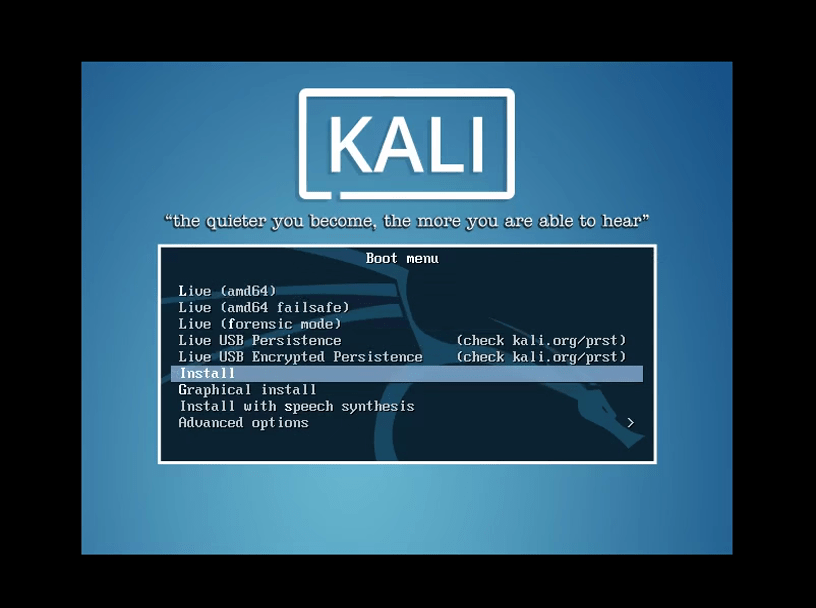
Несколько замечаний по управлению установщиком. Для перемещения по пунктах используйте клавиши со стрелками, для выбора Enter, для переключения кнопок – Tab, а чтобы отметить галочку – пробел.
Шаг 2. Выберите язык Kali Linux
Укажите язык, на котором будет работать установщик и сама система:
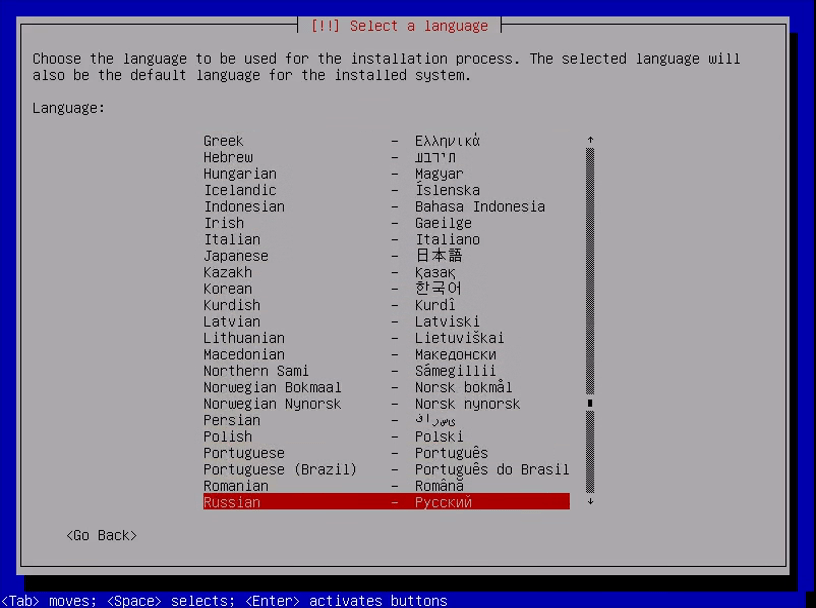
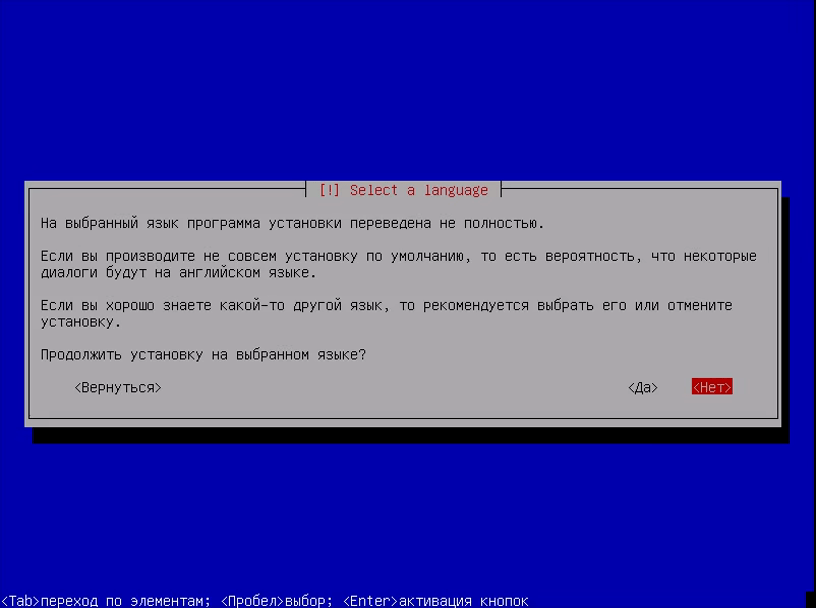
При выборе русского система скажет, что установщик переведён не полностью, выберите всё равно его:
Шаг 3. Выберите страну Kali Linux
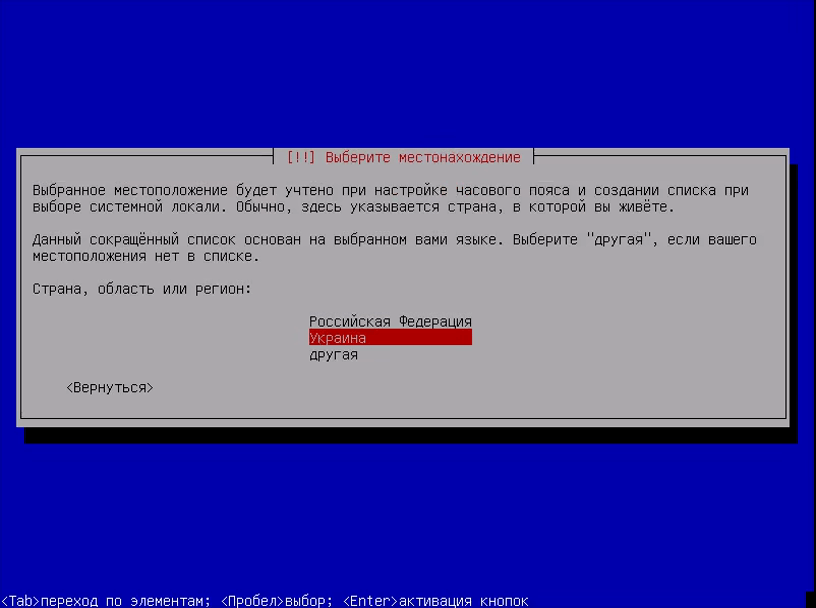
Выберите вашу страну для правильной настройки часового пояса:
Шаг 4. Раскладка клавиатуры Kali Linux
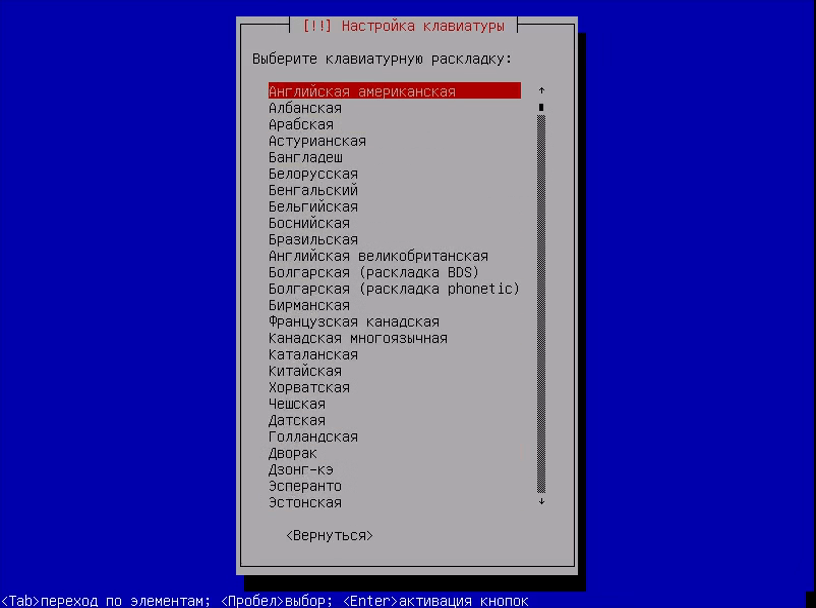
Выберите раскладку клавиатуры, советую брать английскую, чтобы потом без проблем ввести имя пользователя:
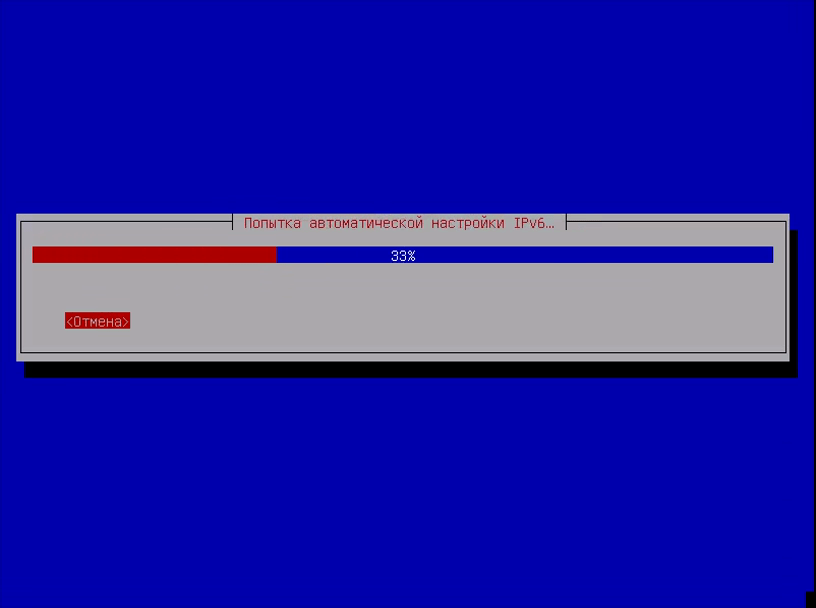
Шаг 5. Настройка установщика Kali Linux
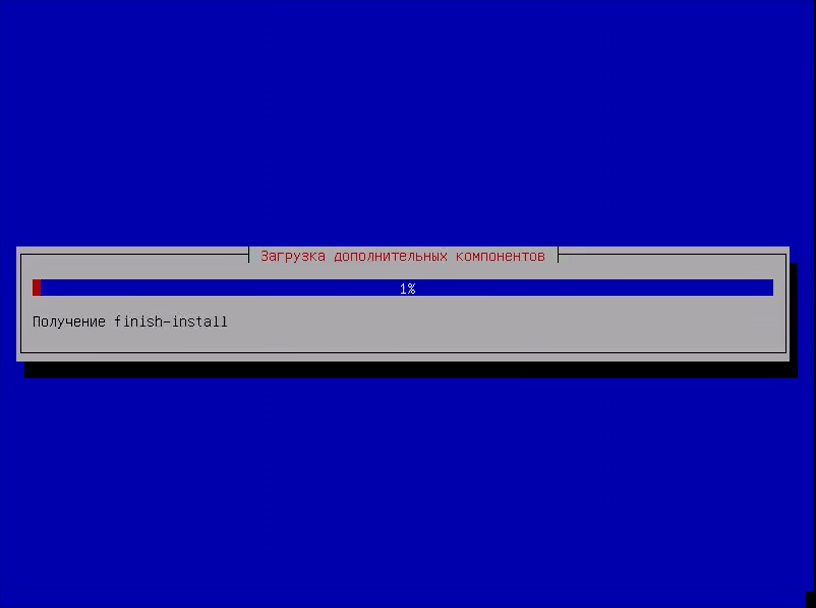
Подождите, пока установщик загрузит нужные пакеты и подключится к интернету:
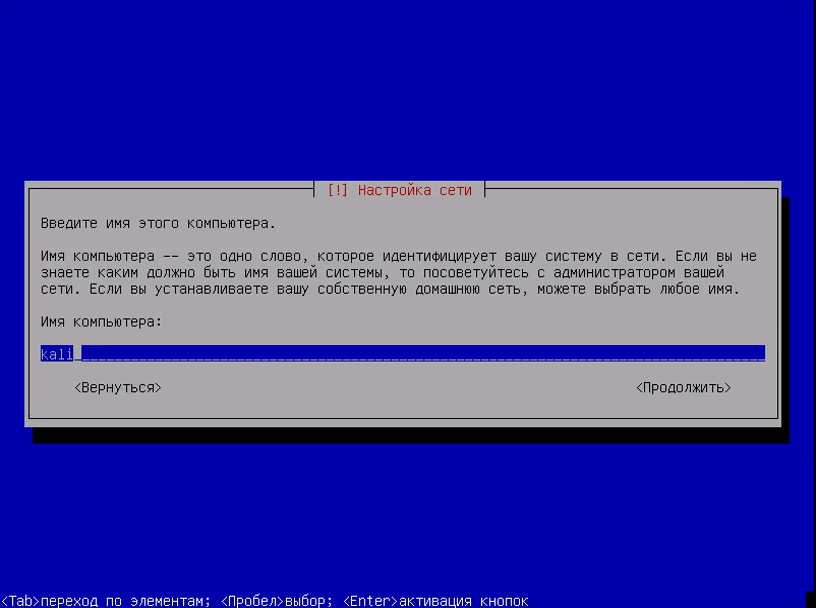
Шаг 6. Имя компьютера
Выберите имя компьютера:
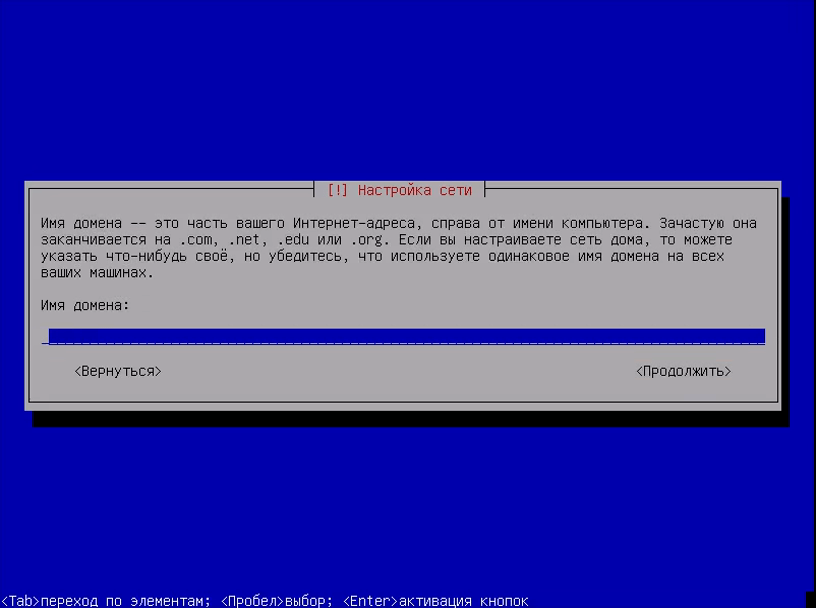
Шаг 7. Имя домена
Укажите имя домена, если это нужно. Если нужна установка Kali Linux 2 на домашний компьютер, то можно просто поставить local:
Шаг 8. Пароль суперпользователя
Введите пароль пользователя root:
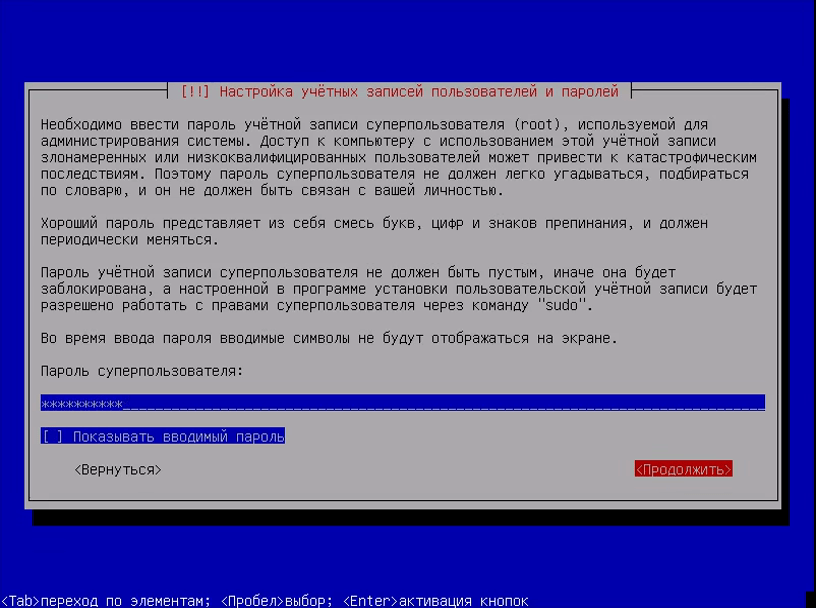
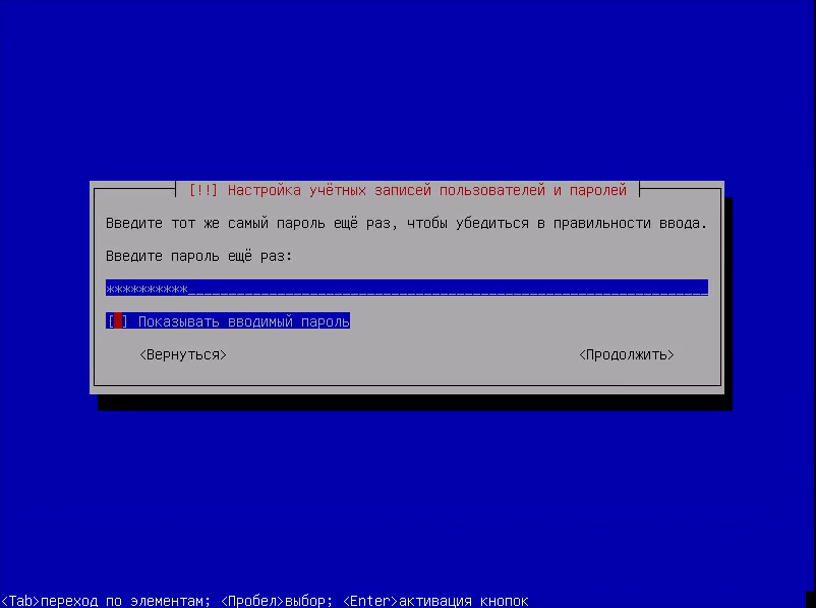
Затем введите его ещё раз:
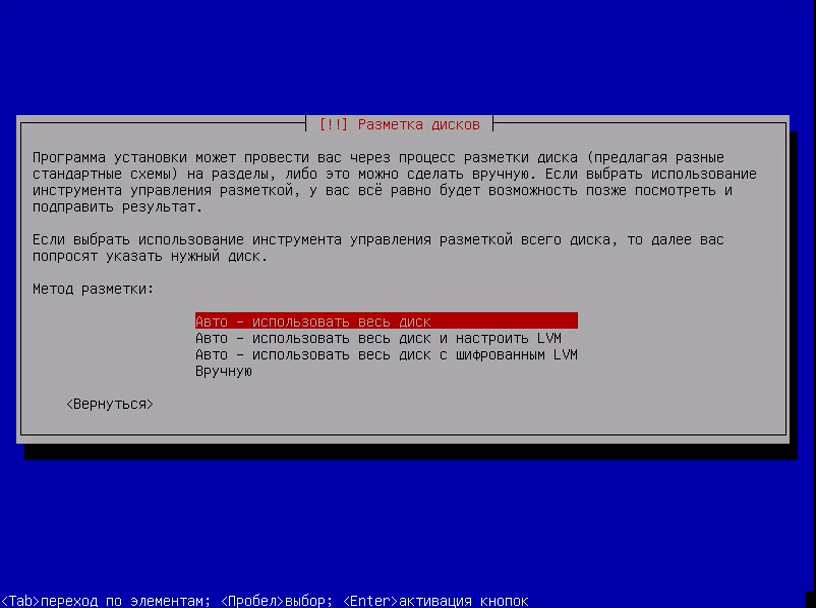
Шаг 9. Разметка диска Kali Linux
Вы можете использовать весь диск, просто применив автоматическую разметку, но мы рассмотрим ручной вариант, поэтому в этом меню выберите вручную:
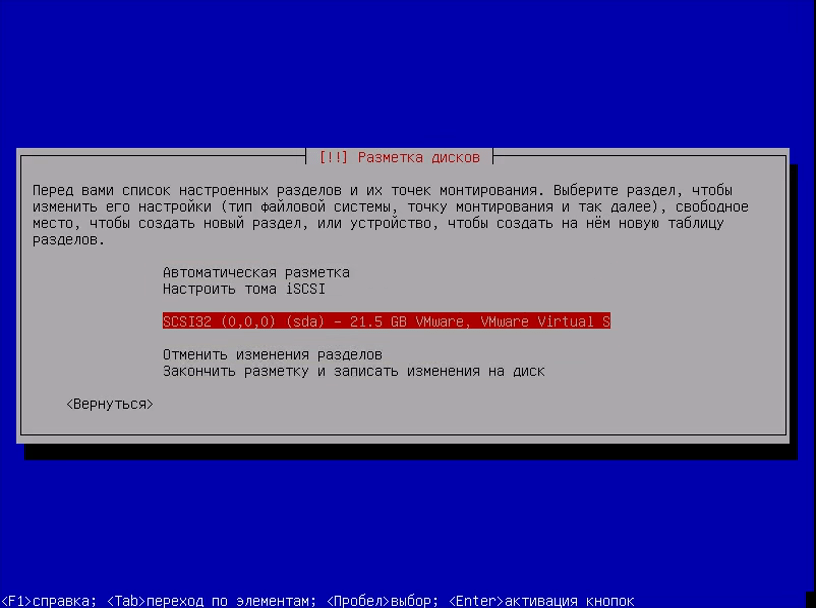
Затем выберите ваш жёсткий диск, например sda:
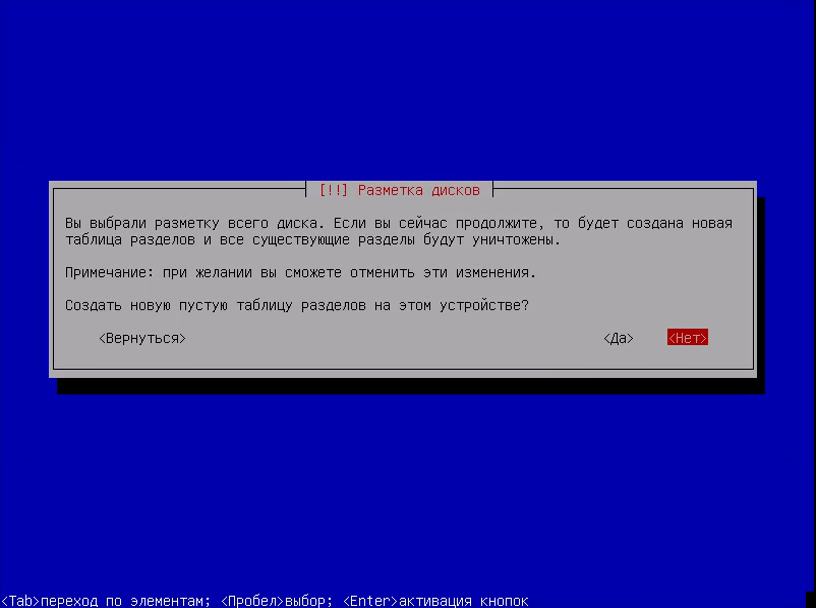
Шаг 10. Таблица разделов
Если вы устанавливаете Kali Linux на чистый диск, то нужно создать новую таблицу разделов, поэтому выберите пункт Да с помощью Tab:
Шаг 11. Корневой раздел Kali Linux
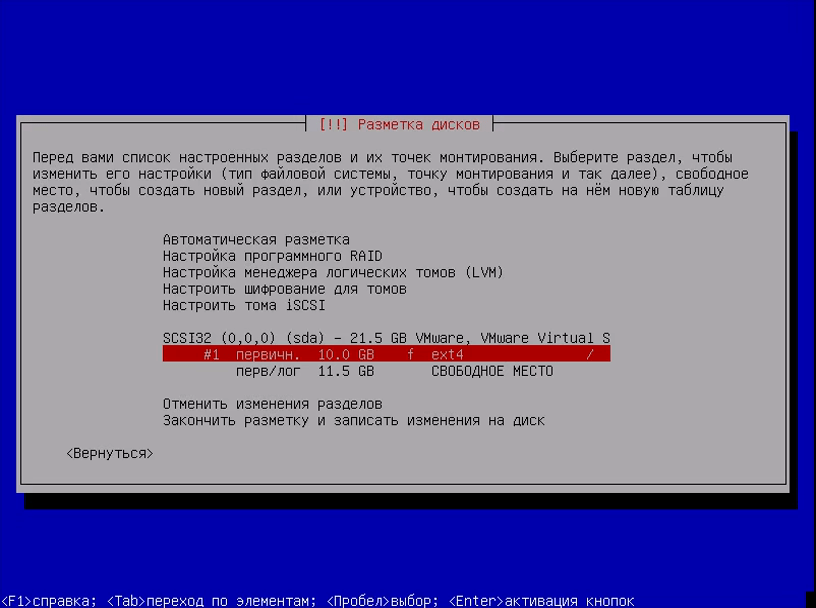
Выберите свободное место и нажмите Enter:
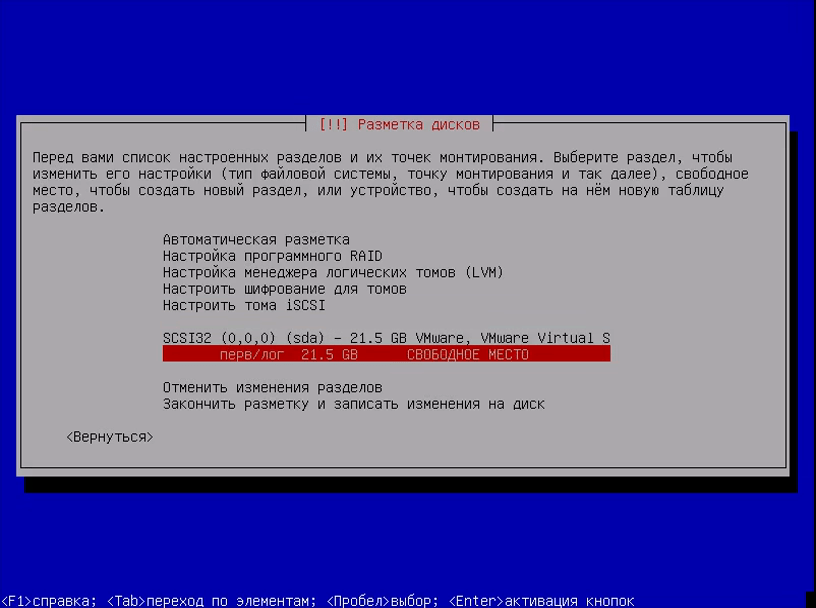
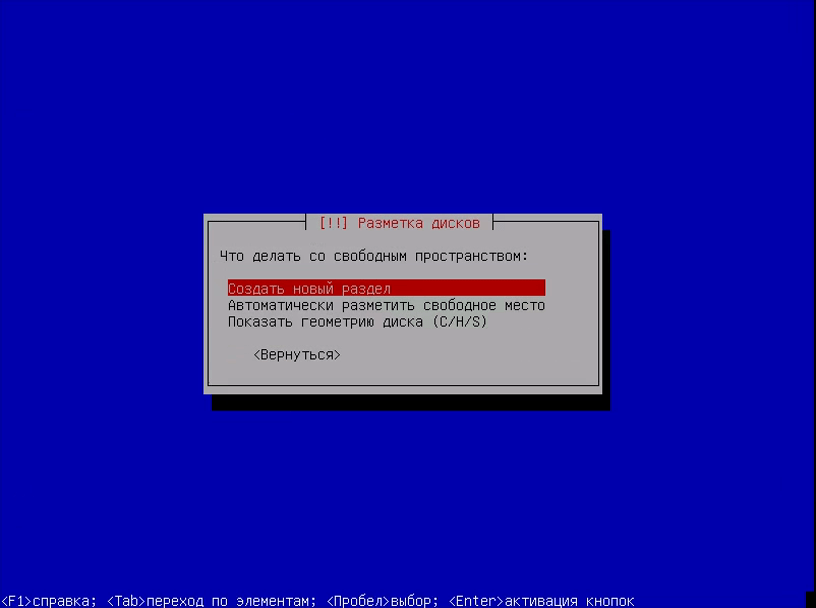
Затем создать новый раздел:
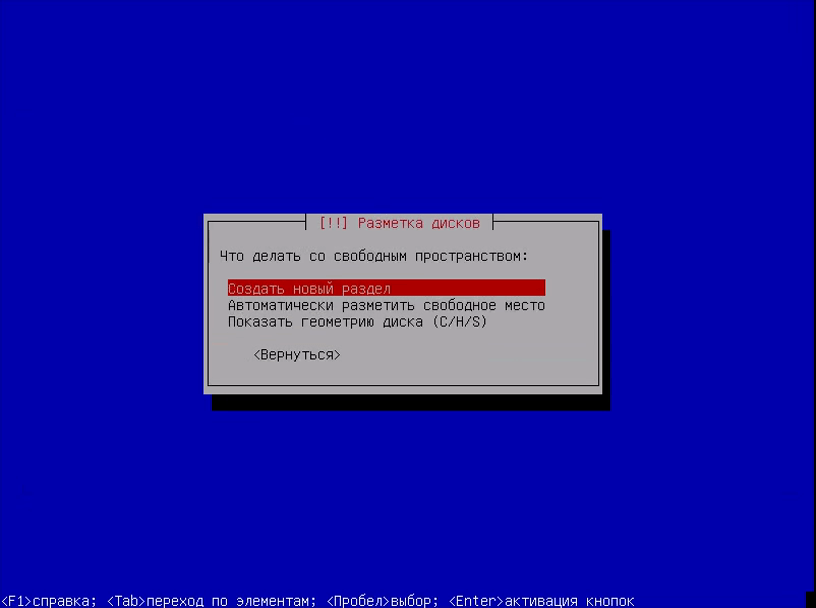
Введите размер раздела, для корня минимальный размер – 10 Гб, но если вы хотите ещё и устанавливать много программ, то желательно выделить больше:
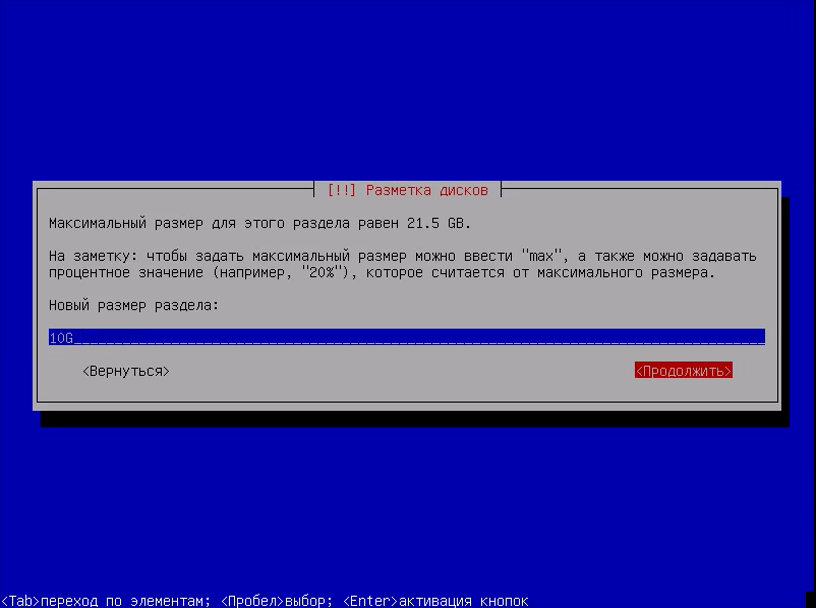
Тип раздела – первичный, расположение – в начале:
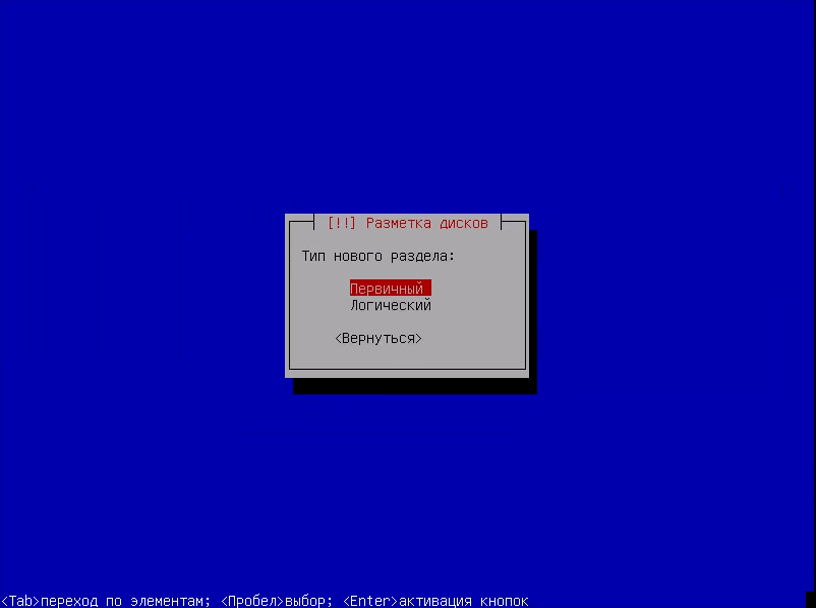
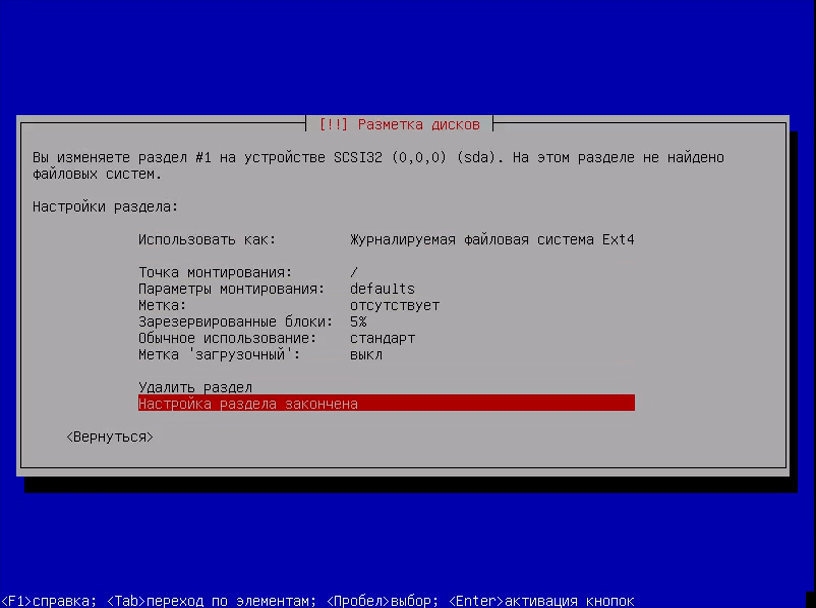
В последнем окне мастера ничего ни настраивать, ни менять не нужно. Но тут вы можете выбрать файловую систему, количество места, зарезервированного под root, и метку раздела. Нажмите Настройка раздела закончена:
Шаг 12. Раздел подкачки
Точно так же создайте раздел подкачки:
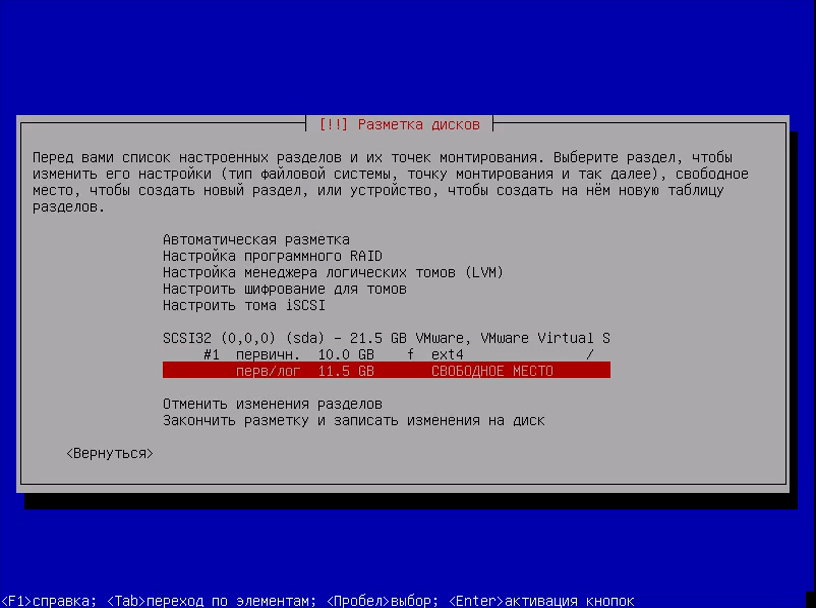
Размер должен равняться размеру вашей оперативной памяти:
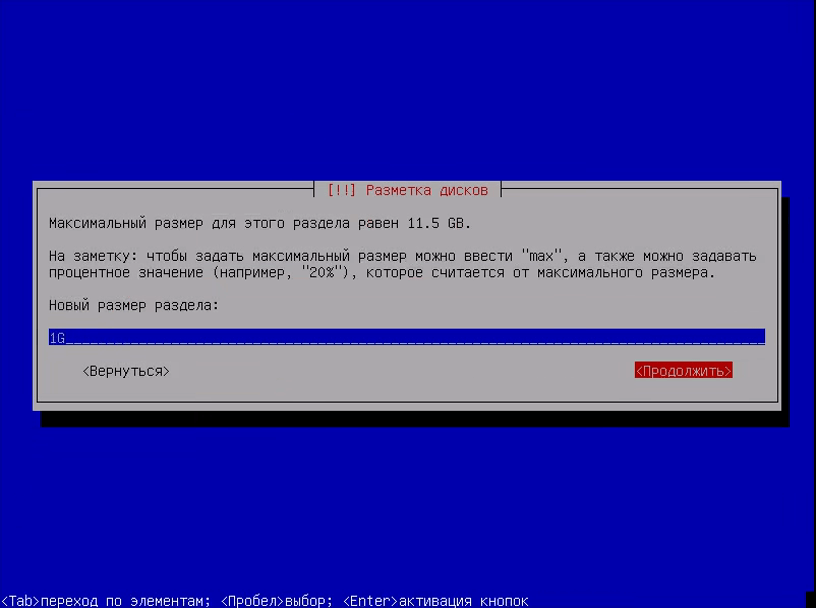
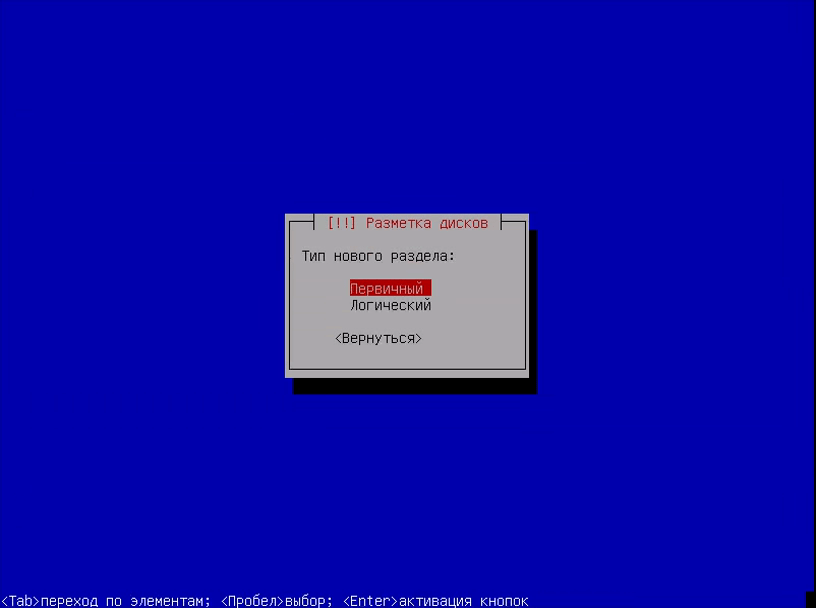
На последнем шаге мастера выберите Использовать как – раздел подкачки, затем снова настройка закончена:
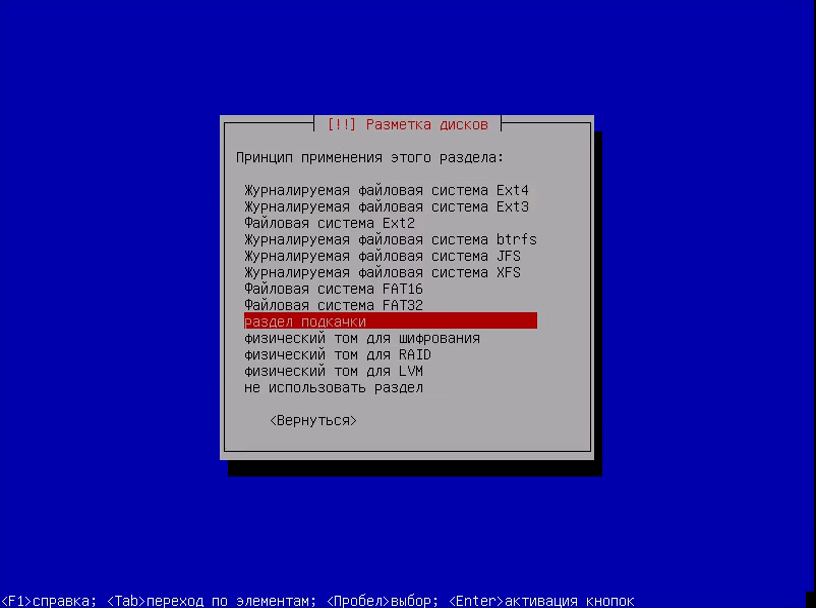
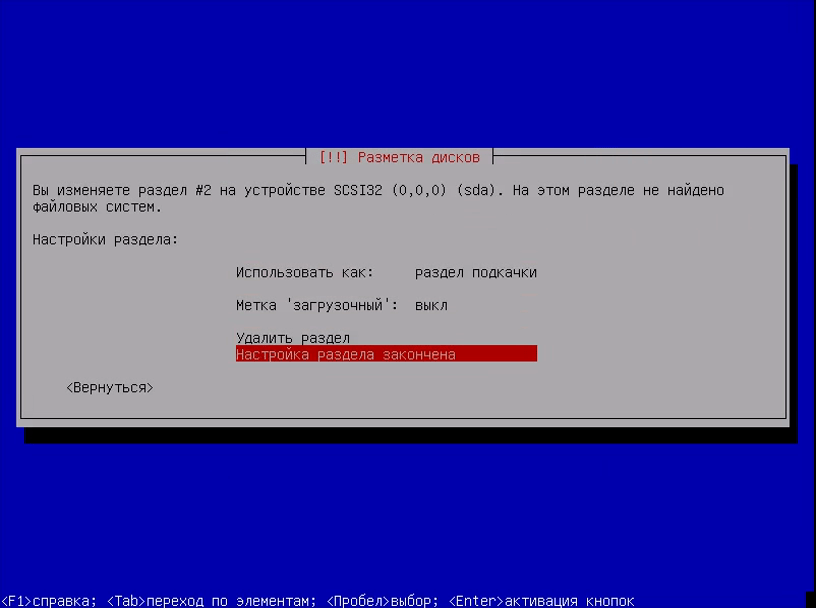
Шаг 13. Домашний раздел
По такому же алгоритму создаётся домашний раздел:
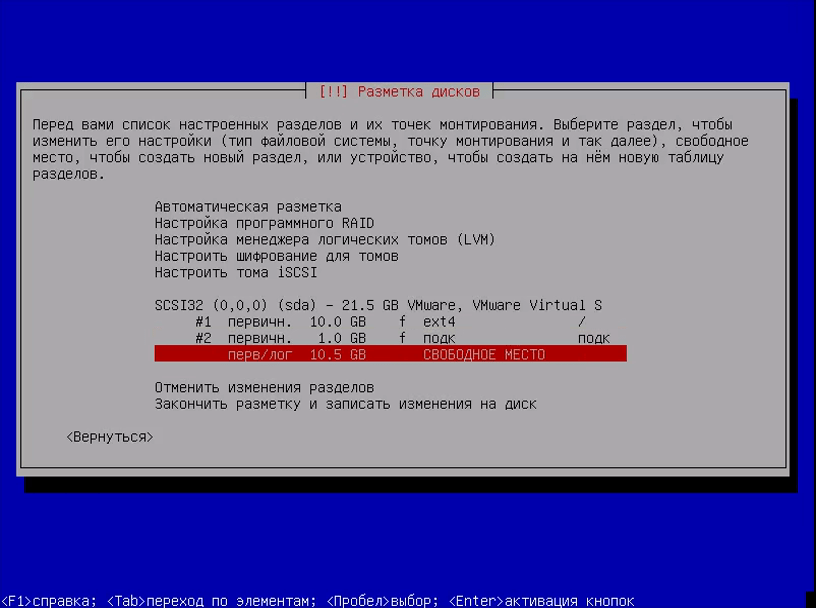
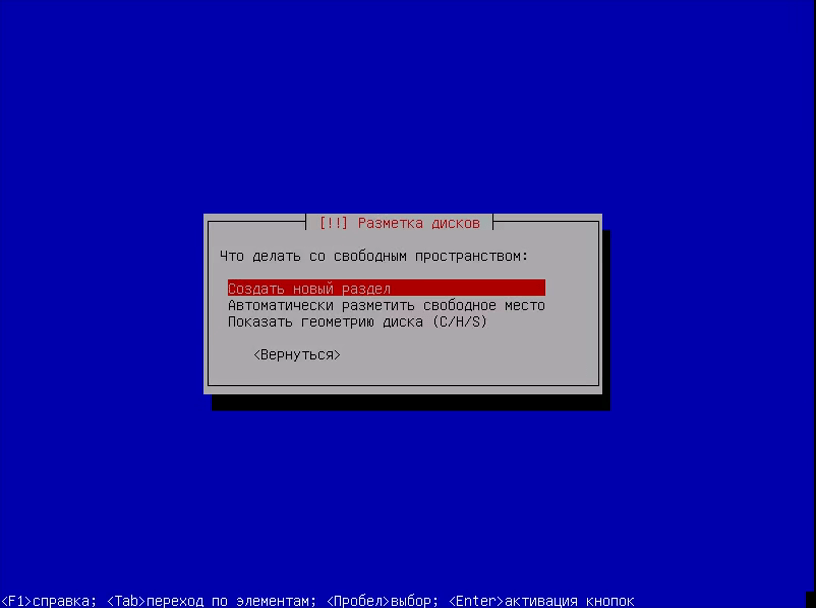
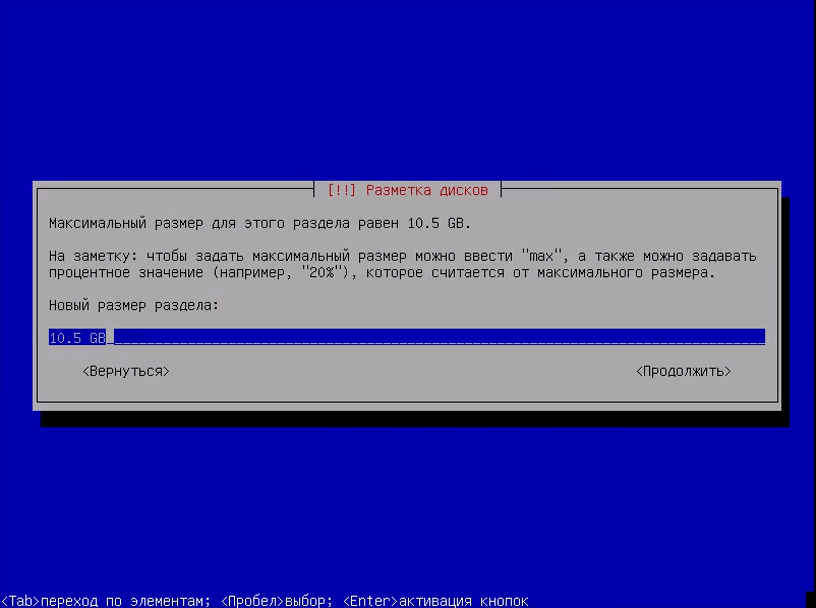
Размер – всё доступное пространство:
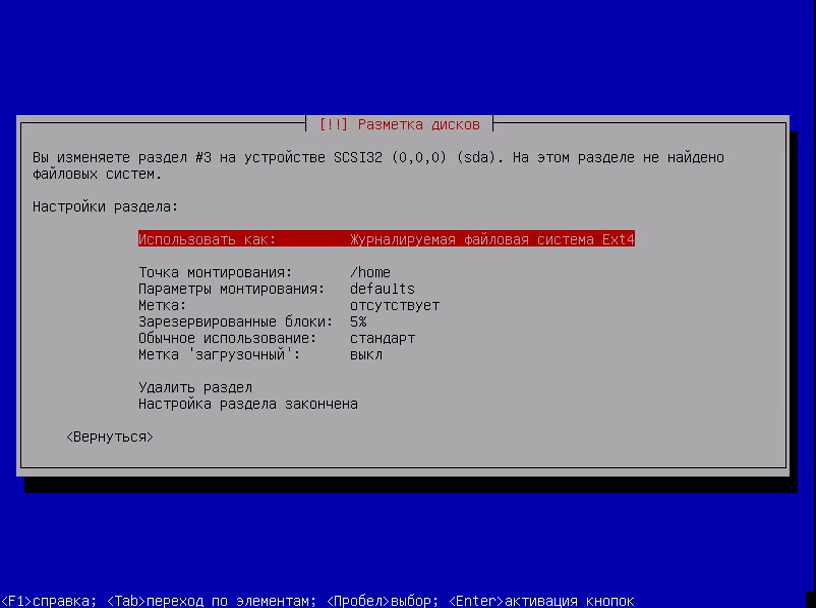
В конце выберите Закончитьразметку изаписать изменения на диск.
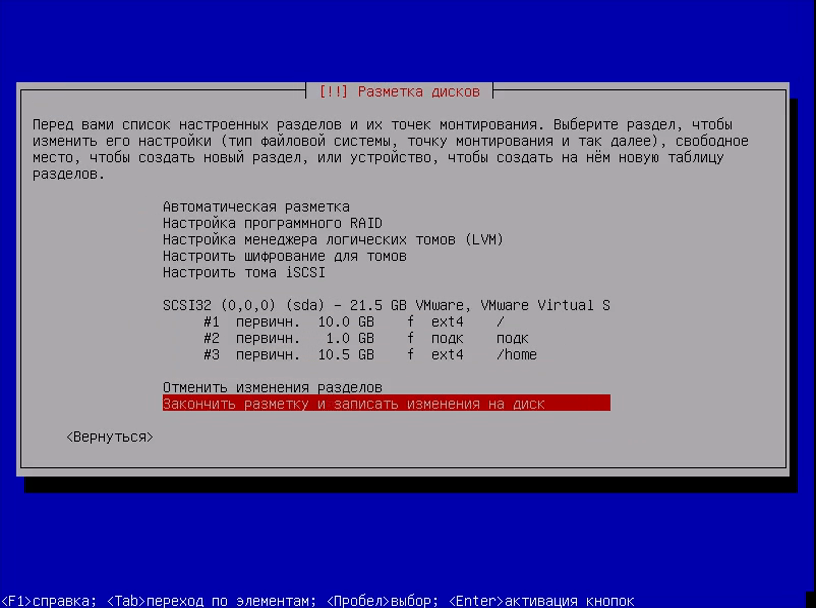
Шаг 14. Завершение разметки
Проверьте, всё ли правильно, и нажмите Да:
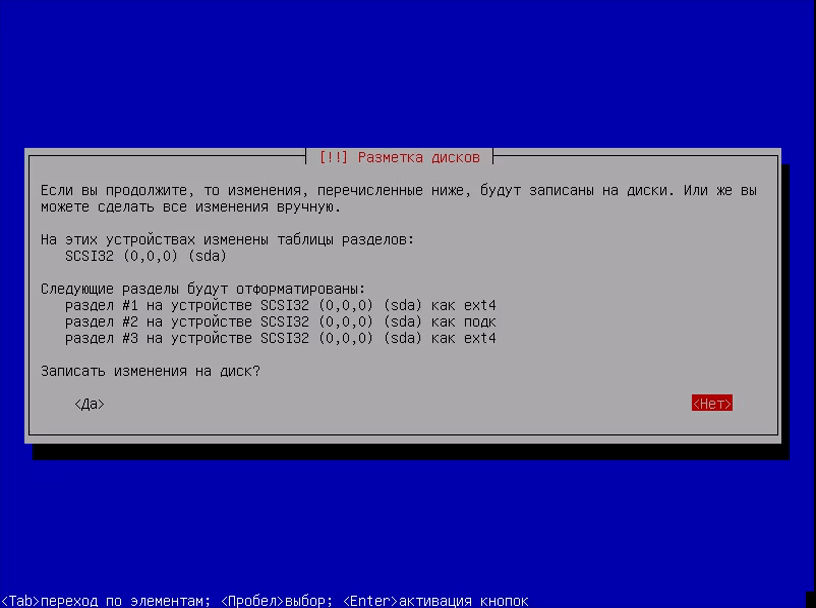
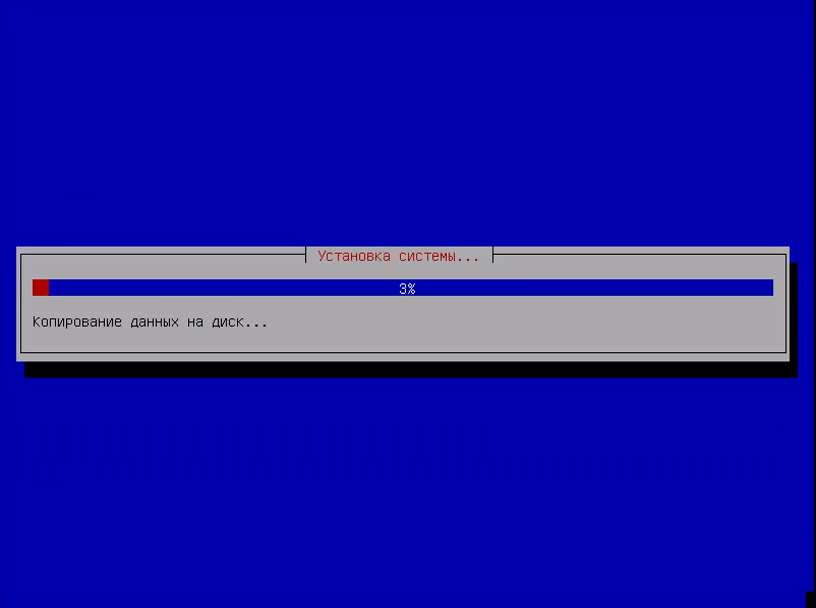
Шаг 15. Установка
Подождите, пока система скопирует часть файлов:
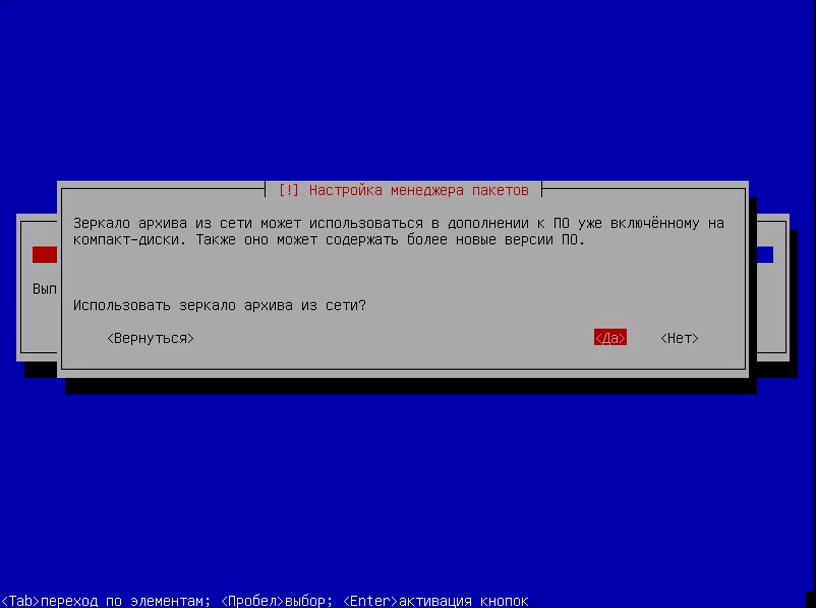
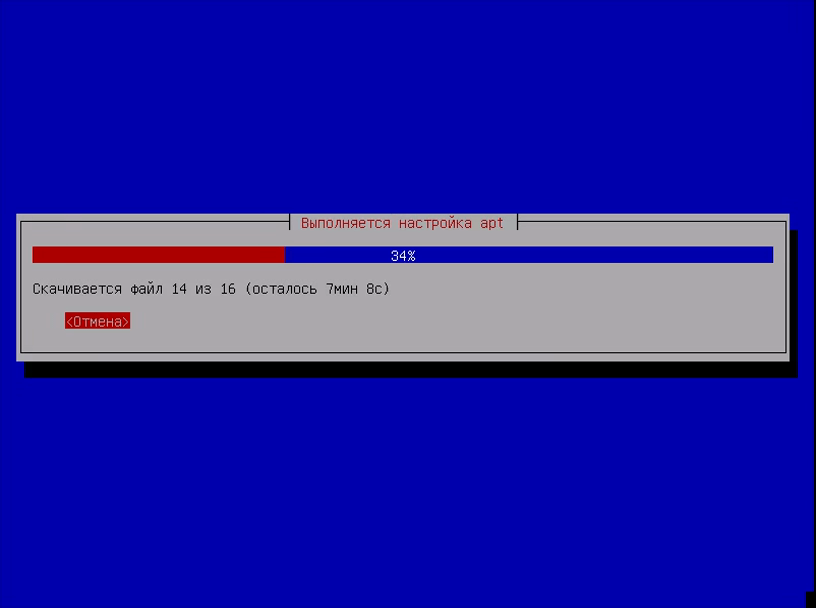
Шаг 16. Настройка менеджера пакетов
Программе установки нужно скачать некоторые пакеты из Сети для более правильной работы, поэтому на вопрос “Использовать зеркало из сети” ответьте Да:
Подождите, пока загрузятся списки пакетов:
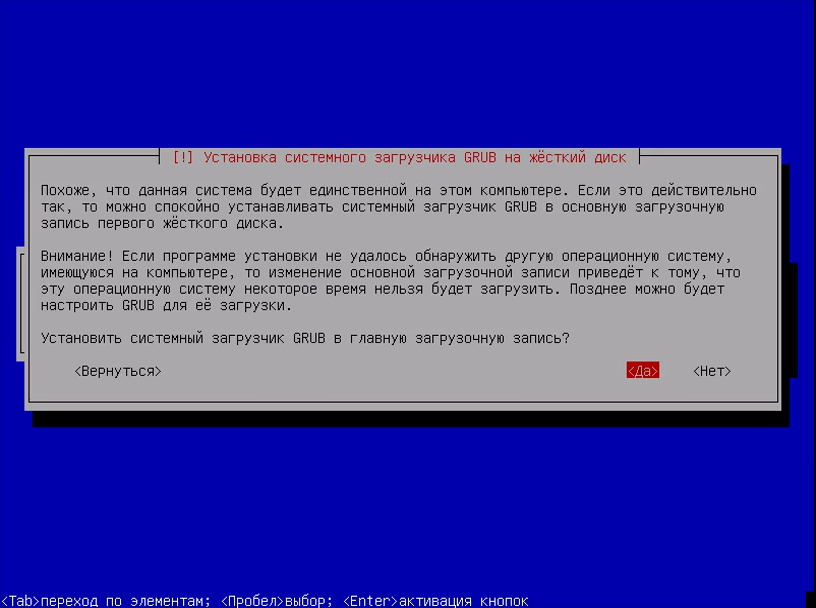
Шаг 17. Установка загрузчика
Нажмите Да, чтобы установить загрузчик Grub на жёсткий диск, вы можете не устанавливать загрузчик, но тогда у вас должна быть установлена другая система, загрузчик которой вы можете использовать:
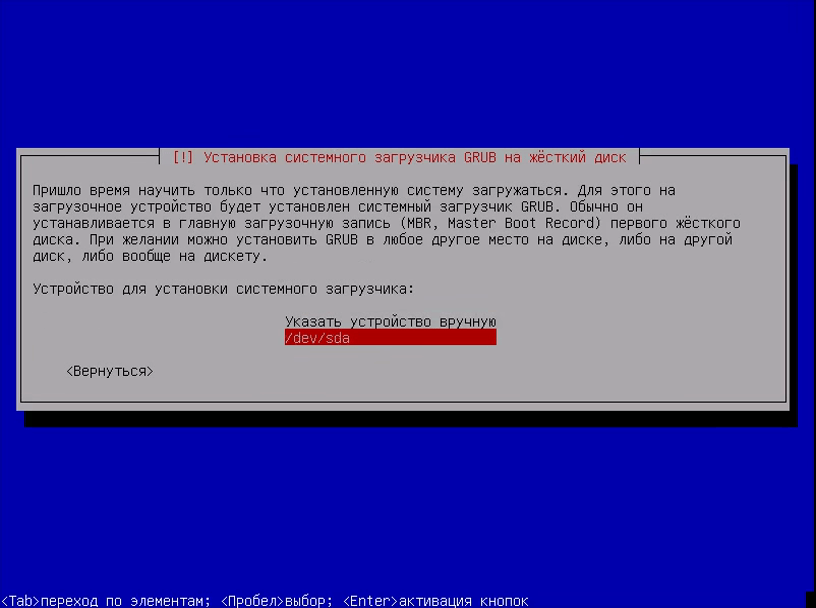
Выберите диск для установки загрузчика:
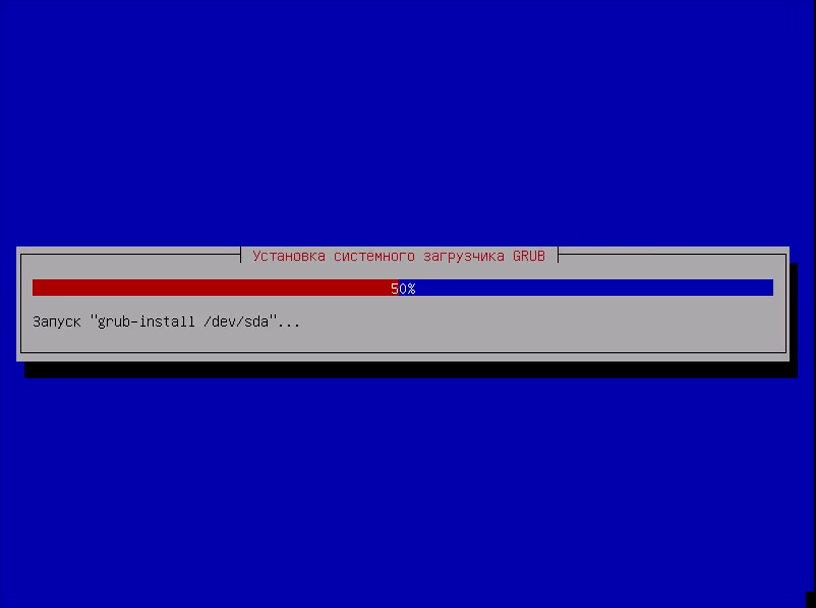
Шаг 18. Завершение установки
Дождитесь завершения установки:
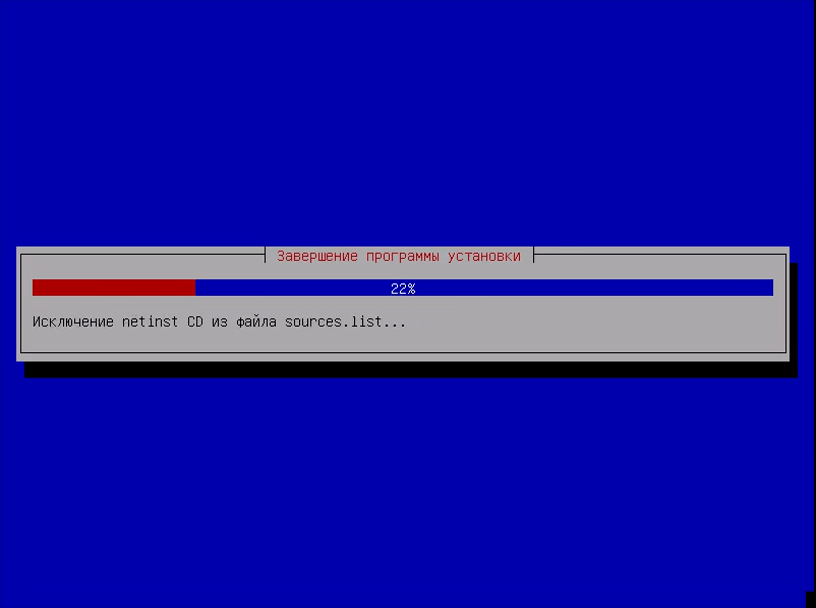
Шаг 19. Перезагрузка
Перезагрузите компьютер:
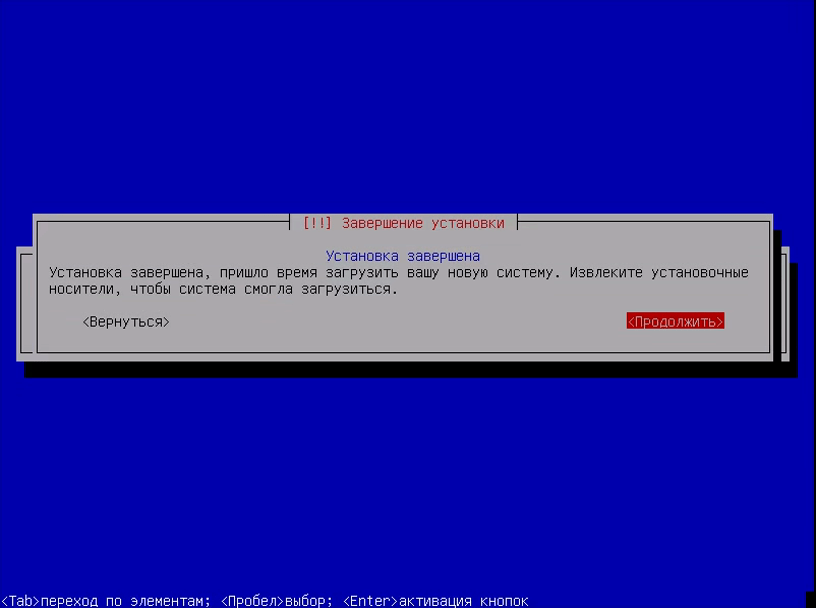
Шаг 20. Загрузчик Grub
Выберите первый пункт в меню загрузчика и дождитесь завершения установки
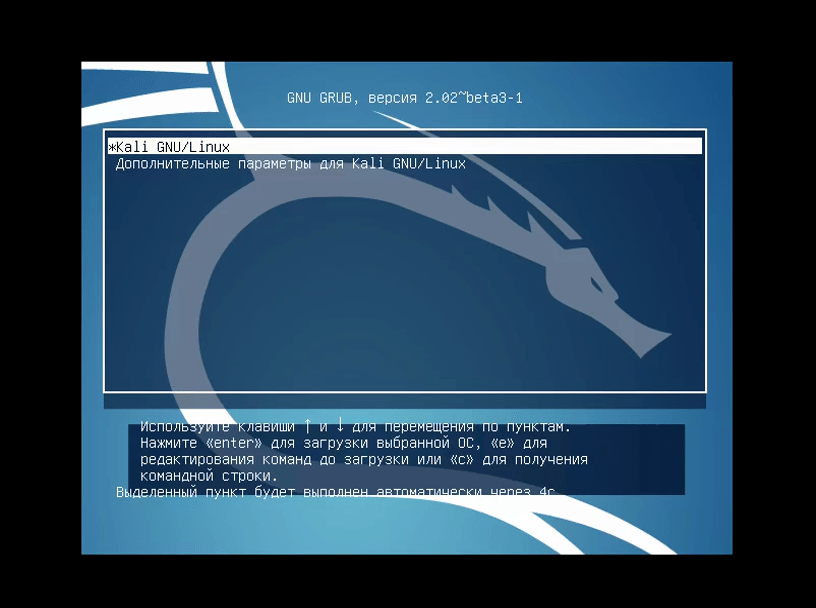
Шаг 21 Вход в систему
Введите логин root и пароль, который указали во время установки:
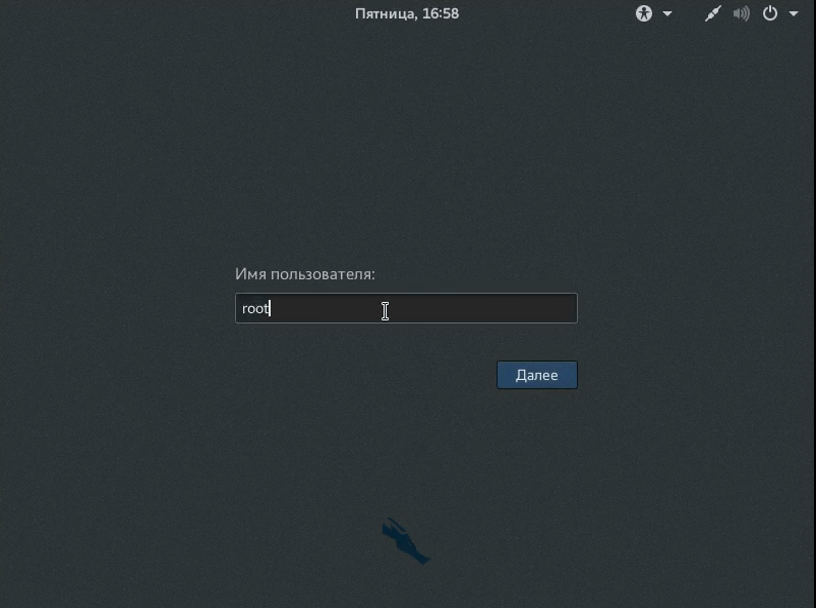
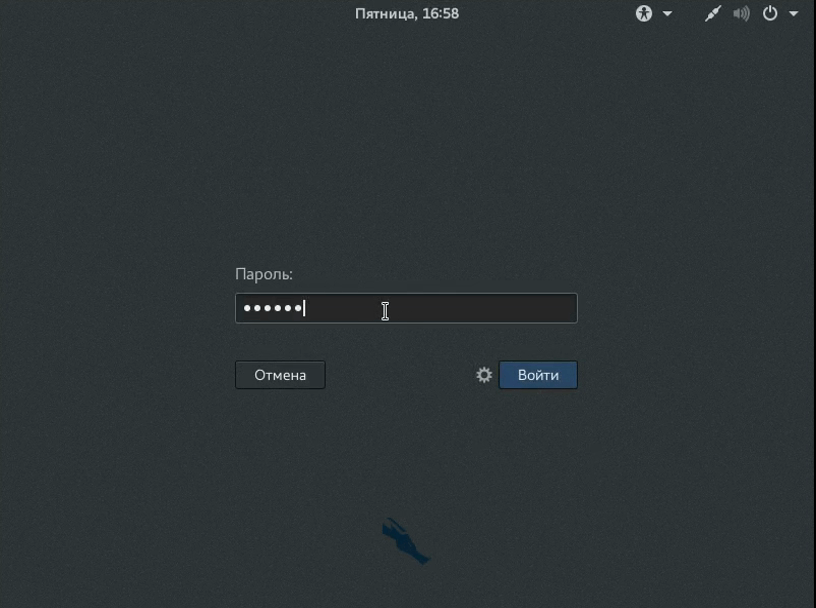
Шаг 22. Готово
Вот и всё, установка Kali Linux на жёсткий диск вашего компьютера полностью завершена, и теперь вы готовы выполнять тестирование безопасности различных систем.
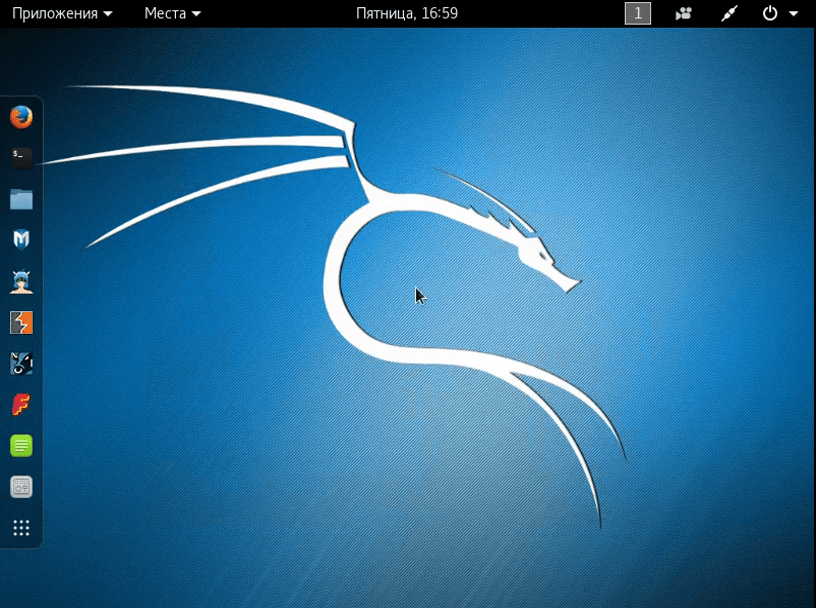
Настройка Kali Linux после установки
Настройка NetworkManager Kali Linux
По умолчанию NetworkManager отключен, поскольку он мешает работать некоторым утилитам тестирования безопасности.
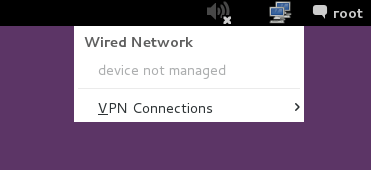
Но если вы все же хотите использовать NetworkManager, его не так сложно включить для этого откройте файл /etc/NetworkManager/NetworkManager.conf и замените строчку managed=false на managed=true:
gedit /etc/NetworkManager/NetworkManager.conf
[main]
plugins=ifupdown,keyfile
[ifupdown]
managed=true
Теперь перезапустите NetworkManager и вы сможете управлять своим сетевыми интерфейсами, в том числе и беспроводными.
service network-manager restart
Настройка репозиториев Kali Linux
Чтобы иметь возможность устанавливать все нужные программы нам необходимо добавить в систему репозитории. По умолчанию подключены далеко не все доступные варианты. Поэтому откройте файл /etc/apt/sources.list и приведите его к такому виду:
gedit /etc/apt/sources.list
Regular repositories
deb http://http.kali.org/kali sana main non-free contrib
deb http://security.kali.org/kali-security sana/updates main contrib non-free
# Source repositories
deb-src http://http.kali.org/kali sana main non-free contrib
deb-src http://security.kali.org/kali-security sana/updates main contrib non-free
Обновление системы Kali Linux
Важно держать любую операционную систему в самом свежем состоянии, настройка Kali Linux 2.0 после установки тоже должна включать обновление. Для обновления выполните:
apt-get clean && apt-get update && apt-get upgrade -y && apt-get dist-upgrade -y
Настройка звука Kali Linux
Чтобы поддержка звука автоматически включалась при загрузке системы сначала необходимо установить пакет:
sudo apt-get install alsa-utils -y
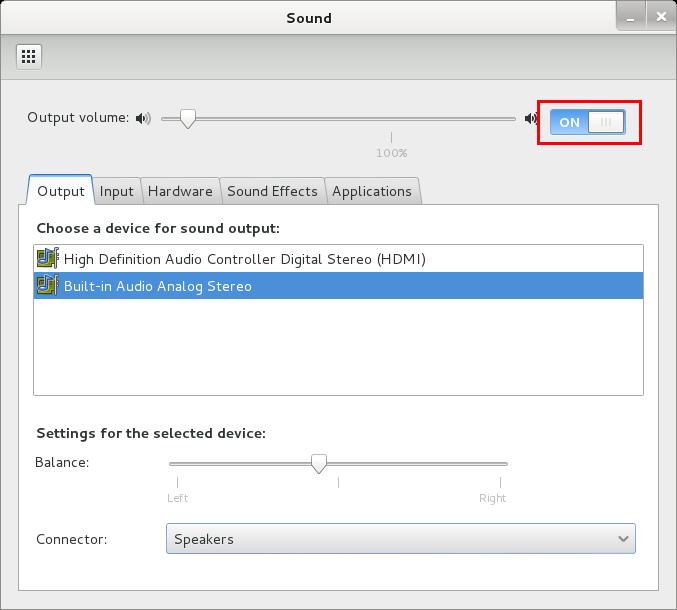
Нажмите правой кнопкой по иконке со значком динамика и выберите “Настройки звука”. Переключите выключатель Output Volume в положение ON.
Установка Java Kali Linux
Java машина нужна для выполнения многих программ поэтому нужно ее установить. Сначала перейдите на официальный сайт и загрузите установщик. Затем распакуйте архив и переместите полученную папку в /opt/:
tar -xzvf /root/jdk-8u121-linux-x64.tar.gz
# mv jdk1.8.0_121 /opt
# cd /opt/jdk1.8.0_121
Дальше выполните такие команды, чтобы обновить альтернативы системы и использовать именно эту версию:
update-alternatives –install /usr/bin/java java /opt/jdk1.8.0_121/bin/java 1
# update-alternatives –install /usr/bin/javac javac /opt/jdk1.8.0_121/bin/javac 1
# update-alternatives –install /usr/lib/mozilla/plugins/libjavaplugin.so mozilla-javaplugin.so /opt/jdk1.8.0_121/jre/lib/amd64/libnpjp2.so 1
# update-alternatives –set java /opt/jdk1.8.0_121/bin/java
# update-alternatives –set javac /opt/jdk1.8.0_121/bin/javac
# update-alternatives –set mozilla-javaplugin.so /opt/jdk1.8.0_121/jre/lib/amd64/libnpjp2.so
В инструкции использовалась установка версии 8u121, но к моменту прочтения статьи может выйти более новая версия.
Установка Flash Kali Linux
Контент Flash теряет свою популярность, но все еще очень часто используется. Поэтому можно установить эту программу в системе:
apt-get install flashplugin-nonfree
Затем установите программу:
update-flashplugin-nonfree –install
После установки вам нужно будет перезапустить браузеры.
Установка архиваторов Kali Linux
В системах Linux по умолчанию используется формат tar. Но часто приходится работать и с другими форматами, такими как zip или rar. Для установки всех необходимых утилит выполните такую команду:
apt-get install unrar unace rar unrar p7zip zip unzip p7zip-full p7zip-rar file-roller -y
Добавление пользователя Kali Linux
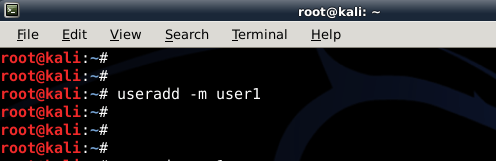
По умолчанию в Kali Linux используется пользователь root. Но не всегда безопасно использовать root. Поэтому нужно создать обычного пользователя. Используйте команду useradd с опцией -m:
useradd -m user1
Затем нужно установить пароль:
passwd user1
И добавьте пользователя в группу sudo:
usermod -a -G sudo user1
Использование apt-add-repository Kali Linux
В Debian можно подключать PPA репозитории с помощью add-apt-repository. Но в Kali Linux утилита не поставляется по умолчанию. Но вы можете установить ее, для этого выполните такие команды:
apt-get install python-software-properties
Установите и обновите apt-file:
apt-get install apt-file
# apt-file update
Теперь нужно найти файл скрипта apt-add-repository и немного его модифицировать:
apt-file search add-apt-repository
Дальше отредактируйте файл, так чтобы использовать репозитории последней версии Ubuntu:
!/bin/bash
if [ $# -eq 1 ]
NM=`uname -a && date`
NAME=`echo $NM | md5sum | cut -f1 -d” “`
then
ppa_name=`echo “$1″ | cut -d”:” -f2 -s`
if [ -z “$ppa_name” ]
then
echo “PPA name not found”
echo “Utility to add PPA repositories in your debian machine”
echo “$0 ppa:user/ppa-name”
else
echo “$ppa_name”
echo “deb http://ppa.launchpad.net/$ppa_name/ubuntu xenial main ” >> /etc/apt/sources.list
apt-get update >> /dev/null 2> /tmp/${NAME}_apt_add_key.txt
key=`cat /tmp/${NAME}_apt_add_key.txt | cut -d”:” -f6 | cut -d” ” -f3`
apt-key adv –keyserver keyserver.ubuntu.com –recv-keys $key
rm -rf /tmp/${NAME}_apt_add_key.txt
fi
else
echo “Utility to add PPA repositories in your debian machine”
echo “$0 ppa:user/ppa-name”
fi
Сохраните файл, затем все должно работать. Вы можете протестировать добавление репозиториев:
/usr/sbin/add-apt-repository ppa:noobslab/themes
# /usr/sbin/add-apt-repository ppa:alecive/antigone
Установите Tor Kali Linux
Kali Linux – это система для тестирования безопасности. Возможно, вам понадобиться Tor, для выполнения различных действий анонимно. Эта программа позволяет перенаправлять весь ваш трафик через ряд узлов с шифрованием.
apt-get install tor
# service tor start
Теперь вы можете перенаправить трафик нужной программы на узлы tor, например, iceweasel:
proxychains iceweasel
Установка FileZilla Kali Linux
Иногда приходится использовать FTP, для установки клиента выполните:
apt-get install filezilla filezilla-common -y
Инструменты мониторинга Kali Linux
Утилита htop позволяет посмотреть использование памяти и процессора, а также информацию о каждом из процессов. Утилита NetHogs позволяет следить за исходящим и входящим трафиком. Для установки утилит выполните:
apt-get install htop nethogs -y
Установка драйверов Kali Linux
Если вы собрались играть в игры, или делать еще что-то, где используется видеокарта, вам необходимо установить драйвера видеокарты. Если у вас видеокарта от NVIDIA, выполните такие команды:
apt-get update
# apt-get dist-upgrade
# apt-get install -y linux-хедерs-$(uname -r)
# apt-get install nvidia-kernel-dkms
Установка RecordMyDesktop
Иногда нужно записывать свои действия на видео. Для этого можно использовать программу RecordMyDesktop:
apt-get install gtk-recordmydesktop recordmydesktop remmina -y
Установить Gdebi
Утилита dpkg – это отличный инструмент для установки программ из deb пакетов. На эта программа не может разрешать зависимости во время установки пакетов. Вместо нее вы можете использовать gdebi:
apt-get install gdebi -y
Разрешите автовход
По умолчанию система запрашивает пароль для входа. Но вы можете включить автоматический вход добавив строчку AutomaticLoginEnable = true в файл:
vi /etc/gdm3/daemon.conf
AutomaticLoginEnable = true
AutomaticLogin = root
Теперь вам не нужно вводить пароль для входа.
Установка Skype
Перейдите на официальный сайт и загрузите версию Skype для Debain. Затем используйте dpkg для установки:
dpkg -i skype.deb
Электропитание
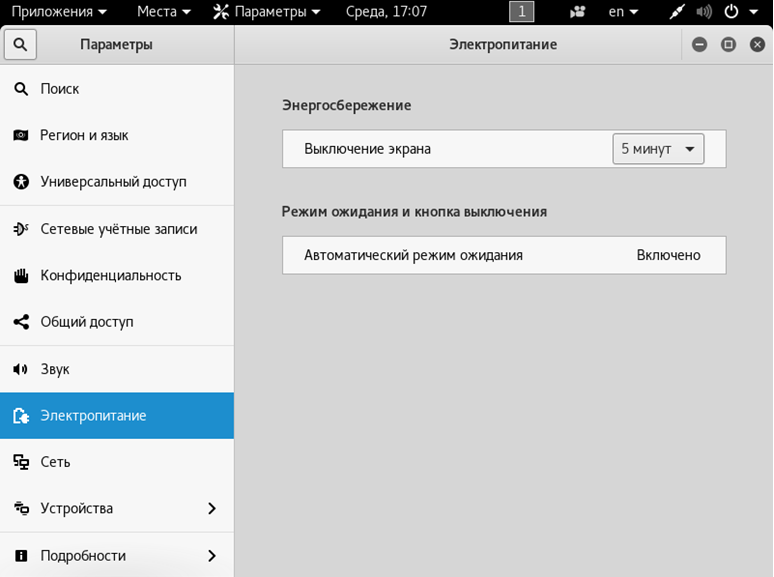
Чтобы Kali Linux не гасил экран или не переходил в режим ожидания, надо настроить электропитание.
Настройка Wi-Fi
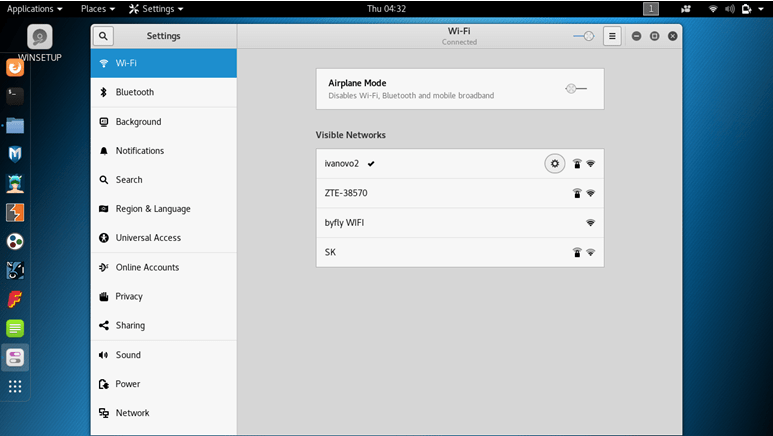
В подавляющем большинстве случаев, настройка интернета сводится к тривиальному подключению к беспроводной точке доступа после установки Kali.
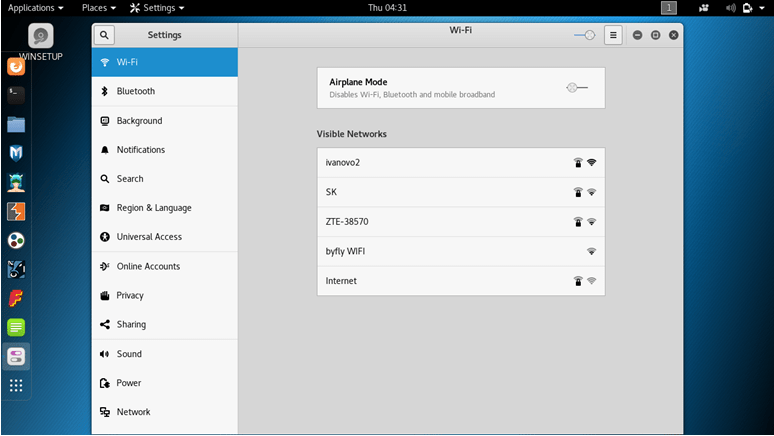
Для этого нужно кликнуть по нужной сети и ввести пароль.
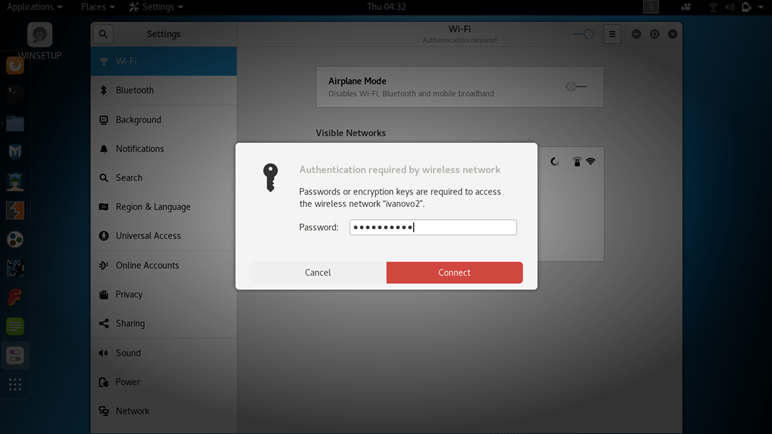
Подключенная сеть будет отмечена галочкой.
Настройка сети LAN Kali Linux
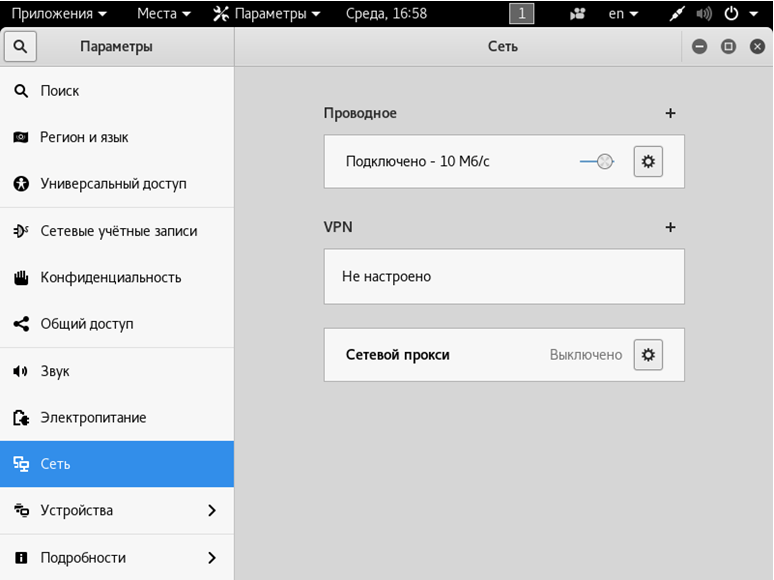
Проводное подключение определяется автоматически, если есть DHCP сервер (например, роутер раздает адреса). В противном случае может потребоваться вручную указать параметры после установки системы Linux. Для этого в разделе «Сеть» нужно нажать на шестеренку у проводного соединения.
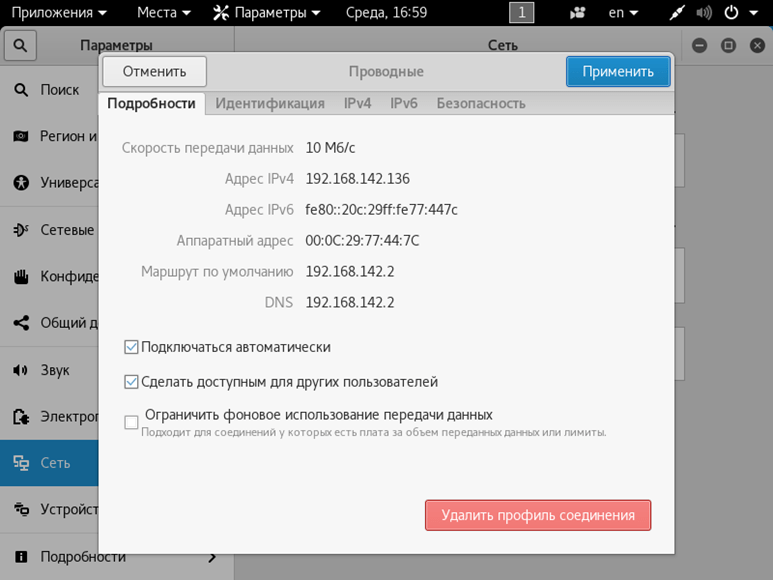
Откроется окно со сводной информацией. На вкладке «Подробности» можно настроить автоматизацию, доступ для других пользователей и передачу данных в фоне (хотя для Kali Linux лучше использовать безлимит).
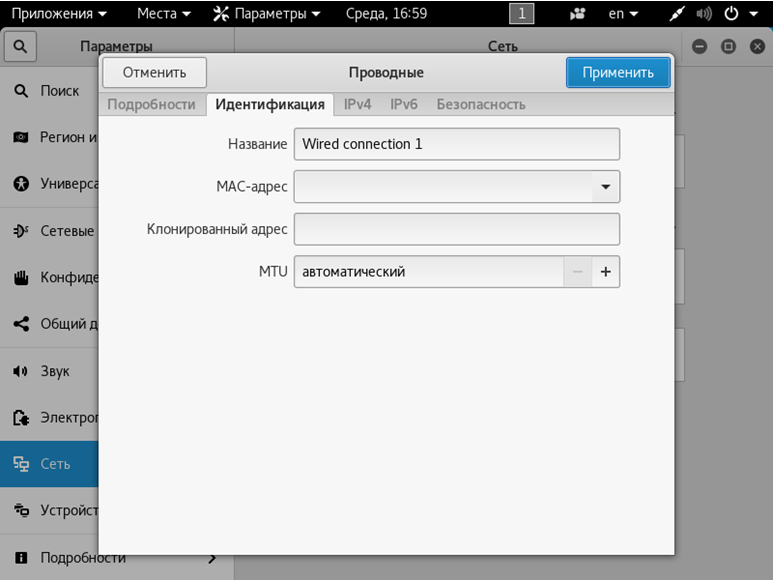
Вкладка «Идентификация» позволяет скорректировать название подключения, выбрать MAC-адрес, настроить MTU.
Самая важная вкладка здесь – IPv4. По умолчанию, после установки Linux, активируется автоматический режим.
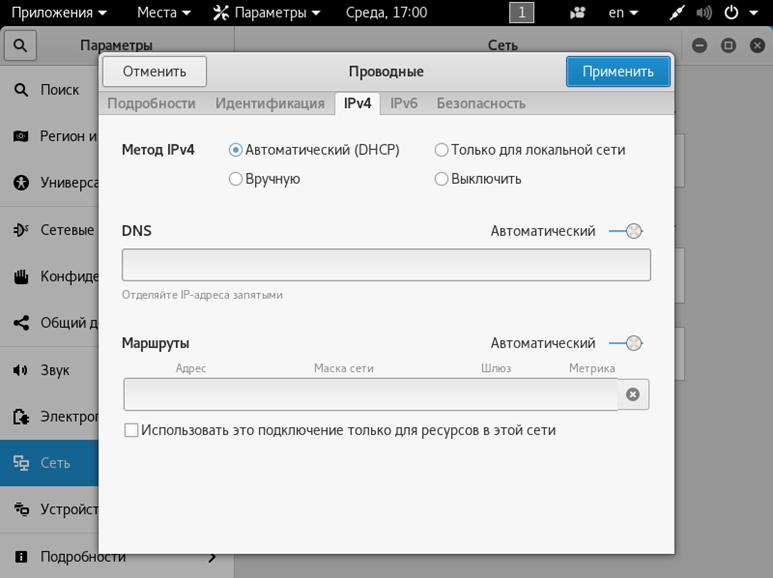
Если переключиться на ручной ввод, станут доступны параметры компьютера с Kali Linux (адрес, маска подсети, шлюз), DNS-сервера и маршрутизации. Вводить нужно значения, соответствующие используемому подключению.
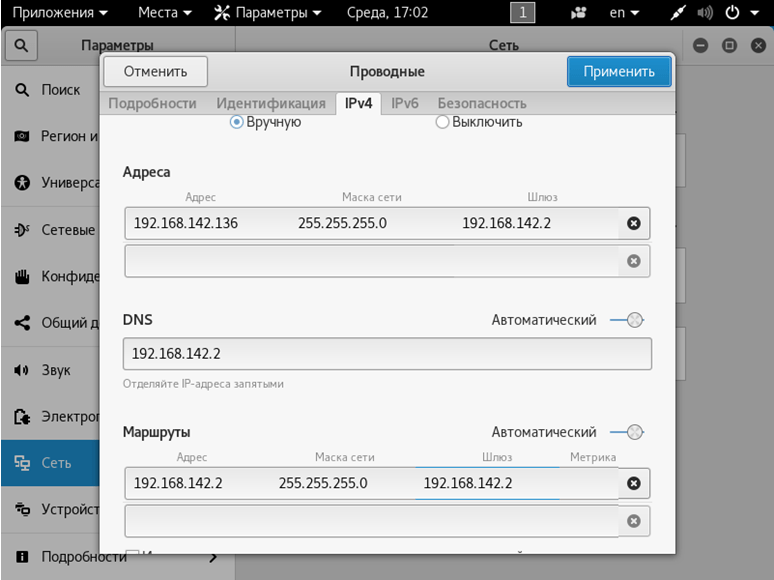
После установки правильных значений нужно нажать «Применить».
Протокол IPv6 также доступен для настройки.
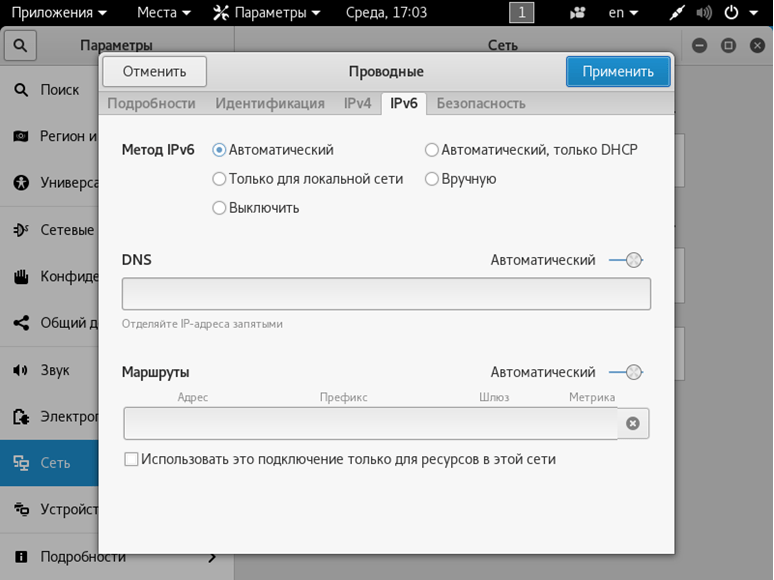
Настройка VPN
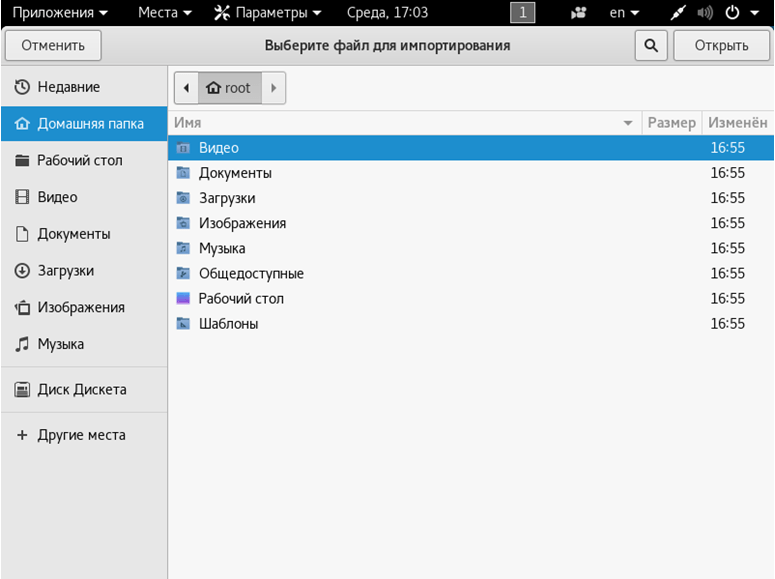
Для настройки частной сети, нужно в разделе Сеть нажать на плюсик в соответствующем подразделе. Откроется окошко добавления настроек.
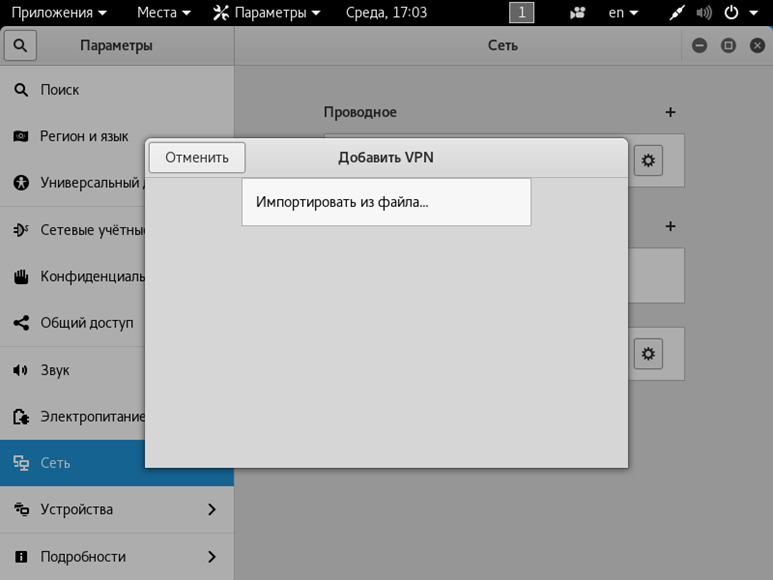
Система Kali предлагает импортировать их из файла. Сделать его можно при помощи OpenVPN или иного софта.
Proxy-сервер
Прямое подключение Kali Linux может быть рискованным, так что лучше настроить проксирующий сервер. Для этого в разделе «Сеть» нужно нажать на шестеренку в пункте «Сетевой прокси». Откроется стандартное окно настроек, где следует указать промежуточный адрес для различных протоколов.
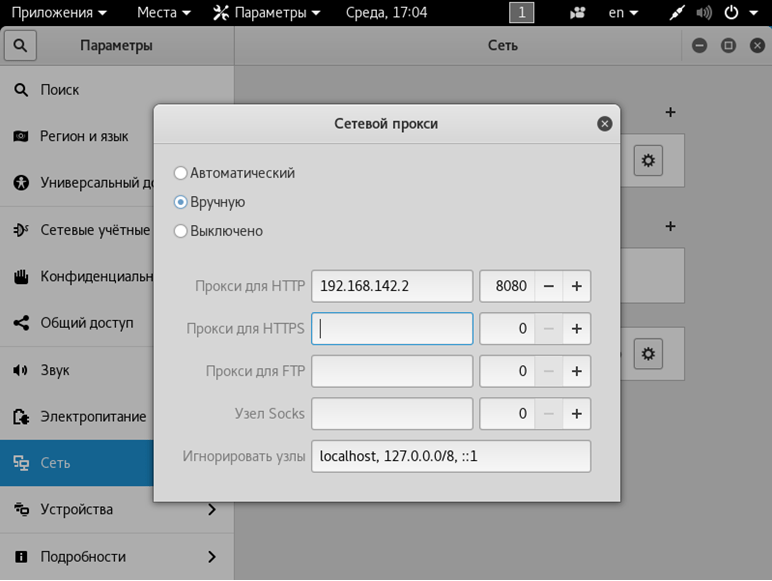
Обратите внимание: Если указать некорректные настройки для HTTP, то браузер по умолчанию попытается их использовать и просмотр веб-страниц будет недоступен.
Настройка обновлений
При корректном указании репозитория Kali Linux, можно использовать графическую оболочку для проверки обновлений. Для этого нужно перейти в раздел «Подробности».
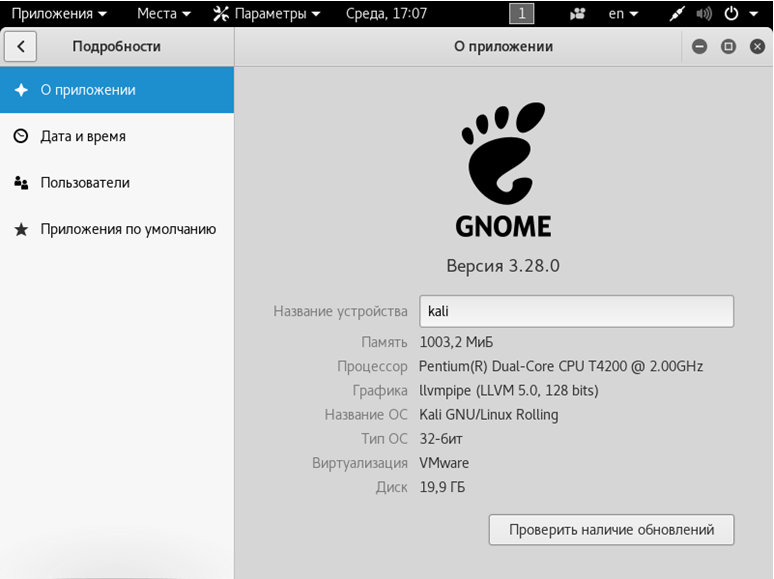
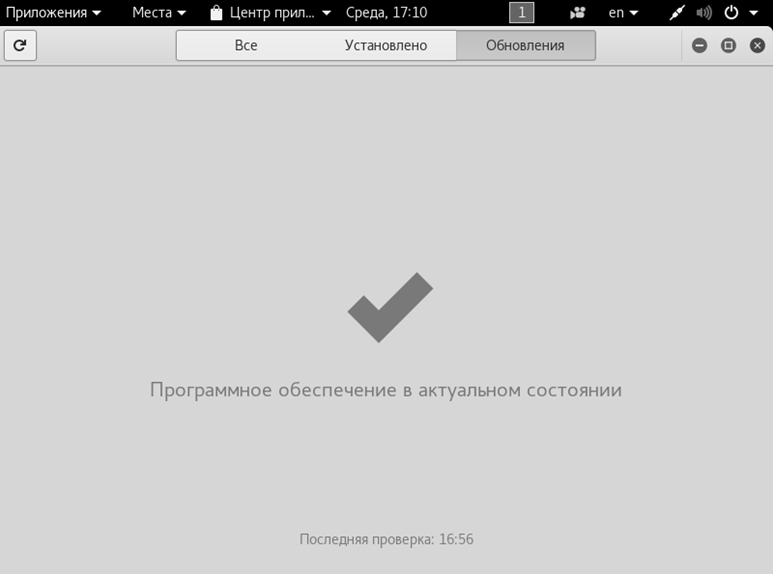
Далее следует нажать кнопку проверки, после чего система Linux установит необходимые апдейты или сообщит об отсутствии более свежих версий.
18. Окружение рабочего стола
Вам необязательно использовать окружение рабочего стола Gnome, которое поставляется по умолчанию. Вы можете установить XFCE, KDE, Cinnamon, LXDE и другие. Первая команда для установки, вторая – для удаления.
XFCE:
apt-get install kali-defaults kali-root-login desktop-base xfce4 xfce4-places-plugin xfce4-goodies
# apt-get remove xfce4 xfce4-places-plugin xfce4-goodies
Cinnamon:
apt-get install kali-defaults kali-root-login desktop-base cinnamon
# apt-get remove cinnamon
LXDE:
apt-get install lxde-core lxde kali-defaults kali-root-login desktop-base
# apt-get remove lxde-core lxde
KDE:
apt-get install kali-defaults kali-root-login desktop-base kde-plasma-desktop
# apt-get remove kde-plasma-desktop kde-plasma-netbook kde-standard
Установите часовой пояс
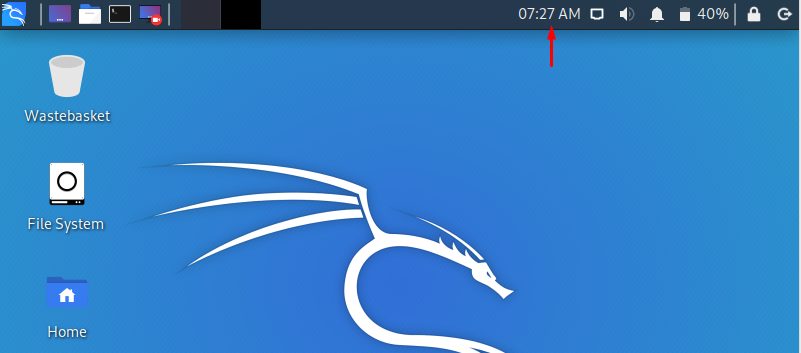
После того, как вы войдете в систему с правами root, первое, что вы заметите, это то, что время может быть неправильно установлено, и это вызовет проблемы при доступе к веб-сайтам. Вы можете легко изменить его, используя графический интерфейс:
Щелкните правой кнопкой мыши на часах сверху
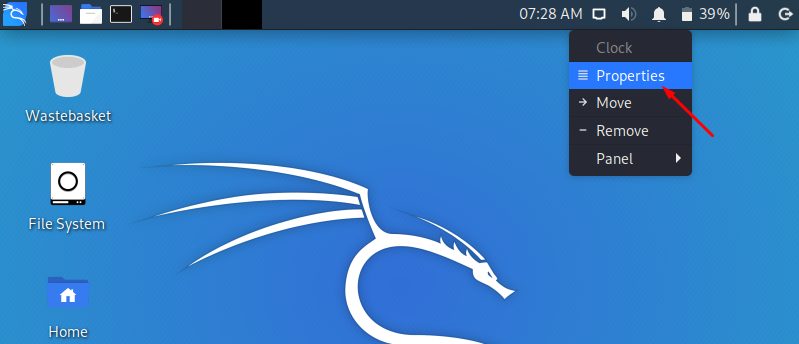
Выберите Свойства
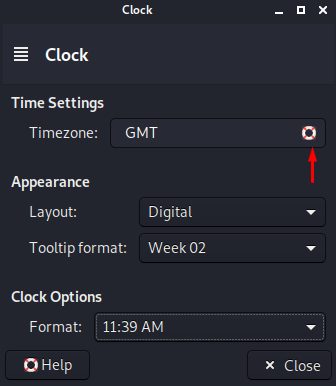
Установите местное время. Вы также можете найти множество атрибутов для изменения по умолчанию
Включить звук загрузки
Одной из проблем, с которыми сталкиваются пользователи Kali, является отсутствие звука при установке. Чтобы включить его, введите команду в терминале
# apt-get install alsa-utils-y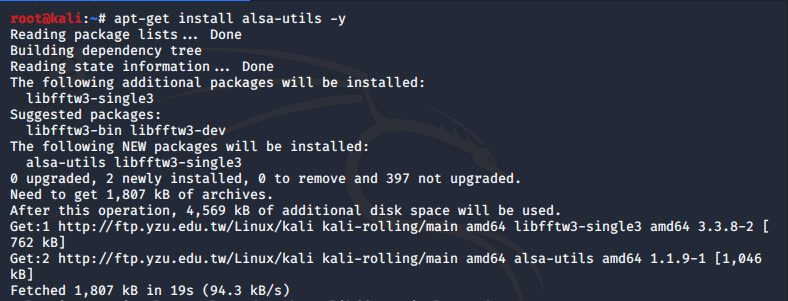
Update и Upgrade
Рекомендуется Update и Upgrade все устаревшие репозитории, чтобы повысить производительность
# apt-get update && apt upgrade
Apt-update обновит доступные пакеты и версии
Apt upgrade установит новую версию имеющихся у вас пакетов
Установить новый пароль для root
При установке ОС вы указали пароль, но что если вы захотите изменить пароль через некоторое время? Вот команда для легкого изменения пароля root:
# passwd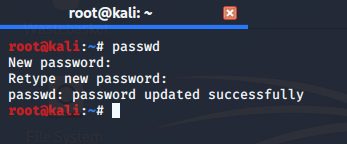
Таким образом, вы можете легко изменить свой пароль, набрав только одну команду.
Добавить учетную запись с низким уровнем привилегий
Вы получили приглашение к учетной записи root, но при запуске от имени учетной записи root существует вероятность того, что небольшая ошибка в приложении может стереть некоторые системные файлы, поэтому в любой операционной системе рекомендуется запускать как пользователь без полномочий root с низким уровнем доступа. Чтобы создать нового пользователя с низкими привилегиями:
# adduser [USERNAME]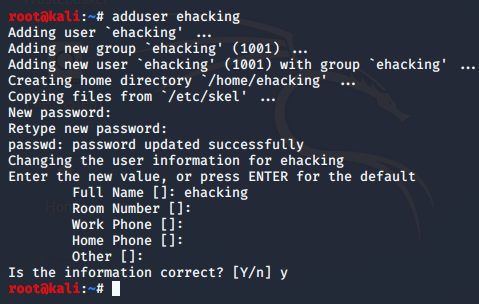
Добавьте этого пользователя в группу Sudoers для запуска корневых команд:
# usermode –aG sudo ehacking
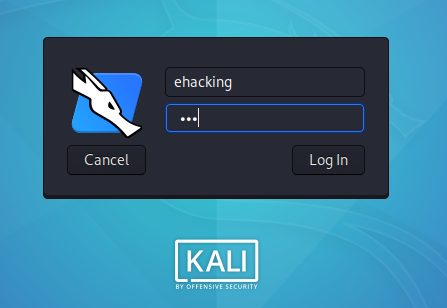
После этого напишите команду для настройки нового пользователя для BASH:
$ chsh –s /bin/bash ehacking
Установка оболочки входа пользователя ehacking в /bin/bash
Установить Git
Git – обязательный инструмент для этических хакеров, стремящихся увеличить свой набор инструментов по сравнению с тем, что уже установлено в стандартных репозиториях Kali. Чтобы установить Git, просто наберите:
# apt-get install git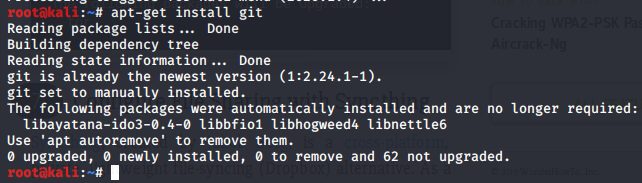
Установите ваши любимые инструменты взлома
В Kali Linux уже есть много инструментов для взлома и тестирования, например (Wireshark , Aircrack-ng , BeEF , Burp Suite , Hydra , Nikto , Maltego , Nmap), но что если вы захотите установить свой любимый инструмент, который вам нужен? Я собираюсь использовать для конкретной задачи, например, мне нужно атаковать сеть Wi-Fi с помощью Airgeddon, потому что он автоматизирует с помощью различных инструментов, поэтому вам не нужно вводить команды. Я могу установить Airgeddon в Kali Linux, набрав команду на терминале:
#cd Desktop#git clone https://github.com/v1s1t0r1sh3r3/airgeddon.git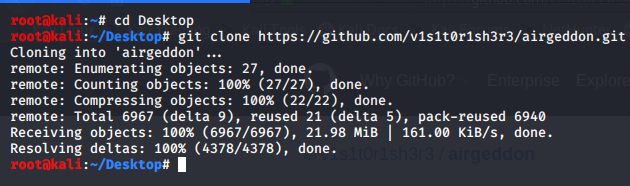
Дайте разрешения, чтобы сделать его исполняемым, набрав:
# chmod + x airgeddon.sh
Запустите файл:
#./airgeddon.sh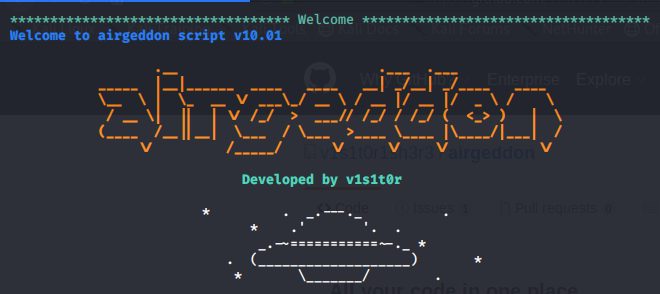
Установите браузер TOR
Onion Router (TOR) – это бесплатное программное обеспечение с открытым исходным кодом для анонимного общения. Он предназначен для того, чтобы люди не могли отслеживать ваши привычки, в том числе правительственные учреждения и корпорации. Вы можете установить браузер TOR, добавив репозиторий TOR в свой репозиторий APT:
# echo ‘deb https://deb.torproject.org/torproject.org stretch maindeb-src https://deb.torproject.org/torproject.org stretch main’ > /etc/apt/sources.list.d/tor.list
затем загрузите ключ пакета и импортируйте его в ваш набор ключей APT:
# wget -O- https://deb.torproject.org/torproject.org/A3C4F0F979CAA22CDBA8F512EE8CBC9E886DDD89.asc | sudo apt-key add –
Введите apt-get update:
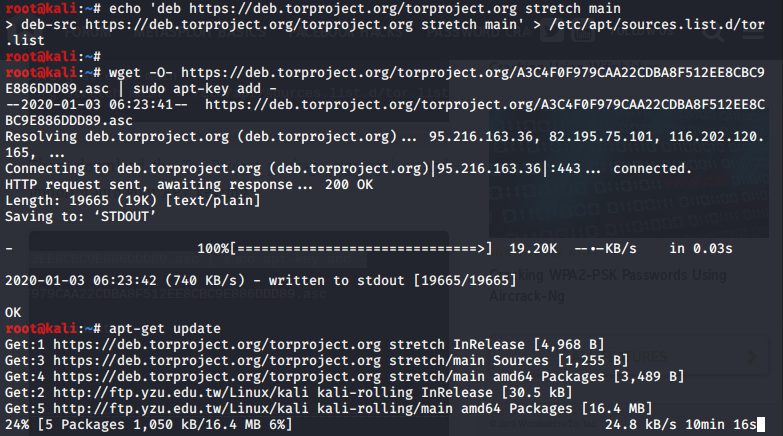
После обновления установите TOR:
# apt-get install tor deb.torproject.org-keyring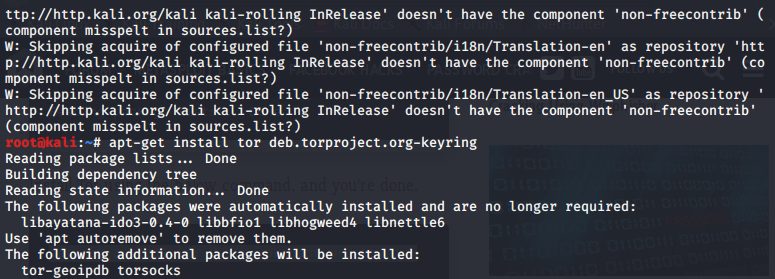
Установить Tilix
Tilix – это эмулятор терминала с открытым исходным кодом, который использует виджет VTE GTK + 3, обладающий некоторыми удивительными функциями, такими как макеты терминалов любым способом, разделяя их по горизонтали или вертикали, и ввод можно синхронизировать между терминалами, чтобы команды, набранные в одном терминале, реплицировались в другие
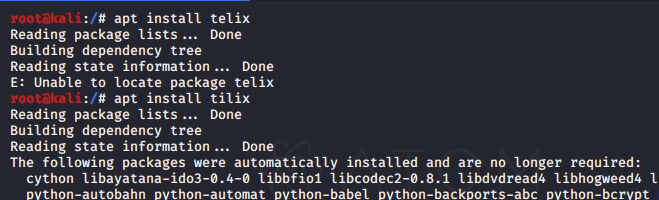
Введите tilix
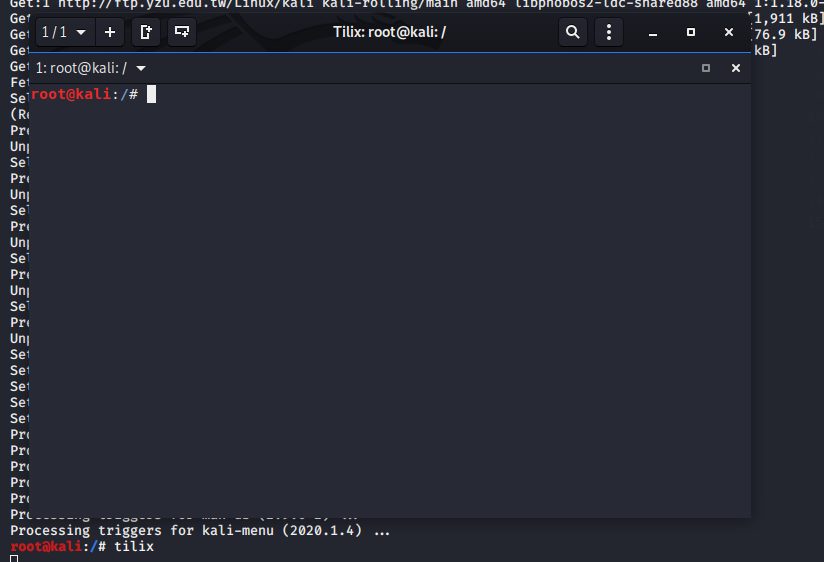
Установить редактор кода
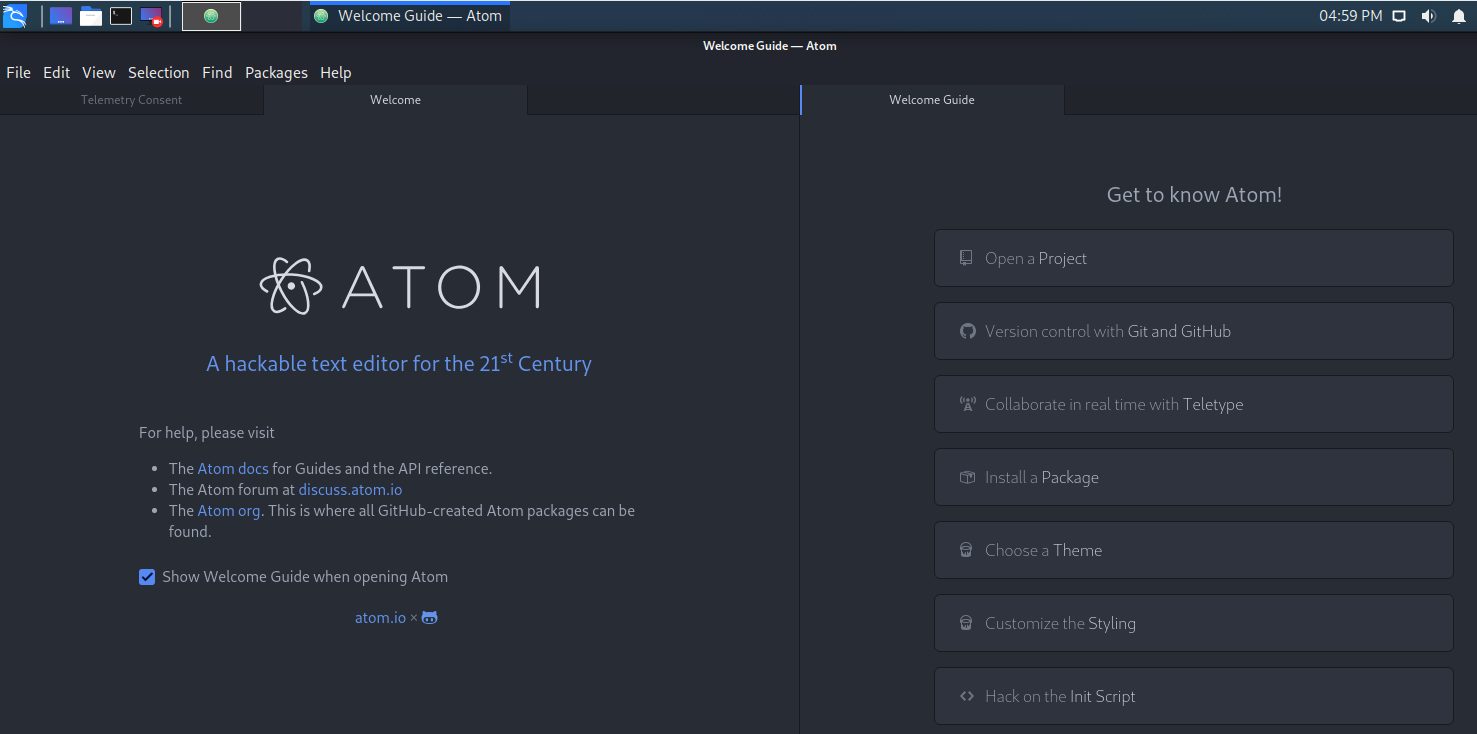
Atom editor – очень хороший текстовый редактор в Kali Linux. Чтобы установить Atom введите:
#apt-get install gconf2 gconf-service gvfs-bin libgconf-2-4 gconf2-common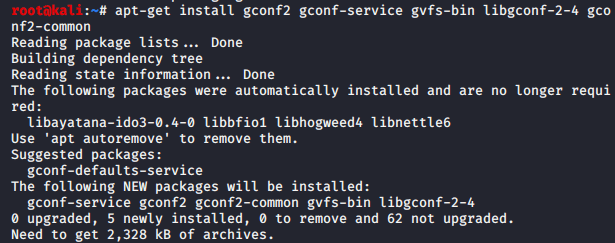
#cd Downloads#dpkg -i atom-amd64.deb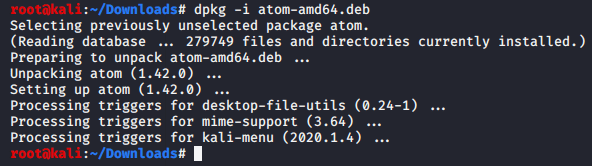
КАК УСТАНОВИТЬ KALI LINUX НА ANDROID
1. Качаем Kali Linux в версии Kali 32 bit Light с официального сайта , в таблице «вручную» находим Kali 32 bit Light и жмем ISO рядом.
2. Если файл вы сначала скачали на комп, то теперь подключаем к этому компу наш Android-девайс через USB-кабель и копируем на него («весит» архив 1.1GB).
3. в Play Маркете находим и скачиваем приложение Limbo PC Emulator
4. после завершения установки эмулятора, открываем его и создаем новую учетную запись (имя — любое).
5. в строке Architecture указываем x86, в строке CPU Model — 4 cores (4 ядра), и в строке RAM — не менее 256 MB (если у вашего смартфона или планшета оперативки больше, чем 1GB, то можно указать и больше, тогда система работать будет шустрее).
6. создаем Hard Disk («жеский диск»), указав емкость не менее 4GB
7. Во вкладке CDROM открываем меню и находим через него iso-файл Kali Linux.
8. В разделе Network указываем User.
9. После этого возвращаемся наверх и запускаем процедуру загрузки Kali Linux (кнопка Start).
10. Можно установить систему, а можно просто запустить образ. Но в любом случае загрузка моментально не происходит и займет некоторое время, потому надо будет немножко подождать.
Источник инструкции: форум codeby.net
Подготовка к установке Kali Linux
Для начала необходимо скачать образ системы Kali Linux. Сделать это можно на официальном сайте дистрибутива – kali.org. Выбираете нужный вам дистрибутив с соответствующей архитектурой и скачиваете. После того, как вы скачаете образ, необходимо проверить его на целостность посредством сравнение контрольных сумм SHA256.
После этого скачиваем программу VirtualBox с официального сайта (virtualbox.org). На этом подготовка заканчивается, время переходить к установке.
Настройка виртуальной машины
Шаг 1. Создание виртуальной машины
Откройте VirtualBox и нажмите на кнопку «Создать» в контекстном меню.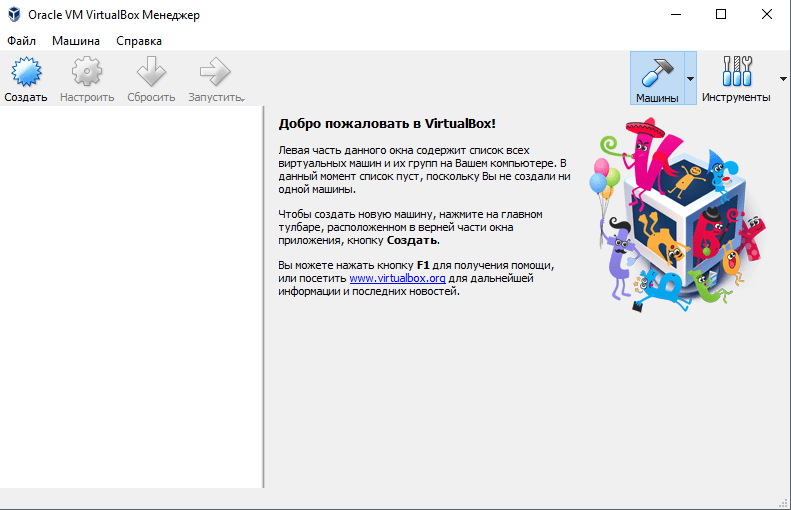
Шаг 2. Настройка основных параметров машины
Откроется диалоговое окно, где необходимо выполнит три пункта: выбрать имя для образа виртуальной машины, выбрать тип операционной системы, выбрать ее версию.
Примечание: для того, чтобы успешно установить Kali Linux на VirtualBox необходимо выбрать совместимую с дистрибутивом версию «2.6/3.х/4.х», архитектура которой соответствует вашим характеристикам.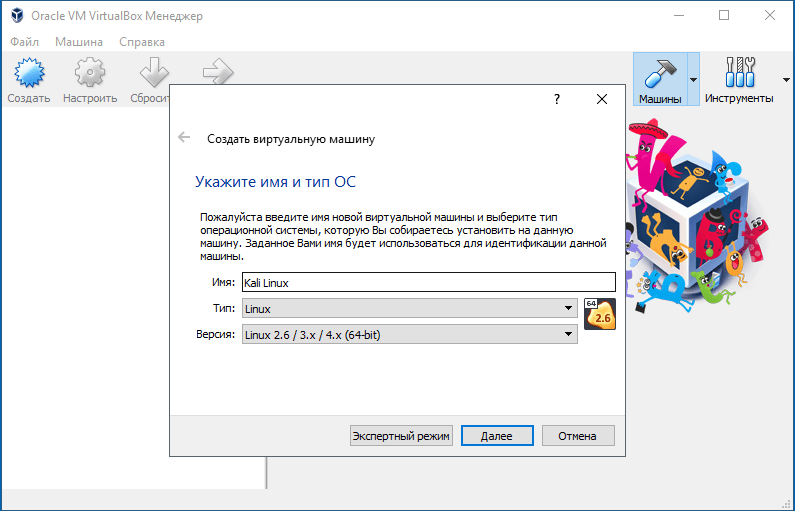
Шаг 3. Объем оперативной памяти
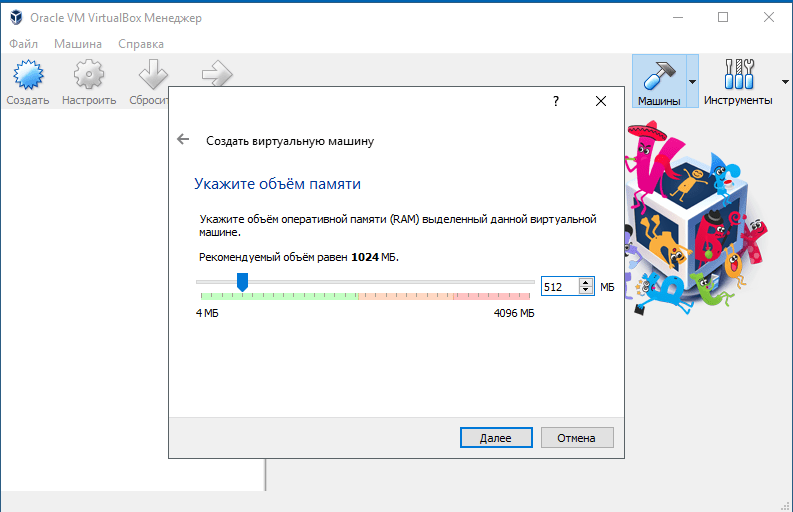
Теперь необходимо указать оптимальны объем оперативной памяти, которую будет использовать виртуальная машина в активном режиме.
Примечание: если указать объем, превышающий в два раза количество установленной ОЗУ, может повлиять на производительность.
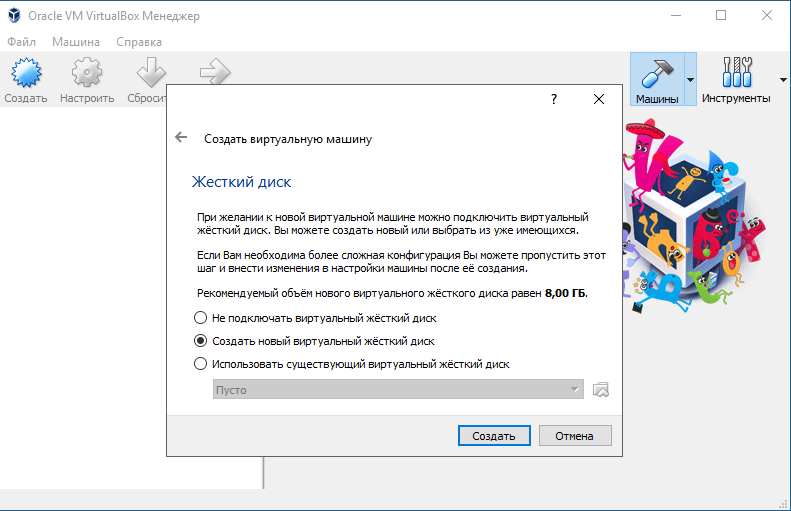
Шаг 4. Создание виртуального диска
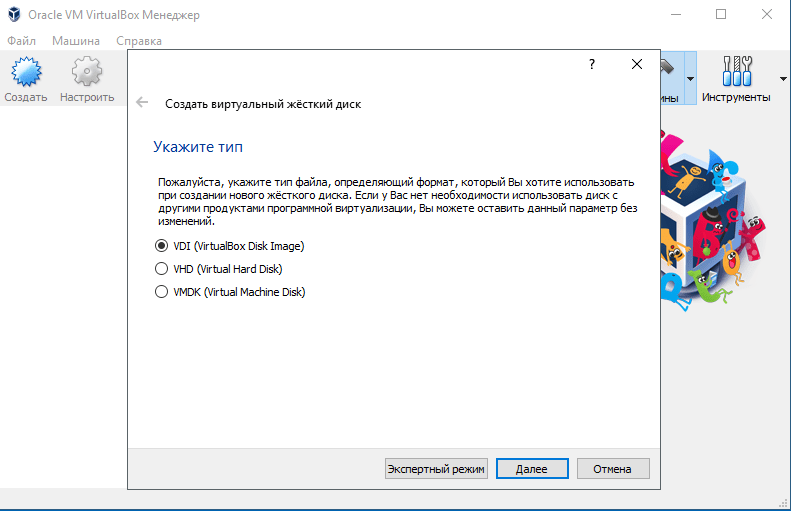
Создаем виртуальный диск, либо же выбираем из уже имеющихся. При создании виртуального диска указываем его тип. Вкратце о каждом из них:
- VDI – собственный формат диска VirtualBox используется при создании новой виртуальной машины;
- VHD – формат диска, разработанный Microsoft;
- VMDK – универсальный формат, который также использует VMware.
Если вы не знаете какой выбрать, то выбирайте VDI.
Шаг 5. Выбор формата хранения
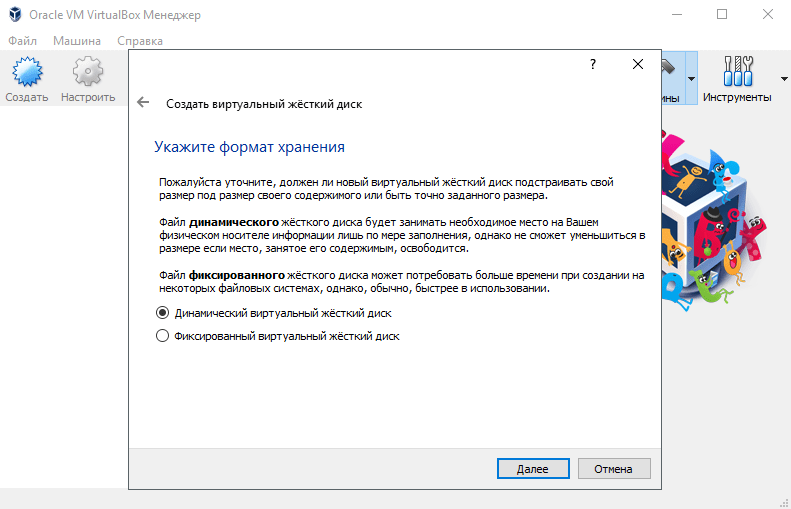
Указываем формат хранения. Динамический или фиксированный – решать вам, отталкиваясь от целей. Подробное описание каждого формата приведено в диалоговом окне.
Шаг 6. Выбор объема диска
Указывать объем диска, который будет использовать Linux-система, необходимо в зависимости от ваших задач. Оптимальное количество это 100Гб.
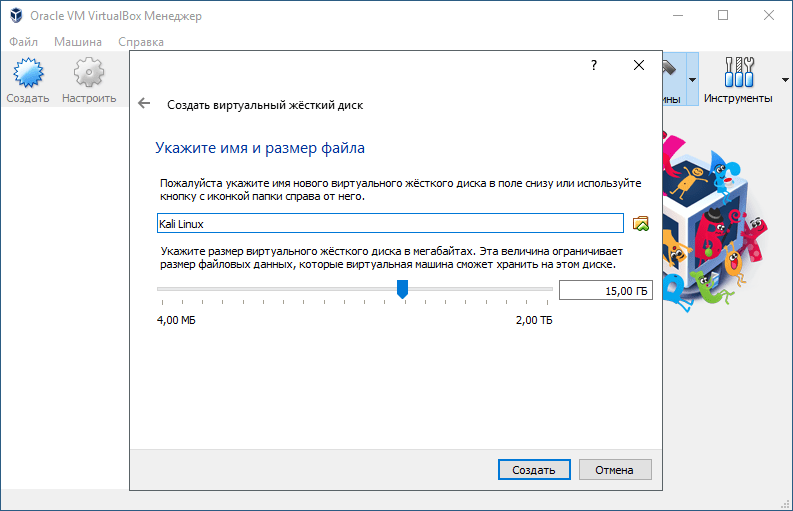
Вы создали виртуальную машину. Теперь необходимо поставить на нее систему. Выбираем нужную нам виртуальную машину из списка и запускаем ее.
Установка Kali Linux на VirtualBox
Шаг 1. Выбор загрузочного образа
В открывшемся окне предлагается выбор загрузочного диска. Выбираем скачанный ранее образ системы.
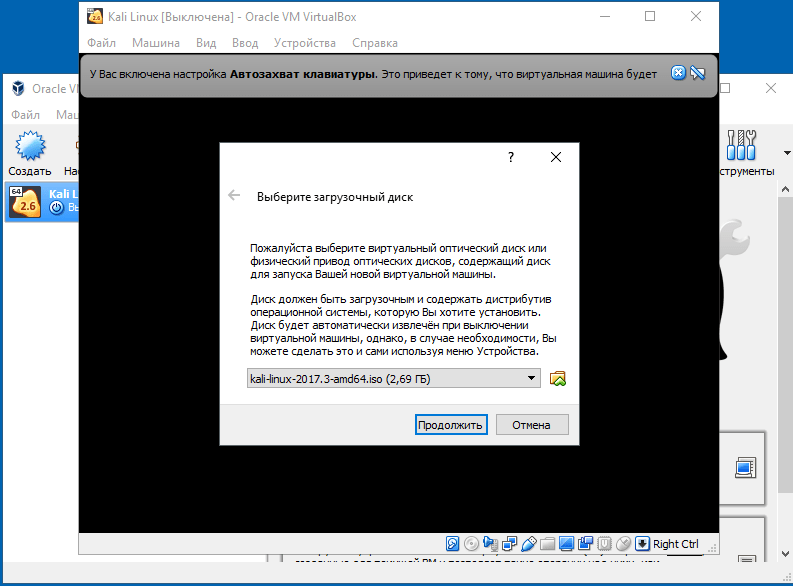
После выбора образа жмем «Продолжить».
Шаг 2. Выбор типа установки системы
Видим, что происходит загрузка системы, после чего открывается меню установки Kali Linux. Здесь необходимо выбрать «Graphics Install». Примечание: при выборе «LiveCD» все данные, сохраненные на системе, удалятся после ее выключения.
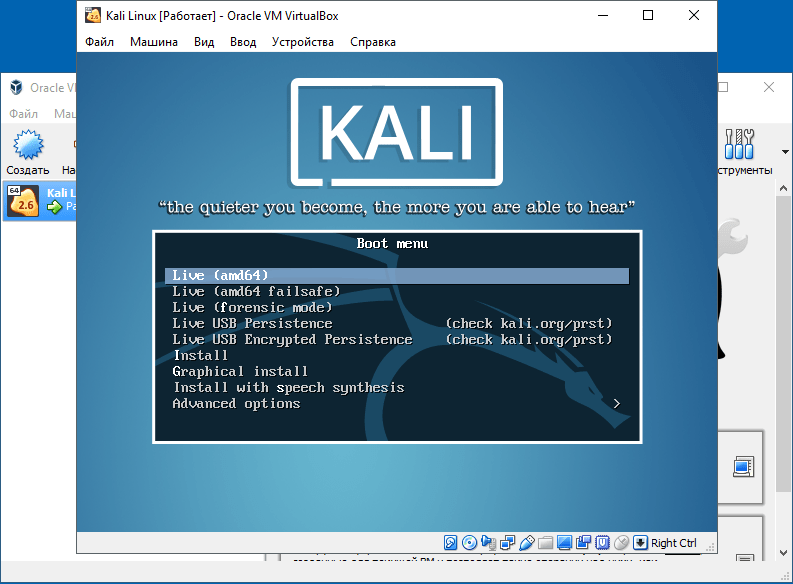
Шаг 3. Выбор языка установки
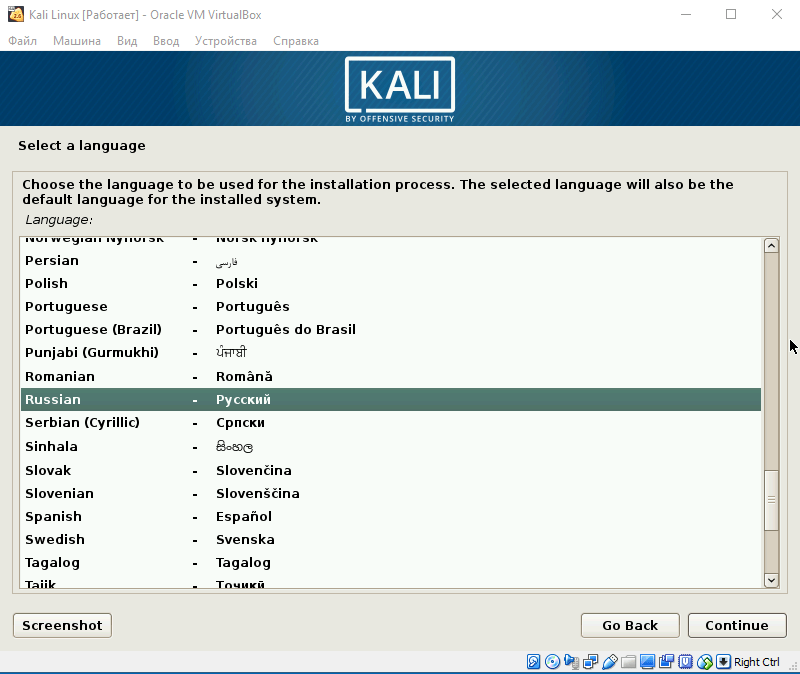
Теперь необходимо выбрать язык, который будет сопровождать на вас на протяжении всей установки.
Шаг 4. Базовая информация о системе
Теперь выбираем местоположение, язык клавиатуры, комбинацию клавиш для переключения языка.
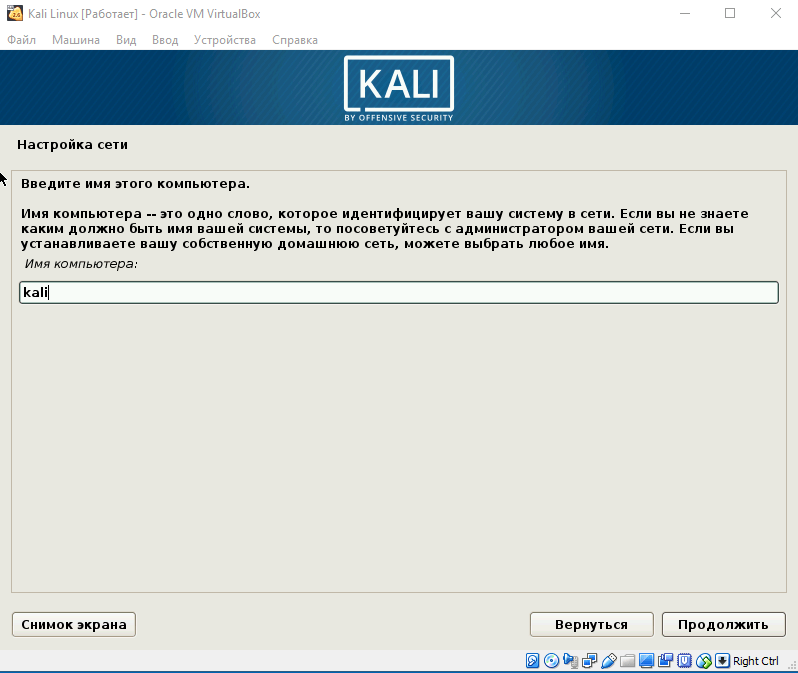
Шаг 5. Название компьютера
Вводим имя компьютера.
Шаг 6. Настройка домена сети
Отталкиваясь от необходимости либо настраиваем домен-сети, либо пропускаем данный шаг.
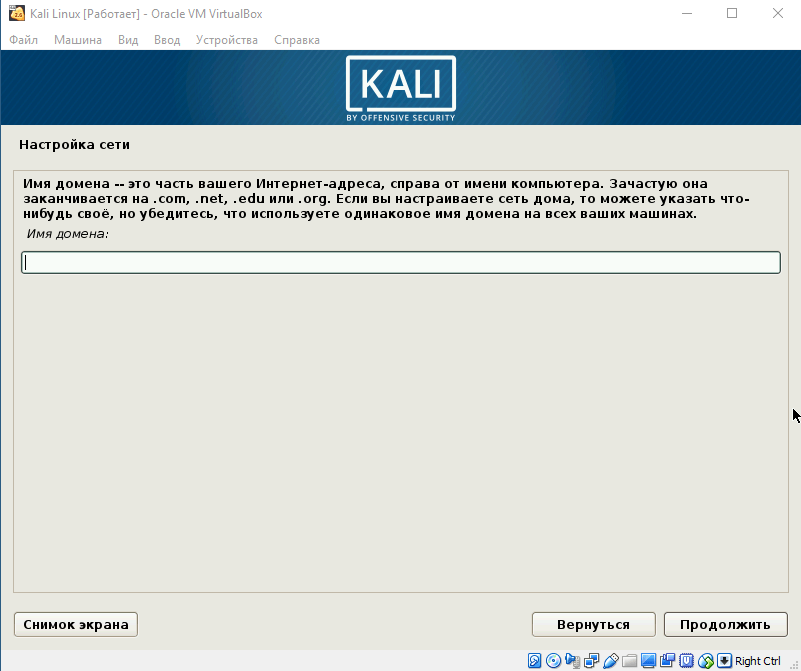
Шаг 7. Пароль учетной записи
Настраиваем пароль учетной записи. Примечание: следует запомнить, что при вводе пароля в @root консоли, символы отображаться не будут.
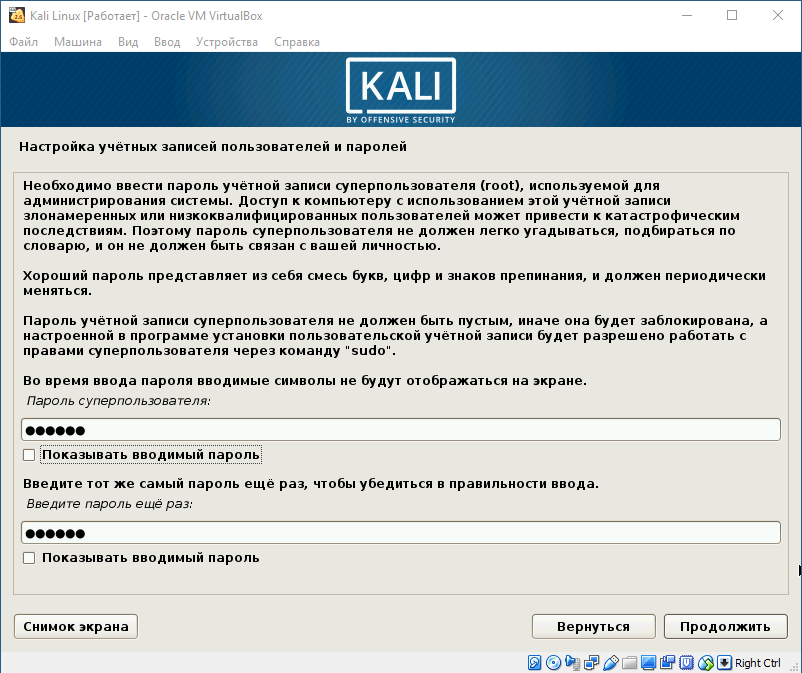
Выбираем время, после чего происходит загрузка.
Шаг 8. Разметка дисков
Теперь предстоит выполнить разметку дисков. Так как установка Kali Linux происходит на VirtualBox, то мы используем весь диск.
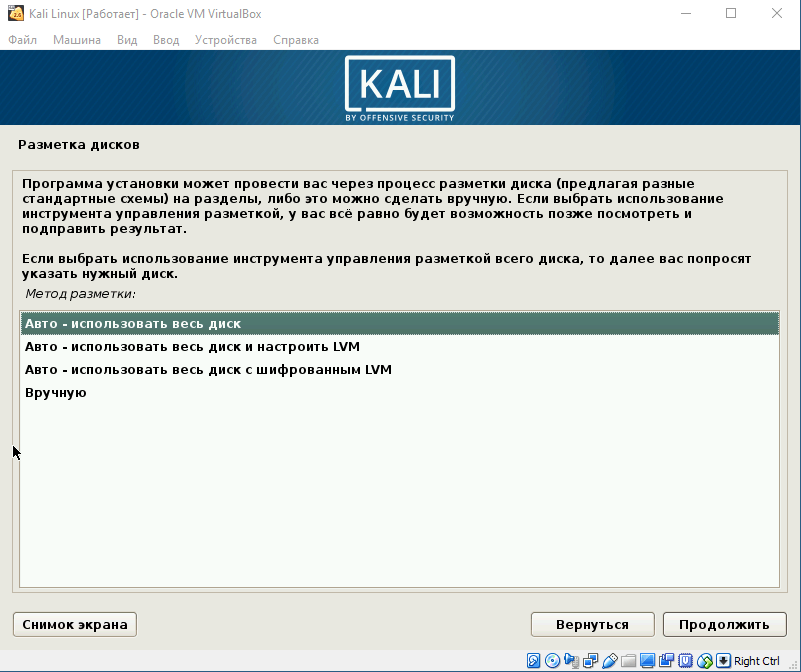
Разметка диска определяет местонахождение файлов в системе. Так как Linux отличается своей файловой системой от других систем, то на выбор предложено три вариант, содержащие /home /var и /tmp. Теперь подробнее о них:
- /home – здесь находятся все домашние каталоги пользователей;
- /var – здесь система хранит log, cech-файлы, почту и иногда web;
- /tmp – раздел под временные файлы.
Данная функция создана для опытных пользователей, если у вас нет необходимости сортировать файлы, то помещайте все на один раздел.
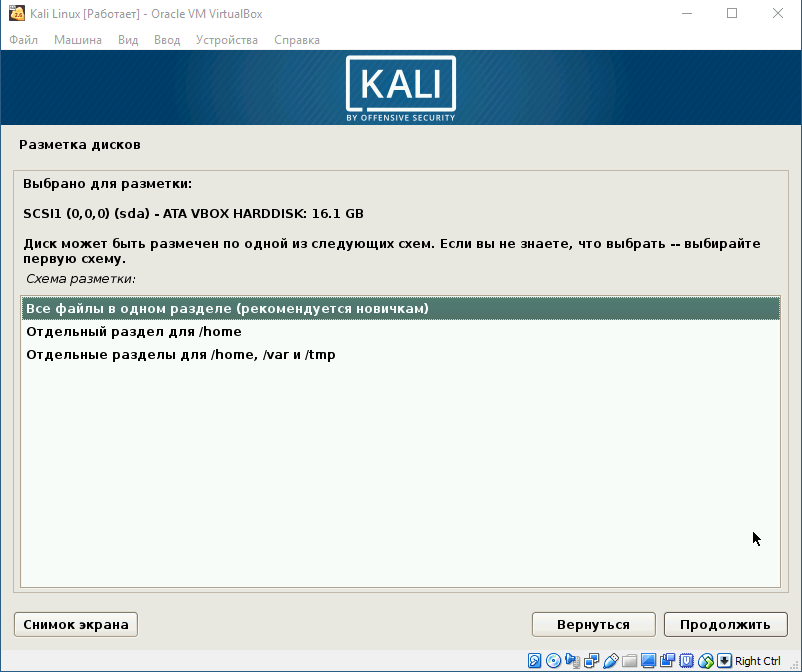
Далее отображается контекстное меню со списком поделенных томов. В данный момент у нас есть основной раздел и ext4 – журналируемая файловая система.
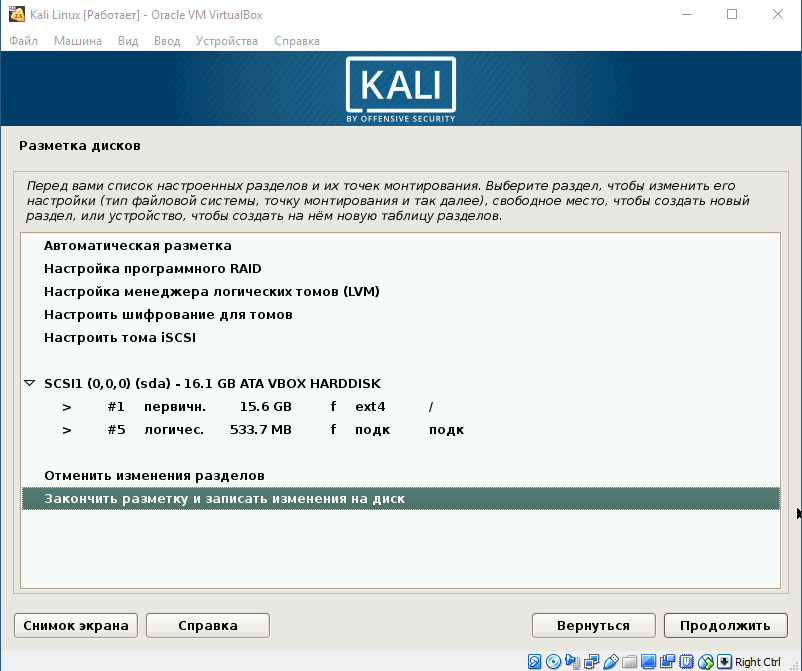
Подтверждаем все изменения и нажимаем «Продолжить».
Шаг 9. Выбор зеркал
Теперь предстоит выбрать зеркало для установки дополнительного ПО. Данная функция доступна только в том случае, если при установке у вас есть активное Интернет-соединение. Если оно отсутствует, то вы всегда можете установить дополнительной ПО в самой системе.
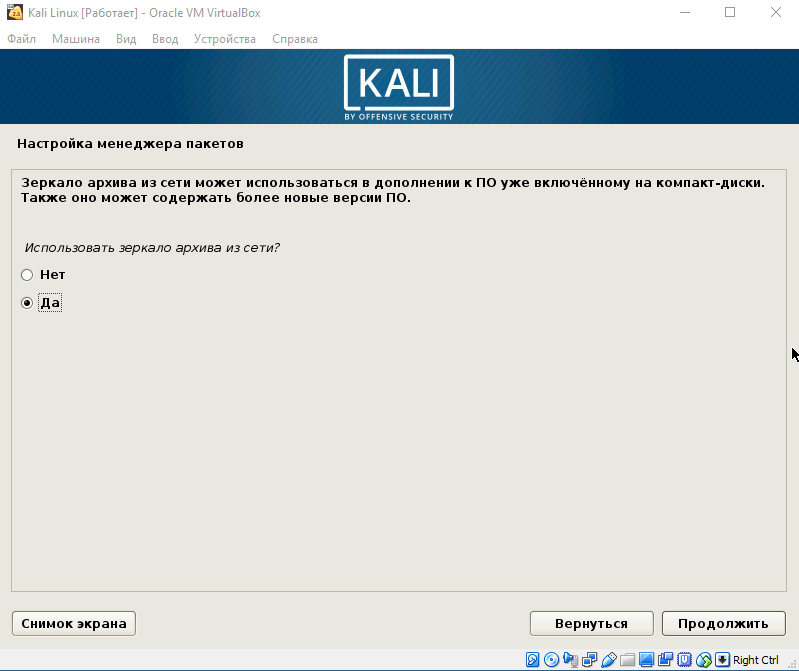
Шаг 10. Установка GRUB
Далее идет установка системного загрузчика GRUB. Оставляем “Да” и продолжаем установку.
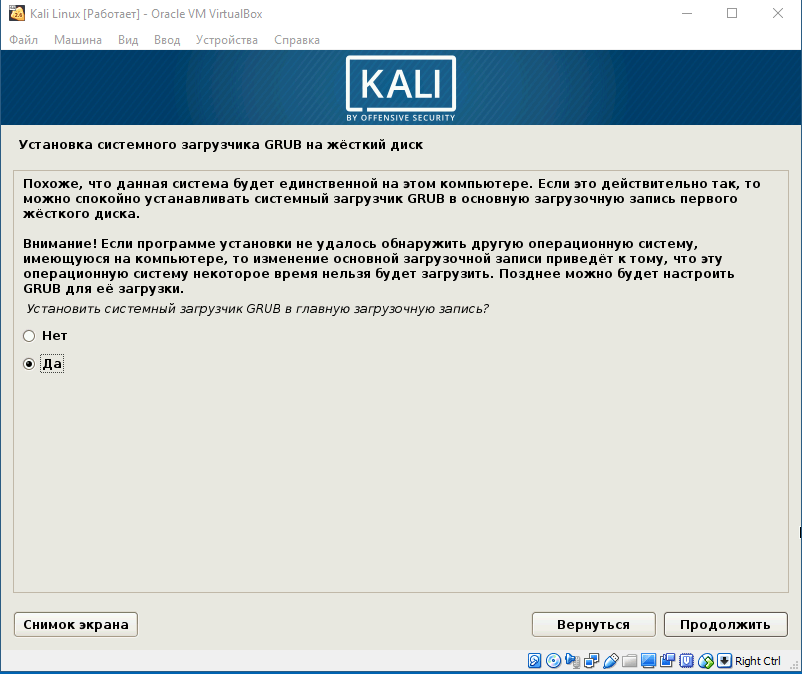
Шаг 11. Завершение установки
После того, как вы установите GRUB, система попросит изъять установочные носители и перезагрузить ее. Изымать ничего не надо, нажимаем «Продолжить».
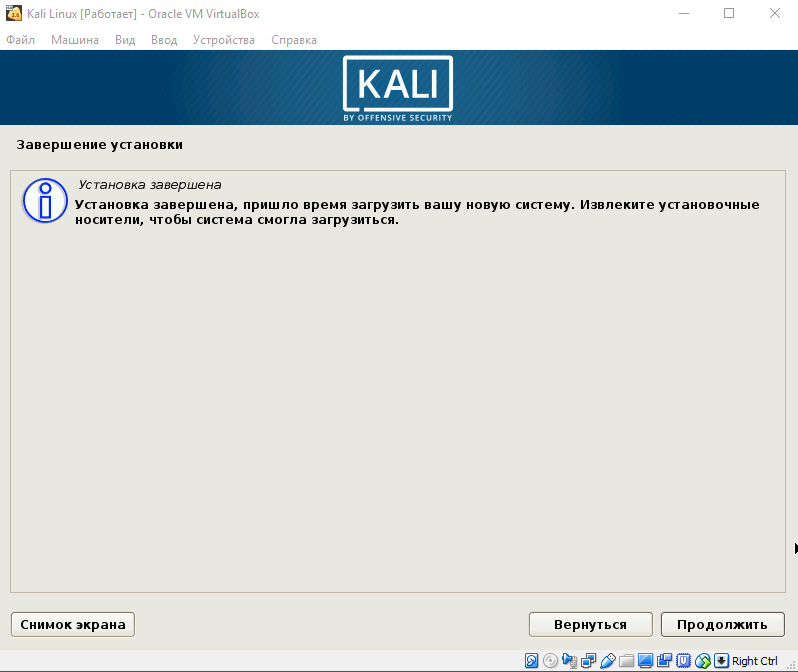
Вы завершили установку системы. Она готова к использованию, теперь осталось вписать имя пользователя и пароль, которые вы ввели при установке.
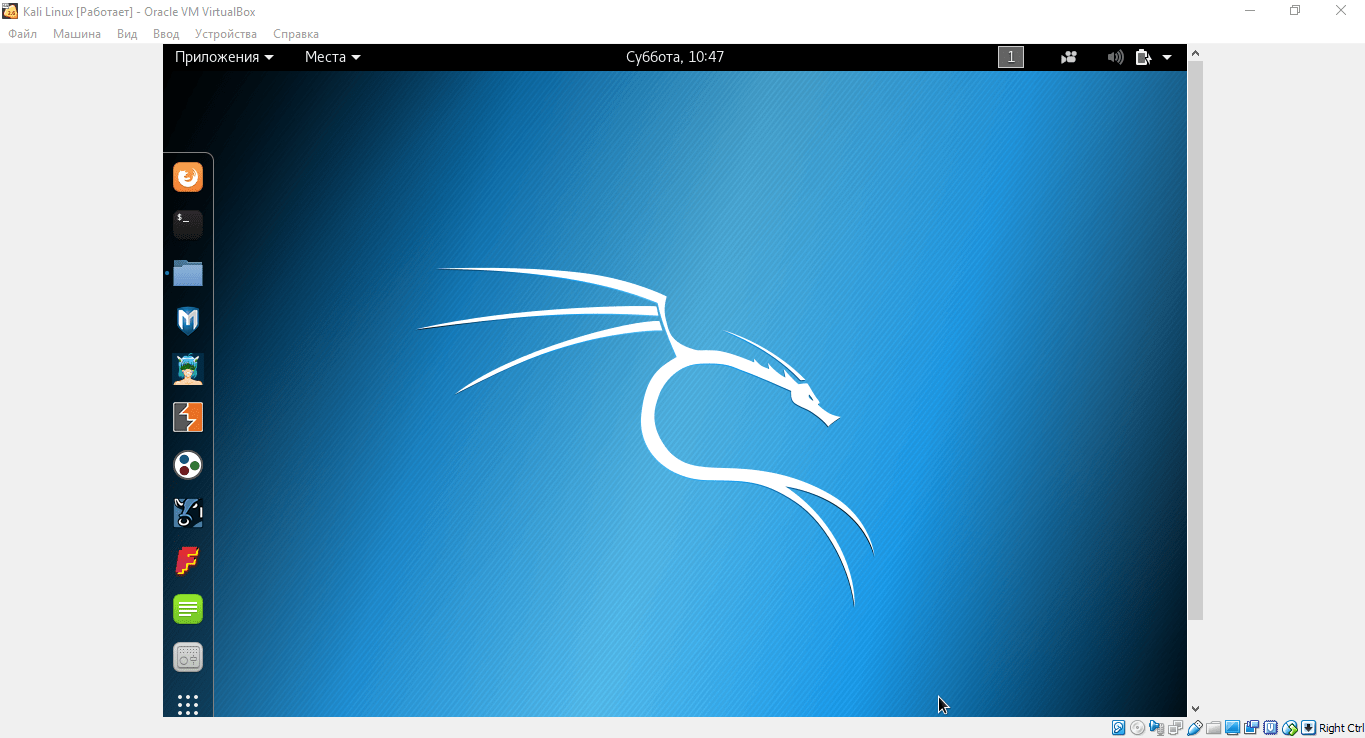
Установка Virtual Box Guest Additions
Шаг 1. Добавление образа на CD носитель
Выбираем из списка нужную виртуальную машину и нажимаем «Настроить». В окне настроек выбираем пункт «Носители» и добавляем в IDE контроллер образ, находящийся в корневой папке программы (C:/ProgramFiles/Oracle/VBoxLinuxAdditions.iso):
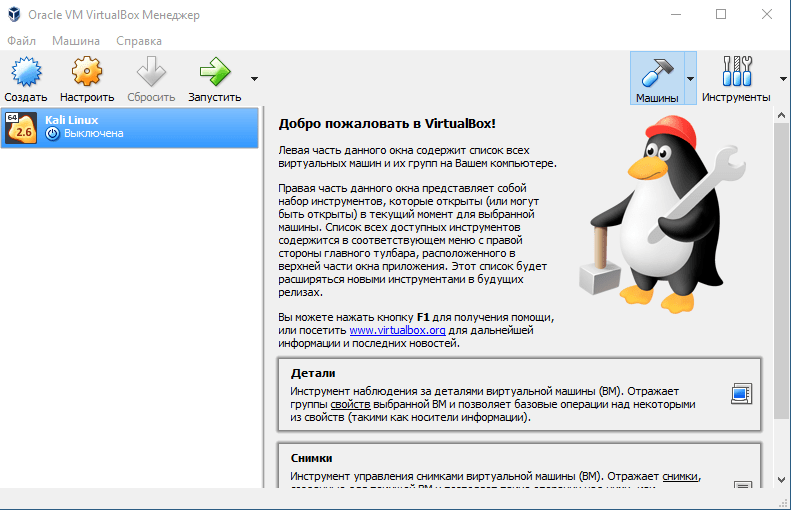
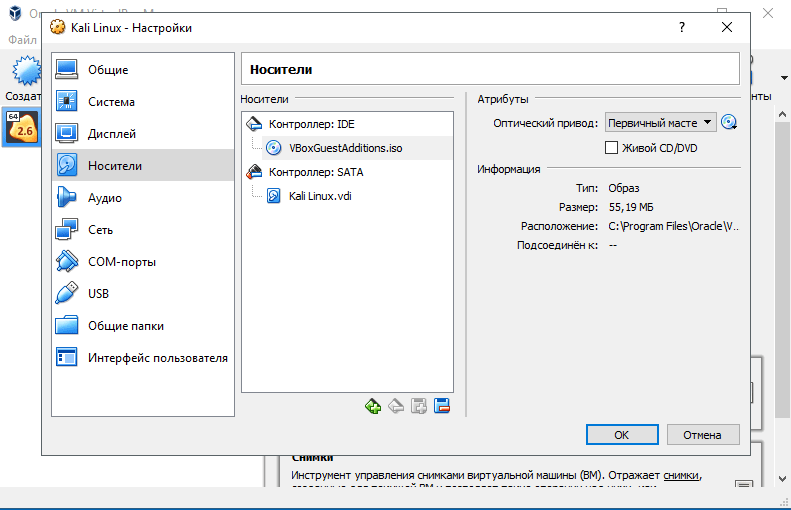
Шаг 2. Установка дополнений в Kali Linux
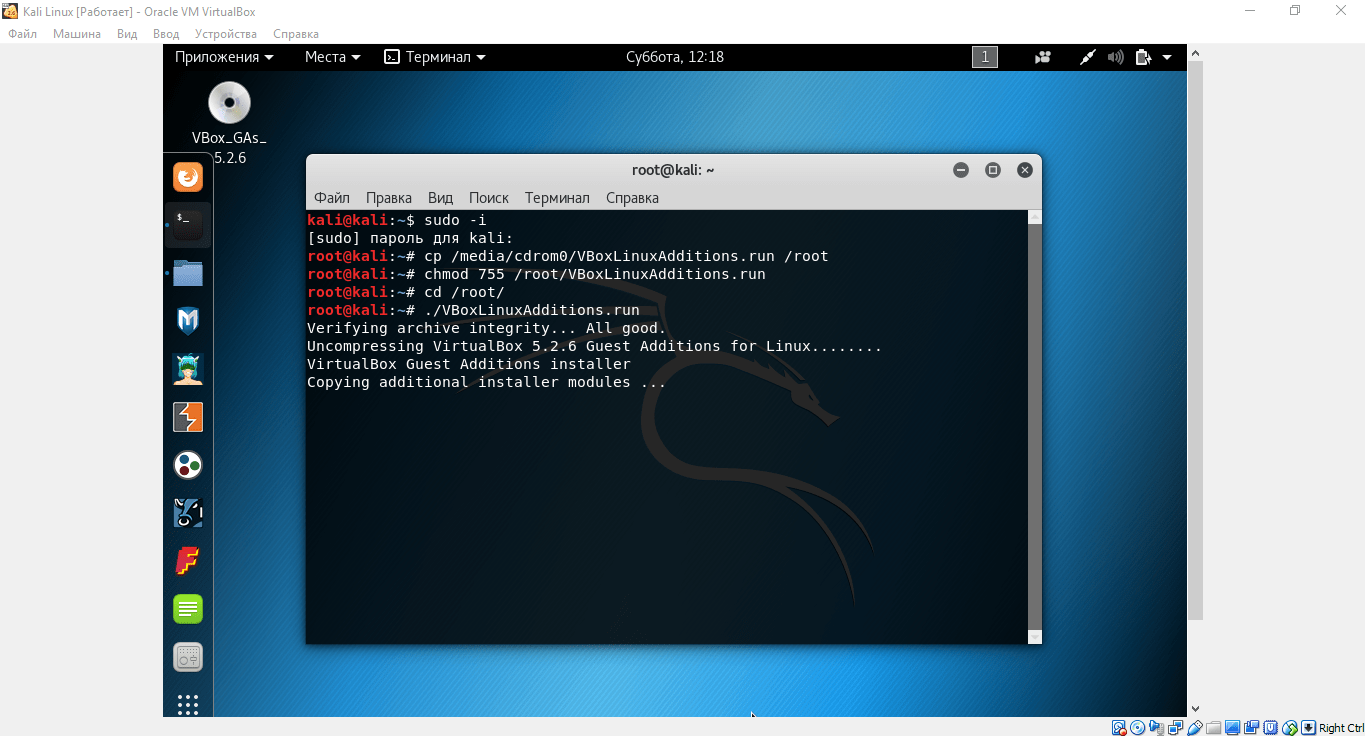
Запускаем виртуальную машину и открываем терминал. Перед установкой необходимо» зайти в терминал из-под рута, для этого прописываем в нем команду:
sudo -i
Далее необходимо загрузить установочный образ с помощью команд, указанных на скриншоте: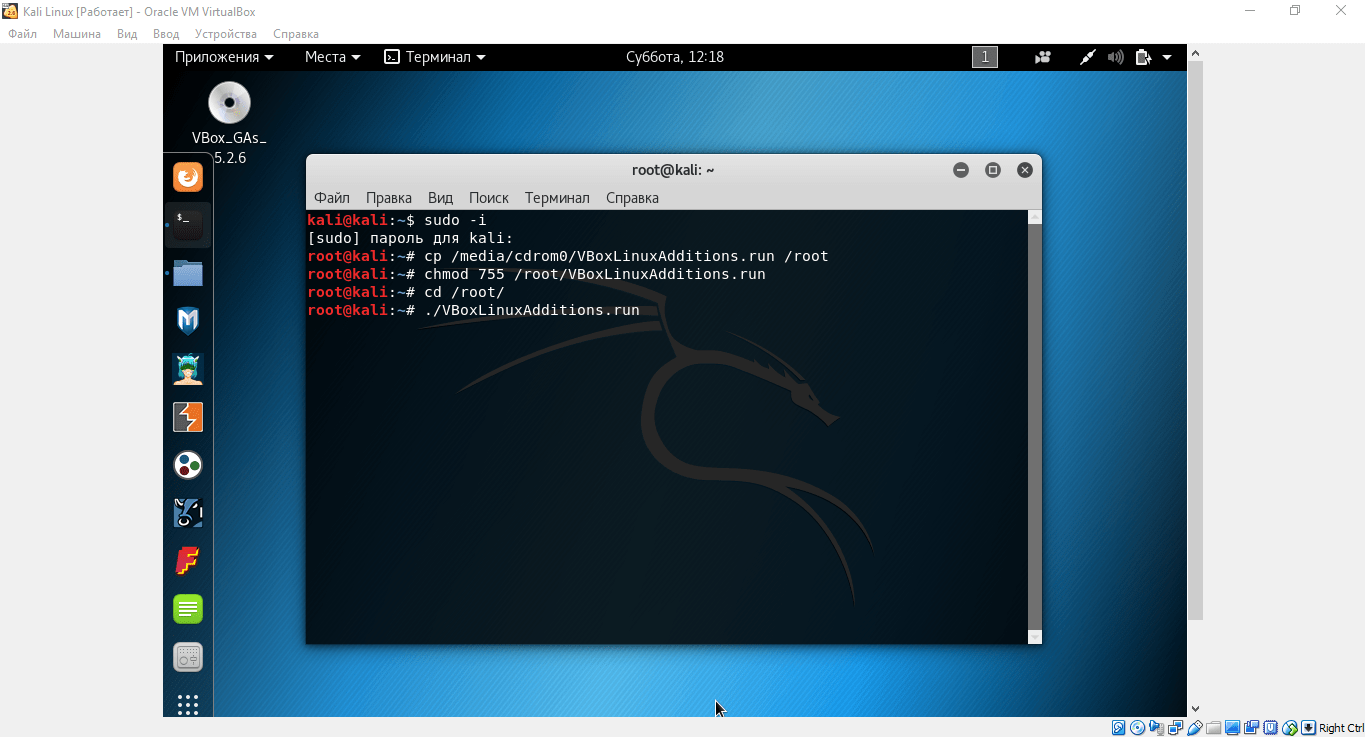
cp /media/cdrom0/VBoxLinuxAdditions.run /root
chmod 755 /root/VBoxLinuxAdditions.run
cd /root/
./VBoxLinuxAdditions.run
Wi-Fi сети: проникновение и защита. 2) Kali. Скрытие SSID. MAC-фильтрация. WPS
Kali… Kali Linux
Узнав о существующих на сегодня механизмах защиты беспроводных сетей в первой части самое время использовать эти знания на практике и попытаться что-нибудь взломать (естественно, принадлежащее нам самим). Если получится — наша защита никуда не годится.
Все манипуляции будем проводить с использованием Kali Linux — kali.org. Это сборка на основе Debian, которая до этого была известна под именем Backtrack . Если вы впервые знакомитесь с этой системой, то советую начать сразу с Kali, так как там есть всё то, что было в Backtrack, но в более свежем виде.
(Читатели подсказывают, что есть и другие подобные сборки — например, wifiway.org. Однако я с ними не работал.)
Под Windows тоже можно делать многое из описанного, но основная проблема в отсутствии/плохой поддержке режима монитора беспроводных адаптеров, из-за чего ловить пакеты проблематично. Кому интересно — обратите внимание на CommView и утилиты Elcomsoft. Все они требуют специальных драйверов.
Kali очень удобно использовать с флешки — у неё по наследству от Debian Wheezy (у меня одного закладывает нос от такого названия?) есть persistence mode, который позволяет загружаться в трёх режимах: работы без сохранения данных (read only), работы с их сохранением на отдельный раздел на флешке, так называемом persistence, или работы без сохранения в live/vanilla mode (то есть read only и без использования данных в persistence — изначальная чистая версия дистрибутива).
Но, естественно, кто хочет установить её на жёсткий диск может легко сделать это и из загрузчика, и из уже запущенной оболочки. ОС (LVM) поддерживает шифрованные разделы. Кроме этого, можно сделать собственную сборку Kali — добавить пакеты, настроить загрузчик и прочее. Всё это подробно описано в документации и проблем не вызывает, хотя сборка требует пары часов времени.
Итак, допустим вы скачали ISO и записали его на флешку (для *nix — dd, для Windows — Win32DiskImager). Что дальше?
Use the tools, Luke
Собрание окончено, расходимся, расходимся.
Ну, вот и добрались до терминала. Посмотрим, кто вокруг нас светит ультраволнами.
Скрытые сети… такие скрытые

Часто в быту можно услышать, что скрытые сети очень сложно обнаружить/подключиться/взломать/унести (нужное подчеркнуть). Однако как уже было показано, «скрытая» сеть — не что иное, как сеть, не передающая маячки о своём существовании 10 раз в секунду, либо передающие их, но с пустым ESSID и другими полями. На этом разница заканчивается.
Как только к такой сети подключается клиент, он передаёт её ESSID и пароль, и если такая сеть существует в радиусе действия — точка доступа отвечает на запрос и проводит все обычные процедуры по авторизации и передаче данных. А если клиент уже был подключен ранее — его можно увидеть в списке активных адаптеров… и отключить.
Каждый подключенный клиент общается с базовой станцией по её BSSID — и это именно то, что мы видим в обеих таблицах airodump-ng. Мы можем «отключить» клиента от сети, после чего он должен будет подключиться вновь — и в этот момент airodump-ng перехватит рукопожатие со всеми идентификаторами и ключами. Либо мы можем просто оставить ноутбук включенным на пару часов с airodump-ng на нужном канале и подождать. Кстати, при успешном «вскрытии» в правом верхнем углу появится сообщение вида [ Decloak: 00:00:11:11:22:22 ] с BSSID точки доступа, конспирацию которой мы раскрыли.
Отключение клиентов предусмотрено во всех беспроводных стандартах и делается с помощью aireplay-ng (все три уже знакомые нам утилиты — часть проекта Aircrack-ng, который содержит в своём наборе всевозможные инструменты для работы с тонкими материями):
aireplay-ng wlan0 –deauth 5 -a AP_BSSID -c CLIENT_BSSID
Внимание: эта команда — исключение и принимает идентификатор реального беспроводного адаптера, а не mon0, созданного с помощью airmon-ng.
Если при запуске появилась ошибка о незафиксированном канале и/или airodump-ng показывает в правом верхнем углу [ fixed channel -1 ] — значит, какая-то программа или сервис заставляет адаптер перескакивать с канала на канал (это может быть тот же airodump-ng) и их нужно закрыть с помощью airmon-ng check kill, как было описано в начале.
Команда выше имитирует ситуацию, когда точка доступа сообщает клиенту, что старый ключ недействительный (и что его следует обновить, повторив handshake, то есть передав пароль и имя сети заново). На адрес клиента отправляются сообщения якобы от точки доступа о том, что следует отключиться от сети и обновить данные сессии. Так как этот тип пакетов не защищён шифрованием (то есть команда может быть выполнена ещё до аутентификации), то противодействовать ему невозможно по той простой причине, что невозможно установить «личность» того, кто это рассылает — MAC-адреса в пакетах поддельные и установлены в те значения, которые мы передали после -a и -c. Можно только отслеживать слишком частые отключения и принимать какие-то меры.
После –deauth идёт число пакетов деавторизации, которые будут посланы в оба конца. Обычно хватает 3-5, можно указывать и 30 и больше. Для краткости –deauth можно заменить на -0 (ноль).
Итак, допустим во второй таблице airodump-ng мы видим следующую строчку:
BSSID STATION PWR Rate Lost Frames Probe 4F:B1:A4:05:5C:21 5B:23:15:00:C8:57 -54 0 – 1 0 1266 homenet, XCom
Первый столбец — значение для -a (MAC базовой станции), второй — для -c (MAC клиента). Перезапустим airodump-ng и зафиксируем его на канале 5 (это канал нашей атакуемой станции), после чего выполним отключение клиента в соседнем окне терминала:
airodump-ng -c5 mon0 aireplay mon0 -0 5 -a 4F:B1:A4:05:5C:21 -c 5B:23:15:00:C8:57
Если сигнал достаточно сильный, число пакетов велико и клиент/точка доступа нас услышали — они отключатся друг от друга, затем передадут информацию о сети вновь при подключении и airodump-ng покажет их и строчку [ Decloak ].
Как видим, данный трюк со скрытием маячков можно использовать для домашних сетей, к которой кто-то подключается пару раз в день, да и то не всегда — но для корпоративных сетей он точно не подходит, так как раскрывается буквально одной командой и защиты от неё нет. На мой взгляд даже для частных сетей это скорее неудобство, чем польза — вводить-то имя надо вручную, да и не понятно, активна ли вообще базовая станция или нет.
Также, -c (клиентский MAC) можно не указывать — тогда от имени точки доступа будут разосланы широковещательные (broadcast) пакеты об отключении всех клиентов. Однако сегодня это редко работает — драйвера игнорируют такие пакеты, так как правомерно считают, что дело нечисто — точка доступа всегда знает, кто к ней подключен, и рассылает направленные пакеты для конкретного клиента.
Фильтрация по MAC — ведь это так просто

Очень часто я слышу рекомендации, что первым делом после создания сети нужно ограничить список её клиентов определённым набором MAC-адресов, и тогда-де пароль вообще ни к чему. Однако это ограничение обходится так же легко, как и обнаруживаются скрытые сети.
В самом деле, каждый клиент — подключенный к сети или нет — раскрывает свой MAC-адрес при передаче любого пакета. В таблице airodump-ng эти адреса видны в столбце STATION. Соответственно, как только мы увидели сеть, куда нам почему-то не попасть (Linux обычно рапортует об Unspecified failure на этапе подключения, а Windows долго думает, после чего сообщает о неизвестной ошибке), и тут же в списке видим связанного с этой сетью клиента — мы можем взять его MAC-адрес и поменять свой на него. Последствия могут быть разными и может даже стукнуть. Если сделаем это при активном клиенте — в сети появится клон и клиента может «заглючить», так как он будет получать ответы на пакеты, которые он не отправлял. В итоге может отключиться, а может продолжать работать, предупредив о проблеме пользователя — или нет. Но вариант лучше — записать его MAC и подключится, когда он уйдёт.
В Linux изменить MAC своего адаптера можно следующим образом (работает как для проводных сетей, так и для беспроводных):
ifconfig wlan0 down ifconfig wlan0 hw ether 00:11:22:AA:AA:AA ifconfig wlan0 up
Предварительно нужно отключить любые mon-интерфейсы. Проверить, заработала ли подмена, можно вызвав ifconfig wlan0 — в строке Hwaddr должен быть указанный выше MAC.
Кроме того, в *nix есть macchanger — с его помощью можно выставить себе случайный MAC. Если поставить его в init.d, то неприятель будет совершенно сбит с толку, так как при каждой загрузке наш MAC будет другим (работает для любых проводных и беспроводных адаптеров, как и ifconfig).
# Случайный MAC: macchanger -r wlan0 # Определённый MAC: macchanger -m 11:22:33:AA:BB:CC wlan0 # Показать MAC: macchanger -s wlan0
В Windows нужно провести кое-какие манипуляции с реестром, но по этой теме лучше проконсультироваться с Google. (Читатели в лице alexeywolf подсказывают инструмент TMAC, который делает это в автоматическом режиме.)
WhooPS
Мы сделали всё правильно и наша точка доступа использует непробиваемые WPA2-PSK-CCMP с 63-значным паролем из /dev/urandom. Достаточно ли этого? Нет, если у нас — роутер с WPS, особенно если он старый.
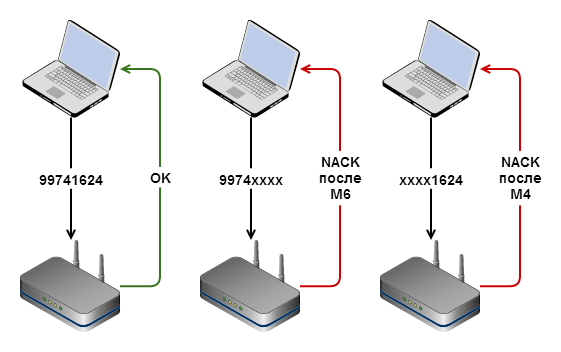
Диаграмма выше описывает процесс подключения клиента к точке доступа с помощью PIN-кода. PIN — 8 цифр, которые обычно наклеены на самом роутере. Клиенты, поддерживающие WPS, могут подключиться к сети либо по обычному паролю WEP/WPA, либо с помощью PIN, причём введя последний клиент получает пароль сети в чистом виде.
По стандарту, последняя цифра в PIN — это контрольная сумма, то есть её можно вычислить исходя из остальных цифр. Таким образом, если бы мы хотели перебрать все возможные комбинации, то это потребовало бы 107 попыток (в основании — число возможных символов (0-9 — десять), в степени — длина строки) — 10 миллионов, что есть около 116 дней, если мы пробуем один код в секунду. Обычно скорость в несколько раз ниже, поэтому на подбор бы ушло больше года.

Однако в стандарте допущена ошибка. Процесс авторизации проходит в несколько этапов. Если переданный нами PIN — верный, то точка доступа сообщает об успехе. Если первые четыре цифры PIN — верные, а цифры 4-7 — нет, то точка доступа сообщит об этом после передачи нами пакета M6. В случае же ошибки в первых четырёх цифрах мы узнаем об этом раньше — после пакета M4. Эта проблема была найдена в конце 2011 и описана здесь. По горячим следам авторами исследования был создан reaver-wps, опубликованный затем на Google Code. Там же можно найти документ оригинального описания уязвимости.
Итак, допустим наш PIN — 99741624. Мы пытаемся подключиться, используя PIN 99740000 — получаем отказ в авторизации после передачи пакета M6 (так как первая половина кода верна). Если же мы подключимся с 00001624 — отказ будет после M4.
Как видим, основная проблема в том, что мы можем узнать о правильности одной части кода даже при том, что во второй содержится ошибка. Что это даёт? Теперь вместо 10 миллионов комбинаций нам нужно попробовать всего лишь 104 + 103 = 11 000. Это более чем реально сделать не то что за неделю — за 15 часов, а обычно быстрее.
Обратите внимание: цифр для подбора именно 7, а не 8, так как последняя — контрольная сумма и мы её рассчитываем сами, поэтому её подбирать не нужно. В примерах ниже это #.
Посмотрим ещё раз. Мы начинаем перебор с 0000000#. Отказ после M4 (ошибка в первых 4 цифрах). Меняем на 0001000#. Отказ после M4. 0002000#. M4. Доходим до 9974000#. О! Отказ после М6. Первые 4 цифры угаданы.
Дальше — точно так же. Имея половину кода постепенно увеличиваем вторую. 9974001#. Отказ. 9974002#. Отказ. 99741624. Принято.
Вот в этом и суть Wi-Fi Unprotected Setup «Защищённой настройки Wi-Fi».
Источники:
- https://losst.ru/ustanovka-kali-linux-na-kompyuter
- https://losst.ru/nastrojka-kali-linux-posle-ustanovki
- https://kali-linuks.ru/2018/06/14/nastrojka-kali-linuks-posle-ustanovki-poshagovaya-instruktsiya/
- https://cyberguru.tech/%D1%85%D0%B0%D0%BA%D0%B8%D0%BD%D0%B3/kali-linux-2020persistence
- https://www.make-info.com/ustanovka-kali-linux-na-android-smartfon/
- https://losst.ru/kak-ustanovit-kali-linux-na-virtualbox
- https://habr.com/post/225483/