Этот инструмент сравнивает уровни патчей целей с базой данных уязвимостей Microsoft, чтобы обнаружить потенциальные недостающие патчи на целевой машине.
Он также уведомляет пользователя о наличии публичных эксплойтов и модулей Metasploit для отсутствующих бюллетеней.
Он требует вывода команды systeminfo из хоста Windows, чтобы сравнить эту базу данных бюллетеней безопасности Microsoft и определить уровень патча хоста.
Он имеет возможность автоматически загружать базу данных бюллетеней безопасности из Microsoft с флагом -update и сохраняет ее как электронную таблицу Excel.
При просмотре вывода команды важно отметить, что он принимает все уязвимости и затем выборочно удаляет их на основе данных исправления.
Это может привести к множеству ложных срабатываний, и важно знать, какое программное обеспечение действительно работает на целевом хосте.
Например, если есть известные эксплоиты IIS, они будут отмечать их, даже если IIS не запущен на целевом узле.
На выходе отображаются либо публичные эксплойты (E), либо модули Metasploit (M), как указано символьным значением.
Использование
обновите базу данных:
 # ./windows-exploit-suggester.py --update

[*] initiating...

[*] successfully requested base url

[*] scraped ms download url

[+] writing to file 2014-06-06-mssb.xlsx

[*] done
введите его «systeminfo» и укажите его в базу данных Microsoft
 # ./windows-exploit-suggester.py --database 2014-06-06-mssb.xlsx --systeminfo win7sp1-systeminfo.txt

[*] initiating...

[*] database file detected as xls or xlsx based on extension

[*] reading from the systeminfo input file

[*] querying database file for potential vulnerabilities

[*] comparing the 15 hotfix(es) against the 173 potential bulletins(s)

[*] there are now 168 remaining vulns

[+] windows version identified as 'Windows 7 SP1 32-bit'

[*]

[M] MS14-012: Cumulative Security Update for Internet Explorer (2925418) - Critical

[E] MS13-101: Vulnerabilities in Windows Kernel-Mode Drivers Could Allow Elevation of Privilege (2880430) - Important

[M] MS13-090: Cumulative Security Update of ActiveX Kill Bits (2900986) - Critical

[M] MS13-080: Cumulative Security Update for Internet Explorer (2879017) - Critical

[M] MS13-069: Cumulative Security Update for Internet Explorer (2870699) - Critical

[M] MS13-059: Cumulative Security Update for Internet Explorer (2862772) - Critical

[M] MS13-055: Cumulative Security Update for Internet Explorer (2846071) - Critical

[M] MS13-053: Vulnerabilities in Windows Kernel-Mode Drivers Could Allow Remote Code Execution (2850851) - Critical

[M] MS13-009: Cumulative Security Update for Internet Explorer (2792100) - Critical

[M] MS13-005: Vulnerability in Windows Kernel-Mode Driver Could Allow Elevation of Privilege (2778930) - Important

[*] done
возможные эксплойты для операционной системы могут использоваться без данных исправления
 # ./windows-exploit-suggester.py --database 2014-06-06-mssb.xlsx --ostext 'windows server 2008 r2'

[*] initiating...

[*] database file detected as xls or xlsx based on extension

[*] getting OS information from command line text

[*] querying database file for potential vulnerabilities

[*] comparing the 0 hotfix(es) against the 196 potential bulletins(s)

[*] there are now 196 remaining vulns

[+] windows version identified as 'Windows 2008 R2 64-bit'

[*]

[M] MS13-009: Cumulative Security Update for Internet Explorer (2792100) - Critical

[M] MS13-005: Vulnerability in Windows Kernel-Mode Driver Could Allow Elevation of Privilege (2778930) - Important

[E] MS11-011: Vulnerabilities in Windows Kernel Could Allow Elevation of Privilege (2393802) - Important

[M] MS10-073: Vulnerabilities in Windows Kernel-Mode Drivers Could Allow Elevation of Privilege (981957) - Important

[M] MS10-061: Vulnerability in Print Spooler Service Could Allow Remote Code Execution (2347290) - Critical

[E] MS10-059: Vulnerabilities in the Tracing Feature for Services Could Allow Elevation of Privilege (982799) - Important

[E] MS10-047: Vulnerabilities in Windows Kernel Could Allow Elevation of Privilege (981852) - Important

[M] MS10-002: Cumulative Security Update for Internet Explorer (978207) - Critical

[M] MS09-072: Cumulative Security Update for Internet Explorer (976325) - Critical
Проблемы с интернетом — это всегда неприятно. Они могут мешать работе или развлечениям, а также ограничивать прочие возможности в сети. Если речь идёт про подключение через кабель, возможных причин этой проблемы может быть не так уж много.
Роутеры линейки Asus RT, несмотря на многофункциональный веб-интерфейс, просты в настройке благодаря огромной схожести веб-интерфейса. Одна из таких моделей — RT-N18U. Сам роутер обладает не только изобилием настроек, но и приличными мощностью и скоростью.
VPN (Virtual Private Network) is a technology that provides a secure and encrypted tunnel across a public network. A private network user can send and receive data to any remote private network using this VPN Tunnel as if his/her network device was directly connected to that private network.
MikroTik L2TP server is one of the most popular VPN services. It provides a secure and encrypted tunnel across public network for transporting IP traffic using PPP. L2TP/IPsec is more secure than MikroTik PPTP VPN server because it uses IP security protocol suite that authenticates and encrypts the packets of data send over a network. MikroTik L2TP Server can be applied in two methods.
Connecting remote workstation/client: In this method, a L2TP client supported operating system such as Windows can communicate with MikroTik L2TP server through L2TP tunnel whenever required and can access remote private network as if it was directly connected to the remote private network.
Site to Site L2TP: This method is also known as VPN between routers. In this method, a L2TP client supported router always establishes a L2TP tunnel with MikroTik L2TP Server. So, private networks of these routers can communicate to each other as if they were directly connected to the same router.
The goal of this article is to establish a secure and encrypted virtual link between two routers using L2TP Tunnel across public network. So, in this article I will show how to configure L2TP/IPsec VPN Server and Client in MikroTik Router for establishing a site to site VPN tunnel.
Network Diagram
To configure a Site to Site L2TP Tunnel with MikroTik Router, I am following a network like below diagram.
Site to SIte L2TP over IPsec Network
In this network, R1 Router is connected to internet through ether1 interface having IP address 192.168.30.2/30. In your real network this IP address should replace with public IP address. R1 Router’s ether2 interface is connected to local network having IP network 10.10.11.0/24. We will configure L2TP/IPsec server in this router and after L2TP configuration the router will create a virtual interface (L2TP Tunnel) across public network whose IP address will be 172.22.22.1. On the other hand, R2 Router is a remote router and can access R1 Router’s WAN IP. R2 Router’s ether1 interface is connected to internet having IP address 192.168.40.2/30 and ether2 has a local IP network 10.10.12.0/24. We will configure L2TP client in this router and after configuration the router will have a virtual interface (L2TP Tunnel) across public network whose IP address will be 172.22.22.2.
Site to Site L2TP/IPsec Configuration in MikroTik Router
We will now start our Site to Site PPTP configuration in MikroTik Router according to above network diagram. Complete configuration can be divided into two parts.
Part 1: R1 Router Configuration
Part 2: R2 Router Configuration
Part 1: R1 Router Configuration
We will configure L2TP Server in R1 MikroTik RouterOS. Complete RouterOS configuration can be divided into three steps.
MikroTik Router basic configuration
Enabling L2TP Server with IPsec
PPP user configuration for L2TP Server
Step 1: MikroTik Router Basic Configuration
In first step, we will assign WAN, LAN and DNS IP and perform NAT and Route configuration. The following steps will show how to do these topics in your MikroTik RouterOS.
Login to R1 RouterOS using winbox and go to IP > Addresses. In Address List window, click on PLUS SIGN (+). In New Address window, put WAN IP address (192.168.30.2/30) in Address input field and choose WAN interface (ether1) from Interface dropdown menu and click on Apply and OK button. Click on PLUS SIGN again and put LAN IP (10.10.11.1/24) in Address input field and choose LAN interface (ether2) from Interface dropdown menu and click on Apply and OK button.
Go to IP > DNS and put DNS servers IP (8.8.8.8 or 8.8.4.4) in Servers input field and click on Apply and OK button.
Go to IP > Firewall and click on NAT tab and then click on PLUS SIGN (+). Under General tab, choose srcnat from Chain dropdown menu and click on Action tab and then choose masquerade from Action dropdown menu. Click on Apply and OK button.
Go to IP > Routes and click on PLUS SIGN (+). In New Route window, click on Gateway input field and put WAN Gateway address (192.168.30.1) in Gateway input field and click on Apply and OK button.
Basic RouterOS configuration has been completed. Now it is time to enable L2TP Server with IPsec in our MikroTik Router.
Step 2: Enabling PPTP Server with IPsec
We will now enable L2TP Server in our MikroTik Router. The following steps will show how to enable L2TP Server as well as IPsec authentication in MikroTik RouterOS.
Click on PPP menu item from winbox and then click on Interface tab.
Click on L2TP Server button. L2TP Server window will appear.
Click on Enabled checkbox.
Also click on Use IPsec checkbox if available. It will be available in 6.16 or newer version.
Now put IPsec authentication password in IPsec Secret input box. This password has to provide when L2TP/IPsec client router will be configured.
Click on Apply and OK button.
L2TP Server with IPsec is now running in our MikroTik Router. The next step is to configure PPP user who will be authenticated to connect to L2TP Server for establishing a L2TP Tunnel.
Step 2: PPP User Configuration for L2TP Server
We will now create PPP secrets (username and password) that are required to connect to L2TP Server. We will assign local and remote virtual interface IP as well. We will also add a static route in routing table to reach the client router’s private network. The following steps will show how to do these topics in your MikroTik Router.
Click on PPP menu item from winbox and then click on Secrets tab.
Click on PLUS SIGN (+). New PPP Secret window will appear.
Put username (For example: sayeed) in Name input and password in Password input field. This username and password will be required when L2TP client will be configured.
Put virtual interface IP for R1 Router end (172.22.22.1) in Local Address input field and for R2 Router end (172.22.22.2) in Remote Address input field.
Put static routes to reach R2 Router’s local network in Routes input filed. This route will be added in R1 Router’s routing table when L2TP user will be connected from R2 Router. The route format is: dst-address gateway metric (example for this configuration: 10.10.12.0/24 172.22.22.2 1). Several routes may be specified separated with commas.
Click on Apply and OK button.
User configuration for L2TP Server has been completed. Whenever your created user will be connected from L2TP client router (R2 Router), the Remote Address IP will be assigned for its virtual interface and the routes will be created in R1 Router’s routing table so that R1 Router’s local network can reach remote router’s (R2 Router) local network.
R1 Router configuration has been completed. Now R1 Router is ready to create L2TP Tunnel for its L2TP user. In the next part, we will configure our R2 Router so that it can connect to R1 Router through a L2TP Tunnel to reach R1 Router’s local network.
Part 2: R2 Router Configuration
According to our network diagram, R2 Router is working as a L2TP client router. So, we will configure L2TP client in R2 Router. Complete RouterOS configuration can be divided into three steps.
Basic RouterOS configuration
L2TP client configuration
Static route configuration
Step 1: Basic RouterOS Configuration
Basic RouterOS configuration includes assigning WAN, LAN and DNS IP as well as NAT and Route configuration. The following steps will guide you about basic RouterOS configuration.
Login to R2 RouterOS using winbox and go to IP > Addresses. In Address List window, click on PLUS SIGN (+). In New Address window, put WAN IP address (192.168.40.2/30) in Address input field and choose WAN interface (ether1) from Interface dropdown menu and click on Apply and OK button. Click on PLUS SIGN again and put LAN IP (10.10.12.1/24) in Address input field and choose LAN interface (ether2) from Interface dropdown menu and click on Apply and OK button.
Go to IP > DNS and put DNS servers IP (8.8.8.8 or 8.8.4.4) in Servers input field and click on Apply and OK button.
Go to IP > Firewall and click on NAT tab and then click on PLUS SIGN (+). Under General tab, choose srcnat from Chain dropdown menu and click on Action tab and then choose masquerade from Action dropdown menu. Click on Apply and OK button.
Go to IP > Routes and click on PLUS SIGN (+). In New Route window, click on Gateway input field and put WAN Gateway address (192.168.40.1) in Gateway input field and click on Apply and OK button.
Basic RouterOS configuration in R2 Router has been completed. Now it is time to create L2TP client in our MikroTik Router.
Step 2: L2TP Client Configuration
After completing RouterOS basic configuration, we will now configure L2TP client in R2 Router. The following steps will show you how to create L2TP client in your MikroTik Router.
Click on Interfaces menu item from winbox and then click on Interface tab. Click on PLUS SIGN (+) dropdown menu and then choose L2TP Client option. New Interface window will appear.
Click on General tab and put L2TP interface name (l2tp-server) in Name input field.
Click on Dial Out tab and put R1 Router’s WAN IP (192.168.30.2) in Connect To input field. This IP must be reachable from R2 Router.
Put username (sayeed) and password that you have provided in R1 Router’s PPP user configuration, in User and Password input field respectively.
Click on Use IPsec checkbox and then provide the password that you entered at the time of enabling L2TP/IPsec Server.
Click on Apply and OK button.
As soon as you provide the above information, a L2TP Tunnel will be created between R1 and R2 Router and provided local and remote IP address will be assigned in R1 and R2 Router’s virtual interface respectively. At this stage, R1 Router as well as its local network will be able to reach R2 Router and its local network but R2 Router and its local network will only be able to reach R1 Router but not its local network. To reach R1 Router’s local network, a static route must be added in R2 Router’s routing table.
Step 3: Static route configuration
After configuring L2TP Client in R2 Router, R2 Router can only access R1 Router but not its local network. To solve this issue, a route is required in R2 Router’s routing table. The following steps will show how to add a route in R2 Router’s routing table statically.
Go to IP > Routes and then click on PLUS SIGN (+).
In New Route window, provide R1 Router’s local network (10.10.11.0/24) where you want to reach, in Dst. Address input field.
Click on Gateway input field and then choose your L2TP client interface (l2tp-server) that you have create in L2TP client configuration, from Gateway dropdown menu.
Click on Apply and OK button.
Now R2 Router and its local network will be able to access R1 Router’s local network.
R1 Router and R2 Router Configuration for establishing a PPTP Tunnel between them has been completed. Now both router’s local networks are eligible to access each other. To check your configuration, do a ping request from any local network machine to other local network machine. If everything is OK, your ping request will be success.
MikroTik VPN configuration with Site to Site L2TP/IPsec Service has been explained in this article. I hope you will be able to configure your Site to Site VPN with MikroTik L2TP service if you follow the explanation carefully. However, if you face any confusion to do above steps properly, feel free to discuss in comment or contact with me from Contact page. I will try my best to stay with you.
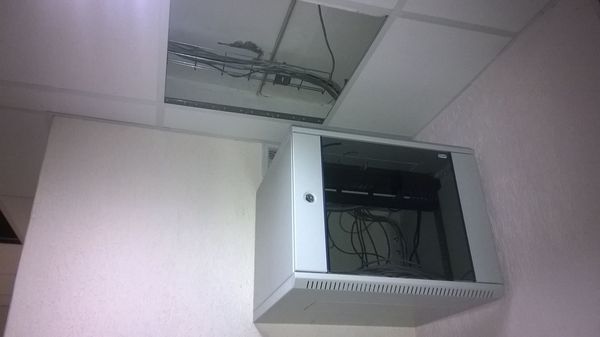
В распределительный шкаф по проекту сводятся провода от пользователей половины этажа. Соответственно на один этаж получается два РШ. Расположение шкафов выбиралось таким образом, чтоб они были равноудалены от всех подключенных к ним абонентов. Провод – витая пара UTP cat5e подводится к шкафу за подвесным потолком в специальных металлических лотках.
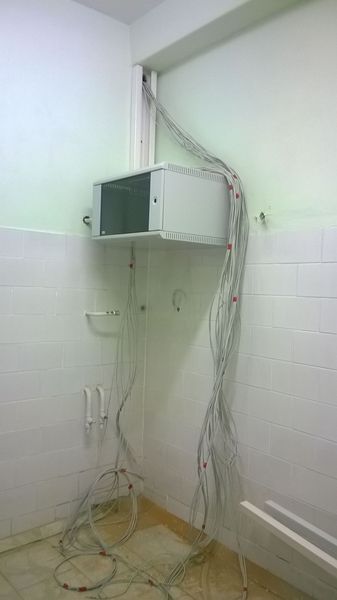
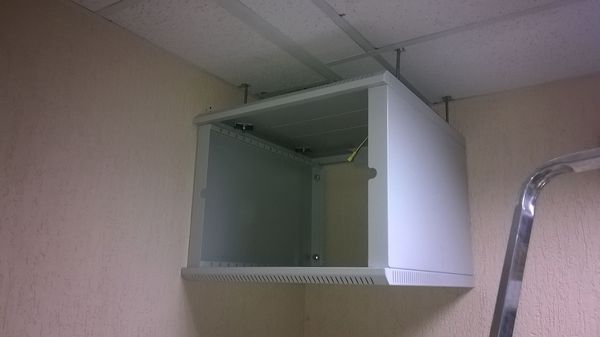
Первый РШ был смонтирован в серверной. Однако, тут всё типовое, и как был повешен первый шкаф, примерно так же и пятый.
По кодексу СКС высота подвеса от потолка должна быть не менее 20 см, других ограничений нет. В общественных местах шкаф лучше располагать повыше, в серверных и других технических помещениях можно разместить так, чтоб удобно было обслуживать.
Нужно отметить, что такой маленький РШ как у нас, для серверной не очень подходит, потому что с большой вероятностью в будущем захотят добавить оборудование для расширения сети, а шкаф маленький, придется вешать еще один. Для серверной, какой-бы она ни была, лучше изначально выбирать большой напольный шкаф высотой 1,5-2м.
У нас были закуплены шкафы ШРН-Э с размерами 600х520 6U и 600х650 9U. 12U чего-то не привезли, хотя заказывали.
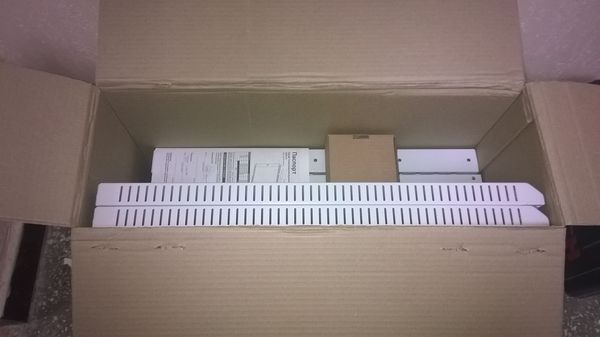
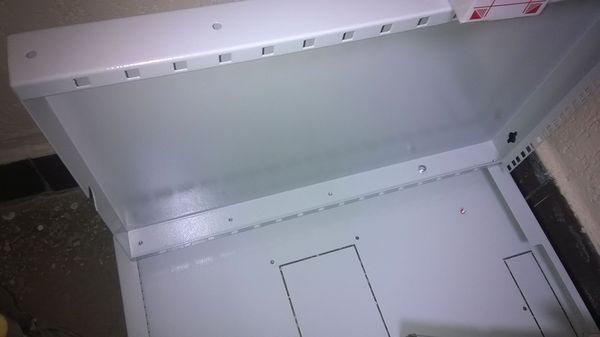
Шкафы поставляются в разобранном виде.
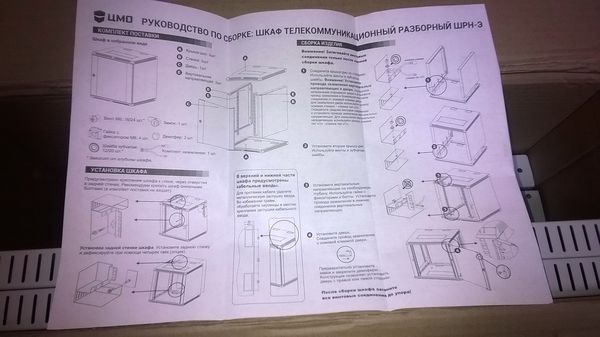
Внутри обязательно должна присутствовать инструкция по сборке
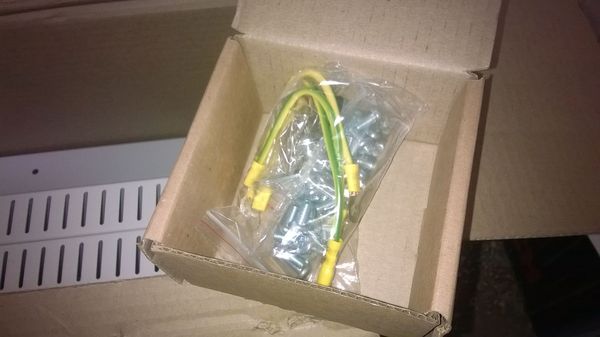
и коробочка с различными крепежами.
Собираем шкаф. Выбираем днище и прикручиваем к нему стенки, затем крышку.
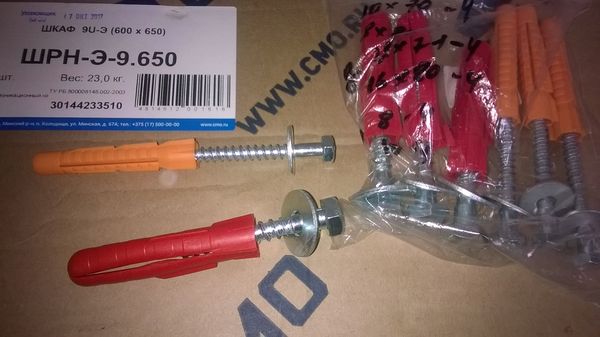
После того, как корпус собран, подвешиваем шкаф. Если шкаф крепится к стене, то для этого лучше использовать дюбель-болт 16х80мм с шайбой (красный на фото ниже).
Четыре таких дюбеля будут надежно держать шкаф.
Иногда прикрепить шкаф к стене не представляется возможным, в таком случае подвес можно осуществить шпильками к потолку.
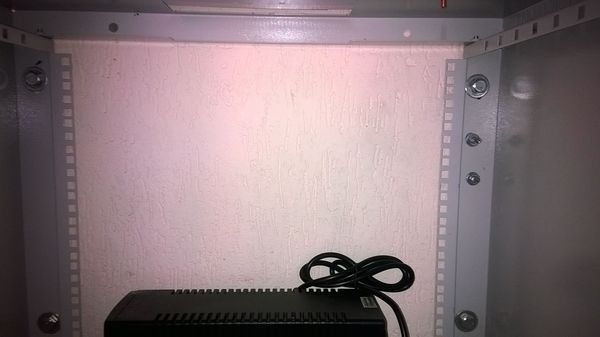
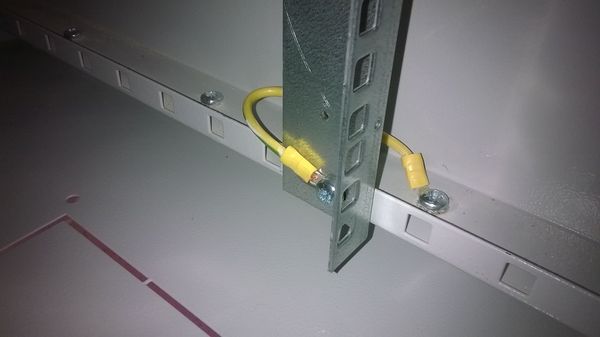
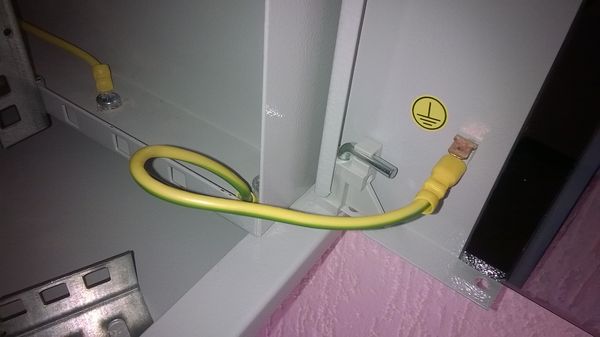
В подвешенном шкафу крепим планки для оборудования. Подвешиваем двери и подсоединяем провода заземления.
Еще нужно вкрутить замок.
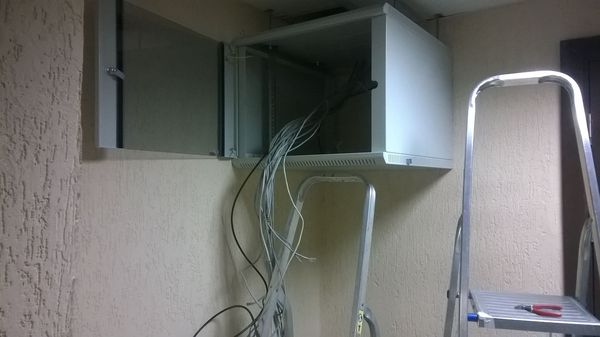
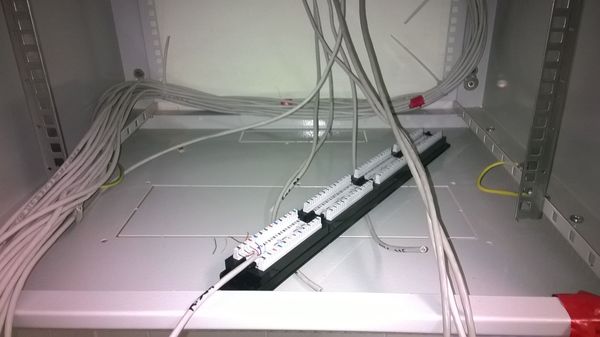
Переходим к внутренней разделке. Запускаем кабели внутрь шкафа и укладываем по задней стенке.
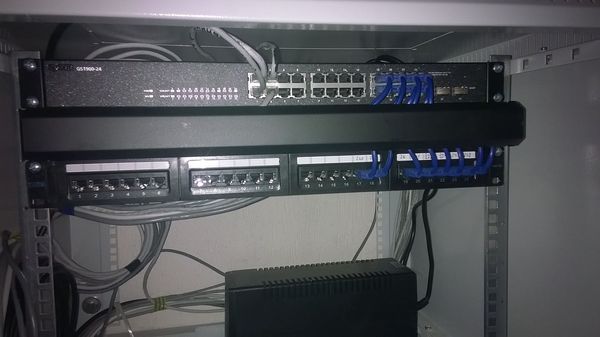
В соответствии с планом, размещаем оборудование сверху вниз:
-коммутатор;
-кабельный органайзер;
-патч-панель.
Оборудование крепится к планкам винтами М6 и гайками с само-фиксацией.
Внизу шкафа на фото виден ИБП. Его лучше предусмотреть такого же стоечного форм-фактора, как и всё остальное оборудование. Электропитание РШ, как и всего остального компьютерного оборудования сети нужно выполнять от отдельной электрической линии с отдельным автоматом – требование СКС.
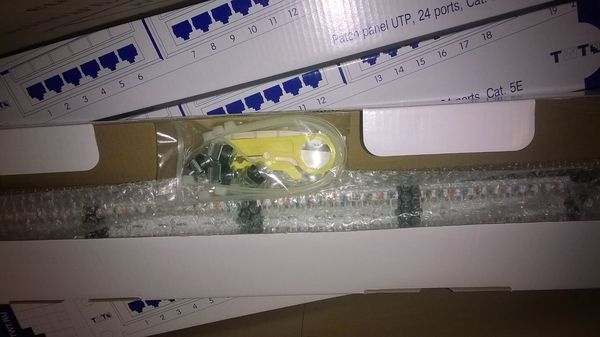
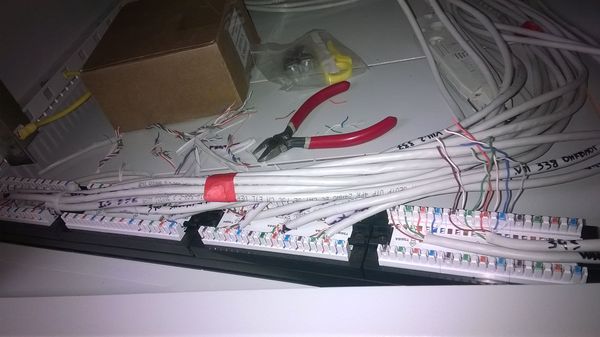
Расшиваем витую пару на патч-панель. Обычно в комплекте с патч-панелью идут винты для её крепежа, пару стяжек и инструмент для снятия изоляции.
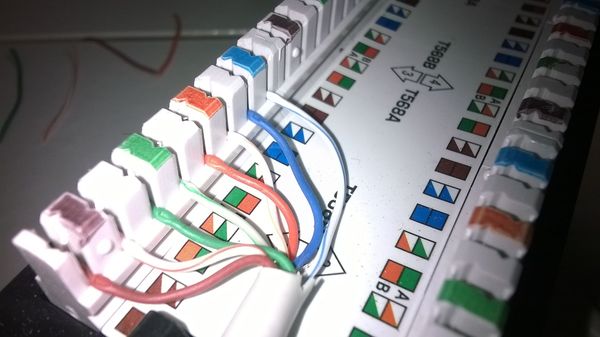
Прибиваем провода каждого порта спец. инструментом в соответствии с рисунком на патч-панели. Вся сеть должна быть одного стандарта, например Б (T568B).
Получившуюся сборку проводов пристегиваем стяжками и прикручиваем патч-панель на её место. Желательно оставить провода с запасом в 30-40см, чтоб можно было перемещать и по необходимости снимать патч-панель.
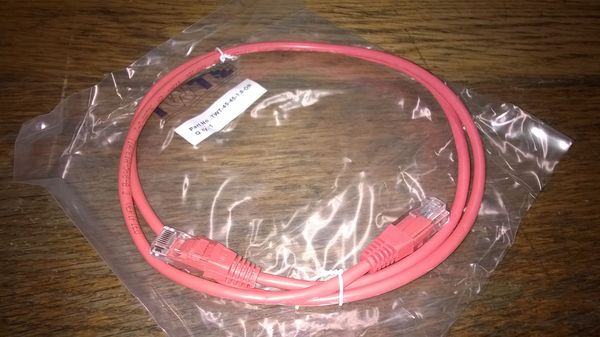
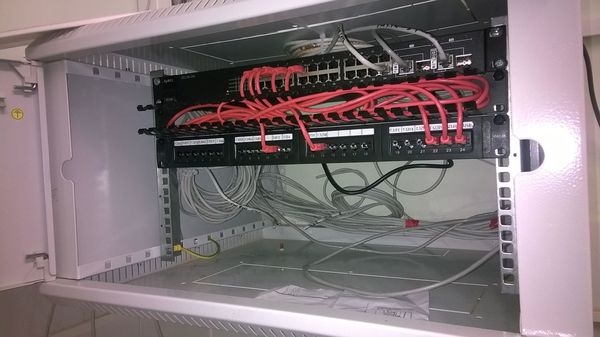
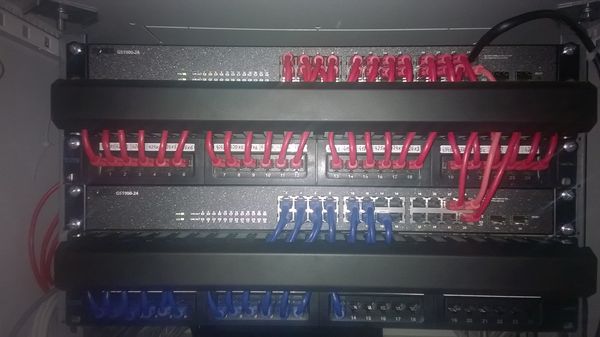
Коммутатор и патч-панель соединяются патч-кордами.
Лишняя часть патч-корда укладывается в кабельный органайзер.
В маленьких шкафах предпочтительны патч-корды длинной не более 0,5м.
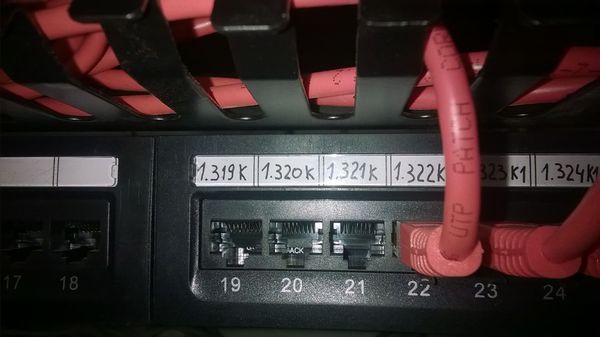
Каждый расшитый порт подписывается в соответствии с помещением, в которое выводится линия.
Если несколько слоев оборудования, то получится картина как на фото ниже.
Все данные смонтированного шкафа необходимо внести в ведомость подключений.
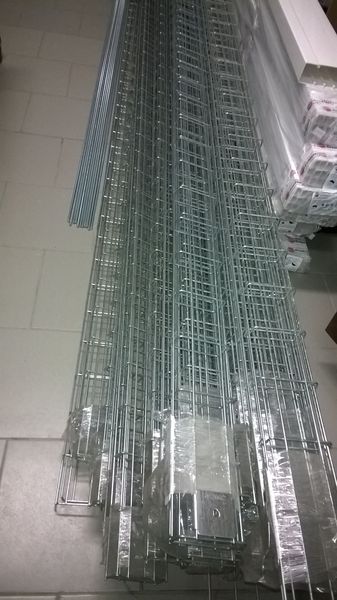
Наконец привезли металлические лотки, кабельный канал для внутренней отделки и все сопутствующие материалы. Начался полномасштабный монтаж ЛВС в нашей организации.
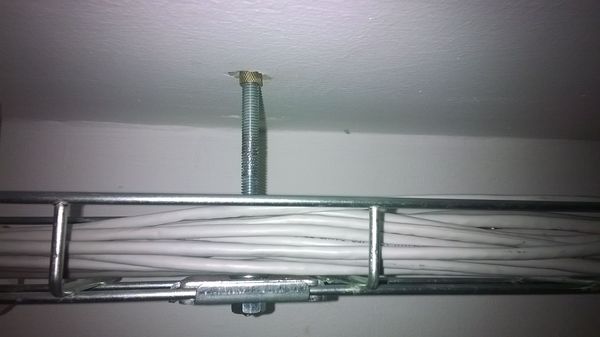
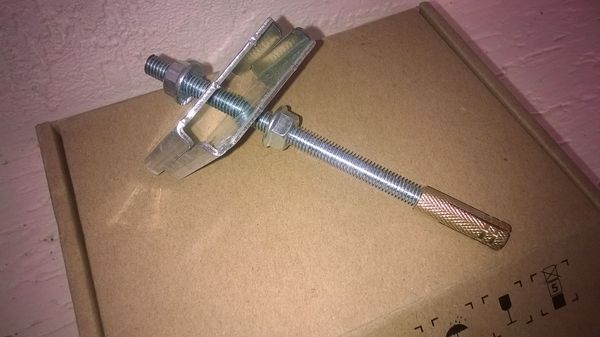
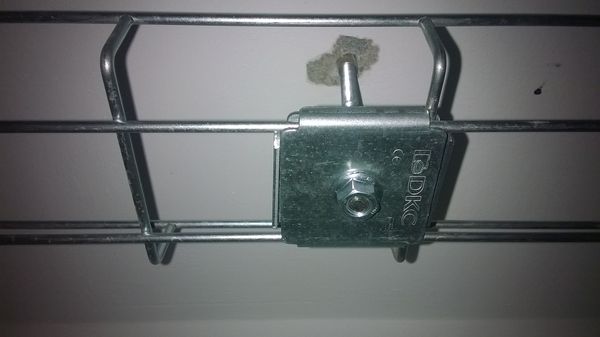
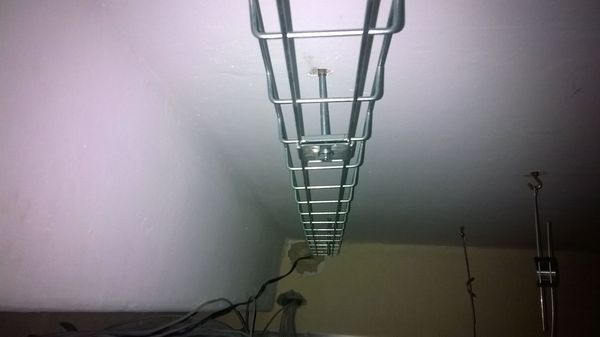
Лотки выбраны проволочные 30х100мм (высота х ширина), как наиболее легкие удобные для монтажа и дешевые. Каждый лоток длинной 3м и крепится к бетонному потолку специальным крепежом, который состоит из:
резьбовой шпильки М8,
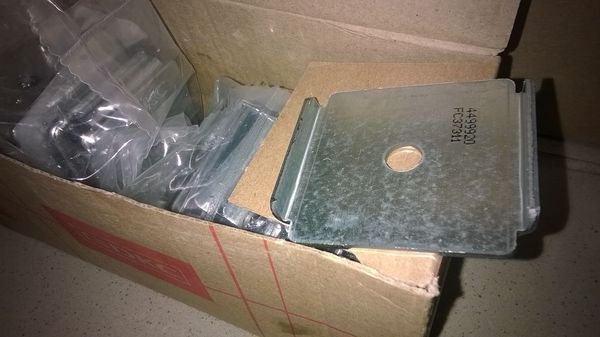
двух крепежных пластин,
гаек М8
и анкерного дюбеля.
В совокупности получается конструкция, как на фото ниже
Последовательность монтажа следующая. Отмеряем на потолке по длине лотка три точки, как правило, две ближе к краям лотка и одна посредине, отмечаем их маркером. Сверлим отверстия сверлом М10 по бетону. Вставляем анкер и закручиваем шпильку.
Затем к крепежам цепляем лоток.
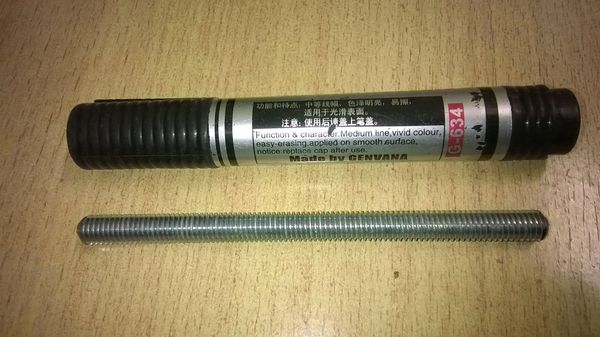
Шпильку М8 нужно распиливать болгаркой. Длина от потолка до лотка определяется по месту. В большинстве случаев шпилька была порезана на куски размером с маркер.
Такой длинны вполне хватает для комфортной укладки кабеля в лоток, при этом сокращается расход шпильки.
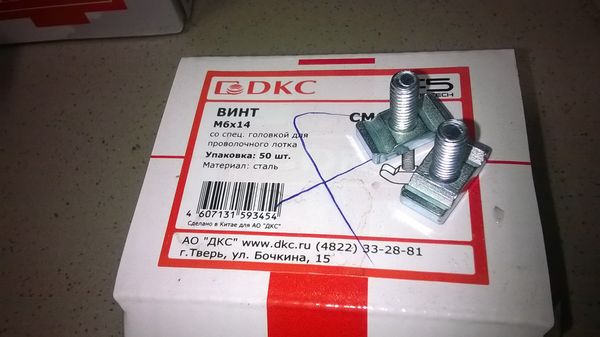
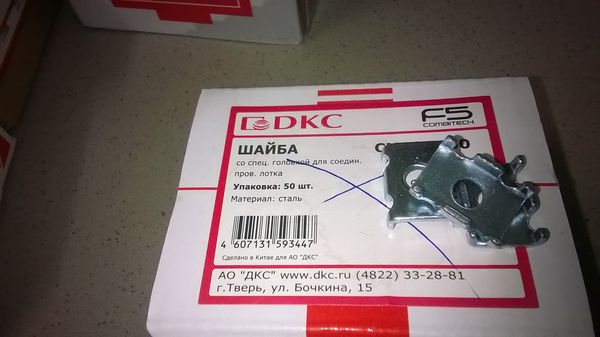
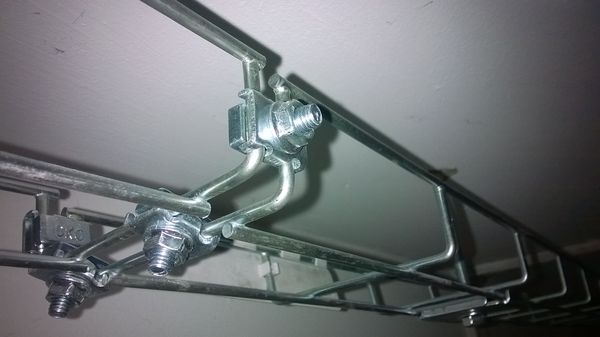
Для того, чтоб соединить два лотка между собой в комплекте предусмотрены специальные винт и шайба.
Они закручиваются гайками М6, которые тоже есть в комплекте. Для одного соединения достаточно двух крепежей. На фото ниже четыре для наглядности.
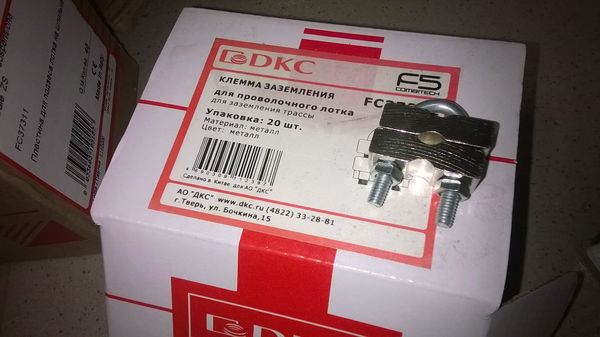
Металлический лоток обязательно должен быть заземлен, для этого в комплекте поставки предусмотрены заземляющие клеммы.
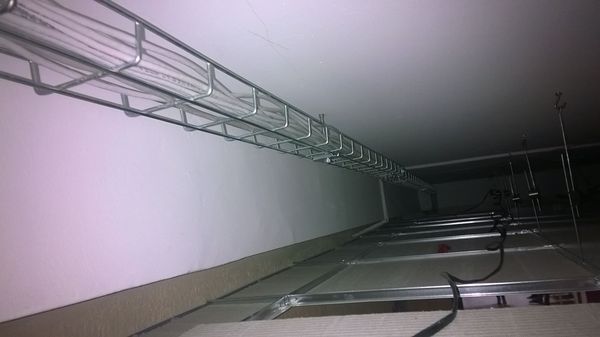
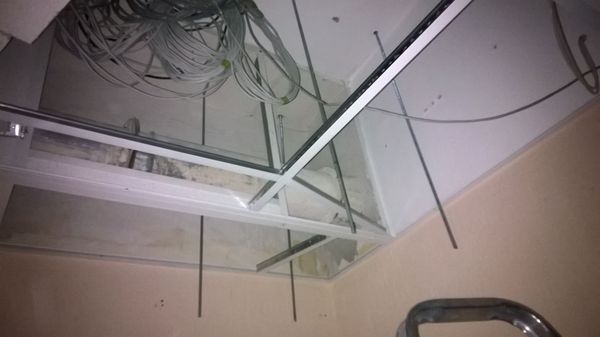
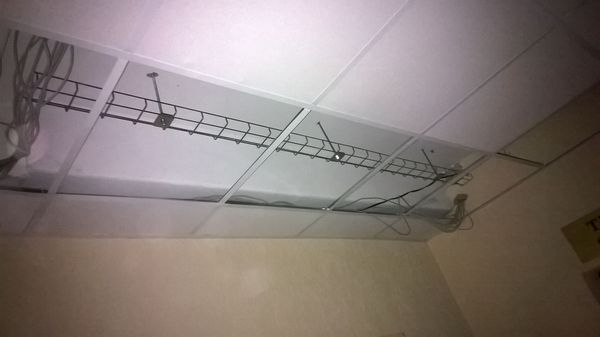
Вот такой вот конструктор нужно было собрать по длине главного коридора всего этажа, это примерно 100м. Чтоб нам веселей работалось, хоз. службы повесили подвесной потолок по коридору за неделю до монтажа ЛВС. Засовывание 3х метровых металлических лотков за подвесной потолок создало дополнительные трудности.
Первоначально работали очень старательно, кое-где сделали фигурные переходы, но в один прекрасный момент выяснилось, что во время монтажа подвесного потолка, где-то металлическим дюбелем пробили фазу в стене и весь металлический каркас подвесного потолка этажа оказался под напряжением. Жэсць! И автоматы не срабатывают. После того, как пару раз ударило током, думали уже только о том, чтоб поскорее закончить этот этаж. Переговоры с электриками ни к чему не привели. Потолок, как-правило, заземляют в трех местах минимум. В данном случае это похоже никому не нужно.
В смонтированный лоток укладываются кабеля ЛВС.
Максимально в один лоток уложено 40 кабелей, можно и больше. Таких мест не много на протяжении трассы, в основном скопления проводов возле РШ, поэтому нагрузка на лоток там больше, чем в других местах. На всякий случай в местах с наибольшей нагрузкой желательно сделать на один крепеж к потолку больше, если нет точных расчетов по нагрузкам.
После того, как сеть оформлена по коридорам, переходим к работам внутри помещений или к подвесу распределительных шкафов ЛВС.





 Металлический лоток обязательно должен быть заземлен, для этого в комплекте поставки предусмотрены заземляющие клеммы.