Очень удобно, когда в доме всегда есть стабильный доступ к интернету. Но бывают ситуации, когда подключение нужно приостановить или отменить навсегда.
Очень удобно, когда в доме всегда есть стабильный доступ к интернету. Но бывают ситуации, когда подключение нужно приостановить или отменить навсегда.
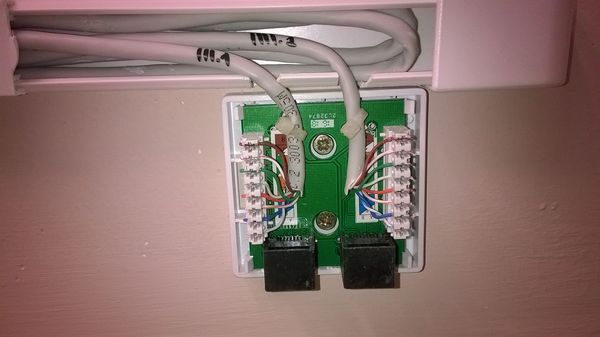
Компьютерные розетки с разъемами 8P8C (RJ-45) могут быть внутренними и наружными. В нашей сети распространены наружные розетки, так как для них не нужно высверливать посадочное отверстие и делать штробу для кабеля в стене. Вне зависимости от того, какая розетка, расшивку кабеля необходимо выполнить по одному из стандартов «А» или «B» T568A и T568B.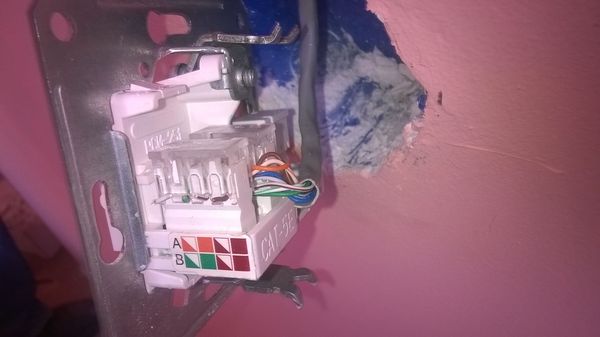
Для справки, основным стандартом, описывающим структурированные кабельные системы (СКС), является стандарт ANSI/TIA/EIA-568-A «Commercial Building Telecommunications Cabling Standard». Он был разработан и утвержден комитетами American National Standards Institute (ANSI), Telecommunications Industry Association (TIA) и Electronics Industry Association (EIA). Однако, в настоящее время стандарт «А» считается устаревшим, и ему на смену с 2001г. пришел стандарт TIA/EIA-568-B, короче «B» (Б или Би). Самое известное различие в них – это способ разделки проводов по контактам. Распределение пар по стандарту «B» представлено ниже.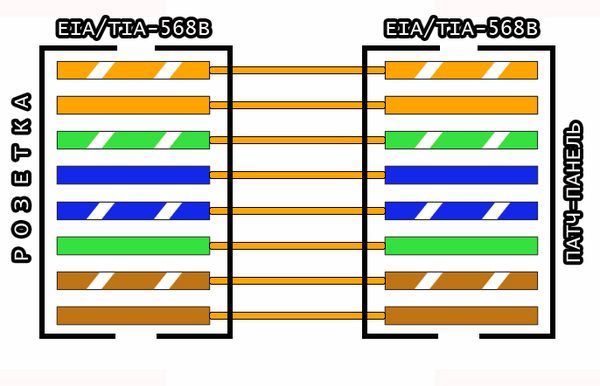
Подключение проводов в розетке должно соответствовать подключению ответной части провода. Чаще всего на ответной части в распределительном шкафу патч-панель.
Переходим к разделке. Для выполнения работы нам понадобится инструмент – расшивочный нож, иногда «пристрелочник». Я всегда использую инструмент Krone TWT-PND-LSA-A. Его аналоги HT-3141, TL-3141.
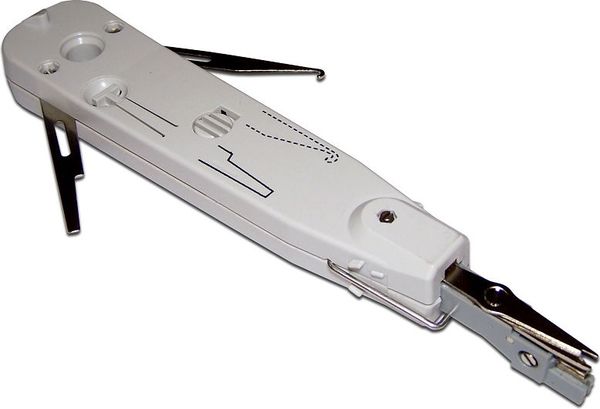
Менее удобные T-431 и аналоги, но тоже сойдут, лучше чем просто отвертка.
Во всех розетках обязательно присутствует маркировка соответствия цвета пар изоляции жил стандарту. Находим обозначение с буквой B, 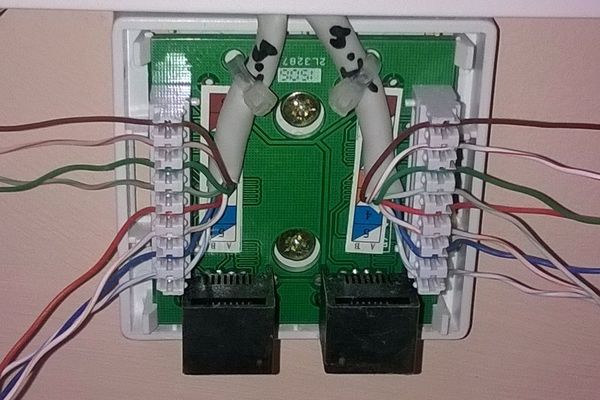
раскладываем проводки в соответствии с цветовой подсказкой и прибиваем инструментом.
Есть рекомендации, согласно которым расплетать витую пару не желательно более чем на ½ дюйма (1-1,5см). Можно придерживаться этого правила, но я пробовал расплетать и больше, при этом с UTP cat5e стабильно получается скорость 1Gbit/s при длине линии 60м. Так же не рекомендуется снимать изоляцию кабеля более 3 дюймов (7,5см).
В некоторых современных розетках из Китая можно обойтись без использования расшивочного инструмента.
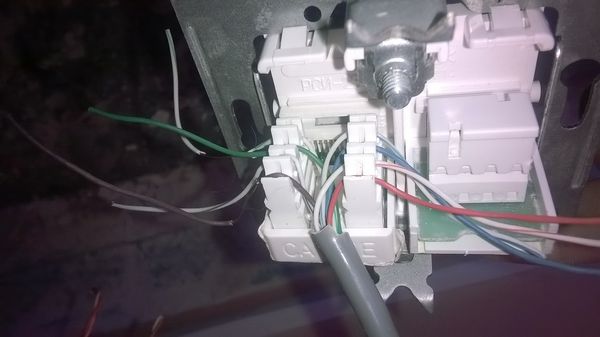
Провода укладываются в соответствии с расцветкой и затем прижимаются небольшой крышкой.
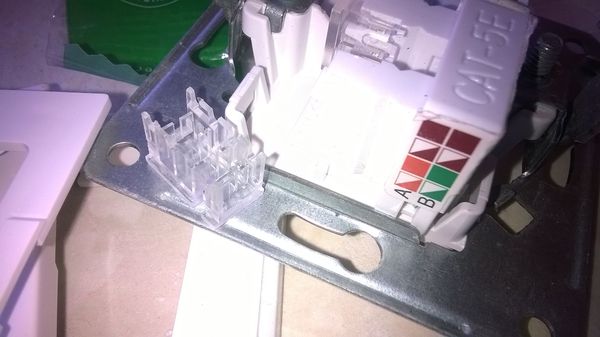
Для того, чтоб сеть получилась надежной нужно использовать розетки (и всё остальное) какой-нибудь известной марки, проверенной временем.
После расшивки проверяем розетку тестером витой пары и подписываем маркером. 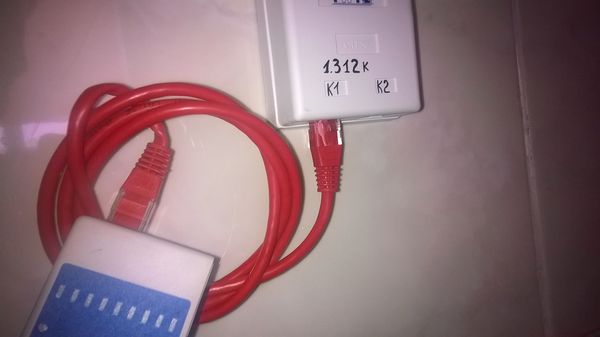
Розетка готова.
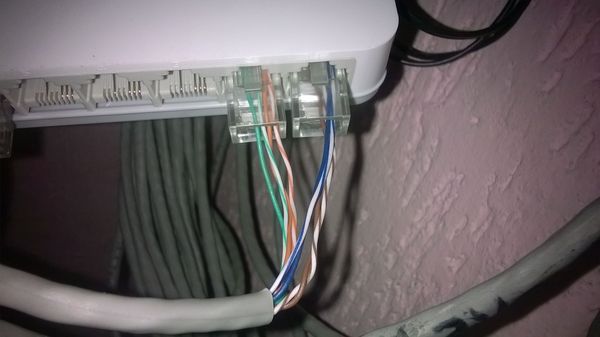
Переходим к реалиям жизни и рассмотрим случай расшивки розетки, при котором по одной витой паре нужно подключить два компьютера. Раскладываем провода, как на фото ниже.
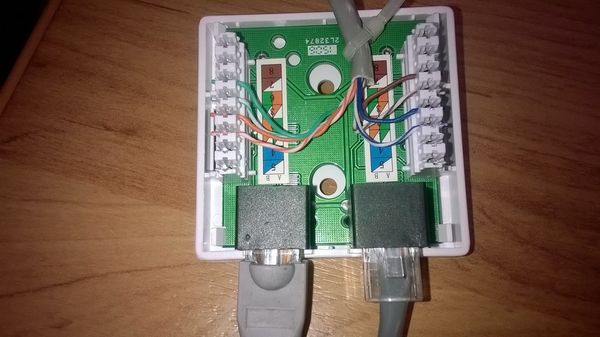
В левом разъеме раскладка соответствует стандарту Б и выполняется по рисунку как обычно. При этом задействованы только две пары проводов, используемые для приема и передачи данных – это белая-оранжевая/оранжевая и бело-зеленая/зеленая.
Правый разъем подключается так же только двумя парами. На место бело-оранжевого/оранжевого проводов прибиваются бело-синий/синий. На место бело-зеленой/зеленой пары прибивается бело-коричневая/коричневая.
Осталось правильно обжать или расшить ответную сторону кабеля. В моем случае это коммутатор, поэтому кабель был обжат двумя коннекторами 8P8C (RJ-45). 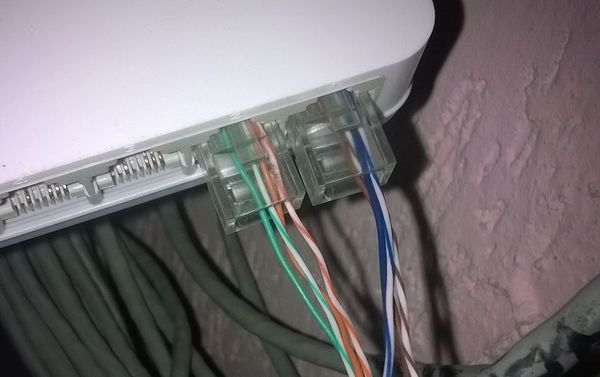
Первый коннектор для левого разъема обжимаем как обычно. Располагаем провода в коннекторе по стандарту Б и пропускаем недостающие синий/бело-синий и коричн./бело-коричн. провода. 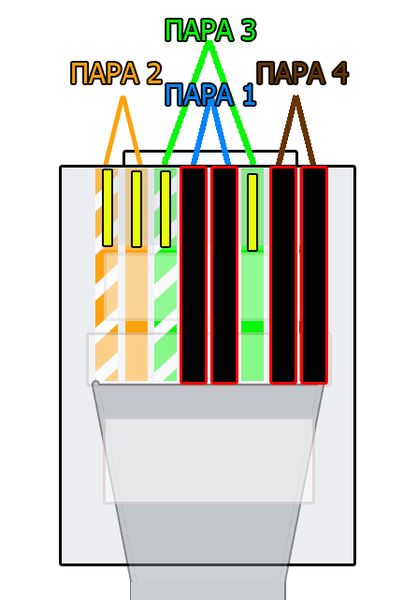
В коннектор для правого разъема вставляем бело-синий/синий. и бело-коричн./коричн. провода на места 2 и 3 пары соответственно. Как на рисунке ниже. 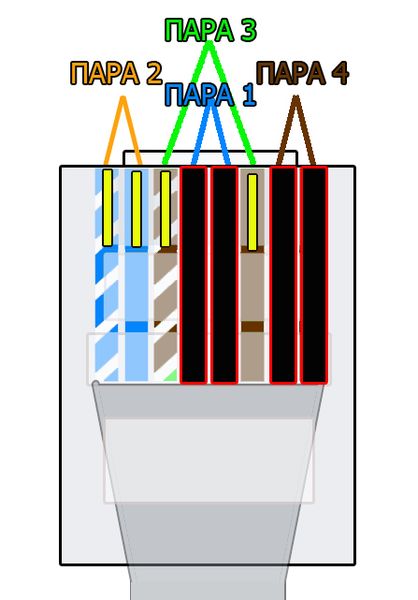
После этих действий сетевые карты ПК подключаются в компьютерную розетку обычным патч-кордом.
На этом всё. Система заработала, не нужно прокладывать новый кабель по сложной трассе, все счастливы и админы и юзеры. Скорость передачи данных при такой раскладке не превышает 100Мбит/с. В том месте где это было сделано больше и не нужно (оно вообще мало где нужно больше сотни).
D-Link DWA-525 — адаптер для стационарных компьютеров, не имеющих Wi-Fi-модуля. Он обеспечивает подключение к беспроводным сетям и представлен в двух вариациях: A2 для подключения к разъёму PCI и B1 для установки в слот PCI Express. Технические характеристики обеих моделей одинаковы, различаются только габариты.
VPN (Virtual Private Network) technology provides a secure and encrypted tunnel across a public network. So, a private network user can send and receive data to any remote private network through VPN tunnel as if his/her network device was directly connected to that private network.
MikroTik OpenVPN Server provides a secure and encrypted tunnel across public network for transporting IP traffic using PPP. OpenVPN uses SSL Certificates. So, OpenVPN Tunnel is a trusted tunnel to send and receive data across public network. MikroTik OpenVPN Server can be applied in two methods.
The goal of this article is to connect a remote client using OpenVPN Tunnel across public network. So, in this article I will only show how to configure MikroTik OpenVPN Server for connecting a remote workstation/client (Windows Client).
Network Diagram
To configure a MikroTik OpenVPN Tunnel for connecting a remote workstation/client, I am following a network diagram like below image.
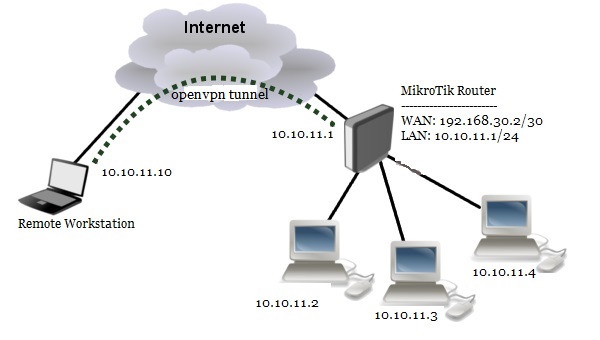
In this network, MikroTik Router (RouterOS v6.38.1) is connected to internet through ether1 interface having IP address 192.168.30.2/30. In your real network, this IP address should be replaced with public IP address. MikroTik Router’s ether2 interface is connected to local network having IP network 10.10.11.0/24. We will configure OpenVPN server in this router and after OpenVPN configuration the router will create a virtual interface (OpenVPN Tunnel) across public network whose IP address will be 10.10.11.1. On the other hand, a remote laptop (workstation/client) is connected to internet and wants to connect to our OpenVPN server for accessing local network resources. We will configure OpenVPN client in this laptop and after establishing an OpenVPN Tunnel across public network, this laptop will get a MikroTik Router’s local IP 10.10.11.10 and will be able to access MikroTik Router’s private network.
We will now start OpenVPN Server configuration. Complete OpenVPN configuration can be divided into two parts.
According to our network diagram, MikroTik Router is our OpenVPN Server. So, we will setup and configure OpenVPN Server in MikroTik Router. Complete MikroTik RouterOS configuration for OpenVPN Server can be divided into five steps.
Step 1: MikroTik Router basic configuration
In MikroTik Router basic configuration, we will assign WAN, LAN and DNS IP and perform NAT and Route configuration. The following steps will show how to do these topics in your RouterOS.
Basic RouterOS configuration has been completed. Now we will Create SSL certificate for OpenVPN server and client.
Step 2: Creating SSL certificate for OpenVPN Server and Client
OpenVPN server and client configuration requires SSL certificate because OpenVPN uses SSL certificate for secure communication. MikroTik RouterOS version 6 gives ability to create, store and manage certificates in certificate store. So, we will create required OpenVPN certificate from our RouterOS. OpenVPN server and client configuration requires three types of certificates:
Creating CA certificate
The following steps will show how to create CA certificate in MikroTik RouterOS.
CA certificate has been created successfully. Now we will create server certificate.
Creating Server Certificate
The following steps will show how to create server certificate in MikroTik RouterOS.
Server certificate has been created successfully. Now we will create client certificate.
Creating Client Certificate
The following steps will show how to create client certificate in MikroTik RouterOS.
Client certificate has been created successfully. Now we will export CA and Client certificates so that OpenVPN client can use this certificate.
Exporting CA and Client Certificates
OpenVPN server will use server certificate from MikroTik RouterOS certificate store. But client certificate has to supply to the OpenVPN client. So, we need to export client certificate as well as CA certificate from RouterOS certificate store. The following steps will show how to export CA certificate and client certificate from MikroTik certificate store.
Creating SSL certificate for OpenVPN server and client has been completed. Now we will configure our OpenVPN Server in MikroTik Router.
Step 3: OpenVPN Server Configuration in MikroTik Router
After creating SSL certificate, we are now eligible to enable OpenVPN Server in MikroTik Router. The following steps will show how to enable OpenVPN Server in your MikroTik Router with proper configuration.
OpenVPN Server is now running in MikroTik Router. Now we will create OpenVPN user who will be connected to this server.
Step 4: PPP Secret creation for OpenVPN client
After OpenVPN Server setup, we need to create OpenVPN user who will be connected to OpenVPN Server. OpenVPN Server uses PPP user for authentication. So, we will now create PPP secret (username and password) for OpenVPN client. The following steps will show how to create PPP secret in MikroTik Router.
PPP user who will be connected from remote client machine has been created. At this point, if the user gets connected from the remote client machine and try to ping any workstation from the remote machine, the ping will time out because the remote client is unable to get ARPs from workstations. The solution is to set up proxy-arp on the LAN interface.
Step 4: Enabling Proxy ARP on LAN Interface
The following steps will show how to enable proxy-arp on the LAN interface.
After enabling proxy-arp, the remote client can successfully reach all workstations in the local network behind the router.
MikroTik OpenVPN Server is now completely ready to accept OpenVPN client. So, we will now configure OpenVPN client in Windows Operating System.
OpenVPN.net provides OpenVPN client software for all the operating systems. You can visit to download page and download your OpenVPN client that is matched with your system requirement. I am using Windows 7, 64-bit operating system. So, I have downloaded Installer (64-bit), Windows Vista and later package. At the time of this article, the OpenVPN client version was 2.3.18.
After downloading, install OpenVPN client in your operating system following the instruction. Installation process is as simple as installing other software in Windows operating system.
After OpenVPN client installation, go to configuration file location (by default: C:Program FilesOpenVPNconfig or C:Program Files (x86)OpenVPNconfig depending on your operating system) and follow my below steps to configure OpenVPN client.
#Template client.ovpnclient
dev tun
proto tcp-client
remote 192.168.30.2
port 1194
nobind
persist-key
persist-tun
tls-client
remote-cert-tls server
ca ca.crt
cert client.crt
key client.key
verb 4
mute 10
cipher AES-256-CBC
auth SHA1
auth-user-pass secret
auth-nocache
Here, change remote IP Address according to your MikroTik WAN IP.
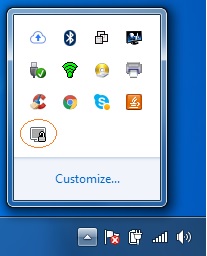
If you put correct password and if everything is OK, your OpenVPN client will be connected and an OpenVPN tunnel will be created between OpenVPN client and server.To check your configuration, do a ping request to any remote network workstation or server. If everything is OK, your ping request will be success.
If you face any confusion to follow above steps properly, watch my video about MikroTik OpenVPN Server Configuration with Windows Client carefully. I hope it will reduce your any confusion.
MikroTik OpenVPN Server configuration with Windows Client has been explained in this article. I hope you will be able to configure your OpenVPN Server and Client if you follow the explanation carefully. However, if you face any confusion to follow above steps properly, feel free to discuss in comment or contact with me from Contact page. I will try my best to stay with you.
Несмотря на наступающие семимильными шагами беспроводные технологии, в условиях многоквартирного дома или частного домовладения стационарные компьютеры, ТВ-приставки, файловые хранилища лучше всего подключать при помощи кабеля, витой пары. Для этого важно не только правильно проложить провод по помещению, но и обжать на концах кабеля присоединительные разъёмы стандарта RJ-45.
Данная статья содержит несколько советов, выполнение которых сразу после завершения установки ОС Ubuntu 16.04 обеспечит удобную, полнофункциональную и безопасную операционную систему. Статья изложена как можно более коротко, чтобы читатель не был утомлён длинным перечнем. Однако можно не сомневаться, что текст ниже содержит абсолютно всё необходимое для свободного и комфортного использования системы.
Как ранее было уже отмечено – для безопасного пользования операционной системой следует поддерживать актуальное состояние её, своевременно устанавливать все необходимые обновления её безопасности, а также исправления инструментов. Наиболее важным это правило является в отношении бета-версий.
Возможно обновление ОС при помощи утилиты, имеющей графический интерфейс, либо же в терминале. Ниже будет рассматриваться первый вариант – обновление ОС с использованием графического интерфейса.
Вначале необходимо провести обновление репозиториев программного обеспечения. Для этого нужно открыть меню Dash, затем набрать в поисковой строке Обновление программного обеспечения.
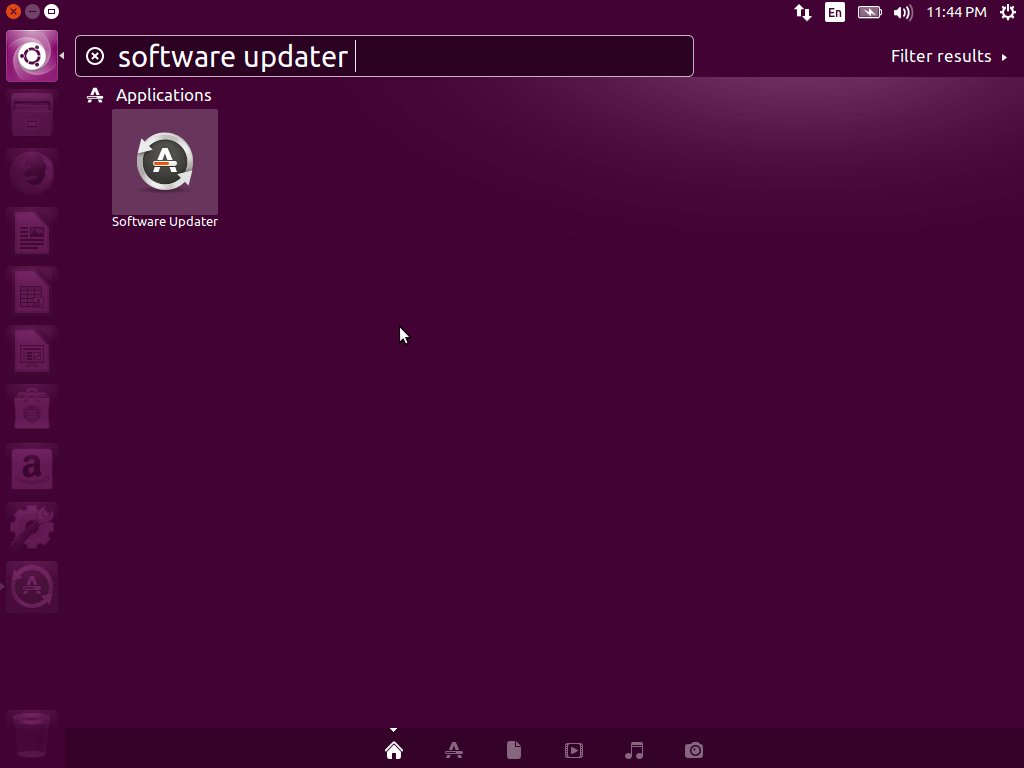
Следующий шаг – открыть приложение, потом перейти на его вкладку под названием Другое ПО. Отметить оба пункта.
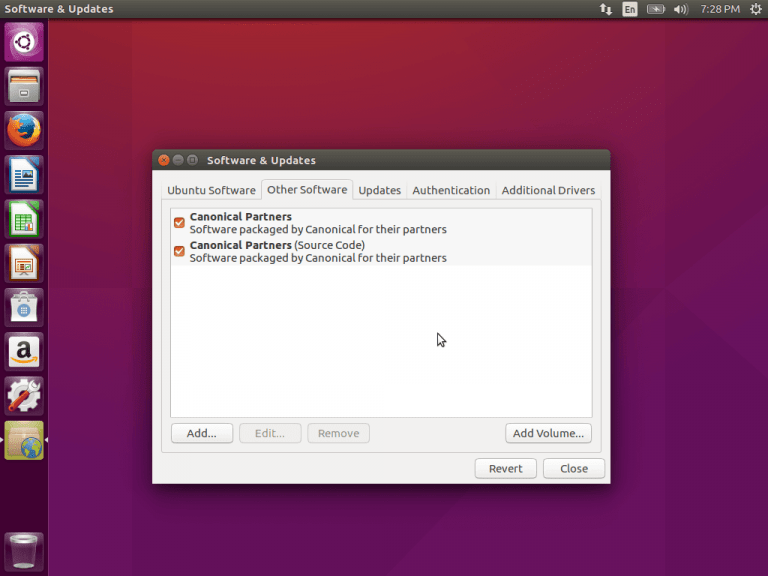
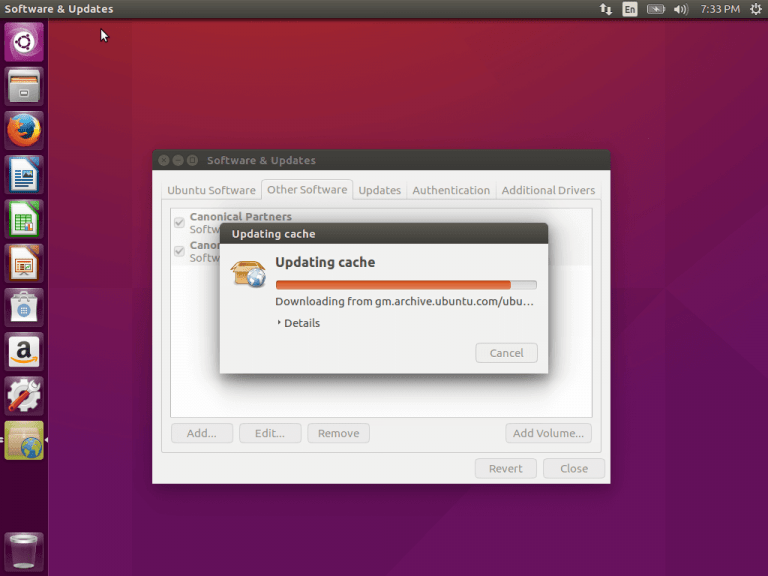
Потом закрыть приложение, после чего система предложит ввести пароль, а после этого произойдёт загрузка обновлений.
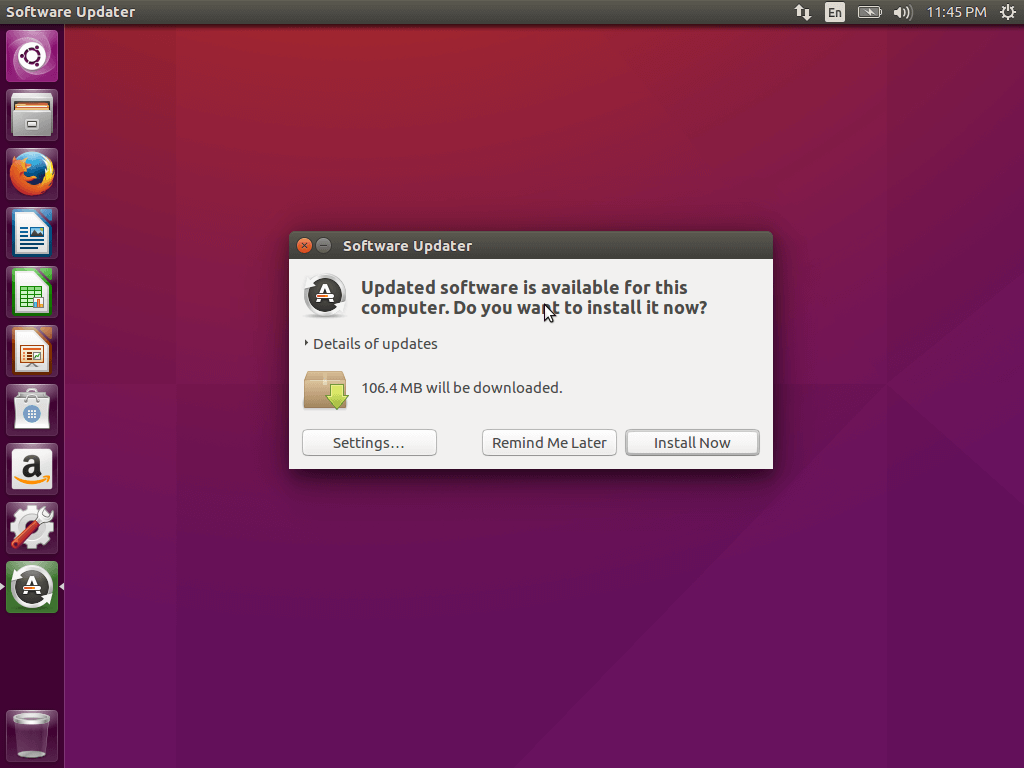
Затем снова нужно запустить Обновление программного обеспечения в Dash, в этот раз будут показаны доступные обновления с предложением их установки.
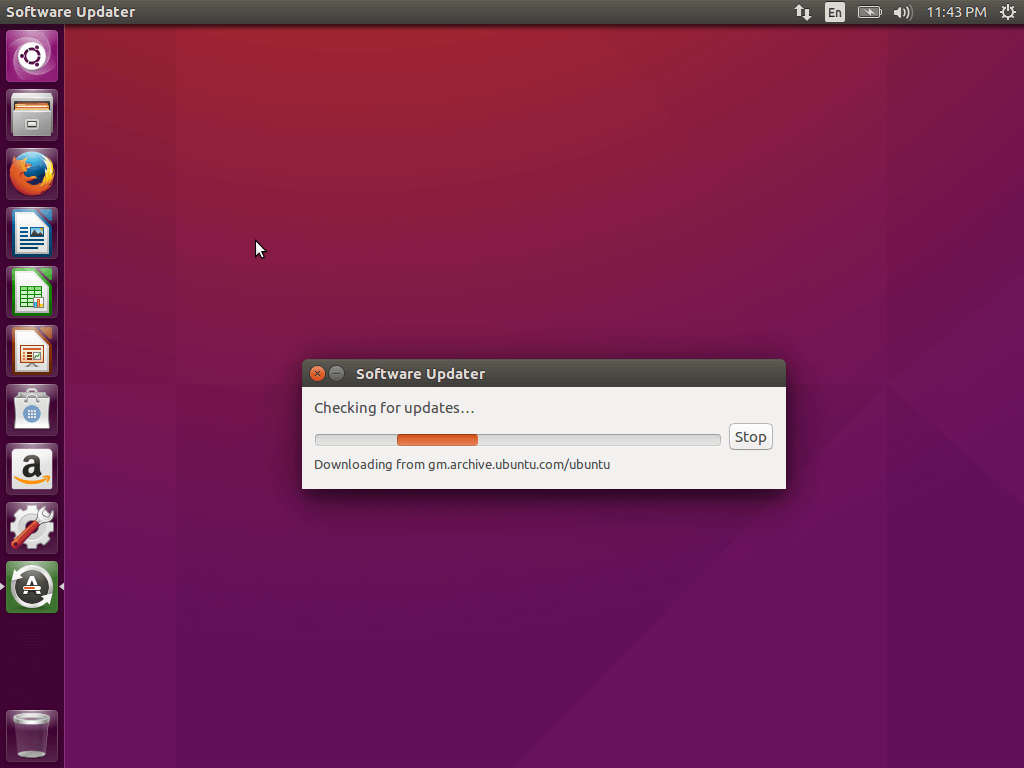
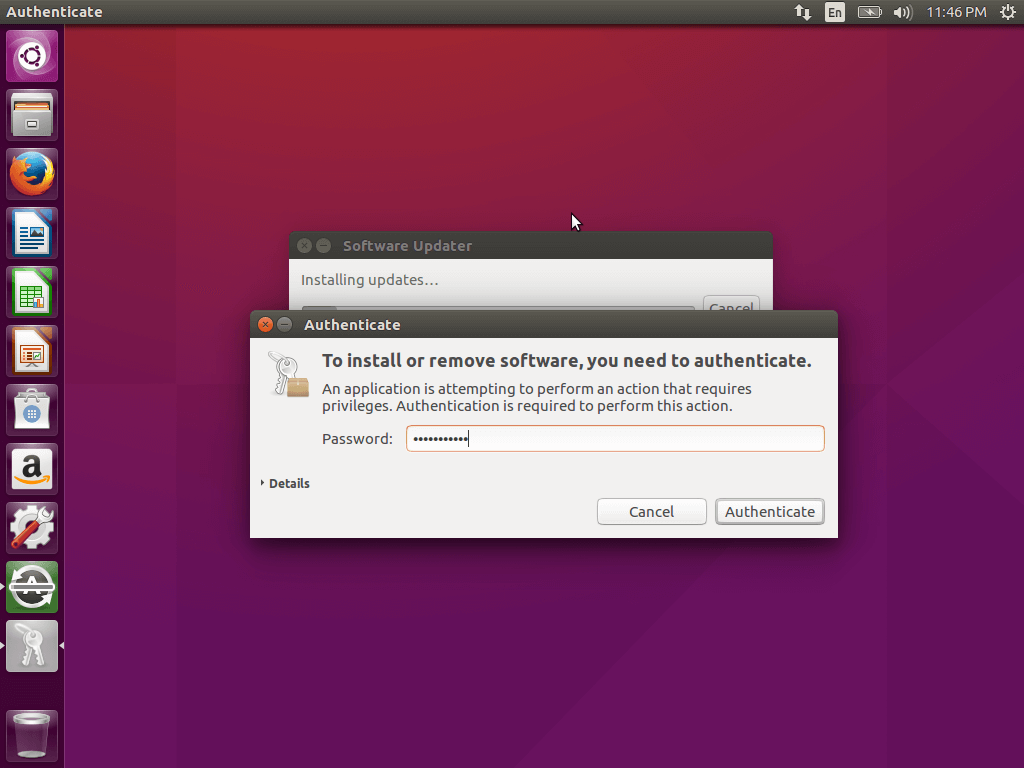
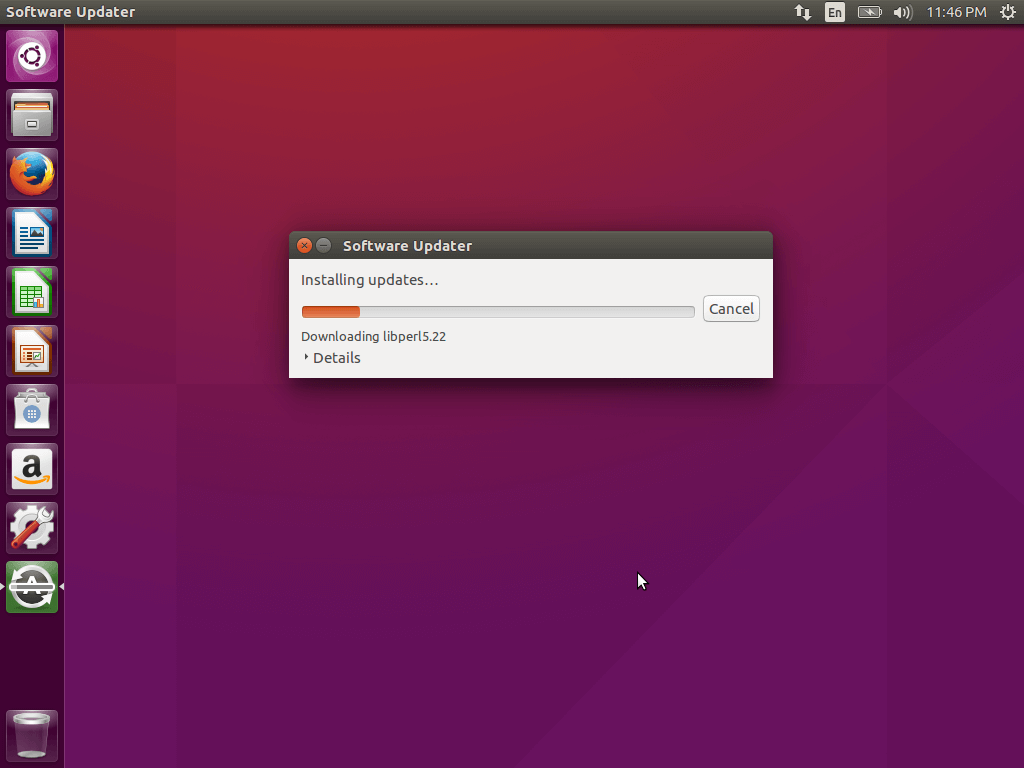
Чтобы обновить Ubuntu 16.04, нужно в терминале ввести 2 команды –
$ sudo apt-get update
$ sudo apt-get upgrade
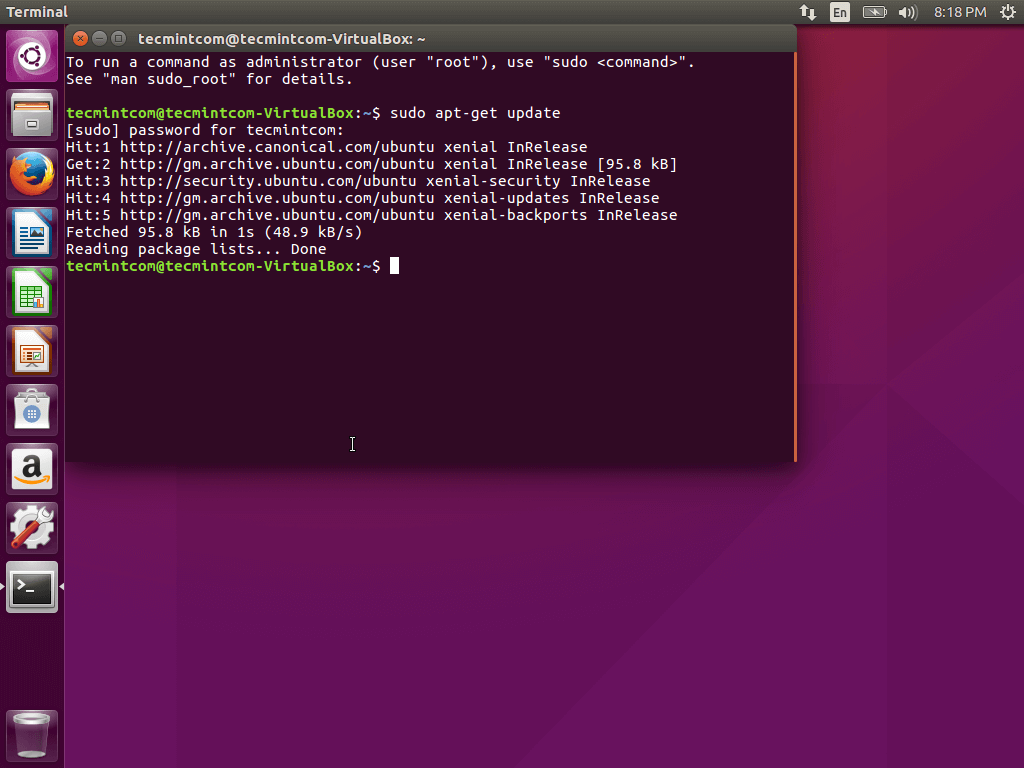
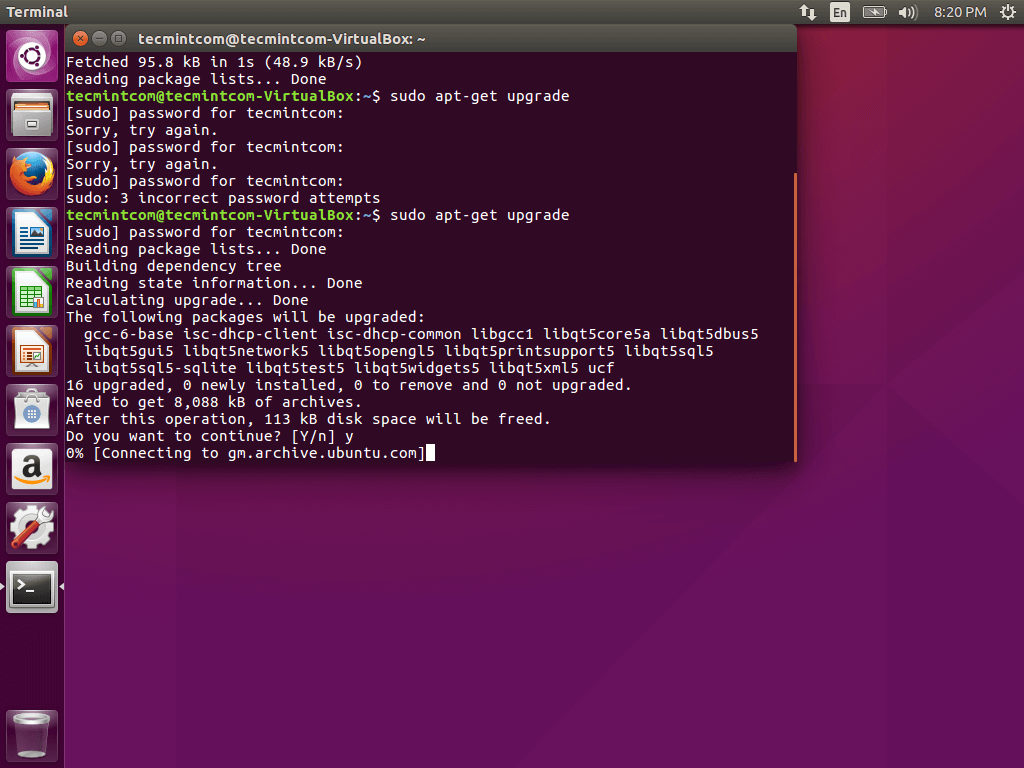
В настройку Ubuntu 16.04 по окончанию её установки входит инсталляция дополнительных приложений, позволяющая повысить удобство ОС. К ним относятся браузер для интернета, разные редакторы, утилиты, просмотрщики. Ubuntu содержит Firefox по умолчанию, однако этот браузер – не самый популярный в мире и уступает, например, Хрому в плане возможностей.
Можно отыскать Chromium, который содержится в Gnome – менеджере приложений, поставляемым на данный момент с Ubuntu 16.04.
Также могут потребоваться следующие приложения:
Clementine представляет собой один из наилучших современных плееров для систем семейства Linux, отличающийся самым широким диапазоном возможностей. Его функционал можно сравнить с функционалом таких приложений, как Rthythmbox, VLC, Audacious и других. Настроить Ubuntu 16.04 по окончанию её установки невозможно без инсталляции плеера.
Одной из важных особенностей данного плеера является возможность подключения к интернет-сервисам, обеспечивающим потоковую передачу музыки, не запуская при этом браузер либо иное стороннее приложение. Можно легко подключить при этом last.fm, Spotify, sky.fm, Onedrive, Google drive и многие другие сервисы. Имеется и свой эквалайзер.
Установка программы возможна при помощи команды sudo apt-get install clementine
Другие приложения, которые заслуживают упоминания:
VLC – медиа плеер, отличающийся широким перечнем медиа форматов, а также очень большим функционалом.
Audacity – минималистичный и простой инструмент, позволяющий редактировать аудио и подходящий и для начинающих, и для специалистов. Отличается широким функционалом.
Kodi (XBMC) – программа-домашний кинотеатр, имеющая открытый исходный код и отличающаяся расширенной поддержкой медиа форматов, начиная mp3 и заканчивая самыми невероятными. Возможно открытие аудио, фото и видео.
Handbrake – приложение, позволяющее также работать с медиафайлами, конкретнее – конвертировать их.
Spotify – клиент Spotify, предназначенный для семейства Linux.
OpenShot – простой редактор видео для ОС Linux. Отличается простотой интерфейса и достаточным количеством функций.
Ubuntu-restricted-extras – плагины и кодеки, позволяющие избежать трудностей с воспроизведением разных форматов.
Gimp – программа редактирования фото для ОС Linux.
Чтобы установить Spotify, используются следующие команды:
$ sudo apt-key adv --keyserver hkp://keyserver.ubuntu.com:80 --recv-keys BBEBDCB318AD50EC68650906

$ sudo apt-get update

$ sudo apt-get install spotify-client
Остальную часть программ возможно инсталлировать с помощью официальных репозиториев.
Очень полезны и удобны запасные варианты, если речь идёт об установке ПО, в особенности, если Вы относитесь к поклонникам нового центра использования приложений.
Synaptic также имеет поддержку графического интерфейса без чего-либо лишнего – исключительно необходимые функции. Чтобы установить Synaptic, нужно нажать Ctrl+Alt+T, затем выполнить команду
$ sudo apt-get install synaptic
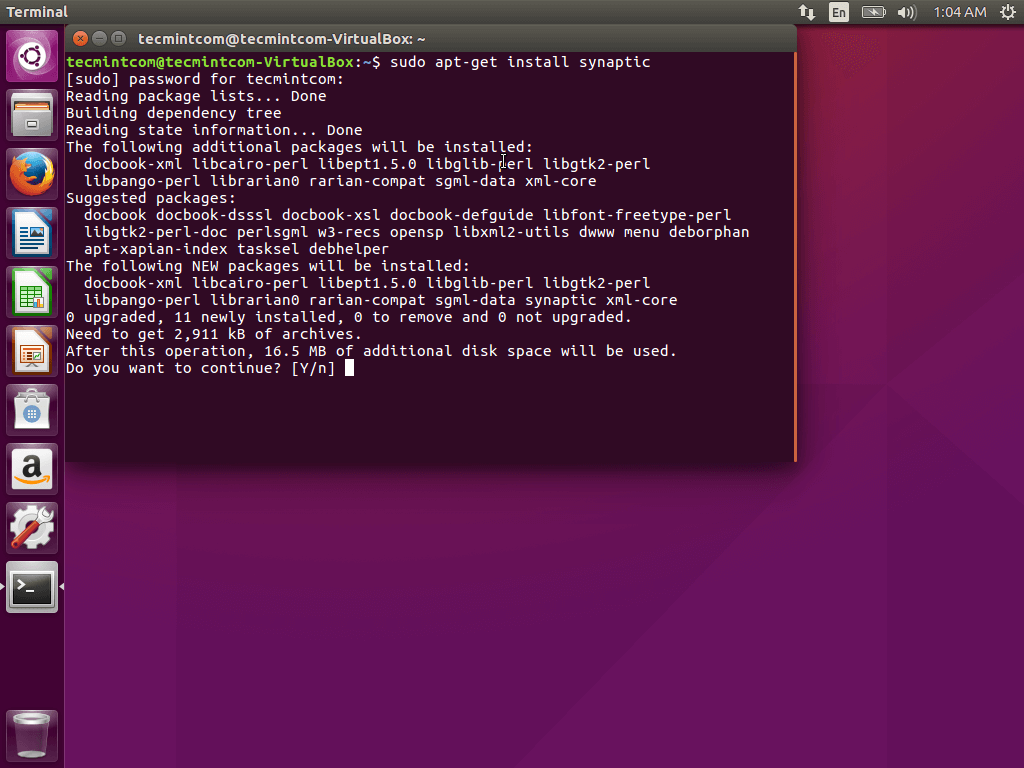
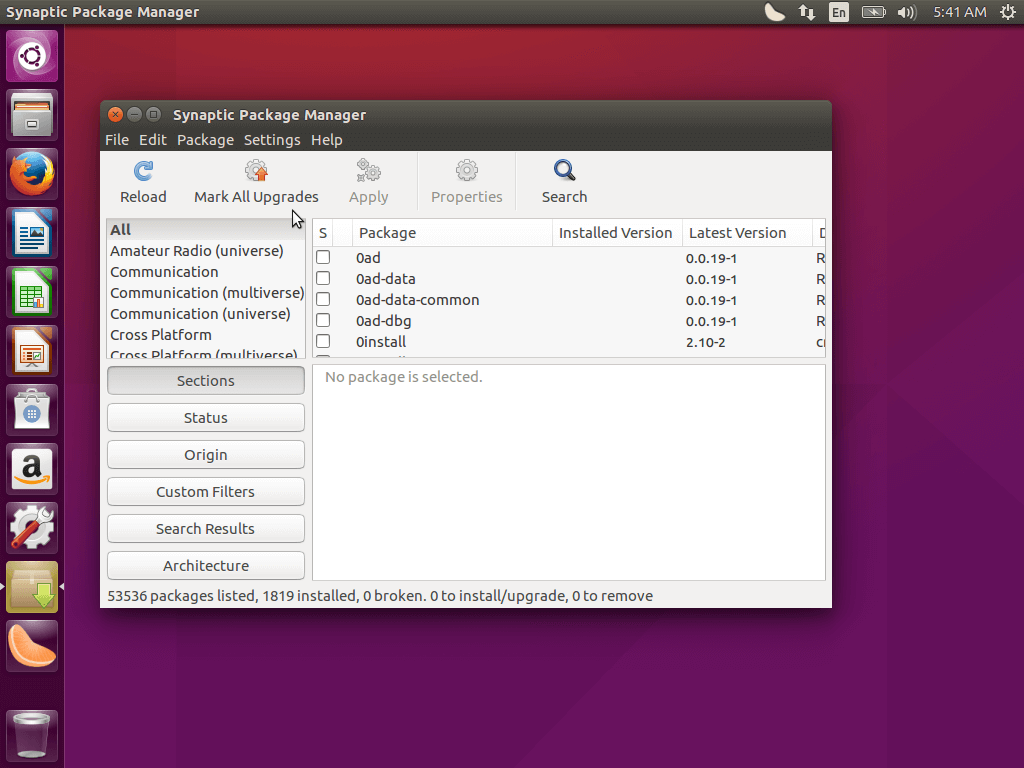
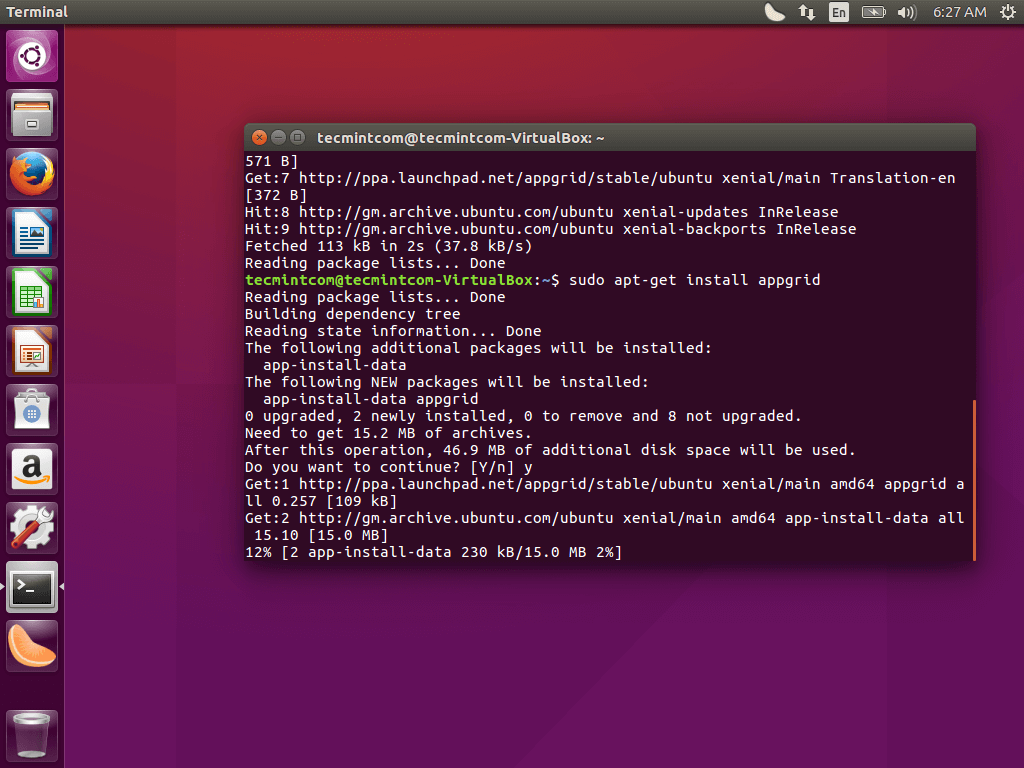
Кроме того, возможна его установка через центр приложений. В то же время установка AppGrid возможна исключительно при помощи терминала путём выполнения следующих команд:
$ sudo add-apt-repository ppa:appgrid/stable

$ sudo apt-get update

$ sudo apt-get install appgrid
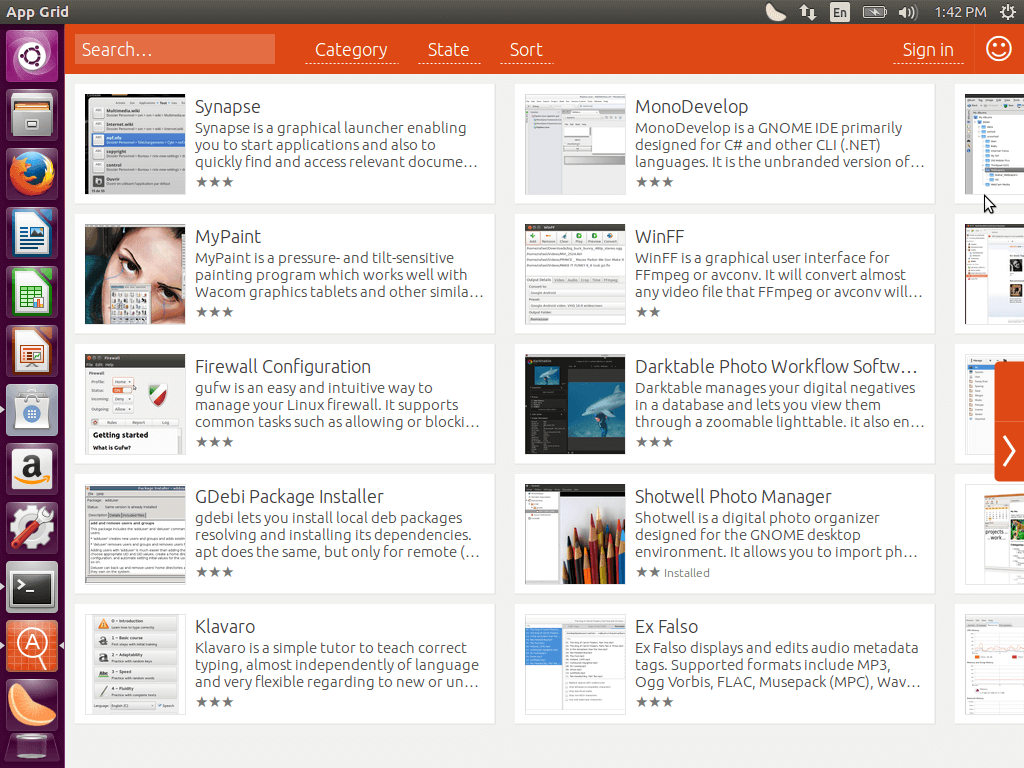
Таким образом, существуют 4 метода установки приложений в ОС Ubuntu: с помощью терминала, центра приложений, AppGrid и Synaptic.
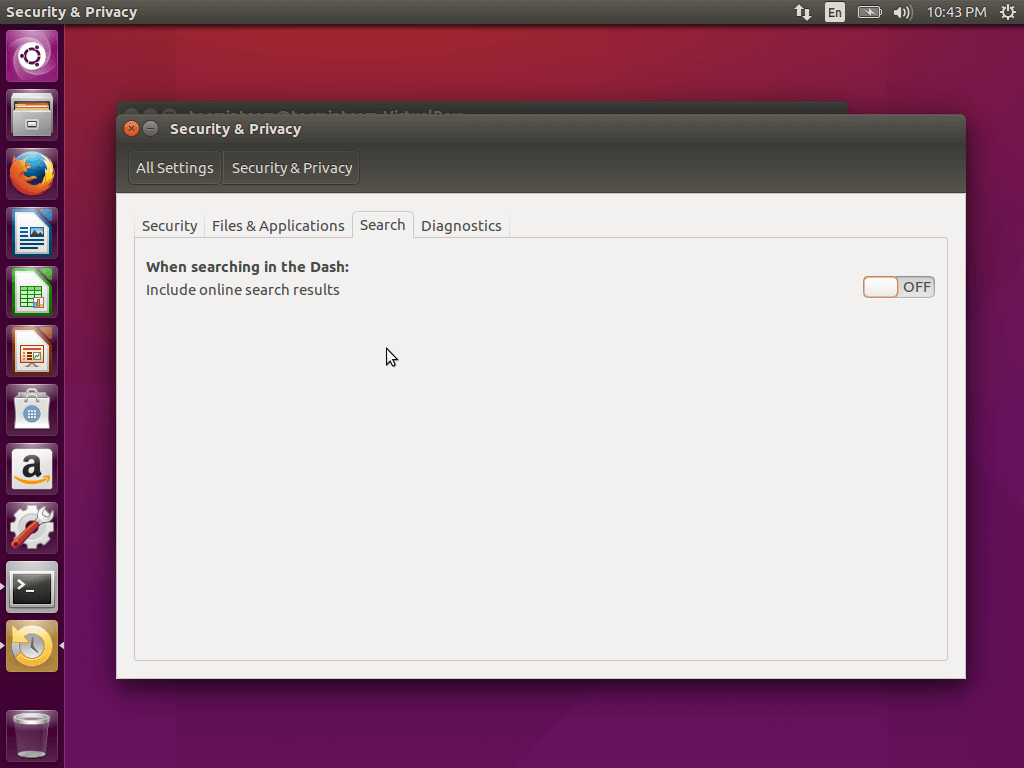
В Dash поиск до сих пор содержит результаты онлайн-поиска с сайтов Wikipedia, Amazon и некоторых других, которые могут представлять определённую опасность для Вашей ОС.
Отключается данная функция довольно просто. Нужно открыть утилиту Настройки, затем перейти к пункту Безопасность и конфиденциальность, после чего на вкладке Поиск нужно отключить Результаты поиска онлайн.
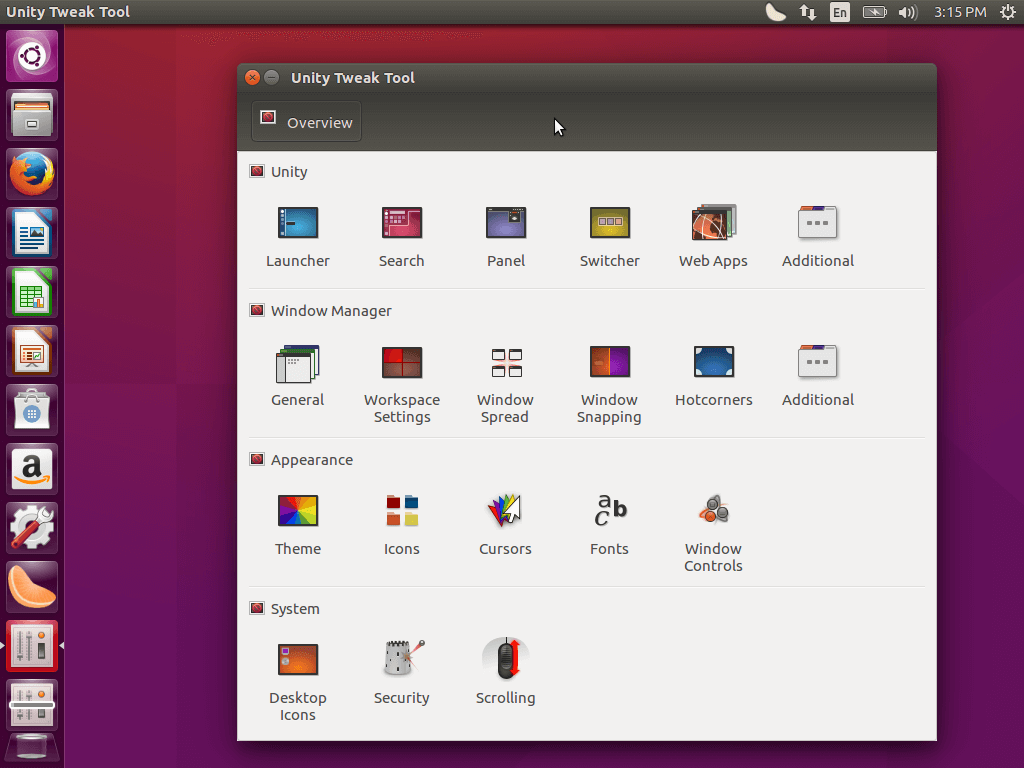
Ubuntu имеет довольно красивый интерфейс и минимальное число настроек. Если необходима тонкая настройка, возможна установка дополнительных утилит.
Unity Tweak Tool представляет собой удобный инструмент, который даёт возможность изменить Unity, подогнав систему под свои нужды. Установка его возможна через центр приложений.
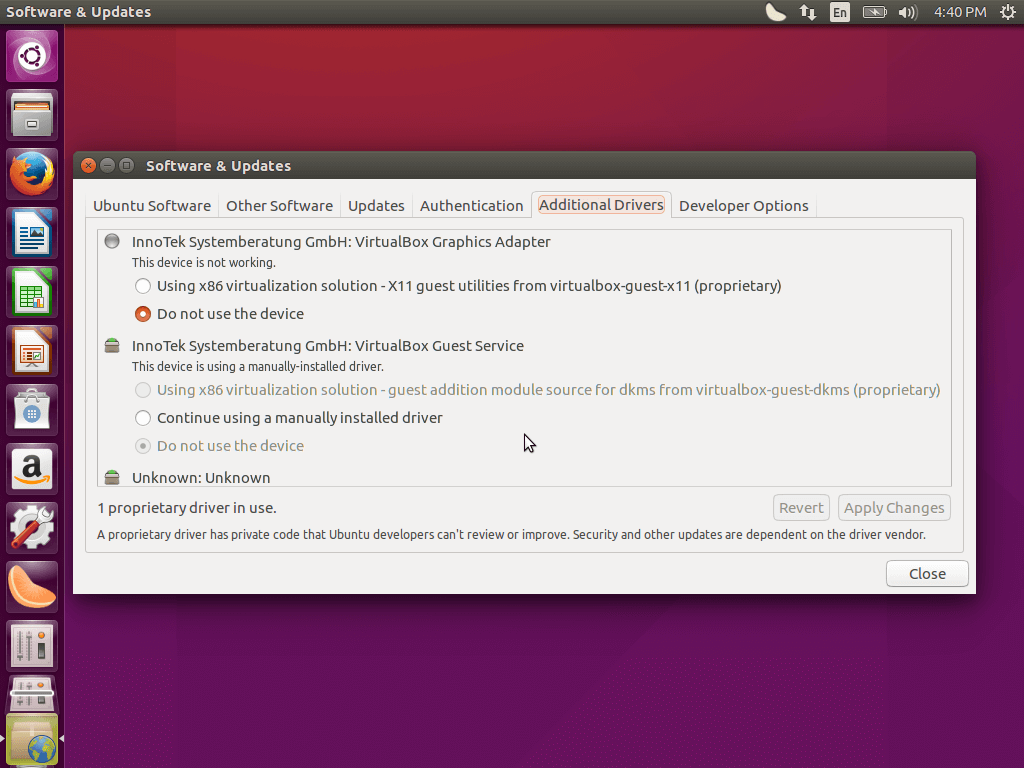
Для придания видеокарте максимально возможной производительности при первоначальной настройке Ubuntu 16.04 необходимо установить графический драйвер для обеспечения более плавного рендеринга графического интерфейса и возможности играть и редактировать видео.
Нужно для этого ввести в поисковой строке Dash словосочетание Программы и обновления, затем запустить утилиту, перейти на вкладку в ней Дополнительные драйверы, выбрать необходимые компоненты и после этого нажать применить.
Доступными по умолчанию являются исключительно английская и русская раскладки. Если необходима другая, следует нажать на значок переключения раскладки, расположенный на панели, выбрав на нём Параметры ввода текста.
В данном окне можно добавить другой язык, а также изменить клавишу, переключающую раскладку.
В случае, когда Вы не планируете сообщать разработчикам системы о произошедших в ней сбоях и ошибках, возможно отключение отчётов о них. Безусловно, лучше всё же отправлять такую информацию, в особенности в бета-версии, чтобы разработчики могли исправлять ошибки.
Чтобы отключить всплывающие отчёты о сбоях и ошибках, нужно запустить терминал, затем выполнить команду
$ sudo sed -i "s/enabled=1/enabled=0/g" '/etc/default/apport'
После этого отчёты об ошибках будут исключены.
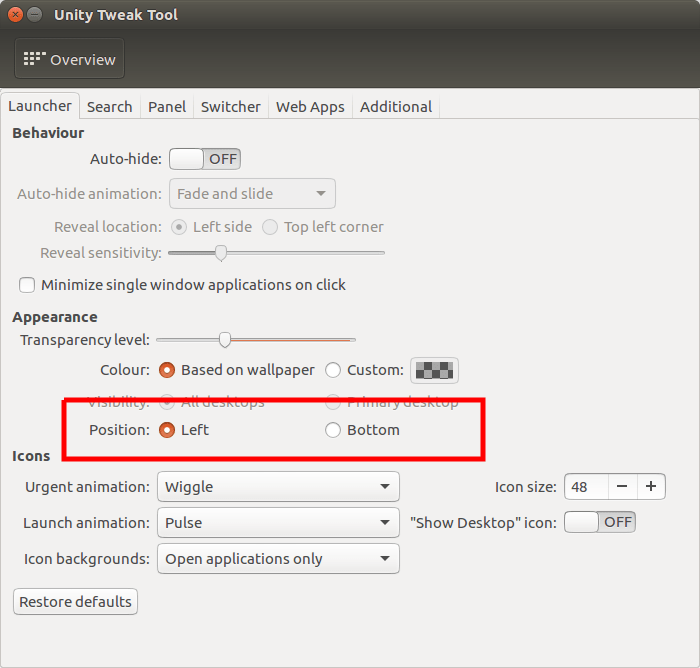
Unity имеет определённые взгляды по некоторым вопросам, однако Вам не обязательно нужно их разделять. С момента выхода 1-й версии оболочки для рабочего стола на экране лаунчер располагался слева. Теперь разработчики создали возможность перемещения его в нижнюю часть экрана. Это одна из наиболее часто обсуждаемых особенностей системы Ubuntu.
Это довольно легко настраивается при помощи Unity Tweak Tool.
К немаловажным особенностям Ubuntu 16.04 относится поддержка Snap – новой системы для установки пакетов, которая была разработана Canonical именно для устройств встраиваемого типа. Её ядро и главные утилиты отныне поставляются в форме пакета Snap.
Теперь начальная настройка системы Ubuntu 16.04 практически завершена. Но впереди ещё немало действий, необходимых для того, чтобы окончательно заточить её под себя.