Сегодня настроим фильтрацию fail2ban для NextCloud на операционной системы Ubuntu/Debian/Linux
Установка Fail2Ban
Для установки в терминале набираем:
sudo apt-get install fail2banПосле установки Fail2Ban имеет рабочий фильтр для ssh. Читать
Сегодня настроим фильтрацию fail2ban для NextCloud на операционной системы Ubuntu/Debian/Linux
Для установки в терминале набираем:
sudo apt-get install fail2banПосле установки Fail2Ban имеет рабочий фильтр для ssh. Читать
Razer постоянно расширяет границы, и некоторые из ее последних продуктов преодолели барьеры, когда дело доходит до изобретательности. Viper 8KHz имеет самую высокую частоту опроса среди всех мышей, а Razer Blade 15 Advanced — первый ноутбук с частотой обновления 360 Гц.
Клавиатуры компании, возможно, не новаторские, как некоторые другие ее продукты, но компания всегда пробует разные подходы, чтобы предоставить геймерам максимально полнофункциональные клавиатуры. Клавиатуры Razer имеют отличную репутацию за качество, производительность и широкий набор функций. Многие из них имеют прочную алюминиевую верхнюю пластину или раму и оснащены фирменными переключателями компании.
Это лучшие клавиатуры в линейке Razer. Их, и другую периферию, можно приобрести у официального дилера Razer в России https://rz-store.ru/.
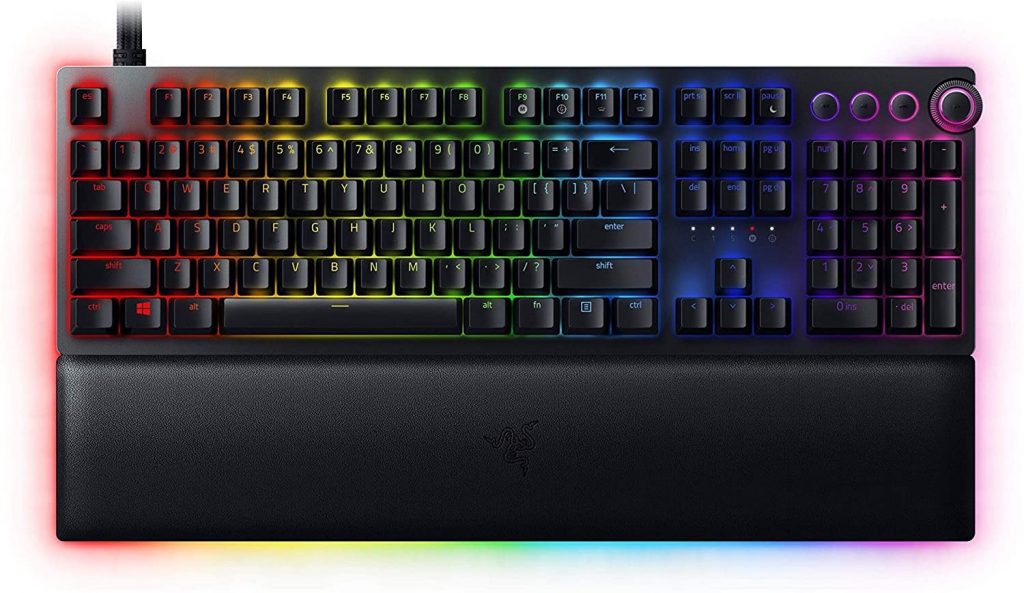
Razer’s Huntsman V2 Analog — это новейшая полноразмерная клавиатура с такими функциями премиум-класса, как оптические аналоговые переключатели. Оптические переключатели используют луч света для приведения в действие и работают намного быстрее, чем механические клавиши. Оптические аналоговые переключатели также более долговечны, чем механические ключи, потому что они не изнашиваются.
Функция аналогового ввода — это настоящий поворотный момент на этой клавиатуре. Все клавиши чувствительны к давлению, поэтому они могут работать как аналоговые джойстики или триггеры на контроллере. Аналоговый вход также дает вам возможность использовать двухступенчатое срабатывание. Это означает, что вы можете установить для каждой кнопки одну функцию, если она нажимается слегка, и другую функцию, если она нажата до конца.
Помимо аналогового входа, все клавиши имеют настраиваемые точки срабатывания. Точку срабатывания каждой клавиши можно отрегулировать от 1,5 до 3,6 миллиметра. Эта функция удобна, если вы используете клавиатуру для офисной работы и игр, потому что вы можете установить разные профили с высокой или низкой точкой срабатывания в зависимости от того, что вы делаете.
Все характеристики Huntsman V2 Analog отличаются высочайшим качеством. Верхняя пластина сделана из прочного алюминия, а колпачки клавиш — из ПБТ с двойным захватом. Двухслойные колпачки из PBT более долговечны, чем колпачки из ABS, благодаря их двухслойной конструкции и устойчивости к блеску с течением времени.
Удобные функции, такие как удобная подставка для запястий и мультимедийные клавиши, — это вишенка на торте. Huntsman V2 Analog имеет мягкую на ощупь магнитную подставку для запястий с подсветкой RGB по краям. Клавиши управления мультимедиа, включая многофункциональный диск, делают клавиатуру более гибкой.
Все, включая RGB, настройки срабатывания и профили, настраивается с помощью приложения Razer Synapse.
Нет сомнений в том, что Huntsman V2 Analog — это клавиатура премиум-класса с выдающимися возможностями настройки, но есть и некоторые недостатки. Некоторые инновационные функции, такие как двухступенчатое срабатывание и аналоговые функции, могут оказаться излишними для некоторых пользователей. Запрашиваемая цена также может отпугнуть некоторых покупателей, но этого следовало ожидать с полнофункциональной клавиатурой.
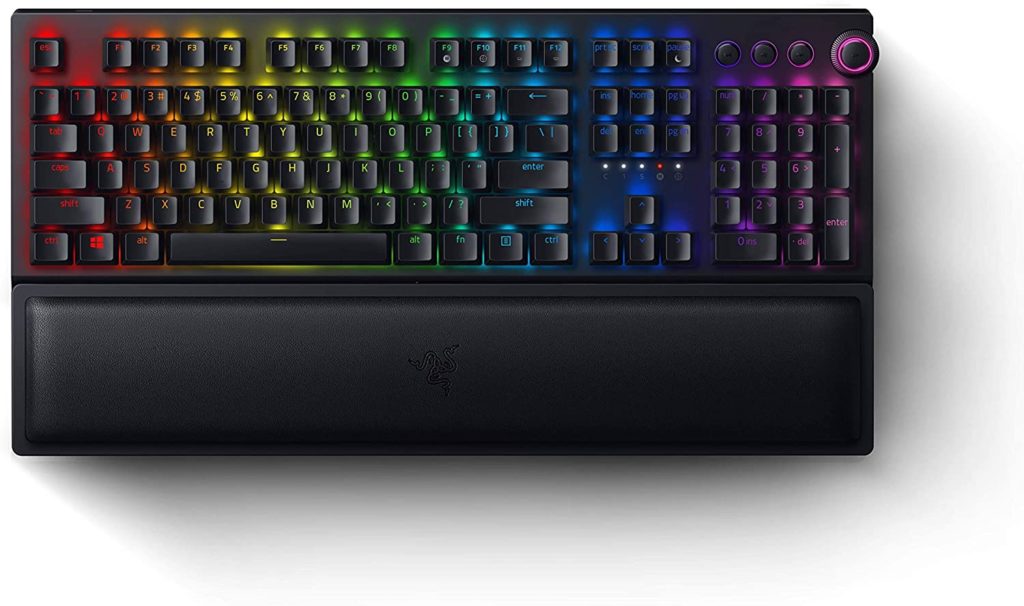
Пользователи, которым не нравятся провода, мешающие их игре, найдут Razer BlackWidow V3 Pro лучшим вариантом. Он имеет универсальные возможности подключения, включая беспроводное соединение на частоте 2,4 ГГц, Bluetooth и USB-кабель. Bluetooth подключается напрямую к Bluetooth-совместимым компьютерам, а для беспроводной связи используется защитный ключ, который можно хранить в клавиатуре, когда он не используется.
Срок службы батареи Razer BlackWidow V3 Pro зависит от параметров освещения. Без подсветки у него 192 часа автономной работы. Если освещение включено на 100 процентов, время автономной работы резко упадет до 13 часов.
Вместо оптических переключателей, таких как Huntsman V2 Analog, BlackWidow V3 Pro использует запатентованные механические переключатели Razer. Доступные переключатели включают зеленый и желтый варианты. Тактильные и щелкающие зеленые переключатели имеют ход 4,0 мм и точку срабатывания 1,9 мм. Линейные переключатели желтого цвета имеют ход 3,5 мм и точку срабатывания 1,2 мм.
Некоторые другие функции имитируют аналог Huntsman V2. Обе клавиатуры имеют схожий дизайн, включая мультимедийные клавиши, алюминиевую верхнюю пластину и массивную подставку для запястий из кожзаменителя. Однако подставка для запястий BlackWidow V3 Pro не имеет такой подсветки, как Huntsman V2 Analog.
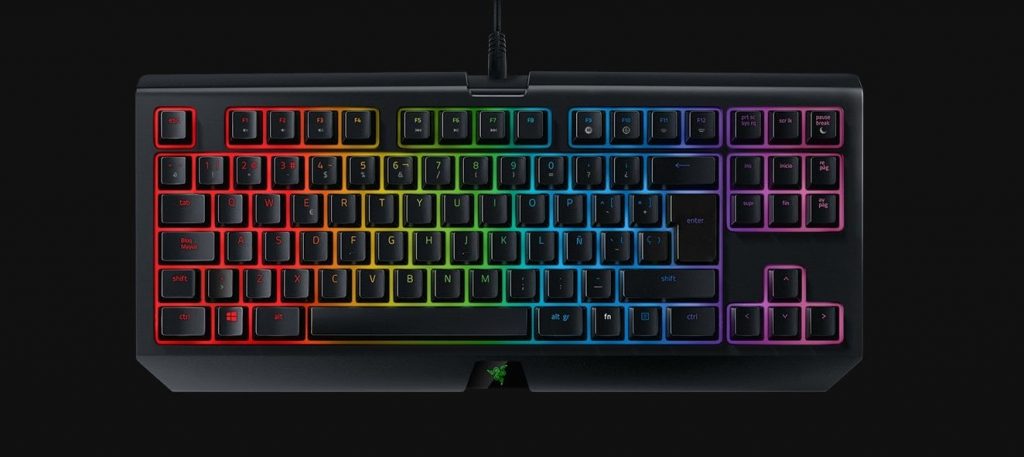
Клавиатуры Tenkeyless удаляют цифровую клавиатуру, чтобы иметь меньший форм-фактор. Их часто предпочитают полноразмерным клавиатурам, потому что они занимают меньше места, но сохраняют свои игровые функции. Razer BlackWidow TE Chroma V2 TKL имеет некоторые особенности BlackWidow V3 Pro, и перепаковывает их в компактном размере.
Одной из общих черт V3 и TE Chroma V2 TKL являются механические переключатели. В дополнение к зеленой и желтой версиям BlackWidow V3, BlackWidow TE Chroma V2 TKL имеет опцию оранжевых переключателей. Переключатели Orange бесшумны, обладают тактильным ощущением, имеют ход 4,0 мм и точку срабатывания 1,9 мм.
Поскольку BlackWidow TE Chroma V2 TKL ориентирована на турниры, в нем отсутствуют некоторые функции BlackWidow V3. В комплекте нет ни беспроводной связи, ни Bluetooth, ни подставки для запястий. Также разочаровывает то, что BlackWidow TE Chroma V2 TKL использует колпачки клавиш ABS вместо колпачков клавиш PBT, используемых на других клавиатурах, упомянутых до сих пор.
Многие компактные клавиатуры жертвуют некоторыми функциями ради небольшого форм-фактора. Учитывая его размер, BlackWidow TE Chroma V2 TKL представляет собой функциональную клавиатуру с минимальными компромиссами.
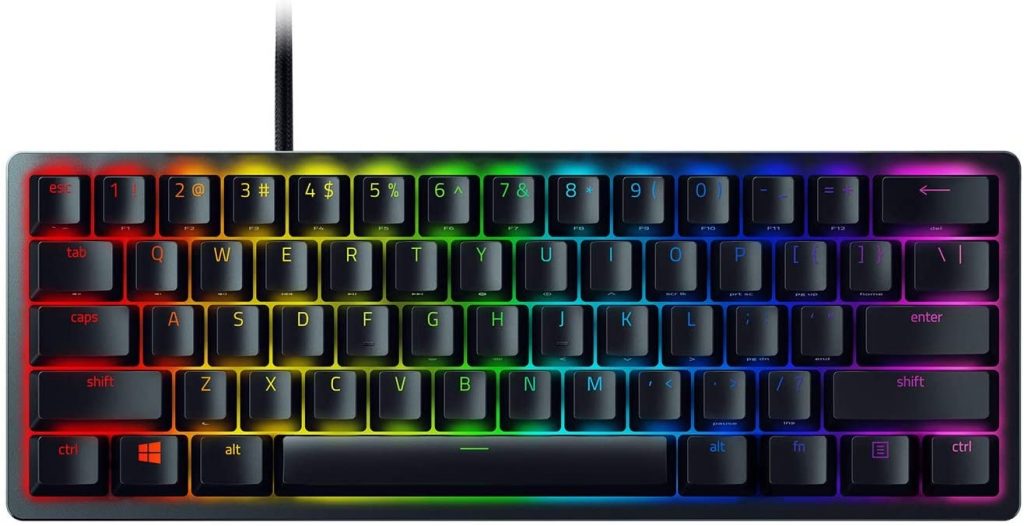
Razer Huntsman Mini имеет еще меньший форм — фактор , чем BlackWidow TE Chroma V2 TKL, поскольку он вырезает направление и навигационные клавиши. Большинство 60-процентных клавиатур урезаны до 61 клавиши вместо стандартных 104 клавиш, чтобы обеспечить большую мобильность и портативность. Размер удобен для игроков, которым нужно больше места на столе, но он не лучший для использования в офисе.
Как и более крупный аналог Huntsman V2, в Huntsman Mini используются оптические переключатели, но они не имеют аналоговой функции. Включенные переключатели — это щелкающие линейные переключатели Purple и Red. Вариант Purple имеет точку срабатывания 1,5 мм, а переключатели Red имеют точку срабатывания 1,2 мм.
Чтобы компенсировать малый форм-фактор, Huntsman Mini имеет второстепенные функции, напечатанные на боковой стороне колпачков. Горячие клавиши четко обозначены, и к ним легко получить доступ с помощью функциональной клавиши.
Некоторые функции перенесены из Huntsman V2 Analog. Huntsman Mini имеет алюминиевую верхнюю пластину и двойные колпачки клавиш из PBT. Также приятно видеть съемный кабель USB-C, который можно отсоединить для облегчения транспортировки, поскольку портативность вдвое меньше с 60-процентной клавиатурой. Как и все другие клавиатуры Razer, приложение Synapse управляет освещением и параметрами конфигурации.
Huntsman Mini — лучший вариант для пользователей, которым нужна легкая и компактная клавиатура.
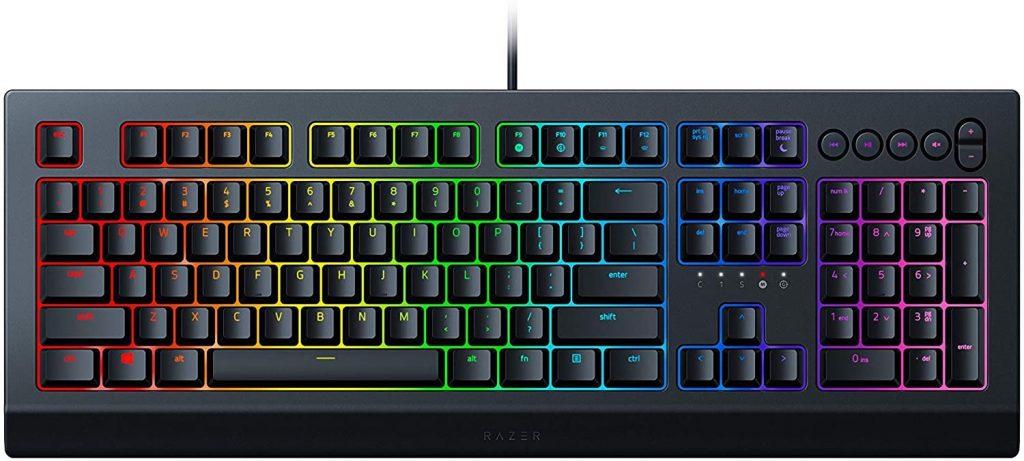
Некоторых пользователей не беспокоят механические клавиши, и они просто хотят качественную клавиатуру, не нарушая при этом денег. Именно здесь на помощь приходит Razer Cynosa V2 . Это полноразмерная клавиатура, которая стоит намного меньше, чем любая другая клавиатура в этом списке.
Razer пожертвовала несколькими функциями, чтобы снизить цену на эту клавиатуру. В Cynosa V2 используются мембранные клавиши и колпачки из АБС-пластика. Вместо алюминиевой рамы и плетеного кабеля он использует альтернативы пластику и резине. В комплект также нет подставки для запястий, но альтернативы доступны отдельно.
Несмотря на меры по сокращению затрат, Cynosa V2 обладает достойной функциональностью. Он имеет RGB-подсветку для каждой клавиши и специальные мультимедийные клавиши. Razer рекламирует Cynosa V2 как устойчивый к разливу, но нет конкретного рейтинга, поэтому не рекомендуется проверять его.
Учитывая бюджетную цену, Cynosa V2 — отличная отправная точка в мире клавиатур Razer. Только не ожидайте слишком большого количества премиальных функций.
DNS Amplification — это распределенная атака типа «отказ в обслуживании» (DDoS), при которой злоумышленник использует уязвимости в серверах DNS (системы доменных имен), чтобы превратить небольшие начальные запросы в гораздо более крупные полезные данные. используется для «снятия» сервера жертвы.
DNS Amplification — это своего рода зеркальная атака, которая манипулирует общедоступными DNS, делая их целью для большого количества пакетов UDP. Используя различные методы, злоумышленник может «раздувать» размер этих UDP-пакетов, делая атаку настолько мощной, что она разрушает даже самую мощную интернет-инфраструктуру.
DNS Amplification, как и другие атаки с усилением, является своего рода атакой с отражением. В этом случае зеркальное отображение достигается путем получения ответа от преобразователя DNS на поддельный IP-адрес.
В атаке DNS Amplification преступник отправляет DNS-запрос с поддельным IP-адресом (жертвы) на открытый DNS-преобразователь, заставляя его отвечать на этот адрес DNS-ответом. При отправке большого количества поддельных запросов и одновременном ответе нескольких распознавателей DNS сеть жертвы может быть легко перегружена неконтролируемым количеством ответов DNS.
Контратаки еще опаснее, если их усилить. «Усиление» здесь относится к тому факту, что ответ сервера не совпадает с первоначально отправленным пакетным запросом.
Чтобы усилить такую DNS-атаку, каждый DNS-запрос может быть отправлен с использованием расширения протокола DNS EDNS0, что позволяет использовать большие DNS-сообщения, или с использованием шифрования DNSSEC (расширение безопасности DNS) для увеличения размера. сообщение. Также можно использовать ложные запросы типа ANY (любой), которые возвращают всю известную информацию о зоне DNS в одном запросе.
С помощью этих и других методов сообщение запроса DNS размером около 60 байт может быть настроено для отправки ответных сообщений размером более 4000 байт на сервер назначения, что дает прирост 70.: first. Это значительно увеличивает объем трафика, который получает целевой сервер, и ускоряет исчерпание ресурсов сервера.
Кроме того, атаки DNS Amplification часто пересылают DNS-запросы через одну или несколько ботнетов, что значительно увеличивает прямой трафик на целевой сервер (-ы) и вызывает анонимное отслеживание. Характер злоумышленника намного сложнее.
Распространенные способы предотвращения или смягчения последствий атак с усилением DNS включают ужесточение DNS-серверов, блокировку определенных DNS-серверов или всех рекурсивных серверов ретрансляции и ограничение скорости.
Однако эти методы не устраняют источники атак, не уменьшают нагрузку на сеть и не переключаются между сервером имен и открытым рекурсивным сервером. Кроме того, блокирование всего трафика от открытых рекурсивных серверов может помешать законным попыткам связи DNS. Например, некоторые организации поддерживают открытые рекурсивные серверы, чтобы сотрудники, работающие на мобильных устройствах, могли разрешать запросы с «доверенных» серверов имен. Блокирование трафика с этих серверов может помешать их доступу.
Когда вы создаете свой веб-сайт, контроль версий является его основной частью. Конечно, вы можете просто хранить файлы на своем рабочем столе, называя их “версия 1”, “версия 1.1”, “версия final”, “версия revised final” и так далее, но разве не было бы здорово иметь веб-сайт, где контроль версий прекрасно организован, дает вам возможность переключаться между версиями и дает вам копию вашего веб-сайта, расположенную где-то еще, а не только на вашем хостинге и домашнем компьютере?
(Если вы уже использовали Git раньше, вы можете перейти к основным направлениям, но если вы этого не сделали, позвольте нам объяснить.)
Git дает вам простой контроль версий, где у вас есть основная версия, а затем вы можете отказаться от этой основной версии, чтобы позволить вам вносить изменения, не касаясь исходной версии.
Думайте об этом как о том горячем новом меме, который ходит вокруг. Все знают оригинал. Но все также делали свои собственные версии, все следовали одной и той же теме. Вы можете вернуться к оригиналу, но вам может больше понравиться версия, которую передал ваш лучший друг.
Вы можете настроить Git на своем главном компьютере, чтобы вам было легко писать код там, а затем переходить на другой сервер. Есть много учебных пособий, которые тоже помогут вам.
Вы также можете использовать онлайн-репозиторий для хранения вашего кода.
Вы можете создать онлайн-хранилище для хранения вашего кода, а затем нажать на свой сайт оттуда. Мы расскажем вам об этих шагах, используя мой тестовый проект на GitLab и тестовый сайт на существенном пакете здесь. Эта статья предназначено не для всех, для вас все может быть по-другому.
Если у вас уже есть учетная запись в GitLab, просто нажмите на кнопку Новый проект, дайте ему имя, и вы готовы начать работу. Держите вкладку браузера со всеми инструкциями командной строки открытой, потому что некоторые из них вам скоро понадобятся.
Если у вас еще нет готовых файлов веб-сайта, вы можете проверить все это с помощью простого HTML-файла. Нажмите кнопку Создать файл и начните печатать.
Если у вас уже есть файлы, будь то HTML-файлы, изображения или что-то еще, вы также можете загрузить их с помощью кнопки Загрузить файл.
Откройте окно терминала на вашем компьютере и войдите по SSH в свой хостинг-пакет. Если вы использовали двухфакторную аутентификацию, вам также нужно убедиться, что ваш аутентификатор открыт.
Команда такова:
ssh yourhostingpackage.tld@ssh.stackcp.com
Если вы не уверены, вы всегда можете найти его на странице SSH-доступа в панели управления веб-хостингом.
Если вы можете войти в свой хостинг-пакет по SSH, у вас будет установлен Git, но если вы похожи на меня и вам всегда нужно перепроверять, введите:
git --version
Это показывает вам, какую версию вы установили.
Поскольку вы используете GitLab, вам нужно убедиться, что GitLab точно знает, кто использует этот сервер. Вам нужно будет знать свое имя пользователя и адрес электронной почты в GitLab.
Во-первых, введите:
git config --global user.name you
Where you заменяется вашим именем пользователя.
Затем введите:
git config --global user.email email
Где ваш адрес электронной почты?
Как только вы это сделаете, вы можете проверить это, набрав текст:
git config --global --list
Если вы наберете:
ls
Вы должны увидеть каталог под названием public_html.
Вот где будет жить ваш сайт. Вы можете перейти в него, набрав:
cd public_html
Теперь вы готовы подключиться!
GitLab должен знать, что можно помещать файлы в этот каталог. Итак, как только вы окажетесь в своем каталоге public_html, введите:
git init
Это настраивает все на большую связь.
Введите:
git remote add origin git@gitlab.com:username/projectpath.git
Где username ваше имя пользователя GitLab и projectpath название вашего проекта.
Как только он будет закончен, вы можете проверить это, набрав номер:
git remote -v
Он вам покажет, с чем вы связаны.
Теперь пришло время для самой веселой части. Введите текст:
git pull origin main
Это вытягивает все main (вашу основную версию кода) из origin (вашего проекта GitLab).
Вам нужно будет ввести свое имя пользователя и пароль GitLab, но как только вы их введете, это сделает волшебство.
И вот он у вас — GitLab, ваш сайт и контроль версий-все настроено!
Как только вы все настроите, вы сможете сделать гораздо больше с помощью GitLab и вашего сайта. Установите SSH-ключ, и вам не нужно будет продолжать входить в GitLab каждый раз, когда вы делаете толчок. Создайте вилку вашего существующего проекта и создайте совершенно новые веб-сайты на основе вашего основного шаблона. Добавьте больше пользователей в свой проект и заставьте всех членов вашей команды работать над одной и той же версией.
Реклама Интернет магазина это статья расходов, от которой не избавиться. Реклама была и остается единственным способом быстро известить мир о вашем интернет-магазине. Какая реклама Интернет магазина поможет привлечь покупателей, разберем в этой статье.
Хотя Python не является строго объектно-ориентированным языком программирования, он достаточно силен и гибок, чтобы позволить вам использовать объектно-ориентированную модель для создания ваших программ. Python частично выполняет это, разрешая наследование, которое он обеспечивает через super(). Встроенный super() создает суррогатный объект (временный объект суперкласса), который мы можем использовать для доступа к функциям базового класса. Кроме того, метод super() предоставляет право на использование функций и атрибутов родительского или родственного класса. Работа с одновременным наследованием помогает нам избежать прямого использования имени родительского класса. В этой статье вы узнаете, как вторгнуться в суперкласс с помощью метода super().
super()
Перед реализацией примеров Python у нас должен быть установлен пакет Python в нашей системе Ubuntu 20.04 Linux. Итак, войдите в систему из системы Linux и быстро откройте оболочку терминала с помощью «Ctrl + Alt + T». Но сначала мы должны проверить, какая версия Python уже установлена в нашей системе. И для этого попробуйте запрос ниже. Как видите, теперь отображается последняя версия Python.
$ python3 --version
Узнав об этом, нам нужно сначала обновить наш репозиторий apt. Следовательно, попробуйте следующий запрос для обновления системы Linux:
$ sudo apt update
Через пакет PPA добавьте несколько дополнительных пакетов для Python:
$ sudo add-apt-repository ppa:deadsnakes/ppa
Нажмите клавишу Enter, чтобы продолжить.
Пришло время установить последнюю версию Python в нашу систему Linux. Итак, попробуйте следующую инструкцию в консольной оболочке и нажмите клавишу Enter :
$ sudo apt install python3.9
Нажмите «Y», чтобы продолжить процесс установки, в противном случае нажмите клавишу «n», чтобы остановить его.
После установки обновленной версии Python пришло время установить репозиторий pip для использования Python в нашей системе. Прежде всего, нам нужно проверить, установлен он уже или нет. Для этого давайте проверим версию пакета pip с помощью инструкции, показанной ниже. Вывод показывает, что в нашей системе не установлен pip.
$ pip --version
Чтобы установить последнюю версию pip, нам понадобится пакет curl в нашей системе Linux. Итак, установите его с помощью следующего запроса:
$ sudo apt install curl
Загрузите пакет pip с помощью curl в консоли следующим образом:
$ curl https://bootstrap.pypa.io/get-pip.py -o get-pip.py
Проверьте список всех пакетов, начиная с ключевого слова «get».
$ ls get*
Теперь запустите пакет «get-pip.py», только что загруженный в систему с помощью запроса sudo. Установка может занять некоторое время.
$ sudo python3.9 get-pip.py
Приведенный ниже вывод показывает, что последняя версия пакета была установлена эффективно.
Теперь вы можете проверить версию репозитория pip с помощью инструкции ниже:
$ pip3.9 --version
Наконец, мы рассмотрим мини-пример суперфункции в Python. Итак, прежде всего, нам нужно создать файл расширения «py» из оболочки командной строки. Поэтому мы будем использовать следующий сенсорный запрос в оболочке вместе с именем файла как «one.py»:
$ touch one.py
Теперь откройте домашний каталог вашей системы из проводника. Вы найдете там файл «one.py». Откройте этот файл и добавьте к нему скрипт Python. Давайте сначала познакомимся с этим кодом. В самом начале мы создали родительский класс с именем «Animal» с конструктором в нем. Этот конструктор печатает имя любого животного и текст строки, который будет передан ему в параметре в ближайшем будущем. После этого мы создали два дочерних класса: «Bird» и «Other». Оба дочерних класса имеют в своем теле конструкторы, которые печатают некоторые операторы. Эти конструкторы вызывают инструктор суперкласса, передавая ему свое дочернее имя в качестве значения параметра. Из-за этого конструктор родительского класса будет запускаться и печатать инструкцию в своем теле вместе с именем дочернего класса. Объекты b1 и c1 использовались для вызова дочерних классов соответственно.
#!/usr/bin/env python3

class Animal(object):

def

init__(self, name):

print(name, 'это может быть любое животное. ')class Birds(Animal):

def init__(self):

print('У птиц есть перья. )

super().__init__('Birds')


class Other(Animal):

def __init__(self):

print('У животных четыре ноги.')

super().__init__('Other')


b1 = Birds()

o1 = Other()
Давайте выполним файл сценария Python, чтобы увидеть вывод кода. Для выполнения напишите в оболочке следующую инструкцию, перед которой стоит ключевое слово python3 вместе с именем файла «one.py». Приведенные ниже выходные данные указывают на первую строку из дочернего класса «Birds» и вторую строку из суперкласса «Animal». Третья строка указывает инструкцию из дочернего класса «Other», а четвертая строка — из суперкласса «Animal». И вторая, и четвертая строки содержат первое слово из значений параметров, переданных из дочерних классов.
Откройте тот же файл one.py и обновите код , добавив в него следующий код. Этот код содержит один родительский класс как «Human» и один дочерний класс как «Child». У родительского класса «Human» есть конструктор, устанавливающий прямые значения возраста, роста и цвета. Хотя у дочернего класса есть конструктор с одним дополнительным параметром, «name», он вызывает конструктор суперкласса для установки значений. Этот конструктор дочернего класса устанавливал переменную «name». Объект c1 используется для передачи значений в параметре конструктора дочернего класса. После этого четыре оператора печати использовались для печати значений всех параметров.
#!/usr/bin/env python3

class Human():

  def __init__(self, age, height, color):

    self. age = age

    self. height = height

    self. color = color


class Child(Human):

  def init__(self, age, height, color, name):

    super().__init__(age, height, color)

    self. name = name


c1 = Child(40, '70', 'white', 'AndreyEx')

print('Ребенку: ', c1. age, years')

print('Этот ребенок имеет рост: ', c1. height, inches.

print('Цвет ребенка: ', c1. color)

print('Это имя ребенка: ', c1. name)
Выполним файл с ключевым словом «python3» и именем файла «one.py». Попробуйте запрос ниже и нажмите кнопку «Enter». Вывод показывает четыре оператора печати, определенных вне обоих классов, например, child и parent. Нет проблем, если вы объявляете переменную в родительском или дочернем классе.
В этой статье вы узнали, что делать, чтобы зарядить существующие классы нагнетателями. Вы начали с изучения одиночного наследования, за которым последовала демонстрация того, как вызывать функции суперкласса с помощью super().