Хоть на первый взгляд роутер Lite III ничем не отличается от других маршрутизаторов в семействе Zyxel Keenetic, всё же у него есть необычная черта — кнопка для переключения между режимами. Один из таких режимов — усилитель. Как проходит настройка роутера? Что нужно поменять, чтобы устройство начало раздавать сигнал?
Архив автора: admin
8 популярных типов веб-хостинга
Среди сотен веб-компаний, конкурирующих за ваш бизнес, с тысячами различных планов веб-хостинга, можно довольно быстро запутаться. Добавьте к этому все термины «технического гика», такие как пропускная способность, ГБ и DNS, и легко увидеть, как можно обескуражен человек, который просто хочет начать онлайн-бизнес и зарабатывать деньги в Интернете.
По мере роста вашего онлайн-бизнеса ваши потребности в веб-хостинге будут увеличиваться и усложняться. Бесплатные и недорогие планы веб-хостинга могут быть хорошими на этапе запуска вашего онлайн-бизнеса, но если ваш веб-сайт начинает чувствовать себя вялым, так как он продолжает расти, и вы получаете больше трафика с веб-сайта, вам, возможно, придется начать смотреть на усиление вашего сайта переездом на свой веб-сервер.
Думайте об этом списке как о прогрессе типа хостинговых планов и услуг, которые может рассмотреть растущий онлайн-бизнес. С учетом сказанного давайте поговорим о наиболее распространенных типах веб-хостинга и определим, какой из них лучше всего будет отвечать потребностям вашего бизнеса; Если вы только начинаете онлайн-бизнес или хотите поднять свое онлайн-предприятие на новый уровень.
1. Общий веб-хостинг

Общий хостинг (или ещё называемый shared) означает только то, что Ваш сайт размещен на сервере, доступном для других сайтов. Преимуществом этой настройки является общая стоимость. Вы можете платить всего от 5 до 100 USD в месяц за совместное использование супер-сервера с (возможно) сотнями (или тысячами) других веб-сайтов.
Самым большим недостатком общего хостинга является то, что вы находитесь в зависимости от других сайтов на вашем сервере. Действительно популярный сайт может отрицательно повлиять на производительность вашего собственного сайта. С другой стороны, если вы самый популярный сайт на сервере, вы можете использовать супер сервер по очень низкой цене.
Когда большинство людей начинают онлайн-бизнес, они обычно начинают с общего хостинга, чтобы минимизировать затраты, и они вряд ли получат тонну трафика изначально.
Общий хостинг хорош для сайтов типа брошюр или более новых сайтов, которые не получают много трафика.
2. Реселлинг веб-хостинга

Пакеты хостинга для реселлеров — это, в основном, учетная запись общего хостинга с дополнительными инструментами, которые помогут вам перепродать хостинг.
Пакеты реселлеров имеют больший технический контроль (часто через панель управления Web Host Manager (WHM)), программное обеспечение для выставления счетов, которое поможет вам выставлять счета клиентам и другие дополнительные привилегии.
Некоторые из этих льгот включают в себя:
- Бесплатные шаблоны сайтов
- Техническая поддержка white label — это означает, что хостинговая компания решает вопросы технической поддержки ваших клиентов
- Частные серверы имен — заставьте вашу компанию казаться еще больше, сказав своим клиентам указывать свои серверы доменных имен на ns1.yourwebdesignfirm.com
Если вы планируете продавать веб-хостинг как бизнес, то веб-хостинг для реселлеров идеально подходит для вас. В противном случае, просто придерживайтесь плана общего хостинга, если вы только начинаете.
3. Colocation хостинг

Этот вид хостинга позволяет разместить colocation сервер на выделенной провайдером стойке в центре обработки данных. Вы устанавливаете свое собственное серверное оборудование, и оно обеспечивает питание, охлаждение, физическую безопасность и подключение к Интернету. Это означает, что вы несете ответственность за собственное серверное программное обеспечение, хранение данных, процедуры резервного копирования и т.д. В случае сбоя оборудования вы несете ответственность за его замену и восстановление работы сервера.
Если у вас нет собственных технических ноу-хау, колокейшн, вероятно, не будет стоить затрат времени, опыта и денег для большинства малых предприятий.
4. Выделенный веб-сервер

Если у вас есть выделенный сервер, это означает, что вы арендуете один физический сервер у хостинговой компании. Вы можете иметь полный контроль (называемый «root» разрешениями в Linux), если хотите.
Благодаря выделенному серверу вам не нужно беспокоиться о том, что другие сайты на общем сервере занимают ваши ресурсы и замедляют работу вашего сайта.
Выделенный сервер — это, как правило, сервер самого высокого уровня, который вам понадобится, если ваш онлайн-бизнес вырастет в присутствие, которое получает большой трафик веб-сайта. Несмотря на то, что стоимость выделенного сервера значительно выше, чем общего хостинга, ваш бизнес будет в такой точке, которая может легко позволить себе необходимые расходы на наличие собственного сервера.
Цены: выделенные серверы по цене от 100 долларов и выше. Но если вы рассматриваете выделенный сервер, вы должны также рассмотреть вопрос о найме системного администратора, чтобы позаботиться о технических деталях.
5. Виртуальный частный сервер (VPS)

Виртуальные частные серверы совместно используют один физический сервер, но действуют как несколько отдельных серверов. VPS — это ступенька между общим хостингом и получением собственной выделенной машины. Несмотря на то, что каждый экземпляр VPS совместно использует аппаратные ресурсы, им выделяется выделенная часть вычислительных ресурсов.
VPS позволяет избежать проблемы, связанной с тем, что ваши соседи-хостинги обрушат ваш веб-сайт, и в то же время позволит избежать затрат на выделенный сервер.
Ценовой диапазон: большинство пакетов VPS-хостинга стоят от 50 до 200 долларов. Ценообразование основано на гарантированном объеме процессора и памяти (ОЗУ), которые вы получаете.
6. Облачный веб-хостинг

Облачный веб-хостинг относится к довольно новой технологии хостинга, которая позволяет сотням отдельных серверов работать вместе, чтобы он выглядел как один гигантский сервер. Идея состоит в том, что по мере роста потребности хостинговая компания может просто добавить больше аппаратного оборудования, чтобы сделать сеть или облако еще больше.
Преимущество облачного веб-хостинга заключается в том, что если вы получаете необычно большой трафик веб-сайта, план веб-хостинга может компенсировать всплеск трафика, а не закрывать ваш сайт.
Если ваш веб-сайт растет и вы привлекаете больше трафика на свой веб-сайт, это, вероятно, первое, что вы также должны обновить с плана общего хостинга.
Ценовой диапазон: все пакеты грид-вычислений используют некоторую форму структуры ценообразования с платой за то, что вы используете.
7. Веб-хостинг с самообслуживанием

Конечный план хостинга — вы все делаете сами! Вы покупаете серверы, устанавливаете и настраиваете программное обеспечение, убедитесь, что в вашей машинной комнате достаточно охлаждения и мощности, и удваиваете все для резервирования. Некоторые вещи, о которых вам нужно позаботиться:
- пространство центра обработки данных
- охлаждение
- мощность (с резервной копией)
- пропускная способность
- серверное оборудование
- системный администратор
- целостность данных и резервное копирование
- …И список продолжается
Подобно колокейшн-хостингу, это, скорее всего, выходит за рамки того, что вы хотели бы сделать как владелец онлайн-бизнеса.
8. Управляемый хостинг WordPress

С ростом популярности WordPress как платформы для веб-сборки многие серверы веб-хостинга предлагают так называемый «управляемый хостинг WordPress».
Короче говоря, управляемый хостинг WordPress — это сервис, где провайдер веб-хостинга будет поддерживать вашу установку WordPress в актуальном состоянии, что может помочь защитить ваш сайт от угроз безопасности, которые позволят хакерам проникнуть на ваш сайт.
Хотя он и не такой недорогой, как общий веб-хостинг, он является отличным вариантом как для начинающих, так и для устоявшихся компаний, использующих платформу WordPress.
2019-05-21T16:19:33
Вопросы читателей
How to Block Free Proxy Access with MikroTik Router
Proxy Server is an alternative to VPN that breaks blocking firewall of a network. If any user uses free web proxy server with web browser, the web request is processed by the proxy server. So, blocking firewall rule is not applied on the proxy enabled PC. For this, system administrators should be careful enough to block free proxy servers along with blocking VPN access. In my previous article, I discussed how to block VPN access with MikroTik Firewall. In this article, I will discuss simple tricks to block free web proxy access with MikroTik Router.
Tricks to Block Web Proxy Server
The default proxy server port is 3128 but 8080 port is also popularly used for proxy request. So, if we block 3128 and 8080 ports, 80% of free web proxy server can be blocked. As the proxy port can be changed as the system admin wish, some system admins use other free ports also, even 80 port. In this case, system admin can find the IP address of the popular proxy servers by searching online and block them manually. With these two methods, it is possible to block 99% of the free web proxy access.
Method 1: Blocking Free Web Proxy by Blocking Ports
As discussed earlier, the popular web proxy ports are 3128 and 8080. So, blocking these ports 80% of proxy request can easily be blocked. The following steps will show how to block destination ports to block web proxy request with MikroTik Firewall.
- From Winbox, go to IP > Firewall menu item and click on Filter Rules tab and then click on PLUS SIGN (+). New Firewall Rule window will appear.
- Choose forward from Chain dropdown menu.
- Choose tcp from Protocol dropdown menu.
- Put 3128,8080 in Dst. Port input box
- Click on Action tab and choose drop from Action dropdown menu.
- Click Apply and OK button.
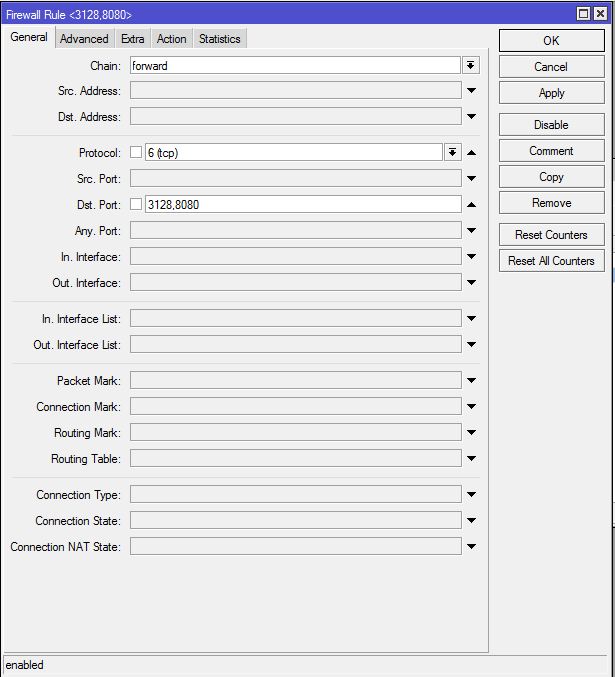
This rule blocks those proxy servers which use port 3128 and 8080. But some proxy servers are configured on different ports, even port 80. To block these servers, we have to find IP addresses and block those IP addresses with Firewall rule.
Method 2: Blocking Free Web Proxy by IP Address
There are many websites such as spys.one/en, proxynova.com/proxy-server-list and so on that provide free web proxy server list. We can find IP addresses of proxy servers which are not using 3128 and 8080 ports from here and can block them by IP address. The following steps will show how to block a group of IP address with MikroTik Firewall Rule.
- From Winbox, go to IP > Firewall menu item and click on Filter Rules tab and then click on PLUS SIGN (+). New Firewall Rule window will appear.
- Choose forward from Chain dropdown menu.
- Click on Advanced tab and put a group name (such as Blacklisted Proxy Servers) in Dst. Address List input box.
- Click on Action tab and choose drop from Action dropdown menu.
- Click Apply and OK button.

This rule will block those proxy servers which are in Blacklisted Proxy Servers group. Now we will add IP address of proxy server that we have found from website listing. The following steps will show how to add IP address in Blacklisted Proxy Servers group.
- From Winbox, go to IP > Firewall menu item and click on Address Lists tab and then click on PLUS SIGN (+). New Firewall Address List window will appear.
- Choose your created group name (Blacklisted Proxy Servers) from Name dropdown menu.
- Put Proxy Server’s IP address that you want to add in this group in Address input field.
- Click Apply and OK button.
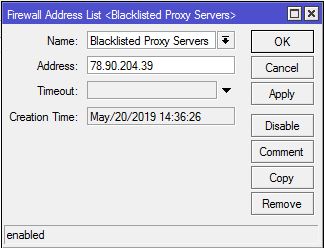
Similarly, you can add as many IP addresses of proxy server as you want following the above steps and can block them with MikroTik Firewall.
If you face any confusion to follow the above steps, watch the following video about blocking free proxy access with MikroTik Firewall. I hope, it will reduce your any confusion.
How to block free web proxy access with MikroTik Firewall has been discussed in this article. I hope you will now be able to block your desired proxy servers following the above steps properly. However, if you face any confusion to block free proxy server with MikroTik Firewall, feel free to discuss in comment or contact with me from Contact page. I will try my best to stay with you.
2019-05-21T10:59:07
MikroTik Firewall Tutorials & Guides
Какими менеджерами паролей можно воспользоваться?
Безопасность паролей улучшилась в последние годы. Корпорации требуют новые пароли на основе ротации, и вы не можете обойтись только с простой восьми символьной фразой. Прописные и строчные буквы, цифры и символы стали нормой, но даже этого недостаточно.
Вы не можете использовать один и тот же пароль для более чем одной учетной записи, чтобы не подвергать их опасности одного нарушения. И каждый пароль должен быть таким же надежным, как и другие. Когда вы думаете обо всех этих различных сценариях, как вы должны отслеживать все это?
Просто: менеджер паролей. Такие приложения, как KeePass, LastPass и 1Password, избавляют от проблем с паролем. Все, что вам нужно, это один безопасный пароль для входа в свою учетную запись менеджера паролей. Программное обеспечение позаботится обо всем остальном.
Эти приложения генерируют практически неразрушимые пароли для каждой из ваших учетных записей, и, поскольку вы не знаете, что это за пароли, а их действительная личность зашифрована, хакер не может получить доступ к вашим учетным записям через менеджер паролей.
Звучит полезно? Да. Ключ определяет, какой из множества вариантов является правильным выбором для вас.
1. KeePass

KeePass выделяется среди многих конкурентов по одной определенной причине: он не основан на облаке. Многие из сильнейших сторонников KeePass утверждают, что хранение паролей в облаке, даже через менеджер паролей, вызывает проблемы.
KeePass принимает любой риск из уравнения; база данных целиком основана на вашем локальном диске, хотя вы можете синхронизировать его между устройствами с помощью таких сервисов, как Dropbox.
KeePass торгует некоторыми удобствами других менеджеров паролей в обмен на полную настройку и гибкость. Например, сервис с открытым исходным кодом. Если бы вы сравнили менеджеров, основываясь исключительно на привлекательности их пользовательского интерфейса, KeePass обанкротился бы последним. Он не слишком красив, но дает пользователям больше контроля над своими паролями и безопасностью.
KeePass не будет держать вас за руку и не проведет вас через процесс создания базы с паролями, что делает его немного пугающим для людей, которые не настолько квалифицированы в технологиях. Если вам нравятся технологии и вам удобно работать с более сложными системами, KeePass — фантастический выбор. На самом деле, у нас есть полное описание.
Что полезно знать:
- Работает с Windows, Mac, Linux, iOS, Android, Chrome и другими
- Больше настроек, но меньше удобства
- Свободное программное обеспечение
Сайт KeePass: https://keepass.info/
2. LastPass

LastPass работает как другие менеджеры. Вам просто нужен один мастер-пароль, а затем он позаботится обо всем остальном. Лучше всего, когда вы настроите программу — процесс, который занимает всего несколько минут, — вы можете импортировать все свои сохраненные пароли из различных браузеров, включая менее известные браузеры, такие как Opera.
После того, как вы импортировали эти пароли, LastPass дает инструкции о том, как удалить их с вашего компьютера. Программное обеспечение также обеспечивает двухфакторную аутентификацию, кредитный мониторинг и другие функции безопасности, чтобы обеспечить вам защиту со всех сторон.
Все вышеперечисленные функции доступны в бесплатной версии LastPass, но оплата премиум-опции открывает еще больше возможностей. Премиум-версия LastPass позволяет синхронизировать информацию между вашим настольным компьютером и мобильными устройствами, что расширяет функциональность на целый ряд устройств.
Когда вы рассматриваете эту функцию поверх остальных опций, трудно ошибиться. Единственный недостаток, о котором следует помнить, это то, что LastPass в прошлом подвергался нарушениям безопасности, но с тех пор компания проделала хорошую работу по улучшению и устранению любых других уязвимостей.
Что нужно знать:
- Работает с Windows, Mac, Linux, Chrome
- Бесплатный вариант обладает множеством функциональных возможностей, но премиум расширяет его за пределы одного устройства
- В прошлом были уязвимости в безопасности
Сайт LastPass: https://www.lastpass.com/
3. 1Password
1Password — это больше, чем просто менеджер паролей. В то время как он хранит ваше имя пользователя и пароль, он также предоставляет генератор паролей, который создает защищенную информацию для входа в систему, невосприимчивую к атакам по словарю и переборам.
1Password также имеет функцию «сторожевой башни», которая отслеживает атаки на популярные веб-сайты и предупреждает вас о любых известных, продолжающихся нарушениях. Существует также цифровой кошелек, который позволяет пользователям хранить информацию, и разработчики предложили вознаграждение любому, кто может взломать его шифрование. Если это не говорит об их уверенности, я не знаю, что будет.
1Password не бесплатный, но его стоимость составляет всего $2,99 в месяц. Вы можете сэкономить несколько долларов, оплачивая абонентскую плату ежегодно. В то время как программа использовала единовременную плату, эта ежемесячная цена обеспечивает доступ ко всем функциям на время подписки.
И не беспокойтесь — даже если вы отмените подписку, ваши данные будут в безопасности. Вы можете синхронизировать сохраненную информацию между устройствами любым способом, который вы выберете, но компания специально описывает совместимость с Dropbox и iCloud.
Что важно знать:
- Работает с Windows, Mac, iOS, Android
- Требуется ежемесячная подписка в размере $2,99
- Функции мониторинга держат вас в курсе текущих угроз безопасности
Сайт 1Password: https://1password.com/
4. Dashlane

Dashlane может быть ближайшим конкурентом LastPass с точки зрения возможностей, но есть один явный недостаток, который сбивает очки с его общего рейтинга: цена.
Dashlane стоит от 40 до 60 долларов в год. Несмотря на то, что она имеет бесплатную версию с полным набором функций, платная версия включает в себя большинство функций, которые делают диспетчер паролей действительно полезным, например, синхронизацию между устройствами.
Dashlane предоставляет вам генератор паролей, виртуальный кошелек и зашифрованные функции автозаполнения. Хотя, возможно, и не так полно, как LastPass 1 с точки зрения затрат и выгод, программное обеспечение стоит хотя бы проверить.
Что захочется знать:
- Работает с Windows, Mac, различными браузерами
- Более высокая годовая цена, чем у большинства конкурентов
- Во многом похож на LastPass
Сайт Dashlane: https://www.dashlane.com/
Зачем вам нужен менеджер паролей?
Конечно, менеджеры паролей удобны, но вы можете задаться вопросом, действительно ли они необходимы. Ответ на это простое, громкое да. Вот почему. Знаете ли вы лучшие практики для безопасных и надежных паролей? Это обширный контрольный список:
- 12-14 (или больше символов в длину)
- Сочетание прописных и строчных букв, цифр и символов
- Не содержит легко идентифицируемой личной информации, такой как домашний адрес или день рождения
- Нет простых слов или паролей типа p@44w0rd
- Уникальные пароли для каждой учетной записи
- Меняется каждые шесть месяцев
За этим нужно следить, особенно если у вас десятки аккаунтов. Даже если вы создаете свои собственные пароли, переучивание их каждые шесть месяцев быстро станет проблематичным. Менеджер паролей снимает проблему с рук и полностью исключает вероятность того, что регистратор нажатий клавиш может узнать, какой у вас пароль.
2019-05-21T10:23:16
Вопросы читателей
Windows 10 реклама: как её отключить отовсюду
Вы видите рекламу на экране блокировки Windows 10, в меню «Пуск» или даже в проводнике? Вы устали от рекламы на ПК с Windows 10, ноутбуке или Surface Pro? Хотите иметь возможность без рекламы в Windows 10? Если вы это сделаете, вы только что прибыли в нужное место. В этом руководстве мы покажем вам, как полностью отключить все объявления, которые Microsoft прямо отправляет нам в Windows 10. Читайте дальше, чтобы узнать, как сделать ваш компьютер или устройство с Windows 10 без рекламы.
1. Отключить рекламу из меню Пуск Windows 10
Если вы не решите что-то с этим сделать, Microsoft имеет досадную привычку показывать так называемые «продвигаемые приложения» в вашем меню «Пуск». Вы, наверное, уже видели их — они выглядят как на картинке ниже:
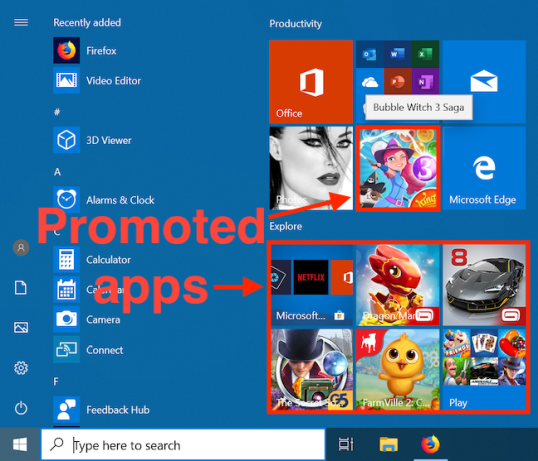
Если вы хотите избавиться от них, все, что вам нужно последовательно отключить соответствующие пункты в настройках, как на скриншоте.
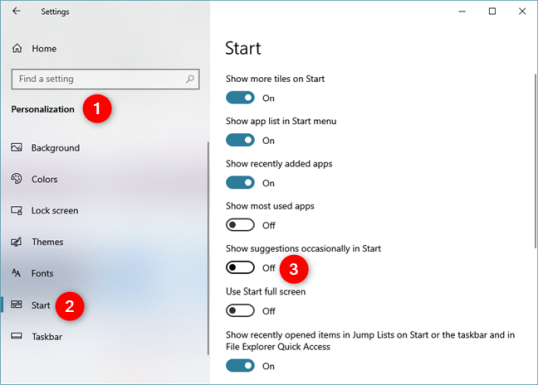
После этого Windows 10 должна перестать показывать рекламу в вашем меню «Пуск».
2. Отключите рекламу на экране блокировки
Еще одно место, которое, по мнению Microsoft, будет отличным рекламным щитом для рекламы, — «Экран блокировки». Вы, наверное, видели такие объявления:
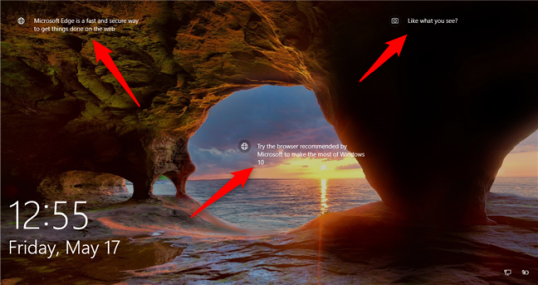
Хотя объявления на вашем экране блокировки не так агрессивны и не раздражают, как показанные в меню «Пуск» или в проводнике, они все равно могут вас беспокоить.
Если вы хотите отключить эти рекламные объявления, откройте приложение «Настройки». Перейдите к Персонализация → Экран блокировки. В правой части окна «Настройки» прокрутите вниз, пока не найдете параметр, который говорит, что вы можете «Получать забавные факты, советы и многое другое из Windows и Cortana на экране блокировки». По умолчанию он включен. Установите его на Off.
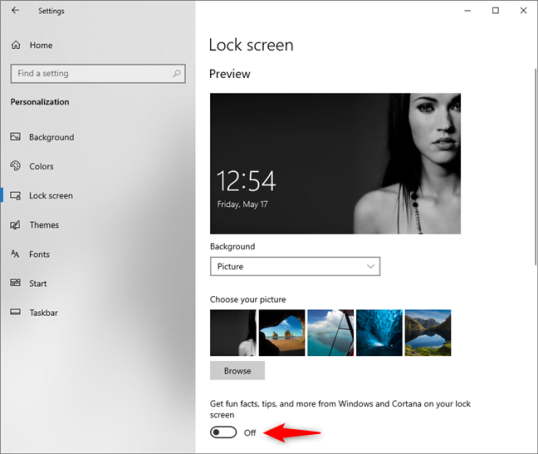
С этого момента на вашем экране блокировки не должно быть рекламы.
3. Отключить рекламу из проводника
В Windows 10 Creators Update и более поздних версиях (включая майское обновление 2019 года) Microsoft также показывает рекламу в проводнике, чего мы не ожидали. Некоторые люди ненавидят их, и не зря. Наиболее распространенные рекламные предложения для облачного хранилища с OneDrive или для подписок на Office 365.
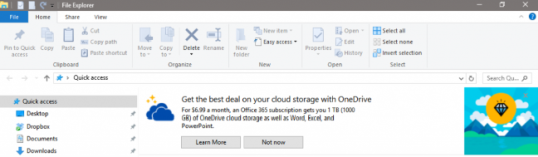
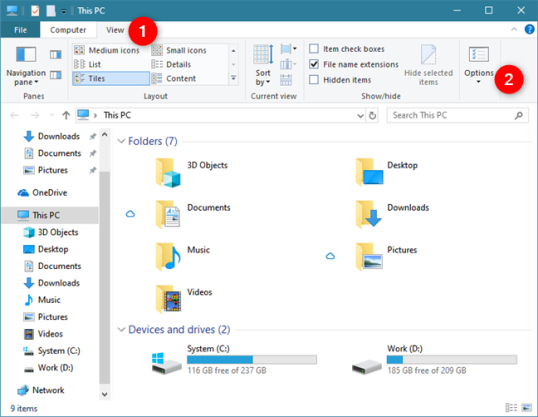
К счастью, вы можете отключить рекламу в проводнике. Для этого запустите проводник и откройте вкладку «Вид» со своей ленты. Затем нажмите или коснитесь кнопки Параметры. Это последний справа.
Затем в окне «Свойства папки» щелкните или коснитесь вкладки «Вид» и прокрутите вниз список «Дополнительные настройки». Когда вы найдете параметр «Показать уведомления поставщика синхронизации», снимите этот флажок. Этот параметр определяет, будет ли проводник показывать рекламу или нет.
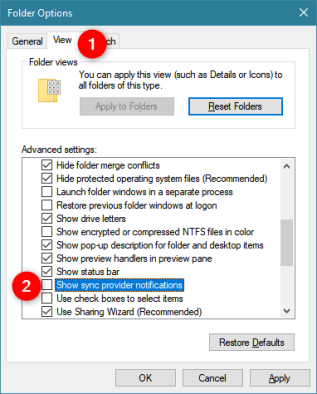
Нажмите или коснитесь Применить или OK, чтобы сохранить внесенные изменения. Отныне не должно быть никаких объявлений, отображаемых в проводнике.
4. Отключите рекламу, отображаемую на панели задач.
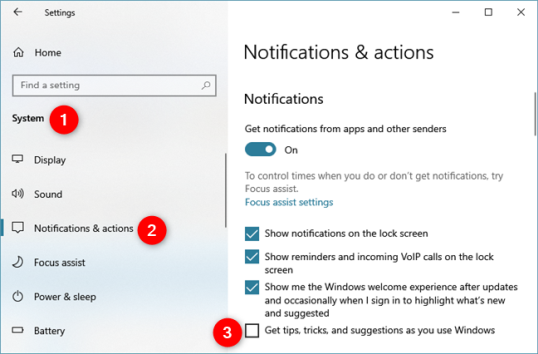
Вы также могли видеть рекламу и всплывающие окна, появляющиеся на панели задач. Например, время от времени Windows 10 может отправлять вам «рекомендации» по использованию Microsoft Edge, потому что это лучше, чем у конкурентов. Если вы не хотите видеть эти объявления, откройте приложение «Настройки», перейдите в «Система → Уведомления и действия» и отключите параметр «Получить советы, рекомендации и рекомендации при использовании Windows».
5. Отключите рекламные уведомления, которые отображаются в Центре действий
В Windows 10 также есть привычка показывать рекламу в виде уведомлений в Центре действий. Например, могут отображаться такие «предложения», если вы только что установили или обновили операционную систему или не завершили настройку Cortana или Microsoft Edge.
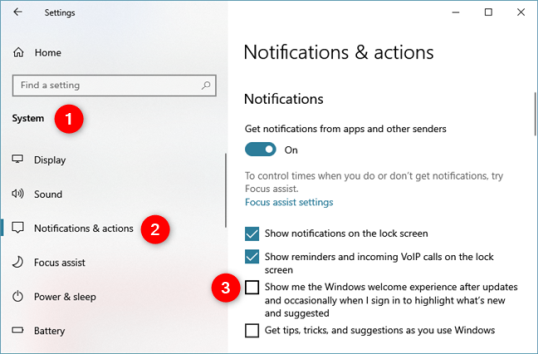
Чтобы убедиться, что вы не получаете рекламные уведомления такого типа, откройте приложение «Настройки», перейдите к «Система → Уведомления и действия» и отключите «Показывать приветствие Windows после обновлений и время от времени при входе, чтобы выделить что нового и предложенного.»
Вы видели рекламу где-нибудь еще в Windows 10?
Теперь вы знаете, как избавиться от всей этой надоедливой рекламы, которую Microsoft отображает в неожиданных местах в Windows 10. Отключение рекламы может сделать Windows 10 более дружественной операционной системой. К сожалению, похоже, что Microsoft не отпустит рекламу, даже если вы уже заплатили за свою операционную систему. Что вы думаете об этой тактике? Сколько времени вам понадобилось, чтобы отключить все объявления? Вы подождали некоторое время или отключили их, как только установили Windows 10? Комментарий ниже и давайте обсудим.
2019-05-21T10:06:07
Вопросы читателей
⛱ Проверьте, существует ли каталог в оболочке Linux или Unix
Нужно проверить, существует ли каталог в скрипте оболочки, работающем в Linux или Unix-подобной системе?
Как проверить, существует ли каталог в скрипте оболочки?
Каталог – это не что иное, как место для хранения файлов в системе Linux в иерархическом формате.
Например, $HOME/Downloads/ будет хранить все загруженные файлы или /tmp/ будет хранить временные файлы.
В этой статье показано, как узнать, существует ли каталог в Linux или Unix-подобных системах.
Как проверить, существует ли каталог в Linux
Можно проверить, существует ли каталог в скрипте оболочки Linux, используя следующий синтаксис:
- [ -d "/path/dir/" ] && echo "Directory /path/dir/ exists."
Вы можете использовать ! чтобы проверить, существует ли каталог в Unix:
- [ ! -d "/dir1/" ] && echo "Directory /dir1/ DOES NOT exists."
Можно проверить, существует ли каталог в скрипте Linux следующим образом:
DIR="/etc/httpd/"

if [ -d "$DIR" ]; then

  # Take action if $DIR exists. #

  echo "Installing config files in ${DIR}..."

fi
|
или
DIR="/etc/httpd/"

if [ -d "$DIR" ]; then

  ### Take action if $DIR exists ###

  echo "Installing config files in ${DIR}..."

else

  ###  Control will jump here if $DIR does NOT exists ###

  echo "Error: ${DIR} not found. Can not continue."

  exit 1

fi
Linux проверяет, существует ли каталог, и предпринимает какие-то действия
Вот пример скрипта оболочки, чтобы увидеть, существует ли папка в Linux:
#!/bin/bash d="$1" [ "$d" == "" ] && { echo "Usage: $0 directory"; exit 1; } [ -d "${d}" ] && echo "Directory $d found." || echo "Directory $d not found."
Запустите его следующим образом:
./test.sh
./test.sh /tmp/
./test.sh /itsecforu
Проверьте, существует ли каталог в bash, и если нет, то создайте его.
Вот пример скрипта оболочки, чтобы проверить, не существует ли каталог, и создать его в соответствии с нашими потребностями:
#!/bin/bash

dldir="$HOME/linux/5.x"

_out="/tmp/out.$$"


# Build urls

url="some_url/file.tar.gz"

file="${url##*/}"


### Check for dir, if not found create it using the mkdir ##

[ ! -d "$dldir" ] && mkdir -p "$dldir"


# Now download it

wget -qc "$url" -O "${dldir}/${file}"


# Do something else below #
Убедитесь, что вы всегда заключаете переменные оболочки, такие как $DIR, в двойные кавычки («$DIR», чтобы избежать неожиданностей в ваших скриптах:
DIR="foo"

[ -d "$DIR" ] && echo "Found"

##

## this will fail as DIR will only expand to "foo" and not to "foo bar stuff"

## hence wrap it

##

DIR="foo bar stuff"

[ -d $DIR ] && echo "Found"
|
Использование команды test
Команду test можно использовать для проверки типов файлов и сравнения значений.
Например, посмотрите, существует ли FILE и является ли он каталогом. Синтаксис:
test -d "DIRECTORY" && echo "Found/Exists" || echo "Does not exist"
Команда test аналогична [условному выражению. Следовательно, вы также можете использовать следующий синтаксис:
[ -d "DIR" ] && echo "yes" || echo "noop"
Помощь
 man bash

help [

help [[

man test
Заключение
В этой статье описаны различные команды, которые можно использовать для проверки существования каталога в скриптов оболочки, работающем в Linux или Unix-подобных системах.
2019-05-21T09:30:59
Скрипты