Если вы имеете дело с большими наборами данных и хотите правильно их организовать, хорошим инструментом является Microsoft Excel. Пользователи могут упорядочивать данные в книгах, создавать расчеты и строить диаграммы. Он оснащен инструментами форматирования, которые помогают пользователям профессионально работать со своими данными. Читать
Архив метки: Excel
Электронные таблицы excel возможности форматирования
В Excel доступно множество готовых стилей таблиц, которые можно использовать для быстрого форматирования таблицы. Если вам не подходят существующие стили, вы можете создать и применить собственный стиль таблицы. Хотя удалять можно только пользовательские стили, вы можете отменить любой стиль таблицы, чтобы он к ней больше не применялся. Читать
Электронные формы в формате excel

Для облегчения ввода данных в таблицу в Excel можно воспользоваться специальными формами, которые помогут ускорить процесс заполнения табличного диапазона информацией. В Экселе имеется встроенный инструмент позволяющий производить заполнение подобным методом. Также пользователь может создать собственный вариант формы, которая будет максимально адаптирована под его потребности, применив для этого макрос. Давайте рассмотрим различные варианты использования этих полезных инструментов заполнения в Excel.
Читать
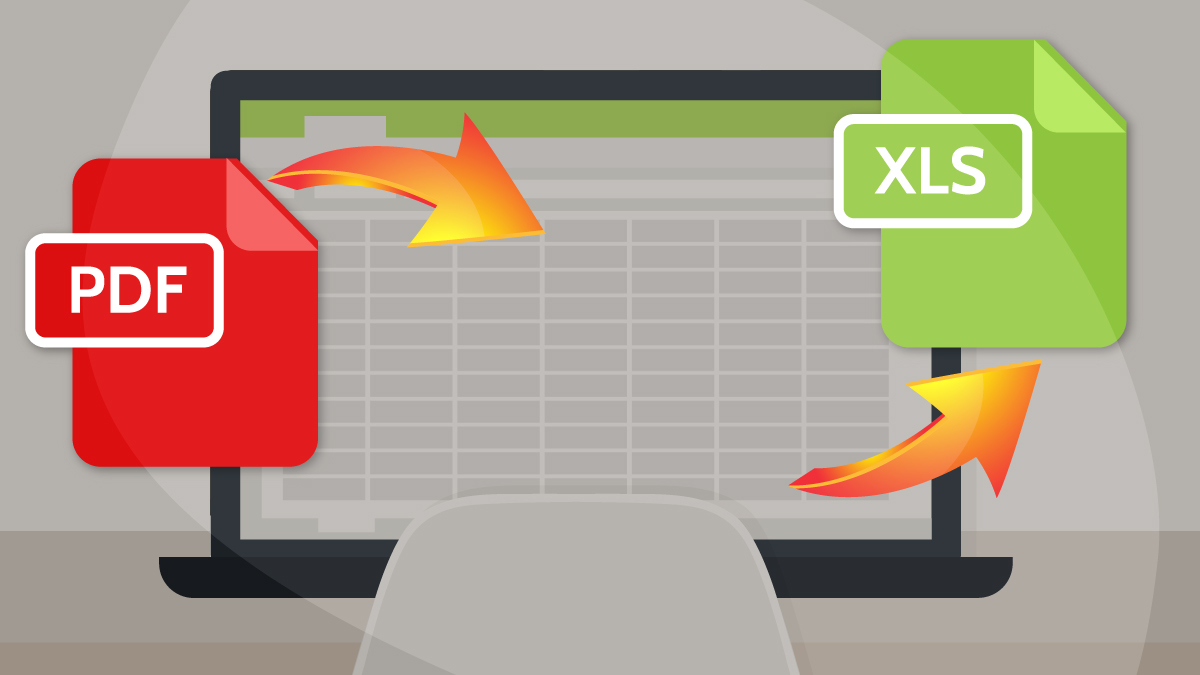
Как конвертировать любой PDF в Excel онлайн бесплатно без электронной почты
PDF — отличный формат для сохранения целостности ваших табличных данных, а также для сохранения их внешнего вида и форматирования на нескольких устройствах и в операционных системах. Это связано с тем, что PDF-файлы не предназначены для редактирования и выглядят одинаково на всех устройствах (мобильных и настольных), работающих в любой ОС (Windows, iOS, Android и т. д.).
Using Microsoft Excel to Import Into Anki
The Problem/Challenge:
In order to optimally handle multiple languages, Anki encodes in UTF-8. However, Microsoft Excel encodes files as (UTF-16). This process will walk you through being able to make/edit files in Excel and then getting that file into a format that can be imported into Anki.
What you need:
- Microsoft Excel
- Notepad (it is a standard installation with Windows. NOTE: Not Wordpad)
- (If you are modifying an existing Anki deck, then you need….) Your Anki deck in a *.txt file.
Using Excel to modify an existing deck:
There are some situations where you may want to use Excel to modify an existing deck. To do this you must first export your deck as a .txt file. You do this by:
- From the Decks screen in Anki. (File > Export).
- For the export format, select “Notes in Plain Text.”
- Select the deck you want.
- Decide if you want a column for tags or not. When modifying an existing deck you generally want to keep tags.
- This will export the deck onto your desktop as a .txt file.
To open it in Excel.
- First, open Excel.
- Then File > Open (browse for the file).
- To find the file, you have to allow Excel to be able to open *.txt files. There is drop down menu where you need to change from “All Excel Files” to “Text Files (*.prn, *.txt, *.csv)”
- When you find the file, select it and open it.
- This will open a Text Import Wizard. The questions asked by the importer depend on the data in your file, but here are some common questions.
- You want the “Delimited” option checked.
- For “File Origin” you need to have “65001: Unicode (UTF-8)”
- Click “Next”
- The Delimiter is a “Tab”
- Text qualifier is a quote mark ( “ )
- Treat consecutive delimiters as one should NOT be checked.
- Click “Next”
- Column data format should be “Text” NOT “General”
- Click “Finish”
- Then you are able to edit/modify/add to the file. (You will often need to adjust the column width to be able to best view your data).
- Realize that each column represents one of the fields from your note type. So, if you have two fields, you’ll have two columns, plus the third one for tags.
- When you are done editing and want to import back into Anki, jump to the “Importing an Excel File into Anki” section below.
Using a new/existing Excel file, to import new data into Anki:
Sometimes you might have an existing spreadsheet, full of data, that you want to turn into Anki flashcards. OR you might want to create new material, but for whatever reason, you might feel you can create the data more quickly in a spreadsheet.
In either situation, you need to:
- Remember that each column will be mapped to a “field” to your Anki Note type. So make sure that each column has the same type of data in it.
- For example, the first column might be a column for an English Word. The second column might be for the same word in a second language. You could also have additional columns for sample sentences, links for audio files, etc.
- I find it easiest if I have already designed the Note Type in Anki. In that Note Type, I will set up the fields that I want. Then when I import from the text file, I have a Note Type that I can import into. I can easily map the columns to the fields.
- When you are done editing and want to import into Anki, then read the next section.
Importing an Excel File into Anki
When your file is ready, and you want to import it into Anki, you have to carefully do these steps.
- File > Save As
- (For Ease) Go to your desktop
- From the “Save as type” dropdown menu, select “Unicode Text *.txt”
- Then open Notepad (a different program found within Windows)
- File > Open
- You MUST change the “Encoding” on the dropdown menu to “Unicode”
- Then File > Save As
- Change the “Encoding” on the dropdown menu to “UTF-8”
- Click “Save”
- Your file is now in “UTF-8” format and ready to import.
Important: If you are including html in your import, there are some other steps that you need to do to make sure your data is imported properly, but that is different than an “UTF-8” issue. Information about this and other things can be found at: http://ankisrs.net/docs/manual.html#importing. I recommend that you read that section before importing even simple files.
Автор: Guest Rooms «Varnaflats.eu»
Дата публикации: 2018-01-01T04:46:00.000-08:00
Как встроить файл электронной таблицы XLS (Excel) в страницу сайта
Google Диск — Документы
Заходим в Google Диск (требуется авторизация или регистрация). Добавляем файл электронной таблицы. Открываем через Google Таблицы.
Далее, Файл — Опубликовать в Интернете — Встроить.
Копируем и вставляем код в нужное место страницы.