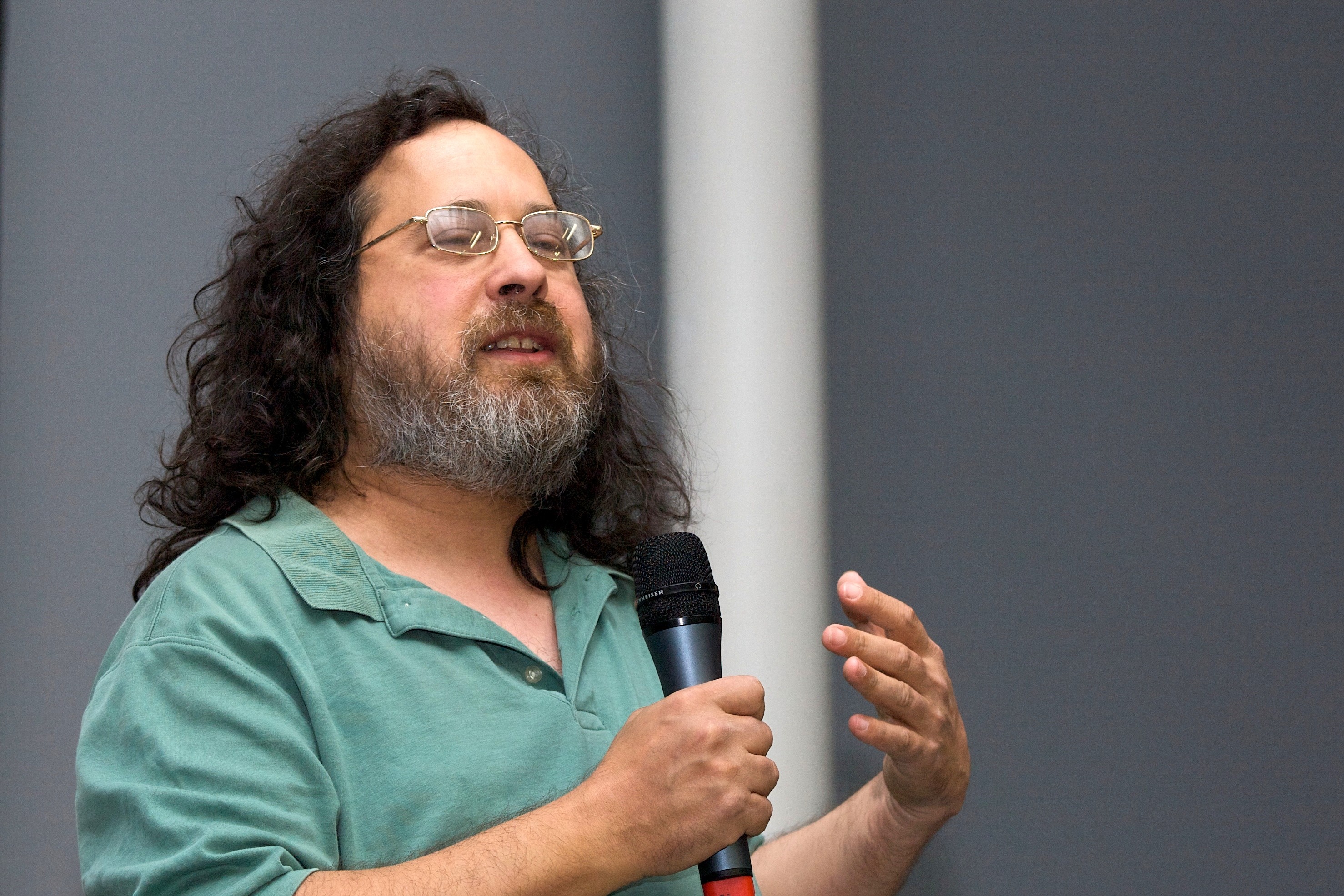
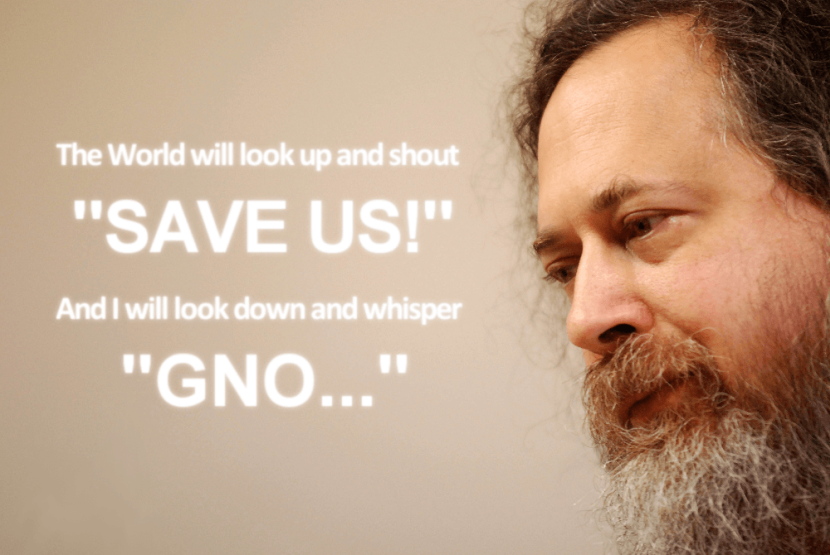
Что для вас значит программирование? Это работа, хобби или может быть средство заработка? Для этого человека программирование — это философия жизни: «Free as Freedom» или по-русски «Свободный — от слова свобода». Сегодня мы поговорим о Ричарде Мэтью Столлмане — отце движения свободного программного обеспечения и основателе фонда FSF.

Ранняя жизнь
Ричард Столлман родился 16 марта 1953 года в Нью-Йорке, на Манхеттене. Его родители Элис Липпман и Даниэль Столлмен. Мать Ричарда работала учительницей в школе, а отец продавал печатные станки. Ричард работал долгое время добровольцем. Его целью были не деньги, а помощь, творчество и всеобщее развитие. Еще в юности он показал свою тягу к свободе и нежелание бороться за деньги.
С детства Ричард Столман интересовался наукой. В свое время он даже был лаборантом в университете Рокфеллера, в отделе биологии, и его учителя предсказывали ему большое будущее биолога. Но молодой Ричард был еще более талантливым в физике, математике и информатике.
Образование
Образование Столлмана началось в Гарвардском университете в 1970 году. В 1971 он присоединился к университетскому сообществу хакеров. А в 1974 окончил Гарвард и получил диплом бакалавра.
Молодой Ричард решил продолжить свое образование в Массачусетском технологическом институте. Но после одного года обучения он сосредоточил все свое внимание на программировании в лаборатории MIT.
Проект GNU
В 1983 году Мэтью Столлман основал проект GNU. Он был уверен, что избран, для того чтобы дать пользователям свободу, создавая открытое программное обеспечение. Это не просто технический проект, он имел политическое, культурное и социальное значение.
Главная цель GNU — это свобода, на которую у каждого есть право. Свобода программного обеспечения включает такие возможности:
- Использовать программное обеспечение для любых целей
- Иметь доступ к исходному коду
- Возможность копировать программы
- Изменять программы
- Распространять программы и делиться с другими
Манифест GNU был опубликован в 1985 году. Свободное программное обеспечение гарантирует все права пользователей с помощью лицензий. Свободное ПО — не означает некоммерческое, вы можете его купить, но в то же время вы покупаете не только программу, вы покупаете все права на ее использование, и можете использовать ее как хотите.
Но в этой идеи есть одно важное замечание. Если вы захотите модифицировать программу, то ваши изменения должны быть доступны для всех. Но у вас все же есть выбор делиться своими наработками или нет.
Единственная потенциальная проблема свободного программного обеспечения — это то что некоторые правительственные законы, правила экспорта не позволяют распространять все на международном уровне.
Конечная цель GNU — создать новую операционную систему, в которой все программное обеспечение будет работать бесплатно. Разработка началась в 1984 году, а в 1992 стала доступна вторая версия.
В настоящее время проект все еще разрабатывается, это включает в себя повышение осведомленности пользователей, разработку программного обеспечения и распространение новой информации.
Open Source vs СПО
Ричард Столлман известный как человек, который всю свою жизнь борется за правильное толкование своего проекта. Он даже откажется от любого интервью, если он не будет уверен что все определения используются правильно. Эта точка огромный источник недоразумений между свободным программным обеспечением и открытым исходным кодом. Отличие в том, что открытый исходный код — это модель развития, а свободное программное обеспечение — идея и политическое движение.
Когда вы говорите о свободном программном обеспечении, но не делаете его бесплатным или доступным всем, это изменяет только стоимость, но не свободу, как право человека.
GNU и Linux
Вернемся к определению GNU. Это рекурсивный акроним, GNU означает — GNU это не Unix (GNU is not Unix). Но в то же время GNU Unix совместимый.
В начале 90-х GNU/Linux была очень простой операционной системой, без графического установщика и установочных дисков.
Первое ядро Linux было написано 1991. Тогда для создания операционной системы было использовано ядро Linux и утилиты проекта GNU. Это были такие утилиты, как bash, find, cp и набор компиляторов GCC.
Преимущества свободного программного обеспечения
Ричард Столлман был вдохновлен политикой Гарварда, где ни одна программа не может быть установлена, если ее код не открыт публично.
GNU доступен всем как воздух. Обычно цена программы включает в себя цену лицензии, цену копирования и т д. В свободном программном обеспечении эти дополнительные расходы упразднены. Полный исходный код программ должен быть доступен всем. Только в этом случае пользователи смогут реализовать нужные им функции. Люди не должны ждать пока крупная компания выпустит новую версию программы, или использовать десятки программ для достижения цели. Они могут просто доработать профессиональное программное обеспечение, которое уже существует. Чтобы не развивать собственные приложения с нуля, самостоятельно, можно внести несколько нужных изменений в уже существующие продукты. Свободное программное обеспечение будет полезным для вас если вы можете изменять исходный код.
В то же время свободное программное обеспечение защищает не только пользователей, но и компании, от взлома.
Так как любой пользователь может обновить программное обеспечение, это рождает подобие конкуренции между компаниями и пользователями. Здоровая конкуренция всегда рождает новые идеи.
Есть только один минус — программисты получат намного меньше денег. Но талантливые специалисты, которым нравится их работа, как Ричард Столлман, будут работать за любую зарплату, они будут работать за идею.
Фонд свободного программного обеспечения
Фонд свободного программного обеспечения — это международная некоммерческая организация, поддерживающая свободное программное обеспечение и защищающая права пользователей. Основана Ричардом Столлманом 4 октября 1985 года.

Его цель — вырастить поколение свободных пользователей, так как наша жизнь с каждым днем дает новые поводы использовать свободное программное обеспечение. Фонд создан для поддержки пользователей, но не для заработка денег и поддержки компаний.
Интересно, что фонд свободного программного обеспечение использует только СПО в своей работе — это их главный принцип.
FSF спонсирует GNU, у них есть множество добровольцев, делающих свою работу, так же как и Столлман в юности.
FSF имеет много авторских прав, на различное программное обеспечение, в том числе на операционную систему GNU.
Каждый год тысячи разработчиков и юридических лиц регистрируют свои авторские права, в офисах лицензирования свободного программного обеспечения в США.
Если вы разделяете философию Ричарда Столмана, вы можете поддержать свободное ПО. Лучшей поддержкой будет использование его на своем компьютере и распространение.
Защитите себя от шпионов
Свобода включает в себя право на личную жизнь и свои секреты. Ричард Столлман никогда не оставлял это без внимания. Люди должны понять ценность свободы.
Свободное программное обеспечение используется не так давно. Всего несколько десятилетий назад оно стало частью нашей жизни. Мы слышим много о правах разработчиков, как авторов. Лицензии защищают их права, но Ричард Столлман был первым кто начал говорить о правах и свободе пользователей.
Почему проприетарное программное обеспечение является вредоносным
Согласно философии Ричарда Столлмана, главный ущерб от проприетарных программ, это то что они могут быть использованы для передачи ваших действий или даже ваших данных разработчикам, даже не сообщив вам об этом.
Программы могут атаковать неприкосновенность частной жизни пользователей и шпионить за ними. К сожалению, свободное программное обеспечение до сих пор тоже может шпионить, но намного меньше.
Кто же Ричард Столлман
Жизнь Ричарда Столлмана, это его идеи. Свободное программное обеспечение никогда не было для него просто работой. И это всегда мотивирует других развивать эту идею также как ее развивал он сам.
У основателя FSF огромный и обширный график путешествий по всему миру, чтобы как можно больше людей, программистов и пользователей ПК узнали о свободном ПО.
Выводы
Этот человек посвятил всю свою жизнь распространению идей свобод и прав человека. Своей жизнью Ричард Столлман доказывает что не нужно быть политиком, чтобы изменить мир. Талантливый программист с сильной жизненной позицией это хороший пример для тех кто борется за свободу.
Если вы проникнитесь идеями свободного программного обеспечения вы ясно поймете зачем это нужно. СПО это не просто технология, это реализация ваших прав и свобод.
Нельзя завершить эту статью не сказав спасибо Ричарду Столлману, за тот огромный вклад, что он сделал чтобы сделать наш мир немного лучше.
В завершение предлагаю вам документальный фильм о том как начиналось движение свободного программного обеспечения и разрабатывалась операционная система Linux — Revolution OS:
2016-01-25T19:36:51
Информация