Режим планшета на устройстве Windows 10 был представлен, чтобы сделать Windows 10 более удобной для пользователей на устройствах 2-в-1, таких как Surface Pro и Surface Book. Однако, если ваша Windows 10 застряла в режиме планшета и не может отключить режим планшета, эти исправления помогут решить проблему сразу же.
Режим планшета полезен, когда вы используете только дисплей. Однако, когда вам нужно использовать клавиатуру, она исчезает автоматически. Даже тогда некоторые пользователи сообщали, что не могут выйти из режима планшета.
Ошибка, при которой потребители не могут выйти из режима планшета, может быть исправлена с помощью приведенных ниже решений.
Проверить настройку полноэкранного режима
Выполнить полное отключение
Выполнить перезагрузку двумя кнопками на устройствах Surface
Отключить режим планшета через реестр
Выполнить восстановление системы
Изменить настройки на вкладке «Система» или в Центре действий
1] Проверить настройку полноэкранного режима.
Нажмите комбинацию кнопок WINKEY + I, чтобы открыть приложение настроек Windows 10.
Перейдите по следующему пути: Персонализация → Пуск.
Прокрутите вниз, чтобы отключить опцию — Использовать Пуск в полноэкранном режиме.
Перезагрузите компьютер и проверьте, актуальна ли еще проблема.
Если проблема останется даже после отключения режима планшета в Windows 10 в настройках, перейдем к следующему решению.
2] Выполнить полное отключение
Откройте CMD от имени администратора и выполните следующую команду:
shutdown /s /f /t 0
Это немедленно выключит ваш компьютер. Как только он выключен, подождите минуту, прежде чем снова его включать.
3] Выполнить двухкнопочный перезапуск на Surface устройствах
Нажмите и удерживайте кнопку питания около 30 секунд.
Отпустите кнопку через 30 секунд.
После этого нажмите и удерживайте кнопку увеличения громкости + питания в течение 20 секунд.
Дисплей будет мигать несколько раз, но вы должны держать эти кнопки нажатыми.
Это выключит ваше устройство Surface.
Через несколько минут снова включите устройство Surface. Это должно исправить вашу проблему.
4] Отключить режим планшета через реестр
В меню «Пуск» выполните поиск «Редактор реестра». Выберите «Редактор реестра» и откройте, выбрав «Открыть как администратор».
После открытия редактора реестра перейдите к следующему ключу.
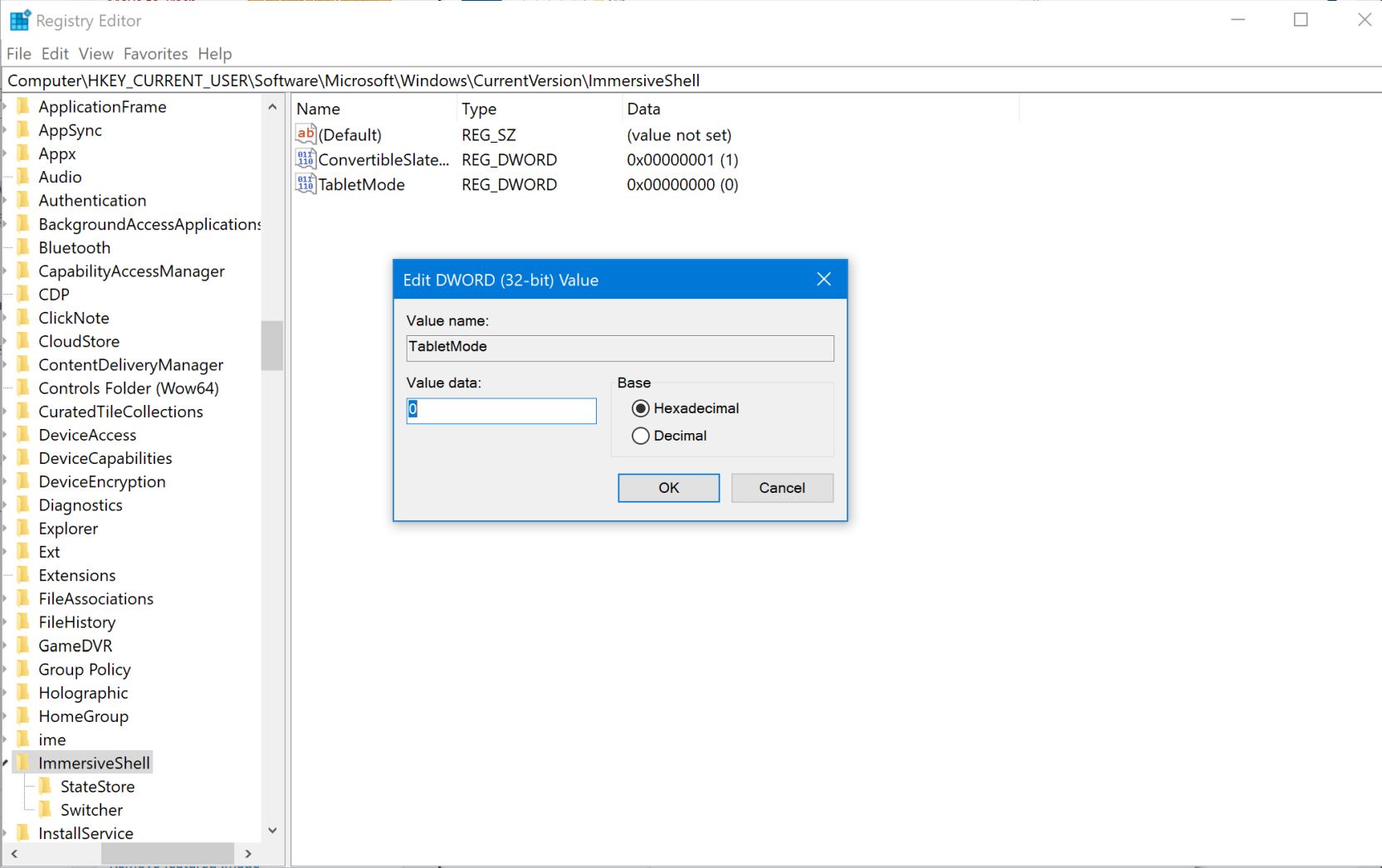
Щелкните правой кнопкой мыши запись DWORD с именем SignInMode. Дважды щелкните по нему и установите его значение данных равным 1, а значение Base — шестнадцатеричным.
Нажмите на ОК.
Это гарантирует, что вы вошли в режим рабочего стола при входе в свою учетную запись.
Теперь щелкните правой кнопкой мыши запись DWORD с именем TabletMode. Дважды щелкните по нему и установите его значение данных равным 0, а основание — шестнадцатеричным
Нажмите на ОК.
Перезагрузите компьютер, чтобы изменения вступили в силу.
5] Выполнить восстановление системы
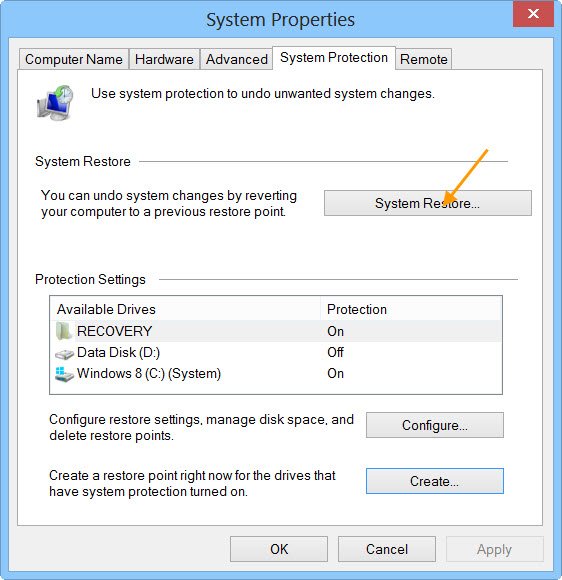
Введите sysdm.cpl в поле Начать поиск и нажмите Enter. Выберите вкладку, помеченную как Защита системы, а затем выберите Восстановление системы. Следуйте инструкциям на экране, чтобы восстановить работоспособность компьютера .
6] Изменить настройки на вкладке «Система» или в Центре действий
Открыть настройки приложения.
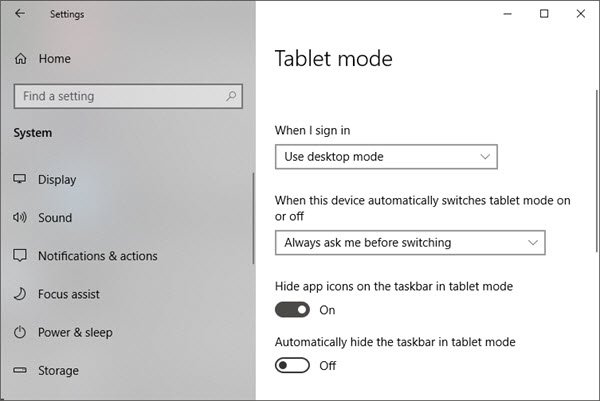
Перейдите в Система> Режим планшета.
Прокрутите вниз, чтобы установить режим «Когда я вхожу в систему».
Перезагрузите компьютер и проверьте наличие проблемы.
Также вы можете попробовать отключить режим планшета для Центра поддержки. Опубликуйте это, проверьте, не застряла ли Windows 10 в режиме планшета или вы вернулись к стандартному рабочему столу.
Я надеюсь, что одно из этих решений помогло вам выйти из режима планшета в Windows 10. Сообщите нам об этом в комментариях.
Очень часто при администрировании веб-сервера Apache возникает необходимость настройки режимов обработки адресов URL. Например необходимо, чтобы запросы автоматически перенаправлялись с одного адреса на другой. Также, если нужно, чтобы веб-приложения работали на «чистых» ссылках, то для этого также необходима настройка модуля mod_rewrite. В данной статье на простых примерах будут рассмотрены базовые приёмы обработки перезаписи URL, реализуемой модулем mod_rewrite, на основе которых можно легко построить свои собственные правила и режимы обработки ссылок.
Включение модуля mod_rewrite и управление его работой
Обычно модуль mod_rewrite уже имеется в базовой поставке Apache и устанавливать его дополнительно не нужно. Остаётся его только включить. Например, для Ubuntu:
$ sudo a2enmod rewrite
Управление работой самого модуля mod_rewrite осуществляется при помощи файла .htaccess. Этот файл предназначен для активации и задействования директив веб-сервера Apache индивидуально для каждого из виртуальных хостов (или доменов).
Итак, для начала необходимо удостовериться, что Apache разрешает обработку файлов .htaccess. В конфигурационном файле Apache /etc/apache2/apache2.conf директива AllowOverride должна иметь значение All в блоке:
Options Indexes FollowSymLinks

AllowOverride All

Require all granted
Следует заметить, что вместо «/var/www/html» может быть указан и другой каталог, в зависимости от того, как и где настроено расположение корневого каталога виртуальных хостов Apache. Также необходимо проверить, что в файле /etc/sites-enabled/000-default.conf не содержится лишних директив (а лучше их убрать) AllowOverride, противоречащих тем, что установлены в файле apache2.conf. После сохранения всех изменений необходимо перезапустить веб-сервер:
$ sudo systemctl restart apache2
Далее, в начало файла .htaccess нужно добавить директиву:
RewriteEngine on
Она указывает, что Apache должен использовать модуль mod_rewrite для обработки условий и правил перезаписи URL.
Файл .htaccess может быть создан, как уже отмечалось, отдельно для каждого из виртуальных хостов. Обычно его помещают в корневой каталог, в котором находятся файлы требуемого виртуального хоста. В данном руководстве для расположения файла .htaccess будет использоваться каталог /var/www/html/ для глобальной обработки URL на веб-сервере.
Пример создания простой страницы и перезаписи URL для неё
Для демонстрации работы модуля mod_rewrite по перезаписи URL страницы, можно эту самую страницу создать (в самом простом варианте) и применить к ней (точнее, к её адресу) простой шаблон перезаписи.
Итак, нужно создать файл HTML-страницы hello.html, которая будет размещаться в каталоге /var/www/html/hello.html со следующим содержимым:
Эта страница будет доступна по адресу ip_server/hello.html. Здесь «ip_server»– это IP-адрес сервера, на котором работает Apache. Вместо IP-адреса также можно использовать и доменное имя при должных настройках.
Особенность в том, что эта страница доступна только если вводить адрес, содержащий «hello.html». Любое другое написание, например «hello» приведёт к ошибке 404 — нет такого документа. Чтобы иметь возможность получать доступ к странице hello.html по «hello» нужно всего лишь настроить перезапись адреса. Редактирование файла .htaccess:
$ sudo nano /var/www/html/.htaccess
После ранее добавленной строки «RewriteEngine on» нужно добавить следующую:
RewriteRule ^hello$ hello.html [NC]
Только после этих изменений в веб-браузере по адресу ip_server/hello страница hello.html будет доступна.
Синтаксис добавленной записи следующий:
^hello$ — это шаблон подстановки, который должен совпадать с частью URL, вводимого в веб-браузере. Здесь символ (^) обозначает начало фразы шаблона, а символ ($) — его окончание;
hello.html – это действительный путь к исходной странице hello.html;
В результате, теперь страница hello.html будет доступна по следующим адресам: ip_server/hello, ip_server/Hello и ip_server/hello.html.
Таким образом и происходит перезапись URL модулем mod_rewrite по инструкциям из .htaccess.
Применение общих шаблонов перезаписи
Выражения в файле .htaccess, применённые в предыдущей главе — это ничто иное, как правила перезаписи. В общем виде они имеют следующий синтаксис:
RewriteRule pattern substitution [flags]
Здесь RewriteRule – это, собственно, сама директива, pattern – шаблон, задаваемый регулярным выражением. Он предназначен для поиска подстроки. Далее, substitution – это целевой действительный URL. А flags – флаги опций, которые задают определённое специфическое поведение правил.
Самым наглядным и общим примером является перезапись (точнее, упрощение) строки дополнительного запроса. Они используются веб-приложениями для передачи параметров скриптам, по которым нужно получить соответствующий результат. Строки запроса начинаются с символа «?» и заканчиваются символом «&». Например:
В результате подстрока URL «results.php?item=shoes&season=summer» будет переписываться строкой «shoes/summer».
Второй случай используется, когда нужно оптимизировать используемое правило так, чтобы оно являлось универсальным для разных строк запросов, т. е. с разными параметрами. Для данного примера пусть требуется, чтобы правило обрабатывало строку запросов для нескольких сезонов, а не только для «summer». Для этого нужно сначала определить набор самих параметров, которые должны разделяться символом вертикальной черты «|». После этого можно в регулярном выражении ссылаться на эту группу параметров, используя переменную $1, где «1» — это номер набора. Например:
Сопоставление набора символов используется обычно, когда нужно, чтобы пользователи могли открывать чистые ссылки любых других разделов сайта, а не только «shoes», как в данном примере. Для этого нужно:
составить регулярное выражение, определяющее все буквенные и цифровые символы, которые могут повторяться неограниченное число раз. Такое выражение заключается в квадратные скобки, объединяемыми знаком плюса «+»;
это выражение нужно заключить в группу (в круглые скобки) и присвоить его переменной $2 – группа №2.
Если задать определённое условие с помощью директивы RewriteCond, то если оно выполняется, Apache запустит выполнение правила, следующего сразу за этим условием. Синтаксис RewriteCond следующий:
RewriteCond tststr condition [flags]
Здесь tststr – строка, с которой сравнивается условие. А condition – шаблон, с которым сравнивается строка, заданная в tststr. Дополнительные параметры задаются с помощью флагов flags.
В качестве примера можно создать условие, при котором все запросы к несуществующим страница будут перенаправляться например, на домашнюю страницу:
Здесь выражение %{REQUEST_FILENAME} выполняет проверку строки запроса. Далее, оператор (!), означающий условие «не», предписывает, что отсутствие требуемого в запросе файла (-f) должно указывать Apache запускать в обработку следующее за этим условием правило перенаправления. Далее выполняется само правило переадресации, которое перенаправляет все запросы на страницу /admin/home.
Пример блокировки всего трафика, кроме поступающего с определённого IP-адреса:
Здесь флаг «F» запрещает доступ, а флаг «L» – указывает, что данное правило должно выполниться последним.
Для обратного эффекта, т. е. для разрешения запросов с любых IP-адресов кроме 12.38.57.123 нужно перед регулярным выражением записи IP-адреса в определении условия убрать оператор «не» — символ восклицательного знака (!):
в заключении стоит ещё раз отметить, что были рассмотрены только самые базовые приёмы управления модулем mod_rewrite для веб-сервера Apache. Для более подробного и глубокого освоения написания правили задания условий следует хорошо знать и составлять как регулярные выражения, так и назначение ключевых слов и дополнительных директив
Apache.
Если вы нашли ошибку, пожалуйста, выделите фрагмент текста и нажмите Ctrl+Enter.
Если вы использовали Mozilla Firefox, на том или ином этапе вы, должно быть, столкнулись с сообщением — веб-страница замедляет работу вашего браузера. Пользователи получают возможность «подождать» или «остановить» проблемную веб-страницу. Иногда оба варианта не работают. Вы можете закрыть браузер, но это означает потерю ваших данных, и, более того, это не постоянное решение.
Кроме того, некоторые пользователи могут не иметь возможности закрыть окно браузера. Он либо зависает и перестает отвечать. Несмотря на многочисленные сообщения, Mozilla не смогла решить проблему, как это происходит с последними версиями браузера.
Эта ошибка обычно возникает при просмотре тяжелых страниц или видео сайтов, таких как Google Maps, YouTube и т.д. Чтобы решить проблему, можно последовательно попробовать следующие решения:
Очистить куки и данные сайта
Обновите драйвер видеокарты
Измените несколько настроек для Firefox
Отключить Adobe Flash защищенный режим.
1] Очистить куки и данные сайта
Несоответствие в кеше, хранящемся в системе, и данных сайта может вызвать проблему. Таким образом, мы могли очистить то же самое. Процедура удаления файлов cookie и данных сайта следующая:
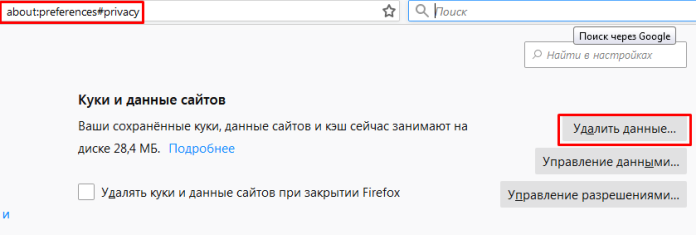
Введите следующий адрес в адресной строке браузера about:preferences#privacy.
Перейдите в раздел «Файлы cookie и данные сайта» и нажмите «Очистить данные».
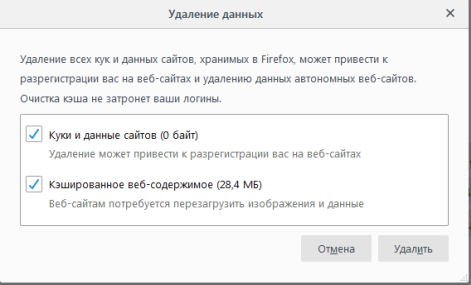
Установите флажки для кэша и файлов cookie и нажмите «Очистить».
Перезапустите Firefox.
2] Обновите драйвер вашей видеокарты
Связь между драйверами и страницами браузера такова, что если вы пытаетесь открыть сайт с интенсивным графическим интерфейсом, он потребляет много ресурсов. Это подчеркивает браузер, который может заставить закрыть проблемную веб-страницу. Чтобы избежать такой ситуации, лучшее, что мы можем сделать, это обновлять драйверы видеокарты.
Откройте строку «Выполнить» (Win + R) и введите devmgmt.msc.
Нажмите Enter, чтобы открыть окно диспетчера устройств.
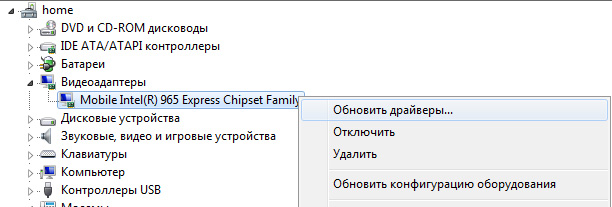
Разверните список адаптеров дисплея и щелкните правой кнопкой мыши драйвер видеокарты.
Выберите Обновить драйвер.
Перезагрузите систему, как только закончите.
3] Измените несколько настроек для Firefox
Скопируйте адрес about: config в адресную строку и нажмите Enter. Откроется страница с предупреждением. Выберите Я принимаю риск, чтобы продолжить.
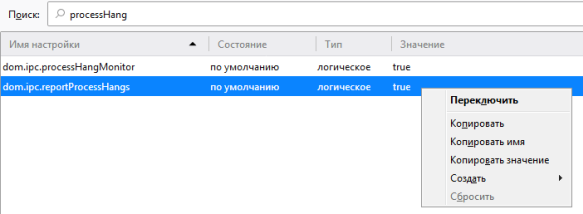
В строке поиска в верхней части страницы выполните поиск processHang.
Он будет отображать две записи dom.ipc.processHangMonitor и dom.ipc.reportProcessHangs.
Щелкните правой кнопкой мыши эти записи и выберите опцию Toggle от True до False.
Перезапустите браузер и проверьте, решает ли он вашу проблему.
4] Отключить защищенный режим Adobe Flash
Если обновление вышеупомянутого не помогает, отключите защищенный режим Adobe Flash следующим образом.
Запустите браузер Firefox, нажмите кнопку «Меню» и выберите «Дополнения». Затем выберите параметр «Плагины», чтобы развернуть полный список установленных плагинов.
Затем снимите флажок напротив «Включить защищенный режим Adobe Flash» в Shockwave Flash.
Это может быть только временной мерой, поскольку отключение защищенного режима Adobe Flash может сделать ваш компьютер «менее защищенным».
Надеюсь, это поможет решить эту досадную проблему в Firefox.
Каждая команда, выполняемая на компьютере, учитывает количество файлов и место для кода в фоновом режиме, который будет выполняться. Но иногда из-за различных ограничений или из-за плохого распределения памяти или по другим причинам компьютер может столкнуться с тем, что недостаточно памяти для обработки этой команды в операционных системах Windows 10 или Windows Server.
Следующий метод оказался эффективным для исправления Недостаточно места для обработки этой ошибки команды в Windows 10 и Windows Server:
Использование редактора реестра.
Удалите временные файлы.
Используйте DISM.
1] Использование редактора реестра
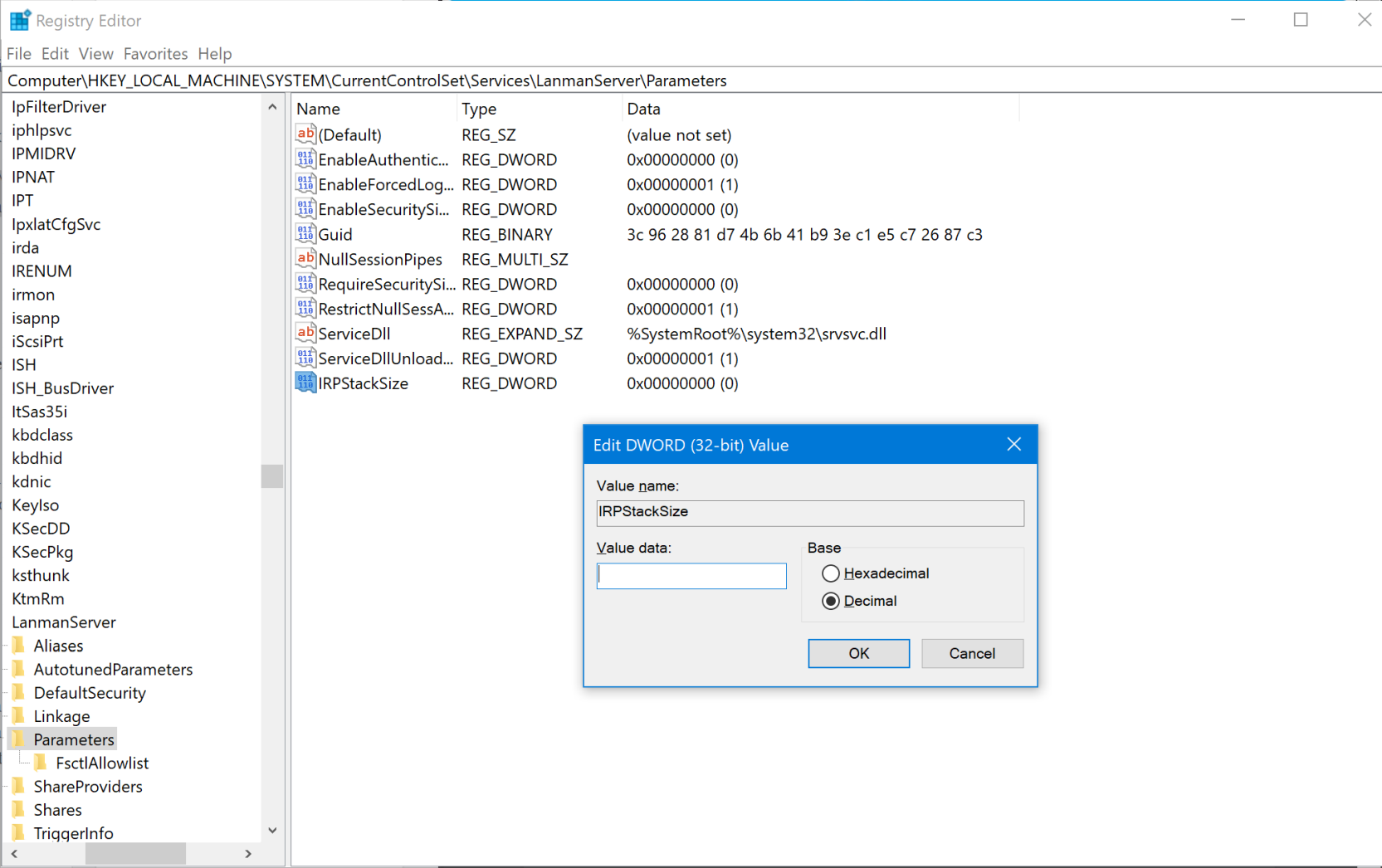
IRPStackSize DWORD отвечает за определение диапазона памяти, выделенного для задач и команд, которые должны быть выполнены. Нам нужно расширить этот диапазон.
Откройте приглашение «Выполнить» (WINKEY + R), введите regedit и нажмите клавишу «Ввод» при входе в систему с учетной записью пользователя с правами администратора.
После открытия редактора реестра перейдите к следующему разделу:
Если файл не найден, щелкните правой кнопкой мыши свободное пространство и выберите «Создать» → «Значение DWORD (32-разрядное)».
Назовите его как IRPStackSize.
Дважды щелкните по нему и установите его значение больше, чем уже было введено. Максимально допустимое значение составляет 0xc, а диапазон начинается с 0x1.
Нажмите на ОК.
Перезагрузите компьютер, чтобы изменения вступили в силу.
2] Удалите временные файлы
Вы также можете удалить все временные файлы с помощью утилиты очистки диска. Это даст место командам и программам, которые изо всех сил пытались получить место для правильного выполнения.
3] Используйте DISM
Могут быть шансы, что стороннее программное обеспечение могло вмешаться и неправильно настроить системные файлы вашей операционной системы. Для этого вам нужно запустить команды DISM.
Если вы загружаетесь в Advanced Startup Options, вы можете выбрать командную строку напрямую и продолжить выполнение шагов.
Кроме того, вы можете перевести компьютер в состояние чистой загрузки или выполнить загрузку с внешнего загрузочного установочного носителя.
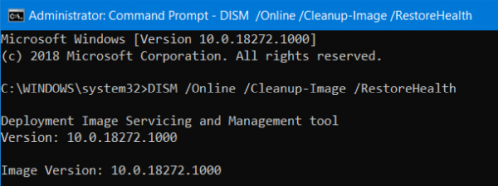
Откройте командную строку (Admin), введите следующую команду и нажмите Enter:
Dism /Online /Cleanup-Image /RestoreHealth
Пусть эта команда DISM запустится и после ее завершения перезагрузите компьютер и попробуйте снова.
Если это не удается, возможно, вам нужно использовать параметр /StartComponentCleanup:
Netcraft недавно опубликовал исследование сайтов SSL/TLS, которые они отслеживают, и заметил, что только 5% из них правильно реализуют HTTP Strict Transport Security (HSTS). В этой статье описывается настройка NGINX и NGINX Plus для реализации политики HSTS.
Что такое HSTS?
HTTPS (HTTP, зашифрованный SSL или TLS) является неотъемлемой частью мер по обеспечению безопасности трафика на веб-сайт, что делает его очень трудным для злоумышленника, чтобы перехватить, изменить или поддельный трафик между Пользователем и веб-сайта.
Когда пользователь вводит веб-домен вручную (предоставляя имя домена без префикса http:// или https://) или следует простой ссылке http://, первый запрос на веб-сайт отправляется незашифрованным, используя простой HTTP. Большинство защищенных веб‑сайтов немедленно отправляют перенаправление для обновления пользователя до HTTPS‑соединения, но хорошо расположенный злоумышленник может смонтировать атаку “человек в середине” (MITM) для перехвата первоначального HTTP‑запроса и может контролировать сеанс пользователя с этого момента.
HSTS стремится справиться с потенциальной уязвимостью, указывая браузеру, что доступ к домену можно получить только с помощью HTTPS. Даже если пользователь вводит или следует простой HTTP-ссылке, браузер строго обновляет соединение с HTTPS.
Как работает HSTS?
Политика HSTS публикуется путем отправки следующего заголовка ответа HTTP с защищенных (HTTPS) веб-сайтов:
Strict-Transport-Security: max-age=31536000
Когда браузер видит этот заголовок с веб-сайта HTTPS, он “узнает”, что этот домен должен быть доступен только с помощью HTTPS (SSL или TLS). Он кэширует эту информацию на максимальный период (обычно 31536000 секунд – это примерно 1 год).
Необязательный параметр includeSubDomains сообщает браузеру, что политика HSTS также применяется ко всем поддоменам текущего домена.
Например, ответ HTML для https://www.example.com может включать запрос к ресурсу от https://example.com, чтобы убедиться, что HSTS установлен для всех поддоменов example.com
Настройка HSTS в NGINX и NGINX Plus
Настройка заголовка ответа Strict Transport Security (STS) в NGINX и NGINX Plus относительно проста. Добавте параметр в конфигурационный файл nginx.conf:
Параметр always гарантирует, что заголовок задан для всех ответов, включая ответы на внутренние ошибки. Более старые версии NGINX (до версии 1.7.5 или NGINX Plus R5) не поддерживают параметр always и не устанавливают заголовок для внутренних ответов об ошибках.
Правила наследования для директив add_header
Блоки конфигурации NGINX наследуют директивы add_header от своих вложенных блоков, поэтому вам просто нужно поместить директиву add_header в серверный блок верхнего уровня. Существует одно важное исключение: если блок включает в себя директиву add_header, он не наследует заголовки от вложенных блоков, и вам нужно повторно объявить все директивы add_header:
server {
    listen 443 ssl;
    add_header Strict-Transport-Security "max-age=31536000; includeSubDomains" always;
# This 'location' block inherits the STS header
    location / {
        root /usr/share/nginx/html;
    }
# Because this 'location' block contains another 'add_header' directive,
# we must redeclare the STS header
    location /servlet {
        add_header X-Served-By "My Servlet Handler";
        add_header Strict-Transport-Security "max-age=31536000; includeSubDomains" always;
        proxy_pass http://localhost:8080;
    }
}
Тестируйте HTTP Strict Transport Security с осторожностью
После того, как клиент представлен с политикой HSTS, он кэширует информацию на указанный максимальный период. В течение этого периода браузер отказывается от доступа к веб-службе по незашифрованному HTTP. Если для политики HSTS указан параметр includeSubDomains, эти ограничения также применяются ко всем поддоменам текущего домена.
Очень сложно отказаться от политики HSTS, чтобы удалить HTTPS-версию веб-сайта или службы. Когда вы тестируете HSTS, используйте очень короткий максимальный тайм-аут и убедитесь, что вам комфортно с эффектами и обязательством поддерживать HTTPS-версию вашего сайта. Когда вы впервые начнете жить с вашей политикой HSTS, держите max-age маленьким и увеличивайте его только тогда, когда вы уверены в этом.
Должен ли каждый ответ HTTPS иметь заголовок STS?
Цель состоит в том, чтобы представить политику HSTS пользователям как можно скорее, когда они начинают сеанс HTTPS. Если они не получают политику HSTS во время сеанса, они останутся уязвимыми для будущих атак захвата HTTP.
Браузер должен наблюдать за заголовком STS только один раз, поэтому нет необходимости добавлять его в каждый блок местоположения и каждый ответ. Однако добавление его только на домашнюю страницу или страницу входа в систему, вероятно, недостаточно, и если вы добавите заголовок только к кэшируемым ответам, клиент может не увидеть его. Убедитесь, что вы покрываете как можно больше своего URL‑пространства, уделяя особое внимание динамическому (не кэшируемому) контенту.
Запуск HTTP и HTTPS версий веб-сайта бок-о-бок
Некоторые сайты запускают HTTP и HTTPS версии веб-сайта на одном сервере NGINX или NGINX Plus, чтобы сделать его содержимое доступным по любому протоколу:
server {
    listen  80;
    listen  443 ssl http2;
# ...
}
Это не подходит при использовании HSTS, поэтому в файле конфигурации WEB домена прописываем редирект на протакол HTTPS:
Клиент защищен от перехвата HTTP после того, как он увидел заголовок STS для соответствующего домена в течение объявленного периода максимального возраста.
Однако HSTS не является идеальным решением для захвата сеанса HTTP. Пользователи по-прежнему уязвимы для атаки, если они получают доступ к защищенному HSTS веб-сайту через HTTP, когда у них выполняются данные условия:
Никогда раньше не посещал сайт
Недавно переустановил свою операционную систему
Недавно переустановил свой браузер
Перешел на новый браузер
Перешли на новое устройство (например, мобильный телефон)
Удалил кэш браузера
Не посещал сайт в последнее время, и время max-age прошло
Чтобы решить эту проблему, Google поддерживает “список предварительной загрузки HSTS” веб-доменов и поддоменов, которые используют HSTS и представили свои имена https://hstspreload.appspot.com/. Этот список доменов распространяется и жестко закодирован в основных веб-браузерах. Клиенты, обращающиеся к веб-доменам в этом списке, автоматически используют HTTPS и отказываются обращаться к сайту по протоколу HTTP.
Имейте в виду, что после установки заголовка STS или отправки доменов в список предварительной загрузки HSTS удалить его невозможно. Это одностороннее решение сделать ваши домены доступными через HTTPS.
Если вы планируете добавить заголовок STS в конфигурацию NGINX, сейчас также самое время рассмотреть возможность использования других HTTP‑заголовков, ориентированных на безопасность, таких как X-Frame-Options и X-XSS-Protection.
NGINX Plus имеет дополнительные функции для защиты вашего сайта от угроз безопасности и других проблем, таких как распределенные атаки типа “отказ в обслуживании” (DDoS).
[endtxt]
RSS
Добавление RSS-ленты на главную страницу этого сайта не поддерживается, так как это может привести к зацикливанию, замедляющему работу вашего сайта. Попробуйте использовать другой блок, например блок Последние записи, для отображения записей сайта.
В настоящее время многие производители маршрутизаторов оснащают свои устройства USB-портом. Большинство пользователей знает, как использовать USB-порт на ноутбуке или ПК, но каково назначение USB в Wi-Fi-роутере — известно не всем. Стоит ли покупать такой маршрутизатор, каковы его преимущества и как выбрать подходящую модель?